

How to Encrypt WordPress Website Backups
 Joella Dunn
Joella Dunn
Joella Dunn
 John Turner
John Turner
John Turner
Your backup contains everything—user passwords, email addresses, payment information, and private content. All of it compressed into a single ZIP file with zero protection.
If someone gains access to your cloud storage account, they don’t need to hack your website. They already have everything they need in that unprotected backup file.
This is why WordPress website owners use backup encryption. Instead of leaving your most valuable data exposed, encryption transforms your backup into an impenetrable vault that’s useless without the right key.
Here are the key takeaways:
- Unencrypted backups are security liabilities; they contain all your sensitive data in one accessible file
- AES-256 encryption (used by banks and governments) makes your backups unreadable without a password
- WordPress plugins like Duplicator handle encryption automatically during backup creation, and since version 5.0 the free version includes it
- Cloud storage encryption alone has security gaps and isn’t sufficient protection
- Lost encryption passwords cannot be recovered, so always save them in a password manager
Table of Contents
What Is Backup Encryption?
Backup encryption is like taking a document, shredding it into confetti, and then scrambling all those tiny pieces according to a secret pattern that only you know.
Without your password, that backup file is just meaningless scrambled data. But with the right key, everything reassembles perfectly.
The encryption standard we’re talking about here is AES-256. That’s the same military-grade encryption that banks use to protect transactions and governments use to secure classified information.
Backup encryption protects your data at rest (when it’s stored somewhere). This is different from SSL certificates, which protect data in transit (when it’s moving between your browser and a server). You need both, but they serve different purposes.
Does Your Website Need Backup Encryption?
Yes, all websites need to encrypt their backups.
But let me be more specific about when it’s absolutely critical:
- E-commerce sites: You’re handling credit card information and customer addresses
- Membership sites: User passwords and personal data are goldmines for identity theft
- Sites with contact forms: Even basic email addresses can be valuable to spammers
- GDPR or HIPAA compliance: You’re legally required to protect personal data
If your local site backups aren’t encrypted and your site’s security is poor, hackers can easily access them. Even if your backups are off-site, remote backups could also be compromised without encryption.
I’ve seen it happen. Someone’s Google Drive or Dropbox account gets breached, and suddenly their unencrypted backup files are floating around the dark web. The hacker didn’t even need to touch the actual website.
The Downsides of Backup Encryption
Encryption is worth it for almost every site, but it comes with tradeoffs you should know about before you turn it on:
- A lost password means a lost backup. There’s no reset link and no recovery option. Store the password in a password manager the moment you create it.
- Whoever restores your site needs the password too. If a teammate, client, or your host’s support team might run a restore, decide ahead of time how they’ll get it.
- Older backups stay unencrypted. Turning on encryption only protects new backups. Delete or replace any unencrypted copies you’re still storing.
- You can’t peek inside an encrypted archive. Without the password, you can’t open the file to check what’s in it, so name your backups clearly.
How to Encrypt Site Backups
There are two main approaches to encrypting your WordPress website backups:
- Backup Plugin with Encryption: The plugin handles encryption automatically during backup creation (recommended)
- Cloud Storage Encryption: Create standard backups and rely on your cloud provider’s server-side encryption
Let me walk you through both methods so you can decide what works best for your setup.
Use a Backup Plugin with Encryption
This is my top recommendation because backup plugins handle encryption automatically. No room for human error, no forgotten steps.
Duplicator is a popular WordPress backup plugin with built-in encryption. Since version 5.0, encryption is included in the free version. It uses AES-256 standard encryption but also supports extra security features like cloud storage and one-click restores.
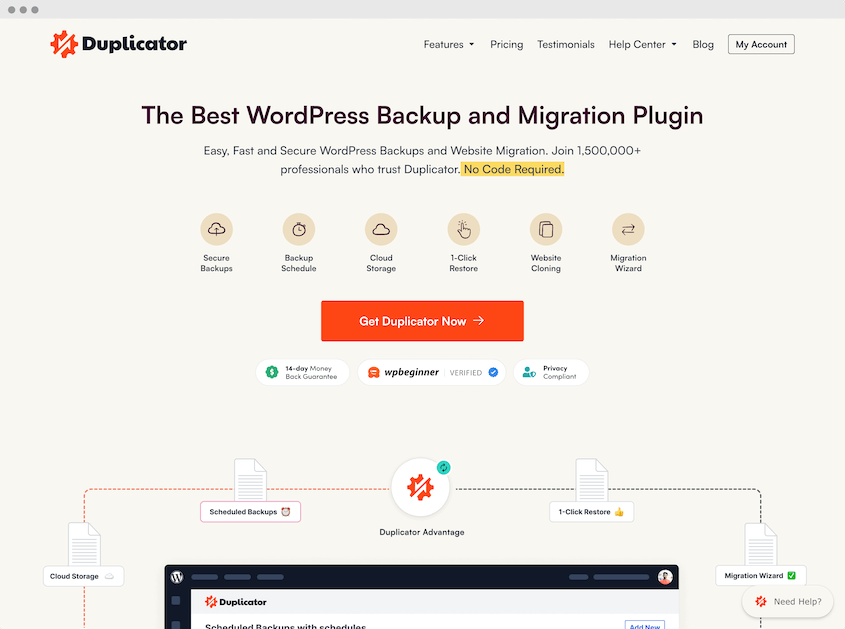
To set up backup encryption, first install and activate Duplicator on your WordPress site. The free version from WordPress.org works for this.
With Duplicator, you can add encryption as you’re creating the backup. Navigate to Duplicator » Backups » Add New.
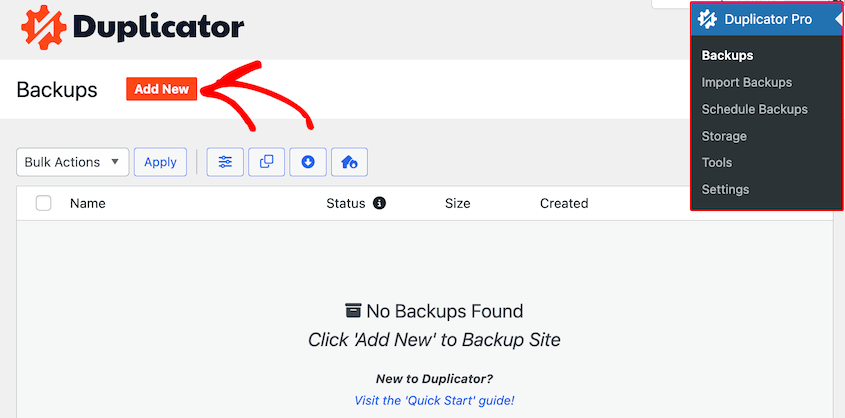
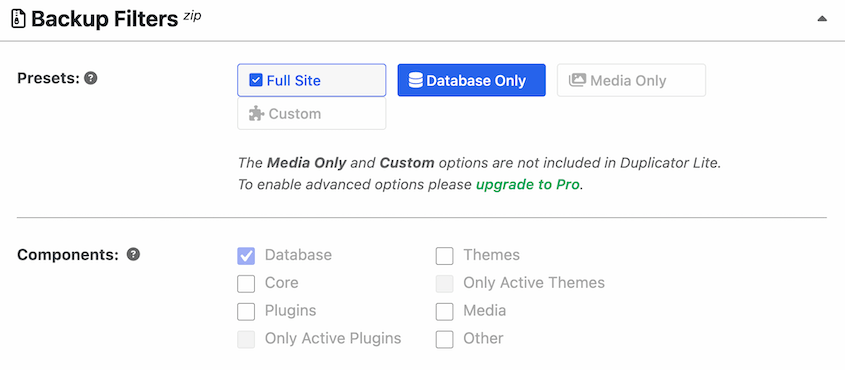
Find the Backup section. Here, you can use filters to customize what data is included in the backup.
To add encryption, find the Security & Notes box. Next to Mode, select Archive encryption.
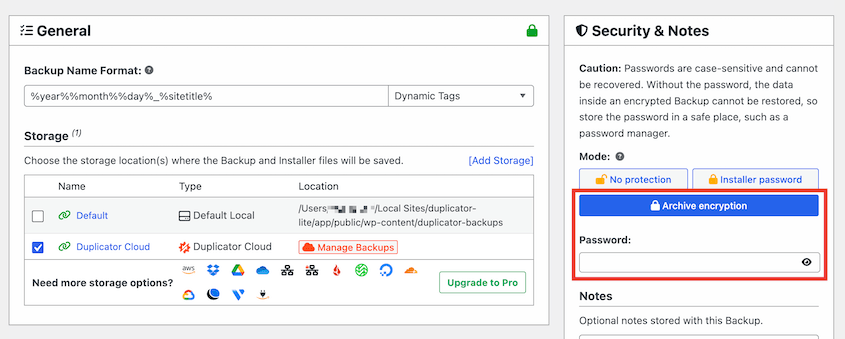
Enter a strong password. I recommend using a mix of letters, numbers, and symbols.
Complete the backup process as normal.
Once you’ve configured this, Duplicator automatically applies AES-256 encryption to your backup. The entire process happens behind the scenes.
When you try to open the backup, you’ll be prompted to enter your password.
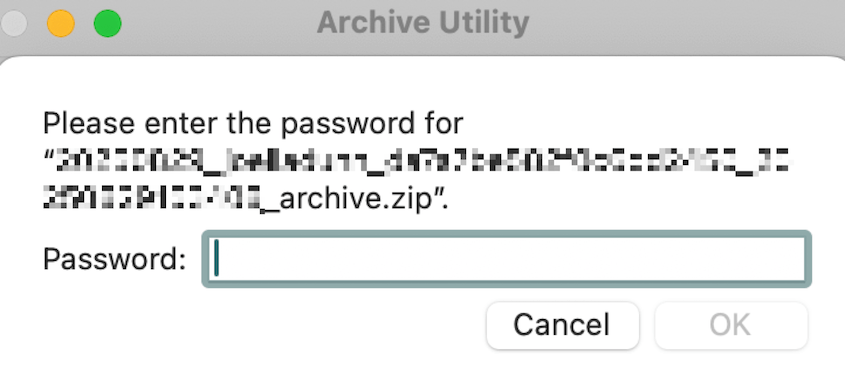
Even if hackers download your backups, they won’t be able to read them because they’re encrypted.
How to Restore an Encrypted Duplicator Backup
Restoring an encrypted backup works like any other Duplicator restore, with one extra step: you’ll need to enter the password before Duplicator can unpack the archive.
If you manually upload your backup to the server or upload it to another site, you’ll have to enter the archive password.
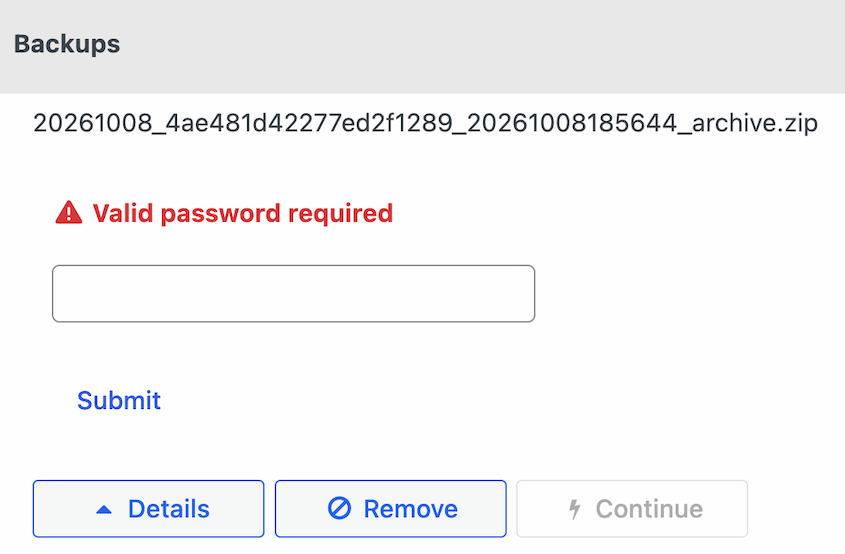
Duplicator will then unlock the backup, and you can follow the rest of the usual restore steps. If the password is wrong, Duplicator can’t read the archive, so the restore won’t go any further.
Use Cloud Storage with Encryption
This is an alternative approach where you create a standard backup and rely on your cloud provider to encrypt it on their servers.
Services like Google Drive, Dropbox Business, and Amazon S3 all encrypt files stored on their platforms. Microsoft OneDrive also provides encryption for business accounts.
For this method, you’ll create a backup with a plugin or manually. Then, upload your backup files to the cloud storage provider with encryption. It’ll automatically encrypt your files in transit and at rest.
But here are a few reasons why I don’t recommend this method:
- Security gap during upload: Your backup file sits unencrypted on your web server while it’s being uploaded. If someone accesses your server during this window, they get everything.
- Account-level vulnerability: Cloud encryption doesn’t help if someone gains access to your entire cloud storage account. They can download and access your files just like you can.
Frequently Asked Questions (FAQs)
How do I find my encrypted backup password?
You don’t. It’s not stored anywhere and cannot be recovered. If you’ve lost the password, your backup is permanently inaccessible.
What does it mean to encrypt a backup?
Encrypting a backup means scrambling your data with a password so it becomes unreadable without that key. Think of it as putting your backup in a locked safe—without the combination, the contents are useless.
What is the best encryption for backups?
AES-256 is the industry standard used by banks, governments, and military organizations worldwide. Any reputable backup solution should use this level of encryption.
How do I encrypt computer and phone backups?
For Mac, enable encryption in Time Machine settings. Windows users can use BitLocker for backup drives. iPhone and Android backups through iCloud and Google are encrypted by default.
What are the downsides of encrypting backups?
The biggest one is that a lost password can’t be recovered, so the backup becomes useless. Anyone who restores your site, like a teammate or your host’s support team, also needs the password. Encryption only applies to new backups, so older unencrypted ones stay readable until you delete them.
Don’t Leave Your Site Data Defenseless
Your backup strategy is incomplete (and frankly dangerous) without encryption.
I’ve seen too many website owners lose everything because they thought a simple backup was enough. The truth is, an unencrypted backup in the wrong hands is often worse than having no backup at all.
Using a backup plugin like Duplicator eliminates the guesswork. The built-in AES-256 encryption happens automatically, protecting your data without adding complexity to your workflow.
Ready to secure your backups properly? Start creating encrypted backups today with the free version of Duplicator, or get Duplicator Pro for scheduled backups and more cloud storage options. Your future self will thank you when your data stays protected!
While you’re here, I think you’ll like these hand-picked WordPress resources:
- Website Backup Redundancy Strategies + Why Location Matters
- How to Protect Backups from Ransomware
- The NAS Backup Blindspot: Protecting What You Thought Was Safe
- How to Restore WordPress From a Backup
- How to Secure a WordPress Database: Hardening, Encryption, and Ongoing Protection




