

What 8,000+ WordPress Support Tickets Reveal About Why Migrations Break
 Joella Dunn
Joella Dunn
Joella Dunn
 John Turner
John Turner
John Turner
When a WordPress migration breaks, what usually happens? We had the data to answer that, so we looked.
Duplicator is a WordPress migration and backup plugin running on more than 1.5 million sites. That scale produces something specific and rare: a large, first-party record of what happens when people move a WordPress site.
Over the past few years, we’ve logged more than 8,000 structured support requests. Migration and restore problems are our single largest technical category, and those tickets are what this report digs into, each one tagged, categorized, and described in the site owner’s own words.
This report is what that data shows. Some of it confirms the conventional wisdom. A lot of it doesn’t.
Table of Contents
- Key Findings
- Migrations Are the Biggest Technical Problem WordPress Users Report
- Being the Biggest Category Isn't the Same as Being the Hardest
- Where Migrations Usually Break, and How Each One Gets Fixed
- The Hosting Pattern: Category Beats Brand
- How to Prepare for the Failures That Actually Happen
- Frequently Asked Questions (FAQs)
- What 8,000+ Support Tickets Change About Migration Advice
- Before Your Next Migration, Build In a Way Back
Key Findings
For anyone who wants the numbers before the analysis, here’s what the data says about what goes wrong during WordPress migrations. Every figure comes from Duplicator’s own support records.
- Migration and restore problems are the single largest technical support category. Of more than 8,000 support requests, about 4 in 10 are technical, and just under a third of those are migrations, more than any other technical category.
- Migrations rarely break at the download step. They break during extraction and at the first login on the new site.
- The most common failure point is a host limit surfacing at the extraction step. In close to 1 in 5 migration tickets, a PHP timeout or memory cap on the destination server stalls the site while it unpacks.
- Getting locked out of a site that migrated successfully is the second most common problem, in nearly 1 in 10 tickets.
- Host limits are the leading cause, but they rarely announce themselves. Only about 1 in 50 tickets name a PHP timeout directly, yet a host’s PHP or memory limit is what’s behind most of the stalled installs at the top of the list.
- Managed WordPress hosts are almost absent from the migration support queue. Budget shared hosting dominates it.
- Around 1 in 14 migration tickets involve moving a site off a local development environment.
- Migration problems get resolved fast. About 2 in 3 migration and restore tickets are resolved in under an hour.
One caveat on all of this, stated up front because it shapes how the data should be read. These are support tickets. They capture migrations that ran into trouble, not migrations overall.
The many moves that went fine never generated a ticket. So this data explains where migrations break, not how often they break.
Migrations Are the Biggest Technical Problem WordPress Users Report
Support tickets are a blunt instrument. They’re also honest, because nobody files one when things are going well.
We grouped every technical ticket by category. Migration and restore problems came out on top, ahead of backups and cloud storage.
When WordPress users hit a technical wall serious enough to ask us for help, a migration is the most likely reason.
It fits the nature of the task. A migration moves everything at once: files, databases, URLs, server settings, PHP versions, and permissions.
Any single mismatch can break the move, and often several do at the same time.
Being the Biggest Category Isn’t the Same as Being the Hardest
A category topping the support queue sounds alarming until you look at how those tickets close. Volume and difficulty are not the same thing.
Migration and restore tickets are the most common technical requests we get. They’re also among the fastest to resolve.
Most migration tickets are resolved same-day, often in a single reply.
That combination, high-volume and fast resolution, tells you something specific about migration problems. They’re common, but they’re rarely mysterious.
Most trace back to a short list of causes the support team recognizes on sight, which is exactly the list this report is built on.
That’s also the honest reason we can write this post. We’re not theorizing about why migrations break. We’ve resolved thousands of these, most of them within the hour.
Where Migrations Usually Break, and How Each One Gets Fixed
Many site owners blame a PHP timeout, a firewall, or disk space for migration failures. In our tickets, those are minor characters.
What actually goes wrong is more specific, and in almost every case, it traces back to the destination environment, not the move itself.
Here’s the ranked breakdown, with what’s usually behind each one and how the support team clears it.
| Migration failure point | Roughly how often | What’s usually behind it | How it gets resolved |
|---|---|---|---|
| Host limit stalls the install/extraction step | 1 in 5 | A PHP timeout or memory cap on the destination server is killing the process partway through extraction | Raise the PHP limits, or use an installer built to extract large archives without choking (DupArchive) |
| Locked out of wp-admin after the move | 1 in 10 | A site URL mismatch in the database or a redirect loop, not a broken migration | Correct the WordPress Address and Site Address settings; clear cookies |
| Progress bar freezes mid-migration | About 1 in 10 | The server cutting off a long-running request | Increase execution limits, or run the migration in a chunked mode |
| File or folder permission errors | About 1 in 15 | Wrong ownership or non-writable folders on the destination | Fix folder permissions on the new server |
| PHP version mismatch | Under 1 in 30 | The source was built on newer PHP than the destination runs | Match PHP versions on both ends before migrating |
| Database connection error | Under 1 in 40 | Wrong database credentials in the wp-config.php file | Correct the credentials during install |
| PHP timeout named directly | About 1 in 50 | The host’s execution limit is set too low for the site size | Raise the limit, or split the work |
| 500 internal server error | Under 1 in 60 | Usually a stale .htaccess file or a permissions issue | Regenerate permalinks and file permissions |
The Install or Extraction Step Stalls
This is the single most common migration failure we see, and it’s a host limit in disguise. The files download fine, the process kicks off, and then it stalls partway through extraction because the destination server’s PHP timeout or memory cap cuts the process off at the moment of heaviest work.
The fix is more headroom. Raise the PHP max_execution_time and memory_limit on the destination server, then run it again.
These settings live in your host’s control panel, usually under a section called PHP Options, MultiPHP INI Editor, or something similar. Your host’s support can raise them if you can’t find them.
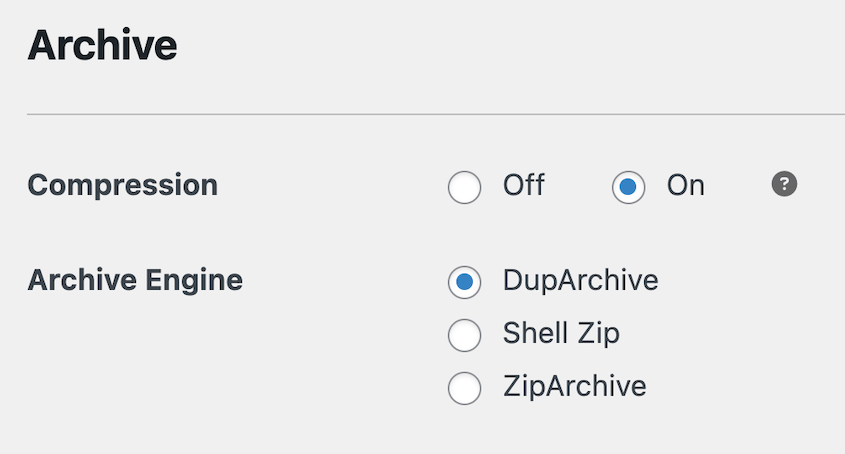
You can also use an installer built to extract large archives without tripping those limits. Duplicator Pro’s standalone installer and DupArchive format are aimed at exactly that, and DupArchive has handled real migrations as big as 400GB.
You’re Locked Out of wp-admin After the Move
This is the failure people panic about most and need to least. The migration completes, you go to log in to the new site, and the login fails or throws a redirect loop.
It almost never means the move failed. It means a URL setting is off. The site URL stored in the database doesn’t match where the site now lives, so WordPress keeps redirecting you somewhere that no longer exists.
Check the WordPress Address and Site Address fields under Settings » General, correct them to the new URL, and clear your cookies.
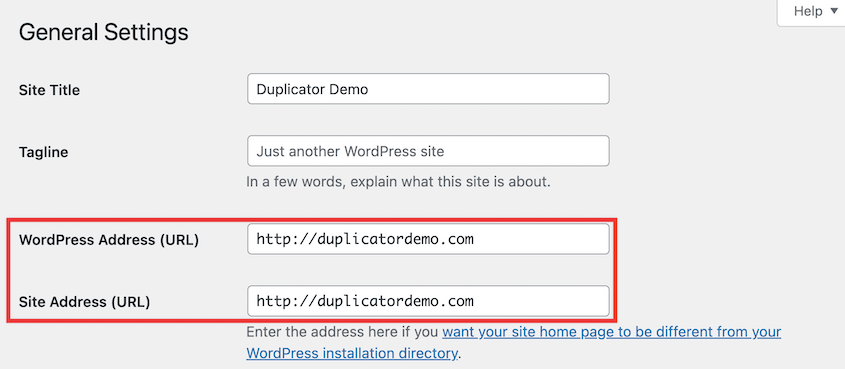
If you can’t reach the dashboard at all, you can set both values in wp-config.php temporarily. Two minutes of checking, not a re-migration.
The Progress Bar Freezes Mid-Migration
Close cousin to the extraction stall, but it shows up as a progress bar that stops moving and sits at the same percentage indefinitely.
The cause is usually the server cutting off a long-running request before the step can finish. The work is too big for the time the host allows a single process to run.
Raise the execution limits on the destination, or run the migration in a mode that breaks the work into smaller chunks so no single request runs long enough to get killed.
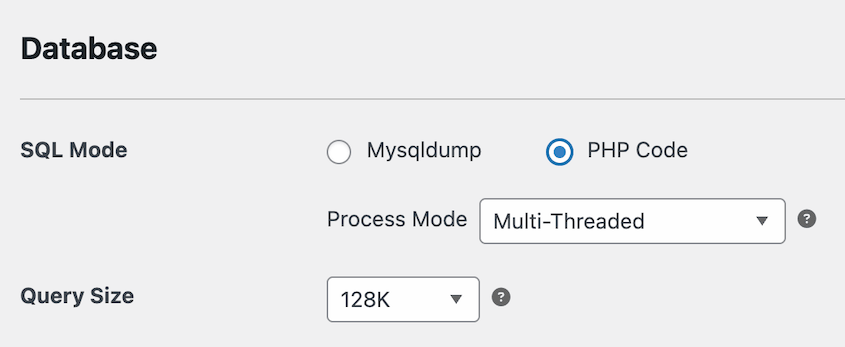
In Duplicator, you set this when you build the backup. Change the Database SQL Mode to PHP Code and Multi-Threaded.
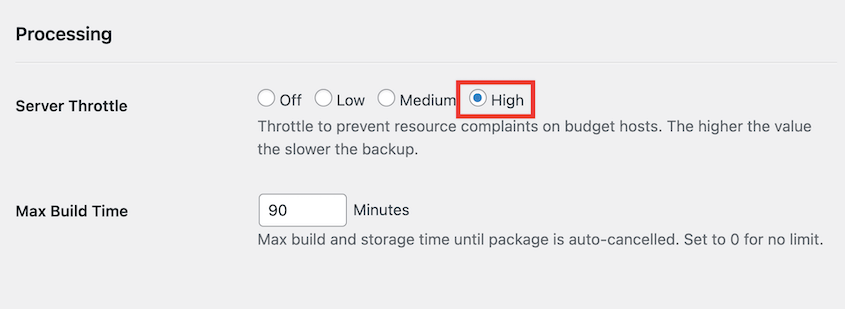
For limited server resources, we often advise setting the Server Throttle to Medium or High in the same settings.
File or Folder Permission Errors
The migration reports it can’t write a file or create a folder on the new server, and the process halts.
This comes down to ownership and write access on the destination. If the web server user doesn’t own the target folders or they aren’t writable, you can’t lay files down where they belong.
Set the destination folders to the correct ownership for your host, and make sure directories are writable (typically 755 for folders and 644 for files).
You change these through an FTP client or your host’s file manager, both of which show a permissions or CHMOD option when you right-click a folder. Your host’s docs will confirm the right web server user if you’re not sure.
PHP Version Mismatch
Everything looks fine until the restored site starts throwing errors on pages that use specific plugin or theme features.
The usual cause is a PHP gap between environments. The site was built on a newer PHP version than the destination server runs, so functions that worked on the old host are deprecated or missing on the new one.
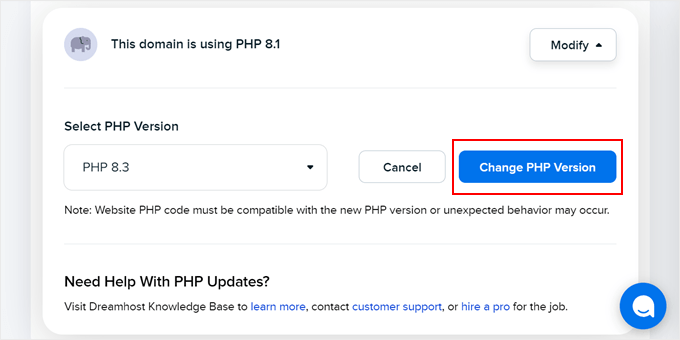
Check the PHP version on both ends before you migrate. If they’re different, either update the new server’s PHP or update your backup’s PHP.
You’ll find this in your hosting control panel, where most hosts let you switch it in a few clicks.
Database Connection Error
The new site loads the “Error establishing a database connection” message instead of your content.
After a migration, this is almost always wrong database credentials in the configuration files, rather than a broken database. The database name, user, or password in wp-config.php doesn’t match what the new host actually created.
Confirm the database name, username, password, and host value from your new hosting account, then update wp-config.php to match.
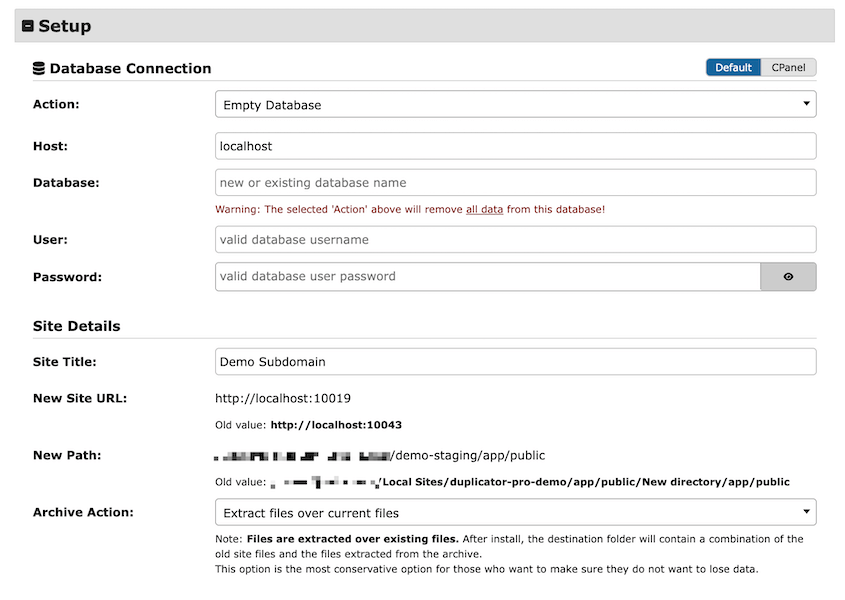
That file sits in the root folder of your site, which you can reach through your host’s file manager or an FTP client. If you used Duplicator’s installer, these values get set during the install step, so double-check what was entered there.
PHP Timeout or Max Execution Limit
Less common as an explicit complaint, but worth naming because it’s the hidden cause behind several of the failures above.
The host’s execution limit is set too low for the size of the site, so a long step gets terminated before it can complete.
Raise max_execution_time on the destination, or split the migration so no single step runs long enough to hit the ceiling. On very restrictive shared hosting, ask support what the hard limit is, since some hosts cap it regardless of your settings.
500 Internal Server Error
The new site returns a generic 500 error with no detail, which makes it feel worse than it usually is.
After a migration, the culprit is most often a stale .htaccess file or a file permissions issue, not a corrupted site.
Regenerate your permalinks by visiting Settings » Permalinks and saving without changing anything. This rewrites your .htaccess file.
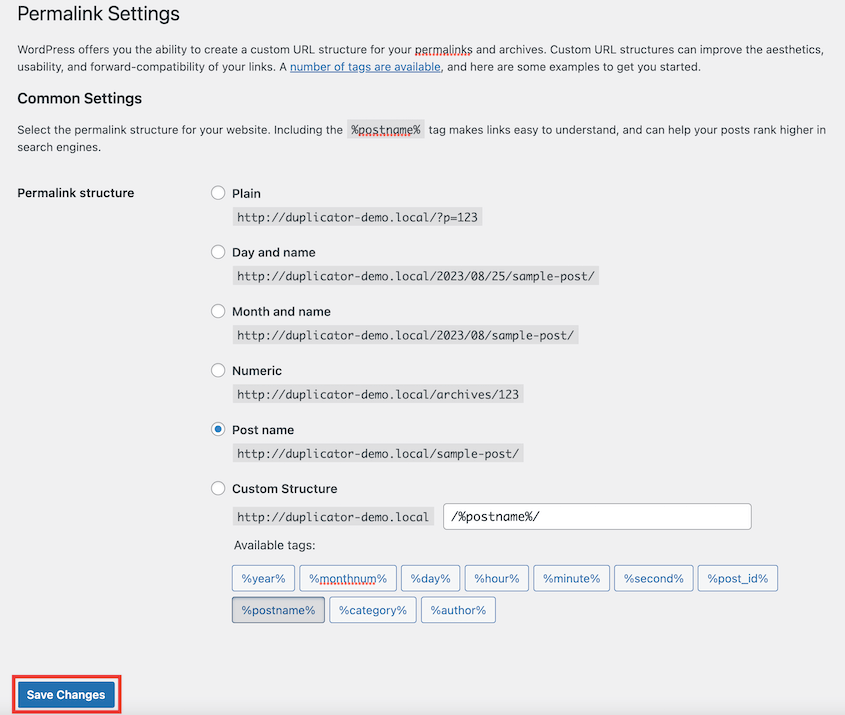
If that doesn’t clear it, confirm your file permissions are correct (folders 755, files 644), since a permissions problem throws the same generic error. If you can reach your server error log, it can point at the exact line causing the 500.
The Hosting Pattern: Category Beats Brand
We also looked at which hosts these migration tickets came from. This is the part that’s easiest to misread, so we’re going to be careful with it.
The trap is simple. The host that generates the most migration tickets is also one of the most widely used.
More sites produce more tickets, even at a perfectly average failure rate. Raw ticket volume is not a quality ranking, and we won’t dress it up as one.
What survives that caveat is the pattern by category, not by brand:
- Budget shared hosting fills the top of the migration queue, which partly reflects how many WordPress sites live there in the first place.
- Managed WordPress hosts are nearly absent. The major managed platforms appear only a handful of times each across the entire migration dataset.
- Cloud and VPS environments sit in the middle, with config-related problems of their own.
There’s also a pattern worth calling out on its own. About 1 in 14 migration tickets come from people moving a site off a local development environment, tools like Local, XAMPP, or MAMP.
Going from a laptop to a live server carries its own failure modes, and it shows up more often than you’d think.
We’re not claiming managed hosts never have migration trouble. But the near-silence in our support queue matches what you’d expect from tighter server configs and consistent PHP versions: fewer of the surprises that derail a move.
How to Prepare for the Failures That Actually Happen
Because the data points so clearly at two failure points, that’s where preparation should go. Focus on what the tickets say actually breaks.
- Match PHP versions on both ends. A site built on PHP 8.2 landing on a server still running 7.4 will throw errors after the move. You can check the version in each host’s control panel. Confirm both before you start.
- Make sure the destination can finish the extraction. This is the top failure point. Give it enough disk space, PHP memory limit, and an execution time that won’t cut the process off midway.
- Have your new site’s login ready before you switch. The second most common failure is a post-migration lockout. Know your admin credentials and the new site URL in advance.
- Check file permissions on the destination. Wrong ownership or non-writable folders appear often enough to deserve a quick look. An FTP client or your host’s file manager will show a folder’s permissions when you right-click it.
This is also where the migration tool itself does real work. Duplicator Pro‘s standalone installer is built to move a site into a blank server, even one without WordPress installed. This removes a whole category of extraction problems.
Its DupArchive format has no theoretical file-size limit and has handled real migrations of 400GB, so large sites don’t choke the step where most migrations stall.
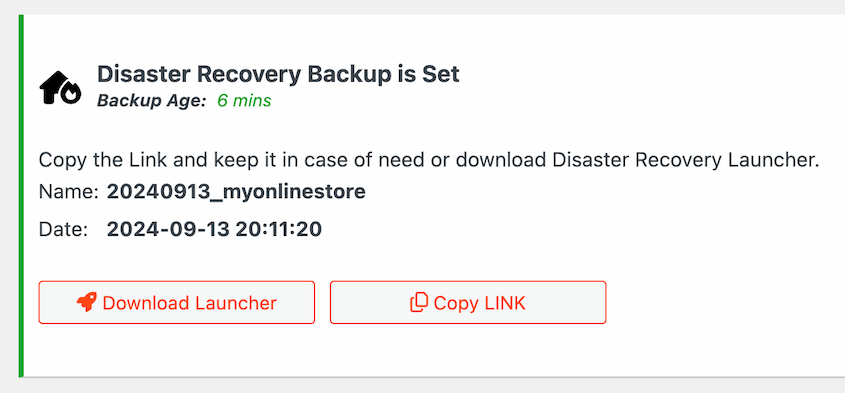
And when a move does leave someone locked out, the disaster recovery URL can restore a working site even when WordPress won’t let you in at all.
Frequently Asked Questions (FAQs)
How often do WordPress migrations fail?
This data can’t answer that, and no support dataset can. Support tickets only capture migrations that ran into trouble; the successful ones never generate a ticket. What the data does show is that among people who ask for migration help, the issues cluster tightly around the extraction step and the first login on the new site.
What is the most common WordPress migration error?
In our support data, the most common error is a host limit stalling the migration during the install or extraction step, present in close to 1 in 5 migration tickets. It happens when the destination server’s PHP timeout or memory cap cuts the process off while the site unpacks. The second most common is being unable to log in to the new site after an otherwise successful move.
Do PHP timeouts cause most migration failures?
More than it looks. Site owners explicitly mention a PHP timeout in only about 1 in 50 tickets, but a host’s PHP or memory limit is the most common cause behind the stalled installs that top our list. Most people just don’t recognize it, because it shows up as the installer freezing rather than a named timeout error.
Is managed WordPress hosting better for migrations?
Managed WordPress hosts barely appear in our migration support queue, which points to fewer migration problems on those platforms. The likely reasons are consistent server configs and PHP versions. It isn’t proof managed hosting is immune, but the pattern is steady across the dataset.
Why can’t I log in after migrating my WordPress site?
This is one of the most common post-migration problems we encounter. It’s usually a URL mismatch in the database, a redirect loop, or a permissions issue, not a broken migration. Check your WordPress Address and Site Address settings and clear your cookies before assuming the move failed.
What 8,000+ Support Tickets Change About Migration Advice
The value of this data isn’t any single statistic. It’s a correction to where attention should go.
The data keeps pointing at the same two moments: the extraction step and the first login. That’s where people actually get stuck, not the file transfer most preparation worries about.
People often get stuck because the transfer stalled halfway or because a login page won’t let them back in.
There’s a reason we can be this specific about what goes wrong. These problems come across our support queue constantly, and most of them close within the hour.
When you resolve thousands of migration issues, the patterns stop being guesswork and start being a map. This report is that map.
We’ll state the limit one final time, because it’s what keeps this honest. This is a record of failures, not of successes. It leans on the words people use to describe their own difficulties, which is imperfect. But it’s real, and it’s firsthand.
Before Your Next Migration, Build In a Way Back
Most migration problems are quick to fix once you know the cause, and the data backs that up: the majority of the migration issues we see are resolved within the hour.
The stress comes from not having a way back when something stalls.
Duplicator Pro is used by more than 1.5 million WordPress professionals to back up, migrate, and recover their sites. Its standalone installer and disaster recovery tools are built for the two failure points this data surfaces: the extraction step and the locked-out login.
While you’re here, I think you’ll find these other WordPress resources helpful:
- Your Site Migration Is Going to Fail (Unless You Avoid These Mistakes)
- DNS Migration Done Right: How to Avoid the Most Common Mistakes
- Your Complete WordPress Migration Checklist (Start to Finish)
- How to Migrate a WordPress Site for FREE
- How to Move a WordPress Website to a New Host




