

![[New] Introducing Duplicator 5.0: AI Backups, AutoTune, and Extra Free Features](https://duplicator.com/wp-content/uploads/2026/09/Duplicator-5-0-Announcement.jpg)
Duplicator Cloud vs Google Drive: Which Should Store Your WordPress Backups? (2026)
 Joella Dunn
Joella Dunn
Joella Dunn
 John Turner
John Turner
John Turner
You’ve got Duplicator installed and the storage dropdown open. Google Drive is right there in the list, and you already have a Google account with space in it.
That’s usually where the decision ends, but I wanted to see if there was a better option.
I set up the in-house Duplicator Cloud and tested it against Google Drive for the same backups. I let automatic schedules run for a few weeks, then broke my site on purpose to see how each one recovers.
In this post, I’ll show you my full review of Duplicator Cloud vs. Google Drive. Ultimately, both work. However, only one of them was built to hold and restore WordPress backups.
Here’s what I found:
- Google Drive shares one quota with Gmail and Google Photos, so filling it up stops your backups and your email at the same time.
- On price per gigabyte, Google Drive wins. You get 15GB free, and 100GB runs about $24 a year.
- Duplicator Cloud is storage that holds backups and nothing else, at a flat annual rate from $29 for 2GB up to $199 for 150GB.
- The restore is where these two separate. Duplicator Cloud’s recovery connector rebuilds a site from cloud.duplicator.com even when WordPress won’t load. Google Drive can’t.
- A Drive backup restores in one click too, but only while WordPress is running with Duplicator installed. With your dashboard down, you’re downloading archives and uploading them over FTP.
- Google runs deletion clocks you should know about. Trash purges after 30 days, and content can be deleted after two years over quota or two years of account inactivity.
- Client work changes the answer. Duplicator Cloud gives you per-site dashboards and per-site access, while Drive gives you generic folders.
- You don’t have to pick one. Duplicator Pro writes the same backup to several locations at once, each with its own retention count.
Table of Contents
- Duplicator Cloud vs Google Drive: What's the Quick Verdict?
- What Is Duplicator Cloud?
- What Is Google Drive?
- Which One Is Faster to Set Up?
- Where Do Your Backups Live, and What Else Lives There?
- What Happens to Your Backups If You Lose Access to Your Google Account?
- Which One Gets You Back Online Faster?
- Which Is Better If You Manage More Than One Site?
- Do You Have to Choose Just One?
- Duplicator Cloud vs Google Drive: Which Should You Choose?
- Frequently Asked Questions (FAQs)
- Keep Your Backups Somewhere That Only Holds Backups
Duplicator Cloud vs Google Drive: What’s the Quick Verdict?
| Duplicator Cloud | Google Drive | |
|---|---|---|
| Setup time | Less than 1 minute | A few minutes |
| Credentials needed | A storage token | A Google account and an authorization code |
| Pricing model | Flat annual tier | Free 15GB, then a monthly Google One plan |
| Cost at 10GB stored | $49/year | $0 if it fits your free quota, otherwise about $24/year for 100GB |
| Storage range | 2GB to 150GB | 15GB free, up to 5TB on consumer plans |
| Shared with other services | No, it holds backups and nothing else | Yes, one quota across Drive, Gmail, and Google Photos |
| What happens at the ceiling | Backups stop uploading until you upgrade | Backups stop uploading, Gmail stops sending and receiving, and Photos stops backing up |
| Upload caps | None | 750GB per account per 24 hours |
| Restore when WordPress is running | One click from your dashboard | One click from your dashboard (only with Duplicator installed) |
| Restore when WordPress is down | Sign in to cloud.duplicator.com and use the recovery connector | Download from Drive, upload over FTP, and run the installer yourself |
| Deletion clocks | Your files stay while your plan is active, unless you have backup retention set up in Duplicator | Trash purges at 30 days, and Google may delete content after 2 years over quota or 2 years of account inactivity |
| Multi-site dashboard | Yes, built for multiple WordPress sites | No, you get folders |
| Encryption | AES-256 at rest and in transit | AES-256 at rest and in transit |
| WordPress-aware | Yes | No |
| Best for | Storing and restoring WordPress backups | A free or cheap second backup storage |
Google Drive is a good place to put a copy of a backup. Duplicator Cloud is a good place to keep the backup you’ll actually restore.
With Google Drive, the setup is quick and restores are one click. However, backup plugins like Duplicator do the majority of that work.
The schedule, retention limit, encryption in transit, and restore wizard: that’s all Duplicator. Take the plugin out, and Google Drive is a folder you drag zip files into, with no idea which site they came from or whether last night’s run finished.
So the Duplicator Cloud vs Google Drive question isn’t really about which storage is better built. Google runs one of the best storage platforms on earth, and I’m not going to argue otherwise.
The question is whether your backups belong in the same account as your email, your photos, and every PDF anyone has ever shared with you.
What Is Duplicator Cloud?
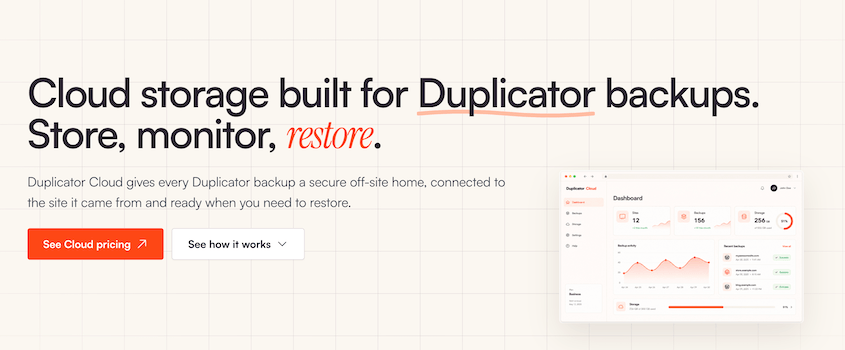
Duplicator Cloud is backup storage made by the same team that makes the Duplicator plugin. It launched in 2025 to take the third-party account out of the middle of your backup workflow.
Every other storage destination sends you somewhere else for authorization. Duplicator Cloud connects with the license key you already bought.
You’ll need Duplicator 5.0 or higher (both the free or Pro versions work). Once you buy a storage plan, a Duplicator Cloud option shows up in your storage list, and you can immediately start sending backups there.
What I use most is the dashboard at cloud.duplicator.com. Here’s what it shows you:
- Storage usage across every connected site, so you can see a quota problem coming.
- A chronological activity log of backups, restores, and setting changes.
- Per-site monitoring, so twelve client sites don’t turn into one undifferentiated list.
- Backup insights for each run, including archive size, database size, processing time, and the PHP version the site was on.
- Direct downloads of both the archive and the installer, without going through WordPress.
- Remote restores through a recovery connector, which rebuilds a site from the dashboard even when WordPress won’t load.
How Much Does Duplicator Cloud Cost?
Duplicator Cloud is a subscription. You pick a storage size, and you pay one flat fee for the year.
Here are the current tiers:
| Duplicator Cloud plan | Storage | Price per year |
|---|---|---|
| Starter | 2GB | $29 |
| Basic | 10GB | $49 |
| Plus | 25GB | $69 |
| Business | 50GB | $99 |
| Pro | 100GB | $149 |
| Scale | 150GB | $199 |
Nothing on that invoice changes because you restored a site twice. There are no request or transfer charges. If you’re on the 50GB plan, you pay $99, and that’s the entire bill.
A typical business site with a full media library backs up at 1GB to 5GB. The 150GB top plan holds a lot of versions across a lot of sites.
What Is Google Drive?
Google Drive is file storage attached to your Google account. You get 15GB free the moment you have a Gmail address, which means you probably already have an account.
The storage is reliable, files are encrypted at rest and in transit, two-factor authentication is available and free, and Google employs some of the best security engineers. It’s a safe place to store data.
Google Drive earns its place on several counts:
- You likely already have it.
- 15GB costs nothing, which supports small site backups
- File sharing is easy
- Duplicator’s integration is simple to set up (unlike other options like Amazon S3)
What Does Google Drive Cost for WordPress Backups?
Storage on Google Drive starts free and stays cheap. The consumer plans run like this:
- 15GB free with any Google account.
- 100GB at $1.99 a month.
- 2TB at $9.99 a month.
- 5TB at $19.99 a month.
Google restructured these plans around its AI products in 2026, so the larger tiers now arrive bundled with an AI subscription. You’re buying an AI plan that happens to include storage, which is worth knowing if all you wanted was somewhere to put a backup.
If you’re on Google Workspace instead, the numbers work differently. Business Starter gives you 30GB per user, pooled across Drive, Gmail, and Photos. That’s a lot less room than most people assume they have, and it’s the tier most small businesses are on.
What Does Google Drive Do Without a Backup Plugin?
Google Drive has no idea WordPress exists. It won’t run backups on a schedule, delete last month’s copy to make room, or put a site back together.
Here’s what backing up WordPress to Drive by hand involves:
- Zipping your site files over SSH or through your host’s file manager.
- Exporting the database separately through phpMyAdmin or WP-CLI, then keeping that export matched to the right file archive.
- Uploading both through the Drive web interface.
- Naming and dating everything yourself, because nothing in the folder tells you what it is months later.
- Deleting old copies manually so they stop eating your quota.
- Restoring entirely by hand, which means downloading, uploading, unzipping, importing the database, and fixing URLs.
To keep your site safe, you need to back it up at least every week. If you manually create backups and upload them to Google Drive, it’s more work than you should be doing.
So, you need a backup plugin like Duplicator to handle automatic backups and cloud integrations.
You aren’t choosing between Duplicator Cloud and Google Drive. You’re choosing between Duplicator with native storage or Duplicator writing files into your third-party Google account.
Which One Is Faster to Set Up?
Both take a few minutes inside your WordPress dashboard.
Google Drive is one of the friendliest destinations Duplicator supports, but I’d give Duplicator Cloud the edge here.
How Do You Connect Google Drive to Duplicator?
Duplicator handles the Google authorization for you, so you never touch the Google API console. That’s a real advantage over some other backup plugins.
The process goes like this:
- Go to Duplicator Pro » Storage » Add New.
- Name the storage location so you’ll recognize it later.
- Choose Google Drive from the Type dropdown.
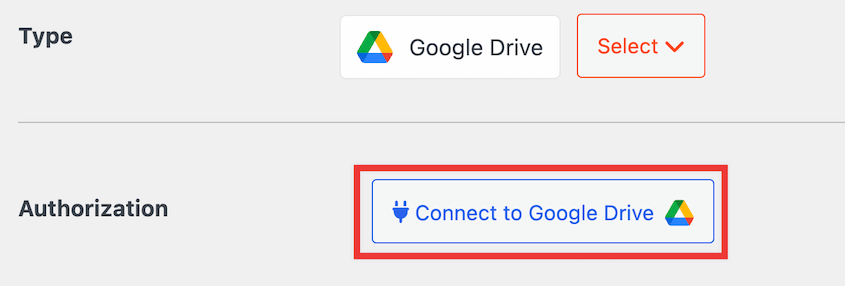
- Click Authorize Google Drive, which opens a new tab.
- Sign in to your Google account and grant Duplicator access.
- Copy the authorization code Google gives you.
- Paste it into the step 2 box back in WordPress, then click Finalize Setup.
- Scroll down and click Test Storage to confirm it works.
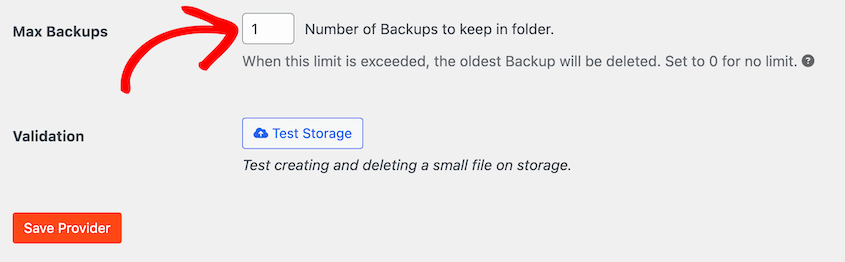
Set Max Backups while you’re in there. It controls how many copies Duplicator keeps in Drive before it starts pruning the oldest.
This matters more than usual, because your quota is shared with everything else in your Google account. On a free 15GB account, three or four copies of a 4GB site will end your month early.
How Do You Set Up Duplicator Cloud?
Duplicator Cloud is extremely easy to set up with Duplicator. They’re from the same company, so Duplicator Cloud connects with your Duplicator Pro license key.
Here’s how to set it up:
- Buy a Duplicator Cloud storage plan.
- Add a new location under Duplicator Pro » Storage.
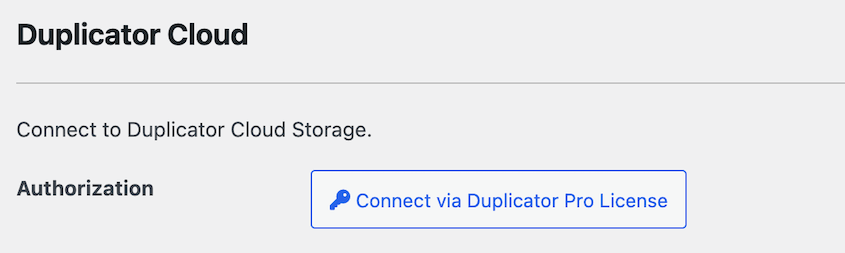
- Pick Duplicator Cloud and connect using your Duplicator Pro license.
You can also use Duplicator Cloud with the free version of Duplicator. Purchase a storage plan and enter your connection token.
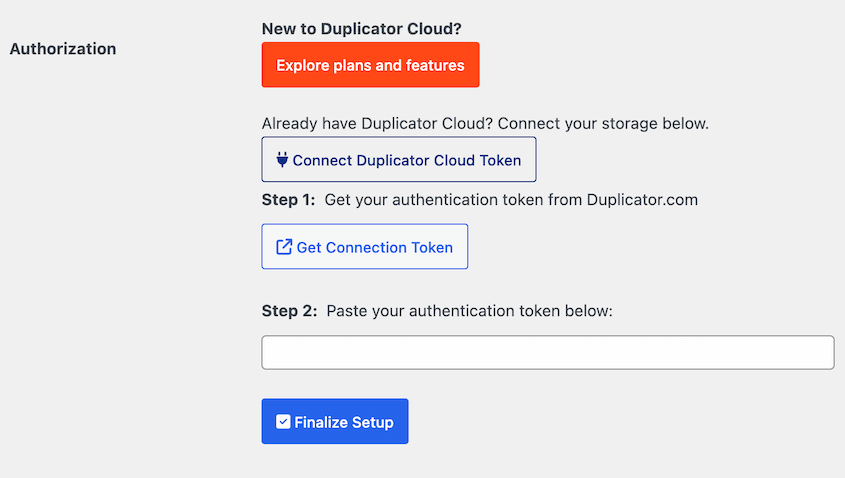
It’s easy and takes under a minute.
Where Do Your Backups Live, and What Else Lives There?
This is what I’d tell anyone still on the fence between Duplicator Cloud and Google Drive.
Your Google storage is one pool shared across Google Drive, Gmail, and Google Photos, plus a few smaller things like WhatsApp backups. Every attachment anyone has ever emailed you is in that pool. So is every photo your phone uploaded.
Your WordPress backups go in the same pool.
Think about what that means when the pool fills up. Three things can break:
- Drive stops accepting uploads, so your scheduled backups fail.
- Gmail stops sending and receiving, so mail bounces back to whoever wrote to you.
- Google Photos stops backing up, so your phone quietly stops preserving anything.
A 4GB site backing up weekly with four copies retained is 16GB, which doesn’t fit in a free account (especially if you have years of emails). Plus, Drive counts trashed files against your quota until they purge, so the cleanup you did last week may not have given you the room you think it did.
Duplicator Cloud has one quota, and it holds backups. That’s by design.
Fill it up, and you’ve filled up your backup storage. Your email keeps working, your photos keep uploading, and the dashboard showed you the usage climbing before you got there.
There are two Drive limits worth naming while we’re here, and I want to be fair about both. Google caps uploads at 750GB per account per 24 hours and caps individual files at 5TB.
Almost no WordPress site will ever touch either one. If you’re running a large multisite network or pushing dozens of client sites through one Google account on the same night, the daily cap is the one that can bite you.
What Happens to Your Backups If You Lose Access to Your Google Account?
Remember that authorization grant from the setup section? It’s the part people never think about until it’s the only thing that matters.
Several ordinary events cut that connection:
- A password reset, which can invalidate the tokens tied to your account.
- A security checkup where you remove third-party access, which is a thing Google actively prompts you to do.
- A revoked app permission, sometimes done by a well-meaning colleague tidying up account access.
- A lost 2FA device, which locks you out of the account your backups are sitting in.
When the grant breaks, backups fail. Duplicator will tell you, but only if you’re reading your notices.
Then there are Google’s deletion clocks.
Stay over your storage quota for two years, and Google may delete content across Gmail, Drive, and Photos. Leave a personal Google account unused for two years, and Google may delete the account itself, along with everything in it.
That second one deserves a hard look if you made a separate Google account just for backups. A backup account is, by definition, an account nobody signs into. Duplicator’s uploads keep the files fresh, but you should not be betting your disaster recovery on how Google counts activity.
If your Google account gets suspended, hijacked, or locked, you lose your email and your backups in the same instant. The recovery email you’d use to get back in is probably inside the account you can’t reach. And the site you’d restore is waiting on files you can’t download.
One failure, three problems.
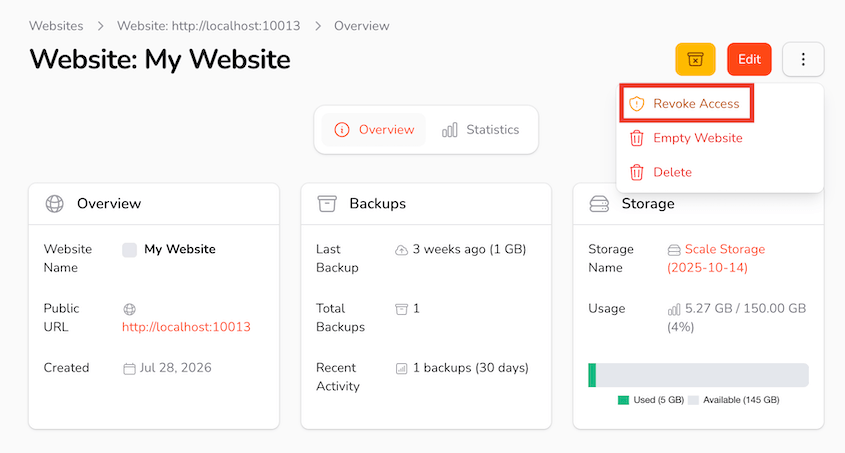
Duplicator Cloud scopes access through your plugin license instead of a personal account login. If a site gets compromised, you revoke that one site from the dashboard, and nothing else changes. Your backups don’t live behind the same password as your inbox.
Which One Gets You Back Online Faster?
Backups exist for restores, so I tested this properly. I broke a site on purpose, then recovered it from each destination.
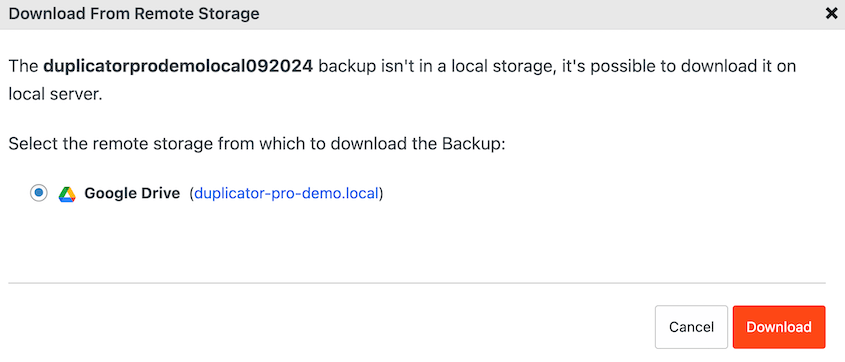
When WordPress is running, these two are close. Duplicator Pro supports remote restores from third-party storage, which means a backup sitting in Google Drive restores in one click from your WordPress dashboard.
Duplicator pulls the archive down to your server and opens the restore wizard.
What Happens When Your Site Won’t Load?
The disasters you keep backups for are rarely the polite kind. It’s a white screen, database connection error, or hack.
Your WordPress dashboard is gone. So is the one-click restore that lives inside it.
This is where the Duplicator Cloud vs Google Drive comparison stops being close.
Duplicator Cloud includes a recovery connector. You save your site’s FTP or SFTP details in the cloud dashboard once and test the connection.
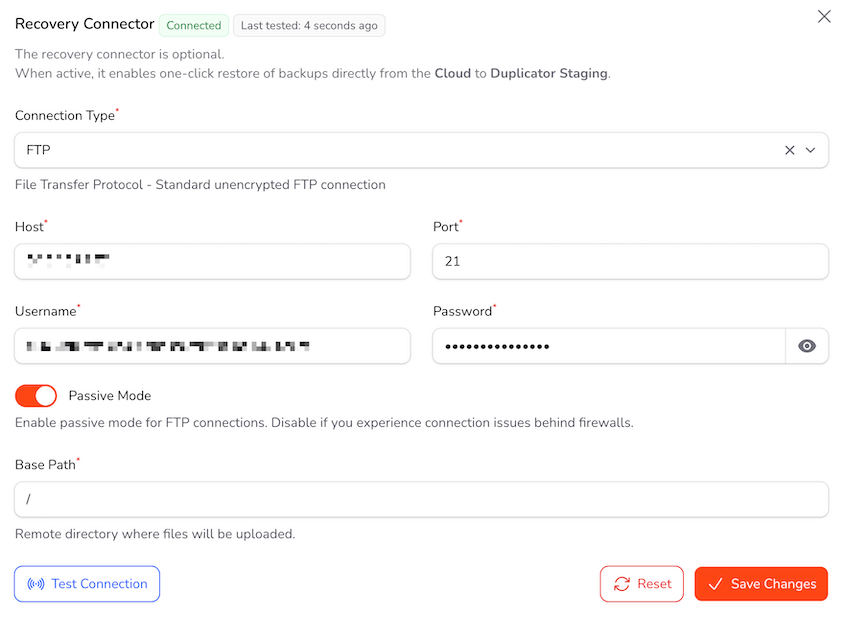
When something breaks, you sign in to cloud.duplicator.com from any device, find the last clean backup, and restore it.
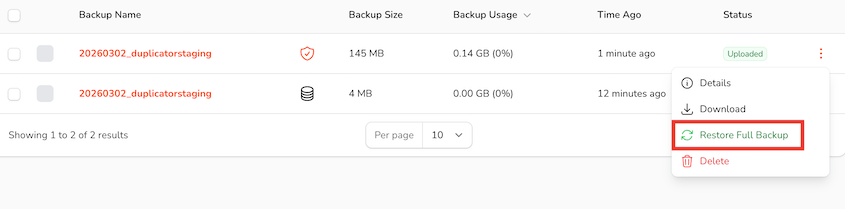
WordPress doesn’t need to be running. Your dashboard doesn’t need to load. The restore runs from the cloud using those saved credentials, which means you can bring a site back anytime.
Google Drive has no version of this. With WordPress down, recovering a Drive backup looks like this:
- Open Drive and find the folder Duplicator has been writing to.
- Work out which archive and which installer belong to the right site on the right date.
- Download both to your computer.
- Upload them to your server over FTP.
- Run the installer.
This is more work than you want to be doing when your site completely crashes and you’re losing orders.
Set up the Duplicator Cloud recovery connector before you need it!
Three Google Drive Traps Worth Knowing Before You Need a Restore
Drive has a few behaviors that are perfectly reasonable for documents and quietly hostile to backups.
Here are the three that catch people:
- Trash runs on a 30-day fuse. Deleted files sit in the trash for 30 days, and then they’re gone permanently. They also count against your quota that entire time.
- Version history isn’t backup versioning. For non-Google files like your archives, Drive keeps previous versions for 30 days or 100 revisions, whichever comes first, unless you manually mark one Keep forever. Don’t mistake it for retention.
- Drive for Desktop pulls everything down. If you sync, those multi-gigabyte archives land on your laptop and fill the disk. People fix that by deleting the files from the Drive folder, which deletes them from the cloud too.
Every one of those is Drive working as designed. It just wasn’t designed for WordPress backups.
Which Is Better If You Manage More Than One Site?
With one site, this comparison is about convenience. With ten, it turns into an operations problem, and it’s where I’d stop recommending Drive as a primary destination.
Duplicator Cloud organizes storage for websites, which is how you already think about your work. Here’s what that gives you:
- Every connected site has unique dashboards, so you can find one at a glance.
- Per-site activity logs showing who changed a schedule, when a backup ran, and how long it took.
- Backup insights for each site, including archive size, database size, and PHP version.
- Access revoked per site, which is useful when you hand a site off or offboard a client.
- One recovery connector per site, so any site in the list can be restored remotely.
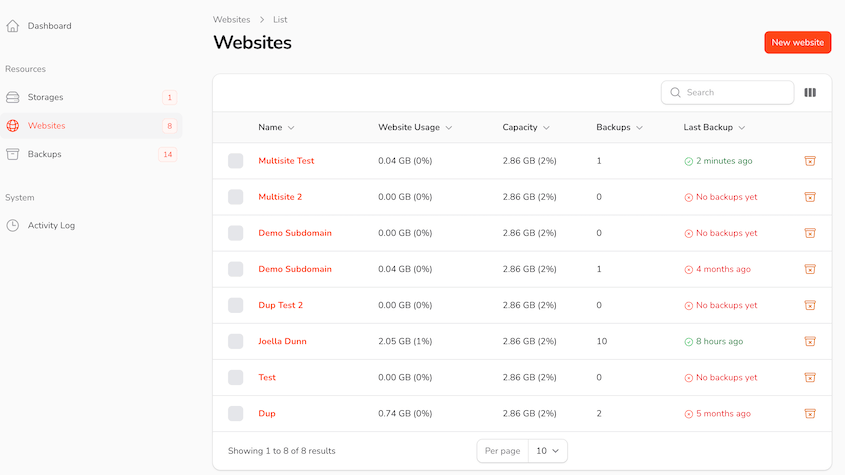
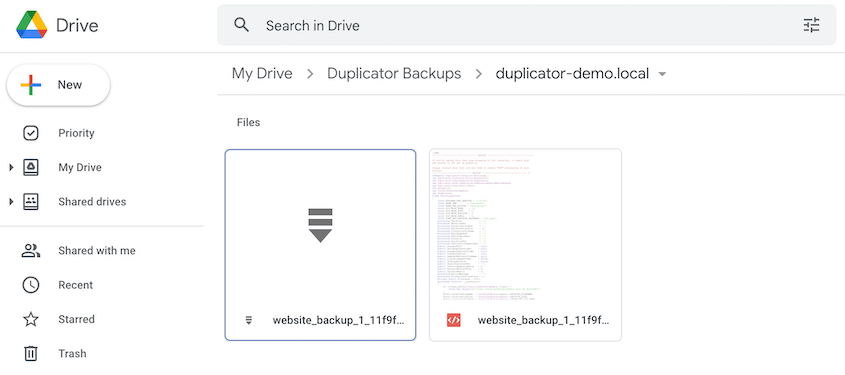
Google Drive gives you folders. You can organize sites into separate folders, and it works fine, but no folder knows what a WordPress site is. You’ll be reading filenames and timestamps to figure out what you’re looking at.
Client work adds extra problems. Whose Google account holds a client’s backups? What happens to those files when the relationship ends? Is that shared folder link from 2024 still live, and who has it?
Do You Have to Choose Just One?
No, and if you’re serious about recovery, you shouldn’t.
The 3-2-1 backup rule says to keep three copies of your data on two types of media with one copy off-site. Duplicator Pro sends the same backup to multiple storage locations, so you can use both Duplicator Cloud and Google Drive.
If you want to keep both, this is the arrangement I’d run:
- A local copy on the server for fast rollbacks after a plugin update goes sideways.
- Duplicator Cloud as the primary off-site copy that you’ll be restoring when things go wrong.
- Google Drive as a secondary copy and as the place you grab a file from when a developer needs one.
Give each location its own retention count. Drive should have a lower Max Backups value so it doesn’t eat your quota.
Duplicator Cloud vs Google Drive: Which Should You Choose?
Choose Duplicator Cloud if any of this sounds like you:
- You don’t want a full inbox to be able to break your backups, or a full backup schedule to break your inbox.
- You need to restore when WordPress won’t load, which is the scenario backups are for.
- You manage sites for clients and need per-site logs, per-site access, and a handover that doesn’t depend on one person’s memory.
- You’d rather your site’s recovery didn’t depend on your personal Google account staying accessible.
- You want to see storage usage per site before it becomes a problem.
Choose Google Drive if this is closer to your situation:
- You’re on a tight budget, and free storage is the difference between having off-site backups and not having them.
- You run one small site whose backups fit comfortably inside a quota you’re not otherwise using.
- You already pay for Google One and have real headroom to spare.
Use both if you’re following a 3-2-1 backup plan, with Duplicator Cloud as the copy you restore from and Drive as the extra copy.
If you’re picking one destination and you want a straight answer: pick Duplicator Cloud. Google Drive is a fine place to keep a copy of a backup, and it’s the wrong place to keep the only one.
Frequently Asked Questions (FAQs)
Is Google Drive good for WordPress backups?
It’s good storage and an incomplete backup destination. With a plugin like Duplicator handling the schedule, the archive, and the restore, Drive holds those files reliably and cheaply. On its own it can’t back up WordPress at all, and it can’t rebuild a site when your dashboard won’t load. It works best as a second copy.
Is Duplicator Cloud included with Duplicator Pro?
No. Duplicator Cloud is a separate storage subscription starting at $29 a year for 2GB. You need Duplicator 5.0 or higher to connect it.
Can I back up WordPress to Google Drive for free?
Yes. Every Google account includes 15GB, and Duplicator Pro can write backups straight to it. The catch is that the 15GB is shared with Gmail and Google Photos, so a few copies of a mid-sized site can fill it. Set Max Backups to a low number and watch your quota.
Do my WordPress backups count against my Gmail storage?
They do. Google gives you one storage pool shared across Drive, Gmail, and Photos, so every archive Duplicator uploads reduces the room left for email. When that pool fills, Gmail stops sending and receiving at the same time your backups stop uploading. Files sitting in your trash count too until they are purged after 30 days.
Can Duplicator restore a site directly from Google Drive?
Yes, as long as WordPress is running. Duplicator Pro does remote restores from third-party storage, so it pulls the archive from Drive and opens the restore wizard for you in one click. If your site won’t load, that option is gone, and you’re downloading files from Drive and uploading them over FTP by hand.
What happens if my Google Drive connection stops working?
Scheduled backups stop uploading, usually without much fanfare. A password reset, a revoked app permission, a security checkup, or a lost 2FA device can all break the authorization Duplicator uses. Duplicator flags the failure in your notices, but plenty of sites go weeks without anyone noticing. Check your storage location and look at the dates.
Can I use Google Drive and Duplicator Cloud at the same time?
Yes, and that’s the setup I’d recommend. Duplicator Pro sends the same backup to more than one storage location, with a separate retention count for each. Keep Duplicator Cloud as the copy you restore from and Drive as the extra off-site copy, which puts you in line with the 3-2-1 rule without any extra work.
Keep Your Backups Somewhere That Only Holds Backups
A backup you can’t reach isn’t a good backup. When your site goes down, you want storage that knows which site the files belong to and a restore that runs even when WordPress won’t load.
More than 1.5 million WordPress professionals run Duplicator Pro, and Duplicator Cloud is the storage built for it. The storage connects with your license, encrypts backups at rest, restores from any device, and is priced at one flat number a year.
If this post got you thinking about where your WordPress backups are living, these guides are worth reading next.
- How to Back Up a WordPress Site to Google Drive (4 Easy Steps
- Duplicator Cloud vs Amazon S3: Which Is Better WordPress Backup Storage?
- 12 Best Cloud Storage Services for WordPress Backups (Expert Pick)
- Cloud Backup vs. Local Backup: Which One Protects Your WordPress Site?
- How to Set Up WordPress Auto Backups to Google Drive, Dropbox, & S3
- Best FREE WordPress Backup Plugins: Simple, Fast, & Reliable (2026)




