

WordPress Backup Storage Size: How Much Space You Need and How to Shrink It
 Joella Dunn
Joella Dunn
Joella Dunn
 John Turner
John Turner
John Turner
Your backup climbs to 87 percent and stops.
You run it again. It dies in roughly the same place. So, you assume your backup plugin’s broken, deactivate it, install a different one, and watch that one fail too.
I’ve seen this play out enough times to know the plugin usually isn’t the problem. The problem is that your server doesn’t have the room (or the time) to hold your site and your backup archive at the same moment.
That’s a sizing problem.
Sizing problems are the good kind, because you can solve them before they happen. That’s more than I can say for most WordPress failures.
In this post, I’ll show you how to size WordPress backup storage before it causes failed backups.
Here’s the short version:
- Your backup is mostly pictures. The uploads folder is often 70 to 90 percent of the archive, and the database is rarely what’s making it big.
- Compression helps least where you need it most. Text shrinks by around 70 percent, media barely moves, so the heaviest sites get the smallest discount.
- Creating a backup needs close to double your site size in free space. Your site and the growing archive occupy the same disk at the same time.
- Large backups fail on time, not space. About 1 in 3 Duplicator backup creation tickets involve a stall or timeout, while explicit disk-space reports run at fewer than 1 in 30.
- Retention is the multiplier nobody thinks about. A 10GB site with three rolling copies consumes 40GB, and a full three-tier policy stores roughly 20 archives.
- Splitting your schedule beats every other fix. Daily database-only plus weekly full backups take a WooCommerce store from 140GB down to about 42GB with the same protection for orders.
- Your newest backup isn’t automatically your safest. Malware can sit undetected for weeks, so keep a monthly copy from before any suspected compromise.
Table of Contents
- How Big Is a WordPress Backup?
- How Much Free Disk Space Do You Need to Create a WordPress Backup?
- How Much Storage Does Your Backup Retention Policy Need?
- Does Backup Location Change the Size Math?
- How Do You Reduce WordPress Backup Storage Size?
- Sizing Your WordPress Backup Storage: 3 Examples
- Frequently Asked Questions (FAQs)
- Your Backup Size Is a Planning Problem, Not a Plugin Problem
- Before Your Next Backup Fails, Know How Much Room It Needs
How Big Is a WordPress Backup?
The size of WordPress backups depends almost entirely on your media library. Here are the ranges I see in practice:
- Fresh WordPress install: about 110MB on disk, before you’ve added a single post (the download is 37MB zipped, and it roughly triples on extraction)
- Small blog or brochure site: a few hundred MB
- Business site with a full media library: 1GB to 5GB
- WooCommerce store with product images: 3GB and up is routine
Treat those as observed ranges, not rules. I’ve watched 200-page sites back up smaller than 10-page sites because one of them had a video library and the other didn’t.
The only number that matters is yours.
What Takes Up the Space in a WordPress Backup?
Almost everyone assumes the database takes up the most space in a backup. That’s almost never the case.
Here’s roughly how a typical backup archive breaks down:
- Uploads folder: the biggest piece on nearly every site; often 70 to 90 percent of the entire archive
- Generated image sizes: every image size your theme registers creates another copy of every upload, and most themes register more sizes than the site ever uses
- Database: usually tens of MB, though post revisions, expired transients, and orphaned metadata inflate it faster than people expect
- Plugins and themes: 50MB to 150MB on a typical site and past 250MB once a page builder and WooCommerce are involved (Elementor alone extracts to about 80MB; WooCommerce to about 57MB)
- Core: the smallest piece, and the one you never need to think about
The one-sentence version: Your backup is mostly pictures.
How Much Does Compression Reduce Backup Size?
Backup compression helps, but it helps unevenly, and the unevenness works against the sites that need it most.
A backup can come out around 70 percent smaller than the source site. Text compresses hard. Database dumps, PHP files, CSS, and JavaScript all shrink sharply because they’re full of repetition.
However, your JPEGs, PNGs, and MP4s barely move. They’re already compressed.
So the sites carrying the most weight get the least relief. A 500MB text-heavy blog might land near 150MB. A 5GB photography portfolio lands closer to 4.5GB, and no backup compression is going to change that.
How Much Free Disk Space Do You Need to Create a WordPress Backup?
You need more disk space than the size of the backup.
While a backup runs, your site and the archive it’s building sit on the same disk together. Your site doesn’t shrink to make room. For the length of that job, you’re storing everything twice.
Back up everything, and you might need as much as two-thirds of your hosting account sitting free just to finish. Budget room for your site plus its archive.
Migrations follow the same rule. A 50GB site wants somewhere near 100GB of headroom during the move because the original and the archive coexist until the transfer finishes.
Checking your own numbers takes about a minute. Here’s where to look:
- Your host’s control panel: find the disk usage or storage screen, which shows your total quota alongside current usage
- Tools » Site Health » Info in wp-admin: open the Directories and Sizes panel for uploads, themes, plugins, and database sizes
- Your last successful backup: the most accurate predictor you have of the next one
When you create a backup with Duplicator, it’ll tell you exactly how big the backup is before it ever runs. On the site scan, look under Site Checks for any issues.
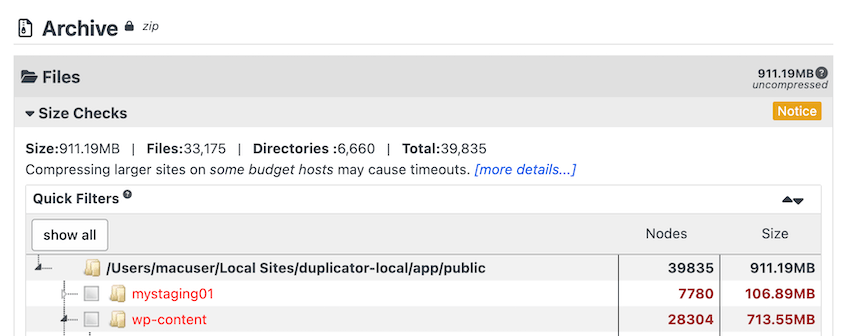
You can filter out large files and directories if you’re worried about disk space.
How Much Storage Does Your Backup Retention Policy Need?
Run that on a 10GB site. Three rolling copies on your host means 30GB of archives, plus the 10GB live site, so 40GB of disk is consumed.
Nobody plans for that number. If you have a 10GB site, you probably plan for 10GB of storage.
To avoid running out of storage, you can set up a backup retention policy. This lets you automatically delete old backups once you have a certain amount in storage.
Retention advice tends to land in the same range across the industry: daily backups are held 7 to 14 days, weekly backups held about 4 weeks, and monthly backups held 3 to 6 months.
It’s reasonable advice. It’s also roughly 20 stored copies if you follow all three tiers, and you might not have enough space for that.
Here’s what typical setups work out to:
| Site size | Estimated archive | Retention policy | Total storage |
|---|---|---|---|
| 400MB blog (text-heavy) | ~150MB | 14 daily copies | ~2GB |
| 4GB business site | ~3GB | 7 daily + 4 weekly | ~33GB |
| 12GB WooCommerce store | ~10GB | 4 weekly full + 14 daily database-only | ~41GB |
Look at the bottom two rows together. The store is three times the size of the business site and costs about the same in storage because it splits its schedule instead of taking a full archive every night.
That’s the lever. Not the plugin or the compression setting—the schedule.
One reason to resist trimming retention too aggressively: malware doesn’t announce itself. An infection can sit quietly for weeks, which means your three most recent backups may all contain it. Keeping a monthly copy or two is what gives you something clean to fall back to.
You can easily adjust retention with Duplicator Pro. When you set up your storage location, customize the Max Backups value.
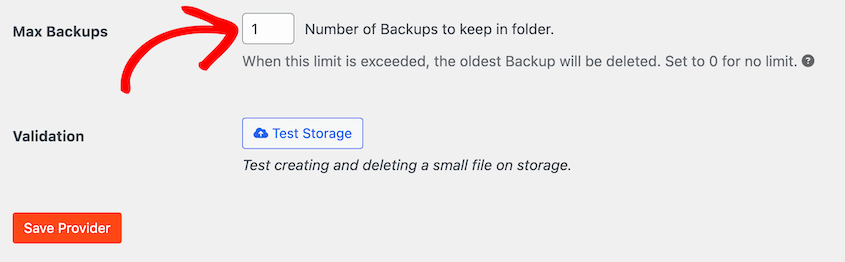
If you set this to 5, Duplicator will delete your oldest backup once you try to upload a 6th backup.
Does Backup Location Change the Size Math?
It changes which wall you hit first. The math stays the same, but the constraint doesn’t.
Here’s what each backup destination costs you in practice:
- On your host: Every archive counts against your hosting quota, and none of it survives a server failure. It’s the cheapest place to store backups, but the worst place to keep the only copy.
- Consumer cloud (Google Drive, Dropbox, OneDrive): The quota is shared with everything else in that account, so a free tier that looked generous fills the first time a 3GB archive lands next to your photo library.
- Object storage (Amazon S3 and similar): Priced per GB with charges on retrieval, which turns retention into a monthly line item you can watch. Restores also cost you.
- Purpose-built (Duplicator Cloud): Storage sized for backup files rather than documents, with tiers from 2GB up to 150GB.
How Do You Reduce WordPress Backup Storage Size?
Here are the best ways to reduce your WordPress backup storage size:
- Clean up before you compress: Deleting unused image variations and database bloat shrinks future backups.
- Exclude what you don’t need to restore: Caches, logs, and build directories rebuild themselves, so they don’t belong in the archive.
- Use partial and filtered backups: Back up the database daily and the full site weekly instead of copying the same data every night.
- Offload media to cloud storage: Moving your uploads folder off the server is the largest single reduction available, and the largest project.
- Consider incremental backups: Storing only what changed saves real space on frequently updated sites, with tradeoffs you’ll feel during a full recovery.
Clean Up Before You Compress
Whatever unnecessary data you delete now, you can stop backing up in the future. You’ll save storage space and potentially speed up your website.
Here’s what’s usually sitting unused:
- Unused image variations and orphaned media: The largest win on most sites.
- Post revisions, spam comments, and expired transients: What pushes a database past a few hundred MB.
- Deactivated plugins and unused themes: Deactivating doesn’t delete their data, and you’re not using them.
Media is where the volume is. WordPress automatically creates multiple image variations for everything you upload, even if your site isn’t displaying them.
WP Media Cleanup scans your library for the unused image variations and removes them in a batch. On a media library that’s been running for years, that’s frequently several GB that never enters an archive again.
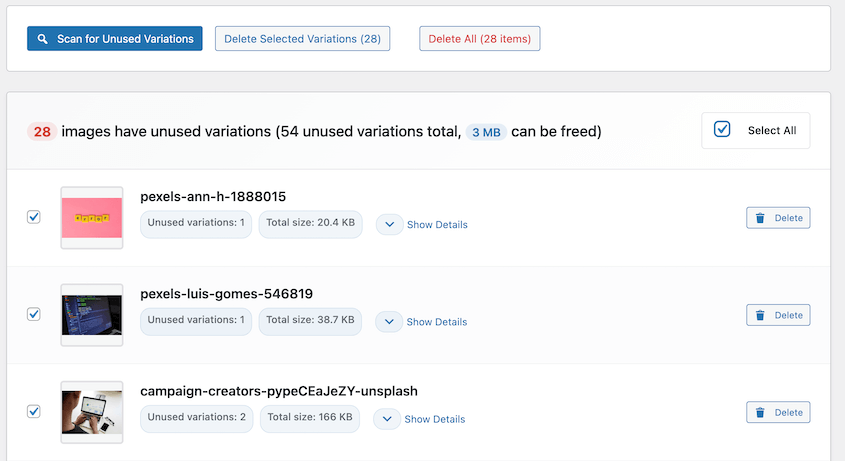
Your database has a similar problem. DB Optimizer scores it out of 100 and clears revisions, auto drafts, trashed content, spam comments, expired transients, and oEmbed cache.
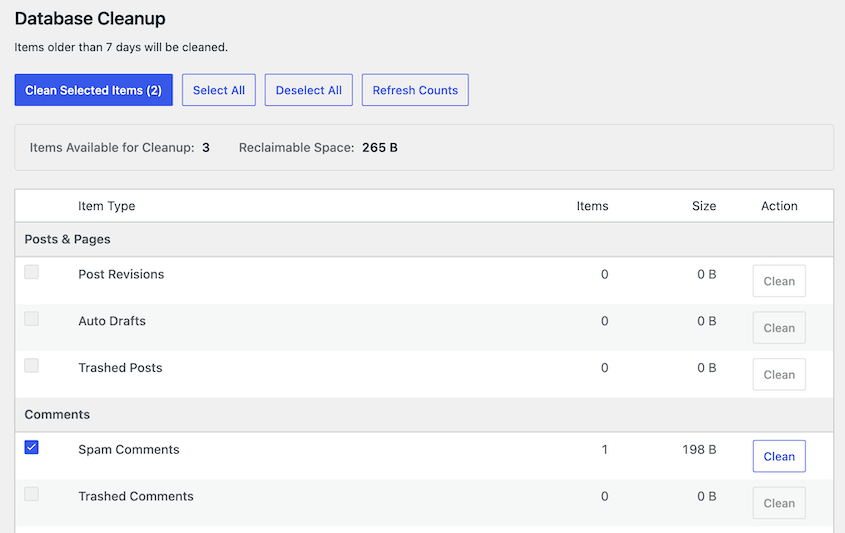
Both WP Media Cleanup and DB Optimizer are included with Duplicator Pro and Elite, or $29 a year individually.
Exclude What You Don’t Need to Restore
Some directories have no business being in a backup. They’re regenerated automatically, or they belong to something else entirely.
The safe exclusions are consistent across most sites:
- Cache directories, which rebuild themselves within minutes of a restore
- Log files, which grow without limit and tell you nothing about your site’s content
- node_modules and build directories on sites with a development workflow
- Other backup plugins’ storage folders, which is how people end up with backups of their backups
With Duplicator, you can exclude specific files and folders with filters.
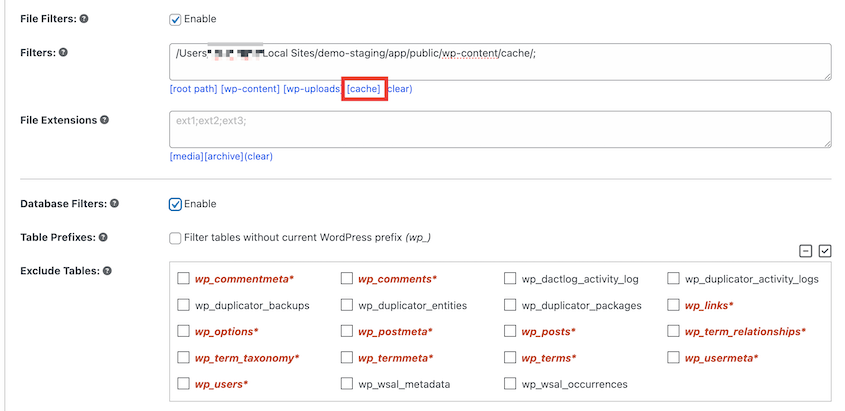
One warning: excluding your uploads folder makes the archive small, but the restore incomplete.
If you exclude anything, write down what you excluded and where the missing pieces live. A restore that finishes successfully and comes back without your images is worse than a backup that failed loudly.
Use Partial and Filtered Backups
Your schedule moves more storage than any setting on the page.
The split most sites should be running looks like this:
- Daily database-only backups: They weigh almost nothing, and they capture your posts, pages, orders, and settings.
- Weekly full-site backups: Media changes slowly on most sites, so a daily copy buys you very little.
Duplicator Pro lets you build a backup from selected components. Check the Database Only box to exclude everything except your database.
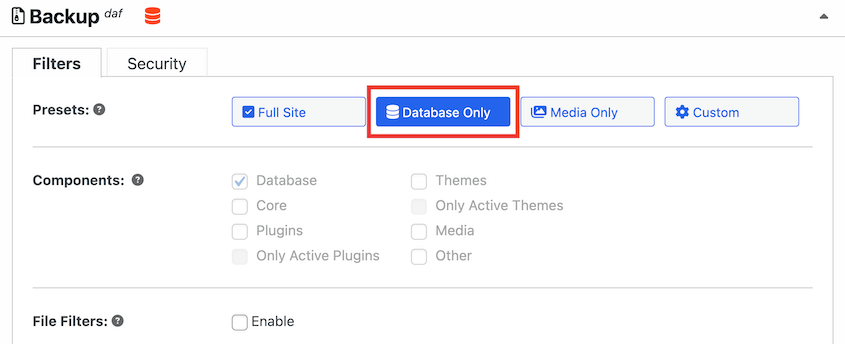
Use the same system to set up custom automatic backups. Create one from a full-site backup template, and let it run every week.
Repeat this process for a database-only backup template that runs daily.
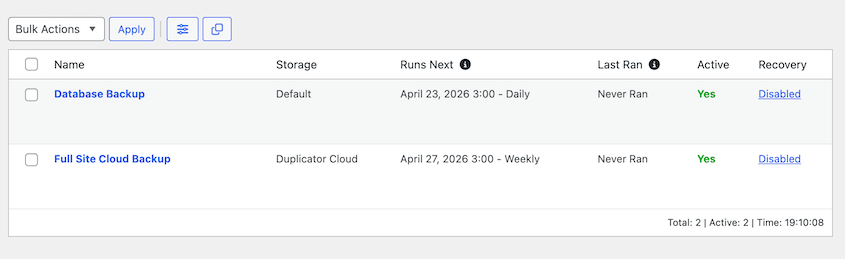
However, be aware of the tradeoff. A database-only backup restores your content, not your media. It’s half of a recovery plan, and it needs the weekly full archive standing behind it.
Offload Media to Cloud Storage
Moving your uploads folder to Amazon S3 or a similar service shrinks every backup you take from that day forward. On a media-heavy site, it’s the single largest reduction available.
It also adds a dependency your site now can’t live without.
Your media lives somewhere your backup plugin isn’t looking, which means it needs its own backup and recovery plan. That’s a fair trade for a lot of sites. It isn’t a free win, and it’s usually a project rather than an afternoon.
Should You Use Incremental Backups?
Sometimes. Incremental backups store only what changed since the last full copy, so the storage savings on a frequently updated site are real.
They work best when your content changes often and your media doesn’t. A news site publishing ten posts a day against a stable image library is close to the ideal case.
They’re weakest in the situation you’re insuring against. A total server loss, a host migration, or a restore onto a blank machine all need a complete archive you can carry somewhere else.
Sizing Your WordPress Backup Storage: 3 Examples
These are templates to run with your own numbers, not benchmarks to measure yourself against. Every one uses the same four steps, so sizing your WordPress backup storage comes down to filling in four blanks.
Here are the four numbers you’re solving for:
- Site size: Files + database, from your host’s control panel or Tools » Site Health » Info
- Estimated archive size: How much of your site is media, discounted for compression
- Working headroom: Site size + archive size, the free space a backup needs to finish
- Total storage: Archive size x copies retained, in each location
A Small Blog: 400MB Site
Mostly text, a few hundred images, and a 50MB database.
Text compresses hard, so a 400MB site like this produces an archive near 150MB. Creating it needs about 550MB free, which is the 400MB site plus the 150MB archive sitting on disk together.
Fourteen daily copies at 150MB each is a little over 2GB.
A site this size fits comfortably in a free cloud tier or the smallest paid one, and it will keep fitting for years. This is not the site that has a storage problem.
A Business Site: 4GB Site
A full media library, a decade of blog post images, a handful of videos.
Compression barely helps here, because most of that 4GB is already-compressed JPEGs. Expect an archive around 3GB. Creating it needs roughly 7GB free.
Retention is where this one gets expensive. Seven daily copies plus four weekly copies is 11 archives at 3GB each, or about 33GB.
Keep three recent copies on the host (9GB), and the full set off-site (33GB), and you’re looking at a 50GB cloud tier. That’s the honest number for a site most people would call medium-sized.
A WooCommerce Store: 12GB Site
Product images, order history, a database that grows every day.
The archive lands near 10GB, and it needs around 22GB of free space to create. On budget shared hosting, that requirement alone is where the backup fails.
Now compare two schedules. Fourteen daily full backups would be 140GB of storage. Four weekly full backups plus fourteen daily database-only backups is about 42GB, and it gives you a same-day restore point for every order taken in the last two weeks.
Same protection for orders, but a third of the storage.
That’s the whole argument for splitting your schedule, and it’s why the store in the table earlier costs about the same as a site a quarter its size.
Frequently Asked Questions (FAQs)
How big should a WordPress backup file be?
There’s no target size, only a range that matches your content. A small blog backs up to a few hundred MB. A business site with a full media library lands between 1GB and 5GB. A WooCommerce store with product images regularly passes 3GB. If your archive is much larger than your site, something is being backed up twice.
How much disk space do I need to back up my WordPress site?
Plan for close to double your current usage. While the backup runs, your site and the archive occupy the same disk at once, so a 10GB site wants roughly 20GB free to finish cleanly. Backup tooling documentation puts the requirement as high as two-thirds of your account free when you’re archiving everything.
How many WordPress backups should I keep?
Common practice is daily backups held 7 to 14 days, weekly backups held about 4 weeks, and monthly backups held 3 to 6 months. Follow all three tiers, and you’re storing roughly 20 copies. Cut the daily tier to database-only backups, and you keep the same recovery points at a fraction of the storage.
Why does my WordPress backup fail on a large site?
Usually time, not space. In Duplicator support tickets, about 1 in 3 backup creation reports involve a stall or timeout, while explicit disk-space reports run at fewer than 1 in 30. PHP kills the job before the archive finishes. Raising max_execution_time or splitting the backup into smaller component jobs resolves most of these.
Do backups count against my hosting storage limit?
Yes, if you store them on your host. Every archive sits in your account and counts toward your quota, which is how a 10GB site consumes 40GB of a hosting plan. Backups sent to cloud storage don’t count against hosting, though they do count against whatever quota that service applies.
Is it safe to delete old WordPress backups?
Delete the middle of your history, not the ends. Most people assume the newest backup is the safest one, but malware can sit undetected for weeks, which means your recent copies may all be infected. Keep a monthly archive or two from before any suspected compromise. That older copy is often the only clean version you have.
Your Backup Size Is a Planning Problem, Not a Plugin Problem
Storage decisions get made once, quietly, usually while you’re setting something else up. You find out whether you got it right on the worst possible day, which is the day you need to restore.
That’s what makes sizing worth planning. Every number in this post is one you can work out in advance, and none of them change much month to month.
I won’t pretend the fixes are quick. Cleaning a media library that’s been accumulating since 2018 is tedious work, and offloading media to cloud storage is a project with its own failure modes.
The scheduling change is the exception. Splitting daily database backups from weekly full backups takes about ten minutes and does more for your storage than everything else combined.
One habit worth building that I haven’t mentioned earlier: write down your backup archive size once a month and watch the growth rate rather than the number.
A site gaining 15 percent a month hits its storage ceiling on a date you can calculate. That lets you move to bigger storage before failures happen.
Before Your Next Backup Fails, Know How Much Room It Needs
A restore is the wrong time to discover your backups stopped uploading off-site three weeks ago, or that your host ran out of room to build it.
Duplicator Pro handles sites of any size, sends backups off-site to your favorite cloud storage, and deletes old backups automatically on the retention schedule you set.
It also turns any full-site backup into a staging site in a few clicks, so you can test a restore properly before you need one.
More than 1.5 million WordPress professionals use Duplicator to keep their sites recoverable. Join them to make your backups and migrations easier!
If sizing your backup storage raised other questions, these are worth reading next:
- How to Back Up a Large WordPress Site
- The Real Cost of Cloud Storage Limits for WordPress Site Owners
- Could Incremental Backups Solve Your Website Storage Problems?
- The 3-2-1 Backup Rule Explained: What It Is and What’s Changed in 2026
- 12 Best Cloud Storage Services for WordPress Backups (Expert Pick)




