

![[New] Introducing Duplicator 5.0: AI Backups, AutoTune, and Extra Free Features](https://duplicator.com/wp-content/uploads/2026/09/Duplicator-5-0-Announcement.jpg)
How to Build a WordPress Site Without Going Live
 Joella Dunn
Joella Dunn
Joella Dunn
 John Turner
John Turner
John Turner
The first time I built a WordPress site directly on a live server, I pushed a half-finished page to a real URL before I meant to. A client found it. That was enough to make me change how I work.
Building in public before you’re ready isn’t just embarrassing. A plugin conflict can crash your site. A theme switch can wipe your layout. A failed update can lock you out of wp-admin entirely.
Any of these can happen on a live site while real visitors are trying to load it. Working offline or in a sandbox means those mistakes stay invisible until you’ve already fixed them.
In this tutorial, I’ll walk you through four ways to build a WordPress site without going live: WordPress Studio, Local, InstaWP, and the traditional MAMP/XAMPP path.
You’ll also get a decision framework to pick the right one before you download anything, and a step-by-step process for pushing your finished site to a live server.
By the end, you’ll have a working local or sandboxed WordPress environment and a clear path to go public when you’re ready.
Here are the key takeaways:
- WordPress Studio and Local are for full site builds; InstaWP is a scratchpad. Studio is the fastest to set up with no server configuration required, Local gives you more control over PHP and server settings, and InstaWP is for quick tests you don’t need to keep.
- MAMP, WampServer, and XAMPP are the right choice if you want full control over your server stack, but they take more setup steps than Studio or Local — factor that in before you start.
- All four methods end with the same Duplicator-powered go-live step. Whichever tool you use locally, Duplicator Pro packages your site and deploys it to any host, replacing local URLs automatically.
- Free InstaWP sandboxes expire after 48 hours. If you build something worth keeping, export it or create an account before the timer runs out.
Table of Contents
Why Build a WordPress Site Without Going Live?
There are a few situations where building offline or in a sandbox makes more sense than working directly on a live server. Here’s what you get out of it.
Error-free changes. You can test content, layouts, and design decisions privately before anyone else sees them. If something breaks, it can’t hurt you.
Security. Trying out a new plugin or theme on a live site is a gamble. Some plugins conflict with each other. Some themes overwrite customizations. Testing in an isolated environment means a bad install doesn’t take your live site down with it.
Performance. You can optimize page speed and functionality in a local environment before it affects real visitors. No one experiences a slow load time while you’re still figuring out which image compression plugin you want.
Collaboration. Local environments and sandboxes make it easier to share work in progress with teammates or clients before anything is public. Tools like Local even generate a temporary shareable URL so a client can review your work without you pushing anything live.
All four methods in this guide deliver these same benefits. The difference is how much setup you want to do and how long you need the environment to last.
Which Method Is Right for You?
Before you download anything, spend 30 seconds here. The four methods in this guide all get you to the same place, but they’re built for different situations.
Picking the wrong one means more setup than you needed, or not enough control for what you’re trying to do.
| Your Situation | Best Method |
| Building your first WordPress site | WordPress Studio |
| You want control over PHP version, SSL, and server settings | Local (LocalWP) |
| Quick plugin or theme test with no installation needed | InstaWP |
| You want full control over your server stack and aren’t afraid of configuration | MAMP, WampServer, or XAMPP |
| You need to test on a copy of your actual live site | Clone with Duplicator Pro, then use any method above |
If you’re starting from scratch and have never set up a local development environment before, start with WordPress Studio. It has the shortest path from download to working WordPress site, and it doesn’t require you to configure a server, a database, or anything else.
If you need to match a specific PHP version, work with multisite, or share a preview link with a client, LocalWP gives you more control without being significantly harder to set up.
If you just need to test something quickly and don’t want to install software at all, InstaWP spins up a throwaway WordPress sandbox in your browser in about 10 seconds. It’s not for building a full site you plan to keep, but for a quick proof-of-concept, it’s hard to beat.
If you want hands-on control over every layer of your local server (Apache, MySQL, PHP configuration, virtual hosts), MAMP, WampServer, and XAMPP give you that.
The tradeoff is more setup steps upfront. It’s the right choice if you’re comfortable in a server environment and want things configured exactly the way you want them.
How to Build a WordPress Site Without Going Live
Whichever method you choose, the steps below walk you through the full setup from first install to a finished site ready to push live. Jump to the section that matches your tool.
All four paths end at the same place: a complete WordPress site you can migrate to a live server when you’re ready.
Method 1: WordPress Studio
Best for: beginners, anyone who finds MAMP setup frustrating, Mac and Windows users
WordPress Studio is a free desktop app from Automattic built on WordPress Playground. It’s the fastest way to get a local WordPress site running without touching a server configuration.
No Apache setup, no MySQL, no phpMyAdmin. You open the app and you have WordPress.
One thing to know: Studio sites live on your local machine. If you close your laptop and open it somewhere else, the site doesn’t come with you. Studio has an export feature if you need to move your work to another machine. Use it before you need it, not after.
Here’s what you’ll do:
- Download and install Studio: Get the app from developer.wordpress.com/studio and install it on your machine
- Create your first site: Name it and let Studio handle everything else automatically
- Open your WordPress dashboard: Access wp-admin directly from the Studio interface
- Build your site: Install themes, plugins, and content exactly as you would on a live site
Step 1: Download and Install Studio
Download WordPress Studio for macOS or Windows. Run it like any other desktop app.
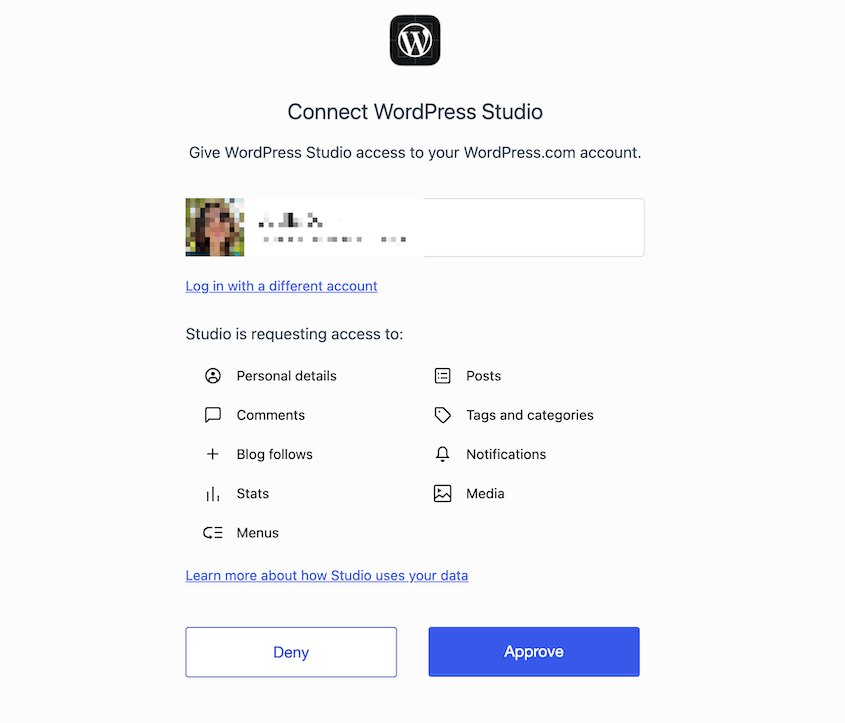
Once installed, it’ll have you log into WordPress.com or create a new account.
Step 2: Create Your First Site
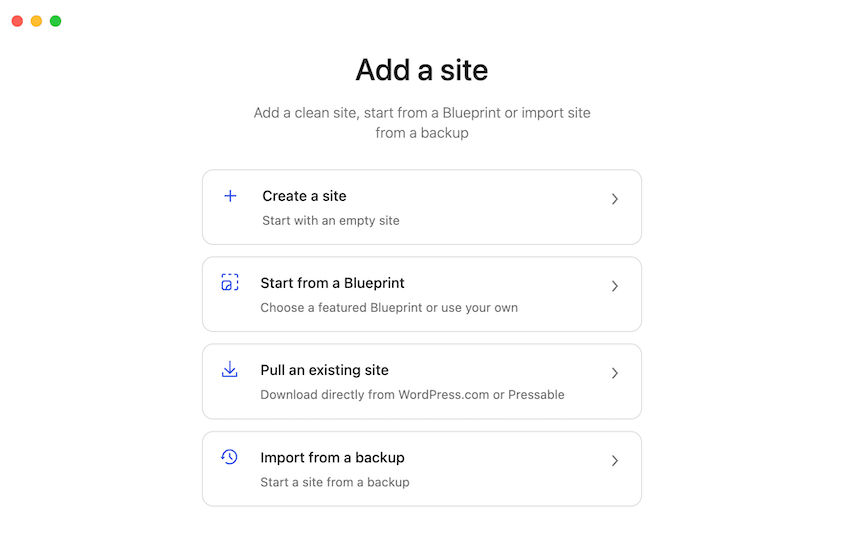
Click Create a site from the list of options. However, feel free to import a backup or start from a blueprint.
Give it a name. You can stop there, or open the advanced settings to customize the PHP version, WordPress version, admin credentials, and domain.
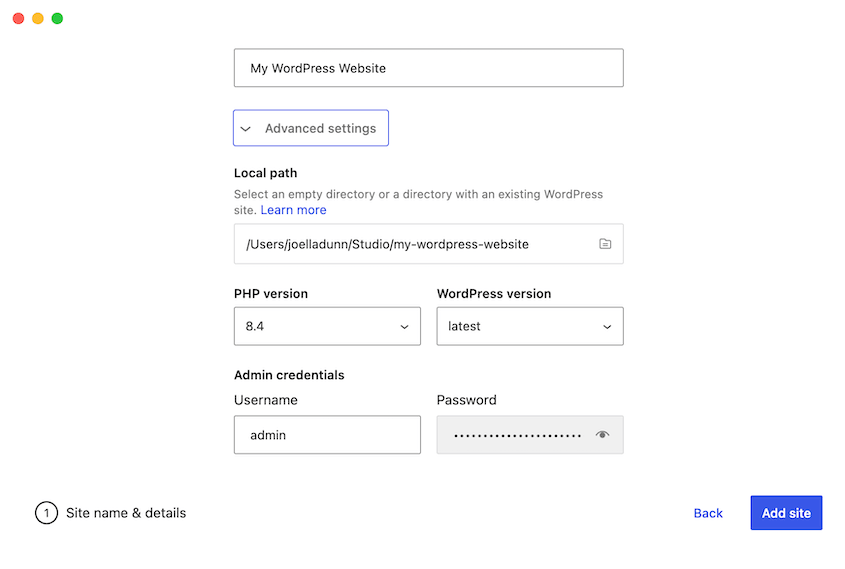
Studio creates the site automatically from there. WordPress installs, the database configures, and a local URL gets assigned without you entering a single setting.
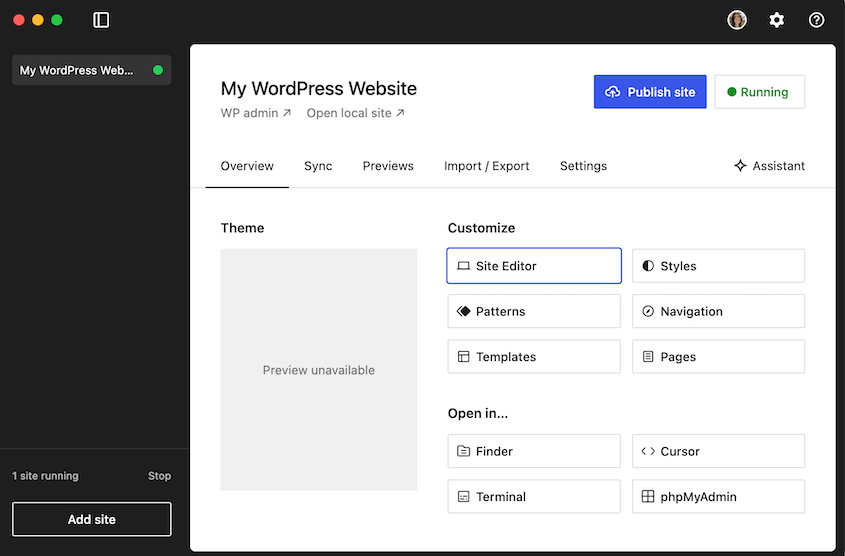
When the setup finishes, your site name appears in the left sidebar with a green “Running” indicator. That means WordPress is live locally and ready to use.
Step 3: Open Your WordPress Dashboard
Click WP Admin in Studio to go straight to the WordPress dashboard, or click Open site to view the front end first. Your login credentials were set during site creation and are visible in the Studio interface if you need them.
From here, everything works exactly as it does on a live WordPress site. Install a theme, activate plugins, build out your pages.
Step 4: Build Your Site
Any theme or plugin that works on a live WordPress.com site works in Studio. There are no compatibility differences to account for. The optional Studio Assistant can install plugins and run WP-CLI commands through a chat interface if you want it, but it’s entirely optional and won’t get in your way if you ignore it.
Method 2: Local (LocalWP)
Best for: users who want a beginner-friendly interface, with easy control over PHP version, SSL, and multisite;
Local is a free desktop app maintained by WP Engine. It’s been around longer than Studio and has a larger feature set — you can set the PHP version per site, enable one-click SSL, switch between Apache and Nginx, and share a temporary public preview link without pushing anything live.
If you’re building for a client who needs to review your work before launch, that last feature alone makes Local worth choosing.
Here’s what you’ll do:
- Download Local: Get the app from localwp.com and install it on your machine
- Create a new site: Choose your setup preferences and let Local configure the environment
- Access your WordPress site: Open wp-admin or the front end directly from the Local dashboard
- Build your site: Develop with full PHP and server control throughout
Step 1: Download Local
Go to localwp.com and download the installer for your operating system. Local is available for macOS, Windows, and Linux.
A short setup wizard runs on first launch, but it doesn’t ask you to configure anything technical.
Step 2: Create a New Site
Click Create a new site and give it a name.
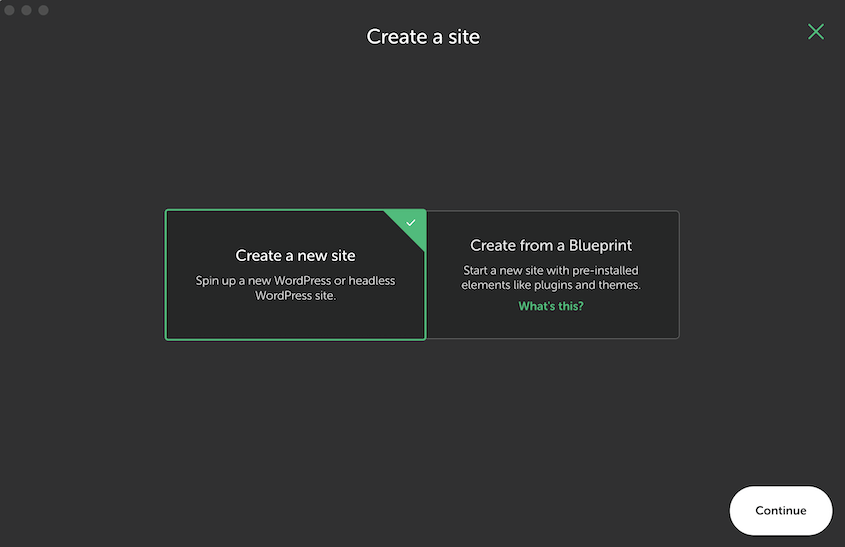
Local then asks you to choose between two setup modes:
- Preferred uses Local’s recommended defaults and gets you running in about a minute. This is the right choice for most users.
- Custom lets you set your PHP version, choose between Apache and Nginx, and select your MySQL version. Use this if you need your local environment to match a specific live server configuration.
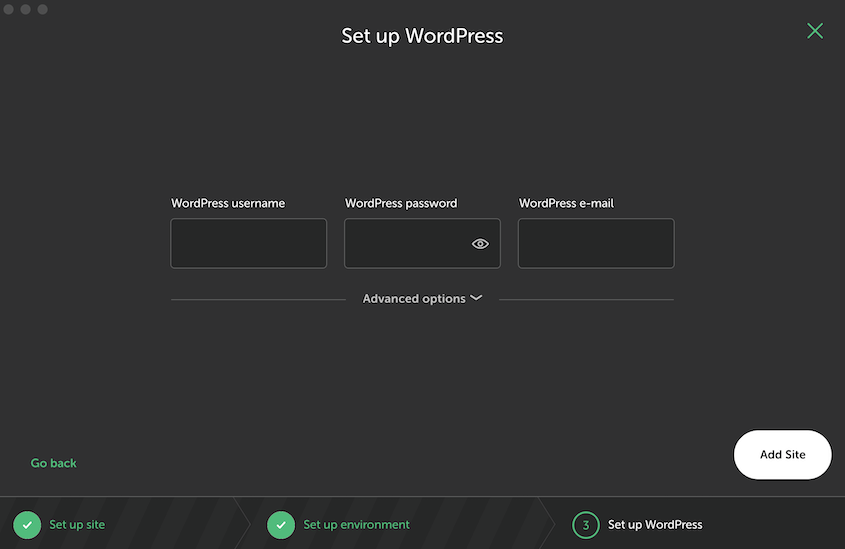
After choosing your setup, set an admin username, password, and email for your WordPress install. Local handles the rest.
Step 3: Access Your Local WordPress Site
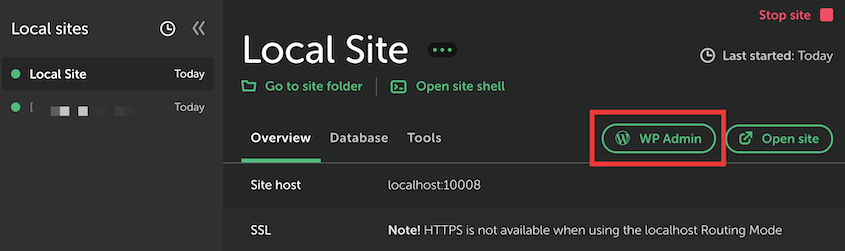
Once the site is created, you’ll see it listed in the Local dashboard. Click WP Admin to open the WordPress backend, or Open site to view the front end.
If you want to use https:// locally instead of http://, click the Trust button next to SSL in the site details panel. Local installs a certificate and enables secure local browsing without a browser warning. It’s a small thing that makes working locally feel closer to working on a real site.
Step 4: Build Your Site
Develop exactly as you would on any WordPress install. Local runs a full server stack, so nothing is emulated or limited.
When you’re ready for a client to review your work, go to the Live Link toggle in Local’s dashboard. Local generates a temporary public URL that mirrors your local site in real time.
The client can click through your work from any device without you deploying anything. Turn it off when the review is done.
Method 3: InstaWP
Best for: quick testing, no installation needed, throwaway sandboxes
InstaWP gives you a working WordPress sandbox in your browser in about 10 seconds. It’s not the right tool for building a full site you plan to keep, but for testing whether a plugin does what you think it does, previewing a theme, or walking a client through a concept before committing to a build, it’s the fastest option in this list.
Here’s what you’ll do:
- Open a sandbox: Go to instawp.com and spin up a fresh WordPress install with one click
- Use the sandbox: Get immediate wp-admin access and test what you need to test
- Save your work before it expires: Export or migrate anything worth keeping before the sandbox closes
Step 1: Create an InstaWP Site
Navigate to instawp.com and create a new site. InstaWP spins up a fresh WordPress installation and hands you wp-admin credentials within seconds.
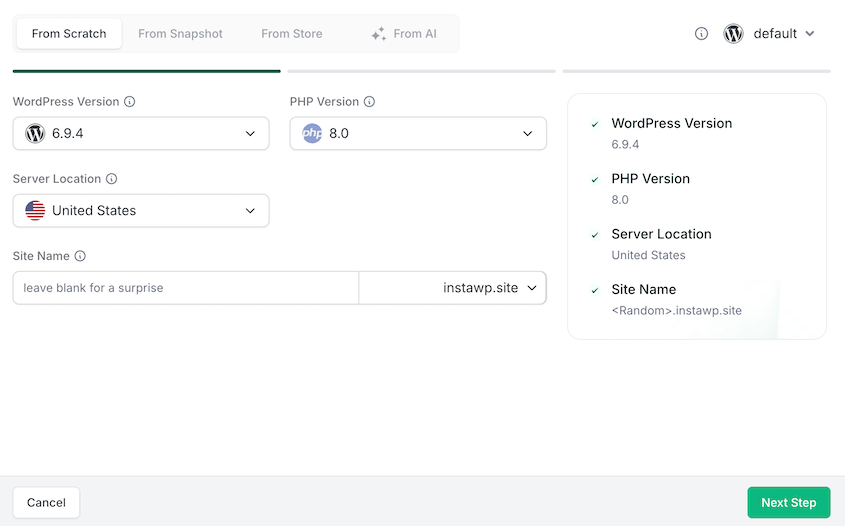
To customize the site, choose a WordPress and PHP version. You can also pick a server location, install plugins, and even use an AI assistant to help you.
Free sandboxes expire after 48 hours. If you think you’ll need more time, upgrade to at least the Sandbox plan, whic is $2 monthly.
That extends the sandbox life and gives you the option to save and reopen your environment later. Don’t skip this step and then lose work — the expiry timer runs whether you’re actively using the sandbox or not.
Step 2: Use the Sandbox
You get full wp-admin access from the moment the sandbox loads. Install themes and plugins, test block editor layouts, configure settings, and more.
InstaWP sandboxes run on real servers, so plugin and theme behavior matches what you’d see on a live site. If something breaks in an InstaWP sandbox, it would break on a live site too.
Step 3: Save your work before it expires
If you’ve built something in InstaWP you want to keep, don’t wait until the countdown gets close.
InstaWP has a built-in migration tool that can push your sandbox directly to a live host. You can also create a backup of the site using Duplicator and download the package files to your computer.
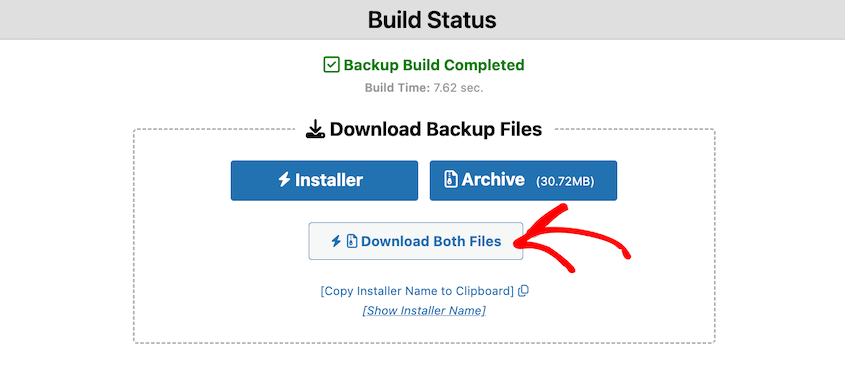
Those files can be deployed to any host or imported into a local environment using any of the other methods in this guide.
If you’re using InstaWP the way it’s designed to be used (as a scratchpad, not a long-term environment), you likely won’t need to save anything at all. Test what you needed to test, close the tab, and move on.
Method 4: MAMP, WampServer, and XAMPP
Best for: advanced users who want full control over their local server stack
MAMP, WampServer, and XAMPP are traditional local server environments that give you direct access to Apache, MySQL, and PHP configuration. They take more steps to set up than Studio or Local, but nothing about the process is technically out of reach if you’re comfortable following instructions carefully.
The payoff is a server environment you control completely, with no app layer sitting between you and the configuration files.
Here’s what you’ll do:
- Download and install your stack: Get the right tool for your operating system and run the installer
- Configure your server: Start Apache and MySQL and confirm both are running
- Download WordPress and set up your folder: Place WordPress in the correct document root and name your local URL
- Create a database: Use phpMyAdmin to create a database for your WordPress install
- Run the WordPress installer: Connect WordPress to your database and complete the setup
Step 1: Download and Install Your Stack
Choose the tool that fits your operating system.
- MAMP runs on macOS and Windows. The free version covers everything in this guide. Download it at mamp.info.
- WampServer runs on Windows only and is free. Download it at wampserver.com.
- XAMPP runs on macOS, Windows, and Linux and is free. Download it at apachefriends.org.
Install whichever you chose and open it before moving to the next step. If you need a full comparison, read our reviews of the top local WordPress development environments.
Step 2: Configure Your Server
Before you do anything else, make sure Apache and MySQL are actually running.
- For MAMP: open the app and click Start. Both the Apache and MySQL indicators should turn green. While you’re here, go to MAMP Preferences and set the Apache port to 80. The default is 8888, which means every local URL requires you to append the port number. Switching to 80 now saves you that friction throughout the build.
- For XAMPP: open the XAMPP Control Panel and click Start next to both Apache and MySQL. Both status indicators should turn green before you continue.
- For WampServer: open the app from your system tray. The WampServer icon should turn green, which means both Apache and MySQL are running. If it stays orange, click the icon and check which service failed to start.
Step 3: Download WordPress and Set Up Your Folder
Go to wordpress.org/download and download the latest version of WordPress as a zip file.
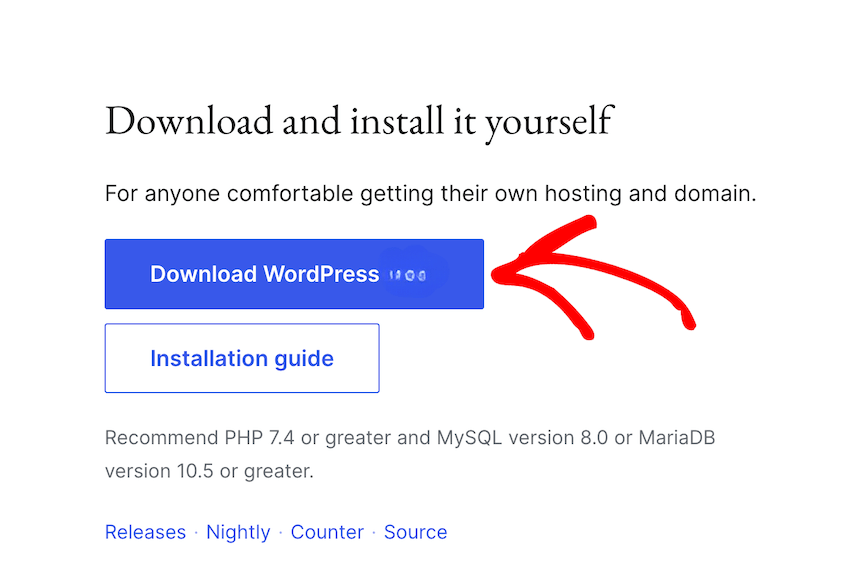
Extract the zip and you’ll get a folder called “wordpress.”
Rename that folder to whatever you want your local URL to be. If you name it “mysite,” your local URL will be localhost/mysite. Keep the name short and lowercase with no spaces.
Move the renamed folder into your server’s document root:
- MAMP: Applications » MAMP » htdocs
- XAMPP: xampp » htdocs
- WampServer: C: » wamp64 » www
Step 4: Create a database
Open phpMyAdmin in your browser. The address depends on your setup.
- MAMP (default port): localhost:8888/phpmyadmin
- MAMP (port 80): localhost/phpmyadmin
- XAMPP: localhost/phpmyadmin
- WampServer: localhost/phpmyadmin
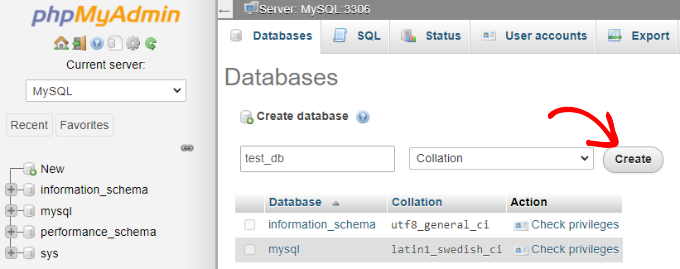
In phpMyAdmin, click New in the left sidebar. Give the database a name that matches your site folder. Keeping them consistent makes it easier to manage multiple local sites later. Click Create.
Step 5: Run the WordPress Installer
Navigate to your local site URL in your browser. For a folder named “mysite,” that’s localhost/mysite. WordPress will detect that it hasn’t been configured yet and launch the setup wizard.
When it asks for database details, enter the following:
- Database name: the name you gave the database in phpMyAdmin
- Username: root
- Password: root (MAMP and XAMPP) or leave blank (WampServer)
- Database host: localhost
- Table prefix: wp_ (fine to leave as default)
Submit the form. If WordPress connects to the database successfully, it moves you to the site details screen. Set your site title, admin username, password, and email, then click Install WordPress.
Log in at localhost/mysite/wp-admin and you’re in.
For more detailed setup instructions, read these blog posts:
How to Make Your Local WordPress Site Live
The moment you’ve been working towards is almost here – launching your website and sharing it with the world! But here’s the beauty of offline development: you get to make this transition flawlessly, without worrying about publishing an unfinished product.
This is where Duplicator Pro comes in – your secret weapon for a smooth and stress-free launch. Duplicator Pro simplifies the process of migrating your locally-developed website to a live server.
Here’s how it works.
Once you’re happy with your local website, use Duplicator Pro to create a full backup. It will compile all of your WordPress files, databases, and settings into a single file.

Next, download your backup.

At this point, you’ll need to find a hosting provider. Purchase a web hosting plan and a domain name.
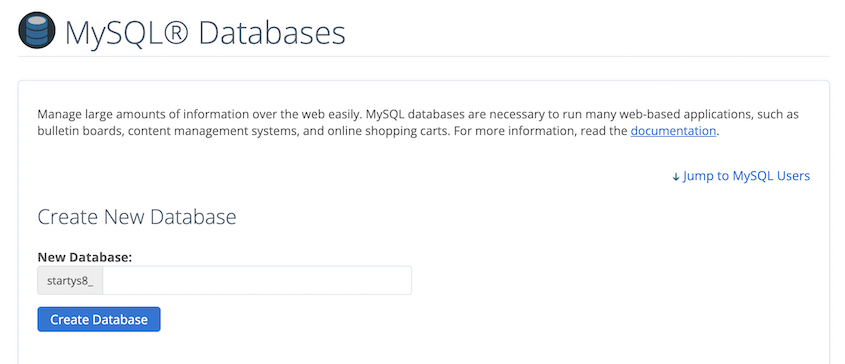
You should also create a new database and database user.
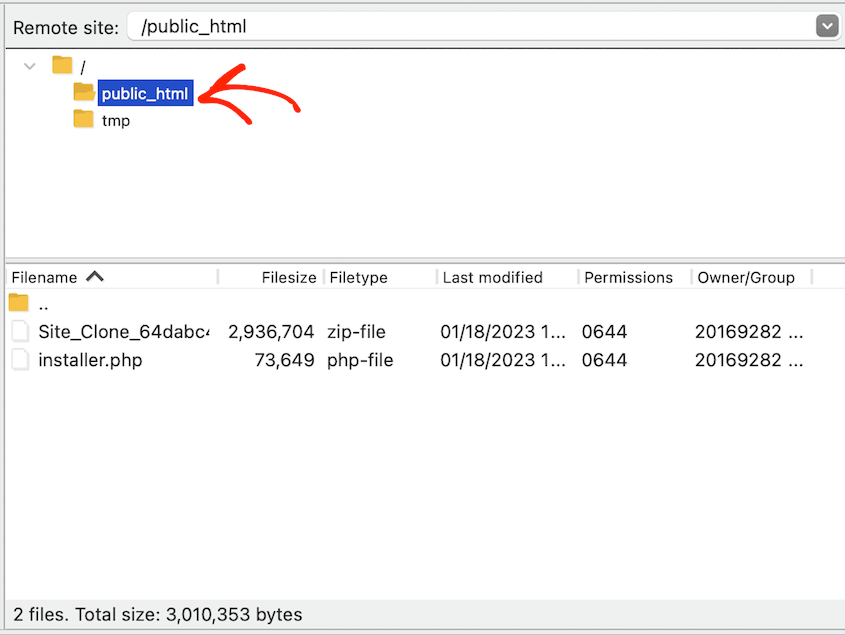
Use your new website’s file manager (like cPanel) or FTP client (like FileZilla) to connect to your server. Upload both Duplicator files to the root directory.
Launch the installer with this link: https://your-domain/installer.php
Duplicator will walk you step-by-step through the migration. You’ll need to enter your new database information and replace your old URLs, but Duplicator makes this super user-friendly.
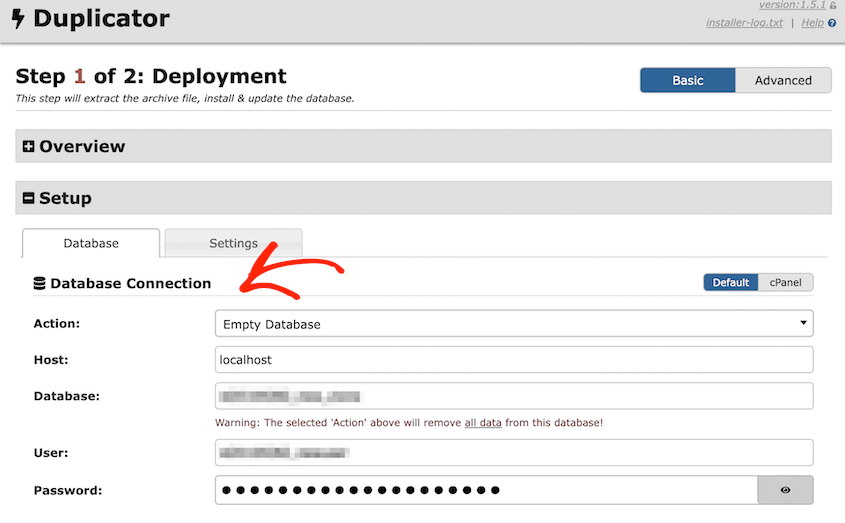
Want to see Duplicator Pro in action? Here’s a full tutorial on moving a local site to a live server.
FAQs About Building a WordPress Site Without Going Live
Can I build a WordPress site without hosting?
Absolutely! Local development allows you to build your website privately, separate from the live web. Hosting comes into play when you’re ready to launch your website and make it accessible to the public. Think of offline development as the planning and construction phase, while hosting is like buying a plot of land and setting up your finished house for everyone to see.
How do I redesign a WordPress site without hosting?
To redesign your WordPress site without hosting, set up your local server. Then, use Duplicator Pro to back up your live website. On the local site, install Duplicator and drag and drop your backup into the Import page.

You can now edit your website without worrying about live errors or downtime. This makes redesigning your website a safe and efficient process. Make all your website design changes offline, then use Duplicator to migrate the updated version back to your live server.
Can I build a WordPress site offline?
Yes, you can build your WordPress site entirely offline. With a local development environment, you can focus on creativity and functionality without distractions or the worry of breaking your live site.
How do I change my WordPress theme without going live?
You can change your WordPress theme by using Duplicator to migrate your live site to a local host. Try out different themes and refine your website’s look and feel offline. When you’re happy with the results, push the changes live.
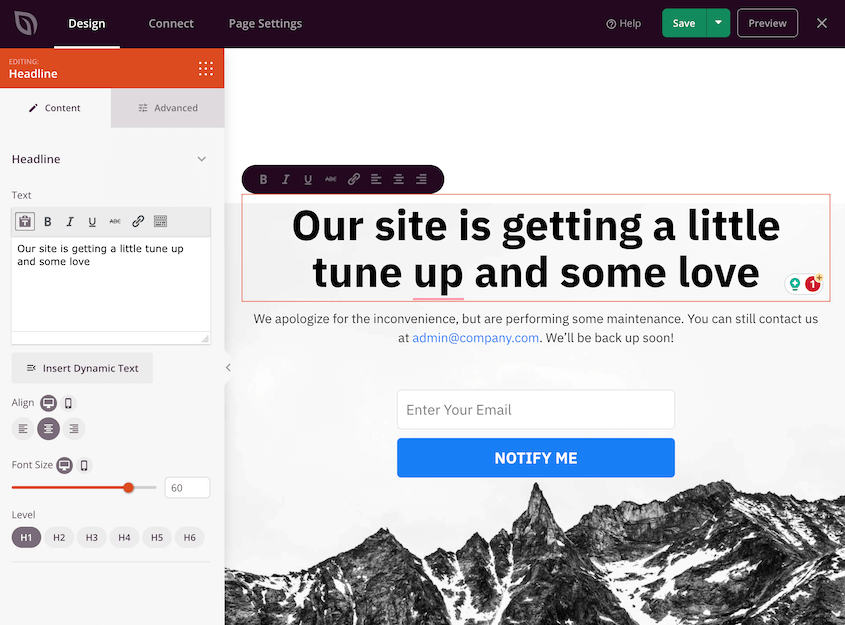
Alternatively, put your live site in maintenance mode. With SeedProd, you can use a template to announce that you’re working on your website.
Another option is to copy your website onto a subdomain or subdirectory on your server. Managed WordPress hosts like WP Engine, Bluehost, and SiteGround make this process easy.
Your Local Site Is Built. Now Protect the Live One.
You’ve got a working WordPress environment set up without touching a live server. Whether you went with Studio, Local, InstaWP, or a traditional stack, the process from here is the same: build until it’s ready, then migrate with Duplicator when it is.
The part most people skip is what comes after the migration. Your local environment was your safety net while you were building. The moment your site goes live, that net disappears unless you replace it.
Set up scheduled backups with Duplicator Pro before you do anything else on the live server.
Your local environment kept your mistakes invisible while you were building. Once the site is live, a bad plugin update, a failed theme switch, or a configuration error can take it down for real visitors in real time. A current backup is what gets you back up in minutes instead of hours.
Over 1.5 million WordPress professionals use Duplicator Pro to back up, migrate, and restore their sites. It’s the same tool that got your local site to a live server, and it’s the right one to keep running once you get there.
If this guide helped, these are worth bookmarking too:
- How to Move a Live WordPress Site to a Local Host
- How to Back Up Your Website’s Staging Site Before Every Push
- Do You Need a Staging Site?
- How to Convert WordPress to a Staging Site
- Code Smarter, Not Harder: WordPress Developer Tools For Every Pro




