


WordPress 6.7: Novedades y cómo actualizar de forma segura
 Joella Dunn
Joella Dunn
Joella Dunn
 John Turner
John Turner
John Turner
WordPress acaba de lanzar su última actualización, y está repleta de cambios emocionantes.
Desde un flamante tema predeterminado hasta innovadoras funciones de edición, esta versión está destinada a transformar la forma en que creas y administras tu sitio de WordPress.
En esta publicación, desglosaremos todo lo que necesitas saber sobre WordPress 6.7. Exploraremos las nuevas funciones, destacaremos los posibles desafíos y, lo más importante, te mostraremos cómo actualizar de forma segura.
Alerta de spoiler: tener una estrategia de copia de seguridad sólida es tu mejor defensa contra problemas inesperados.
¿Listo para sumergirte en el mundo de WordPress 6.7? Empecemos.
Tabla de Contenidos
Nuevas funciones y mejoras en WordPress 6.7
Exploremos las nuevas y emocionantes funciones que harán tu experiencia con WordPress más fluida e intuitiva.
Nuevo tema Twenty Twenty-Five
Conoce la estrella de WordPress 6.7: el tema Twenty Twenty-Five.
WordPress lanza un nuevo tema predeterminado cada año. Estos están diseñados para ser simples, limpios y fáciles de usar.
En comparación con los temas predeterminados anteriores, Twenty Twenty-Five se centra más en un diseño de blog. Otras opciones como Twenty Twenty-Four fueron diseñadas para sitios web multipropósito o de negocios.
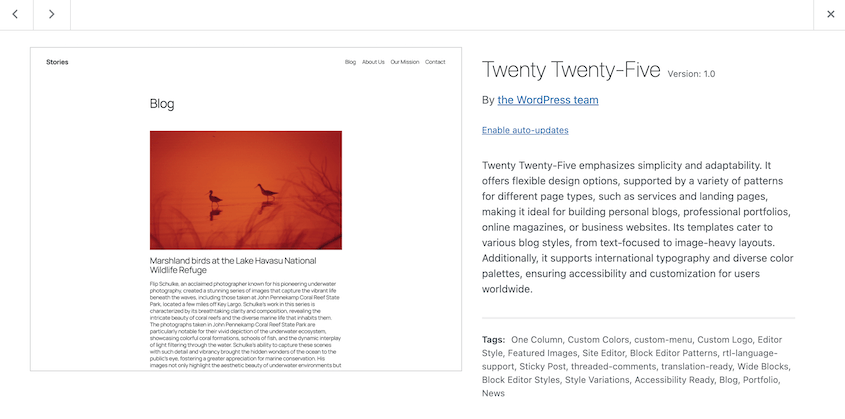
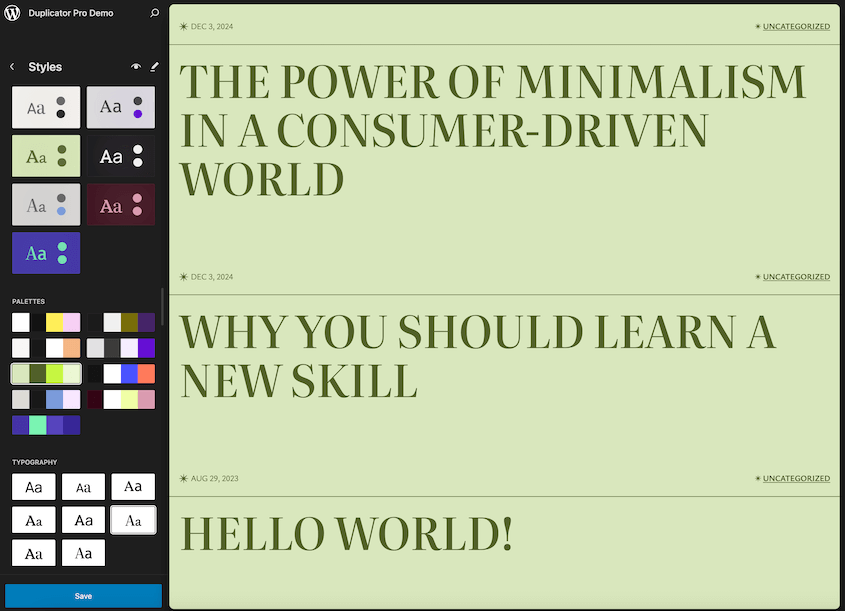
El tema viene con múltiples variaciones de estilo, lo que facilita la personalización sin tener que profundizar en el trabajo de diseño. Hay más patrones de tema para crear encabezados, pies de página, banners, galerías y otras partes de tu sitio web.
Ya sea que tengas un portafolio, un blog o un sitio de pequeña empresa, Twenty Twenty-Five se adapta a tus necesidades. WordPress ha ampliado las paletas de colores y la tipografía para que puedas obtener exactamente lo que necesitas.
Vista de "Alejar"
¿Alguna vez te has sentido abrumado al administrar diseños de página complejos? La vista "Alejar" de WordPress 6.7 está aquí para rescatarte. Esta función te permite dar un paso atrás y ver toda tu página con más claridad.
Si alguna vez has escrito una publicación larga o diseñado una página extensa, sabes lo molesto que puede ser desplazarse por todo.
Ahora, hay un botón adicional para el modo "Alejar". Obtendrás una mejor imagen de tu publicación o página en lugar de bloques individuales.
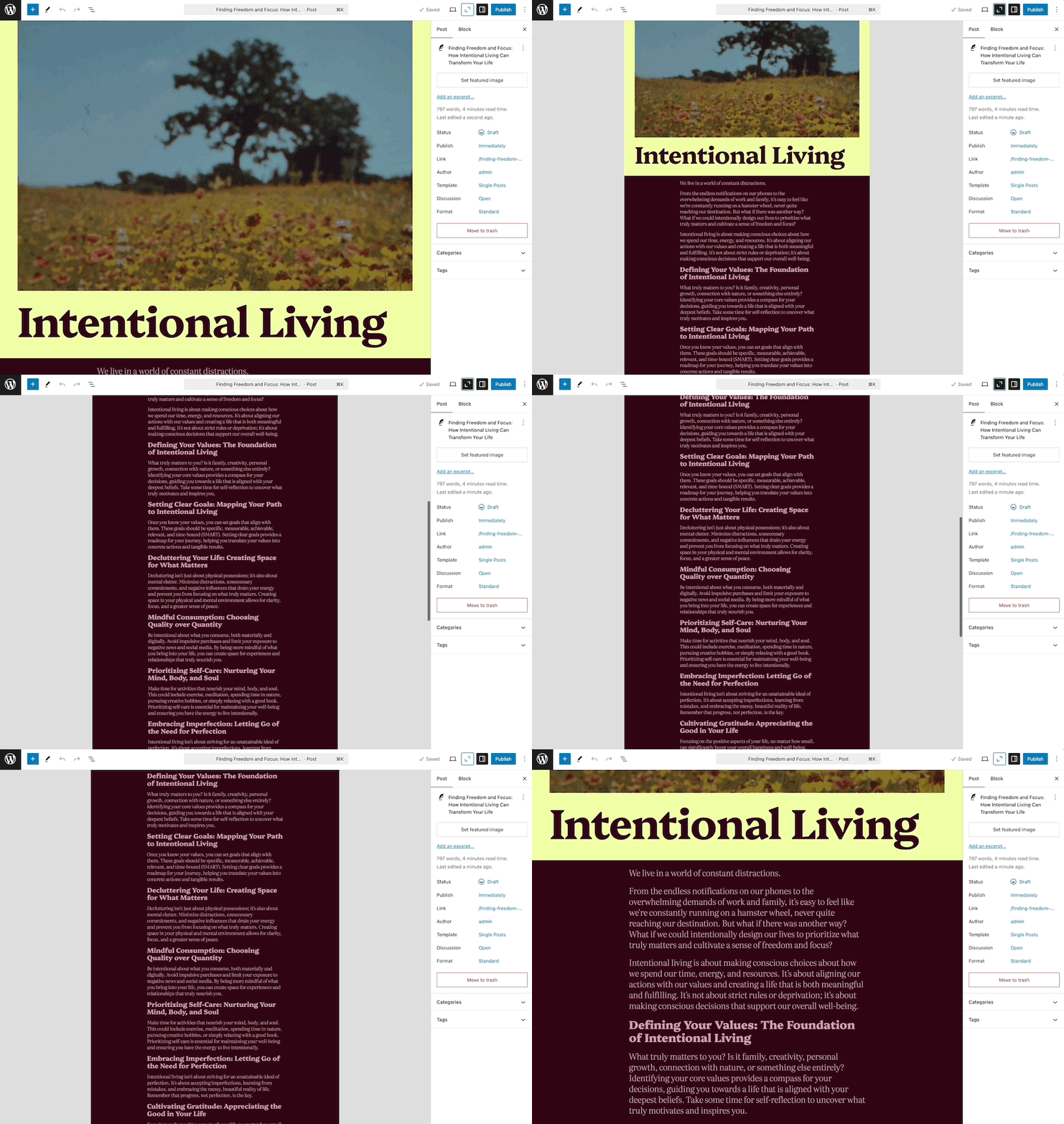
Organizarás bloques, comprenderás el flujo general de tu página y realizarás ediciones rápidas, todo desde una vista panorámica.
Mejores vistas de datos
WordPress 6.7 introduce vistas de datos mejoradas. Encontrarás nuevas formas de ver, filtrar y organizar tu información mientras editas el sitio completo.
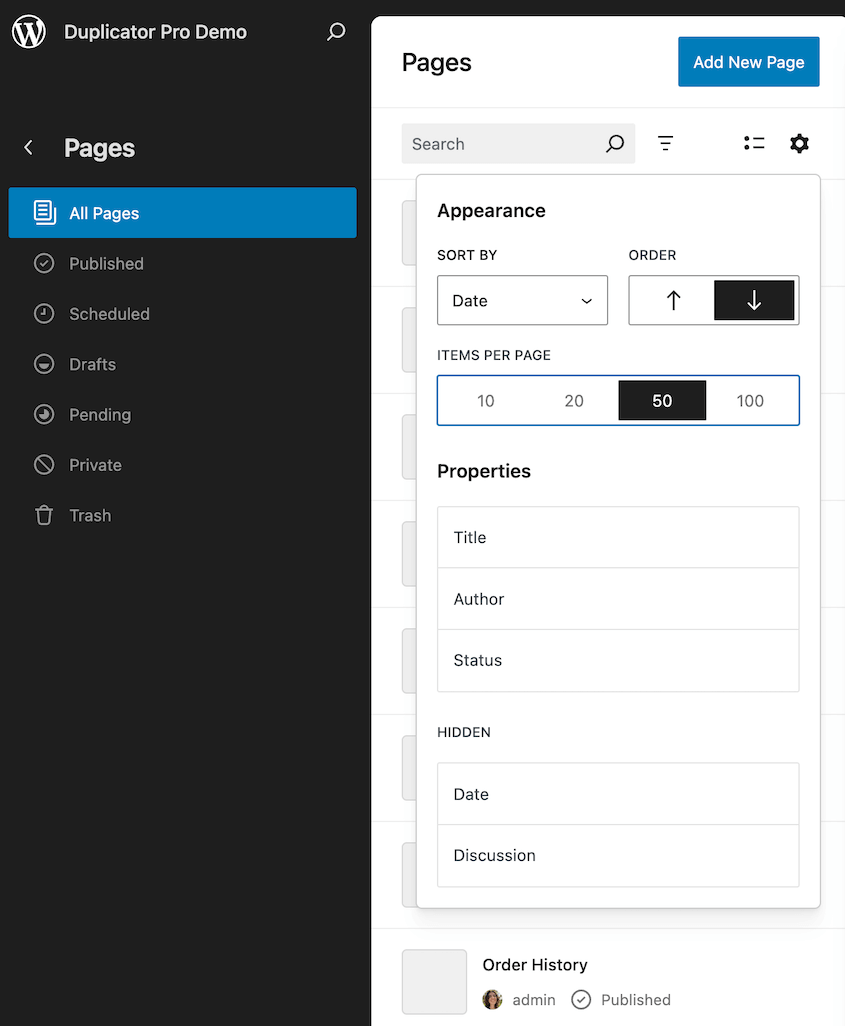
Por ejemplo, puedes ordenar las páginas de tu sitio web por título, autor, estado, fecha o discusión. Puedes personalizar cuántas se muestran en una página.
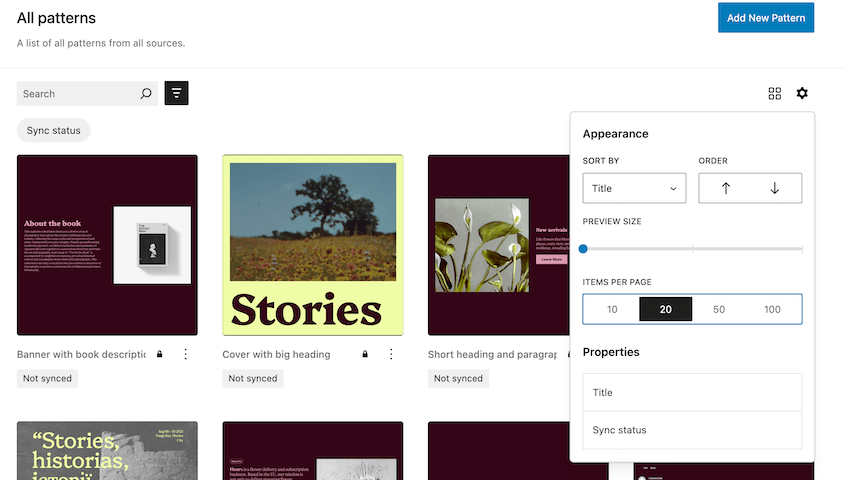
Para los patrones, ajusta el estilo de vista previa y ve los estados de sincronización.
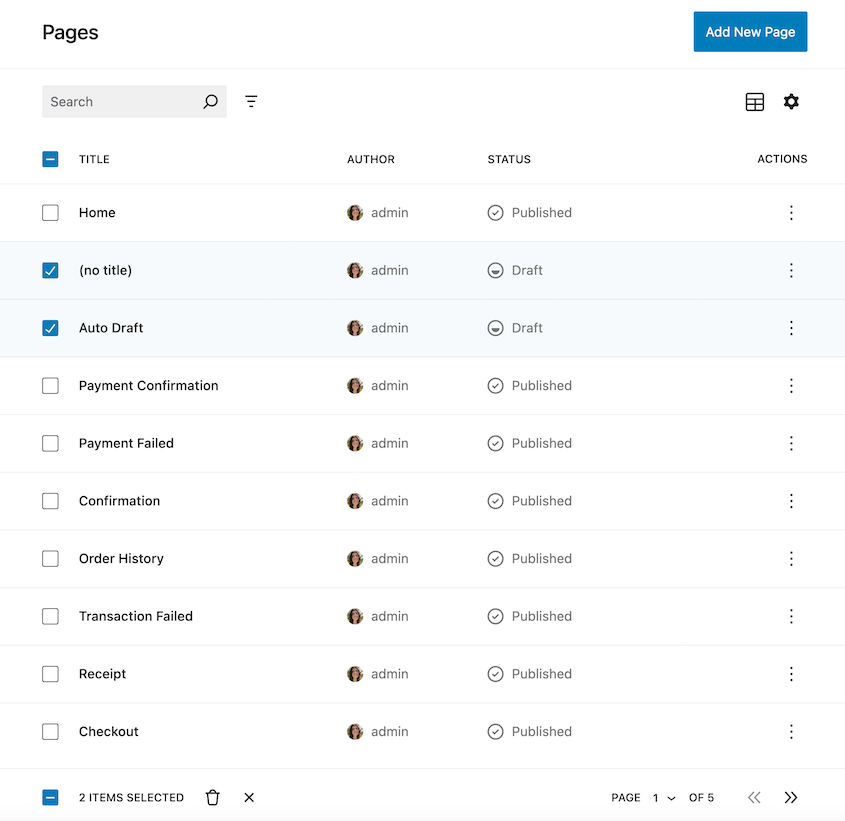
También hay acciones masivas disponibles. Tendrás una interfaz más limpia al administrar varias piezas de contenido.
Ajustes preestablecidos de tamaño de fuente
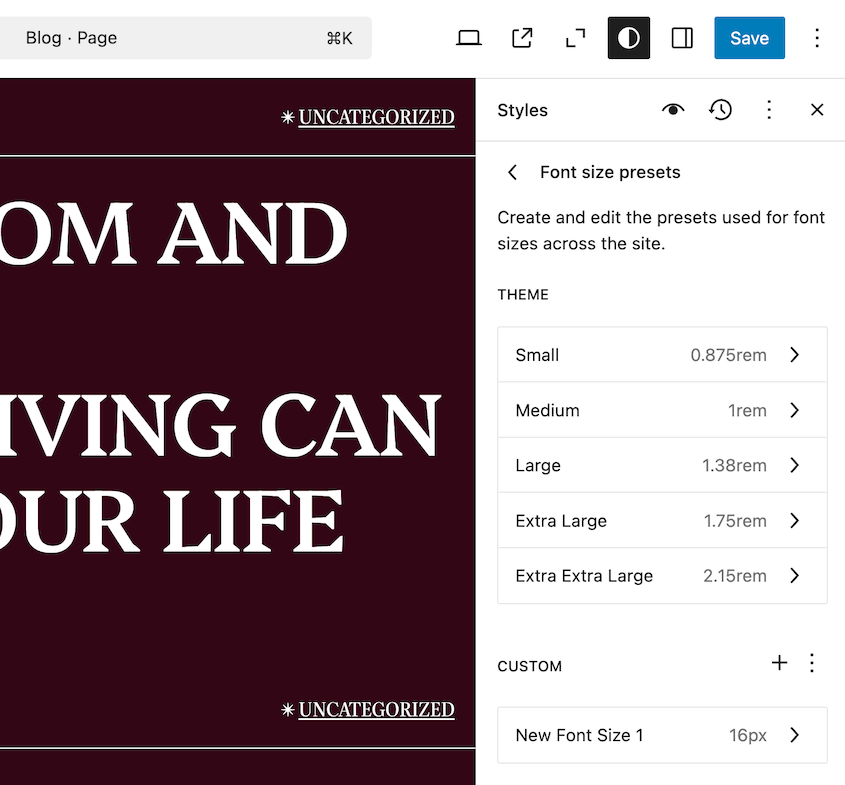
Si alguna vez has tenido problemas para editar la tipografía de tu tema, esta actualización puede ser para ti. Introduce ajustes preestablecidos de tamaño de fuente que te permiten especificar tamaños de fuente personalizados en el editor del sitio.
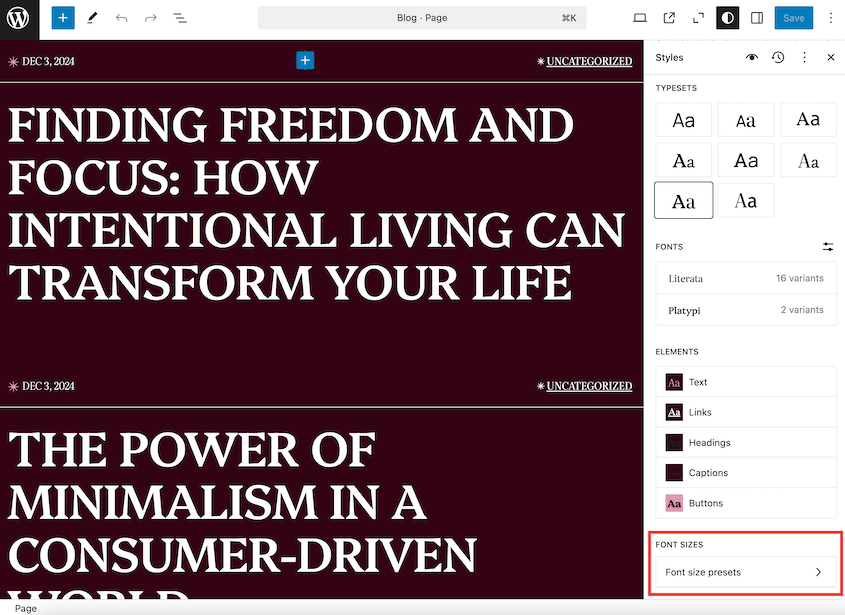
Puedes ajustar los ajustes preestablecidos del tema o añadir tu propio tamaño de fuente personalizado. Te asegurarás de que cada texto se vea exactamente como quieres.
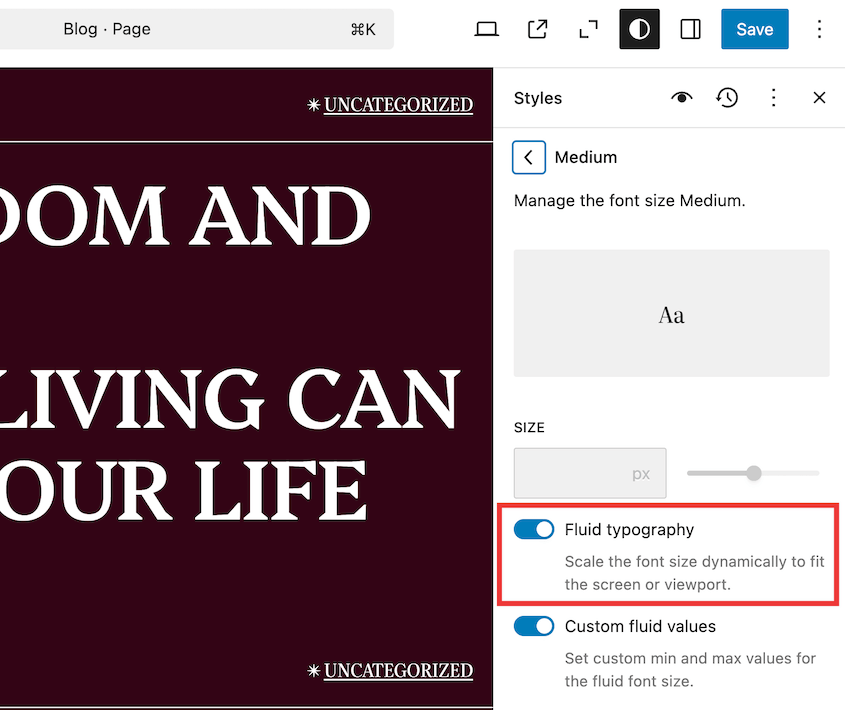
Para que tu texto sea legible, WordPress ha introducido la tipografía fluida. Esta función ajusta el tamaño de tu texto en función de la pantalla que tengan tus lectores.
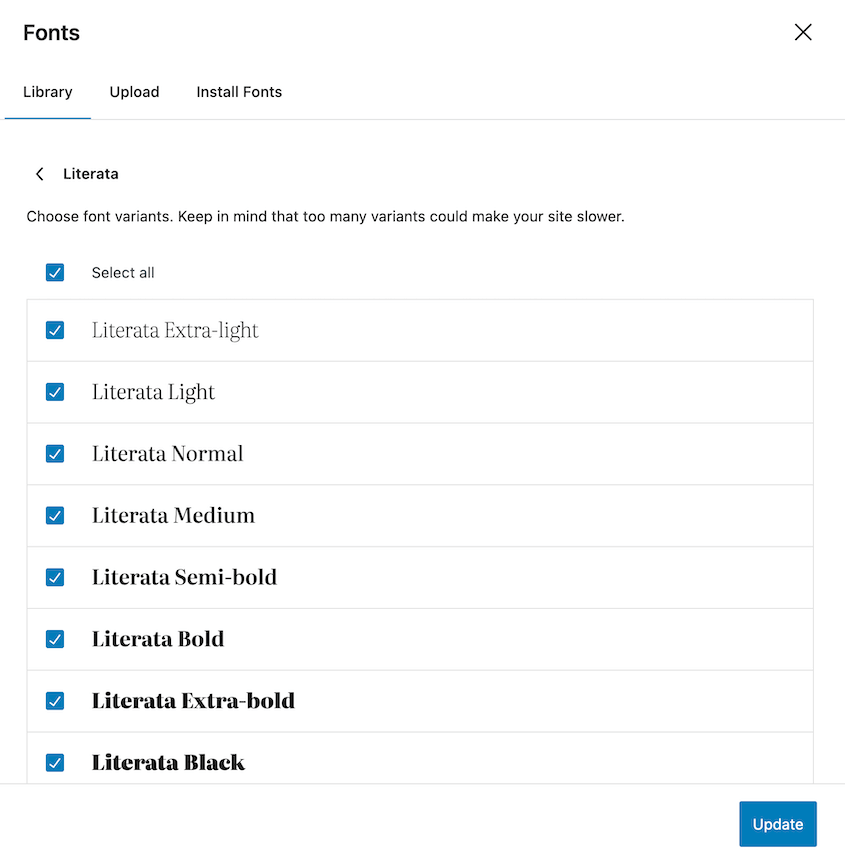
También puedes usar acciones masivas para la Biblioteca de fuentes. Activar o desactivar ciertos estilos de fuente nunca ha sido tan fácil.
Nuevas funciones de edición de bloques
WordPress 6.7 no se trata solo de grandes cambios: está repleto de mejoras de edición más pequeñas, pero potentes, que pueden transformar tu experiencia de creación de contenido.
Imágenes de fondo para citas
Las citas acaban de recibir una mejora visual. Ahora puedes añadir imágenes de fondo directamente a los bloques de citas, convirtiendo texto simple en elementos de diseño llamativos.
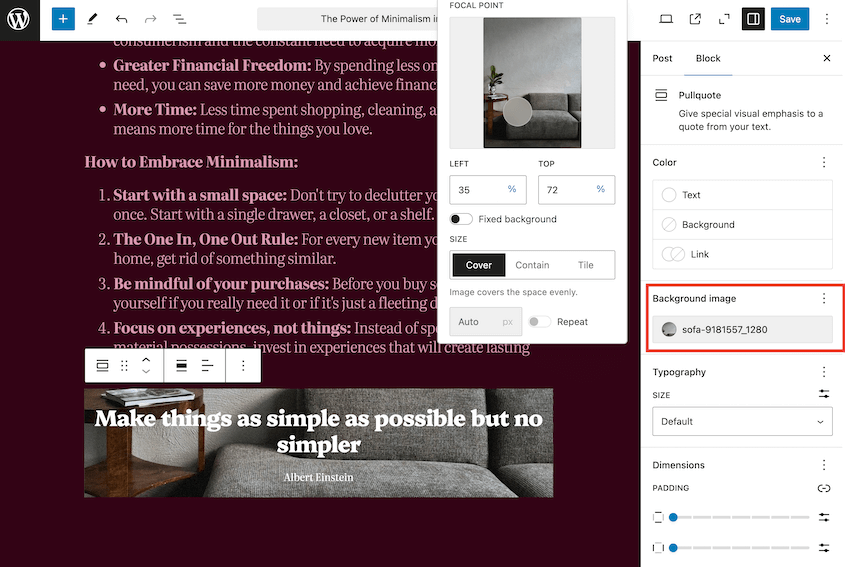
¿Quieres destacar el testimonio de un cliente? Añade un fondo suave y desenfocado de la oficina. ¿Compartes una cita inspiradora? Combínala con un paisaje escénico.
Esta función convierte las citas de texto plano en elementos de diseño narrativos. Además, los bloques agrupados también admiten imágenes de fondo.
Bloque de iconos sociales mejorado
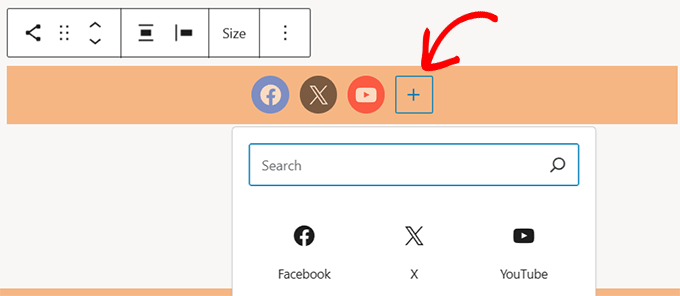
Conectar con tu audiencia es ahora más fácil. El bloque de iconos sociales ahora ofrece más opciones de personalización. Puedes añadir un borde alrededor de tus iconos de redes sociales para unificarlos.
Fondo del bloque de botones
Junto con los iconos sociales, ahora puedes añadir un color de fondo a los bloques de botones.
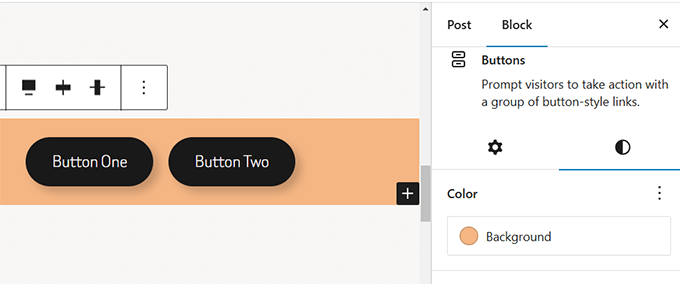
Tus botones de llamada a la acción pueden ser verdaderas declaraciones de diseño en lugar de simples botones rectangulares.
Sube imágenes a un bloque de galería
En lugar de un proceso de carga complicado, ahora puedes arrastrar y soltar varias imágenes en un bloque de imágenes. Se convertirá automáticamente en una galería.
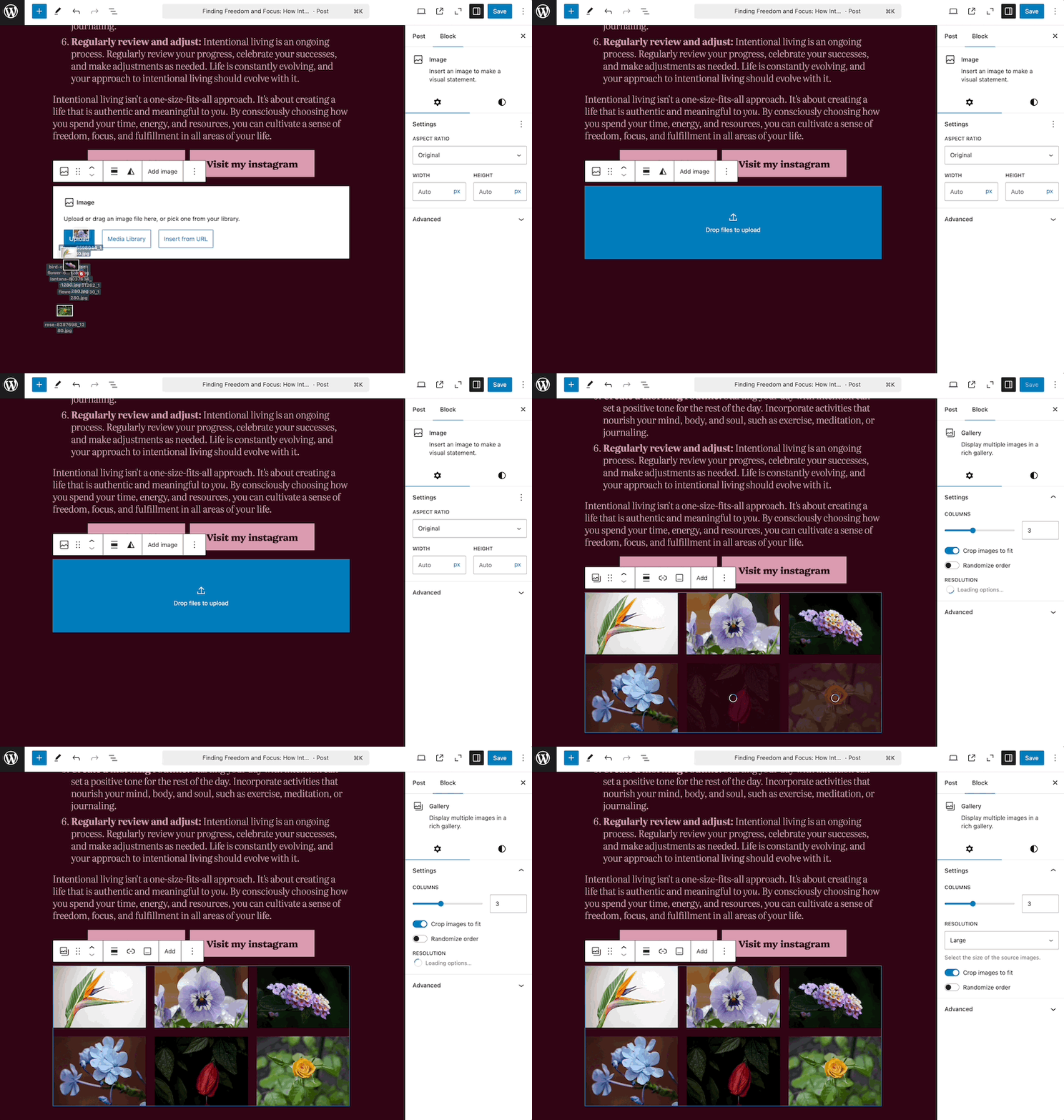
Esto puede sonar pequeño, pero para los creadores de contenido que construyen muchas publicaciones con muchas imágenes, supone un gran ahorro de tiempo.
Desactivar patrones de inicio
¿No te gustan las sugerencias de plantillas predeterminadas? Ahora puedes desactivar los patrones de inicio por completo.
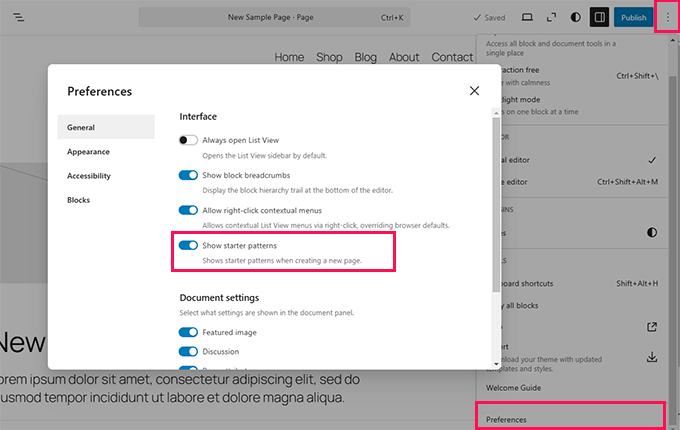
Esto significa:
- Vista del editor inicial limpia y minimalista
- No más sugerencias de plantillas no deseadas
- Más control para desarrolladores y diseñadores
- Flujo de trabajo más rápido para usuarios experimentados
Modo de escritura
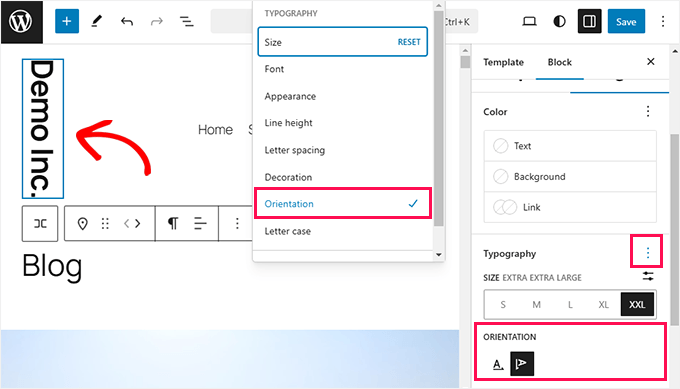
Algunos bloques ahora ofrecen un modo de escritura, que te permite personalizar la orientación del texto en el Editor de bloques. Puedes orientar verticalmente los bloques de Título del sitio, Lema del sitio, Verso o Botón si es necesario.
Bloque de bucle de consulta mejorado
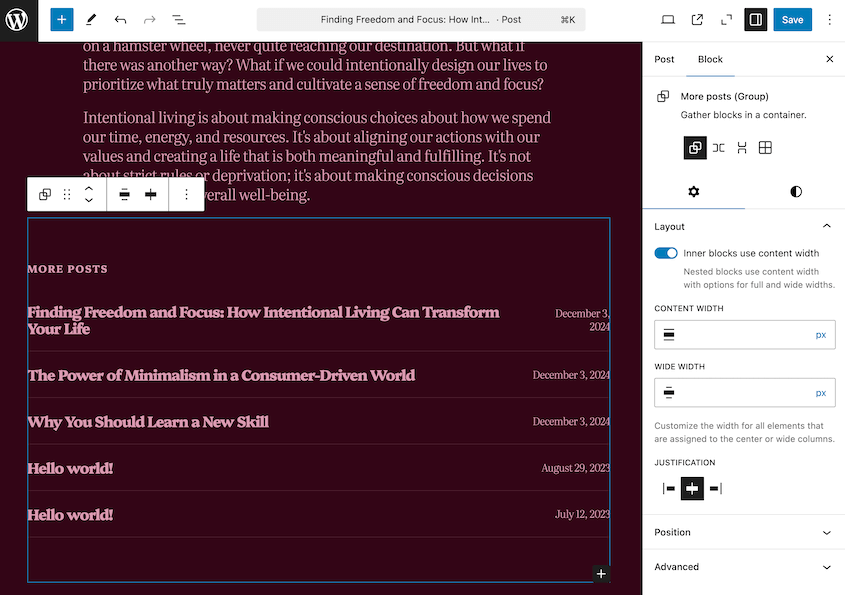
El bloque de bucle de consulta recibe una mejora significativa en WordPress 6.7. Para los creadores de contenido y constructores de sitios, esto significa una visualización de contenido más dinámica y flexible.
Por defecto, el bloque de bucle de consulta hereda las consultas de la plantilla del tema. Tus publicaciones se mostrarán correctamente en el editor y en el front-end.
Mostrar fechas relativas
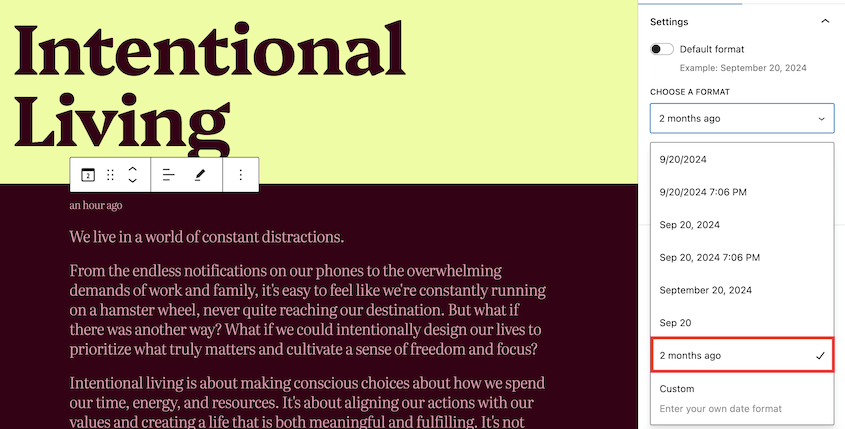
Tus publicaciones ahora pueden tener fechas relativas, lo que puede ser mejor para la experiencia del usuario que una fecha de publicación específica. En lugar de tener que instalar un plugin de terceros, puedes usar una fecha relativa como "hace 2 meses".
Más Controles de Borde
Los diseñadores y desarrolladores obtienen un control granular sobre los bordes de los bloques. Ahora puedes personalizar el color, el ancho y el estilo del borde para cualquiera de estos bloques:
- Botones
- Columnas
- Bloques de portada
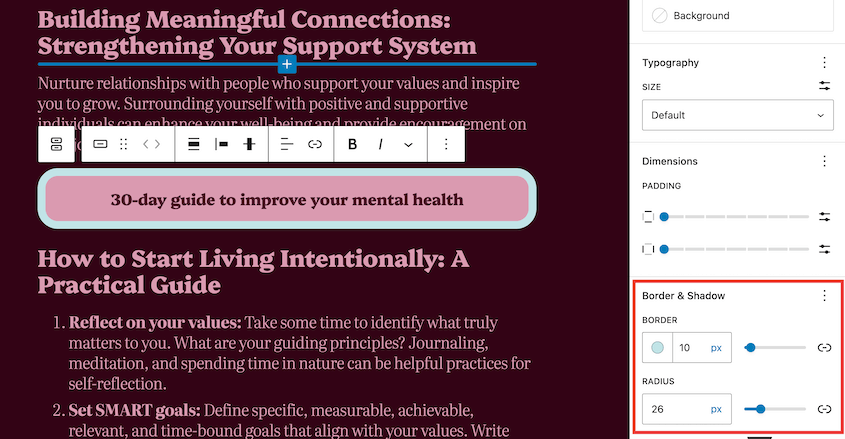
Esta personalización mejorada de bloques te permite diseñar páginas y publicaciones sin tener que codificar o instalar un nuevo plugin.
Gestionar Vinculaciones de Bloques
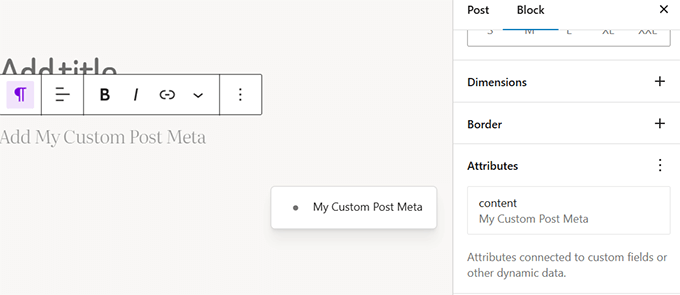
WordPress 6.5 nos introdujo a la API de Vinculaciones de Bloques. Esto permite a los desarrolladores mostrar contenido dinámico de campos personalizados en bloques.
En la actualización más reciente, podrás gestionar mejor estos campos personalizados en bloques. Puedes crearlos y editarlos en el editor de bloques.
Nueva API de Opciones de Vista Previa
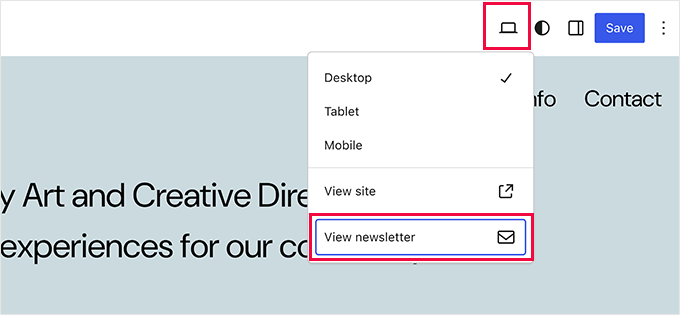
Si no estás satisfecho con la configuración de vista previa predeterminada, puedes crear la tuya propia con la nueva API de Opciones de Vista Previa.
Si eres desarrollador para un creador de contenido, podrías permitirle previsualizar el boletín que está escribiendo.
API de Interactividad Mejorada
Para los desarrolladores, la API de Interactividad recibe mejoras significativas que facilitan el manejo de tareas asíncronas.
Ahora, la API puede manejar la carga diferida y la división de código. Esto la hace mucho más rápida y fácil de usar.
Si quieres probarlo, crea un bloque de galería. Configura una imagen para que se expanda al hacer clic.
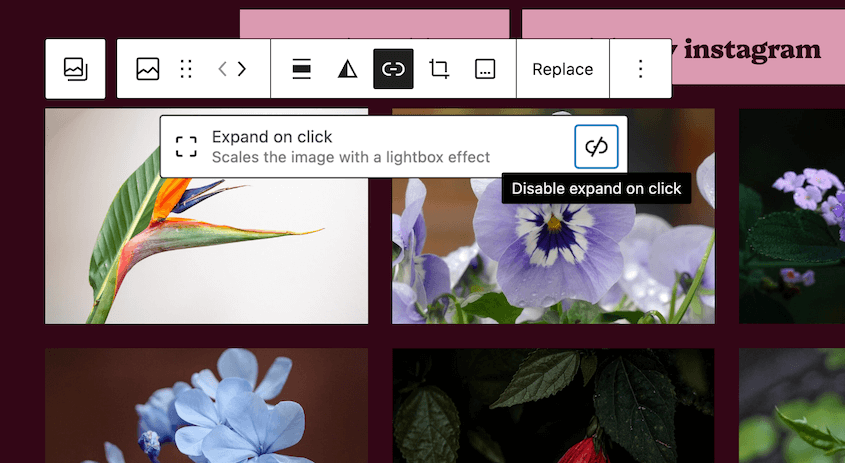
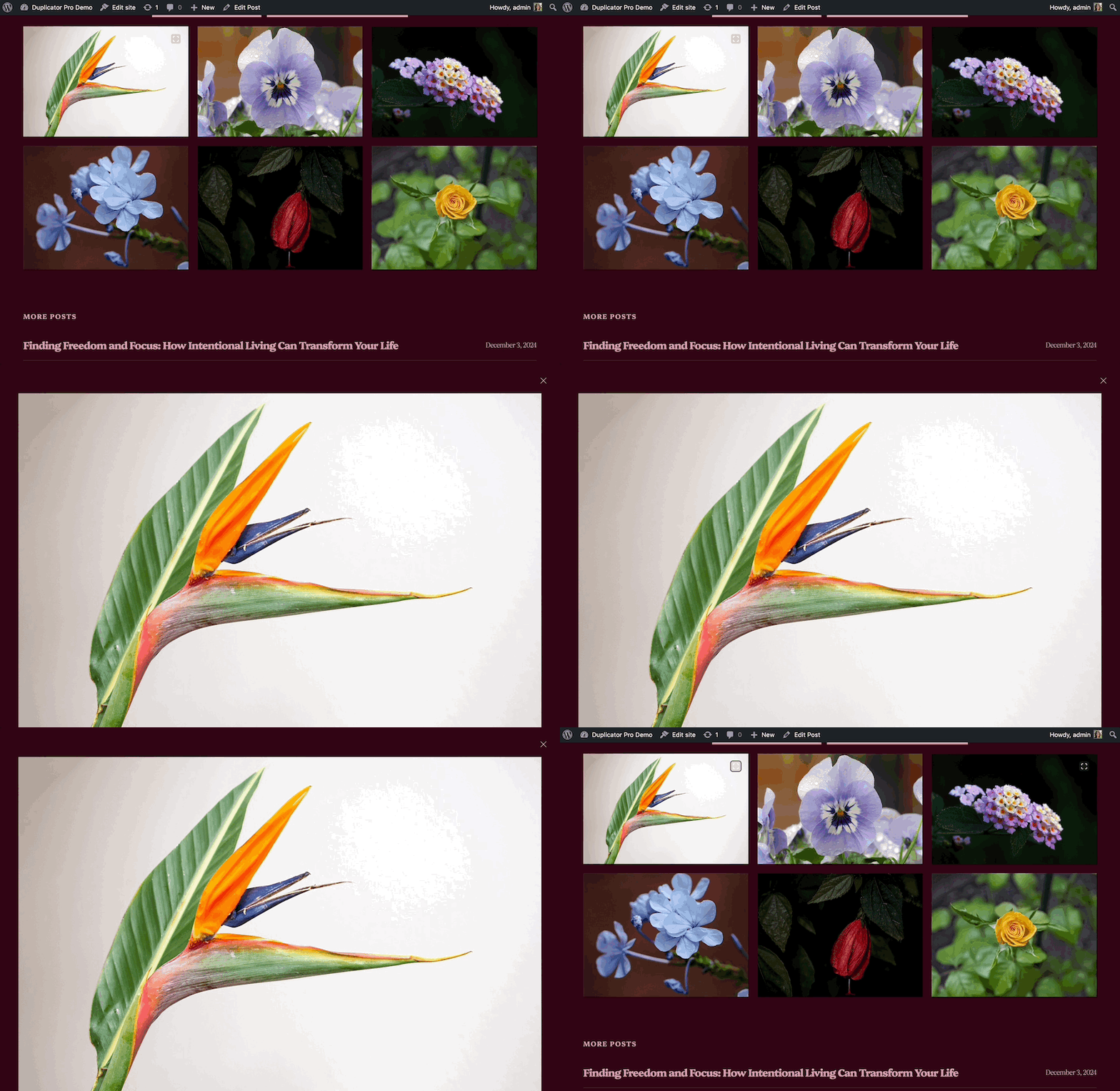
Previsualiza la publicación. Verás un cursor de zoom en esa imagen. Haz clic en la imagen para ver una ventana emergente de tipo lightbox.
Gestionar Archivos Multimedia
En el pasado, probablemente tuviste problemas para subir imágenes de tu iPhone u otros dispositivos Apple a tu sitio de WordPress. ¡Ahora, WordPress tiene soporte para imágenes HEIC!
Cuando subas una imagen HEIC, se convertirá automáticamente a JPEG.
Para empezar a subir archivos HEIC, tu servidor debe tener Imagick con soporte HEIC. Muchos hosts de WordPress ya tienen esta función.
También tienes más opciones de personalización para las imágenes de fondo. Puedes ajustar cómo se ven globalmente y en bloques individuales.
Además, WordPress 6.7 mejora la carga diferida. Esto ayudará a que tu sitio cargue más rápido al cargar solo las imágenes que aparecen en pantalla.
Botón de Publicar Movido
Un pequeño cambio en esta actualización de WordPress es que los botones Cancelar y Publicar han cambiado de lugar. Una vez que hagas clic en Publicar una vez, no tendrás que mover el ratón para confirmar la acción.
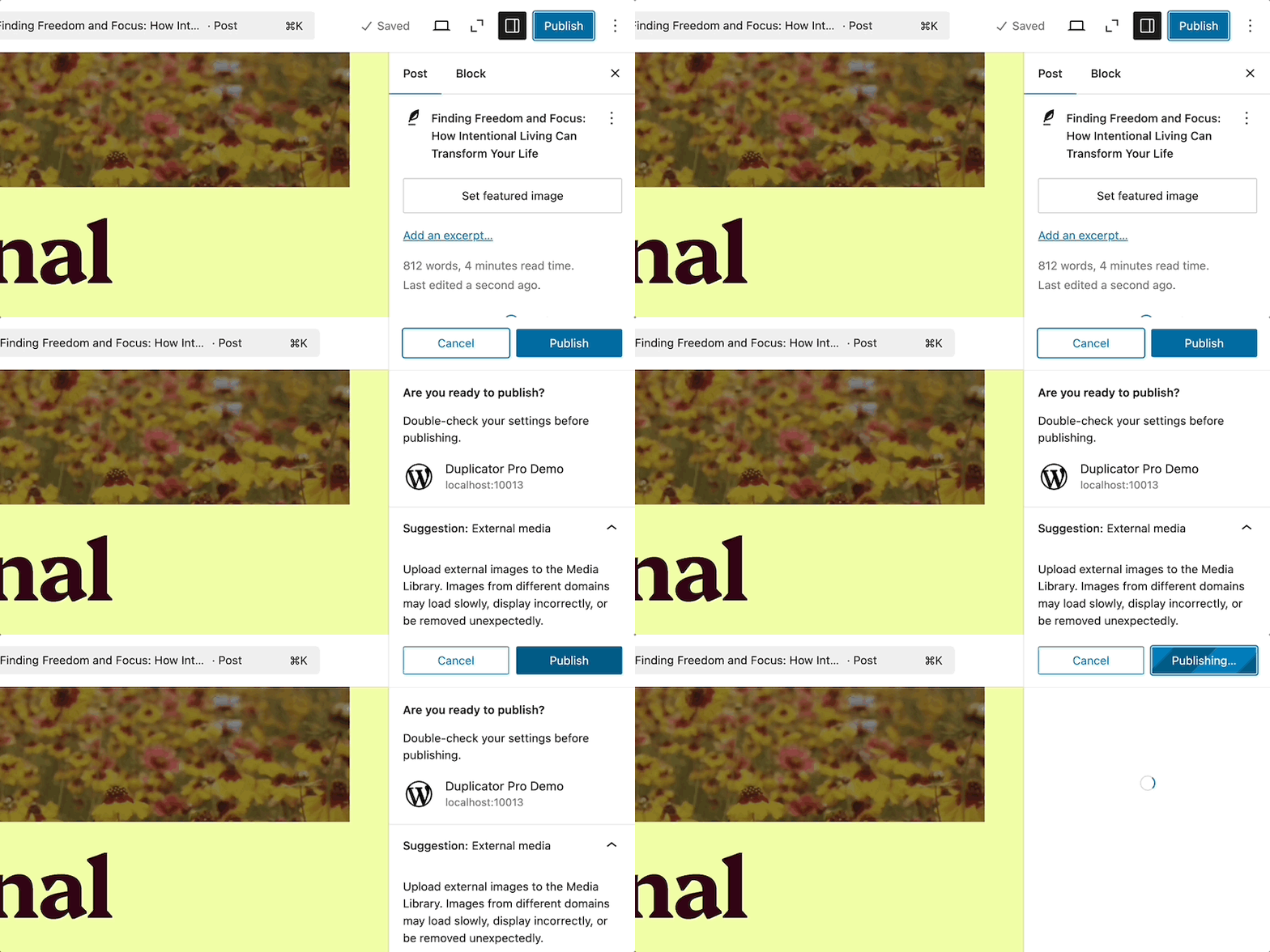
Esto hace que publicar tu contenido sea súper fácil. Puede parecer pequeño, ¡pero estos segundos ahorrados suman!
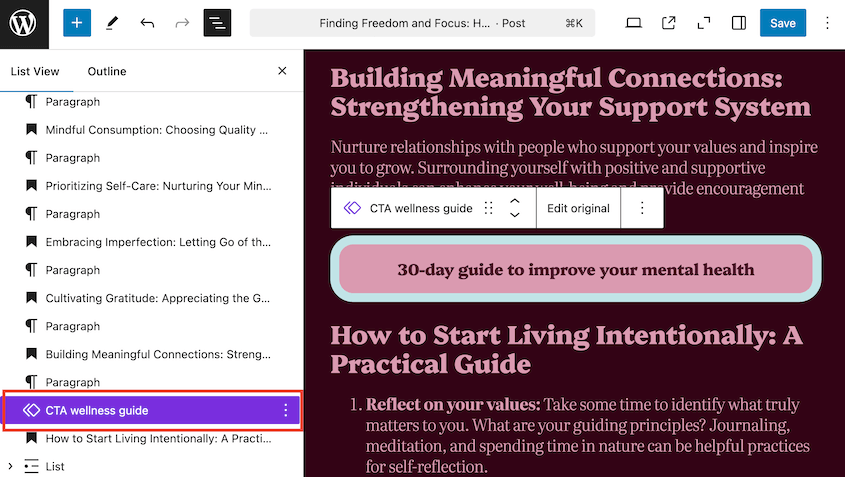
Los Nombres de Bloques Personalizados Aparecen en la Vista de Lista
Cuando creas un bloque personalizado, el nombre aparecerá en la vista de lista. Podrás ver las características específicas que has añadido a la publicación, en lugar de sus nombres de bloque generales.
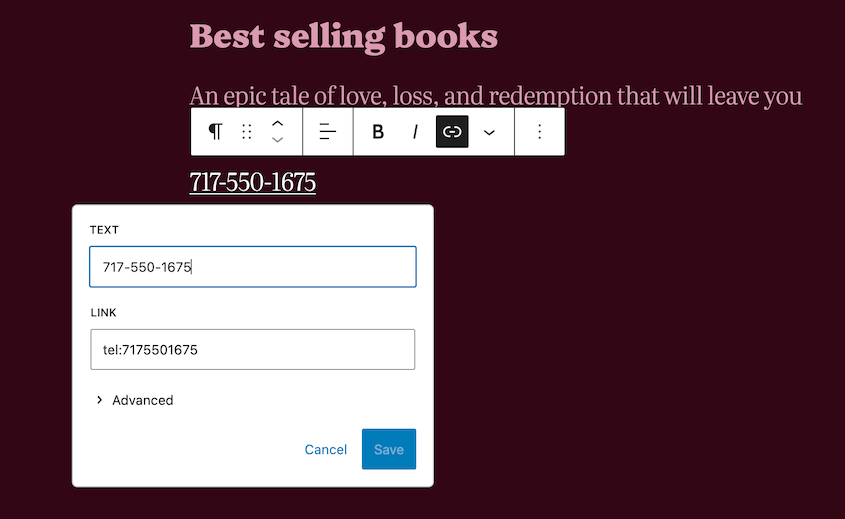
Enlace Automático de Números de Teléfono
Una adición pequeña pero fácil de usar. Los números de teléfono en tu contenido ahora se convertirán automáticamente en enlaces, lo cual es especialmente útil para los usuarios de móviles. Una sola pulsación conecta a los visitantes directamente con tu número de contacto.
Cambios "detrás de escena"
WordPress 6.7 no se trata solo de características llamativas. Bajo el capó, importantes mejoras técnicas están haciendo la plataforma más segura y eficiente.
Si eres principiante, es posible que no notes estos cambios. Para los desarrolladores, obtendrás nuevas características de API y un mejor rendimiento.
Aquí tienes algunas características clave para desarrolladores en WordPress 6.7:
- Ganchos de bloque actualizados
- Mejor incrustación de iframes para el editor de bloques
- Componentes del editor actualizados
- Compatibilidad con PHP 8.x
- API de registro de plantillas
- Dependencias de polyfill innecesarias eliminadas
- API de opciones de vista previa
- Mejoras en la internacionalización
- API de HTML actualizada
- Metacajas en el editor de entradas
Si te interesan alguno de estos cambios, lee las notas de desarrollo enlazadas.
Problemas comunes después de actualizar a WordPress 6.7
Aunque WordPress 6.7 trae muchas mejoras, algunos usuarios podrían encontrar problemas después de actualizar. No te preocupes; estos problemas suelen ser solucionables.
Después de actualizar a la 6.7, algunos usuarios de WordPress notaron errores en sus paneles. Páginas importantes como Entradas, Páginas y el editor de bloques aparecían en blanco.
La nueva actualización cambió automáticamente el tamaño de las imágenes de carga diferida, causando problemas a otros usuarios. Las imágenes del front-end no tenían el tamaño correcto, afectando la apariencia visual del sitio.
Aquí tienes algunos errores adicionales reportados:
- Errores de puerta de enlace incorrecta (Bad gateway)
- Errores de traducción
- Patrones sin categorizar rompieron el editor
- Problemas de desalineación al hacer zoom
- Botón de zoom-out ausente cuando los plugins añaden elementos a la barra de herramientas
- Actualización marcada como malware por plugins de seguridad como Wordfence
Después de cualquier actualización, podrías ver errores de compatibilidad en tu sitio de WordPress. Sin embargo, son fáciles de solucionar (con la preparación adecuada de antemano).
Cómo evitar que tu sitio se rompa con WordPress 6.7
Cualquier actualización podría romper tu sitio. Por eso necesitas hacer una copia de seguridad de tu sitio primero, para no perder ningún dato.
Duplicator es un plugin de copias de seguridad de WordPress que revierte rápidamente tu sitio a una versión funcional si algo sale mal. Es fácil, eficiente y no tendrás que preocuparte por la solución de problemas.

Antes de actualizar a WordPress 6.7, crea una nueva copia de seguridad con Duplicator. Siéntete libre de seleccionar una ubicación de almacenamiento en la nube para mayor seguridad.
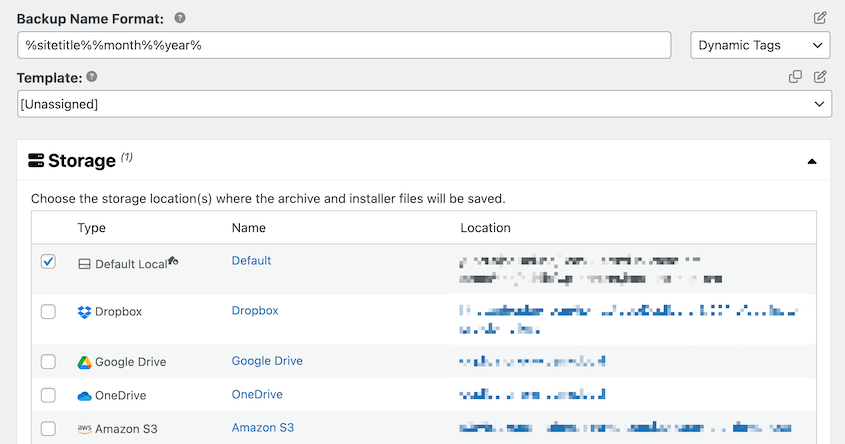
Elige el preset Sitio Completo. Esto hará una copia de seguridad de todo en tu sitio web.

Pulsa Siguiente. Una vez que Duplicator escanee tu sitio, crea la copia de seguridad.
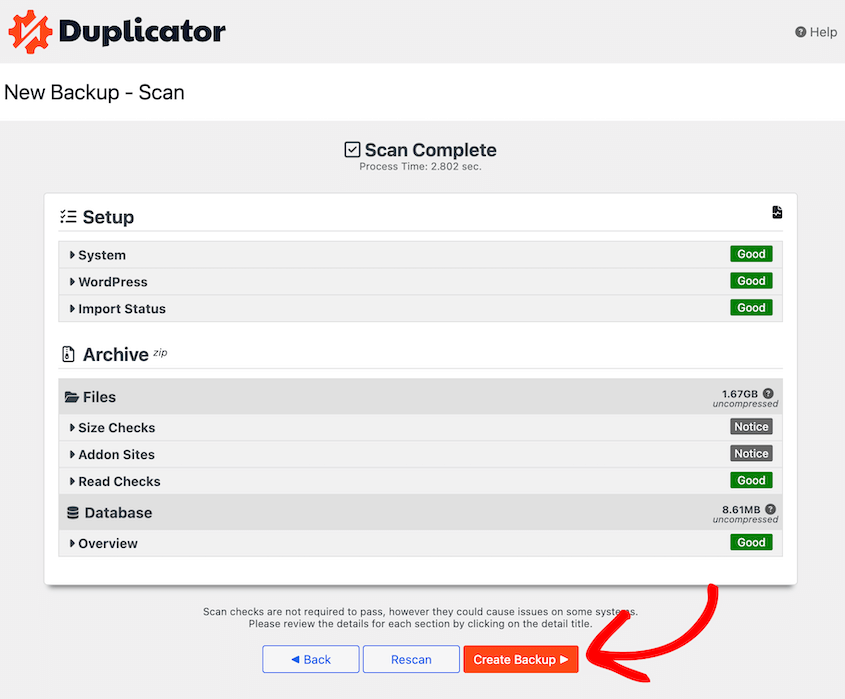
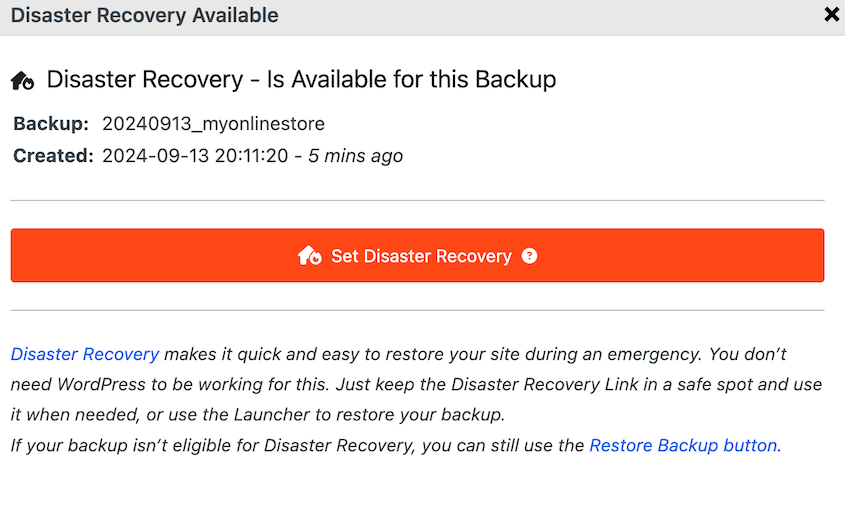
A diferencia de otros plugins de copia de seguridad, Duplicator te proporciona un punto de recuperación ante desastres. Restaurará una copia de seguridad limpia incluso si todo tu sitio está caído. Esto es útil si una actualización destruye tu funcionalidad.
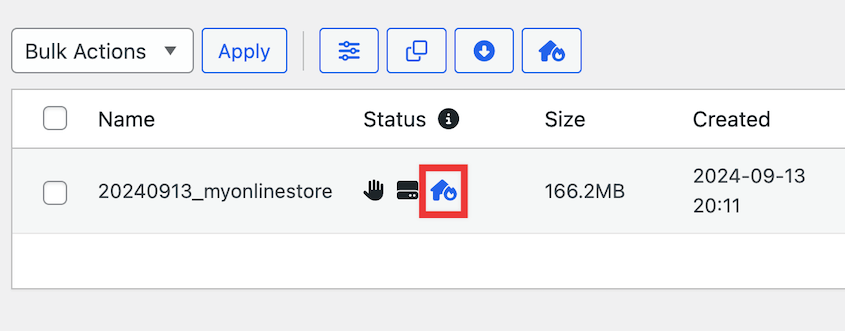
Haz clic en el icono de la casa azul junto a tu nueva copia de seguridad completa del sitio.
Establece esto como el punto de recuperación ante desastres.
Ahora, tendrás dos métodos para restaurar tu sitio en una emergencia. Copia el enlace de recuperación o descarga el archivo lanzador.
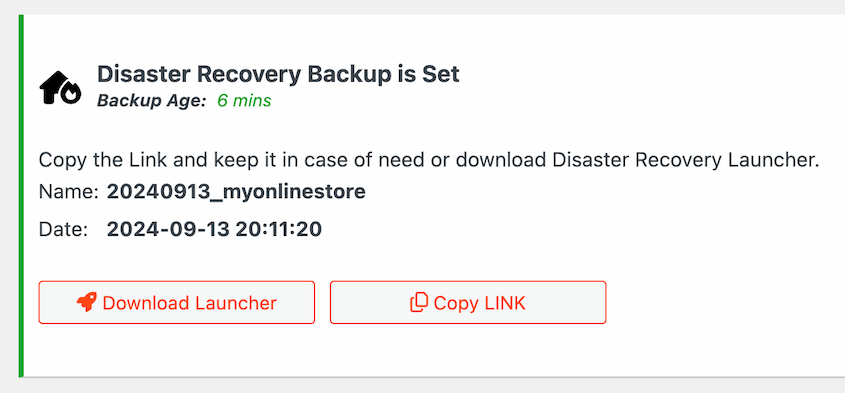
Si algo sale mal después de una actualización, pega tu enlace de recuperación en una nueva ventana del navegador. También puedes abrir el archivo lanzador. En cualquier caso, Duplicator iniciará automáticamente el asistente de recuperación.
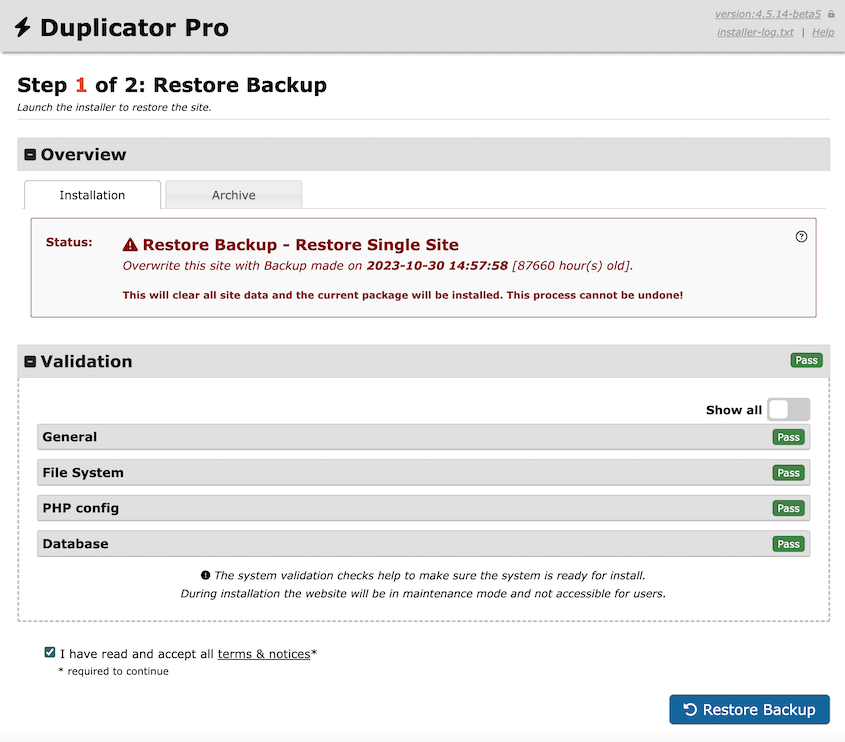
¡Sigue los sencillos pasos para restaurar tu sitio! Luego, puedes esperar a que WordPress lance una versión más nueva y estable.
Abraza WordPress 6.7 con confianza
Desde el elegante tema Twenty Twenty-Five hasta potentes herramientas de edición, WordPress 6.7 ofrece algo para todos.
Pero seamos realistas: las actualizaciones pueden ser estresantes. Un movimiento en falso podría potencialmente interrumpir todo tu sitio web. Es por eso que necesitas un plan de copia de seguridad.
Duplicator te da la red de seguridad definitiva para las actualizaciones. Hará una copia de seguridad de todo tu sitio, creará puntos de restauración y protegerá tu arduo trabajo.
Descarga Duplicator hoy mismo y transforma tu actualización de WordPress de una posible pesadilla en un proceso fluido y emocionante. ¡Tu sitio web no merece menos!
Ya que estás aquí, creo que te gustarán estas guías adicionales de WordPress:
- Cómo actualizar WordPress
- Cómo degradar tu versión de WordPress y revertir actualizaciones fallidas
- Cómo Actualizar WooCommerce
- Cómo deshabilitar las actualizaciones automáticas de WordPress
- Cómo actualizar tu tema de WordPress y mantener tus personalizaciones
- Cómo actualizar tu versión de PHP en WordPress




