

WordPress 7.0:実際にリリースされたもの(そしてカットされたもの)
 Joella Dunn
Joella Dunn
Joella Dunn
 John Turner
ジョン・ターナー
John Turner
ジョン・ターナー
WordPress 7.0は2026年5月20日にリリースされます。これは、Gutenbergプロジェクトのフェーズ3(コラボレーションフェーズ)の公式な開始を意味し、ブロックエディター自体がWordPress 5.0でリリースされて以来、最も重要なコアリリースとなります。
このリリースは、まったく異なるものになる可能性がありました。
リアルタイムコラボレーションは、開発サイクルの全体を通しての目玉機能でした。これが原因で、当初の4月9日のリリースが6週間延期されました。
その後、5月7日に、それは完全にカットされました。もしあなたが読んだプレリリース記事のほとんどがRTCについてのものであったなら、その機能はこのバージョンには含まれていません。
7.0に含まれるものだけでも、かなりの量があります。以下に簡単な概要を示します:
- AIプロバイダーを接続するためのセントラルハブを含む、再構築されたAIインフラストラクチャレイヤー。
- 新しい配色、スムーズな画面遷移、コマンドパレットを備えた最新化された管理ダッシュボード。
- 3つの新しいブロック。
- 再構築されたビジュアルリビジョンツール。
- パターン編集、レスポンシブデザインツール、ナビゲーションオーバーレイにおける重要な改善。
- 古いサーバー構成を実行しているすべてのサイトに影響を与える、新しいPHP最小バージョンを含む開発者向け変更セット。
私は自分のサイトでベータ版をテストし、公式フィールドガイド、RC4リリースノート、開発者向け投稿を確認して、これをまとめました。
WordPress 7.0で何が期待できるか、お見せしましょう!
目次
WordPress 7.0とは何か、そしてこのリリースがなぜ重要なのか?
WordPressのリリースは、WordPressの仕組みをゼロから再構築するための段階的な計画であるGutenbergロードマップに従っています。
フェーズ1ではブロックエディターが導入されました。フェーズ2ではサイトエディターが構築され、ユーザーはコードに触れることなくヘッダー、フッター、テンプレートを制御できるようになりました。フェーズ3はコラボレーションに関するもので、WordPress 7.0はその公式な出発点です。
リアルタイムコラボレーションは中心的な機能となるはずでした。しかし、準備ができていませんでした。しかし、それを囲むインフラストラクチャ、ツール、アーキテクチャワークはリリースされ、最近のどの単一リリースよりも多くのものが含まれています。
数字がそれを裏付けています。WordPress 7.0は419以上のCore Tracチケットをクローズします。これには300以上のバグ修正、76以上の機能強化と機能リクエスト、411のGutenberg機能強化、486のGutenbergバグ修正が含まれます。
このリリースはすべての人に関係します。あなたがブロガーまたはサイトオーナーであれば、管理画面が異なり、より高速に動作することに気づくでしょう。クライアントのためにサイトを構築している場合、パターン編集とレスポンシブツールはあなたの作業方法を変えます。
プラグインまたはテーマを開発している場合、新しいAPI、新しいPHP最小バージョン、および本番環境を更新する前に注意が必要な非推奨事項があります。
WordPress 7.0におけるAI統合
「AI統合」は、サイクルの開始以来7.0のマーケティングの一部でしたが、その現実は聞こえるよりも複雑です。
リリースされたのは2つのものです:コアに組み込まれたインフラストラクチャと、その上に乗るオプションのプラグインです。
それらを分解してみましょう。
コネクタ画面:外部サービスを管理するための1つの場所
コネクタ画面は、AIプロバイダーを含む外部サービスへの接続を一元管理するハブです。wp-adminダッシュボードの設定 » コネクタで見つけることができます。
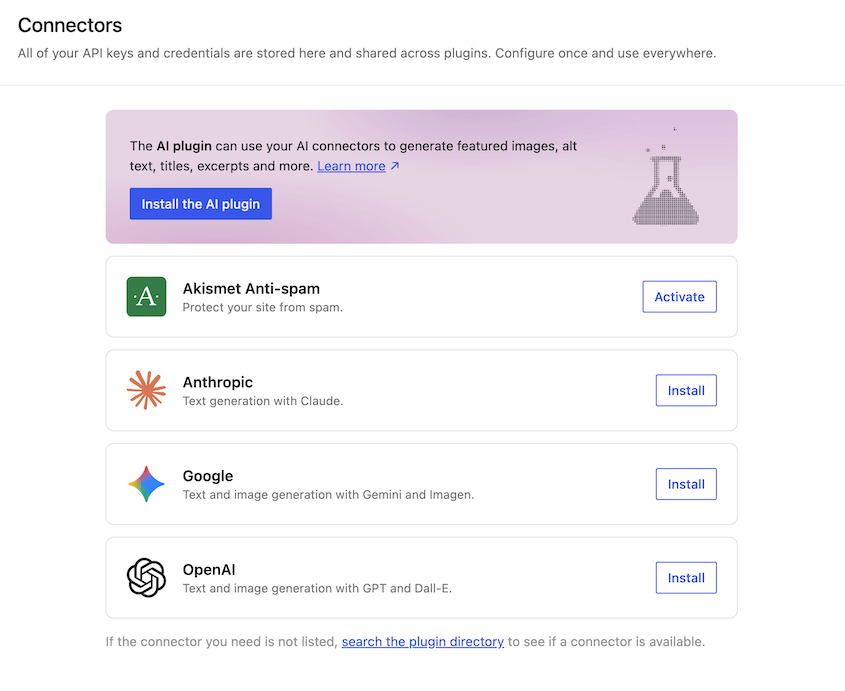
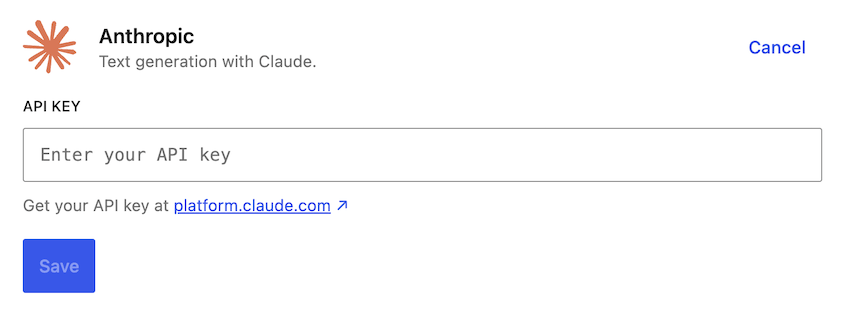
お好みのプロバイダーを一度接続し、APIキーを入力すると、その接続はサイト上の互換性のあるプラグインで利用できるようになります。同じ認証情報を5つの異なるプラグイン設定画面に入力する必要がなくなります。
デフォルトで3つのAIプロバイダーが利用可能です:
- OpenAI (ChatGPT)
- Google (Gemini)
- Anthropic (Claude)
プラグイン開発者は、コネクタAPIを使用して追加のプロバイダーを登録できます。
これはプラットフォームレベルの変更です。WordPressサイトが外部サービスと通信する方法を標準化します。AIツールだけでなく、外部APIに接続する必要があるあらゆるプラグインが対象となります。
WP AIクライアント:プラグイン開発者向けインフラストラクチャ
WP AIクライアントは、プラグインがAIプロバイダーと通信するための標準化された方法を提供する新しいコアPHPライブラリです。
7.0より前は、AIを利用したいすべてのプラグインが独自の接続ロジックを構築する必要がありました。現在では、共有抽象化レイヤーを使用し、ユーザーがプロバイダーを切り替えても問題が発生しないようにすることができます。
開発者でない場合、WP AIクライアントを直接操作することはありません。しかし、使用しているプラグインがそれを基盤として構築し始めると、その恩恵を受けることができます。
オプションのAIプラグイン:実際のツールが存在する場所
エディタ向けのAIツール(タイトルと抜粋の生成、画像の作成と編集、代替テキストの提案)はコアに含まれていません。これらは、別途インストールするオプションのAIプラグインから提供されます。
WordPress 7.0にアップデートしても、エディタにAIボタンは表示されません。コネクタ画面が表示されます。ライティングおよび画像ツールはプラグインから提供されます。
インストールすると、メタディスクリプション、代替テキスト、レビューノート、画像、タイトルなどのコンテンツを生成するためにAIを有効にできます。
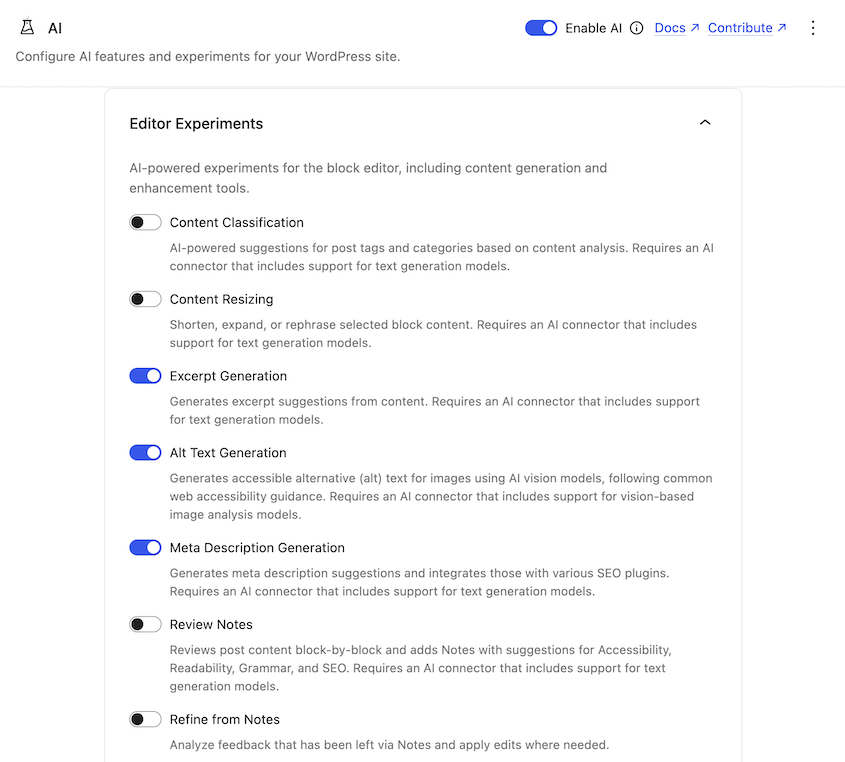
コメントモデレーションやアビリティAPIを処理するためにAIを使用する実験的な機能もあります。
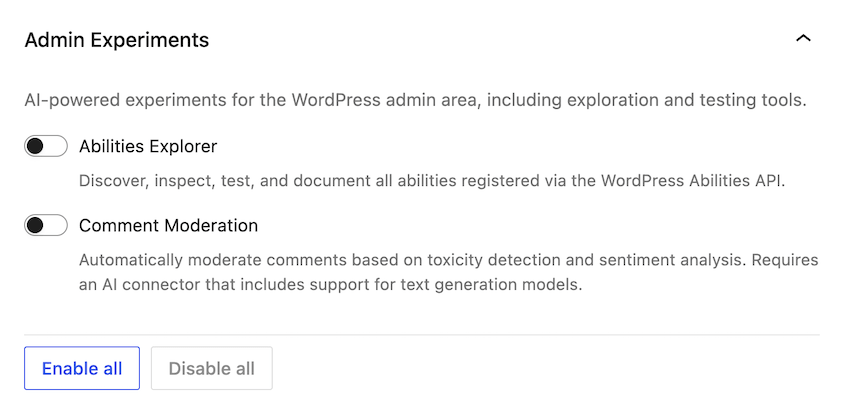
これは正しい判断だと思います。AIインフラストラクチャをコアに組み込みながら、WordPressサイトを特定のAI動作にロックインしないことで、プラグイン開発者とサイトオーナーは実際に使用するものに対してより多くの制御を得ることができます。
クライアントサイドアビリティAPI
クライアントサイドアビリティAPIは、WordPress 6.9で導入されたPHPアビリティシステムのJavaScriptの対応物です。これは2つのパッケージとして提供されます:状態管理用の@wordpress/abilitiesとWordPress統合用の@wordpress/core-abilitiesです。
プラグインはこれを使用して、一貫したUIパターン、入出力スキーマ、および権限コールバックを備えたコマンドパレットとエディタツールバーにAI搭載アクションを公開できます。
管理画面のデザイン変更:wp-adminダッシュボードが新しくなります
しばらくWordPressを使用している場合、管理画面ダッシュボードは長年ほとんど変わっていません。WordPress 7.0は、ログインした瞬間に気づくような方法でそれを変更します。
モダンカラー スキームとビュー トランジション
新しいデフォルトのカラー スキームは「モダン」と呼ばれます。ダッシュボード全体で、リフレッシュされたカラー パレット、より高いコントラスト、アップグレードされたタイポグラフィを提供します。
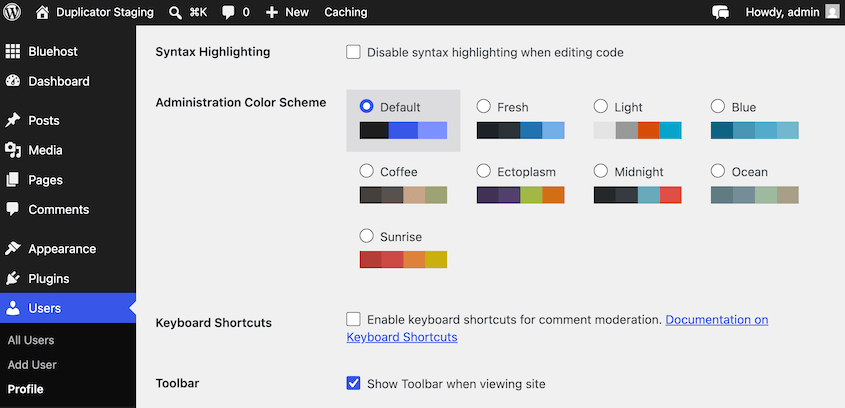
より大きな変更点は、ダッシュボードの移動方法です。WordPress 7.0 では、管理画面間のスムーズなスライドトランジションが追加されます。
ベータ版でこれをテストしたとき、ダッシュボードがネイティブアプリのように感じられ、断片的なページ読み込みの連続という感じがなくなりました。トランジションは OS レベルのモーション低減設定を尊重するため、この設定を有効にしているユーザーには表示されません。
コマンドパレット
管理画面のどこからでも Mac では ⌘K、Windows では Ctrl+K を押すと、すぐにコマンドパレットにアクセスできます。
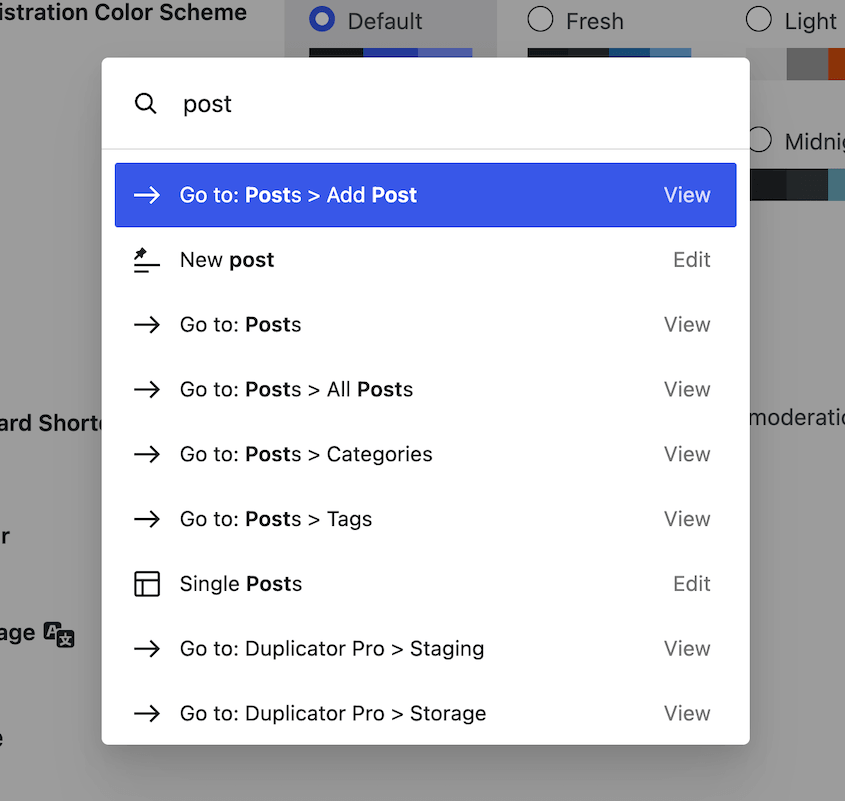
コマンドパレットを使用すると、現在の画面を離れることなく、編集ツール、設定ページ、ナビゲーションにすばやくアクセスできます。最も頻繁に使用するタスクは、常に 1 回のキーストロークでアクセスできます。
VS Code や Figma でコマンドパレットを使用したことがあるなら、wp-admin に応用されたのも同じ考え方です。これは、1 週間使用するまで些細な機能のように聞こえる機能の 1 つです。
フォントライブラリ
WordPress 7.0 では、ダッシュボードに専用のフォント管理ページが追加されます。
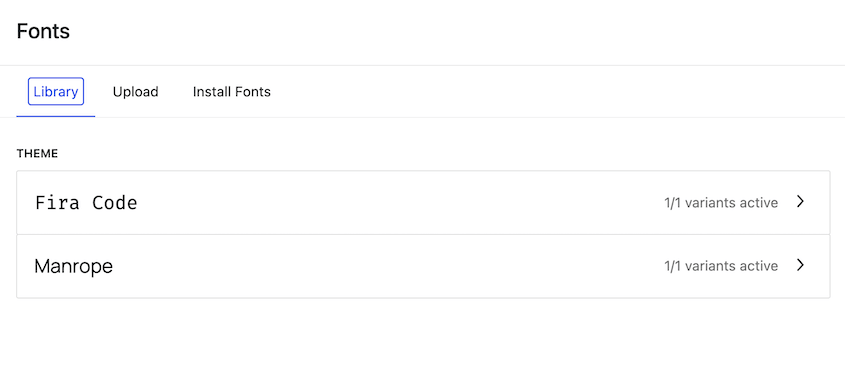
これ以前は、WordPress でのフォント管理はテーマに大きく依存していました。ブロックテーマには 1 つのワークフローがあり、クラシックテーマには別のワークフローがありましたが、どちらも簡単ではありませんでした。
フォントライブラリはこれを一元化します。ブロックテーマ、ハイブリッドテーマ、クラシックテーマのいずれを実行しているかに関わらず、フォントを 1 か所で管理、アップロード、インストールできます。
DataViews が従来のコンテンツリストを置き換えます
投稿、ページ、メディアのリストが WordPress 7.0 で新しくなりました。DataViews は、従来の wp-admin のリストテーブルをモダンでアプリのようなインターフェイスに置き換えます。
フィルタリングと並べ替えは、ページのリロードなしでインラインで行われます。数百件の投稿を頻繁に検索するコンテンツが多いサイトでは、これは意味のある速度向上です。
ビジュアルリビジョン:任意の2つのバージョンをサイドバイサイドで比較
WordPress には長年 改訂履歴がありましたが、問題はそれをどう使うかでした。
古い改訂画面では、テキストの差分(追加は緑、削除は赤でハイライト)が表示されましたが、その時点でのページの実際の見た目はわかりませんでした。2 つのバージョンのどちらが正しいレイアウトだったかを判断しようとしていた場合、推測するしかありませんでした。
WordPress 7.0 では、これを視覚的な比較ツールに置き換えます。タイムラインスライダーを使用すると、投稿またはページのすべての保存済みバージョンをスクラブできます。
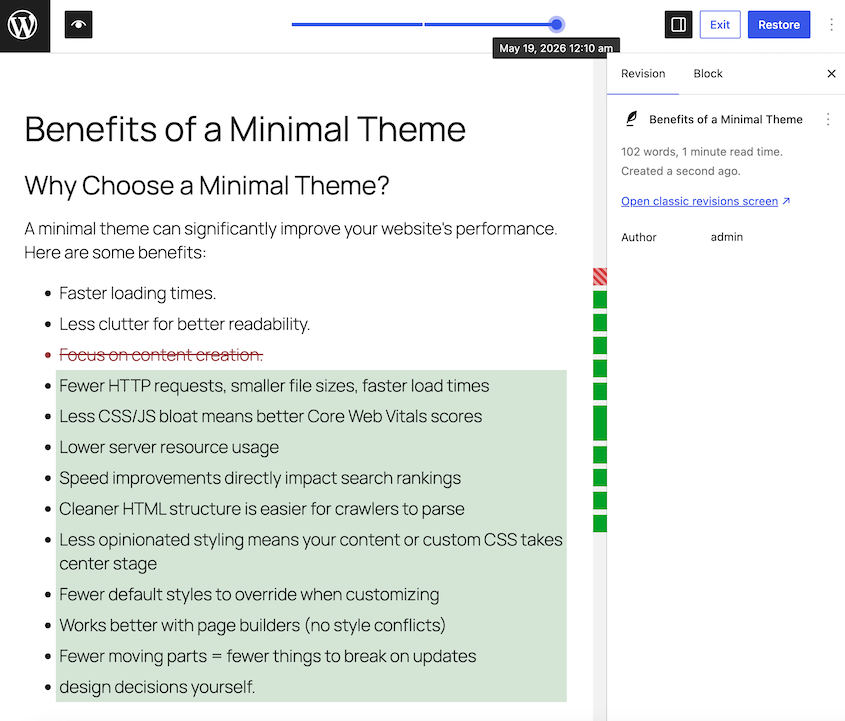
目的のバージョンを見つけたら、ワンクリックで復元できます。
テスト中にこれが本当に役立つことがわかりました。改訂履歴は、ほとんどの WordPress ユーザーがその存在を知っているものの、古いインターフェイスが不必要に難しくしていたため、ほとんど使用していなかった機能の 1 つです。新しいバージョンは、以前の下書きを手動で開くよりも実際に速くアクセスできます。
新しいブロックとブロックの強化
WordPress 7.0 には 3 つの新しいブロックと、いくつかの既存のブロックに対する意味のある改善が含まれています。
3 つの新しいブロック
アイコンブロックを使用すると、キュレーションされたコアライブラリから、ページ上のどこにでもスケーラブルな SVG アイコンを挿入できます。プラグインなしで、サイズ、色、配置、境界線のコントロールが利用できます。
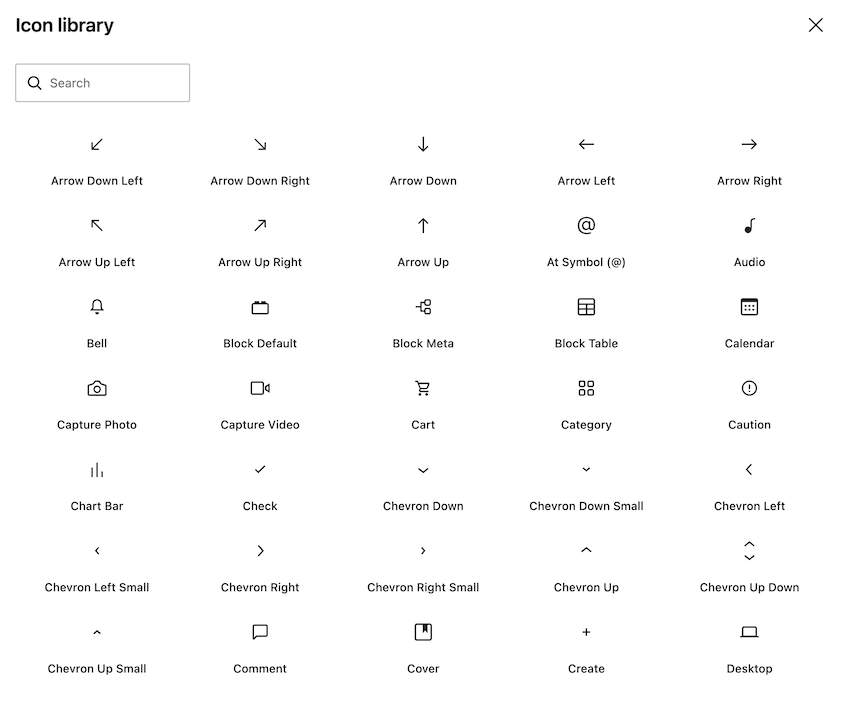
機能リストにアイコンを 1 つか 2 つ追加するためだけにビジュアルプラグインをインストールしたことがあるなら、これはそれを置き換えます。
パンくずリストブロックは、サイトのナビゲーション階層を自動的に反映します。ヘッダーまたはページテンプレートにドロップするだけで、サイト構造に基づいてパンくずリストを作成します。
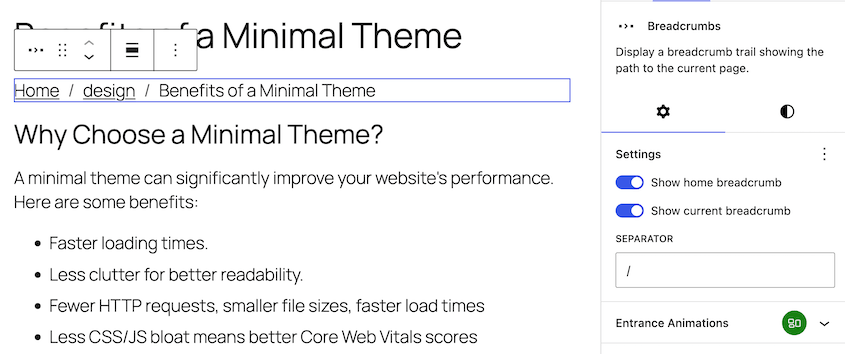
開発者向けには出力をカスタマイズするためのフィルターが用意されており、タクソノミーとタームの表示を指定できます。
見出しブロックは、すべての見出しレベルのバリエーションを単一のブロックにまとめ、サイドバーでの簡単な切り替えとワンクリックでのレベル変換を可能にします。
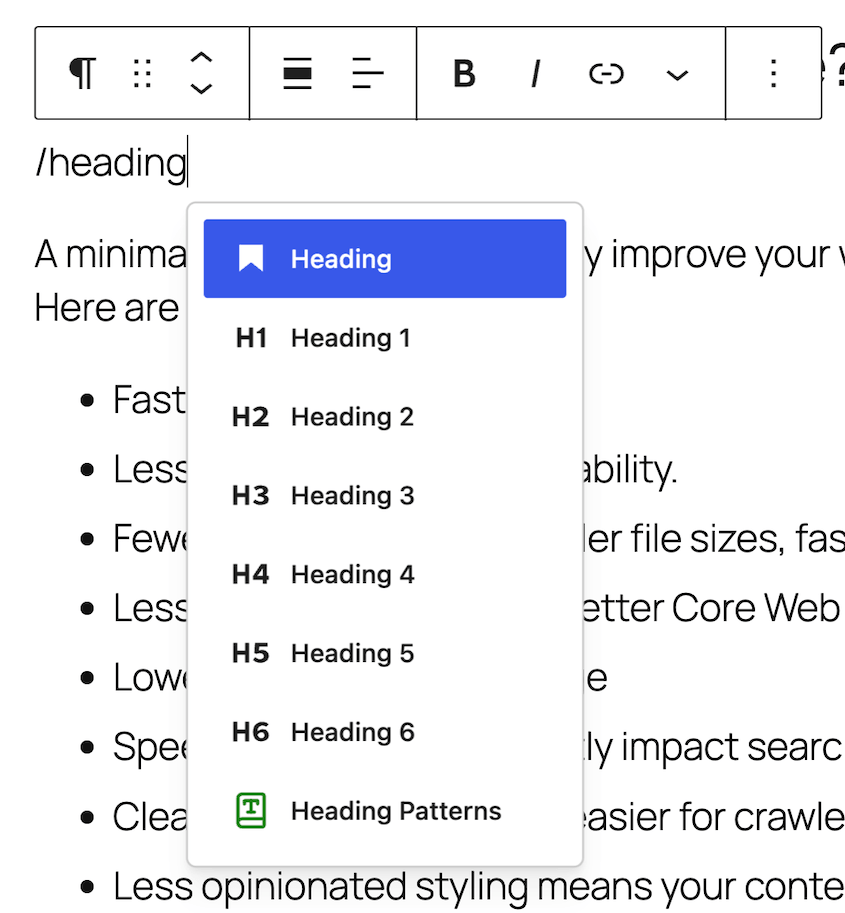
革命というよりは改良ですが、本来必要だった以上の手間を省き、ワークフローを整理します。
ギャラリー、カバー、その他
ギャラリーブロックに2つの機能が追加されました。ライトボックスサポート(スライドショーオプション付き)と、ライトボックスが開いているときに画像間をキーボードで移動できるようになりました。
カバーブロックでYouTube動画をループするセクションの背景として使用できるようになりました。また、ビデオ埋め込みをフルブリードの背景としてより広くサポートし、最適化された遅延読み込みも備えています。
段落ブロックには、このリリースで2つの新しいタイポグラフィオプションが追加されました。テキストを複数の列に配置するための列レイアウトと、新しいtextIndentブロックサポートプロパティによるテキストインデントサポートです。
デザインツール側では、ボタンブロックがテーマ.jsonで疑似状態スタイリング(:hover、:focus、:focus-visible、:active)を直接サポートするようになり、寸法サポートには幅、高さ、最小高さのプリセット値が追加されました。
レスポンシブ編集とパターン編集
これら2つの変更は、投稿を作成するだけでなくサイトを構築する人々にとってより重要です。
レスポンシブ編集モード
WordPress 7.0では、CSSを一行も書かずに、デバイスの種類(モバイル、タブレット、デスクトップ)に基づいて任意のブロックを表示または非表示にできます。
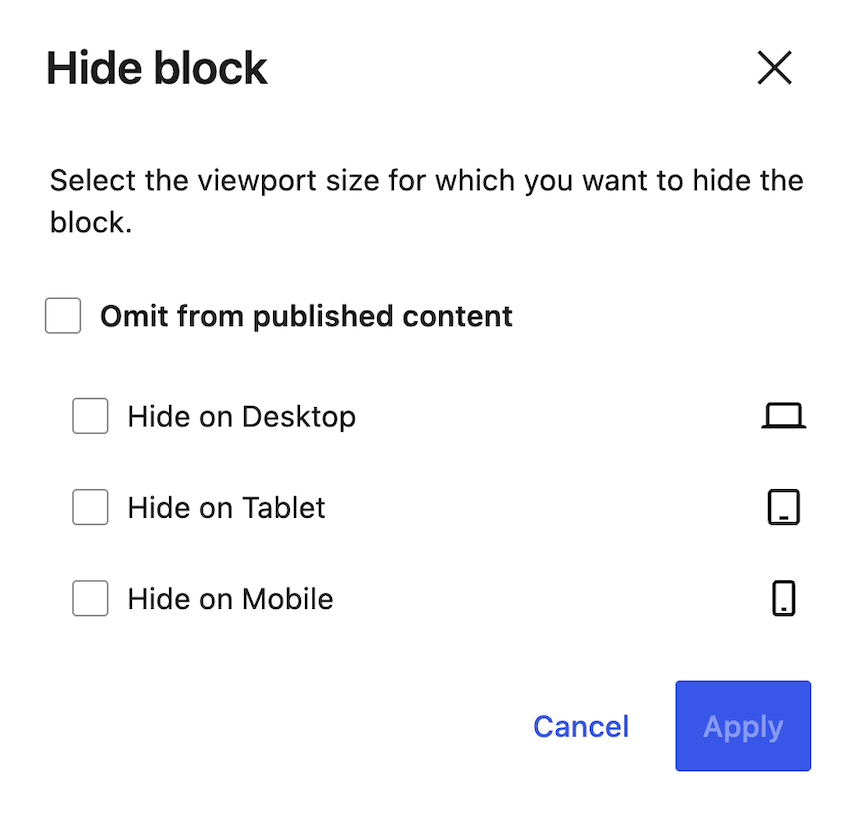
コントロールはブロックツールバー、インスペクターサイドバー、コマンドパレットにあります。ブレークポイントごとにスタイルを変更したり、ブレークポイント自体のサイズをカスタマイズしたりすることもできます。
リストビューは、アクティブな表示ルールを持つブロックにアイコンを表示するため、条件付きで表示されているものが一目でわかります。
開発者が知っておくべきこと:表示はDOMの削除ではなく、CSSを介して実装されます。モバイルで非表示にされたブロックはHTMLには残りますが、表示されないだけです。ブロックのDOMの存在を確認して表示を判断するコードがある場合、予期しない動作をする可能性があります。
パターン編集:パターンが単一のブロックのように動作するようになりました
7.0より前は、パターンをページにドロップすると、変更したい要素を見つけるためにネストされたブロックを操作する必要がありました。7.0では、パターンはデフォルトで単一のブロックのように動作します。
パターンをドロップし、テキストと画像を入れ替え、インスペクターからスタイルを調整し、作業を進めます。ブロック構造を掘り下げる必要はありません(必要であれば別ですが)。
より深いアクセスが必要な場合は、2つの名前付き編集モードがあります。
スポットライトモードは、同期されていないパターンでアクティブになります。パターンを編集をクリックするか、パターン本体をダブルクリックすると、周囲のブロックがフェードアウトし、コンテキスト内で完全に編集できるようになります。
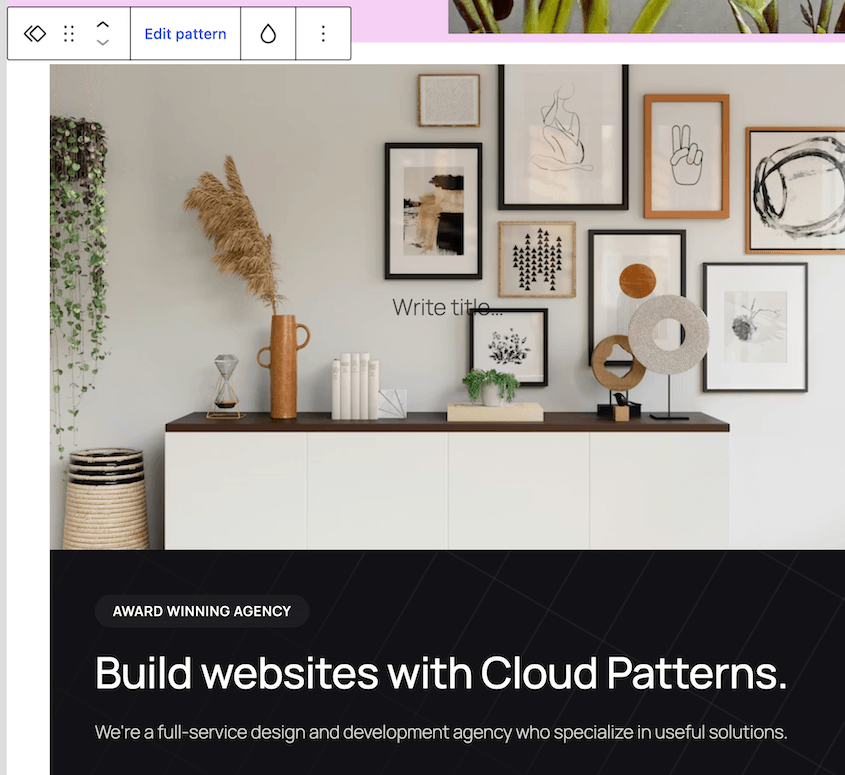
同期されたパターンとテンプレートパーツのために、分離されたエディターが有効になります。元の編集をクリックすると、元のパターンまたはテンプレートパーツを編集できる専用のキャンバスに移動します。これにより、作業中のページに影響を与えることなく編集できます。
同期されたパターンでサイトを構築している人にとって、本番環境にプッシュする前にステージングでテストする価値があります。contentOnlyモードは、制限のない内部ブロック編集が可能なパターンではデフォルトになりました。オプトアウトする必要がある場合は、disableContentOnlyForUnsyncedPatterns設定があります。
開発者がWordPress 7.0について知っておくべきこと
プラグインを保守している場合、テーマを構築している場合、または技術レベルでWordPressを管理している場合、本番サイトを更新する前に注意が必要なことがたくさんあります。
PHP 7.4が最小要件になりました
WordPress 7.0はPHP 7.2および7.3のサポートを終了します。
サーバーでこれらのいずれかのバージョンが実行されている場合、WordPress 7.0は正しく機能しません。更新する前にホスティングコントロールパネルを確認してください。
PHP 8.2が推奨バージョンです。一歩先を行きたい場合は8.3です。
これは、古いサイトにとって最も重要な技術的なブロッカーです。他のすべてよりも先にこれに対処してください。
PHPのみのブロック登録
JavaScriptビルドパイプライン、Node.js、webpack、Reactなしで、PHPのみを使用してシンプルなカスタムブロックを登録およびレンダリングできるようになりました。
ブロック登録に'supports' => array( 'autoRegister' => true )を追加すると、WordPressが残りを処理します。PHPで登録された属性はエディターで自動的に編集可能になり、DataFormインスペクターコントロールが生成されます。
これにより、PHPを好むプラグイン作成者や、JavaScript中心のセットアップを必要としない単純なブロックを構築している人々の参入障壁が大幅に低下します。
インタラクティビティAPIの変更
7.0での3つの注目すべき変更点。
- 新しい
watch()関数を使用すると、@wordpress/interactivityでのシグナル変更をサブスクライブできます。これは、以前利用可能だったものよりもクリーンな副作用のパターンです。 data-wp-watchディレクティブは、DOM要素のライフサイクルイベントを処理します。state.urlは、ディレクティブ処理中にサーバー側で入力されるようになり、ナビゲーション追跡が改善されます。
1つの非推奨:state.navigationは削除されました。それを使用しているコードを更新してください。
ビルドツール:@wordpress/build
新しい@wordpress/buildパッケージは、webpack/Babelパイプラインをesbuildベースのエンジンに置き換えます。
パッケージ.jsonからPHP登録ファイルを自動生成するため、以前は手動で処理する必要があったステップが不要になります。@wordpress/scriptsからの移行は、過去のツール移行よりもスムーズです。
7.0で必須の変更ではありませんが、評価する価値があります。Esbuildは、ほとんどのプラグインビルドワークフローにおいてwebpackよりも大幅に高速です。
その他の注目すべき開発者向け変更
いくつかの小規模ながら関連性の高いアップデート。
CodeMirrorエディター(wp-adminのカスタムCSS、HTML、ファイルエディターで使用)がv5に更新されました。CSSLint、HTMLHint、JSONLintが含まれています。EsprimaはEspreeに置き換えられ、JavaScriptリンティングに適切なES6サポートが追加されました。
外部ライブラリの更新:backbone.js を 1.6.1 に、Requests ライブラリを 2.0.11 から 2.0.17 に、PHPMailer を 7.0.2 に更新しました。これは、WordPress でトランザクションメールを処理している場合に知っておくと便利な、送信者アドレスのバグを修正するものです。
セキュリティ面では、管理者とエディターのロールが新しいユーザーのデフォルトロールセレクターから削除されました。以前にこれらのいずれかを新しい登録のデフォルトロールとして設定していた場合、サイトヘルスが警告を表示します。
新しい default_role_dropdown_excluded_roles フィルターにより、そのドロップダウンに表示されるロールをプログラムで制御できます。
WordPress 7.0に含まれていないもの
リリース前の多くの報道は5月7日より前に書かれたものです。その中には、最終リリースに含まれなかった機能の説明も含まれています。知っておくべきことは次のとおりです。
リアルタイムコラボレーションは 7.0 には含まれていません。
これは、開発サイクル全体の目玉機能でした。4月9日のリリースは、チームが安定化するための時間をさらに確保するために、5月20日に延期されました。
その後、新しい日付の12日前に、マット・マレンウェッグはそれを完全にカットするという決断を下しました。
理由として、サーバー負荷の懸念、メモリ効率の問題、テストで繰り返し発生するバグが挙げられました。コードは RC3 のためにコアから削除されました。チームは将来のリリース計画に取り組んでいますが、バージョンはまだ名前が付けられていません。
コラボレーションに使用できるもの:Notes。
Notes は、WordPress 6.9 以降コアに含まれている別の機能です。編集チームがエディター内でスレッド形式のブロックレベルコメントを残し、@メンション通知を行うことができます。フロントエンドには何も表示されません。
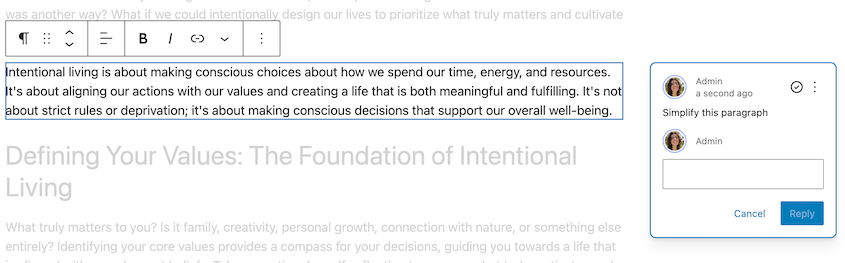
WordPress 7.0 では、Notes に信頼性向上のための修正が追加されました。これには、あなたが作成した投稿に誰かがノートを追加した際のメール通知や、ノートが誤って投稿のコメント数を増やすのを防ぐ修正が含まれます。
同時ではなく非同期です。しかし、多くの編集チームがまだ実行している「下書きを Google ドキュメントにコピーし、そこでコメントし、貼り付けて戻す」というワークフローを排除します。
コアには組み込みの AI ライティングアシスタントはありません。
7.0 の AI レイヤーはインフラストラクチャです:コネクタ画面、WP AI クライアント、およびアビリティ API。コアはタイトルを生成したり、コピーを作成したり、編集を提案したりしません。これらのツールは、オプションの AI プラグインに存在し、これは別途インストールが必要です。
7.0 にアップデートしても AI ボタンがどこにも表示されない場合は、それが正常です。
含まれなかったその他の機能はいくつかあります:
- クライアントサイドメディア処理(アップロード時のブラウザベースの画像圧縮)は、ベータ 6 で元に戻されました。
- Twenty Twenty-Six というデフォルトテーマはありません。次のデフォルトテーマは Twenty Twenty-Seven で、2027 年に予定されています。
サイトを壊さずに WordPress 7.0 にアップデートする方法
WordPress 7.0 は、ほとんどのメジャーリリースよりも多くの内部的な変更があります。新しい PHP 要件、ブロック API の更新、再構築された管理画面により、通常のポイントリリースよりも問題が発生する可能性が高くなっています。
だからといって、アップデートを避けるべきだという意味ではありません。注意深くアップデートする必要があるということです。
重要な順序は次のとおりです。
何かを行う前にサイトをバックアップしてください
WordPress 7.0 がプラグインと競合したり、テーマのレイアウトを壊したり、PHP設定で問題を起こしたりした場合、元の状態に正確に戻す必要があります。
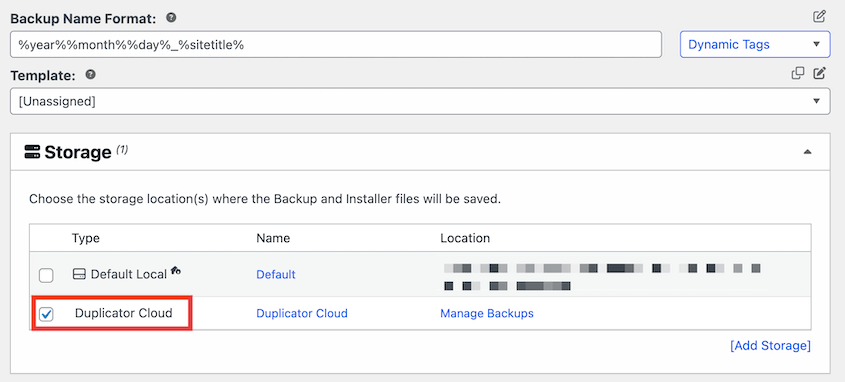
ここで私が使用するのがDuplicator Proです。サイト全体のフルバックアップを作成し、数分で復元できます。

WordPress 7.0 がサイトをひどく壊してダッシュボードに全くアクセスできなくなった場合でも、Duplicator Cloudを使えばWordPressが機能していなくても復元できます。サイト全体のバックアップをクラウドに送信するだけで済みます。
次に、リカバリコネクタがFTP/SFTP認証情報で設定されていることを確認してください。
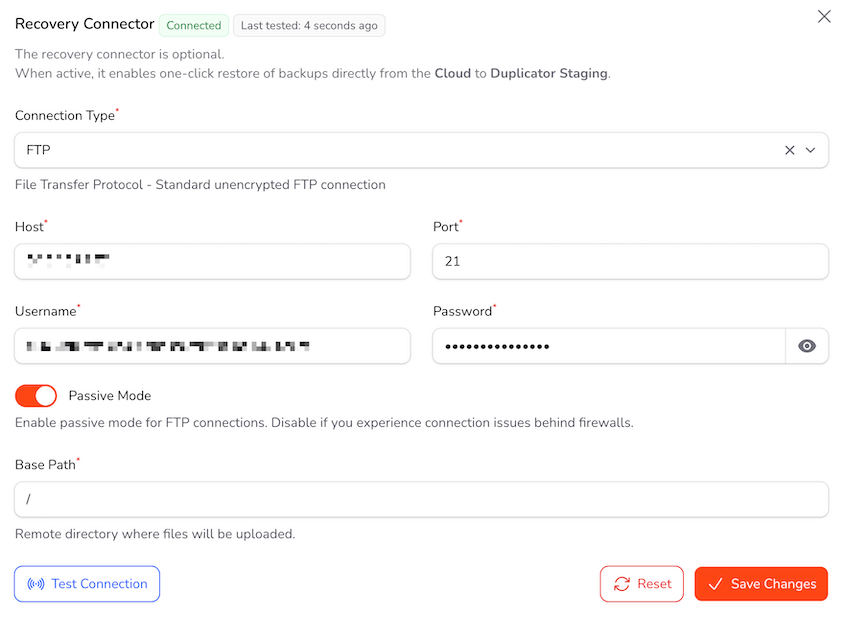
万が一問題が発生した場合でも、サイトが機能していなくても、このアップデート前のバックアップを復元できます。
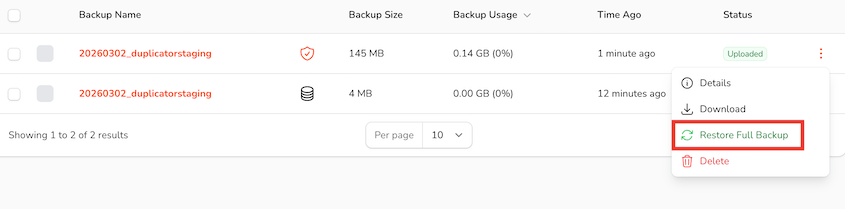
クライアントサイトで一度、アップデートが失敗した後にこれを使用しましたが、数時間かかる手動での復旧作業を救ってくれました。
本番環境に触る前にステージングでテストする
バックアップはあなたのセーフティネットです。ステージングは、それが必要になるのを避ける方法です。
Duplicator Pro はサイト全体のバックアップをステージングサイトに変換します。別のホスティングアカウントや、ローカル開発環境への手動ファイル転送は必要ありません。
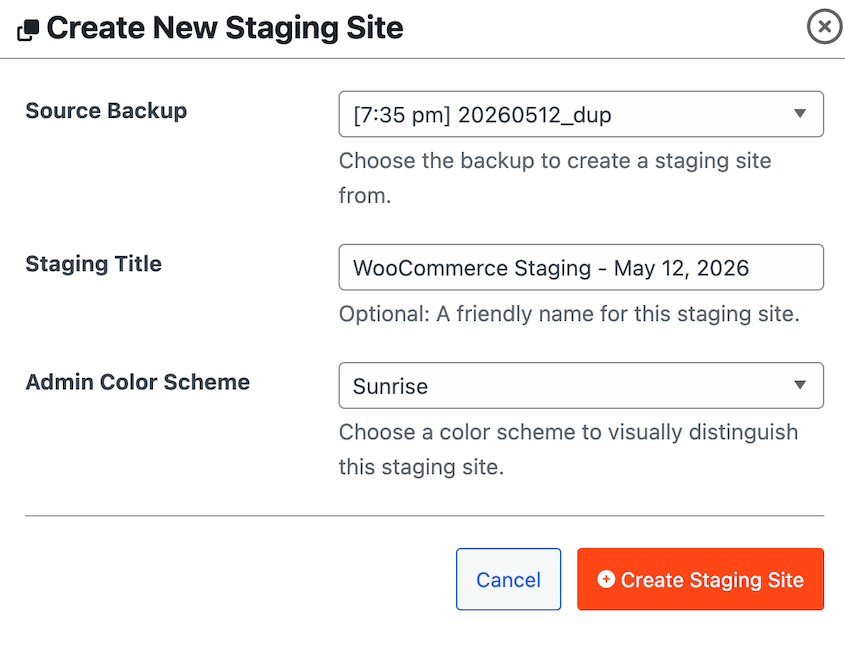
ライブサイトをクローンし、ステージングでWordPress 7.0のアップデートを適用し、すべてをテストします。ステージングで何か問題が発生した場合は、そこで修正します。ライブサイトはダウンしません。
まずPHPのバージョンを確認する
WordPress 7.0 は PHP 7.2 および 7.3 のサポートを終了します。互換性のないサーバーでPHPをアップデートする前にWordPressをアップデートすると、サイトが壊れる可能性があります。
ホスティングコントロールパネルにログインし、サイトが実行しているPHPのバージョンを確認してください。7.2または7.3を使用している場合は、WordPressに触る前に少なくともPHP 7.4にアップグレードしてください。PHP 8.2が推奨バージョンです。
アップデート前にプラグインを監査する
ほとんどの適切にメンテナンスされているプラグインは、7.0を問題なく処理します。いくつかのカテゴリは最初に確認する価値があります。
- 従来のメタボックスを使用するプラグインは、予期しない動作を表面化させる可能性が最も高く、特に7.0でのiframe化されたエディタの変更に関連して顕著です。
- 独自のAI統合を持つプラグインは、新しいコネクタ画面と重複または競合する可能性があります。
- ページビルダーとブロックエディタの拡張機能は、注意深く確認する価値があります。アップデート前に、各プラグインのWordPress.orgページにある「テスト済みバージョン」フィールドを確認してください。
7.0.1 を待つことを検討する
これはオプションであり、サイトによって異なります。
メジャーバージョン後の最初のパッチリリース(通常は7.0.1、リリースから1〜2週間後に登場)により、より広範なコミュニティがテストで見つからなかったエッジケースのバグを表面化させることができます。
ダウンタイムが実際にコストになるサイトでは、7.0.1を待って1週間サポートフォーラムを監視することは、合理的なアプローチです。
これらのサイトでは、ステージングと新しいバックアップが、アップデート時期に関わらず最も多くの制御を与えてくれるパスです。
よくある質問(FAQ)
WordPress 7.0 はいつリリースされますか?
WordPress 7.0 は 2026年5月20日にリリースされます。当初の予定日は2026年4月9日でしたが、リアルタイムコラボレーション機能のアーキテクチャ上の問題に対処するため、リリースは6週間延期されました。その機能は最終的に5月8日にカットされました。
WordPress 7.0 は PHP 8 を必要としますか?
いいえ。WordPress 7.0 の最小 PHP バージョンは 7.4 です。WordPress 7.0 は PHP 7.2 および 7.3 のサポートを終了しますが、PHP 8 を必須とするわけではありません。PHP 8.2 が推奨バージョンです。PHP 7.2 または 7.3 を実行している場合は、WordPress を更新する前に PHP バージョンをアップグレードしてください。
WordPress 7.0 ではリアルタイムコラボレーションは可能ですか?
いいえ。リアルタイムコラボレーションは、リリース日の 12 日前の 2026 年 5 月 7 日に 7.0 から削除されました。この決定は、サーバー負荷とテストで繰り返し発生するバグに関する継続的な懸念を受けて行われました。チームは将来のリリースで再検討することを約束していますが、まだバージョンは発表されていません。
WordPress 7.0 には、組み込みの AI ライティングツールはありますか?
コアにはありません。7.0 の AI レイヤー(コネクタ画面、WP AI クライアント、アビリティ API)は開発者向けのインフラストラクチャです。これにより、プラグインは AI プロバイダーに接続するための標準化された方法を得られます。エディターツール(タイトル生成、画像作成、代替テキストの提案)は、別途インストールされるオプションの AI プラグインから提供されます。7.0 に更新するだけでは、エディターに AI ボタンは追加されません。
WordPress 7.0 に更新すると、プラグインは壊れますか?
適切にメンテナンスされているほとんどのプラグインは壊れません。リスクが最も高いカテゴリは、従来のメタボックスを使用するプラグイン、新しいコネクタ画面と競合する可能性のある独自の AI 統合を持つプラグイン、およびブロックエディターを拡張するページビルダーです。各プラグインの WordPress.org リスティングにある「テスト済みバージョン」フィールドを確認し、本番環境を更新する前にステージングサイトでテストしてください。
WordPress 7.0 のアップデートでサイトが壊れた場合はどうなりますか?
更新直前に完全なバックアップを取得していれば、数分で復元できます。Duplicator Pro の災害復旧 URL を使用すると、WordPress が完全にロックアウトされていてもサイトを復元できます。Duplicator Cloud からリモートでバックアップを復元することもできます。更新前にバックアップしなかった場合、選択肢はホストのサーバースナップショットに限定され、それらが最新であるとは限りません。
WordPress 7.0 からロールバックできますか?
はい、更新前に取得したバックアップがあれば可能です。WordPress には組み込みのロールバック機能はありません。ダウングレードするには、ファイルとデータベースの両方のバックアップを復元する必要があります。そのため、バックアップは更新前に実行する必要があり、問題が発生した後ではありません。
WordPress 7.0 の DataViews とは何ですか?
DataViews は、wp-admin で投稿、ページ、メディアを管理するための新しいインターフェースです。従来のリストテーブルを、ページのリロードなしでインラインフィルタリングと並べ替えをサポートする、モダンでアプリのようなレイアウトに置き換えます。
WordPress 7.0は完成ではなく、基盤である
Gutenberg プロジェクトのフェーズ 3 が正式に開始されました。コラボレーションフェーズは、近代化された管理画面、AI インフラストラクチャレイヤー、より優れたデザインツール、およびクリーンなパターン編集エクスペリエンスから始まります。
ここでの率直な複雑さは、7.0 が実際の技術要件を持つ大きなアップデートであるということです。
PHP 7.4 の最小バージョンは、サーバーメンテナンスを怠ってきたサイトを対象とします。ブロック API の変更は、古いプラグインの問題を表面化させます。パターン編集のデフォルトは、同期パターンで構築されたサイトに影響を与える方法で変更されました。
これらすべてが延々と遅延する理由にはなりませんが、更新前にテストを行い、必要に応じて復元できる最新のバックアップを用意する理由にはなります。
更新中に何か問題が発生した場合、更新をクリックする直前の復元ポイントが必要です。Duplicator Proを使用して数分で完全なバックアップを作成し、Duplicator Cloudでオフサイトに保存し、何か問題が発生した場合はワンクリックで復元してください。
この投稿を読んで、WordPress 7.0への移行を通じてサイトを安全に保つことについて考えさせられたなら、次にこれらのガイドを読む価値があります。
- WordPressの更新方法(そして時代に遅れないようにする方法)
- WordPressの自動更新を無効にする方法(3つの方法)
- WordPressでPHPバージョンを更新する方法
- WordPress 6.9アップデートガイド:新機能と安全なアップデート方法
- WordPressステージングサイトの作成方法(安全なテストのために)
- バックアップからWordPressを復元する方法(5分未満)




