

How to Migrate Wix to WordPress Without Downtime (Step by Step)
 Joella Dunn
Joella Dunn
Joella Dunn
 John Turner
John Turner
John Turner
You built your site on Wix because it was easy. Point, click, done.
But now you’re feeling the limitations. Maybe you’re frustrated by the monthly fees that keep climbing. Or you’ve realized you can’t customize things the way you want. Perhaps you’ve noticed your site doesn’t rank as well in Google as you’d hoped.
WordPress offers something Wix can’t: complete control over your website. You own everything. You can install any plugin, customize any code, and switch hosts whenever you want. Plus, it’s often cheaper in the long run.
I won’t sugarcoat it. Moving from Wix to WordPress takes work. There’s no magic button that does it all for you.
But it’s absolutely doable, even if you’re not technical.
In this guide, I’ll walk you through the entire process, step by step. You’ll learn how to set up WordPress, transfer your blog posts, move your pages, handle images, and set up redirects so you don’t lose search rankings.
Here are the key takeaways:
- WordPress gives you full ownership and control over your site, while Wix keeps you renting space on their platform
- WordPress saves you money long-term, with hosting starting at $3-5/month versus Wix’s $159/month top tier
- You’ll pull in your 20 newest blog posts via RSS, but older posts, pages, and images must be moved manually
- Keep your Wix site live while you build on WordPress (no downtime needed)
- Set up 301 redirects in WordPress to keep your search rankings after you switch
- You’ll need to recreate contact forms and design elements, but you’ll gain access to thousands of themes and plugins
Table of Contents
Why Move Your Site from Wix to WordPress?
WordPress is open-source software, which means you own your site and all its content. With Wix, you’re essentially renting space on their platform. If they change their terms, raise prices, or shut down a feature you rely on, you’re stuck with it.
SEO
The SEO difference is significant. WordPress gives you control over every aspect of your site’s search optimization. You can edit meta descriptions, customize URL structures, add schema markup, and use powerful plugins like AIOSEO.
Wix has built-in SEO tools, but they’re basic compared to what WordPress offers.
Cost
Wix looks affordable at first, since you can start for free. But as you grow, you’ll need higher tiers for more storage, bandwidth, or features. Those costs add up to $159 monthly.
WordPress itself is free. You only pay for hosting, which starts around $3-$5 per month. Even with premium themes and plugins, you’ll likely spend less.
Flexibility
The WordPress plugin ecosystem is massive. There are plugins for booking systems, online stores, advanced forms, membership areas, and much more.
Wix has apps, but the selection is smaller and often more expensive.
Design flexibility matters too. Wix templates look polished, but you’re limited by their editor.
WordPress has thousands of themes (free and premium) and page builders that let you create virtually any layout you can imagine. You’re not locked into a specific design system.
Scalability
Scaling becomes easier on WordPress. As your traffic grows, you can upgrade your hosting plan or switch to a better host entirely.
You’re free to add a content delivery network, implement advanced caching, or move to managed WordPress hosting. With Wix, you’re dependent on their infrastructure and pricing tiers.
Support
Finding affordable help is simpler with WordPress. Because it powers over 40% of all websites, there’s a huge pool of developers and designers who know it well.
If you need custom work done, you’ll find plenty of freelancers at reasonable rates. Wix specialists are harder to find and often charge more.
The community support is unmatched. WordPress has forums, Facebook groups, YouTube tutorials, and countless blogs dedicated to helping users.
When you run into problems, someone has likely solved them before and documented the solution.
Which Wix to WordPress Migration Method Should You Use?
Wix has no button that exports your whole site. Every route to WordPress involves some rebuilding, so the real choice is how much of that work you do yourself.
| Method | What moves over | Best for |
|---|---|---|
| Manual (this guide) | Everything, because you move it yourself | Small sites, tight budgets, and anyone who wants full control |
| Paid migration tool or service | Page and post text with basic formatting (expect cleanup) | Bigger blogs, if you’re able to fix layouts and images afterward |
| WordPress.com’s Wix importer | Pages, images, menus, and site title, but not blog posts | Sites that will live on WordPress.com instead of your own hosting |
| Hire a developer | Whatever you pay for | Complex sites, online stores, and anyone short on time |
This guide covers the manual route. It’s free, and you decide how every page looks when it lands in WordPress.
WordPress migration plugins (Duplicator included) can’t help with this part. They move sites from one WordPress install to another, and Wix isn’t WordPress. They earn their keep once your new WordPress site exists.
How to Move Your Wix Site to WordPress
Here’s a quick overview of how to move from Wix to WordPress:
- Step 1: Set up WordPress hosting (Bluehost recommended at $1.99/month) and install WordPress
- Step 2: Export your Wix blog posts via RSS feed (/feed.xml or /blog-feed.xml) and import to WordPress
- Step 3: Manually copy static pages like About and Contact from Wix to WordPress
- Step 4: Download images from Wix and re-upload to WordPress with SEO-friendly filenames
- Step 5: Choose a WordPress theme and recreate your site design with page builders like SeedProd
- Step 6: Set WordPress permalinks to the post name structure for clean, SEO-friendly URLs
- Step 7: Create 301 redirects in WordPress that point old Wix URLs to your new pages
- Step 8: Point your domain to your new host and move WordPress off any temporary domain
Step 1: Set Up Your WordPress Site
Before you can move anything, you need to create your new WordPress site. This starts with choosing a web host.
I recommend Bluehost for most people making this switch. It’s officially recommended by WordPress.org, which means it meets specific performance and support standards.

Plans start around $1.99 per month for the first year, and they include one-click WordPress installation. You don’t need to be technical to get it running.
When you’re comparing web hosts, look for a few key features. An SSL certificate should be included (that’s the padlock icon in your browser). Uptime should be 99.9% or higher. And make sure they offer decent customer support.
For your domain, you have two options: register a new temporary domain to build on or register the domain you want to use long-term. Many hosts include a free domain for the first year.
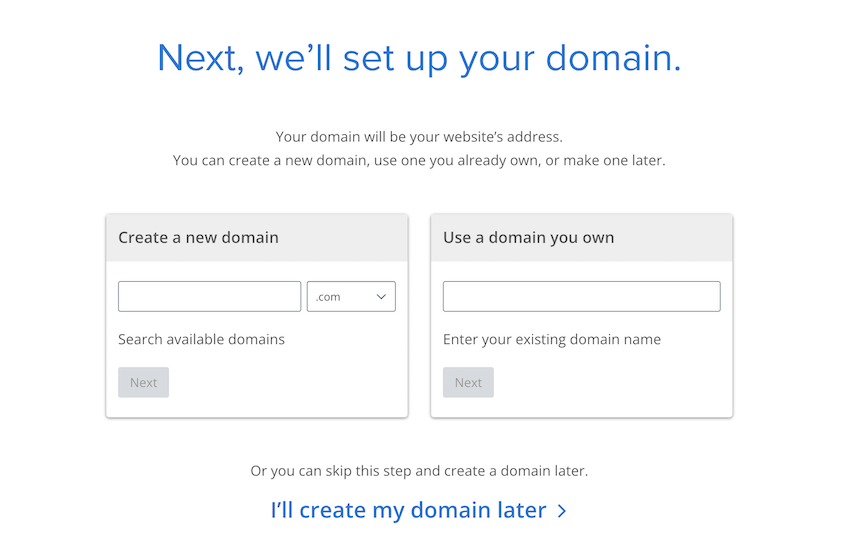
Keep your Wix site live while you build the WordPress version. This gives you time to get everything right before switching over.
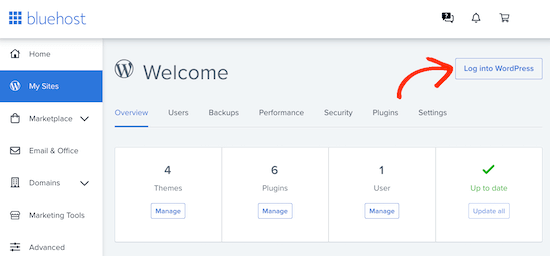
WordPress installation takes about five minutes. When it’s done, you’ll get a confirmation with your login URL. There will also be admin login buttons in your hosting dashboard.
Here’s an important step most guides skip: install Duplicator and back up your blank site right now. If something breaks during the migration, you’ll want a clean slate to restore to.
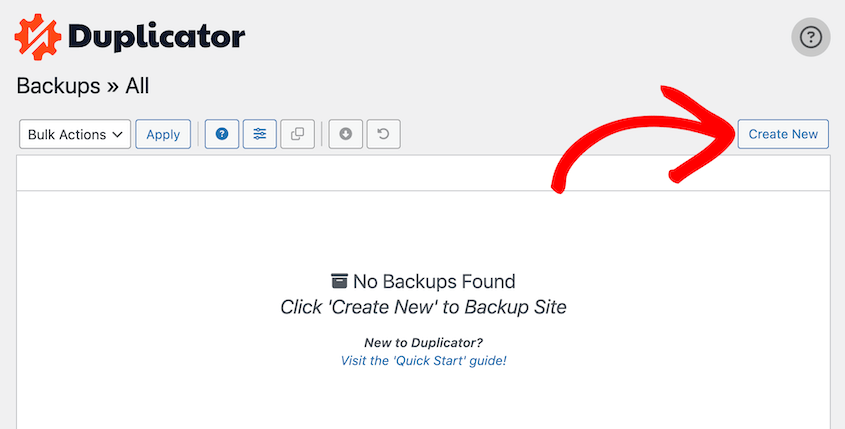
This backup is your safety net. You probably won’t need to restore it, but you’ll be glad it’s there if you do.
Step 2: Import Your Wix Blog Posts
Wix doesn’t have a true export for blog posts, but its RSS feed gives you a head start. There’s a catch: the feed only holds your 20 most recent posts.
You’ll find your RSS feed by adding one of these extensions to your URL:
- /feed.xml
- /blog-feed.xml
You’ll see a page full of XML code. Right-click on the page and save it as an XML file.
Now switch over to your WordPress dashboard. Go to Tools » Import. You’ll see a list of import options. Install the RSS option. Then click Run Importer.
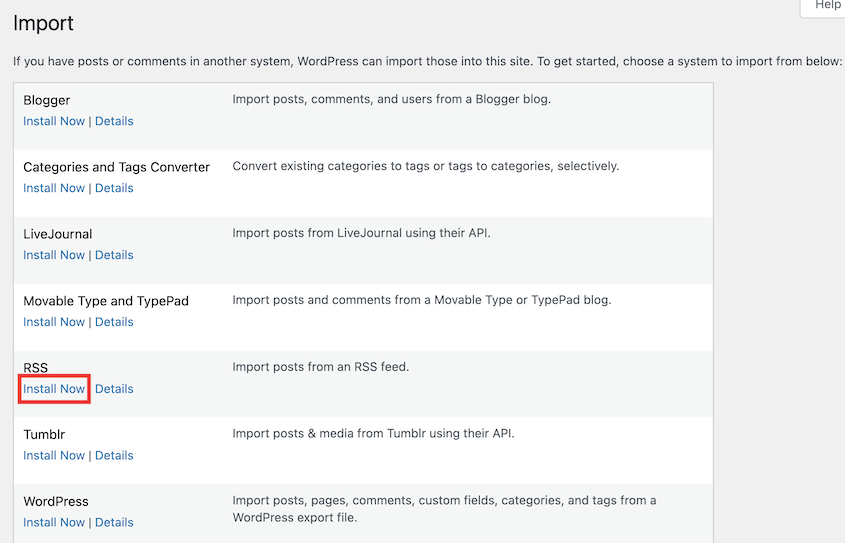
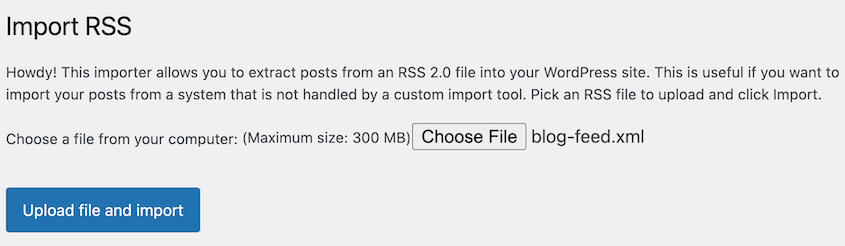
Upload the XML file you just saved from Wix. Hit Upload file and import.
When it’s done, go to Posts » All Posts in WordPress. You should see your Wix blog posts listed there. Click into a few and check them out.
The formatting will likely be messy and images might be broken. That’s normal. Open each post next to its live Wix version, fix the formatting, and re-add its images.
If you have more than 20 posts, create the older ones by hand (or use one of the other options above).
Step 3: Manually Move Wix Pages
The RSS feed only grabbed your blog posts. Your static pages didn’t come along for the ride. So, you’ll need to copy these manually.
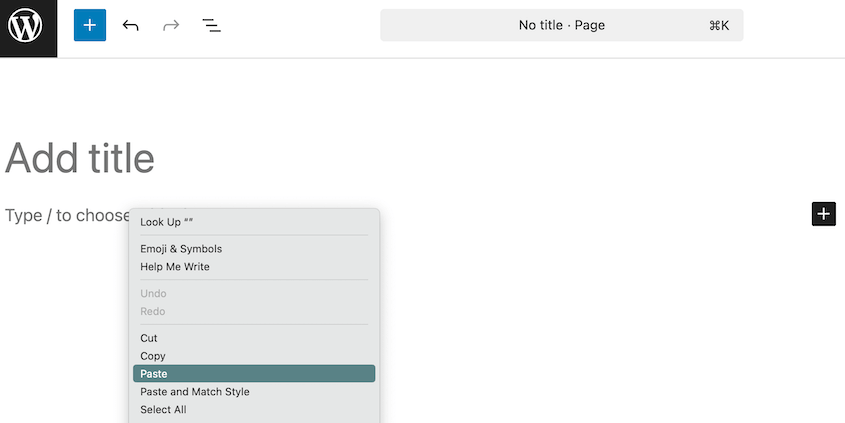
Open your Wix site in one browser tab and your WordPress dashboard in another. In WordPress, go to Pages » Add Page. In Wix, navigate to the first page you want to move.
Copy the headlines, text, and everything else from the Wix page. Paste it into your new WordPress page. You’ll need to reformat it because Wix’s layout blocks don’t translate to WordPress.
If you have a lot of pages, create a simple spreadsheet to track your progress. List each Wix page and check it off as you move it. This prevents you from forgetting pages or duplicating work.
Don’t forget about hidden or drafted pages. Check your Wix dashboard for pages that aren’t published yet but that you want to keep. Move those too.
Step 4: Manually Upload Wix Images
This is the most time-consuming part of the migration. Wix doesn’t export images cleanly, so you’ll need to save them individually and re-upload them to WordPress.
Open your media files in Wix. Select multiple images by holding down the shift button. Click on Download on the right.
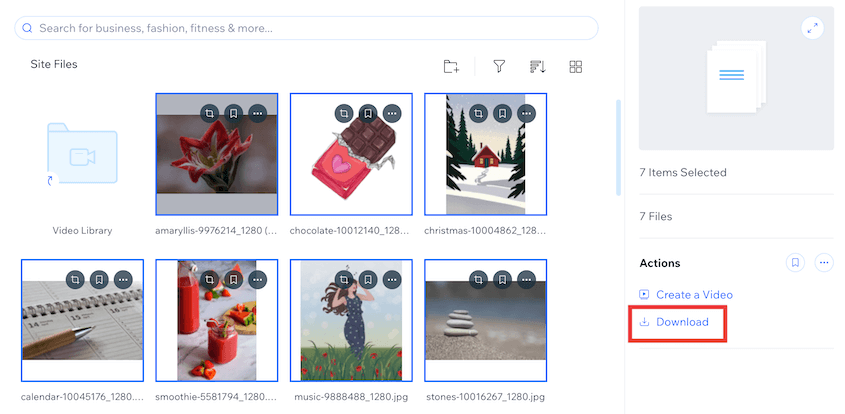
Before you upload anything, rename your image files. Instead of “IMG_1234.jpg,” use descriptive names like “customer-testimonial-sarah.jpg” or “team-photo-2024.jpg.” This helps with SEO later and makes it easier to find images in your WordPress media library.
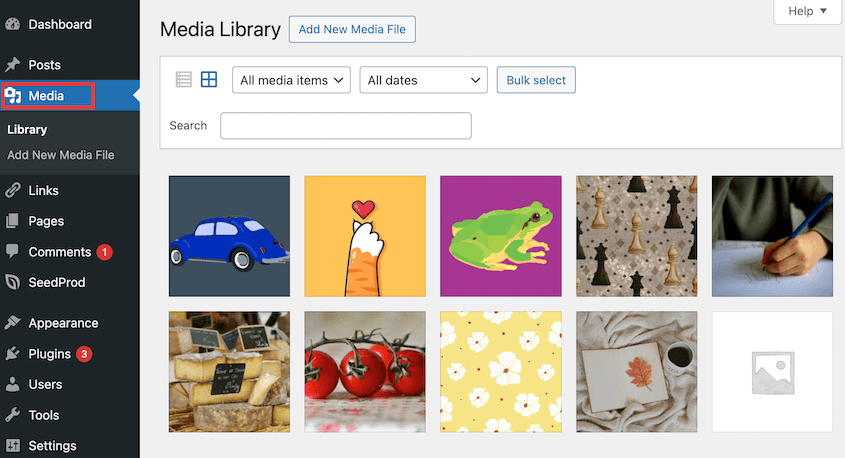
Log into WordPress and go to Media » Add Media File. You can drag and drop multiple images at once.
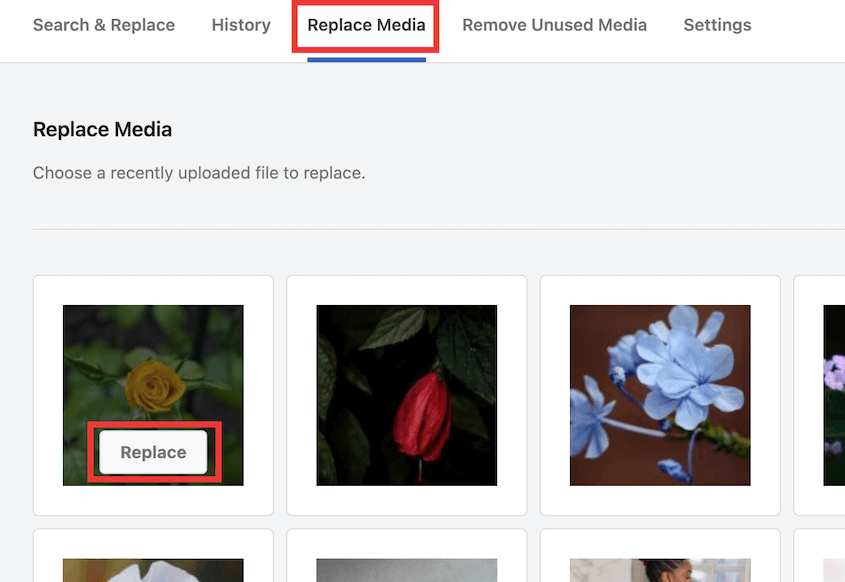
You’ll need to replace any broken image links in your posts and pages. Search & Replace Everything makes this easy.
Step 5: Design Your WordPress Site
Your content is in WordPress, but your site probably looks pretty bare bones right now. It’s time to make it look like an actual website.
You’ll want to install a theme and probably a page builder plugin. If you liked Wix’s drag-and-drop interface, SeedProd is a solid choice. It works much the same way. You drag elements onto a page and customize them visually.

Or you can stick with WordPress’s block editor, which has gotten pretty powerful in recent versions. It’s not as flexible as dedicated page builders, but it’s free and built right in.
Start recreating your Wix layout. Aim for something that captures the same feel and includes all the important elements.
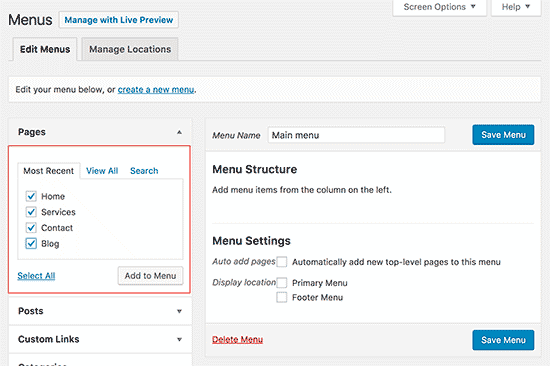
Don’t forget your navigation menus. Go to Appearance » Menus. Click Create a new menu and give it a name like Main Menu.
Using a block theme (like Twenty Twenty-Five)? You won’t see Appearance » Menus. Build your menu in the Site Editor instead, under Appearance » Editor » Navigation.
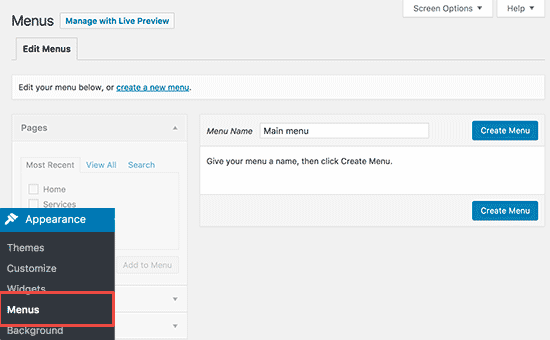
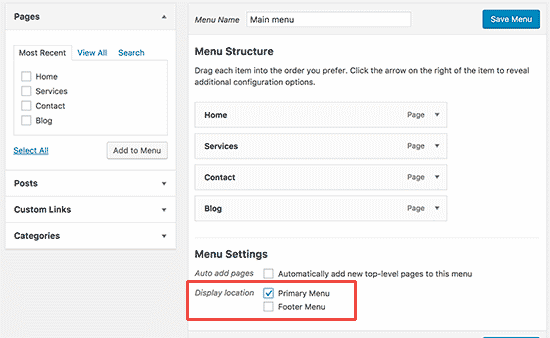
Add your pages to it by checking the boxes and clicking Add to Menu. You can drag pages up and down to reorder them. Drag a page slightly to the right to make it a sub-menu item.
Once your menu is set up, you need to assign it to a location. Most themes have options like Primary Menu or Header Menu. Check the box for where you want this menu to appear, then save it.
Test all your links. Click through every menu item and make sure pages load correctly.
Step 6: Update WordPress Permalinks
Go to Settings » Permalinks in your WordPress dashboard. You’ll see several structure options.
Select Post name. This creates URLs based on your page and post titles, which is both user-friendly and good for SEO.
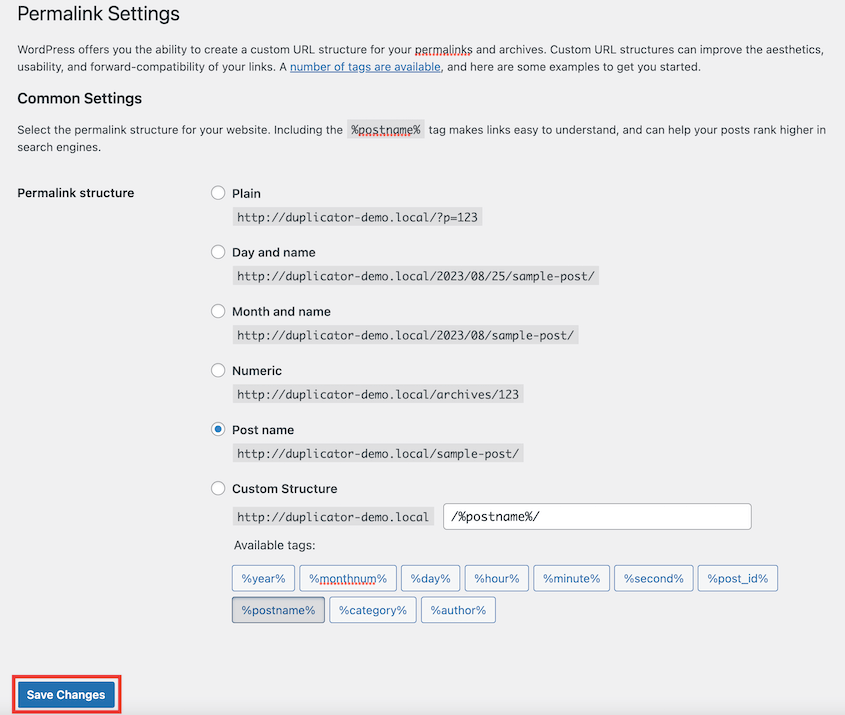
It also matches how Wix structures page URLs. Wix blog posts are different, because they sit under a /post/ prefix (yoursite.com/post/my-first-post).
If you’re moving a blog, choose Custom Structure instead and enter /post/%postname%/ so those URLs stay identical. (If you renamed the prefix in Wix, use your word instead of “post”.)
Step 7: Redirect Wix to WordPress
You’ve built your WordPress site. Your content is there, your design looks good, and you’re ready to launch.
But if you just point your domain to WordPress and abandon Wix, you’ll lose search traffic. All those Wix URLs that Google has indexed will return 404 errors.
You need 301 redirects, which tell search engines “this page has permanently moved to a new location.”
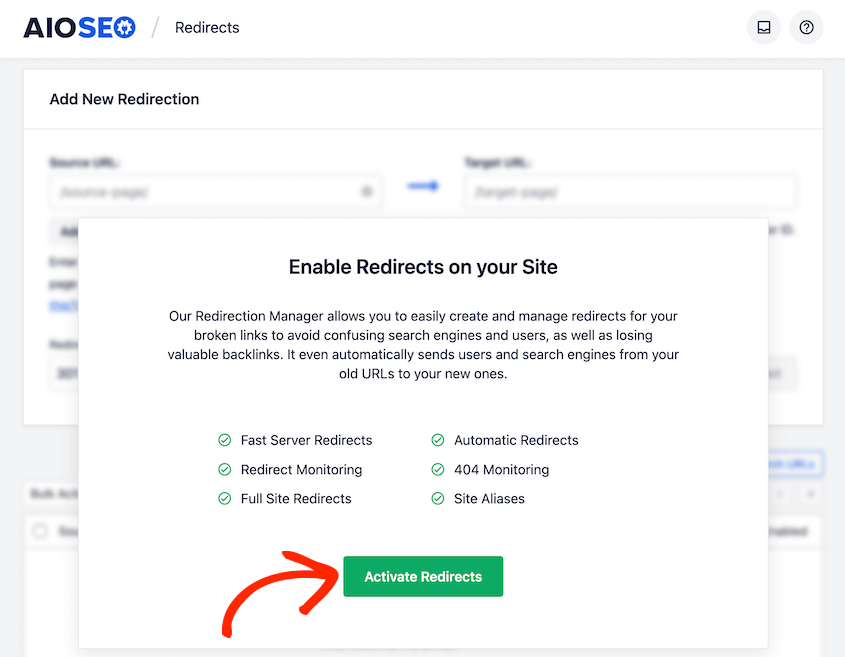
Once your domain points to WordPress (Step 8), every visit to an old Wix URL lands on your WordPress site. That means you can create real 301 redirects right in WordPress. I use AIOSEO’s Redirection Manager for this (it’s included in every paid AIOSEO plan).
Start with a list of your Wix URLs. Your Wix sitemap (yoursite.com/sitemap.xml) is the quickest source. Match each one to its new WordPress URL. Our guide to creating a 301 redirect map walks through this.
Once AIOSEO is installed, go to All in One SEO » Redirects. Enter the old Wix path in Source URL (just the part after your domain, like /about-me). In Target URL, enter the new WordPress URL, or start typing the page title and pick it from the list.
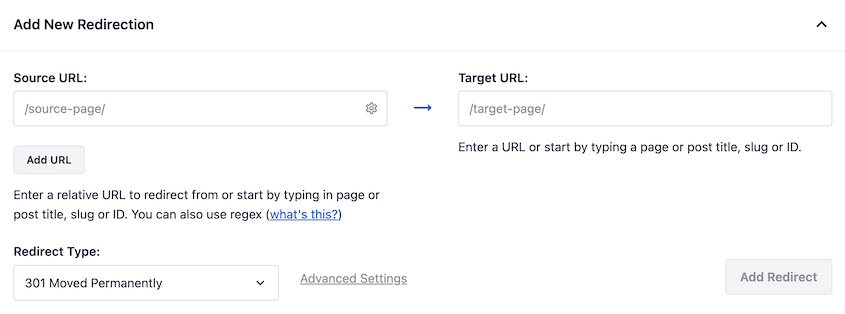
Save the redirect and repeat for each URL.
If you kept the /post/ prefix in Step 6, your blog posts won’t need redirects. You’ll only need them for pages whose URLs changed.
Test it by visiting a few old Wix URLs. Each one should land on the matching WordPress page.
Step 8: Switch Your Domain Over to WordPress
Your WordPress site is built and your redirects are ready. The last step is pointing your domain at your new host.
You don’t have to transfer the domain away from Wix to do this. In your Wix account, go to Domains and open the DNS settings for your domain. Then enter the records (or nameservers) your new host gives you.
If you switch nameservers and your email runs on this domain, copy your MX records over first. Otherwise, your email can stop arriving.
DNS changes can take up to 48 hours to reach everyone. During that window, some visitors still see Wix and others see WordPress. That’s why your Wix site should stay published until the switch is done.
Built WordPress on a temporary domain? Move it to your real domain now. This is a WordPress-to-WordPress move, which is exactly what Duplicator handles. Create a backup of the finished site, then run its installer on your real domain.
The installer swaps the temporary URL for your real one, so your links and images don’t keep pointing at the old address. Do this at a quiet time, since your domain shows an empty site until the installer finishes.
Once your domain loads the WordPress site everywhere, test a few old Wix URLs to confirm your redirects work. Then you can cancel your Wix plan.
Frequently Asked Questions (FAQs)
How do I transfer a domain from Wix to WordPress?
You don’t need to transfer your domain right away. You can point it to your WordPress host by updating its DNS settings. If you want to fully transfer it, unlock the domain in Wix, get your authorization code (EPP code), and initiate the transfer with your new registrar. The process takes 5-7 days, and you can’t transfer a domain within 60 days of buying it.
Is there a Wix to WordPress plugin?
There’s no official one, because Wix doesn’t provide the API access a plugin would need. Paid migration tools and services can copy your text and basic formatting, but expect to clean up layouts and images afterward. WordPress.com has a Wix importer too, though it only works for sites hosted on WordPress.com. The manual method in this guide is free and gives you the cleanest results.
How long does it take to move from Wix to WordPress?
For a typical small business site with 20-30 pages and 50 blog posts, expect 6-8 hours of work. Sites with hundreds of images or complex layouts will take longer. You can spread the work over a weekend. Spend one day on content and the next on design and testing.
Can I keep my Wix site live during the migration?
Absolutely, and you should. Build your WordPress site on your new hosting while your Wix site stays live. This gives you time to get everything right without downtime. Only switch your domain over once your WordPress site is tested and ready to go.
Will my Wix contact forms work on WordPress?
No, Wix forms won’t transfer over. You’ll need to recreate them using a WordPress form plugin like WPForms. This takes a few minutes per form and gives you more customization options than Wix provided.
Can Duplicator migrate my Wix site to WordPress?
No. Duplicator moves sites from one WordPress install to another, and Wix isn’t WordPress, so there’s nothing for it to copy. It’s useful once your new WordPress site exists. Back it up while you build, and use Duplicator to move the finished site from a temporary domain to your real one.
Can I move my Wix store to WooCommerce?
Yes, but only your product catalog moves in bulk. In your Wix dashboard, open your store products, click More Actions, and choose Export to download a CSV. After installing WooCommerce, go to Products » All Products and click Import. Digital products don’t export, and you’ll need to download and reattach product images separately.
Can Wix integrate with WordPress?
Not directly. They’re separate platforms, so you can’t run WordPress plugins or themes on Wix, or import a Wix site into WordPress in one step. You can move your content over, though, and that’s what this guide walks you through.
Take the First Step Toward WordPress
Moving from Wix to WordPress isn’t a quick afternoon project. There’s copying, uploading, formatting, and testing involved.
But the payoff is worth it.
You’ll have more control over your site than you’ve ever had. You’ll spend less money in the long run. Your SEO will likely improve once you have access to better tools and more flexibility. And you’ll never feel locked into a platform again.
The WordPress community is massive and helpful. If you get stuck on something, search for it. Someone has probably written a tutorial or answered it in a forum. The WordPress.org support forums, YouTube, and countless blogs are full of free help.
Once your site is up and running, protect your hard work with regular backups. Duplicator Pro makes this easy with automatic backups, cloud storage, and one-click site restoration if anything ever goes wrong.
After all the effort you’ve put into this migration, the last thing you want is to lose it all to a hosting issue or hack. Try out Duplicator today!
While you’re here, I think you’ll like these related WordPress guides:
- 11 WordPress Maintenance Tasks You Won’t Want to Forget
- How to Back Up a WordPress Site
- How to Create a WordPress Staging Site (For Safe Testing)
- How to Undo Changes in WordPress
- WordPress Migration Plugins That Actually Work in 2026
- How to Move a Website to WordPress From Any Platform




