


WordPress 6.9 Update Guide: New Features + How to Update Safely
Think about your last website project.
How much time did you waste wrestling with the editor? Dragging blocks that wouldn’t land where you wanted them, emailing back and forth about content edits, or writing CSS just to make a headline fit on mobile?
WordPress 6.9 targets those friction points.
This update graduates a bunch of experimental features from the Gutenberg plugin straight into Core. That means real structural changes to how WordPress works under the hood.
In this post, I’ll cover the new WordPress 6.9 features worth your attention, then show you how to update safely.
Here are the key takeaways:
- Block Notes brings Google Docs-style collaboration directly into the editor, letting teams comment on specific blocks
- Visual drag-and-drop editing now shows exactly where blocks will land before you drop them, eliminating frustrating placement errors
- The Command Palette (Cmd+K or Ctrl+K) lets you navigate the entire admin area and execute commands without touching your mouse
- New blocks include Accordion, Terms Query, Time-to-Read, Math, and separate Comment Count/Link blocks
- New AI infrastructure (Abilities API, MCP Adapter, PHP AI Client) builds the foundation for automated site management
- Performance improvements target Core Web Vitals, with specific optimizations for Largest Contentful Paint and block loading
- Always back up with Duplicator before updating and test on staging first to avoid breaking your live site
Table of Contents
What Is WordPress 6.9?
WordPress 6.9 marks the second major release of 2025.
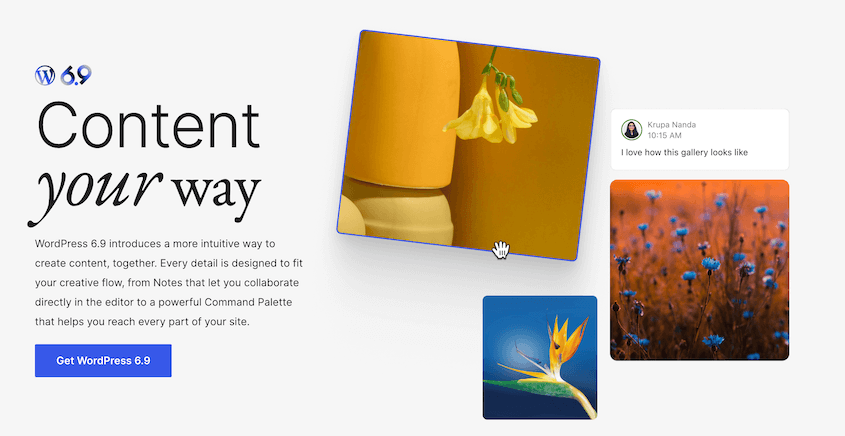
This release targets editors who collaborate on content, developers who want faster workflows, and agencies juggling multiple client sites.
Some of these changes touch fundamental parts of the editor. Others introduce entirely new ways to interact with WordPress—including foundational AI infrastructure that sets the stage for automated site management.
What New Features Are Coming in WordPress 6.9?
There are dozens of changes in this release.
I’ll focus on the ones that actually change how you work. These features will save you time or solve problems you’ve been complaining about for years.
Here’s what’s new in WordPress 6.9:
- Block Notes: Pin comments to specific blocks for team collaboration
- Visual Drag-and-Drop Editing: See exactly where blocks land before you drop them
- Command Palette Shortcuts: Navigate WordPress with keyboard commands (Cmd+K or Ctrl+K)
- Fit Text to Container: Auto-resize text to fill containers across all screen sizes
- Hide Blocks on Front-End: Keep draft content in the editor without showing it live
- Accordion Block: Native collapsible sections with proper HTML5 tags
- Terms Query Block: Display category and tag lists dynamically
- Time-to-Read Block: Automatic reading time calculation based on word count
- Math Block: Render equations as accessible HTML using MathML
- Comment Count and Comment Link Blocks: Separate blocks for flexible layout control
- Starter Patterns for All Post Types: Pattern modal now works for posts and custom post types
- Gallery Aspect Ratio: Force uniform image dimensions in galleries
- Abilities API: Let AI agents safely query what plugins or themes can do
- MCP Adapter: Connect external AI tools using Model Context Protocol
- PHP AI Client: Unified interface for multiple AI providers
Block Notes
Your content team can finally stop sending confusing email threads about edits. Block Notes brings Google Docs-style collaboration directly into the WordPress editor.
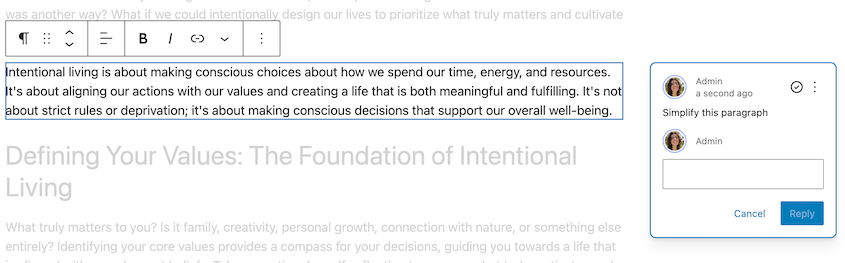
You can pin a comment to a specific block—like a headline, an image, or a call-to-action button—instead of saying “change the thing in the third paragraph.”
It works like a to-do list. Someone leaves a note. You make the edit and mark it resolved.
You don’t have to use external team collaboration tools anymore. The notes live exactly where the work happens.
Visual Drag-and-Drop Editing
Previous versions of WordPress had an unpredictable drag-and-drop system. You’d grab a block, hover over where you wanted it, and watch it land somewhere completely different.
Version 6.9 fixes that.
You’ll see clearly where the block will go when you drop it. The surrounding content moves out of the way before you release your mouse, giving you a real-time preview of exactly where the block will land.
You’ll use the undo button far less often. That alone saves minutes on every page you build.
Shortcuts to Command Palette
Press Cmd+K on Mac or Ctrl+K on Windows. A search bar appears, which you can use to enter commands.
This works in the post editor, site editor, and anywhere in WordPress admin.
The palette is context-aware. If you’re editing text, it shows formatting options. If you’re in the design view, it brings up layout tools.
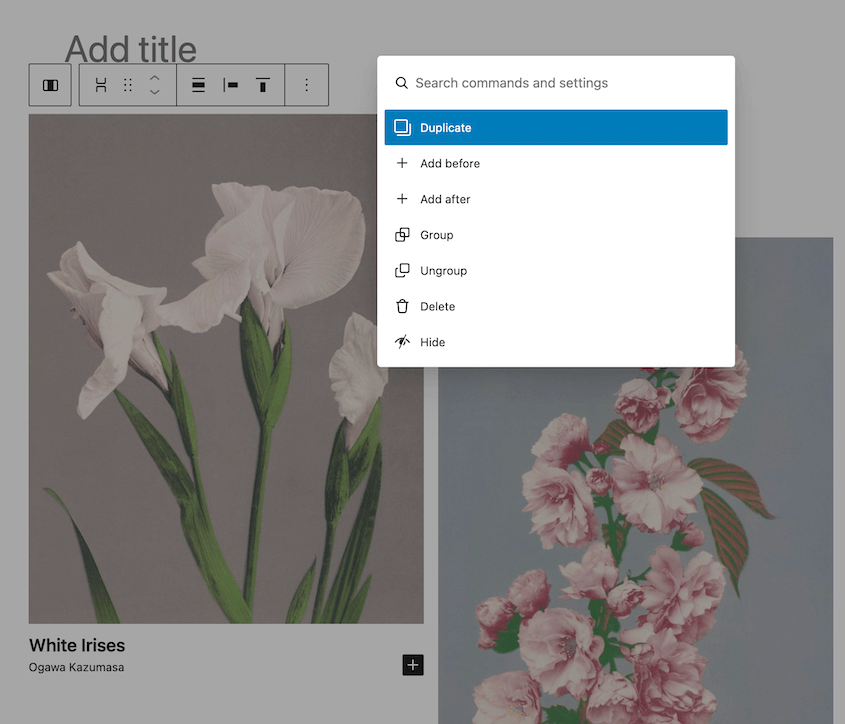
With this new feature, you can navigate the entire admin area without touching a mouse. That’s not a small thing when you’re managing multiple sites or making repetitive edits.
Fit Text to Container
Long headlines break mobile layouts. You’ve seen it happen. A perfectly designed hero section on desktop turns into a mess on phones because the text overflows or wraps awkwardly.
WordPress 6.9 adds an option to fit text to its container. It’ll automatically fill the width without requiring custom CSS.
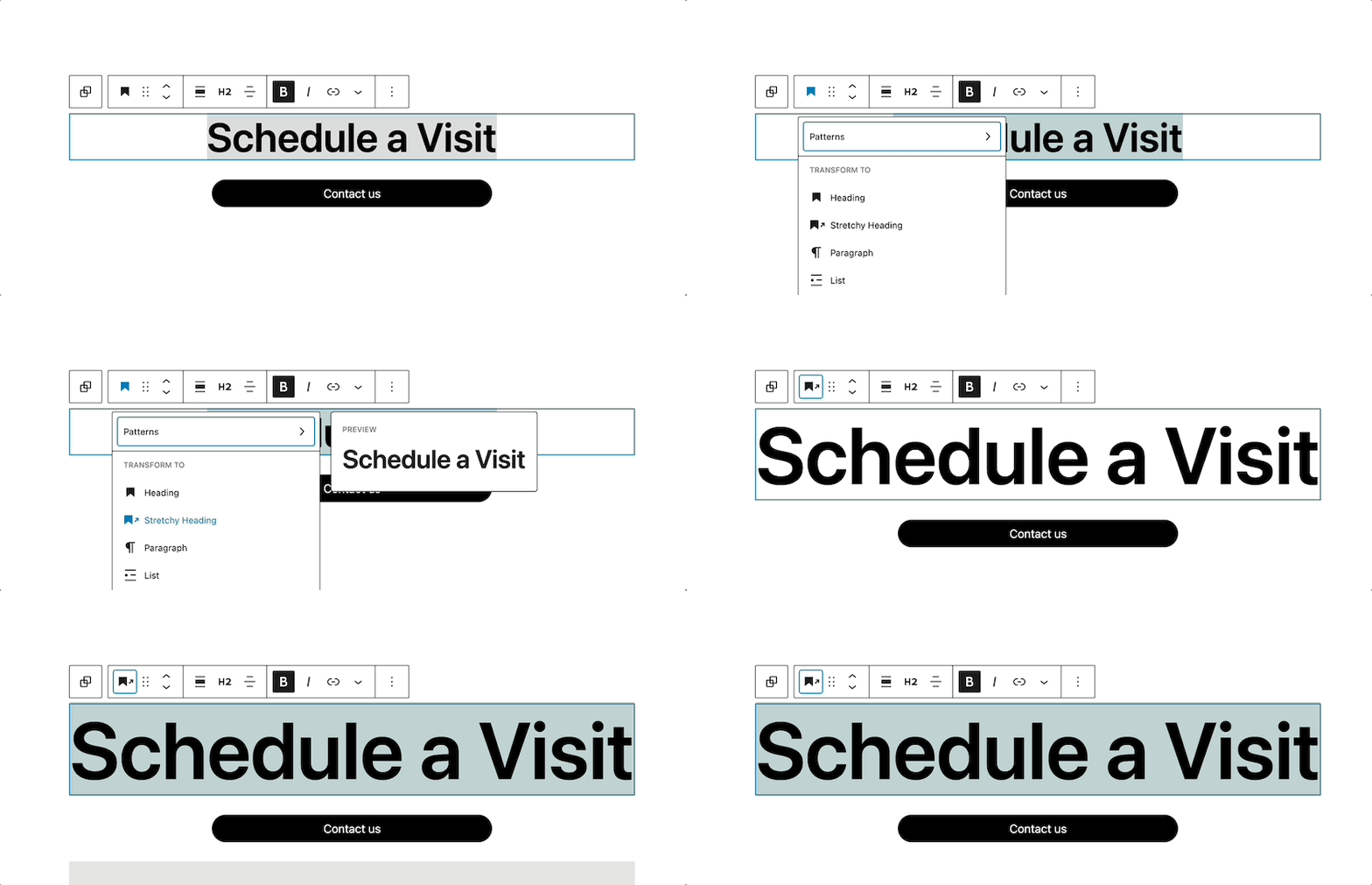
This is particularly useful for hero sections, card layouts, or any design where text length varies but the container size stays fixed.
You set it once. It works across all screen sizes.
Hide Blocks on the Front-End
There’s a new visibility toggle that looks like an eye icon. Click it, and the block stays in your editor but disappears from the live site.
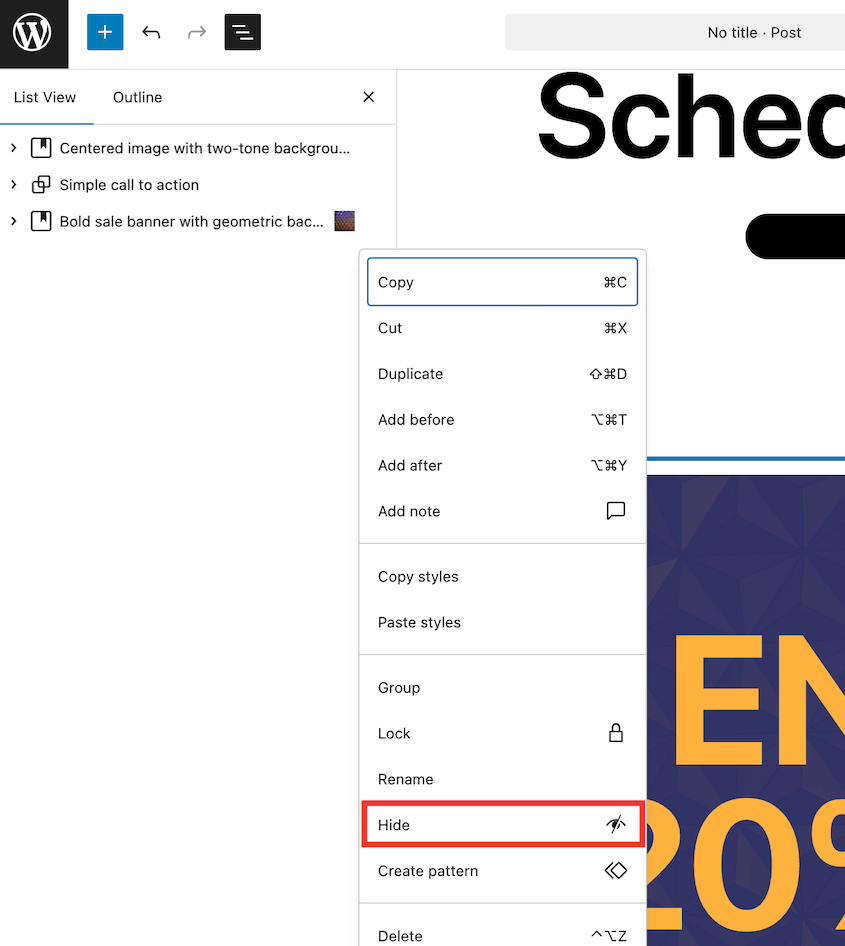
This is better than deleting content you might need later. You can keep draft copy, internal notes, or alternative versions right in the editor without showing them to visitors.
New Blocks
WordPress 6.9 introduces five new blocks. Some of them replace functionality you’ve been using plugins for. Others solve problems you didn’t realize had native solutions coming.
Here are all your new blocks:
- Accordion Block: Native collapsible sections using HTML5 <details> tags
- Terms Query Block: Dynamic category and tag lists with filtering options
- Time-to-Read Block: Automatic reading time for blog posts
- Math Block: Accessible equation rendering with MathML standard
- Comment Count and Comment Link Blocks: Separate blocks for flexible comment layout
1. Accordion Block
You can finally build collapsible sections without installing a third-party plugin.
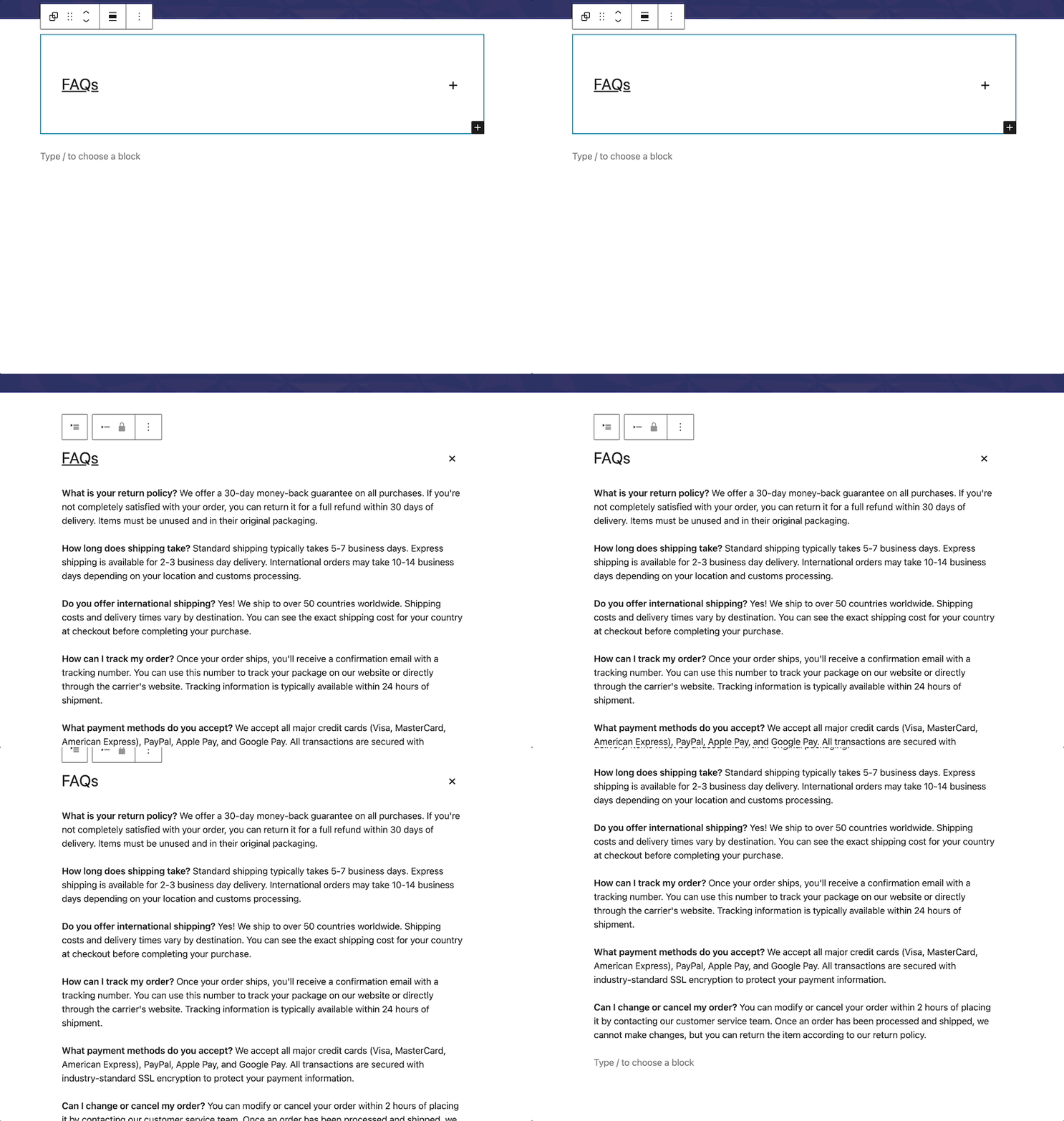
The Accordion Block uses proper HTML5 <details> tags. That matters for SEO and accessibility. Screen readers understand it. Search engines can index the content even when it’s collapsed.
If you’re currently using a plugin just for accordions, you can probably remove it after updating.
2. Terms Query Block
The new terms query block dynamically displays lists of your categories or tags. You can choose from two different display options: Name or Name & Count.
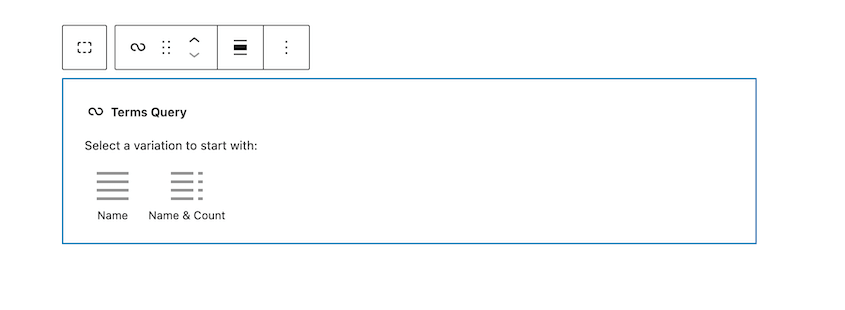
For the Taxonomy, display either categories or tags. They’ll pull up automatically.
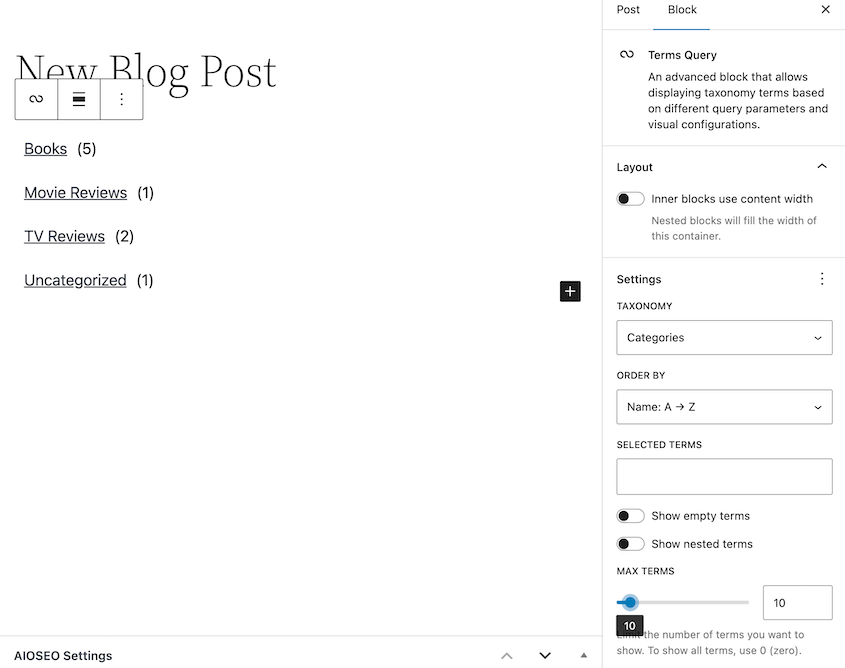
However, you can filter what shows up by selecting certain tags or categories.
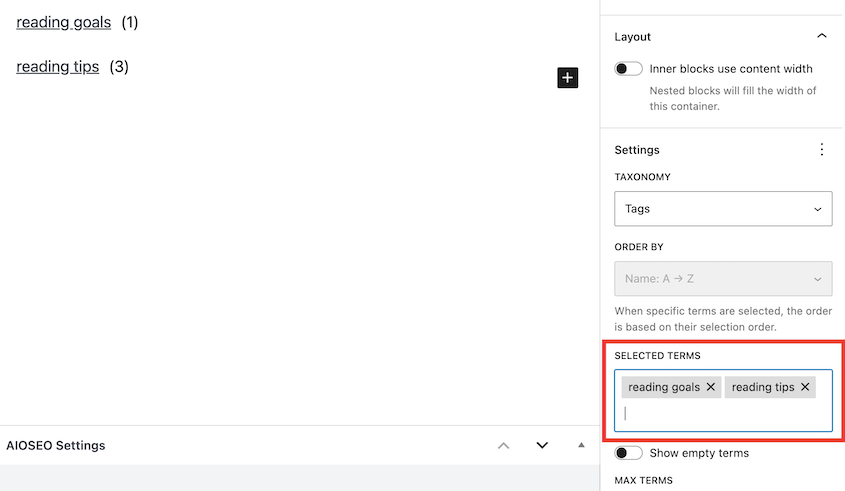
It’s useful for archive pages, sidebars, or any time you want to show your taxonomy structure.
3. Time-to-Read Block
The time-to-read block calculates reading time automatically based on word count.
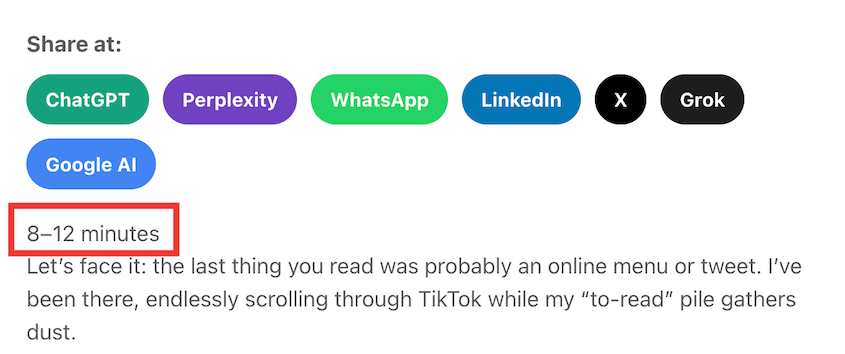
Why does this matter? It sets expectations. Readers decide whether they have time to finish your article right now or should bookmark it for later.
The block updates automatically when you edit the post. No manual calculation required.
4. Math Block
If you run an academic site, a tutoring blog, or publish any scientific content, you’ve probably been taking screenshots of equations. Now, you’ll get a built-in math block.
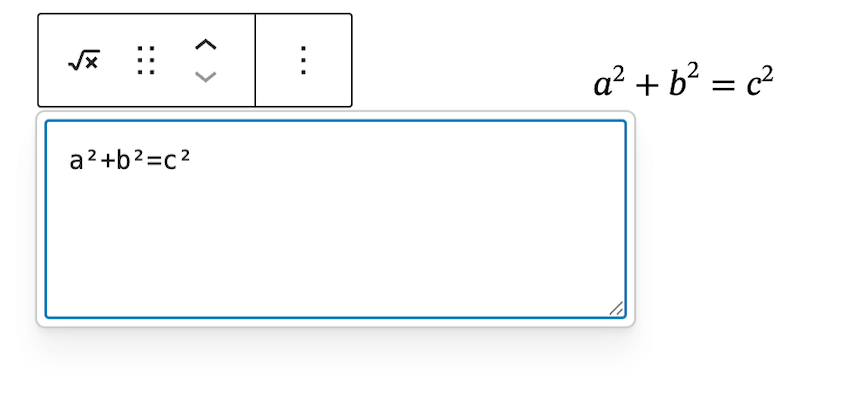
The Math Block uses MathML standard to render formulas as actual HTML. Screen readers can interpret it, and search engines can index it. Plus, users can copy and paste the equations.
It’s accessible in a way images never were.
5. Comment Count and Comment Link Block
WordPress used to bundle the comment count and the link to the comments section. Now they’re separate blocks.
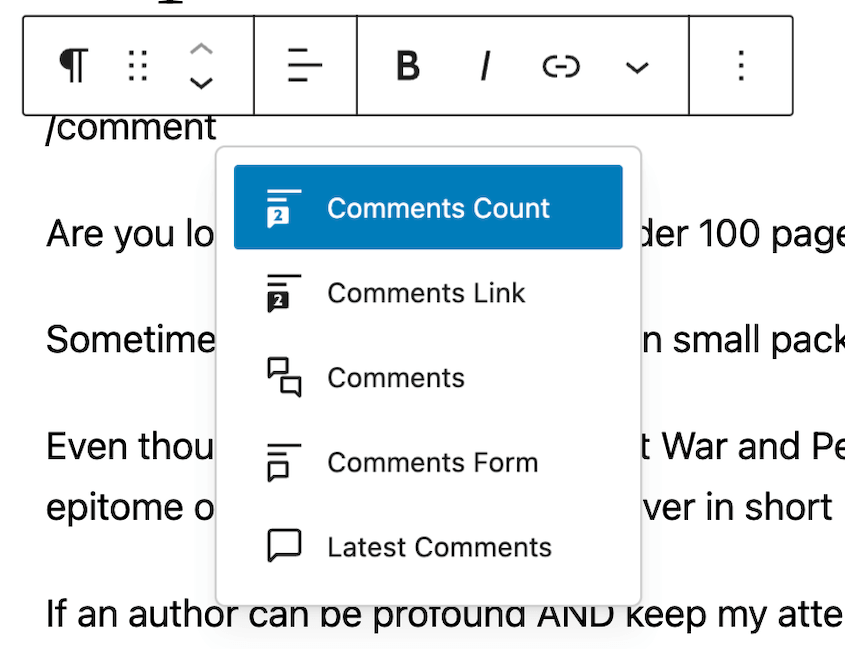
That gives you design flexibility. You could put the count at the top of your post for social proof and put the link at the bottom to encourage discussion. Or use them in completely different locations.
It’s a small change, but it has a big impact on layout options.
Starter Patterns for All Post Types
The “Choose a Pattern” modal used to only work for pages. Now it works for posts and custom post types too.
This enforces consistency across your team and speeds up content creation.
Gallery Aspect Ratio
Mixed image sizes make galleries look messy. Portrait shots next to landscape shots create an uneven grid.
WordPress 6.9 adds aspect ratio control to galleries. Force everything to Square, 16:9, or any ratio you choose.
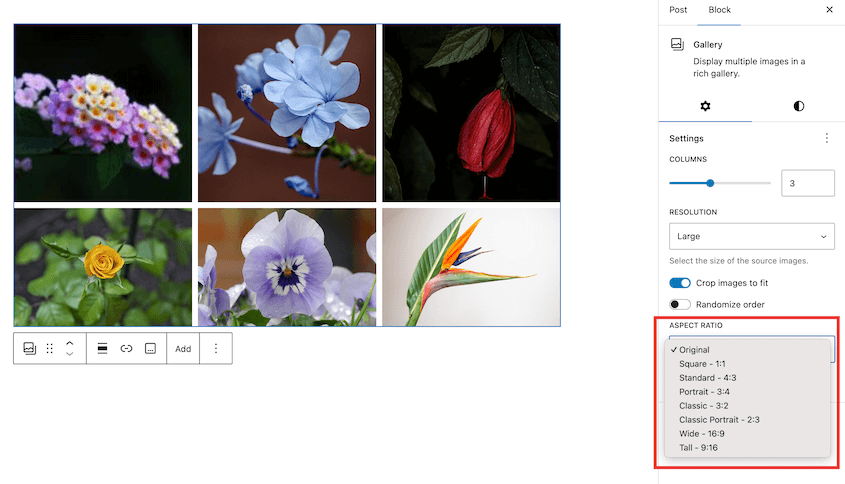
It crops via CSS. Your original files stay untouched, but the gallery displays uniformly.
AI Developments in WordPress 6.9
Here’s where things get interesting. WordPress 6.9 brings these new AI updates:
- Abilities API: Registry system that lets AI agents query what plugins and themes can do
- MCP Adapter: Connects external AI tools to WordPress using Model Context Protocol standard
- PHP AI Client: Developer tool that provides unified access to multiple AI providers (OpenAI, Gemini, Claude, etc.)
Abilities API
Think of the new Abilities API as a registry. Plugins declare what they can do, like create contact forms, optimize images, or back up a website.
When an AI agent asks what a plugin or theme can do, it gets a verified list instead of guessing.
This prevents hallucinations. The AI can’t try to use features that don’t exist. It can’t make up plugin functions. It’s a constraint system that makes automation safer.
MCP Adapter
MCP stands for Model Context Protocol. It’s an emerging standard for connecting AI agents to applications.
WordPress now has an MCP adapter that speaks this protocol.
What does that mean practically? External AI tools can send commands to your WordPress site using a standardized format.
Most site owners won’t interact with it directly. But it enables the next generation of WordPress automation tools.
PHP AI Client
The PHP AI Client is a developer tool. It builds shared infrastructure to make it easy to connect WordPress plugins to different AI providers.
Instead of writing separate code for OpenAI, Gemini, Claude, or whatever model you’re using, you call one PHP function. The client handles the provider-specific formatting.
Performance and Accessibility Improvements
These don’t get headlines, but they affect every site.
WordPress 6.9 claims to improve a site’s Largest Contentful Paint (LCP), one of Google’s Core Web Vitals. Here are the main performance improvements:
- On-demand block styles for classic themes
- Minified block theme styles
- Increased the limit for inline styles
- Deprioritized non-critical scripts
- Prevented the video block from shifting layouts
- Updated query cache handling
On the accessibility side, there are 10 enhancements and 23 bug fixes. Here are the highlights:
- Globally hid CSS-generated content
- Screen reader announcements
- Typing focus on autocomplete suggestions
These aren’t exciting new features, but they make WordPress sites faster and more usable for everyone.
How to Update Your Site to WordPress 6.9
Major updates always carry some risk. You’re changing core files that interact with your theme, your plugins, your server configuration, and your database. Any incompatibility in that chain can take your site offline.
But the question isn’t whether you should update, it’s how you do it without breaking your website.
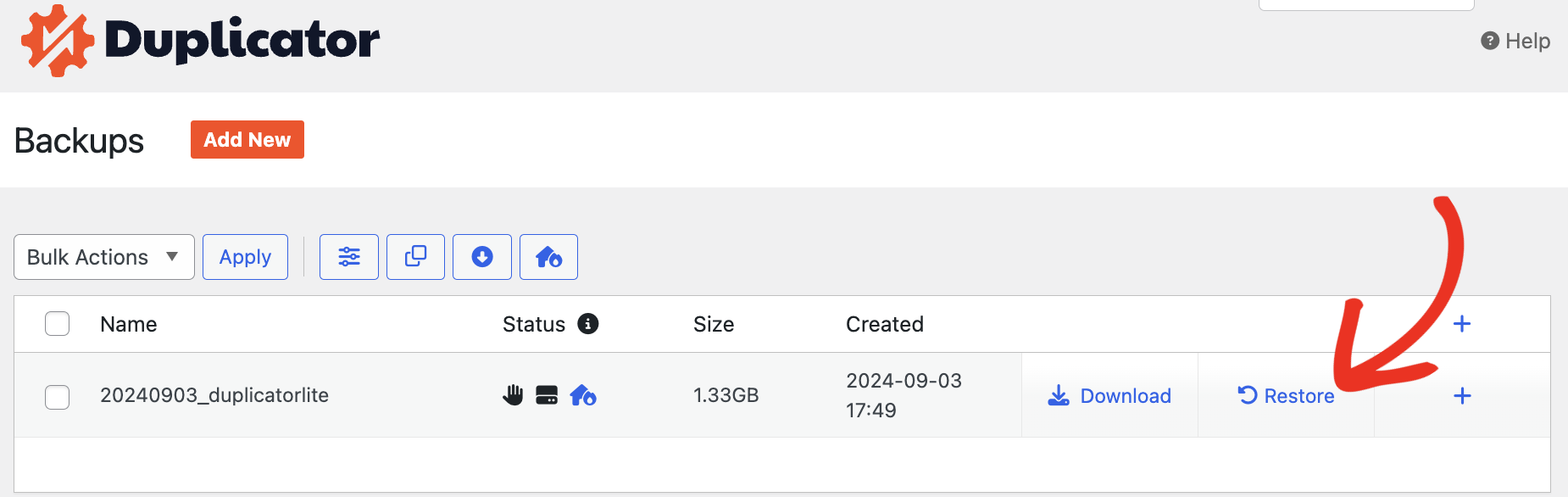
Before you click that update button, create a full backup with Duplicator. This plugin packages your entire site into a zip file and gives you easy restore options.

Install Duplicator, then add a new backup. Choose the Full Site backup preset.

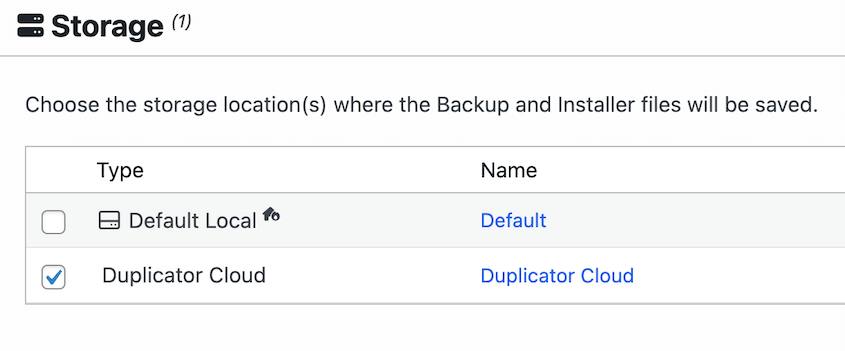
I also recommend saving the backup to the cloud, just in case your entire site crashes. Duplicator Cloud is the fastest and safest option.
Now you’re ready to update to WordPress 6.9. To avoid disrupting anything for live visitors, download your site backup and import it into your staging site. Duplicator’s Import page makes this simple (just drag and drop!).

Run the WordPress 6.9 update on the staging copy. Test your pages, forms, checkout process, and other important elements.
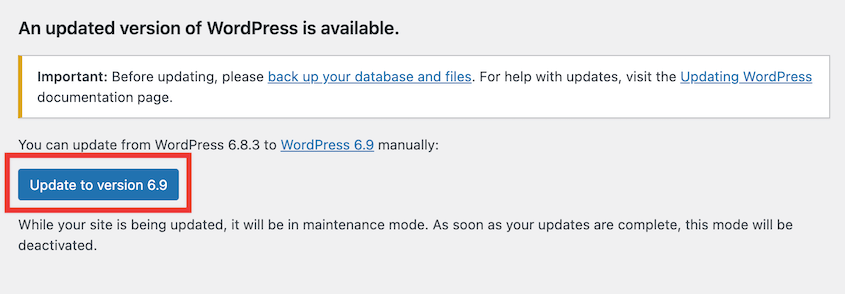
Only push the update to your live site after you’ve confirmed everything works.
This prevents downtime entirely. Your live site stays untouched while you test the update in a safe environment.
Frequently Asked Questions (FAQs)
When is the WordPress 6.9 release date?
WordPress 6.9 was released on December 2, 2025.
What is the minimum PHP version required for WordPress 6.9?
WordPress.org recommends PHP 8.3 or higher. The new AI tools require modern PHP. Plus, older versions have known security vulnerabilities that you want to avoid.
Do I really need to update to WordPress 6.9?
Yes. Security patches are the main reason. Hackers target old WordPress versions because the vulnerabilities are publicly documented. However, some site owners wait about a week so that any new bugs are fixed before they officially update.
Is WordPress 6.9 Worth the Upgrade?
WordPress 6.9 was built to ease your manual design work and give you more automated workflows.
The Block Notes and drag-and-drop improvements solve problems you deal with today. The AI infrastructure prepares your site for tools that haven’t been built yet.
But none of that matters if your site breaks during the update.
Create a Duplicator backup before you do anything else. Clone your site to staging if you have that option. Test the update there first, confirm everything works, then update your live site.
Ready to protect your site during this 6.9 update? Upgrade to Duplicator Pro for cloud storage, backup encryption, drag-and-drop migrations, and other useful security features!
While you’re here, I think you’ll like these other WordPress resources:



