

![[NEW] Duplicator DB Optimizer: Clean Your WordPress Database Before It Becomes a Problem](https://duplicator.com/wp-content/uploads/2026/06/Announcement-DB-Optimizer.jpg)
How to Install WordPress in a Subdirectory
 Joella Dunn
Joella Dunn
Joella Dunn
 John Turner
John Turner
John Turner
You already have a WordPress site running at your root domain. Now you need to add another one (maybe a blog, store, staging environment, or client project) without touching what’s already there.
That’s what a subdirectory install is for.
Installing WordPress in a subdirectory involves a few parts: a folder in your file system, a fresh database, and some URL configuration. None of it is complicated, but the order matters, and a couple of steps trip some people up.
In this post, I’ll explain what a subdirectory is, when to use one instead of a subdomain, and three different ways to get WordPress installed.
By the end, you’ll have a working WordPress install at something like yourdomain.com/blog or yourdomain.com/staging, with the right configuration in place to keep it running cleanly.
Here are the key takeaways:
- A subdirectory install gives you a fully independent WordPress site at a path like yourdomain.com/blog with a separate database, plugins, and admin.
- Use a subdirectory (not a subdomain) when SEO continuity matters. Content in a subdirectory inherits your root domain’s authority from day one.
- The fastest method for a fresh install is an auto-installer like Softaculous. For migrating an existing site, Duplicator Pro handles the file transfer, database setup, and URL rewriting automatically.
- After any install, confirm both URL fields in Settings » General, save permalinks to flush rewrite rules, and set up automated backups before adding content.
- The most common post-install failure points are mismatched WordPress URLs, unflushed rewrite rules causing 404s, and skipped backups.
Table of Contents
- What Is a Subdirectory in WordPress?
- Why Install WordPress in a Subdirectory?
- WordPress Subdirectory vs. Subdomain: Which Should You Choose?
- What You’ll Need to Install WordPress in a Subdirectory
- How to Install WordPress in a Subdirectory
- How to Configure WordPress After Installing in a Subdirectory
- Frequently Asked Questions (FAQs)
What Is a Subdirectory in WordPress?
A subdirectory is a folder inside your root domain’s file structure that maps directly to a URL path. If your site lives in public_html/, then a subdirectory install at public_html/blog/ becomes yourdomain.com/blog.
Same idea for any path you choose:
- yourdomain.com/blog
- yourdomain.com/staging
- yourdomain.com/shop
Each of those is just a folder sitting inside your main hosting directory, with its own complete WordPress installation inside it.
It has its own database, plugins and themes, and wp-admin dashboard. Nothing is shared with the site at the root domain.
This is different from a WordPress multisite network, which runs multiple sites from a single WordPress installation under one database and one admin panel. What we’re covering here is simpler: separate, standalone WordPress installs that happen to live under the same domain.
Why Install WordPress in a Subdirectory?
There are a handful of situations where this setup is the right call:
- Running WordPress alongside an existing non-WordPress site
- Staging and testing
- Agency and client work
- SEO
- Preserving an existing site during a redesign
If your root domain is a static HTML site, a custom web app, or built on a different CMS, you can add WordPress at /blog or /news without rebuilding anything. The two coexist independently.
Installing WordPress at /staging gives you a private copy of your live site where you can test plugin updates, theme changes, or major edits before they go live. It’s one of the more practical uses of a subdirectory install.
Campaign microsites, job boards, landing pages, and temporary project sites can all live as subdirectory installs under a client’s main domain without requiring a separate hosting account or domain registration for each one.
Content published in a subdirectory sits under the same domain as your main site. That means it can benefit from the authority and backlink profile the root domain has already built up.
If you’re rebuilding a web design from scratch, the old site can be parked at /old or /archive while the new one goes up at the root. Visitors can still access it, and you’re not racing to finish the rebuild before taking everything offline.
WordPress Subdirectory vs. Subdomain: Which Should You Choose?
A subdirectory (yourdomain.com/blog) is a folder inside your existing domain’s file structure. A subdomain (blog.yourdomain.com) is a distinct hostname—technically a separate domain that happens to share the same root.
They look similar in a URL, but they behave differently in a few ways that matter.
When a subdirectory is the better choice:
- SEO continuity is a priority. Google treats subdirectories as part of the same site, so content there inherits the root domain’s existing authority. Links pointing to yourdomain.com/blog count toward the same domain as yourdomain.com.
- Your hosting plan limits the number of subdomains, or you’d rather not deal with the DNS configuration a subdomain requires.
- You want a simpler, cleaner URL structure.
- You’re setting up a staging environment. A subdirectory can be cleaner and easier to manage than a subdomain.
When a subdomain makes more sense:
- The new site serves a completely different audience or purpose and shouldn’t be associated with the main domain in navigation or branding.
- You need total independence—separate analytics, identity, and admin with no crossover.
- You’re running something like a SaaS product or a customer-facing app where per-account subdomains are part of the architecture.
The SEO question is where most people get stuck, and the honest answer is that most people lean toward subdirectories for content-heavy sites.
Subdomains can rank (Google has said they’re capable of ranking well), but a subdomain starts from scratch. It has no inherited authority or existing backlink equity. A subdirectory gets all of that from day one.
What You’ll Need to Install WordPress in a Subdirectory
You’ll need to sort out a few things before you start.
1. A full site backup.
Before making any structural changes to your hosting environment, take a complete backup. If something goes wrong mid-install, you want a clean restore point.
This is where Duplicator Pro earns its place in the workflow early. It packages your files and database into a single archive that can be deployed directly into a subdirectory.
That means the same backup you create for safety can double as your migration package—one tool handles both steps. If you’re planning to use Method 1, creating that backup is the first step of the install.
2. Hosting account access.
You’ll need to log in to cPanel, Plesk, or whatever control panel your host provides. This is how you’ll create the subdirectory folder and set up a new database.
3. FTP or file manager access.
cPanel’s built-in File Manager works fine for most installs. If you prefer working locally, FileZilla is a reliable FTP client. Connect using the credentials in your hosting account’s FTP section.
How to Install WordPress in a Subdirectory
There are three ways to install WordPress in a subdirectory, and the right one depends on what you’re starting with.
- Method 1: Duplicator Pro (migration plugin): The best option if you’re moving or copying an existing WordPress site into a subdirectory. It handles the file transfer, database setup, and URL rewriting in a single guided process.
- Method 2: Auto-installer (Softaculous, Installatron, QuickInstall): The fastest path for a clean, fresh install with nothing to migrate. Log in to cPanel, point the installer at your subdirectory, and it handles the rest in a few minutes.
- Method 3: Manual install: Full control over every part of the setup, but has the most steps and the most ways to go wrong. Best reserved for VPS or custom server environments where no auto-installer is available.
Method 1: Use a Migration Plugin to Install WordPress in a Subdirectory
Use this method when you already have a WordPress site and want to move it (or a copy of it) into a subdirectory.
Here are some use cases for a migration plugin like Duplicator:
- You’re parking an existing site at /blog while rebuilding the homepage from scratch
- You’re duplicating a live site into /staging to use as a testing environment.
The reason Duplicator Pro works well here comes down to one step that breaks most manual migrations: URL rewriting. When you move a WordPress site to a new location, every URL reference stored in the database needs to be updated to match.
Duplicator handles that automatically during install. Do it by hand, and it’s easy to miss references that leave you with a broken site and no obvious cause.
Step 1: Back Up Your Original Site with Duplicator
Log in to the WordPress dashboard of the source site—the one you want to move or copy.
Go to Plugins » Add New, search for Duplicator, install it, and activate it.
The free version handles basic migrations. Duplicator Pro adds drag-and-drop migrations, scheduled backups, and cloud storage destinations (like Duplicator Cloud, Google Drive, Dropbox, Amazon S3, and OneDrive).
In your WordPress dashboard, go to Duplicator Pro » Backups » Add New.
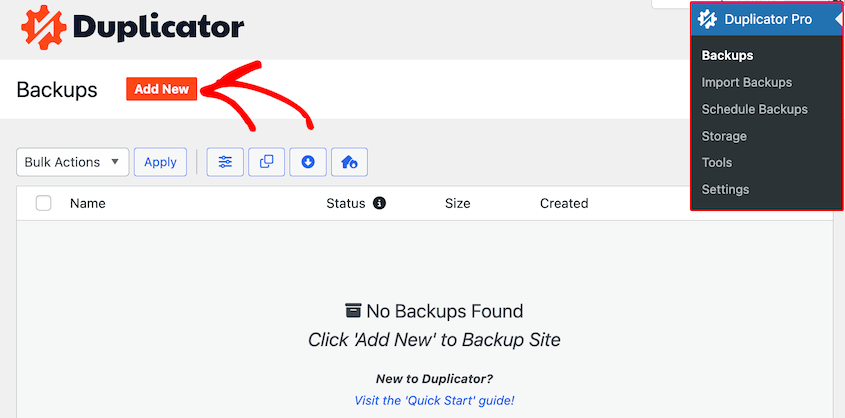
Select the Full Site backup preset and continue.

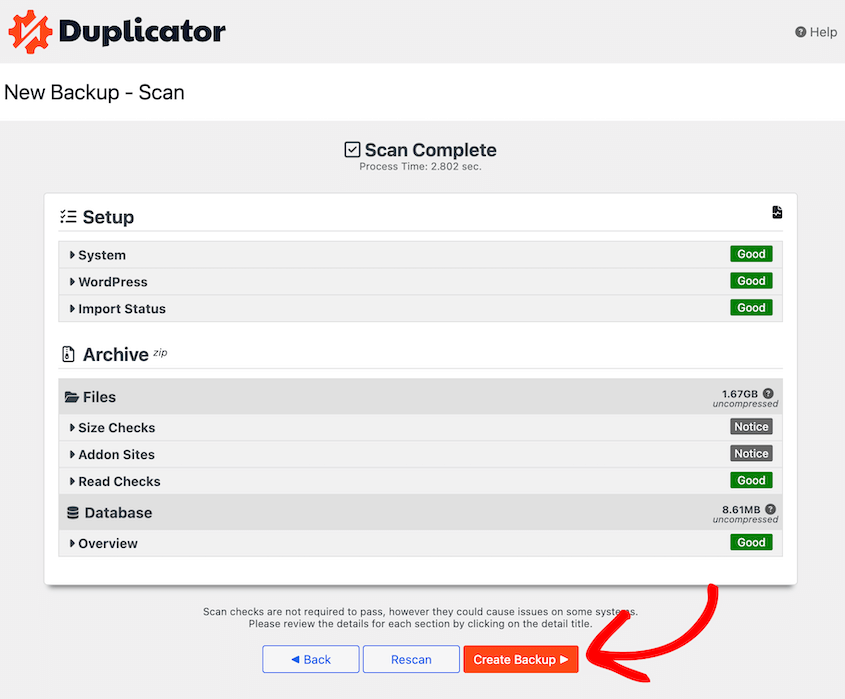
Before it builds, Duplicator Pro scans your site. Look over any warnings before creating the backup.
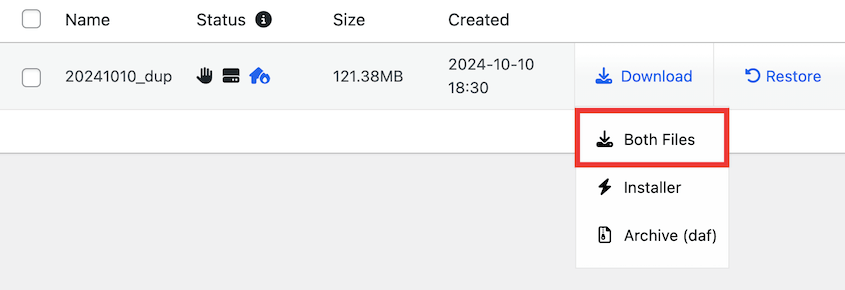
Once it’s done, download two files: the installer and archive file. You need both.
Step 2: Create a Subdirectory
Log in to cPanel, open File Manager, and navigate to public_html.
Create a new folder named blog, staging, shop, or whatever fits your situation. Use lowercase and no spaces. That folder is your subdirectory.
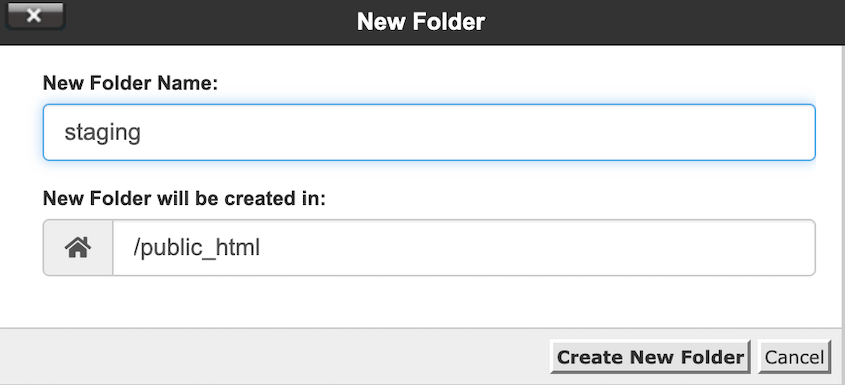
If you prefer working over FTP, connect with FileZilla, navigate to public_html, and create the folder there. Either approach works.
Step 3: Create a New Subdirectory Database
Before running the installer, you’ll need a fresh database for the subdirectory install.
In cPanel, open MySQL Databases (or MariaDB Databases, depending on your host).
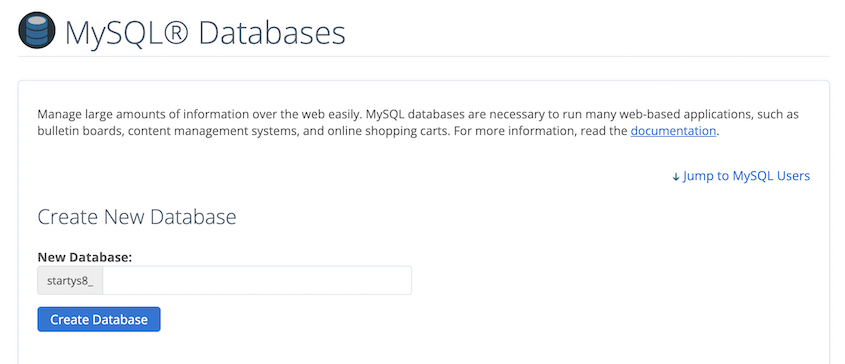
Create a new database. Name it something identifiable like yourusername_blog or yourusername_staging.
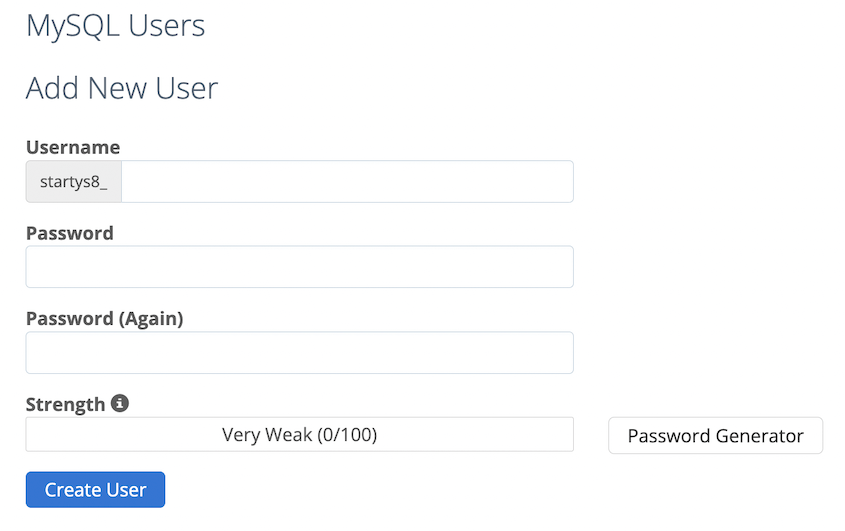
Then create a new database user with a strong password.
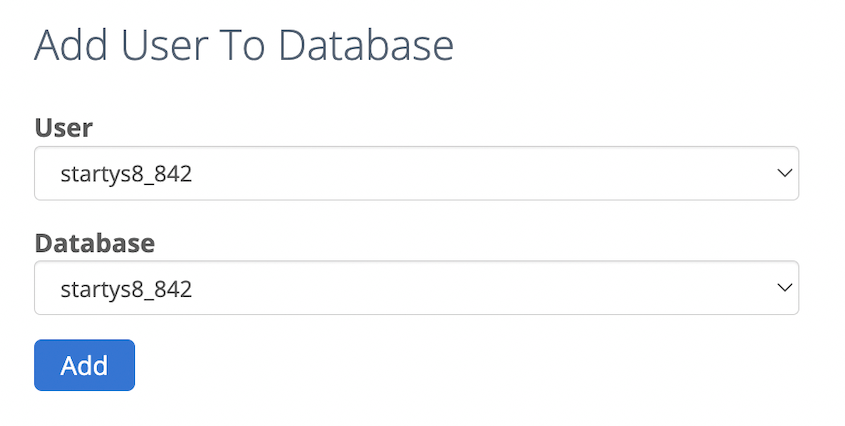
Add that user to the database and grant all privileges.
Write down the database name, username, password, and host. You’ll need these in the next step. The host is almost always localhost, but check with your hosting provider if you’re not sure.
Step 4: Install the Backup in the Subdirectory
Upload both the archive and installer files into the subdirectory you just created. You can do this through File Manager or FTP.
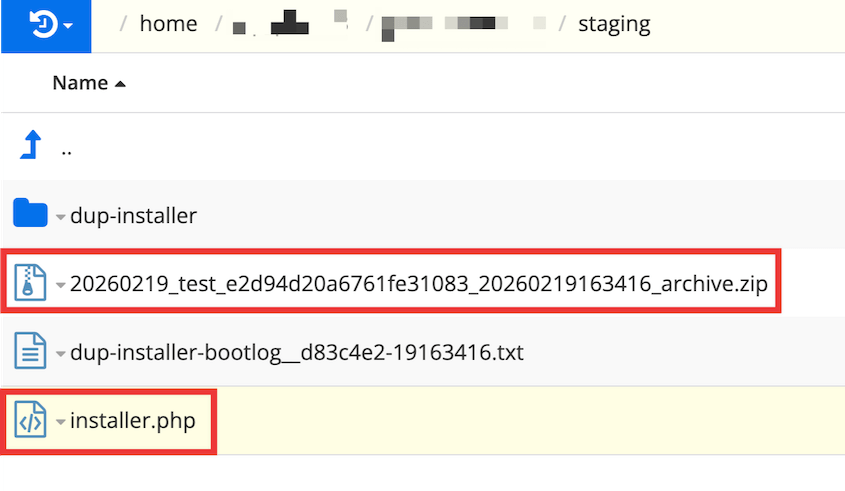
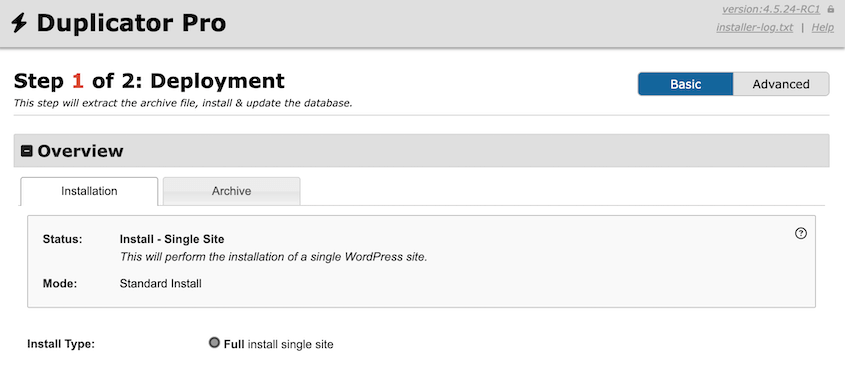
Once both files are uploaded, open a browser and navigate to yourdomain.com/subdirectoryname/installer.php.
The Duplicator installer will automatically launch.
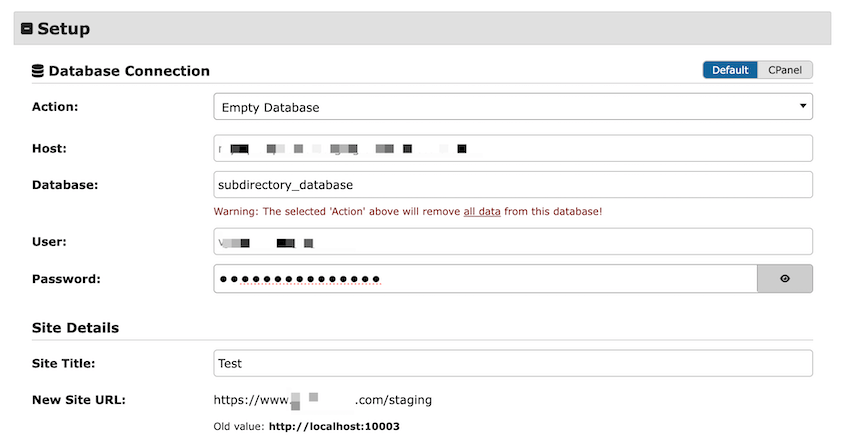
Enter the credentials for your new database.
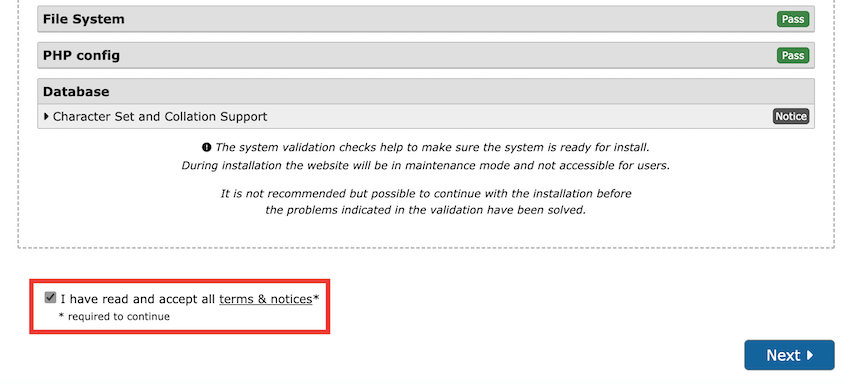
Scroll to the bottom and hit Validate. Then, accept the terms and notices and continue.
In the pop-up, confirm the migration.
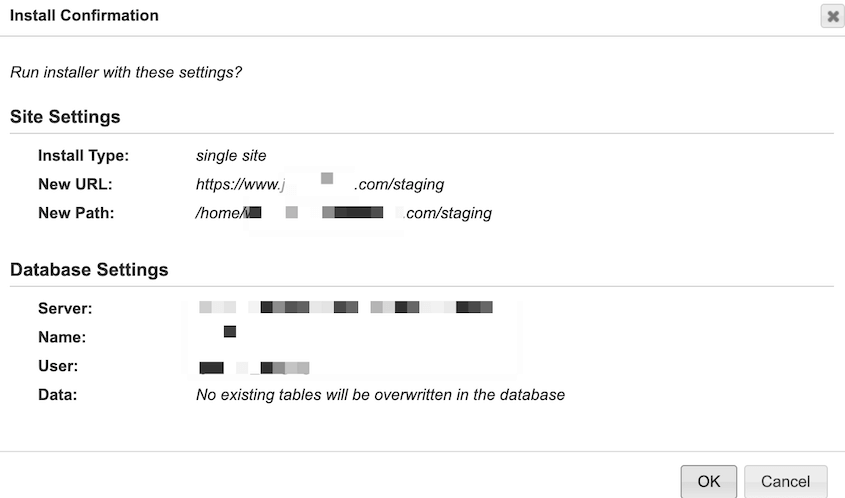
After the install completes, log into the new subdirectory site with the same credentials you used on the original site.
Method 2: Install WordPress in a Subdirectory Using an Auto-Installer
Use this method when you’re starting fresh—no existing site to migrate, just a clean WordPress install in a subdirectory. It’s the fastest path from zero to a working site.
Using Softaculous (cPanel)
Log in to cPanel and open Softaculous Apps Installer.
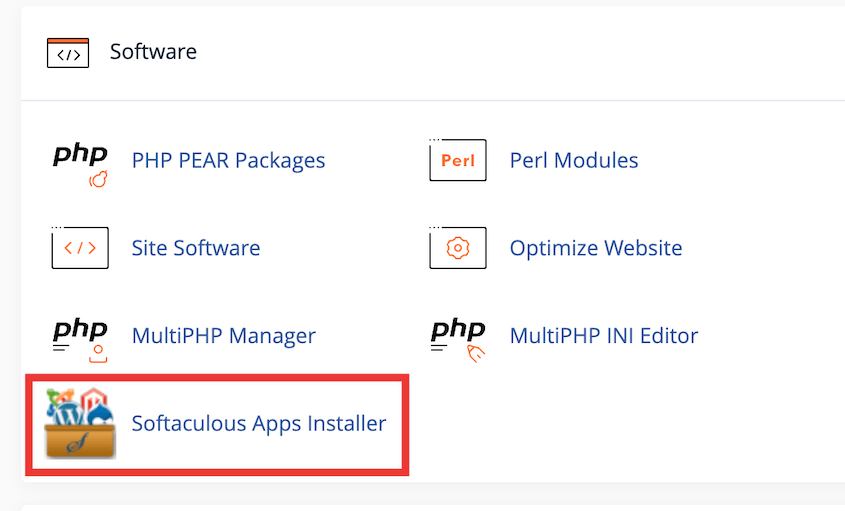
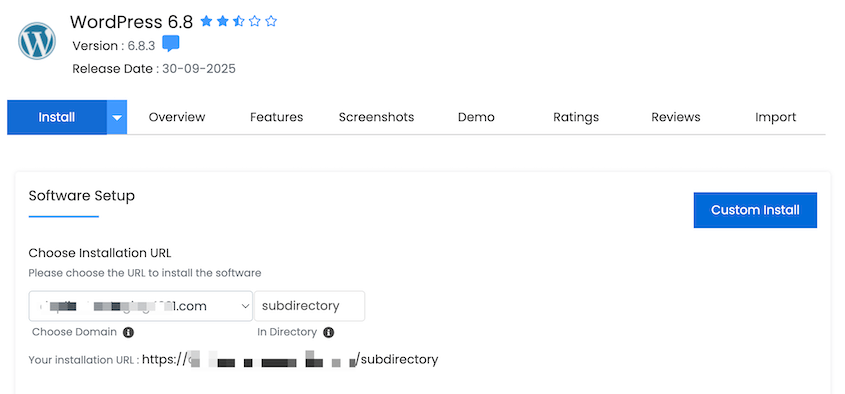
Select WordPress, then click Install.
Under Sofware Setup, choose https://, assuming SSL is already active on your domain. If it isn’t, set that up first.
Select your domain from the dropdown and type your subdirectory name next to it.
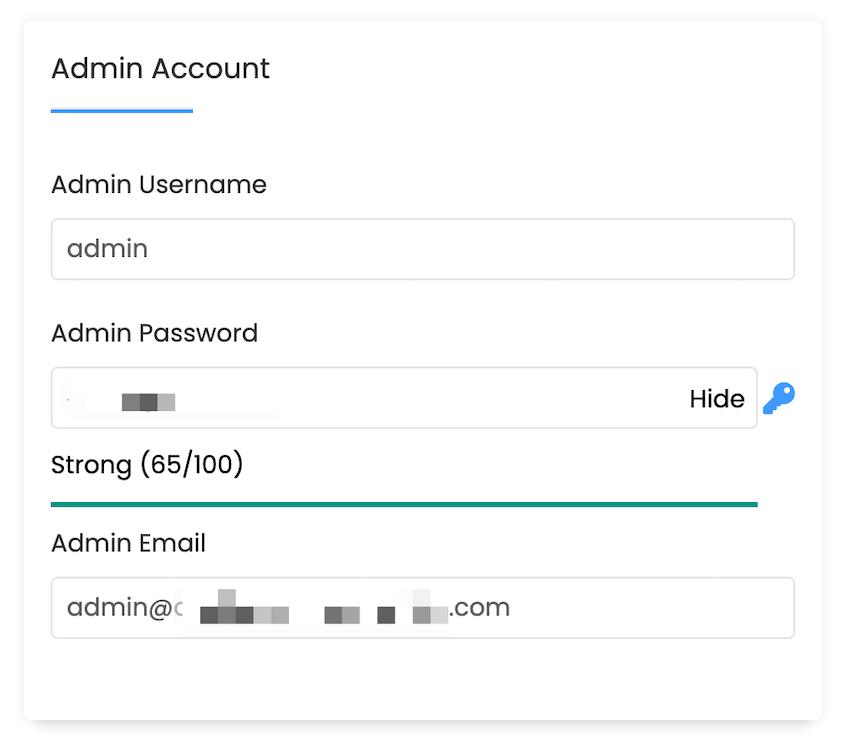
Fill in your site name, admin username, password, and admin email. Use a strong password.
Click Install. Softaculous handles the rest: creates the database, uploads WordPress, and configures the initial settings.
When it finishes, visit both the front end (yourdomain.com/blog) and the admin panel (yourdomain.com/blog/wp-admin) to confirm the install is live.
Using Other Auto-Installers (Installatron, QuickInstall)
Not every host uses Softaculous. The workflow is nearly identical across all of them, but here’s what to expect on the most common alternatives.
Installatron (used by Bluehost, HostGator, and others) follows the same basic flow as Softaculous. Select WordPress, enter the subdirectory in the path field, fill in admin credentials, and install.
Installatron also has a built-in clone option that can duplicate an existing WordPress install into a subdirectory—useful if you want a staging copy without using a separate migration plugin.
QuickInstall (HostGator) works the same way. Navigate to QuickInstall » WordPress, enter your domain and subdirectory path, fill in admin details, and run the install.
Managed hosts like WP Engine or Kinsta don’t use Softaculous or any of the above. They have their own install interfaces built into their dashboards.
The concept is the same: there will be a field to set the install path. The specifics vary by host, so check their documentation if the interface isn’t obvious.
Regardless of which auto-installer you use, after every install, go to Settings » General and confirm both URL fields are correct. Auto-installers usually get this right, but it takes ten seconds to check and saves a lot of troubleshooting if something slipped through.
Method 3: Manually Install WordPress in a Subdirectory
Use this method when no auto-installer is available. Some VPS setups and custom server configurations don’t include Softaculous or anything like it. You might also want direct control over every part of the setup.
A fair warning before you start: this method is more complicated. You’ll have to download files, create a database, edit wp-config.php, set file permissions, and run a web-based wizard.
A mistake in any one of those steps could break the install, and the error messages aren’t always helpful in pointing you back to the cause.
Duplicator Pro handles all of this in a single guided flow, which is why it’s worth considering even for installs that aren’t technically migrations. But if manual is the right path for your setup, here’s how to do it cleanly.
Step 1: Download WordPress and Create the Subdirectory
Go to wordpress.org and download the latest version as a .zip file.
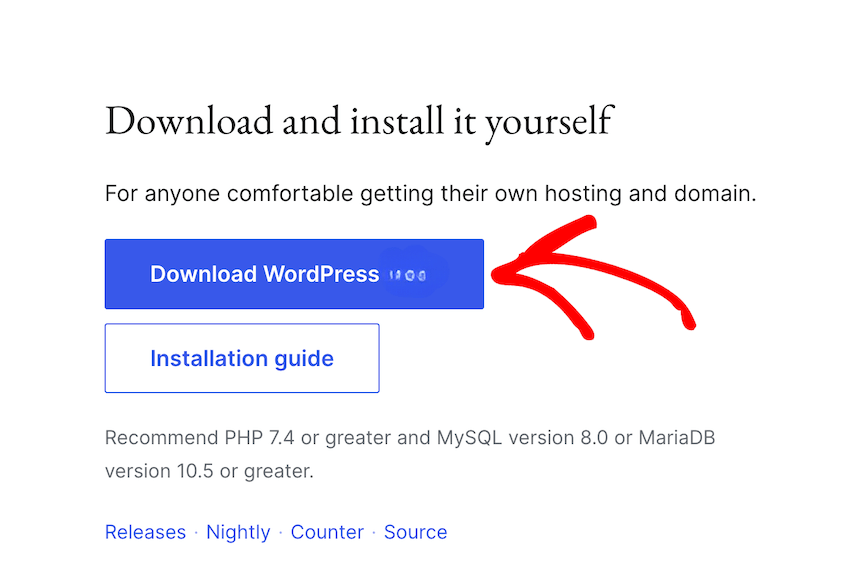
Unzip it locally. You’ll get a folder called wordpress containing all the core files.
Log in to cPanel, open File Manager, and navigate to public_html. Create a new folder for your subdirectory: blog, staging, or whatever name fits. Lowercase, no spaces.
Prefer FTP? Connect with FileZilla, navigate to public_html, and create the folder there. Same result either way.
Step 2: Upload WordPress Files to the Subdirectory
Open the unzipped wordpress folder on your local machine. Select everything inside it—not the folder itself, but the files and folders inside it. Upload those directly into the subdirectory on your server.
If you upload the folder, you’ll end up with public_html/blog/wordpress/ instead of public_html/blog/, and the install won’t work.
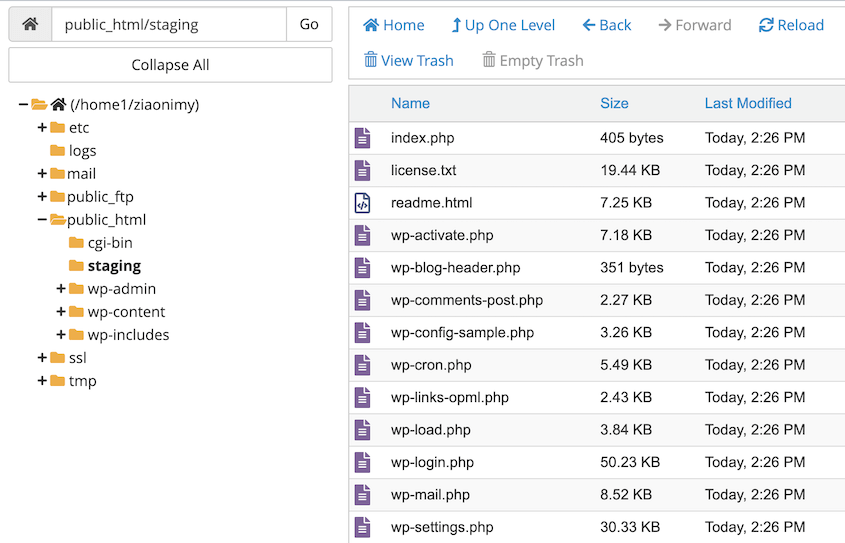
Once the upload is complete, find wp-config-sample.php in the subdirectory and rename it to wp-config.php. Don’t delete the sample; just rename it in place.
Step 3: Create a Database
In cPanel, open MySQL Databases (sometimes listed as MariaDB Databases depending on your host).
Create a new database. Then create a new database user with a strong password. Add that user to the database and grant all privileges.
Write down the database name, username, password, and host.
Now open wp-config.php in File Manager’s editor or a local text editor and fill in the four database constants:
define( 'DB_NAME', 'yourusername_blog' );

define( 'DB_USER', 'yourusername' );

define( 'DB_PASSWORD', 'your_strong_password' );

define( 'DB_HOST', 'localhost' );
While you have the file open, update the authentication keys and salts. Find the section that looks like a block of define( 'AUTH_KEY', '...' ) lines. Go to https://api.wordpress.org/secret-key/1.1/salt/, copy the freshly generated values, and paste them in to replace the placeholder block. Save the file.
Step 4: Run the WordPress Install
Visit yourdomain.com/subdirectory in your browser. If the files uploaded correctly and the database details in wp-config.php are right, WordPress launches its install wizard.
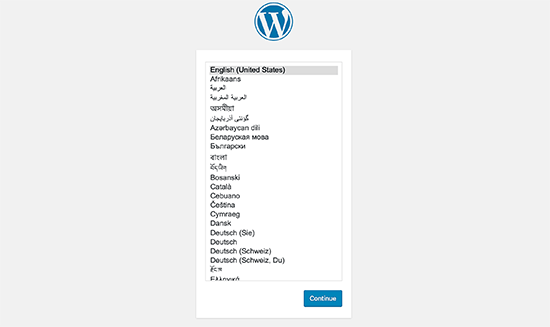
Start by choosing a language.
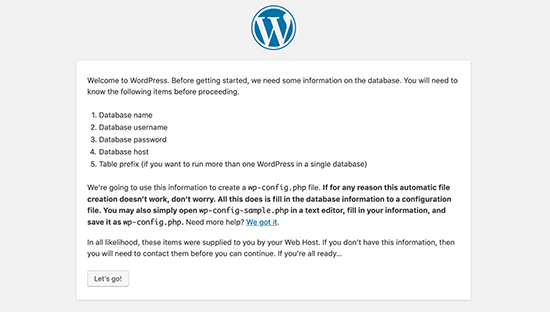
WordPress will give you some installation requirements to look through. Under them, click Let’s go!.
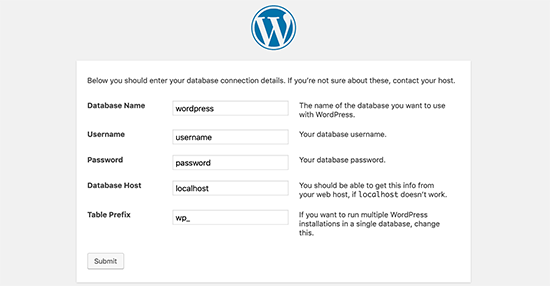
Connect to the database you just created by entering its name, username, password, host, and table prefix.
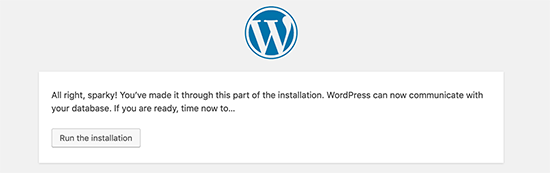
Then, run the installation.
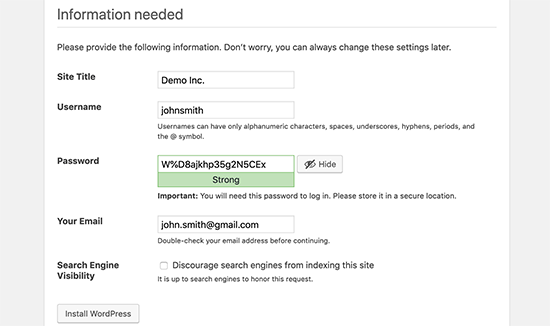
Enter your site title, admin username, password, and email. Click Install WordPress.
When it finishes, log in and confirm the dashboard loads before doing anything else. A working dashboard means the database connection is good and the core files are in the right place.
How to Configure WordPress After Installing in a Subdirectory
Getting WordPress installed is one thing. Getting it configured correctly is another, and skipping this part is how you end up with broken links, 404 errors, and redirect loops that take an hour to untangle.
Update WordPress URLs
Check the WordPress Address and Site Address first. Go to Settings » General and confirm both fields show yoursite.com/subdirectory.
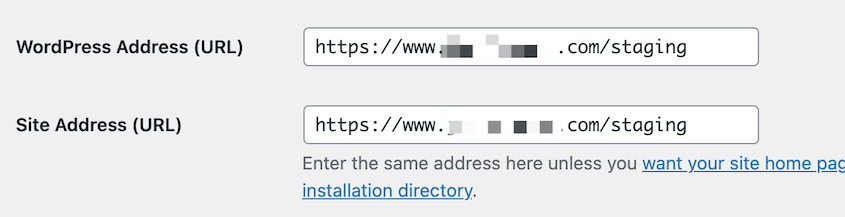
These should be set correctly during the install, but it’s worth a 30-second check before you do anything else.
Wrong URLs here cause redirect loops that lock you out of the dashboard, and fixing them at that point means editing the database directly.
A mismatch between these two fields, or between what’s here and what’s stored in the database, is the most common cause of redirect loops and white screens after a subdirectory install.
If you ever get locked out of wp-admin because of a URL misconfiguration, there are two ways back in without the dashboard.
- Open phpMyAdmin, find the
wp_optionstable, and manually correct thesiteurlandhomerows. - Temporarily add the correct values to wp-config.php directly:
define( 'WP_HOME', 'https://yourdomain.com/subdirectory' );

define( 'WP_SITEURL', 'https://yourdomain.com/subdirectory' );
That overrides whatever’s in the database until you can get back in and fix it properly.
Set Up Permalinks and Flush Rewrite Rules
Go to Settings » Permalinks and click Save Changes without changing anything. You’re not adjusting the permalink structure; you’re forcing WordPress to regenerate the .htaccess rewrite rules for the new location.
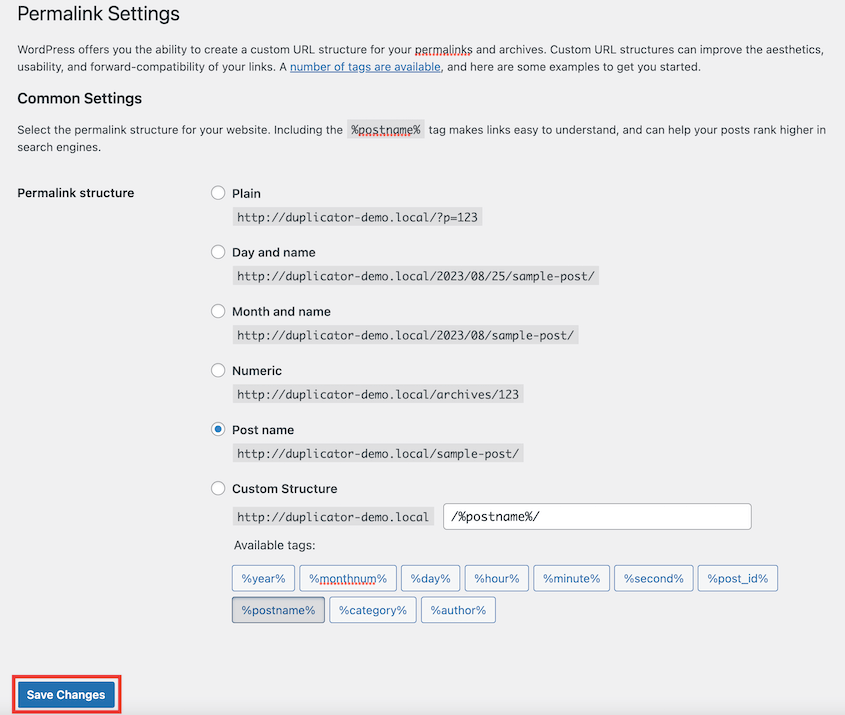
If pages are returning 404s after install, this is almost always the fix.
Schedule Automatic Backups
Set up automatic backups before you start adding content, not after something breaks.
A backup schedule you configure on day one is there when you need it.
With Duplicator Pro, go to Schedules and create a new automated backup.
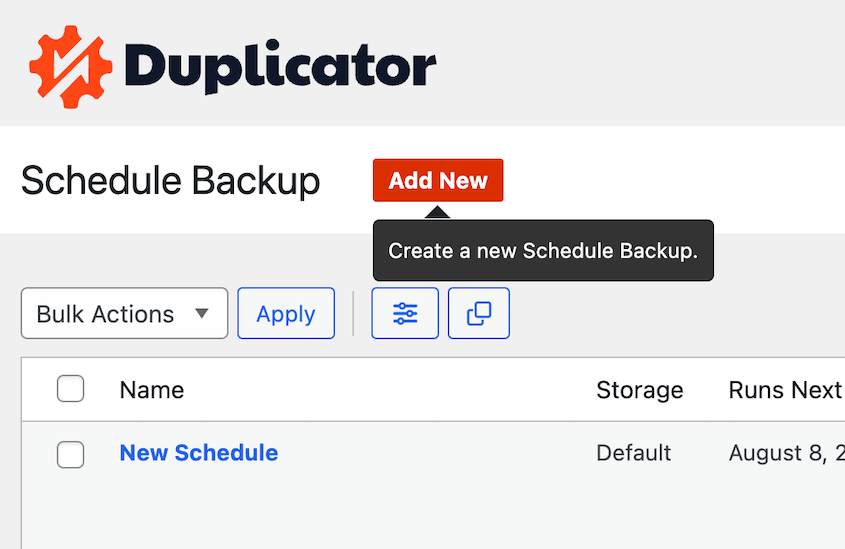
Choose at least two storage destinations: one local and one remote. Duplicator Pro connects to 10+ services including Duplicator Cloud, Google Drive, Dropbox, OneDrive, and Amazon S3.

Set the frequency based on how often the site changes:
- Hourly
- Daily
- Weekly
- Monthly
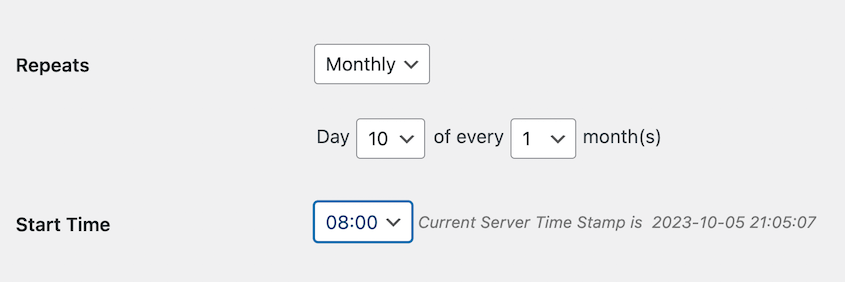
Enable and save the schedule.
Install Your Theme and Essential Plugins
For a fresh install, apply the correct theme and add only the plugins you actually need.
For a staging install, keep it minimal. Don’t replicate every plugin the production site runs unless you’re specifically testing one of them. Unnecessary plugins on a staging environment add noise without adding value.
If you migrated with Duplicator Pro, the theme and plugins came over with the backup.
However, check that they’re activated and that any premium plugins are licensed correctly at the new URL. Some license systems tie activation to a specific domain or path and will need to be reauthorized.
Verify Navigation Menus and Internal Links
Walk through the front end before considering the site live. Click through every navigation item. Check the footer, sidebars, and any widgets with manually written content.
For migrated sites, run a proper link audit. The Broken Link Checker plugin can help you find and fix broken links.
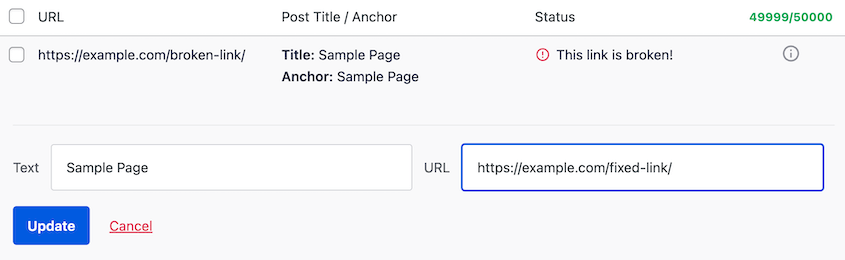
Pay particular attention to hardcoded URLs in theme files or page builder blocks. Those don’t get caught by database search-replace because they live in the code, not the database.
Frequently Asked Questions (FAQs)
Should I install WordPress in a subdirectory?
It makes sense when WordPress needs to coexist with something already running at your root domain or when you’re adding a functionally separate section to an existing site. If you’re starting fresh with nothing at the root, there’s no reason to complicate things—just install at the root.
Should WordPress be installed in the root directory?
Yes, if WordPress is the whole website. Root installs get the simplest URLs and the most straightforward configuration. There’s no subdirectory path to account for in settings, rewrite rules, or internal links.
Subdirectory installs exist for specific situations: another site already occupying the root, a staging environment, or adding WordPress to manage one section of a larger site.
Can you install WordPress in a subdomain?
Yes, the process is similar to a subdirectory install, but you’ll need to create the subdomain in your hosting control panel first, which adds a DNS configuration step.
The more relevant difference is SEO: subdomains are sometimes treated as separate sites by search engines, meaning they don’t automatically inherit the root domain’s authority. For content that should benefit from an existing domain’s backlink profile and history, a subdirectory is generally the safer choice.
How do I move a WordPress site from a subdirectory to root?
The cleanest way is with a migration plugin like Duplicator Pro. Create a backup of the subdirectory install, then deploy it at the root directory with updated URLs. Duplicator handles the URL rewriting automatically during install.
The manual route requires a database search-and-replace to swap every instance of the old subdirectory URL for the new root URL, and serialized data makes it easy to miss references that silently break things.
Either way, deal with any existing content at the root before deploying—redirect or remove it first.
Will running two WordPress installations slow down my site?
Possibly, depending on your hosting environment. Each install carries its own database queries and PHP overhead, but on most shared or VPS setups the impact is minor, particularly if the second install is a staging site with little or no traffic.
Where it becomes a real concern is cheap shared hosting with strict memory or CPU limits. If that’s your setup, use caching on both installs and keep the secondary install lean. Avoid running plugins on the staging site that aren’t directly relevant to what you’re testing.
Your WordPress Subdirectory Is Ready—Here’s What to Do Next
By now, you have a working WordPress install at a subdirectory path, running independently from whatever else lives on your domain.
The install itself is only half of it. Post-install configuration is where most problems actually surface. A site that installs cleanly can still break quietly if those steps get skipped. Check them before the site goes live, not after someone reports a broken page.
The same logic applies to backups. Having one before you start means a structural mistake is recoverable. Having automated backups running after means a bad plugin update or a corrupted file isn’t a crisis.
Duplicator Pro handles both: create a full backup before you touch anything, then set up a scheduled backup with remote storage once the install is confirmed and working. That’s the setup worth having in place before anything else goes wrong.
Get Duplicator Pro for scheduled backups, off-site storage, and one-click restores. Set it up once and it protects your site in the background!
While you’re here, I think you’ll like these related WordPress guides:
- How to Move a WordPress Website from a Subdomain to a Main Domain
- How to Migrate a WordPress Site to a New Domain
- How to Install WordPress (5 Easy Methods)
- Do You Need a Staging Site?
- How to Fix Broken Permalinks in WordPress
- Which WordPress Search & Replace Plugins Handle Serialized Data Right?




