

![[NEW] Duplicator DB Optimizer: Clean Your WordPress Database Before It Becomes a Problem](https://duplicator.com/wp-content/uploads/2026/06/Announcement-DB-Optimizer.jpg)
How to Secure a WordPress Database: Hardening, Encryption, and Ongoing Protection
 Joella Dunn
Joella Dunn
Joella Dunn
 John Turner
John Turner
John Turner
Every WordPress site runs on a database. It holds your posts, your users, their passwords, your plugin settings, and your customer orders.
Files on the server hold your theme and your images. The database holds everything else.
That’s why it’s the first thing a serious attacker goes after.
SQL injection is still a common WordPress attack vector. Attackers send crafted input through login forms, search boxes, or vulnerable plugin fields that trick the database into running commands it shouldn’t.
A successful injection can create new admin accounts, redirect your visitors to spam sites, inject malicious code into your content, or wipe the database entirely.
Most of these attacks don’t make any noise. Injected code and rogue admin accounts can sit quietly in a database for weeks before anything visible goes wrong.
I’ve worked with sites that had every plugin updated, two-factor authentication enabled, and strong passwords across the board. They still got hit through a database connection nobody had locked down.
That’s what this tutorial is about.
You’ll work through 13 steps to secure your database: the first eight harden the database itself and close the most common attack paths, and the last five set up the backup, monitoring, and recovery layer that protects you when hardening alone isn’t enough.
By the end, you’ll have ongoing, proactive database protection in place.
Here are the key takeaways:
- The 13 steps cover two layers: database hardening (Steps 1–8) and backup, monitoring, and recovery setup (Steps 9–13). You need both, because hardening alone doesn’t protect you after a breach gets through.
- Some database breaches don’t show visible symptoms for days or weeks, so monitoring via the Activity Log plugin is just as important as security hardening.
- An unencrypted backup file in cloud storage is a second copy of your entire database. Anyone who gains access to that storage account can read it without ever touching your live site — encryption in Step 9 closes that gap.
- Take a full site backup before starting Step 1. Several steps make direct database changes that are difficult to undo without one.
- Save your Duplicator disaster recovery URL somewhere outside WordPress during Step 11. It’s the one tool that gets you back in when your dashboard is completely locked out, but only if you stored it before things went wrong.
- The troubleshooting section covers six failure scenarios, including a full recovery path for when your site is unresponsive and your WordPress dashboard won’t load.
Table of Contents
- What Is a WordPress Database?
- Why You Need to Secure Your WordPress Database
- What You Need Before You Start
- How to Secure Your WordPress Database
- Step 1: Change the Default Admin Username and User ID
- Step 2: Change the Default Database Table Prefix
- Step 3: Create a Dedicated Database User with Limited Privileges
- Step 4: Disable Remote Database Connections
- Step 5: Protect Your wp-config.php File
- Step 6: Enable SSL for Database Connections
- Step 7: Add a Web Application Firewall
- Step 8: Clean Up Abandoned Plugin Tables
- Step 9: Set Up Encrypted Backups
- Step 10: Schedule Automatic Database Backups
- Step 11: Store Backups Off-Site with Duplicator Cloud
- Step 12: Monitor Database Changes with Activity Log
- Step 13: Test Your Database Restore
- Troubleshooting Database Security Issues
- Frequently Asked Questions (FAQs)
What Is a WordPress Database?
WordPress stores all of your site’s dynamic content in a database. When someone visits your site, WordPress queries the database, pulls the relevant content, and assembles the page on the fly. If you change a setting, publish a post, or add a user, it goes into the database.
A fresh WordPress install creates 12 core tables. Here’s what the most important ones hold:
- wp_posts: every post, page, revision, and custom post type on your site
- wp_users: all user accounts, usernames, and hashed passwords
- wp_usermeta: user roles, capabilities, and account preferences
- wp_options: site-wide settings, plugin configurations, and active theme data
- wp_comments: all visitor comments and their metadata
Plugins and themes add their own tables on top of the WordPress defaults. A WooCommerce store adds tables for orders, products, and customer data. A form plugin adds tables for every submission.
The more you build on WordPress, the more your database grows.
Why You Need to Secure Your WordPress Database
The database is a point of failure every serious attacker aims for. Everything worth stealing or destroying lives there.
SQL injection is still a common attack method. A hacker sends carefully crafted input through a login form, a search box, or a vulnerable plugin field. If the input isn’t properly sanitized, the database treats it as a command and runs it.
From there, the attacker can read and export your entire database, create new admin accounts, inject malicious content into your posts, or delete everything at once.
Your wp-config.php file is the other major target. It contains your database name, username, and password in plain text. An attacker who gets that file doesn’t need your WordPress login. They connect directly to the database and bypass WordPress entirely.
What catches most site owners off guard is how quiet these breaches are. Rogue admin accounts and injected code don’t usually break anything visible right away. By the time you notice the spam redirects or the defaced content, the attacker has often had access for weeks.
That’s why security hardening alone isn’t enough. You also need a way to detect changes and recover from a clean backup when something does get through.
What You Need Before You Start
Before you make any changes, make sure you have everything below in place. Skipping the backup step in particular has burned a lot of people on steps like changing the table prefix. It’s not worth the risk.
- Hosting control panel access. You’ll need to log into cPanel, MyKinsta, the WP Engine dashboard, or whatever panel your host provides. Several steps involve phpMyAdmin, which is typically found under the Databases section of your control panel.
- FTP access or File Manager. You’ll need a way to view and edit files on your server, specifically wp-config.php. Most hosts provide a file manager directly in the control panel.
- Your current database credentials. Open wp-config.php and locate the DB_NAME, DB_USER, DB_PASSWORD, and DB_HOST values. You’ll reference these in Steps 3 through 5.
- A full site backup taken before you start. Use a backup plugin like Duplicator or create a manual backup. Make sure you have copies of your site files and database. Some of these steps make direct changes to your database, and you need a clean restore point if anything goes wrong.
- WordPress admin access. You’ll need to be logged in as an administrator for several steps throughout this tutorial.
How to Secure Your WordPress Database
I’ll give you 13 easy steps to secure your WordPress database before an attack happens.
The first eight harden the database itself and close the most common attack paths. Steps 9 through 13 set up the backup, monitoring, and recovery layer that protects you when hardening alone isn’t enough.
Here’s an overview of what you’ll do:
- Step 1: Change the default admin username and user ID. Remove the two most targeted credentials in automated WordPress attacks.
- Step 2: Change the default database table prefix. Replace the predictable wp_ prefix that SQL injection scripts are built to target.
- Step 3: Create a dedicated database user with limited privileges. Strip your database user down to only the four permissions WordPress actually needs.
- Step 4: Disable remote database connections. Close off external access to your database at the MySQL configuration level.
- Step 5: Protect your wp-config.php file. Lock down the file that stores your database credentials in plain text.
- Step 6: Enable SSL for database connections. Encrypt data in transit between WordPress and MySQL if they run on separate servers.
- Step 7: Add a Web Application Firewall. Filter out SQL injection attempts before they ever reach your database.
- Step 8: Clean up abandoned plugin tables. Remove orphaned tables left behind by uninstalled plugins that bloat your database and carry unpatched vulnerabilities.
- Step 9: Set up encrypted backups. Turn on AES-256 encryption so your backup files can’t be read without your key, even if someone downloads them directly.
- Step 10: Schedule automatic database backups. Remove human error from your backup routine so you always have a recent restore point, regardless of how busy things get.
- Step 11: Store backups off-site. Get copies off your server so a host-level breach can’t wipe your recovery options.
- Step 12: Monitor database changes. Catch rogue admin account creation and unauthorized changes in real time.
- Step 13: Test a database restore. Confirm your recovery plan works before you need it.
Step 1: Change the Default Admin Username and User ID
WordPress creates a user with the username “admin” and an ID of 1 during installation. These two values are baked into almost every automated brute-force and SQL injection script that targets WordPress. Changing them removes two of the most predictable targets in your database.
Here’s an easy method to change your admin username without touching the database:
- Create a new administrator account directly in WordPress
- Log in as that new user
- Delete the original admin account
- Reassign its content to the new account
If you need to make the change directly in the database, here’s how to do it via phpMyAdmin.
Log into phpMyAdmin from your hosting control panel, select your WordPress database from the left sidebar, and click the SQL tab. Run the following queries one at a time:
UPDATE wp_users SET user_login = 'yournewname' WHERE user_login = 'admin';

UPDATE wp_users SET ID = 101 WHERE ID = 1;

UPDATE wp_posts SET post_author = 101 WHERE post_author = 1;

UPDATE wp_usermeta SET user_id = 101 WHERE user_id = 1;
All four queries are necessary. Your user ID appears in wp_users, wp_posts, and wp_usermeta, so updating only the first table leaves broken references in the other two.
One warning before you run anything: take a full backup first. A typo in a direct SQL query can break your site in ways that are hard to undo without one.
I like using Duplicator for this. It has beginner-friendly backup presets that give you quick copies of your database or entire site.

Duplicator has the best restoration tools out of all the backup plugins I’ve tried. You’ll see how they work later in this tutorial!
To confirm the change worked, log out of WordPress and log back in with your new username. Your dashboard should load exactly as before.
Step 2: Change the Default Database Table Prefix
WordPress names every database table with a wp_ prefix by default. SQL injection scripts that target WordPress are built around this.
Changing the prefix to something unpredictable won’t stop a sophisticated attacker on its own, but it removes your site from the pool of targets that automated tools hit on the first pass.
There are two ways to do this: using a security plugin (recommended for most users) or making the changes manually via phpMyAdmin.
Plugin method (recommended)
The plugin method is the safer choice for beginners because it handles serialized data automatically. Some plugin option tables store the prefix inside serialized PHP data, and a raw SQL find-and-replace can break that data if it isn’t handled carefully.
All-In-One Security includes a database prefix tool with safeguards built in.
Install your chosen plugin, navigate to its database tools section, and run the prefix change from there. The plugin will update wp-config.php, rename all tables, and handle serialized data references in one pass.
Manual method
If you prefer to change your database table prefix manually, work through these steps.
First, open wp-config.php via FTP or File Manager and update the $table_prefix line to your new prefix. Use only letters, numbers, and underscores:
$table_prefix = 'site82_';Second, log into phpMyAdmin, select your WordPress database, and open the SQL tab. Run a RENAME TABLE query for every table in your database:
RENAME TABLE wp_posts TO site82_posts;

RENAME TABLE wp_users TO site82_users;

Repeat this for all 12 core tables and any tables added by plugins.
Next, update the wp_options table, which contains rows that still reference the old prefix in the option_name column:
UPDATE site82_options SET option_name = REPLACE(option_name, 'wp_', 'site82_') WHERE option_name LIKE 'wp_%';Finally, update the wp_usermeta table for the same reason:
UPDATE site82_usermeta SET meta_key = REPLACE(meta_key, 'wp_', 'site82_') WHERE meta_key LIKE 'wp_%';Check your active plugins after running these queries. Some plugins store the prefix in their own data rows and need those updated too. If anything looks broken, your pre-change backup is the fastest way back to a working state.
To confirm everything worked, visit your site’s homepage and then log out and back in to your WordPress dashboard. Both should work exactly as before.
Step 3: Create a Dedicated Database User with Limited Privileges
When WordPress is installed, most hosting setups create a database user with full administrative access over the entire database. WordPress usually only needs four basic permissions to run: SELECT, INSERT, UPDATE, and DELETE. Every permission beyond that could create extra risk.
If an attacker exploits a plugin vulnerability and gains access to your database credentials, limited privileges are the difference between them reading your data and them dropping your entire database.
There are two ways to approach this: restrict the existing database user’s privileges or create a new dedicated user with only the permissions WordPress needs.
Restricting privileges via phpMyAdmin
Log into phpMyAdmin, click User Accounts at the top, find your WordPress database user in the list, and click Edit Privileges. Uncheck everything except SELECT, INSERT, UPDATE, and DELETE. Scroll down and click Go to save.
Creating a new dedicated user via SQL
If you’d prefer a clean setup, run these queries in the phpMyAdmin SQL tab:
CREATE USER 'wpuser_secure'@'localhost' IDENTIFIED BY 'StrongPasswordHere';

GRANT SELECT, INSERT, UPDATE, DELETE ON your_database_name.* TO 'wpuser_secure'@'localhost';

FLUSH PRIVILEGES;

If you create a new user, update your wp-config.php file with the new credentials:

define('DB_USER', 'wpuser_secure');

define('DB_PASSWORD', 'StrongPasswordHere');
One important note: some plugins and major WordPress core updates need CREATE or ALTER permissions to add or modify database tables during installation. If a plugin install fails after this step, temporarily re-grant those permissions, complete the install, then revoke them again.
If you run multiple WordPress sites on the same server, use a completely separate database and a separate database user for each one. If one site is compromised, that containment prevents the attacker from reaching the others.
To confirm the permissions are set correctly, create a draft post in WordPress, save it, and delete it. If all three actions succeed, your database user has what it needs and nothing more.
Step 4: Disable Remote Database Connections
In most WordPress setups, WordPress and MySQL run on the same server. There’s no reason to allow external IPs to connect to your database directly. Leaving remote access open means an attacker can attempt to authenticate against MySQL from anywhere on the internet, bypassing WordPress entirely.
There are two places to close this off, and you should check both.
MySQL configuration
If you manage your own server (VPS or cloud hosting), locate your MySQL configuration file. It’s typically found at /etc/mysql/mysql.conf.d/mysqld.cnf. Find the bind-address line and confirm it’s set to 127.0.0.1:
bind-address = 127.0.0.1If it’s set to 0.0.0.0, change it to 127.0.0.1 and restart MySQL to apply the change:
sudo systemctl restart mysqlDatabase user hostname
Even with MySQL bound to localhost, it’s worth confirming your WordPress database user is restricted to local connections at the user level too.
In phpMyAdmin, click User Accounts and find your WordPress database user. The Host column should show localhost or 127.0.0.1. If you see a % wildcard, that user can connect from any IP address.
Drop any users set to % and recreate them with localhost as the host:
DROP USER 'wpuser'@'%';

CREATE USER 'wpuser'@'localhost' IDENTIFIED BY 'YourPassword';

GRANT SELECT, INSERT, UPDATE, DELETE ON your_database_name.* TO 'wpuser'@'localhost';

FLUSH PRIVILEGES;
Shared hosting users
If you’re on shared hosting and don’t have access to the MySQL configuration file, check your control panel instead. In cPanel, look for Remote MySQL under the Databases section.
Remove any IP addresses listed there. That’s the equivalent of closing remote access at the hosting level.
To confirm remote access is disabled, your WordPress database user should show localhost as the only allowed host in phpMyAdmin’s User Accounts screen.
Step 5: Protect Your wp-config.php File
Your wp-config.php file contains your database name, username, password, and authentication keys in plain text. If an attacker can read this file, they have everything they need to connect to your database directly. It’s one of the first files targeted in any WordPress attack.
Apply all three of the following protections together. Each one closes a different exposure.
1. Move the file above the web root
WordPress automatically looks one directory above the root if it can’t find wp-config.php in place, so you can move the file without changing any settings. If your site root is /public_html, move wp-config.php to /home/username/. Use FTP or your host’s File Manager to do this.
This works on most standard hosting setups, but some managed hosting providers don’t allow it. If your host restricts access above the web root, skip to the next two protections.
2. Block web access via .htaccess
Add the following rule to your .htaccess file, which is located in your WordPress root directory. This tells Apache to deny all browser requests for the file directly, even if someone knows the path:
<Files wp-config.php>

order allow,deny

deny from all

</Files>
If your host uses a newer Apache configuration, use this version instead:
<Files "wp-config.php">

Require all denied

</Files>
3. Set file permissions to 400 or 440
File permissions control which users on the server can read, write, or execute a file. Setting wp-config.php to 400 means only the file owner can read it. Setting it to 440 extends read access to the server group as well, which some hosting configurations require.
In your host’s File Manager, right-click wp-config.php, select Change Permissions, and enter 400. Via FTP, most clients let you right-click the file and set permissions directly.
To confirm all three protections are in place, try accessing yourdomain.com/wp-config.php in a browser. You should get a 403 Forbidden error.
Step 6: Enable SSL for Database Connections
When WordPress and MySQL run on the same server, data between them stays local and never crosses a network. But if your database runs on a separate server (common on VPS setups, cloud hosting, or managed environments), that data travels across a network connection. Without SSL, it travels in plain text, including login credentials and session tokens.
If you’re on standard shared hosting with WordPress and MySQL on the same server, you can skip this step. If you’re on a multi-server architecture or a cloud setup where your database runs separately, don’t.
Check with your host first
Many managed hosting providers handle SSL for database connections automatically. Kinsta, WP Engine, and Cloudways all enforce encrypted database connections at the infrastructure level. Check your host’s documentation before making any manual changes — you may already be covered.
Enable SSL on the MySQL server
If you manage your own server, add the following to your mysqld.cnf file to configure SSL certificates and require encrypted connections:
[mysqld]

ssl-ca = /path/to/ca.pem

ssl-cert = /path/to/server-cert.pem

ssl-key = /path/to/server-key.pem

require_secure_transport = ON
Restart MySQL after saving the file.
Tell WordPress to use SSL
Add the following line to your wp-config.php file, above the line that reads /* That’s all, stop editing! */:
define('MYSQL_CLIENT_FLAGS', MYSQLI_CLIENT_SSL);This tells WordPress’s database connection to require SSL when connecting to MySQL.
To confirm SSL is active, check your MySQL server error log after WordPress makes its next database connection. You should see SSL listed as active for the application user.
Step 7: Add a Web Application Firewall
The database hardening in the previous steps reduces your attack surface significantly. But it doesn’t eliminate the risk of a vulnerable plugin becoming an entry point for SQL injection.
A Web Application Firewall (WAF) sits in front of your site and filters out malicious requests before they ever reach WordPress or your database.
For database security, a WAF’s most important job is recognizing SQL injection patterns in form inputs, URL parameters, and request headers and blocking them before they execute. It also blocks malicious IPs and bots, reduces brute-force login attempts, and keeps a log of blocked requests you can review if something looks suspicious.
Three WAF options work well for most WordPress sites:
- Wordfence: Installs directly as a WordPress plugin. The free tier includes a WAF with basic SQL injection protection. The premium tier adds real-time threat intelligence and faster rule updates.
- Sucuri: Offers a plugin-based scanner and a DNS-level WAF. The DNS-level option routes all traffic through Sucuri’s network before it reaches your server, which provides stronger protection but requires a paid plan.
- Cloudflare: A DNS-level WAF with a free tier that covers basic attack filtering. The paid plans add more granular rules and better coverage for application-layer attacks.
If you need to adjust firewall rules after setup, test any changes on a staging copy of your site before applying them to production. A misconfigured rule can block legitimate traffic — contact forms, checkout flows, and admin actions are all common casualties.
A WAF is a complementary layer, not a replacement for the hardening steps you’ve already completed. Think of it as the filter that catches what slips past everything else.
Step 8: Clean Up Abandoned Plugin Tables
When you uninstall a plugin in WordPress, its database tables are usually left behind. WordPress doesn’t delete them automatically, and most plugins don’t clean up after themselves on removal.
Over time, these orphaned tables bloat your database and create a hidden security risk: a table from a plugin with a known SQL injection vulnerability is still exploitable even after the plugin itself is gone.
To identify orphaned tables, use a plugin like DB Optimizer. It scans your database and identifies table overhead.
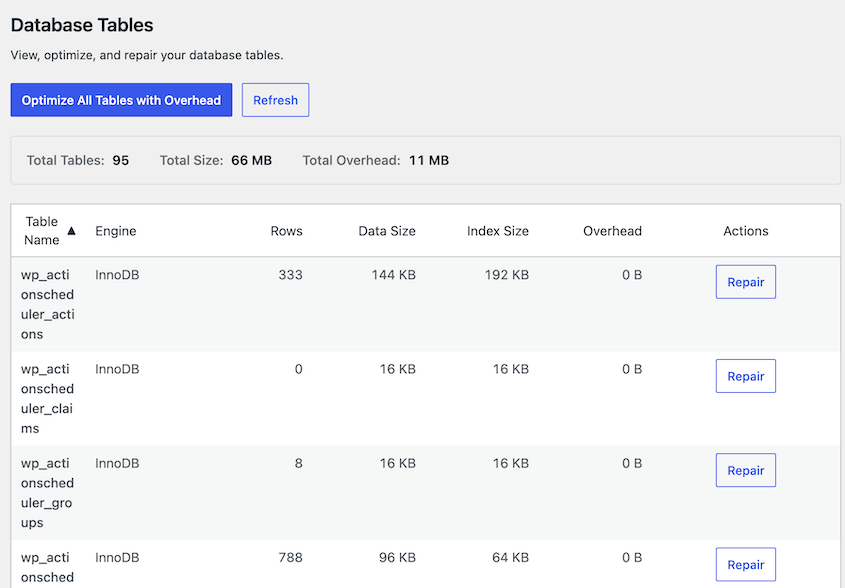
You can also review the table list manually in phpMyAdmin. Select your WordPress database from the left sidebar and look through the table list. Tables that don’t match your current $table_prefix or that carry the name of a plugin you no longer use are candidates for removal.
However, create a fresh database backup first. Dropping a table is permanent, and some tables that look abandoned are still actively used.
Be especially cautious with any tables associated with WooCommerce, form plugins like Gravity Forms or WPForms, and membership or LMS plugins. These often store transaction records, form submissions, and user data that you may need even if the plugin is no longer active.
Cross-reference each candidate table against your active plugin list before removing it. If you’re not sure what a table belongs to, search the table name alongside the word “WordPress” to identify the plugin that created it.
To drop a confirmed orphaned table in phpMyAdmin, select the table, click Operations, and scroll down to click Drop Table. Alternatively, run it via the SQL tab:
DROP TABLE old_plugin_table_name;To confirm the cleanup went smoothly, run a quick functional test on your site after removing tables. Check your homepage, submit a test form if you have one, and log out and back in.
Step 9: Set Up Encrypted Backups
The steps above reduce the chances of getting a successful attack on your database. This step is what gets you out of one.
Most people think of backups as a disaster recovery tool. Depending on how you create them, they can also be a security risk.
An unencrypted backup file sitting in a Google Drive folder is a second copy of your entire database. Anyone who gains access to that storage account can download it, open it, and read every user record, password hash, and customer order without ever touching your live site. Encryption makes that file useless without your key.
That’s why I always encrypt backups with Duplicator. This plugin lets you enable AES-256 encryption on every backup.
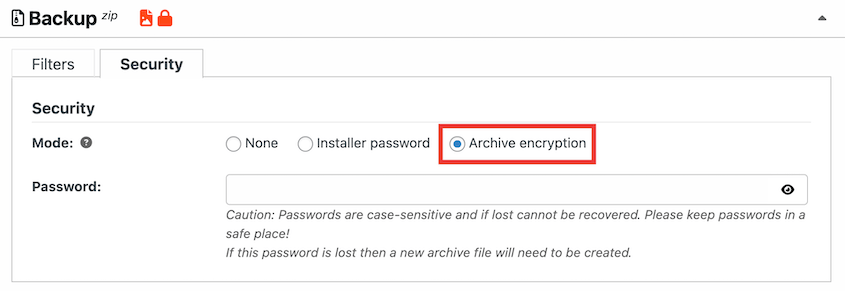
AES-256 is the same encryption standard used by financial institutions and government systems. With it enabled, your backup archive is completely unreadable without the password, even if someone downloads the file directly from your storage account.
Two things to do before you save: write this password down and store it in a password manager. If you lose it, your encrypted backups become permanently inaccessible. Keep a copy somewhere outside WordPress.
Step 10: Schedule Automatic Database Backups
An encrypted backup only protects you if you actually have one when something goes wrong.
Manual backups fail in practice because life gets in the way. You remember to run one before a big update, maybe after a migration, occasionally when something feels off. What you don’t do is run one every single day without fail.
That gap is the difference between a clean rollback and a messy one. If an attacker creates a rogue admin account or injects malicious content today and you don’t notice for two weeks, you need a backup from before that happened.
A daily schedule gives you a clean restore point that’s never more than 24 hours old. A manual backup habit gives you whatever you happened to run last.
In your WordPress dashboard, navigate to Duplicator Pro » Schedule Backup and click Add New. Name the backup schedule and choose a template. For example, you could create a database backup template.
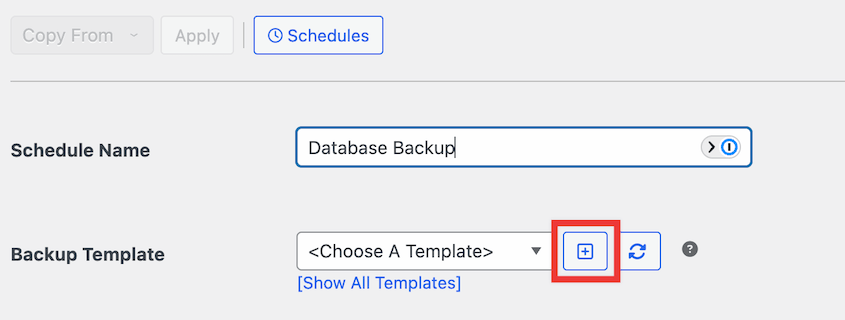
Pick a storage location. Duplicator supports local backups, as well as popular cloud storage like Duplicator Cloud, Google Drive, Amazon S3, and Google Cloud.

Set the frequency based on how active your site is.
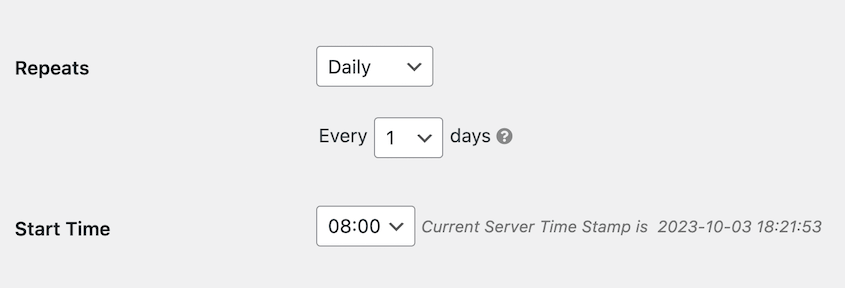
Daily database backups are the right call for any site that publishes content regularly, processes orders, or has active user accounts. Weekly works for static or low-traffic sites where the database changes infrequently.
Step 11: Store Backups Off-Site with Duplicator Cloud
A backup stored on the same server as your site is not a real backup. If your server is compromised, ransomware encrypts your files, or your host experiences a catastrophic failure, you lose your backup at the same moment you lose your site.
Off-site storage is what separates “I lost everything” from “I restored in 20 minutes.”
Duplicator Cloud is the simplest WordPress backup storage option. It was built for WordPress backups, integrates directly into Duplicator Pro, and doesn’t require API authentication.
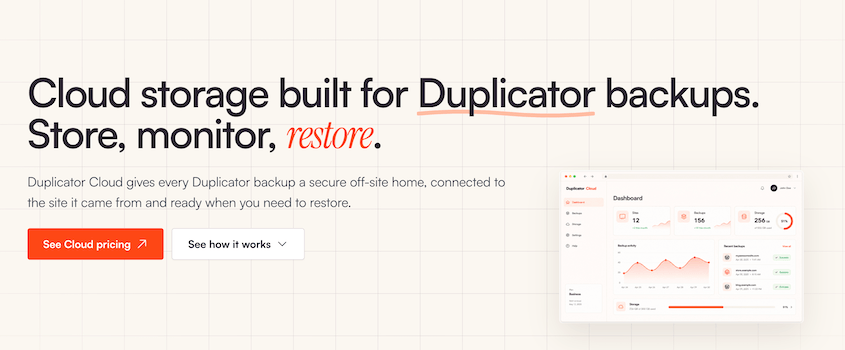
If you prefer an alternative, Duplicator Pro also supports Google Drive, Amazon S3, Dropbox, OneDrive, and any S3-compatible storage provider, including Cloudflare R2, Backblaze B2, and DigitalOcean Spaces.
Once your storage is connected, edit your backup schedule and set it to send copies to your connected storage provider automatically after each run.
Keep at minimum one copy on your host and one copy in off-site cloud storage. For critical sites or those handling customer data, a third copy downloaded locally adds another layer of protection.
If you need to restore, Duplicator Pro can pull directly from your connected cloud storage without re-downloading the archive to your server first.
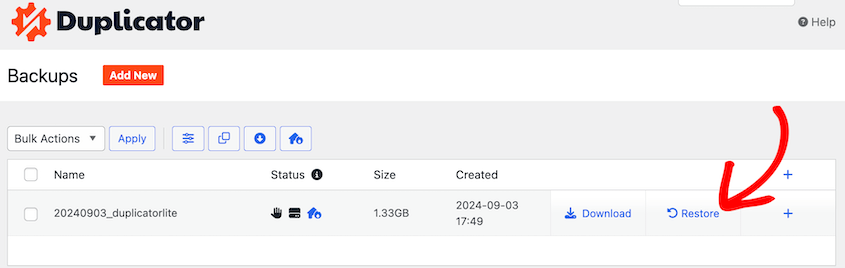
Navigate to Duplicator Pro » Backups. Find a cloud backup and hit Restore. This is faster than a manual download and works even if your local backup copies are gone.
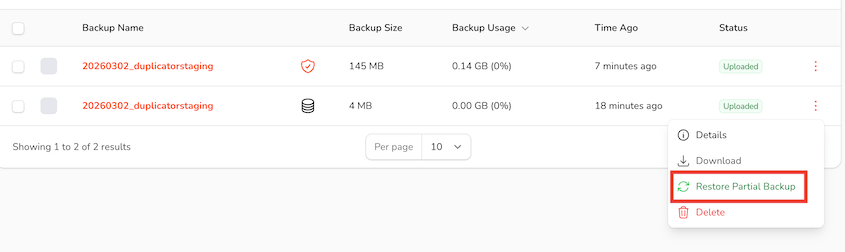
Even if you don’t have access to your wp-admin dashboard, you can restore a cloud backup. Your Duplicator Cloud dashboard lets you instantly roll back any backup remotely, even partial database backups!
Step 12: Monitor Database Changes with Activity Log
The most common move an attacker makes after gaining database access is creating a rogue admin account. It gives them a persistent way back into your site even after the original entry point is closed and cleaned up.
Without monitoring, that account can sit quietly for weeks. With an activity log plugin, it shows up the moment it’s created.
Activity Log records every action on your WordPress site with a timestamp and IP address. You’ll effortlessly keep track of user logins, new account creation, role changes, and settings changes.
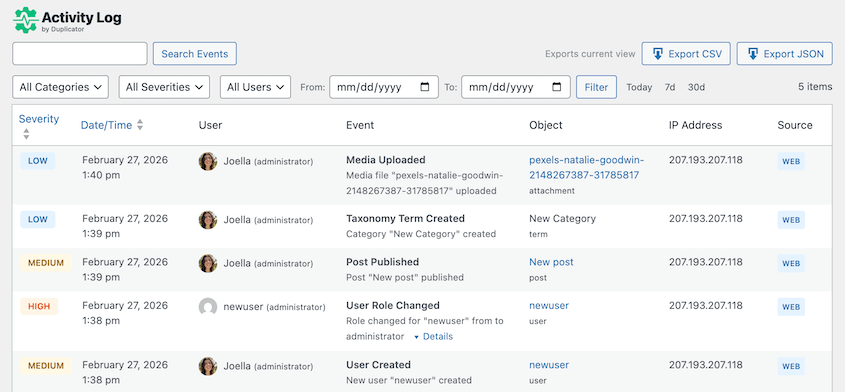
For database security, the events that matter most are new users you didn’t create, role escalations where a lower-level account suddenly gains administrator access, and login attempts from unfamiliar IP addresses.
Activity Log is included free with Duplicator Elite. Once your plan is active, download the plugin and install it in WordPress. It’ll start tracking immediately.
Check the log regularly for three things.
- Any new user account you don’t recognize.
- Any existing user whose role changed without your action.
- Any login from an IP address that doesn’t match your team’s locations.
Any of these can indicate an active breach or a compromise that happened days or weeks ago.
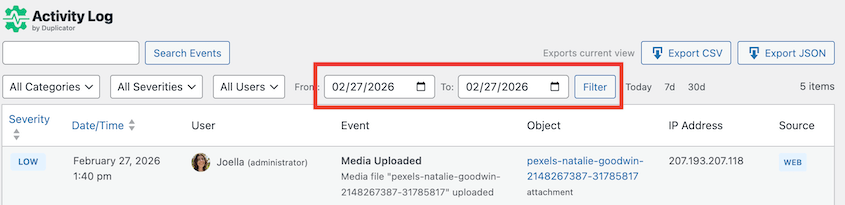
Activity Log lets you filter the log by user, action type, or date range and export the results. This is useful both for routine audits and for incident response, where you need to pinpoint exactly when an unauthorized change occurred.
Step 13: Test Your Database Restore
Most people find out their backup is broken exactly when they’re under the most pressure to recover quickly. A test only takes a few minutes. A failed restore during an active incident costs you far more.
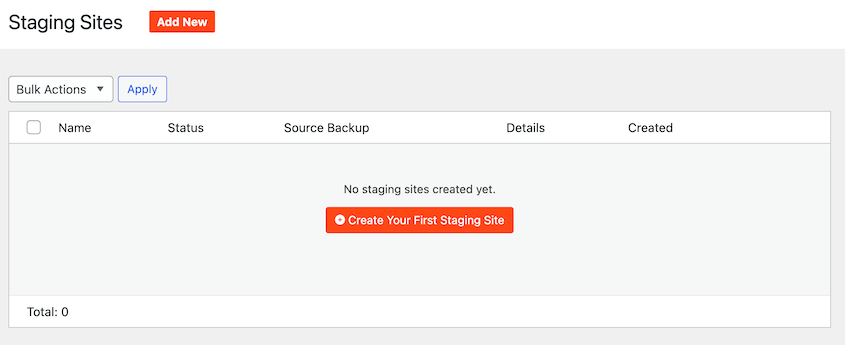
Duplicator Pro’s one-click staging feature lets you restore a backup to a separate staging URL without touching your live site. In Duplicator Pro » Staging, create a new staging site.
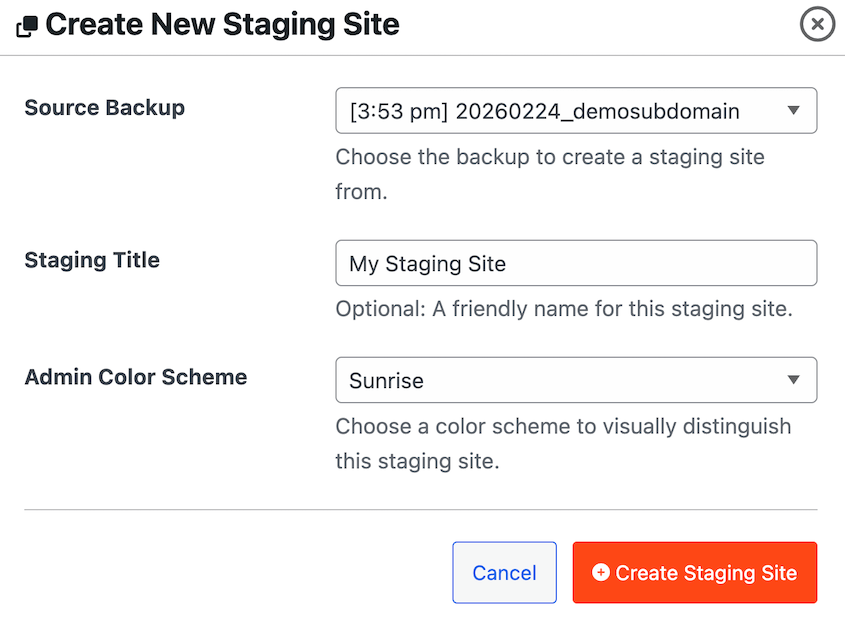
Select a recent full-site backup as the blueprint. Pick a unique admin color scheme to differentiate your staging and live sites.
Once Duplicator’s done creating your staging site, you’ll have a full replica of your live site. This is an effective testing ground for performing test restores.
Upload a backup to Duplicator’s Import Backups page. Walk through the staging site after the restore completes.

Check your homepage, log in to the WordPress dashboard, open a few posts, and confirm your plugin settings look correct. If anything is missing or broken, you’ve found the problem now instead of during a real recovery.
To confirm your restore test was successful, your staging site should load cleanly with all content, users, and settings intact from the backup date.
Troubleshooting Database Security Issues
Even when you follow each step carefully, things can go wrong. Here are the most common failure points and how to get past them.
Your Site Goes Blank After Changing the Table Prefix
What you see: A white screen or a generic PHP error immediately after changing the table prefix.
Why it happens: The most common cause is a missed table reference. Some plugins store the old prefix inside serialized PHP data in the options or usermeta tables. If a raw SQL query updated the table names but missed those internal references, WordPress can’t find what it’s looking for.
How to fix it: Restore a backup immediately. This is exactly why that backup is non-negotiable before starting these database security steps.
Once you’re back to a working state, use a plugin like All-In-One Security to make the prefix change instead. Their tools handle serialized data automatically and are far less likely to leave broken references behind.
WordPress Can’t Connect to the Database After Editing wp-config.php
What you see: An “Error establishing a database connection” message on the front end or a blank white screen.
Why it happens: A typo in one of the database credential values is the most common cause. Moving wp-config.php to a location your server can’t find is the second most common. File permissions set too restrictively (such as 000) can also prevent WordPress from reading the file.
How to fix it: Connect via FTP or File Manager and open wp-config.php directly. Verify that DB_NAME, DB_USER, DB_PASSWORD, and DB_HOST are all correct and match exactly what’s in your hosting control panel. If you moved the file, confirm it’s one directory above the WordPress root, not deeper. Set permissions to 400 or 440 if they’ve been changed to anything else.
A Plugin Stops Working After You Restricted Database Privileges
What you see: A plugin throws an error, fails to save settings, or displays a database-related notice after you completed Step 3.
Why it happens: Some plugins need CREATE or ALTER permissions to install or update their own database tables. Once those permissions are revoked, the plugin can’t make the structural changes it needs.
How to fix it: Temporarily re-grant CREATE and ALTER permissions to your database user via phpMyAdmin. Update or reinstall the plugin, let it complete its setup, then revoke those permissions again. This is a normal part of maintaining a least-privilege database setup.
Nothing Is Working: Full Recovery Path
If your site is unresponsive, your WordPress dashboard is locked, and you can’t get in through normal means, use one of Duplicator’s disaster recovery options.
For backups stored in Duplicator Cloud, you can restore them remotely. Your site will get back online without any extra troubleshooting.
Before disasters happen, you can also set a backup as the recovery point in WordPress. Save the disaster recovery URL in a safe place.
If your site isn’t working, paste this URL into a web browser and follow the instructions.
If you didn’t set up a disaster recovery or cloud backups, contact your hosting provider’s emergency support line. Most managed hosts keep their own server-level snapshots. For sites under an active attack with malware spreading in real time, Wordfence and Sucuri both offer paid emergency response services.
Frequently Asked Questions (FAQs)
Is changing the WordPress database table prefix necessary for security?
It’s a useful hardening step, but not a silver bullet. Changing the prefix from wp_ to something unpredictable removes your site from the pool of targets that automated SQL injection scripts hit on the first pass. A determined attacker can work around it. That said, it takes only a few minutes and eliminates an entire category of low-effort attacks, so it’s worth doing as part of a broader security setup.
What database permissions does WordPress need to run?
For normal day-to-day operation, your WordPress database user needs four permissions: SELECT, INSERT, UPDATE, and DELETE. Everything else — DROP, ALTER, CREATE, GRANT — can be revoked. The one exception is when you’re installing a new plugin that adds its own database tables. Those installs may need CREATE or ALTER temporarily. Re-grant them for the install, then revoke again when it’s done.
How often should I back up my WordPress database?
For active sites that publish content regularly or process transactions, daily database backups are the right cadence. For lower-traffic sites with infrequent changes, weekly is acceptable. The question to ask yourself is: how much data can you afford to lose? If losing a week of content or orders is unacceptable, back up daily. Duplicator Pro’s scheduled backups make this automatic once it’s configured.
Can someone steal my data from a backup file?
Yes, if the backup isn’t encrypted. An unencrypted backup archive sitting in a cloud storage account is a complete copy of your database. Anyone who gains access to that storage account can download it and read every user record, password hash, and customer order without ever touching your live site. AES-256 encryption in Duplicator Pro makes the file unreadable without your password, even if someone downloads it directly.
How do I know if my WordPress database has been compromised?
Check for user accounts you didn’t create under Users » All Users. Look for posts or pages containing unfamiliar links or content you didn’t write. Watch for visitors being redirected to spam sites. In phpMyAdmin, scan the wp_options table for unfamiliar entries, particularly in the siteurl and home rows. Activity Log timestamps let you pinpoint exactly when an unauthorized change was made, which is often the fastest way to confirm a breach.
What is the Duplicator disaster recovery URL and when do I use it?
The disaster recovery URL is a direct link to the Duplicator installer that pulls a backup from your connected cloud storage without needing WordPress to be functional. You use it when your site is completely inaccessible: a corrupted database, a failed update that broke the admin screen, or a breach that locked you out entirely. Set a recent full-site backup as the disaster recovery point, copy the generated URL, and store it somewhere outside WordPress before you ever need it.
Do I need a separate security plugin if I’m already using a WAF?
A WAF filters malicious traffic before it reaches your site, but it doesn’t monitor what happens inside WordPress after a request gets through. A security plugin like Wordfence adds malware scanning, file integrity checks, and login protection that a WAF doesn’t cover. The two layers serve different purposes. For most sites, a WAF combined with Activity Log for internal monitoring covers the most important ground without significant overlap.
You’ve Hardened Your Database. Here’s How to Keep It That Way.
If you’ve worked through all these steps, your database is in better shape than the majority of WordPress sites running right now.
The work isn’t finished, though. Database security isn’t a one-time setup. It’s a maintenance practice.
Review your activity log monthly and look for anything that doesn’t match your own activity. Test a restore quarterly — storage connections expire, encryption passwords get misplaced, and the only way to know your backups are usable is to use one.
Re-audit your database user privileges after any new plugin install, since some plugins re-escalate permissions during updates without making it obvious. And if you ever migrate to a new host, run through Steps 4 and 5 again from scratch. Remote access settings and file permissions don’t always carry over the way you’d expect.
After you complete this setup, create a database-only backup and label it clearly as your post-hardening baseline. If you ever need to investigate a breach months from now, that baseline gives you a clean reference point to compare against.
Over 1.5 million WordPress professionals use Duplicator Pro to handle backups, migrations, staging, and disaster recovery. It’s the tool behind AES-256 encrypted archives, Duplicator Cloud off-site storage, one-click restores, database-only recovery, and disaster recovery URLs that get you back in even when WordPress itself won’t load.
If this tutorial helped, these guides are worth bookmarking too.
- How to Optimize Your WordPress Database
- Here Are the WordPress Database Repair Steps I Took Myself (No Developer Needed)
- WordPress Database Maintenance: What to Do Weekly, Monthly, and Quarterly
- Is WordPress Secure? Revealing the Truth
- How to Protect Your Website From Hackers (Ultimate Security Guide)
- How to Recover a Hacked WordPress Site (9 Expert Tips)




