

Getting Started with Duplicator DB Optimizer
Duplicator DB Optimizer keeps your WordPress database lean and quick. This guide gets you from installed to cleaning up in a few minutes, and shows you around the three main tools along the way.
What it does
Every WordPress site quietly collects database clutter over time. Old drafts of your posts, expired cache entries, comments you trashed months ago, and empty space left behind whenever data gets deleted. You never see any of it on your site, but it makes your database bigger and your pages a little slower.
DB Optimizer puts all of that in one place. You get a single health score that tells you how things look, a set of cleanup tools to clear out the junk, and a way to tidy up your database tables. It all lives on one screen in your WordPress admin.
The plugin is free and every feature works without a license. A license key only turns on automatic updates, and that’s it.
What you’ll need
Before you install, check that your site meets these:
| Requirement | Minimum version |
|---|---|
| WordPress | 6.5 or higher |
| PHP | 7.4 or higher |
Not sure what versions you’re on? You’ll find both under Tools » Site Health » Info in your WordPress admin.
Installing the plugin
- Download the plugin ZIP, or grab it from your account at duplicator.com.
- In your WordPress admin, go to Plugins » Add New » Upload Plugin, pick the ZIP, and click Install Now.
Getting your bearings
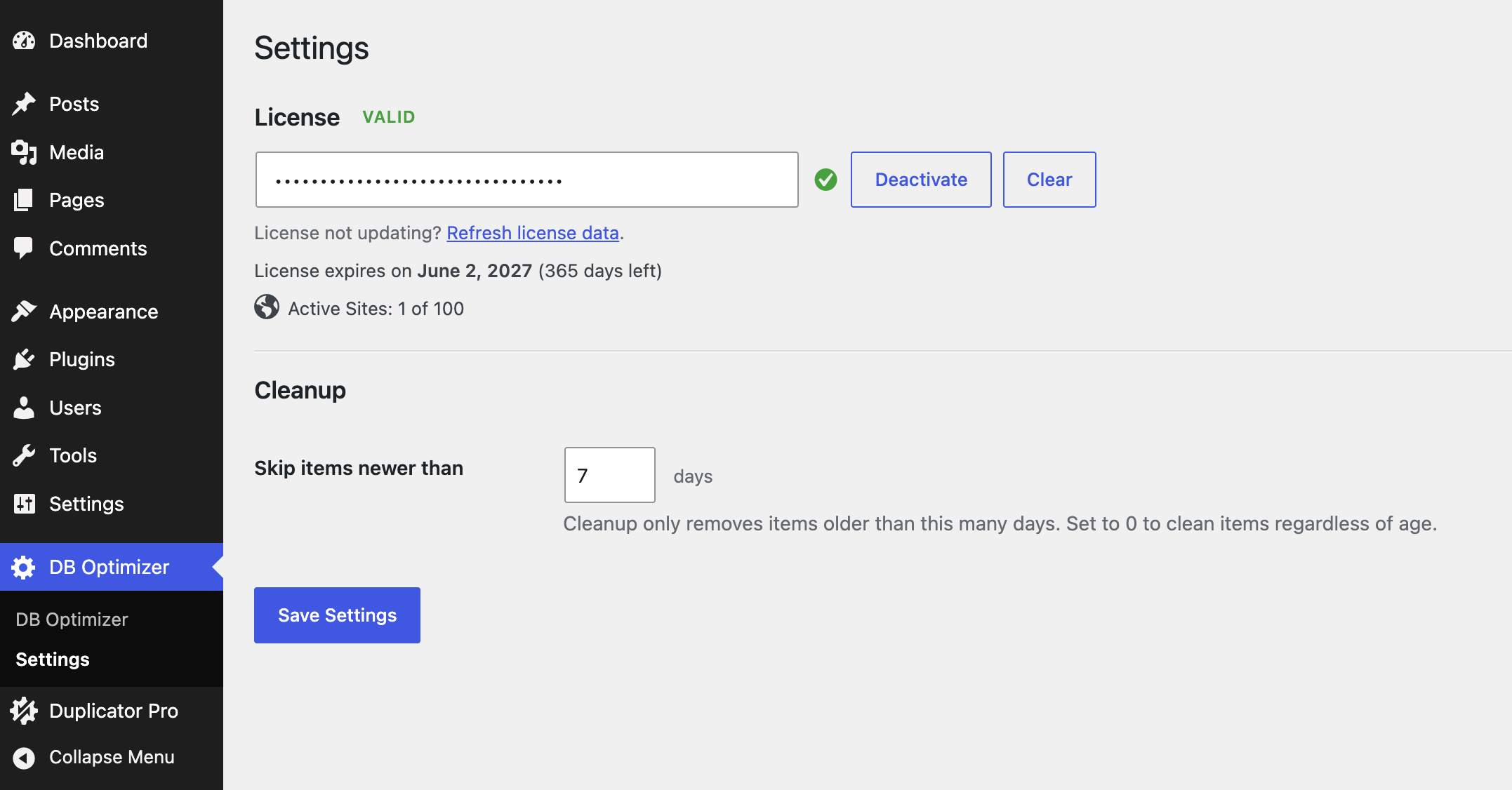
There’s a Settings area, where you set how many recent days of data to protect during cleanup, and a License area for entering a key from your Duplicator Account.
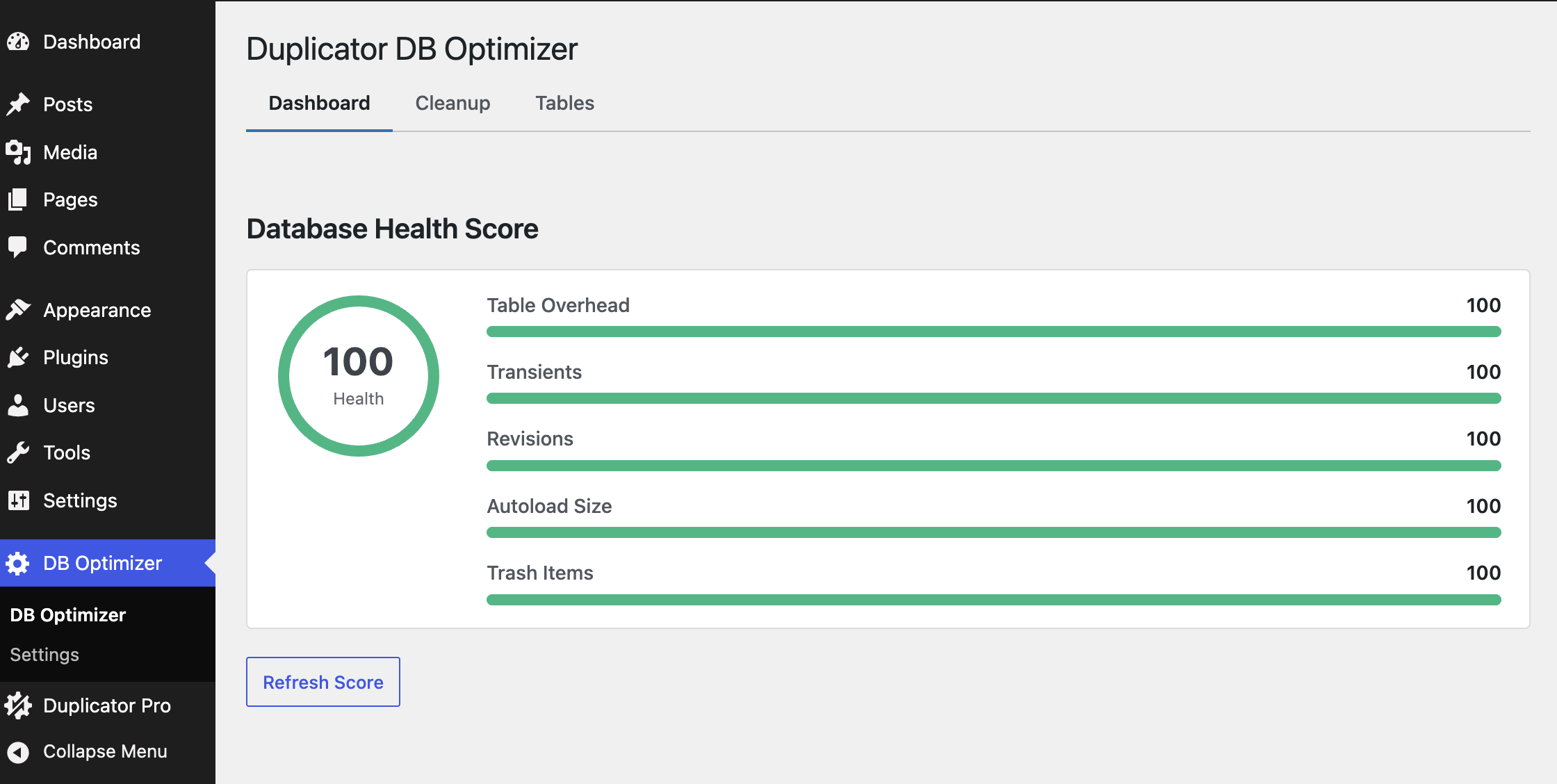
The DB Optimizer screen has three tabs. Here’s what each one is for.
| Tab | What it’s for |
|---|---|
| Health | Your database health score from 0 to 100, plus a breakdown of the five things that affect it. |
| Cleanup | Where you remove the clutter, with a count showing how much of each kind there is to clear. |
| Table Management | A list of your database tables with their size and wasted space, where you can optimize or repair them. |
Your first run, the safe way
Cleanup deletes data for good, so it’s worth taking a backup before you start. If you have Duplicator Pro installed, DB Optimizer will even nudge you on the Cleanup tab when your last backup is missing or getting old.
A good first session goes like this:
- Take a fresh backup. (See Back Up Before You Clean.)
- Open the Health tab and note your score.
- Open Cleanup, look over what’s there, and clear the safe items.
- Open Table Management and optimize any tables showing wasted space.
- Pop back to Health and watch the number climb.
Need more help?
If something isn’t working, check our Troubleshooting DB Optimizer guide, or open a ticket at https://duplicator.com/my-account/support/.


