

![[NEW] Duplicator DB Optimizer: Clean Your WordPress Database Before It Becomes a Problem](https://duplicator.com/wp-content/uploads/2026/06/Announcement-DB-Optimizer.jpg)
There Has Been a Critical Error on This Website: How to Fix It Fast
 Joella Dunn
Joella Dunn
Joella Dunn
 John Turner
John Turner
John Turner
Critical errors don’t wait for a good time. One minute your site is fine, the next you’re staring at a blank white screen with one line of text: “There has been a critical error on this website.”
I’ve seen this take down a client site mid-launch, right as traffic started rolling in. The panic is real. So is the instinct to assume the worst.
However, this error rarely means you’ve been hacked. It usually means a plugin, theme, or PHP setting is conflicting with something else on your site. WordPress caught it before things got worse.
That’s a good sign. WordPress is telling you something broke, not letting your site crash silently with no explanation at all.
In this guide, I’ll walk you through what to do, starting with the fastest way to get your site back online, then working through how to find and fix the root cause.
Here are the key takeaways:
- Restoring a recent backup is usually your fastest fix. Duplicator can do this even when wp-admin is completely locked out, so you don’t have to diagnose anything first.
- This error is rarely a hack. It’s almost always a plugin conflict, a PHP incompatibility, or a memory limit, not malicious code.
- Check your admin email before doing anything else. WordPress automatically sends a recovery link that often names the exact plugin or theme responsible.
- Once your site is back up, the work isn’t done. Test future plugin and theme updates somewhere apart from your live site so this doesn’t happen again.
Table of Contents
What Does It Mean When WordPress Says “There Has Been a Critical Error on This Website”?
“There has been a critical error on this website” shows up when WordPress runs into a fatal error and can’t recover on its own.
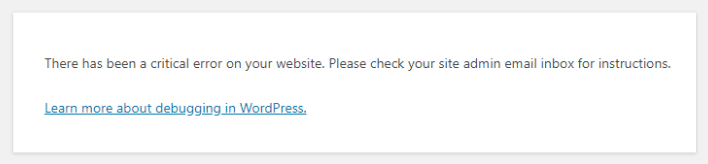
Normally, broken code on a WordPress site causes a blank white screen with no explanation at all. That’s the white screen of death (WSoD), and it’s much harder to diagnose because you get zero information.
WordPress added the critical error message a few versions back, specifically to address that problem. Now, instead of a blank page, you get a clear message and (usually) an email with more details.
A critical error is not the same thing as a hack. Hacked sites usually show different symptoms: redirects to spammy websites, strange new admin users, or defaced pages.
A critical error is WordPress catching a coding problem, not an intrusion.
Think of it less like a break-in and more like a circuit breaker tripping. Something overloaded the system, and it shut down to protect itself.
That’s frustrating, but it’s also fixable.
How Does It Happen?
A handful of root causes show up again and again, and most critical errors trace back to one of them.
Here’s how the message “there has been a critical error on this website” can happen:
- A plugin or theme conflict: Two plugins try to use the same function or hook in incompatible ways or a theme calls a function that no longer exists.
- A PHP version mismatch: Older plugins and themes sometimes weren’t built for the PHP version your host is now running, especially after an automatic server upgrade.
- Insufficient PHP memory or upload limits: A process tries to use more memory than your hosting plan allows and PHP kills it mid-execution.
- A corrupted core file or failed update: If a WordPress update gets interrupted, a file can end up partially written or missing entirely.
- Malware injecting broken code: Less common, but it happens. Malicious code can be sloppy enough to trigger a fatal error instead of running silently.
You probably won’t know which one applies to you yet. That’s fine.
The fixes below are ordered so you find the cause behind your specific critical error first, without guessing.
What to Do When There Has Been a Critical Error on Your Website
Work through these in order. The first two steps are the fastest path back online; the rest help you find and fix the root cause.
Here’s what you’ll do to fix WordPress critical errors:
- Undo Recent Changes: Revert any code edits, plugin installs, or updates you made right before the error appeared, since this fixes it immediately in a lot of cases.
- Restore a Backup: Roll back to a working version of your site with Duplicator, even if you don’t know what broke it.
- Check for Recovery Mode: Use the link WordPress emails you automatically, which often names the exact plugin or theme at fault.
- Clear Your Cache: Rule out a stale cached error page before digging any further.
- Enable Debug Mode: Turn on WordPress’s built-in error logging to see the exact fatal error message.
- Check for Plugin or Theme Conflicts: Isolate the cause by deactivating and reactivating one at a time.
- Raise Your PHP Memory Limit: Give WordPress more room to run if memory exhaustion is the cause.
- Increase the Max File Upload Size: Fix errors triggered by uploads or imports that exceed your current limit.
- Upgrade Your PHP Version: Resolve compatibility issues with outdated PHP through your hosting dashboard.
- Scan for Malware: Rule out injected code if nothing else explains the error.
- Ask Your Web Host Support: Get help from server-level logs you can’t see yourself.
Undo Recent Changes
One of the most common reasons for WordPress crashing is human error. If you recently made coding adjustments, updates, or installed new tools, undo whatever you did.
Usually, this happens after you’ve added code to files like functions.php. Just go back into the file and revert your changes.
If you just installed or updated a plugin right before the error showed up, that’s your first suspect. Deactivate it and check if your site loads again.
Restore a Backup
If you’re not sure what broke your site, restoring a backup is usually the next step. Duplicator is my favorite tool for this. It restores completely broken sites without needing WordPress to be functioning.
I always recommend having a backup stored in the cloud for emergencies like this. Duplicator Cloud is an off-site backup storage location that’ll always be available, even if your site goes down.
Go into your account and configure the recovery connector. Use your FTP credentials to connect to your site.
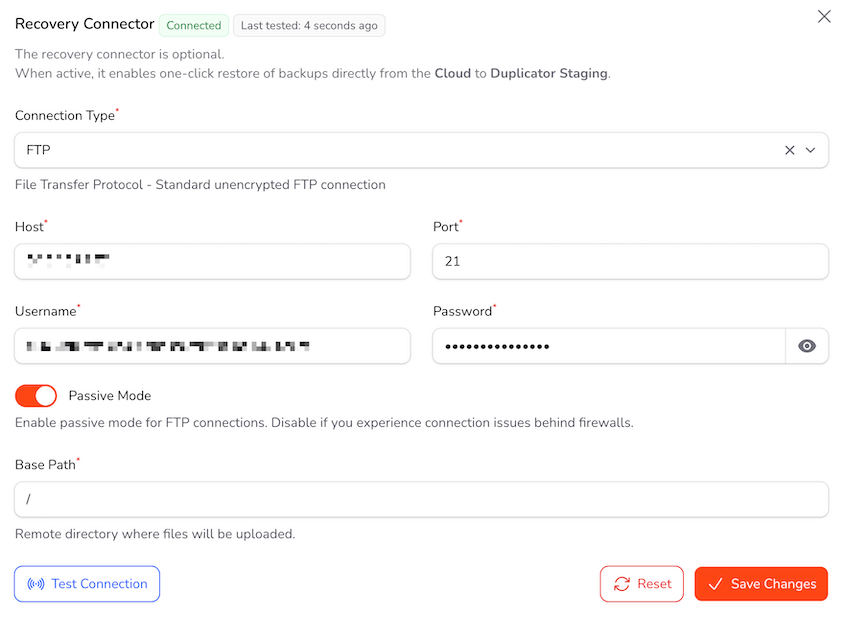
Then, find a recent cloud backup created before the error. Restore it.
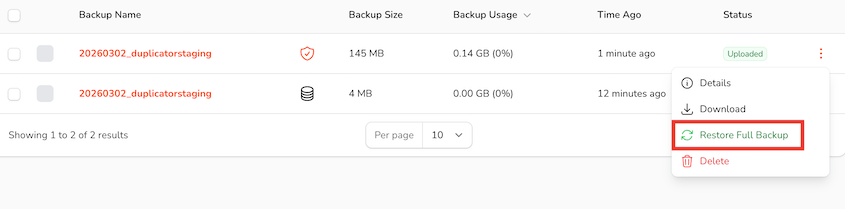
Duplicator also has disaster recovery points to roll back critical errors. To use it, you’ll need to have a backup set for disaster recovery before the error happened. It should’ve given you a recovery link.
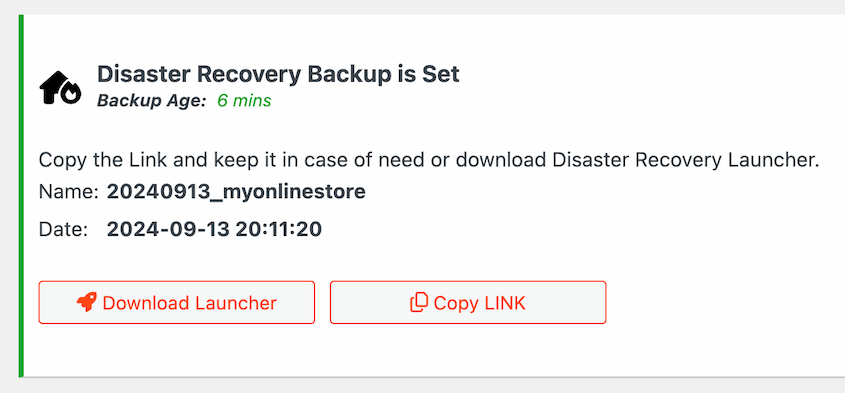
After a critical error, find this link and paste it into a browser window. Follow the instructions to restore your site.
If you didn’t set up these recovery options, use a downloaded backup. Find recent archive and installer files and re-upload them to your site via FTP. Launch the installer with a URL like this: https://your-domain/installer.php.
Once the restore finishes, your site should load normally again, with the error gone.
Check for Recovery Mode
WordPress doesn’t just throw an error message and leave you guessing. In most cases, it also sends an email to your site’s admin address when the error happens.
Look for an email from your site with a subject line about a critical error. Inside, you’ll find a link to log in using Recovery Mode.
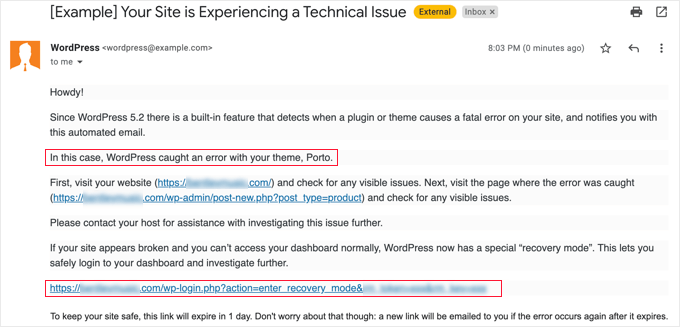
This loads your site with all plugins and your theme’s custom functionality temporarily disabled, so you can get into wp-admin even though the front end is broken.
Click the link and log in as you normally would.
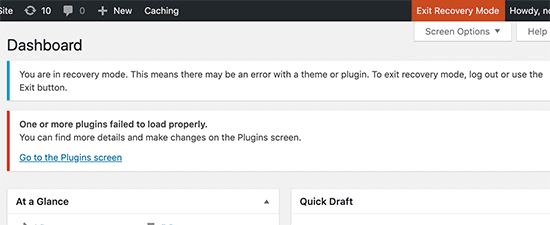
Once you’re in, head to the Plugins page. WordPress will often flag the specific plugin that triggered the error with a notice right at the top of the screen.
That’s your starting point for the next steps, where you’ll isolate the exact cause.
Clear Your Cache
Before you go any further, rule out something simple: a cached version of the broken page showing up even after the actual problem is fixed.
Start with your own browser. Clear your cache, or open the site in a private/incognito window, and reload.
If you’re using a caching plugin like WP Rocket or W3 Total Cache, log into wp-admin (or Recovery Mode, if that’s how you got back in) and clear the cache from the plugin’s settings.
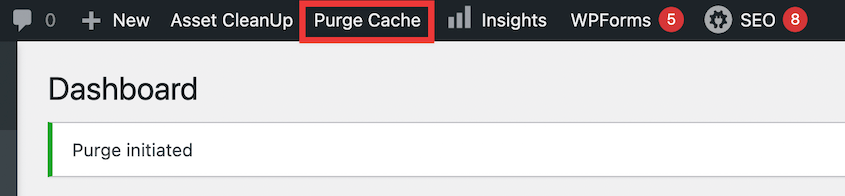
If your site sits behind a CDN like Cloudflare, clear the cache there too. CDNs cache pages at the server level, so your browser cache alone won’t fix it.
This step takes two minutes, and it’s worth doing before you touch any code. Sometimes the actual error is already gone, and your visitors are just seeing an old, cached version of it.
If the error’s still there after clearing every layer of cache, the problem is real, and it’s time to dig into the next steps.
Enable Debug Mode
If clearing your cache didn’t fix it, you need to see the exact error WordPress is hiding from you.
WordPress shows that generic critical error message instead of the real PHP error to avoid exposing sensitive file paths to visitors. Debug mode turns that real error back on.
Connect to your site via FTP or your hosting file manager, and open the wp-config.php file in the root folder.
Find the line that says define('WP_DEBUG', false); and replace it with these lines:
define('WP_DEBUG', true);
define('WP_DEBUG_LOG', true);
define('WP_DEBUG_DISPLAY', false);
Save the file, then reload your broken site.
Now go back into your file manager and open wp-content/debug.log. Scroll to the very bottom and look for the newest entry that says PHP Fatal error.
That line will name the exact file and function that caused the crash, usually a plugin or theme file.
Write that file name down. You’ll need it in the next step.
Check for Plugin or Theme Conflicts
By now you probably have a strong lead, either from Recovery Mode’s plugin notice or the file name in your debug log. This step confirms it.
Connect via FTP and navigate to wp-content/plugins.
If you already know which plugin is the culprit, rename that plugin’s folder (add .deactivated to the end). WordPress can’t find a renamed folder, so it automatically deactivates that plugin.
If you’re still not sure which one is responsible, rename the entire plugins folder to something like plugins.deactivated. This deactivates every plugin on your site at once.
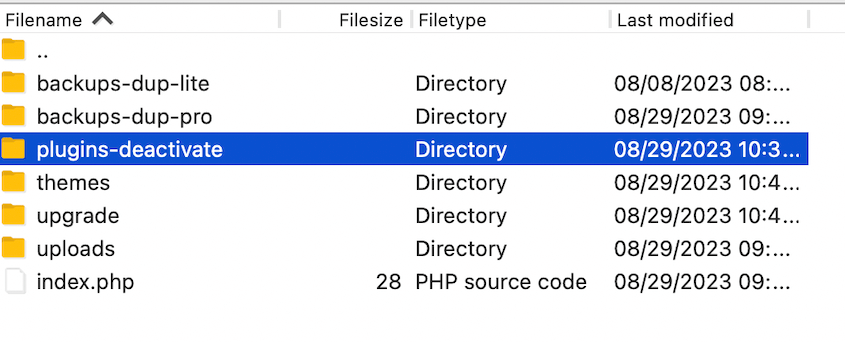
Reload your site. If it loads normally, you’ve confirmed a plugin is the cause.
Now isolate which one. Rename the folder back to plugins, then go into wp-admin and reactivate your plugins one at a time, reloading the site after each one.
The moment the critical error comes back, you’ve found your plugin. Deactivate it and either look for an update, contact the plugin developer, or replace it with an alternative.
If disabling all plugins didn’t fix anything, the problem likely sits in your theme instead.
Switch to a default WordPress theme like Twenty Twenty-Four through the Appearance menu or by renaming your active theme’s folder via FTP the same way.
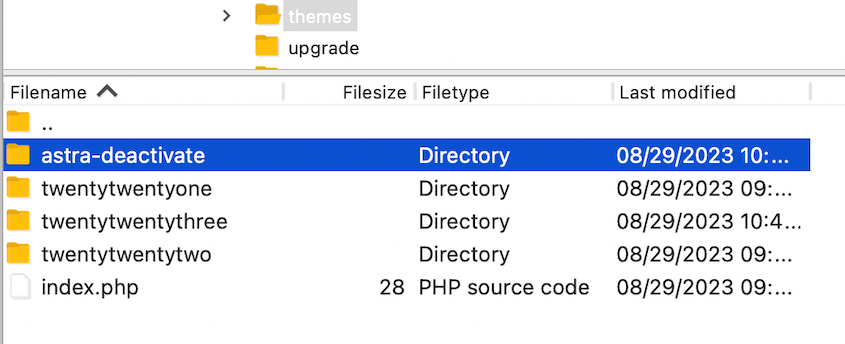
If switching themes fixes the error, your theme (or a child theme customization) is the cause.
Raise Your PHP Memory Limit
If plugins and themes both check out clean, memory exhaustion is the next likely cause. This shows up when a process (like generating an image thumbnail or running a complex query) needs more memory than your host allows.
Open your wp-config.php file again.
Find the line that reads: /* That's all, stop editing! Happy publishing. */ and add this line directly above it:
define('WP_MEMORY_LIMIT', '512M');If that line already exists with a lower number, raise it instead of adding a duplicate.
Save the file and reload your site.
Keep in mind this only raises the limit WordPress requests. Your hosting plan still sets a hard ceiling, so if your host caps PHP memory at 256M, asking for 512M won’t do anything.
Increase the Max File Upload Size
This step is only relevant if your critical error showed up right after uploading a large file, importing content, or installing a plugin or theme from a zip file.
When a file exceeds your server’s upload limit, PHP can fail partway through, sometimes triggering a critical error instead of a normal “file too large” message.
Check your current limit by going to Media » Add Media File in wp-admin. WordPress displays your maximum upload size.
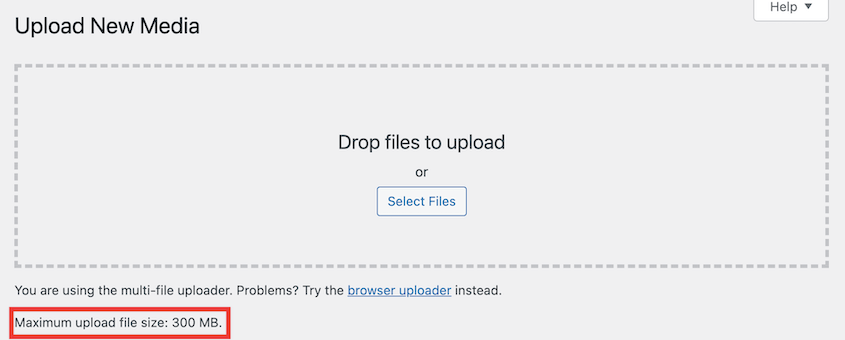
If you need to raise it, the easiest way is through your hosting dashboard. Most hosts have a PHP settings panel where you can adjust upload_max_filesize and post_max_size directly.
If your host doesn’t offer that, you can add these lines to a file called .htaccess in your site’s root folder:
php_value upload_max_filesize 256M

php_value post_max_size 256M
Not every host supports .htaccess overrides for PHP values. If adding these lines breaks your site further or does nothing, remove them and contact your host directly instead.
Upgrade Your PHP Version
WordPress recommends running PHP 8.3 or higher. Older versions stop receiving security updates and lose compatibility with newer plugins over time.
If your debug log mentioned a function that “doesn’t exist” or showed a deprecation warning, an outdated PHP version is a likely cause.
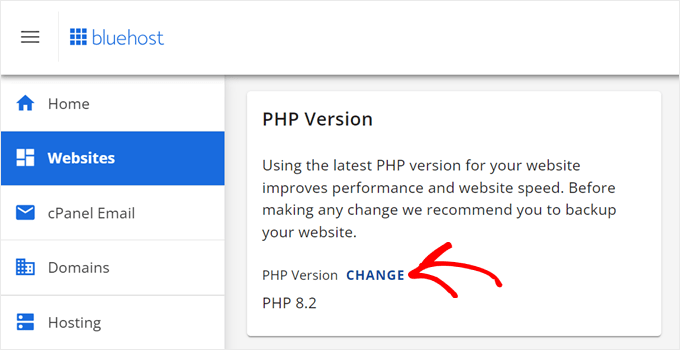
Log into your hosting account. Usually, you can update PHP in your site’s settings.
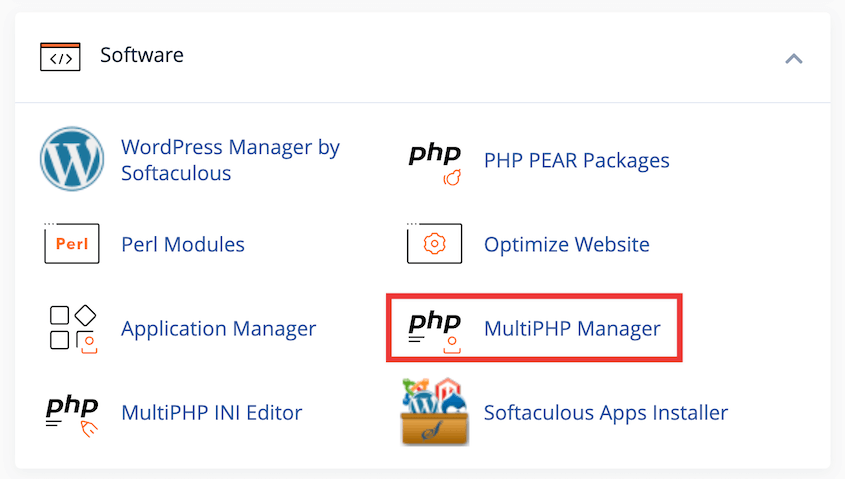
CPanel also has a MultiPHP manager to help you upgrade your PHP version.
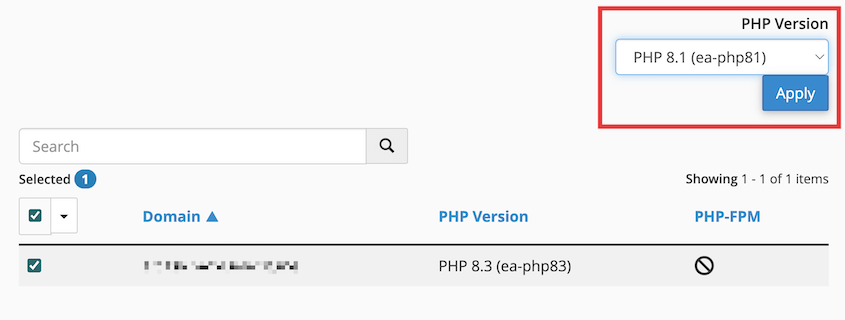
Choose the latest version available and apply the changes.
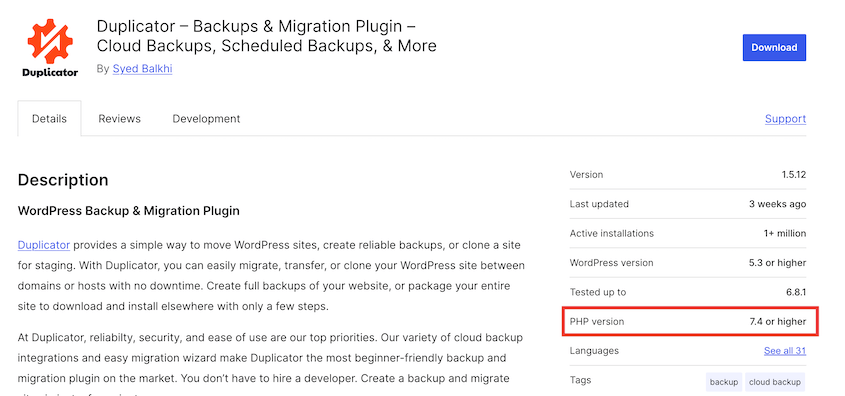
Before switching, check your current version against what your plugins and theme require. Most WordPress.org plugin pages show which PHP version they’ve been tested with in their description.
If upgrading PHP causes a different error to appear, you’ve likely found a plugin or theme that hasn’t been updated for newer PHP versions yet. Switch back to your previous PHP version and contact that plugin’s developer.
Scan for Malware
If you’ve worked through every step above and nothing explains the error, it’s worth ruling out malware, even though it’s the least likely cause.
Malicious code is usually written to run silently, but poorly coded malware can crash PHP just like a bad plugin would.
Install a security plugin like Sucuri or Wordfence, or use your hosting provider’s built-in malware scanner if it has one.
Run a full scan of your site’s files. Look for flagged files in locations that shouldn’t contain code, like your uploads folder.
If the scan turns up infected files, don’t try to clean them manually unless you’re confident doing so. Restore from a backup taken before the infection instead, then update every plugin, theme, and password to boost your security.
If the scan comes back clean, you can rule malware out entirely and move to the last step.
Ask Your Web Host Support
If you’ve gone through every step and your site still shows the critical error, it’s time to bring in your host.
Your hosting provider has access to server-level logs you simply can’t see from wp-admin or FTP, including PHP error logs that capture more detail than your site’s debug.log file.
Open a support ticket or live chat and give them specifics: when the error started, what you’ve already tried, and any error messages from your debug log.
Most hosts that specialize in WordPress can check server logs and pinpoint the cause within minutes.
Troubleshooting / Common Errors
Even with the steps above, a few specific situations trip people up. Here’s how to handle them.
The Recovery Email Never Arrived
You checked your inbox right after the error and found nothing, not even in spam.
This usually means your site’s email sending is broken, which is common on shared hosting where outgoing mail gets blocked or filtered by default.
Manually deactivate plugins via FTP or File Manager instead. You don’t need the recovery email to do this; it’s just a faster shortcut when it works.
The Debug Log Shows Nothing Useful
You enabled debug mode, reloaded the site, and opened debug.log, but it’s empty or only shows warnings that don’t look related.
Make sure you reloaded the actual broken page after turning debug mode on. The log only captures errors that happen after you save the change.
If it’s still empty, the error may be happening at a server level before WordPress even loads. That’s a sign to move straight to looping in your host.
Frequently Asked Questions (FAQs)
How do I fix HTTP error 500?
A 500 error is the server-level version of the same problem: PHP crashed before WordPress could even show its own error message. Work through the same fix list above, starting with Step 1, since the underlying causes overlap almost completely. If debug mode shows nothing, your host’s server log is the next place to check.
What does it mean when there is a critical error on a website?
It means the site’s code hit a fatal PHP error that stopped the page from loading, and the platform caught it instead of showing a blank screen. On WordPress specifically, this triggers the built-in critical error message and, usually, a recovery email. It’s a coding or configuration problem, not physical damage to your site.
What are the most common WordPress errors?
You’ll commonly run into the white screen of death, HTTP error 500, “Error establishing a database connection,” and 404 errors after a permalink change. Most trace back to the same root causes: plugin conflicts, theme issues, or server resource limits. The diagnostic steps in this guide apply to nearly all of them.
What’s the easiest way to roll back WordPress errors?
Restoring a recent backup is the fastest rollback, especially one taken right before the error appeared. Tools like Duplicator can do this even when wp-admin won’t load, using a disaster recovery link or a manually uploaded backup file. It skips diagnosis entirely and gets your site back to a known working state.
Why can’t I open my website?
This is almost always one of three things: a critical error or similar fatal issue, a server outage on your host’s end, or a DNS problem unrelated to WordPress itself. Check if the site fails the same way from a different device or network. If it does, work through this guide starting with Step 1.
What do I do if WordPress is locked out?
If wp-admin won’t load at all, your fastest options are the WordPress Recovery Mode or restoring a backup directly (with Duplicator), since both work without a functioning admin dashboard. FTP or your host’s file manager also let you deactivate plugins and edit files without ever touching wp-admin.
Why didn’t I get a recovery mode email?
Your site’s email sending may be misconfigured or blocked, which is common on shared hosting. WordPress can’t send the recovery link if outgoing mail isn’t working. You can skip the email entirely and deactivate plugins manually through FTP instead.
Your Site Is Back, Now Make Sure This Doesn’t Happen Again
You found the cause, fixed it, and your site is loading normally again. That’s not a small thing.
A site down with no explanation is one of the most stressful problems a WordPress owner can face, and you just walked through it methodically instead of panicking.
Keep an eye on what caused this error in the first place.
If it was a plugin, watch for its next update and see if the developer addressed the conflict. If it was a PHP version mismatch, recheck compatibility before your host pushes another automatic upgrade.
One thing I haven’t mentioned yet: set up a staging site before your next plugin or theme update, not after the next critical error.
Duplicator Pro lets you spin up a staging copy in a few clicks, test the update there first, and push it to your live site once you know it won’t break anything.
Plus, its disaster recovery URL restores a site even when WordPress itself won’t load. Get Duplicator Pro to roll back even the worst errors!
If this tutorial helped, these guides are worth reading next:
- Locked Out of WordPress? 16 Ways to Get Back In (Fast)
- Your WordPress Site Could Vanish Tomorrow (Unless You Do This)
- 22 Most Common WordPress Errors (And Some Quick Fixes)
- How to Recover a Hacked WordPress Site (9 Expert Tips)
- How to Fix Mixed Content Errors in WordPress
- How to Secure a WordPress Database: Hardening, Encryption, and Ongoing Protection




