

Duplicator Cloud vs Amazon S3: Which Should Store Your WordPress Backups? (2026)
 Joella Dunn
Joella Dunn
Joella Dunn
 John Turner
John Turner
John Turner
You installed a backup plugin, and now you have to pick the right location to store your backups.
Two options tend to make the shortlist. Duplicator Cloud, which is built into Duplicator (one of the most popular backup plugins). And Amazon S3, which is what half the internet already runs on.
I set up both. I ran real backups to each, let them run on a schedule for weeks, then restored a site from each one to see how the recovery works.
Both work with Duplicator, and that’s worth saying up front. The question isn’t whether S3 works. It’s how much of the work you want to do yourself and whether a second vendor account earns its place.
Here’s what I found:
- Duplicator Cloud connects with your license, not API keys, so setup takes a few minutes instead of an afternoon spent in the AWS console writing IAM policies.
- Amazon S3 needs a backup plugin to be useful for WordPress. On its own it has no schedule, no site awareness, and no restore process. Duplicator supplies all of that.
- Amazon S3 wins on raw storage price at roughly $0.023 per GB per month, which comes to a few dollars a year for a typical site.
- That price gap disappears once you price your own time. One 90-minute AWS setup costs more than the annual difference at any professional rate.
- AWS changed its free tier on July 15, 2025. New customers get up to $200 in credits over a six-month free plan, not 12 months of free storage.
- The restore is where the two really separate. Duplicator Cloud’s recovery connector rebuilds your site even when WordPress won’t load. With S3, you’re downloading files from the AWS console and re-uploading them yourself.
- S3 charges you most at the worst moment, since data transfer out is billed after the first 100GB each month and archived storage classes add retrieval delays and fees.
- Duplicator Cloud gives you one dashboard across every site you own, with per-site activity logs and the ability to revoke a site’s access without touching a cloud console.
- You don’t have to pick just one. Duplicator Pro sends the same backup to multiple locations, which is how the 3-2-1 rule is supposed to work.
- If you’re already running Duplicator, Duplicator Cloud is the obvious pick. One vendor, one login, one support team, and storage built around WordPress backups.
Table of Contents
- Duplicator Cloud vs Amazon S3: What's the Quick Verdict?
- What Is Duplicator Cloud?
- What Is Amazon S3?
- Which One Is Faster to Set Up?
- Which One Gets You Back Online Faster?
- How Do They Compare on Security and Reliability?
- Which Is Better If You Manage More Than One Site?
- Do You Have to Choose Just One?
- Duplicator Cloud vs Amazon S3: Which Should You Choose?
- Frequently Asked Questions (FAQs)
- Pick the Storage You'll Understand at 2am
- Your Backups Are Only as Good as Your Ability to Restore Them
Duplicator Cloud vs Amazon S3: What’s the Quick Verdict?
If you only read one section, read this one. The table covers the differences that change your decision.
| Duplicator Cloud | Amazon S3 | |
|---|---|---|
| Setup time | Minutes | 45 to 90 minutes for a first-timer |
| Credentials needed | Your Duplicator Pro license | AWS account, IAM user, access key pair |
| Pricing model | Flat annual tier | Pay per GB, per request, per GB transferred out |
| Cost at 50GB stored | $99/year (Business tier) | Roughly $14 to $20/year |
| Storage range | 2GB to 150GB | Effectively unlimited |
| Egress charges | None | First 100GB/month free, then $0.09/GB |
| Restore path if WordPress is down | Log into cloud.duplicator.com and use the recovery connector | Log into AWS console, find the bucket, download objects, and re-upload to WordPress |
| Reliability claim | 99.9% uptime SLA, AES-256 encryption | 99.999999999% durability design target |
| Multi-site dashboard | Yes, built for WordPress | No, buckets and prefixes only |
| WordPress-aware | Yes | No |
| Best for | WordPress site owners who want backups handled | Teams already running AWS, and long-term archives |
Amazon S3 was built to hold objects for any application, and it does that better than almost anything else. However, it has no idea what WordPress is.
With Amazon S3, it won’t know which archive pairs with which installer, which site a backup belongs to, or whether last night’s scheduled run succeeded. That’s all work you or your backup plugin has to do.
Duplicator Cloud starts from the WordPress side and works outward. It pairs with Duplicator, so you’re using a WordPress-intuitive tool to handle backups, scheduling, storage, and restores.
There’s a second thing worth noticing. Nearly every place where S3 holds its own is describing something Duplicator is doing on S3’s behalf. Take Duplicator out of the picture, and S3 is just a bucket you’d be uploading zip files into by hand.
So the real question isn’t which storage is better. It’s whether you want the storage to come from the same company that built your backup plugin or from a separate vendor with its own account, billing, and support queue.
What Is Duplicator Cloud?
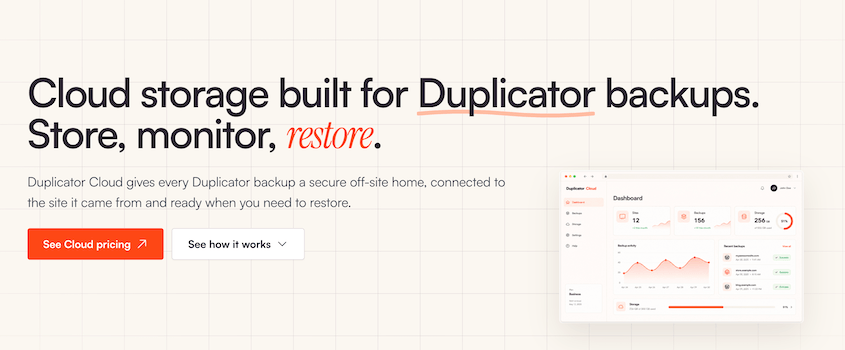
Duplicator Cloud is storage that Duplicator built for its own plugin. It launched in 2025, and it exists for one reason: to remove the third-party account from the middle of your backup workflow.
Every other cloud destination in Duplicator Pro asks you to go somewhere else first. You’d have to create a Dropbox app, authorize Google Drive, or write an IAM policy for Amazon S3. Duplicator Cloud connects with the license key you already have.
You’ll need Duplicator Pro 4.5.24 or higher and an active license. After that, you can purchase storage, connect your license key, and start sending backups to the cloud.
The part I like the most is Duplicator Cloud’s custom dashboard. Here’s what it shows you:
- Storage usage across every connected site, so you can see what’s eating your quota before you hit the ceiling.
- A chronological activity log of backups, restores, and configuration changes, which matters when more than one person touches the site.
- Per-site monitoring so ten client sites don’t blur into one list.
- Backup insights including archive size, database size, processing time, PHP version, and what data each backup contains.
- Direct downloads of both the archive and the installer, without going through WordPress at all.
- Remote restores through a recovery connector, which rebuilds your site from the dashboard even when WordPress won’t load.
That last one is the feature I ended up leaning on. More on that in the restore section.
How Much Does Duplicator Cloud Cost?
Duplicator Cloud pricing works on a subscription. You pick a storage size and pay one number per year.
Here are the current tiers:
| Duplicator Cloud Storage Tier | Storage | Price per year |
|---|---|---|
| Starter | 2GB | $29 |
| Basic | 10GB | $49 |
| Plus | 25GB | $69 |
| Business | 50GB | $99 |
| Pro | 100GB | $149 |
| Scale | 150GB | $199 |
There’s no request charge, transfer fee, or bill that changes because you restored a site twice in March. You’ll pay a flat yearly fee.
As your backups grow, you move up a tier. The top plan holds 150GB, which covers the overwhelming majority of WordPress sites (a typical business site with a full media library only backs up at 1GB to 5GB).
If you’re storing more than that (which you’re probably not), you’re in genuine infrastructure territory, and that’s a fair reason to look at S3.
Storage plans are sold separately from your Duplicator Pro license. All plans come with a 14-day refund, no questions asked.
What Is Amazon S3?
Amazon S3 is object storage. You put files in a bucket, Amazon keeps them, and you pay for what you use. It’s been around since 2006 and holds roughly 30% of the cloud storage market, which makes it the default answer for a lot of technical teams.
The engineering behind it is excellent. Amazon designs S3 for 99.999999999% durability by replicating your objects across multiple availability zones, which means the odds of S3 losing your backup are effectively zero.
S3 can version objects, require MFA for deletion, write granular bucket policies, and set lifecycle rules that shuffle old backups into cheaper storage classes on a schedule.
However, it doesn’t know anything about WordPress.
To S3, your backup is two files with unusual extensions. It can’t tell you whether last night’s scheduled run finished, which installer pairs with which archive, or that the site you’re about to restore is running PHP 8.1.
That context lives in the plugin or in your head.
What Does Amazon S3 Look Like Without a Backup Plugin?
On its own, Amazon S3 is just a place to put files. It won’t back up WordPress for you.
Here’s what backing up your site to S3 by hand involves:
- Zipping your site files over SSH or through your host’s file manager, every single time.
- Exporting the database separately through phpMyAdmin or WP-CLI.
- Uploading the backup files through the AWS console or the AWS command line.
- Naming and dating everything yourself, because nothing in the bucket tells you what it is later.
- Building your own schedule with a cron job, then maintaining it.
- Deleting old backups manually or writing lifecycle rules to do it.
- Restoring by hand, which means downloading, uploading, unzipping, importing the database, and fixing URLs.
Duplicator does all of that for you. You won’t have to manually handle backups, scheduling, retention limits, backup encryption, transfers, or restores.
So you’re not really choosing between Duplicator Cloud and Amazon S3. You’re choosing between Duplicator with its own storage or Duplicator with third-party storage.
Once you see it that way, the decision gets a lot simpler.
What Does Amazon S3 Cost for WordPress Backups?
S3 pricing is metered, and the meter has more than one dial. This is the part that makes people either love it or hate it.
Here’s what you’re billed for:
- Storage at $0.023 per GB per month for S3 Standard, for the first 50TB in US East (N. Virginia).
- PUT requests at $0.005 per 1,000, which covers every chunk Duplicator uploads.
- GET requests, billed separately, which you pay when downloading a backup.
- Data transfers, free for the first 100GB per month across all AWS services, then $0.09 per GB.
- DELETE requests, which are free.
For a small site, those numbers round to almost nothing. A 6GB backup load costs about 14 cents a month to store.
The cheaper storage classes come with conditions, and this is where people get surprised. Standard-IA bills a 30-day minimum per object, Glacier Instant Retrieval and Glacier Flexible Retrieval bill 90 days, and Deep Archive bills 180 days.
Delete a backup before its minimum is up, and you’re still charged for the full period. Retrieval fees stack on top.
That matters for backups, because backup rotation deletes old files constantly. Point a lifecycle rule at a bucket that Duplicator prunes on a schedule, and you can end up paying archive rates on files you already deleted.
AWS changed its free tier on July 15, 2025. New customers now get up to $200 in Free Tier credits applied across eligible services, on a free plan that runs six months. The old arrangement (5GB of S3 storage free for 12 months) isn’t what a new account gets today.
Which One Is Faster to Set Up?
This is the clearest difference between Duplicator Cloud and Amazon S3.
I timed both. Duplicator Cloud took under five minutes. Amazon S3 took me a little over 40, and I’ve done it before.
How Do You Set Up Duplicator Cloud?
The setup is short enough to describe in one paragraph, which is the point.
Here’s how to set up Duplicator Cloud:
- Buy a storage plan from the Duplicator pricing page.
- Add a new storage location in wp-admin under Duplicator Pro » Storage.
- Choose Duplicator Cloud and connect using your Duplicator Pro license.

There are no keys to copy, JSON to edit, or second vendor account to keep track of. Nothing gets stored in your WordPress database that could be lifted and used against your cloud account later.
How Do You Set Up Amazon S3 With Duplicator?
Amazon S3 setup is a real task. It’s well documented, and thousands of people get through it, but you should know what you’re signing up for before you start.
Here’s what the process involves:
- Create an AWS account if you don’t have one, including billing details.
- Go to Services » S3 and create a bucket, choosing the AWS region closest to your web server.
- Go to Security, Identity, & Compliance » IAM, then Policies » Create Policy.
- Switch to the JSON tab, paste in Duplicator’s bucket policy, and replace BUCKETNAME with your actual bucket name.
- Name and save the policy.
- Go to Users » Add users, create a user, choose Attach policies directly, and check the policy you just made.
- Open the new user’s Security Credentials tab, create an access key, and select Third-party service as the use case.
- Save the access key ID and secret access key (download the CSV; you only see the secret once).
- In WordPress, go to Duplicator Pro » Storage » Add New, name the storage, and select Amazon S3.
- Paste in your access key and secret key, enter the bucket name, set your maximum backup count, and click Test S3 Connection.
Ten steps, across two platforms, with one field you have to hand-edit inside a JSON document.
When I’ve seen this go wrong, it’s almost always one of three things: the policy still says BUCKETNAME in one spot, someone used root account keys instead of creating an IAM user, or a secret key got pasted with trailing whitespace. All three produce a failed connection test with a message that doesn’t tell you which mistake you made.
Those access keys are long-lived credentials sitting in your WordPress database. Security practice says to rotate them. When you rotate them and forget to update the plugin, your scheduled backups stop uploading.
Which One Gets You Back Online Faster?
Restores are the only reason backups exist, so I tested this one properly. I broke a site on purpose, then recovered it from each destination.
When WordPress is working, the two are close. Duplicator Pro supports remote restores for any third-party storage, so a backup sitting in Amazon S3 restores in one click from your WordPress dashboard.
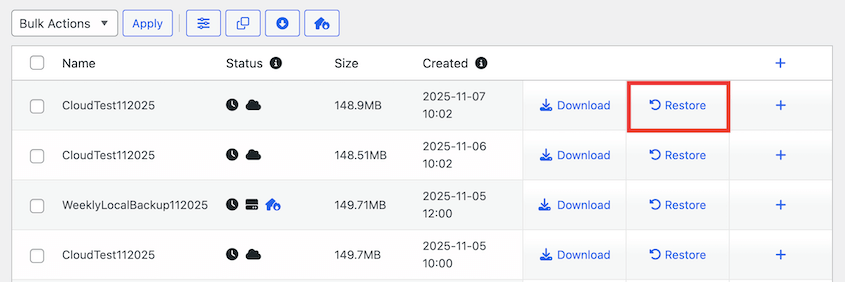
Duplicator pulls the archive down to your server and opens the restore wizard for you. You won’t have to go into Amazon S3, find the right backup, download it, and re-upload it over FTP.
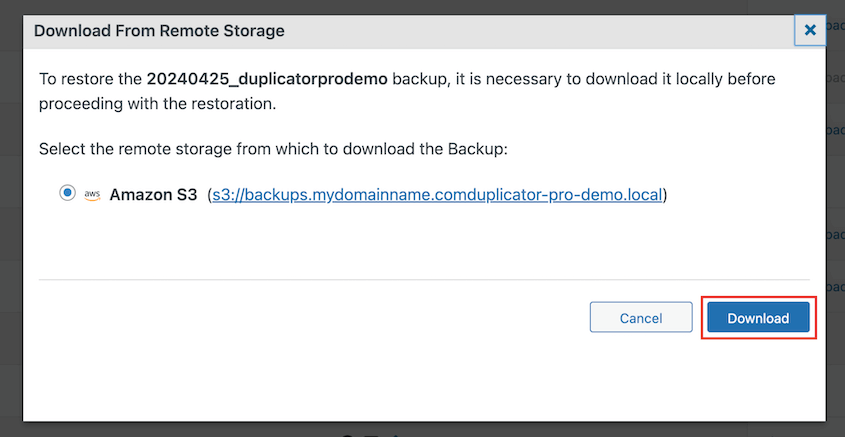
However, that’s Duplicator doing the work for you. Without it, an S3 restore is considerably harder.
What Happens When Your Site Won’t Load?
The disasters you keep backups for tend to involve a site you can’t get into. White screen, database connection error, a hack that locked you out, or a server that stopped answering.
Your WordPress dashboard is gone, which means the 1-click restore living inside it is gone too.
This is where Duplicator Cloud does something Amazon S3 can’t.
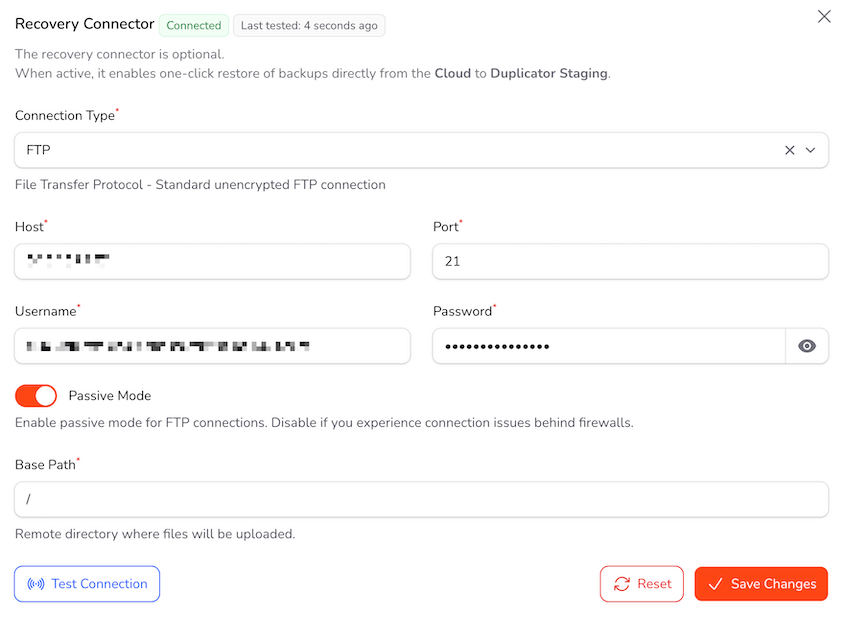
Duplicator Cloud includes a recovery connector. You add your site’s FTP or SFTP details to the Duplicator Cloud dashboard once (hostname, username, password, and the path to your site files), test the connection, and leave it alone.
When something breaks, you sign into cloud.duplicator.com from any device, find the last clean backup, and click Restore Full Backup.
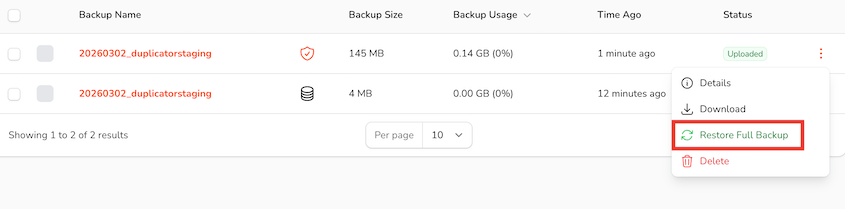
WordPress doesn’t need to be running. Your server doesn’t need to be reachable. The restore runs from the cloud dashboard using those saved credentials, so you can recover a site from a phone on hotel wifi.
You can also restore just the database, just the media library, or individual files.
Amazon S3 has no equivalent. With WordPress down, here’s what recovering an S3 backup involves:
- Sign into the AWS console and find the right bucket.
- Work out which objects are the archive and the installer for the right site and the right date.
- Download both to your computer.
- Upload them to your server over FTP.
- Run the installer.
Every step is doable, and none of them are hard on their own. Together, they turn a two-minute recovery into hours of careful work, at the exact moment you have the least patience.
I recommend using Duplicator Cloud and setting up the recovery connector before you need it. It takes about two minutes and rolls back devastating errors.
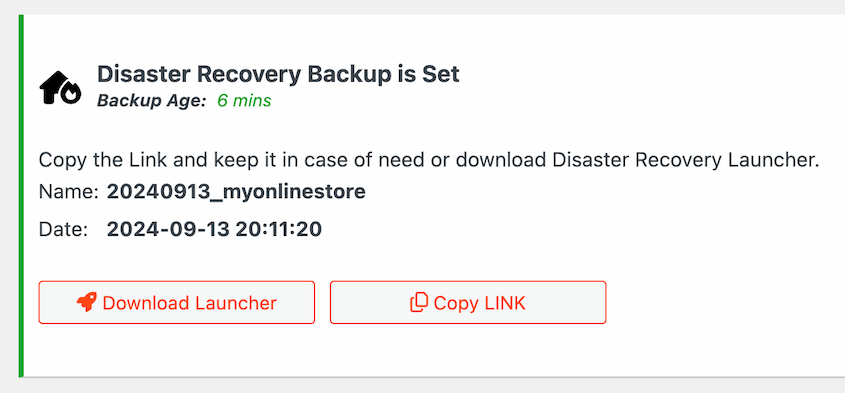
Whichever storage you pick, set up your disaster recovery URL too (if you have Duplicator). It restores a site even when you’re locked out of WordPress entirely, and it works alongside everything else here.
The Storage Class Trap
There’s one more way an Amazon S3 restore goes badly, and it’s worth understanding before you choose it.
If you’ve moved older backups into Glacier Flexible Retrieval or Deep Archive to save money, those files aren’t sitting there ready to download. You have to request a restore of the object first, then wait. Deep Archive retrieval can take hours.
Duplicator Cloud has one storage class, and it’s the fast one.
How Do They Compare on Security and Reliability?
Both options encrypt your backups, and both are more reliable than the server your site runs on.
Here’s what each brings:
- Amazon S3 is designed for 99.999999999% durability across multiple availability zones. It supports object versioning, MFA delete, granular bucket policies, server-side encryption, and region selection for data residency requirements.
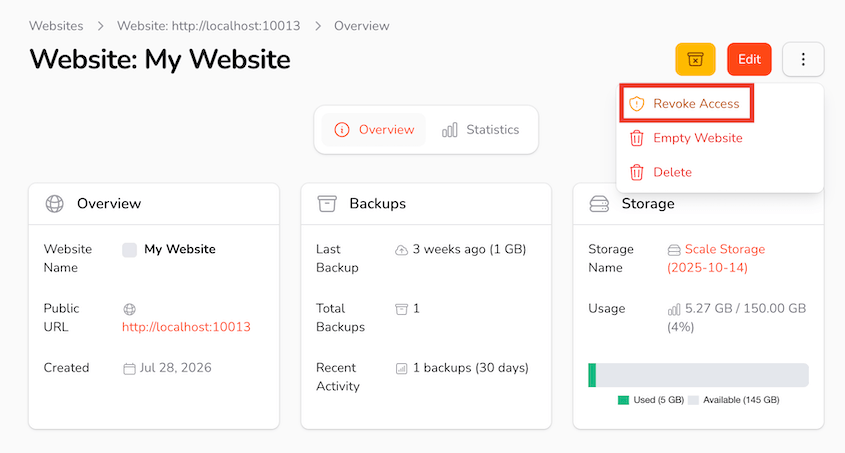
- Duplicator Cloud uses AES-256 encryption, carries a 99.9% uptime SLA, scopes access through your Duplicator Pro license, and lets you revoke any individual site’s access from the dashboard.
Durability measures whether your data survives. Uptime measures whether you can reach it right now. S3’s eleven nines mean Amazon won’t lose your backup, which is impressive engineering and not the same claim as availability.
For a WordPress backup, neither number is where your risk lives. Your risk lives in credentials.
An S3 setup puts a long-lived access key pair in your WordPress database. It’s scoped by IAM policy, so a compromised site can’t do much beyond what that policy allows, and that’s why the policy matters so much. Write it too broadly (which people do, to make the connection test pass), and you’ve handed a compromised site more access than you meant to.
Duplicator Cloud doesn’t put a reusable cloud access key in your database. If a site gets compromised, you revoke that one site from the Duplicator Cloud dashboard, and nothing else needs rotating.
S3 does have a real answer on the other side of this. Object versioning and MFA delete protect against an attacker deleting or overwriting your backups, and if you’re the kind of team that configures those correctly, they’re worth having. You also own the bucket outright, which matters when compliance rules dictate where data sits and who controls it.
For most WordPress sites, the thing that goes wrong isn’t Amazon losing a file. It’s a misconfigured policy, a rotated key nobody updated, or backups that quietly stopped running months ago.
Which Is Better If You Manage More Than One Site?
With one site, the difference between these two is convenience. With ten, it turns into an operations problem.
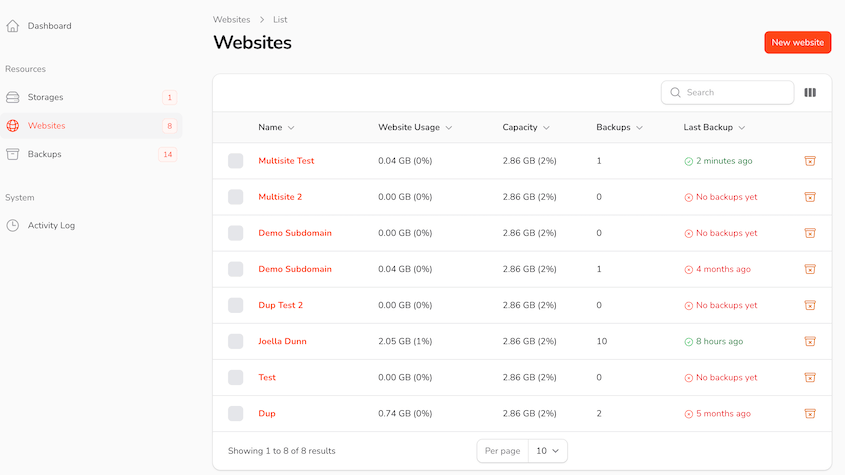
Duplicator Cloud gives you a view built around sites. Here’s what that looks like day to day:
- Every connected site in one dashboard, so a site’s backups are findable at a glance.
- Activity logs showing who changed a schedule, when a backup ran, and how long it took.
- Backup insights for each site, including archive size, database size, and PHP version.
- Revoke access per site without touching credentials anywhere else, which matters when you hand a site off or offboard a client.
- One recovery connector per site, so any site in the list can be restored remotely.
Amazon S3 gives you buckets. You can organize sites into separate buckets or into prefixes inside one bucket, and both work fine, but neither knows what a WordPress site is. You’ll be reading object keys and timestamps to figure out what you’re looking at.
Writing a separate IAM policy per site is the correct approach, and it’s also a chore that grows with every site you add.
Then there’s the handover problem. If the developer who built your AWS account moves on, they take the mental map with them. You might not know which bucket belongs to which site, why one policy has an extra permission, or which keys are still live.
If you’re going the S3 route with client sites, document the bucket-to-site mapping somewhere.
Do You Have to Choose Just One?
No, and for anyone serious about recovery, you probably shouldn’t.
The 3-2-1 backup rule says keep three copies of your data on two types of storage, with one copy off-site. Duplicator Pro sends the same backup to multiple storage locations, so this is a configuration choice.
Here’s the setup I’d run:
- A local copy on your server for fast rollbacks after a bad update.
- Duplicator Cloud as the primary off-site copy, because that’s the one you’ll restore from when things are on fire.
- Amazon S3, Wasabi, or Backblaze B2 as a deep archive, holding more versions for longer at a low per-GB rate.
Set a different retention count on each location. Your archive can keep twelve monthly versions while your primary keeps the last seven days, and neither has to compromise for the other.
Notice the order there. The cheap metered storage is the archive you hope never to touch. The storage you restore from is the one that gets you back fastest.
Duplicator Cloud vs Amazon S3: Which Should You Choose?
Both of these will hold your backups safely. The question is what each one asks of you in return.
Choose Duplicator Cloud if any of this sounds like you:
- You want backups running quickly, not after an afternoon in the AWS console.
- You don’t already have an AWS account and don’t want a second vendor relationship to maintain.
- You run WordPress sites for a living, and cloud infrastructure isn’t your job.
- You want remote restores that work when WordPress doesn’t.
- You’d rather have a predictable annual invoice than a metered bill with no spending cap.
Choose Amazon S3 if this is closer to your situation:
- You already run AWS, and adding a bucket costs you ten minutes, not ninety.
- You need to store more than 150GB, which is past Duplicator Cloud’s top tier.
Use both if you’re following the 3-2-1 rule properly, with Duplicator Cloud as the copy you restore from and S3 (or a cheaper S3-compatible provider) as the long-term archive.
For most WordPress site owners, this isn’t a close call. If you’re already running Duplicator, the plugin is doing the scheduling, archiving, encryption, and restoring. Duplicator Cloud is the storage built to work with that existing workflow, connected with the license you already own.
If you’re choosing one destination for WordPress backups, choose Duplicator Cloud. S3 is great generic storage, but it’s not built to get a WordPress site back online. Duplicator Cloud is.
Frequently Asked Questions (FAQs)
Is Duplicator Cloud included with Duplicator Pro?
No. Duplicator Cloud is a separate storage subscription starting at $29 a year for 2GB. You need an active Duplicator Pro license (version 4.5.24 or higher) to connect it. The plugin license and the storage plan are billed separately.
Can I back up WordPress to Amazon S3 without a plugin?
You can, but you’d be doing every part by hand: zipping your files over SSH, exporting the database through phpMyAdmin, uploading both to your bucket, then reversing all of it to restore. There’s no schedule, retention, or restore wizard. A plugin like Duplicator is what makes S3 practical for WordPress.
Do I need an AWS account to use Duplicator with Amazon S3?
Yes. You’ll need an AWS account with billing details on file, an S3 bucket, an IAM policy scoped to that bucket, and an IAM user with access keys. Duplicator connects using that key pair. Budget 40 to 90 minutes for your first setup.
Is Amazon S3 still free for WordPress backups?
Not in the way most people think. AWS replaced its old free tier on July 15, 2025. New customers now get up to $200 in Free Tier credits on a plan that runs six months, instead of 12 months of free storage. After that you pay standard rates, which for one small site’s backups usually comes to a few dollars a year.
Can I move my existing backups from Amazon S3 to Duplicator Cloud?
There’s no direct transfer between the two. The practical approach is to add Duplicator Cloud as a storage location and let new backups accumulate there, keeping your S3 bucket until you have enough recent versions in Duplicator Cloud to feel comfortable. Then, delete the old objects from S3.
Which is more secure, Duplicator Cloud or Amazon S3?
Both encrypt your backups. S3 offers more controls if you configure them, including object versioning, MFA delete, and granular bucket policies. Duplicator Cloud keeps a reusable cloud access key out of your WordPress database and lets you revoke a single site’s access from the dashboard. For most sites, the real risk is a misconfigured policy rather than the storage itself.
What happens if I run out of Duplicator Cloud storage?
You hit your quota, and new backups stop uploading until you free up space or move to a larger tier. The dashboard shows usage across every connected site, so you can see it coming. That’s a deliberate contrast with S3, which keeps accepting uploads indefinitely and bills you for all of them.
Does Duplicator work with S3-compatible storage like Wasabi or Backblaze?
Yes. Duplicator Pro supports Wasabi, Backblaze B2, Cloudflare R2, DigitalOcean Spaces, Vultr Object Storage, DreamObjects, and Google Cloud Storage, plus Dropbox, Google Drive, OneDrive, and FTP/SFTP. Setup looks a lot like the S3 process, since most of these providers use the same API and access key model.
Pick the Storage You’ll Understand at 2am
Amazon S3 is great infrastructure, and I’d never argue otherwise. It’s built to be a foundation that other software sits on top of, and it does that job well. What it can’t do is understand and restore WordPress backups.
Duplicator Cloud starts from that understanding. That’s why the setup is short, the dashboard is organized by websites instead of objects, and the recovery connector can rebuild a site while WordPress is completely dead.
If Duplicator is already doing your backup scheduling, the storage underneath it might as well come from the same place. That means one login to remember, nothing to configure, and one place to ask when a backup doesn’t look right.
Here’s the tip I’d give anyone reading this, whichever destination you pick. Put a recurring reminder in your calendar every quarter to restore your latest backup onto a staging site. It takes ten minutes, and it’s the only way to know your backups work.
If you’re on S3, use that same reminder to confirm your access keys still authenticate, because key rotation breaks backup uploads quietly, and you can lose weeks before anyone notices.
Your Backups Are Only as Good as Your Ability to Restore Them
A backup you can’t reach during an outage isn’t protection. It’s just a file.
Duplicator Pro is trusted by over 1.5 million WordPress professionals for backups, migrations, one-click staging, and disaster recovery.
Pair it with Duplicator Cloud, and you get storage that’s connected in minutes, a dashboard covering every site you manage, and remote restores that don’t need your server to cooperate.
Every plan comes with a 14-day, no-questions-asked refund.
If this post got you thinking about where your WordPress backups live, these guides are worth reading next.
- How to Back Up a WordPress Site to Amazon S3
- How I Restore a Cloud WordPress Backup to Recover Broken Websites
- 12 Best Cloud Storage Services for WordPress Backups (Expert Pick)
- How to Create a Cloud WordPress Backup (Never Lose Data to Server Errors)
- Website Backup Redundancy Strategies + Why Location Matters
- How to Get Secure Backup Storage For Your WordPress Site




