


Alles hochladen: So erhöhen Sie die maximale Datei-Uploadgröße in WordPress
 Joella Dunn
Joella Dunn
Joella Dunn
 John Turner
John Turner
John Turner
Haben Sie schon einmal versucht, ein Video oder ein funktionsreiches Theme auf Ihre WordPress-Website hochzuladen, nur um dann von einer Fehlermeldung aufgehalten zu werden?
Das ist frustrierend, nicht wahr? Sie möchten Ihrer Site neue Funktionen hinzufügen, aber WordPress scheint andere Pläne zu haben.
Viele WordPress-Benutzer müssen sich mit Beschränkungen beim Hochladen von Dateien auseinandersetzen, und heute werden wir dieses Problem direkt angehen. Ich zeige Ihnen, wie Sie die maximale Dateigröße beim Hochladen in WordPress erhöhen können!
Hier sind die wichtigsten Erkenntnisse:
- Die Grenzen für den Datei-Upload in WordPress werden durch die PHP-Einstellungen Ihres Servers festgelegt, nicht durch WordPress selbst. Die Standardeinstellungen können bis zu 2 MB betragen.
- Sie können Ihr aktuelles Limit unter „Medien“ » „Neue Mediendatei hinzufügen“ oder„Extras“ » „Website-Status“ » „Info“ überprüfen.
- Die einfachste Lösung für Anfänger ist, sich an Ihren Hosting-Anbieter zu wenden und ihn zu bitten, das Limit zu erhöhen.
- Für erfahrene Benutzer bietet die Bearbeitung Ihrer php.ini- oder .htaccess-Datei direkte Kontrolle über die Einstellungen für die Upload-Größe.
- Mit WPCode können Sie sicher PHP-Snippets hinzufügen, um die Grenzen zu erweitern, ohne Ihre Theme-Dateien zu gefährden.
- Wenn Sie eine große Website migrieren, umgeht das DupArchive-Format von Duplicator Upload-Beschränkungen vollständig.
- WordPress Multisite-Benutzer können die Upload-Limits direkt über das Netzwerk-Admin-Dashboard anpassen.
Inhaltsverzeichnis
- Was ist die maximale Datei-Uploadgröße in WordPress?
- Wann Sie die maximale Uploadgröße Ihrer Dateien erhöhen sollten
- So überprüfen Sie die Datei-Uploadgröße Ihrer Site
- So erhöhen Sie die maximale Datei-Uploadgröße in WordPress
- Methode 1: Verwenden Sie Duplicator, um Daten ohne Upload-Beschränkungen zu migrieren
- Methode 2: Kontaktieren Sie Ihren WordPress-Hosting-Anbieter
- Methode 3: Erstellen/Bearbeiten Ihrer php.ini-Datei
- Methode 4: Code zur Datei functions.php hinzufügen
- Methode 5: Code zur .htaccess-Datei hinzufügen
- Methode 6. Verwenden Sie ein Plugin, um die Upload-Größe von WordPress-Dateien zu erhöhen
- Methode 7: Erhöhen Sie die Datei-Uploadgröße in Multisite
- Häufig gestellte Fragen (FAQs)
- Bereit für unbegrenzte Uploads?
Was ist die maximale Datei-Uploadgröße in WordPress?
WordPress selbst legt keine maximale Datei-Uploadgröße fest. Sie kann zwischen 2 MB und 150 MB liegen. Diese Größe wird durch Ihre Serverkonfiguration, genauer gesagt durch die PHP-Einstellungen, festgelegt.
Jeder Hosting-Anbieter hat eine andere Standard-Upload-Größe für WordPress. Einige bieten großzügige Limits, während andere recht restriktiv sein können. Es ist üblich, dass man auf nur 2 MB beschränkt ist.
Hochauflösende Bilder, funktionsreiche Plugins und größere Designs überschreiten oft diese Größenbeschränkung. Diese Einschränkung kann Sie daran hindern, große Dateien und Tools hochzuladen, die Ihre Website verbessern könnten.
Wann Sie die maximale Uploadgröße Ihrer Dateien erhöhen sollten
Hier sind einige gängige Szenarien, in denen Sie das maximale Upload-Limit möglicherweise erhöhen müssen:
- Fehlermeldungen
Wenn Sie schon einmal die Fehlermeldung „Die maximale Upload-Größe für diese Site wurde überschritten“ gesehen haben, ist das ein klares Zeichen dafür, dass Sie ein höheres Limit benötigen.
- Große Themes und Plugins
Moderne WordPress-Themes und Plugins sind oft mit zahlreichen Funktionen ausgestattet, was zu größeren Dateigrößen führt. Wenn Sie das perfekte Theme, das Sie ins Auge gefasst haben, nicht installieren können, ist es möglicherweise an der Zeit für eine Erweiterung.
- Hochwertige Medien
Die heutigen Websites leben von visuellen Inhalten. Wenn Sie mit hochauflösenden Bildern oder Videos arbeiten, benötigen Sie wahrscheinlich eine höhere Upload-Größenbeschränkung, um Ihre besten Arbeiten zu präsentieren.
- Websitemigration
Sie möchten Ihre Site zu einem neuen Host verschieben ? Ein höheres Upload-Limit kann den Vorgang reibungsloser gestalten, insbesondere wenn Sie über eine große Datenbank oder viele Dateien verfügen.
- E-Learning-Materialien
Wenn Sie einen Online-Kurs oder eine Mitgliederseite betreiben, müssen Sie möglicherweise große PDF-Dateien, Videolektionen oder Audioinhalte hochladen. In diesem Fall benötigen Sie wahrscheinlich eine höhere maximale Upload-Größe für WordPress.
- Portfolio-Websites
Fotografen, Designer und andere Kreative müssen häufig hochauflösende Dateien hochladen, um ihre Arbeiten effektiv zu präsentieren.
So überprüfen Sie die Datei-Uploadgröße Ihrer Site
Bevor Sie Ihr Upload-Limit erhöhen, ist es wichtig, dass Sie Ihren Ausgangspunkt kennen. Lassen Sie uns durchgehen, wie Sie schnell Ihre maximale Datei-Upload-Größe überprüfen können.
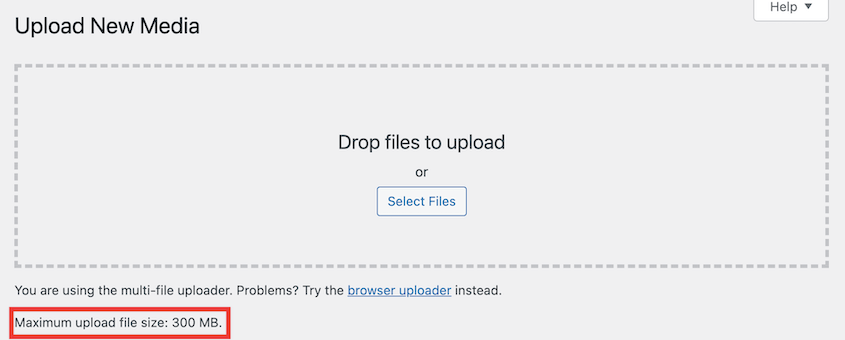
WordPress zeigt die maximale Datei-Upload-Größe an, wenn Sie neue Dateien zu Ihrer Medienbibliothek hinzufügen.
Gehen Sie zu „Medien“ » „Neue Mediendatei hinzufügen “ und schauen Sie unten auf der Seite nach. Dort sehen Sie die Meldung „Maximale Dateigröße für Uploads: X MB“.
Sie können auch zu Tools » Site Health » Info gehen und den Abschnitt Media Handling suchen.
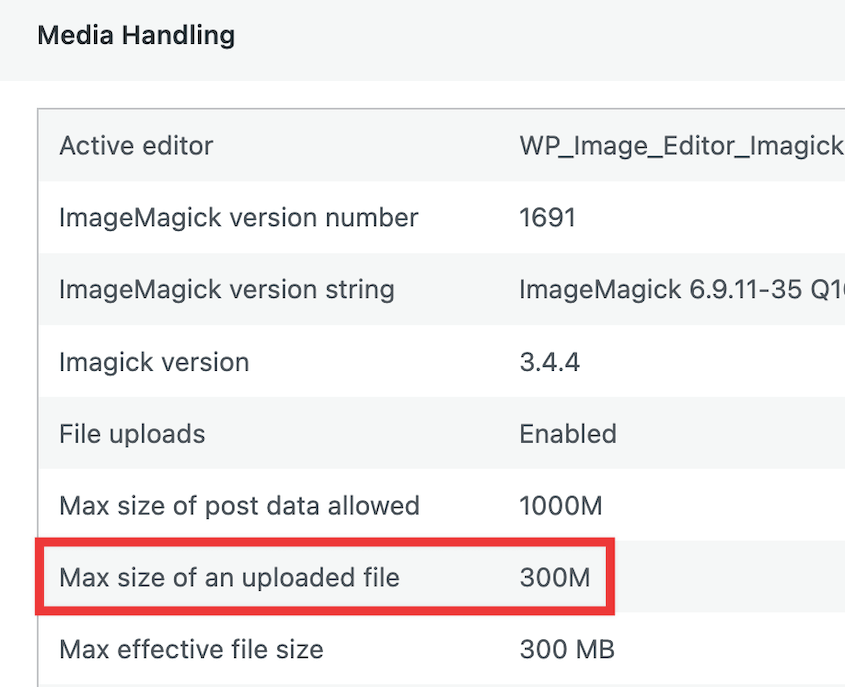
Wenn Sie Ihre aktuelle maximale Upload-Größe kennen, können Sie besser einschätzen, um wie viel Sie sie erhöhen müssen. Wenn Sie ständig das Limit erreichen, sollten Sie eine Verdoppelung oder sogar Verdreifachung Ihrer aktuellen Größe in Betracht ziehen.
So erhöhen Sie die maximale Datei-Uploadgröße in WordPress
Nachdem Sie nun Ihr aktuelles Limit kennen, sehen wir uns verschiedene Methoden zur Erhöhung der Upload-Größenlimits an.
- Methode 1: Duplicator verwenden: Am besten für Website-Migrationen geeignet; das DupArchive-Format überträgt große Dateien, ohne die Upload-Limits des Servers zu erreichen.
- Methode 2: Kontaktieren Sie Ihren Webhost: Die einfachste Option für Anfänger; die meisten Hosts erhöhen Ihr Limit schnell und ohne zusätzliche Kosten.
- Methode 3: Bearbeiten Sie Ihre php.ini-Datei: Eine zuverlässige praktische Methode; verwenden Sie den MultiPHP INI Editor von cPanel oder bearbeiten Sie die Datei direkt über FTP.
- Methode 4: Bearbeiten Sie die Datei „functions.php“: Passen Sie die PHP-Upload-Einstellungen über Ihre Theme-Dateien an. WPCode sorgt dafür, dass dies sicher und reversibel ist.
- Methode 5: Bearbeiten Sie die .htaccess-Datei: Fügen Sie PHP-Direktiven direkt in Ihre Root-.htaccess-Datei ein; erstellen Sie vor jeder Änderung immer eine Sicherungskopie.
- Methode 6: Verwenden Sie ein Plugin, um die Grenzen für Datei-Uploads zu erhöhen: Mit dem EasyMedia-Plugin können Sie in Ihrem Dashboard eine höhere Upload-Grenze auswählen.
- Methode 7: WordPress Multisite: Erhöhen Sie die Upload-Limits netzwerkweit unter „Einstellungen“ » „Netzwerkeinstellungen“ im Netzwerk-Admin-Dashboard.
Methode 1: Verwenden Sie Duplicator, um Daten ohne Upload-Beschränkungen zu migrieren
Duplicator ist ein Plugin, das WordPress-Migrationen reibungsloser gestalten soll, insbesondere beim Umgang mit großen Dateien. Wenn Sie aufgrund von Beschränkungen der Datei-Upload-Größe Probleme bei der Migration Ihrer Website haben, kann Duplicator Ihnen helfen.
Mit Duplicator können Sie ein benutzerdefiniertes Dateiformat namens DupArchive verwenden. Dieses verarbeitet große Dateien auch auf Servern mit niedrigen PHP-Limits.
Egal, ob Sie eine große Datenbank oder viele Mediendateien haben, Duplicator kann Ihre Site sichern. Anschließend wird es problemlos und ohne Fehler an den neuen Speicherort importiert.
Installieren und aktivieren Sie zunächst Duplicator auf Ihrer Website.
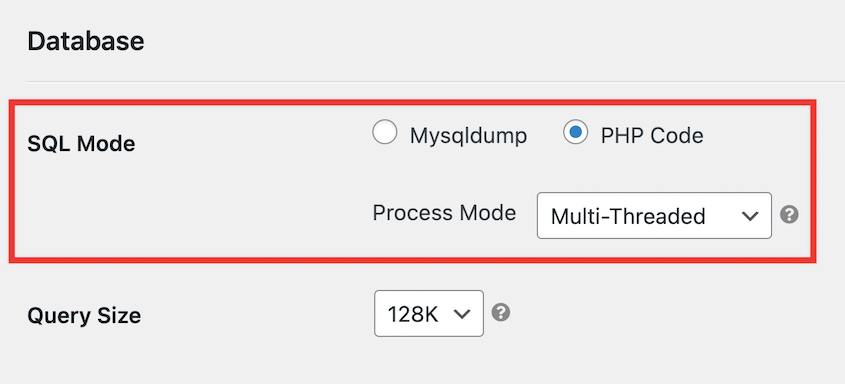
Suchen Sie nach Duplicator Pro » Einstellungen » Backups . Gehen Sie zum Abschnitt Datenbank und ändern Sie den SQL-Modus in PHP-Code und Multi-Threaded .
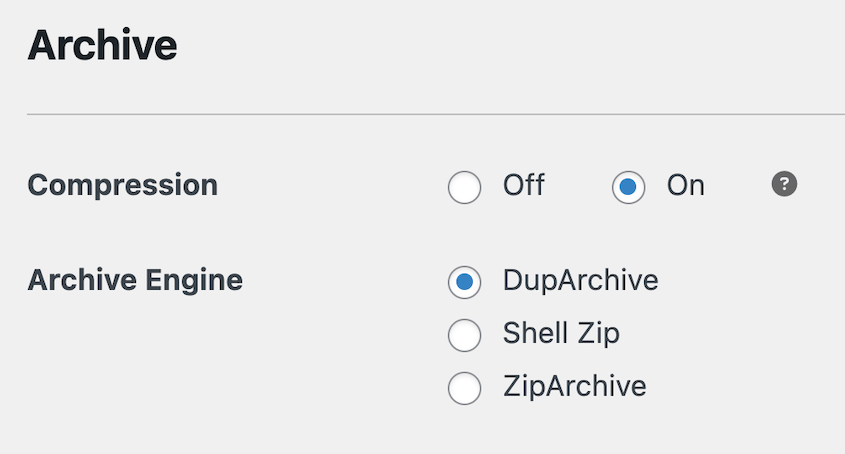
Stellen Sie in den Archiveinstellungen die Archivierungs-Engine auf DupArchive ein. Speichern Sie diese Änderungen.
Erstellen Sie als Nächstes ein neues Backup Ihrer Site . Fügen Sie alle Ihre Daten hinzu.

Sobald das Backup erstellt ist, laden Sie beide Dateien herunter.
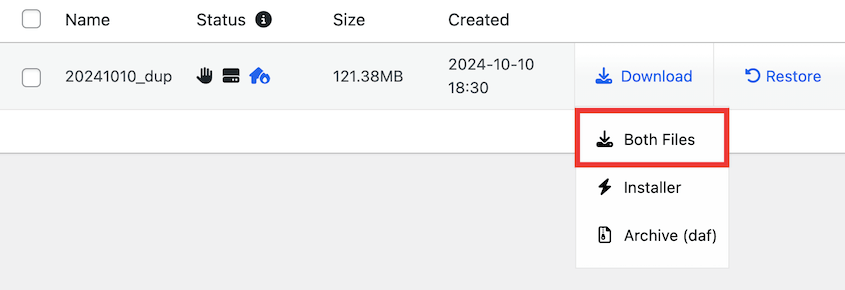
Um Ihre Site an einen anderen Ort zu migrieren, können Sie Duplicator Pro installieren und die Seite „Backups importieren“ öffnen. Ziehen Sie Ihre Backup-Archivdatei per Drag & Drop in das Importfeld.

Wenn du WordPress nicht zuerst installieren möchtest, kannst du die Backup-Dateien auch auf deinen neuen Server hochladen. Navigiere in deinem Browser mit diesem Link zur Datei installer.php: https://deine-domain/installer.php
In jedem Fall umgeht Duplicator das Problem der Upload-Größe und überträgt Ihre Daten auf den neuen Host!
Methode 2: Kontaktieren Sie Ihren WordPress-Hosting-Anbieter
Duplicator eignet sich zwar hervorragend für Migrationen, aber möglicherweise möchten Sie dennoch Ihr Upload-Limit für den täglichen Betrieb erhöhen. Eine einfache Methode, um die Limits für Datei-Uploads zu erhöhen, besteht darin, sich an Ihren Webhosting-Anbieter zu wenden.
Für Anfänger ist dies die einfachste und empfehlenswerteste Methode, um das Upload-Limit Ihrer Website zu erhöhen. Die meisten Hosting-Anbieter verstehen die Notwendigkeit größerer Datei-Uploads und sind oft bereit, Ihr Limit zu erhöhen.
Wenden Sie sich an das Supportteam Ihres Hosts. Dies können Sie normalerweise per Live-Chat (oft die schnellste Option), Support-Ticket oder Telefonanruf tun.
Erklären Sie, dass Sie die maximale Upload-Größe erhöhen müssen. Geben Sie das neue Limit an, das Sie suchen.
Methode 3: Erstellen/Bearbeiten Ihrer php.ini-Datei
Wenn Sie mit Serverdateien vertraut sind, können Sie das maximale Upload-Limit erhöhen, indem Sie Ihre php.ini-Datei bearbeiten. Wenn Ihr Webhost cPanel-Zugriff bereitstellt, ist dies ein einfacher Vorgang.
Für dieses Tutorial verwende ich Bluehost. Melden Sie sich bei Ihrem Control Panel an und öffnen Sie cPanel.
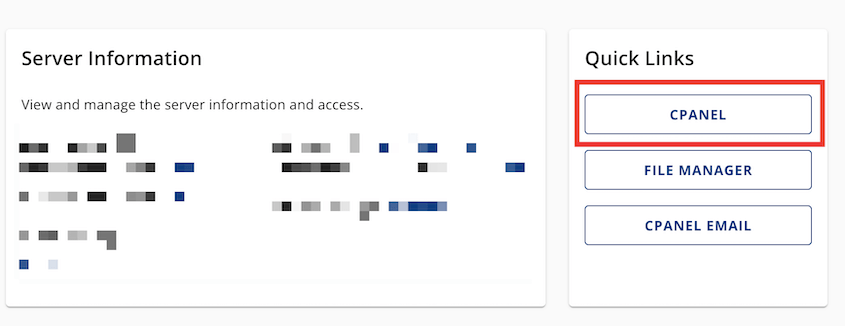
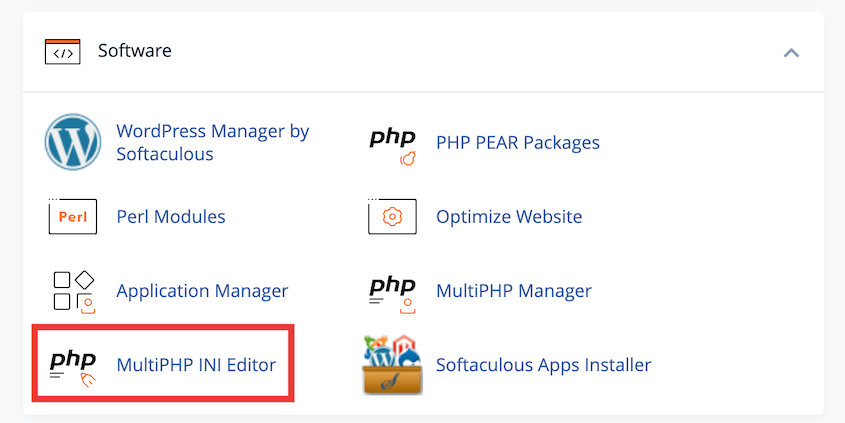
Klicken Sie im Bereich „Software “ auf „MultiPHP INI Editor“ .
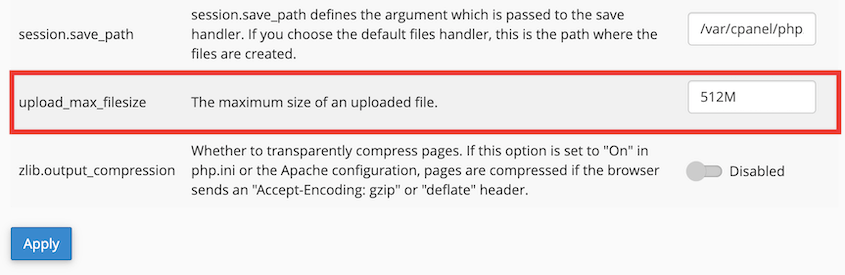
Suchen Sie die Einstellung upload_max_filesize . Ändern Sie den Wert und klicken Sie auf Übernehmen .
Wenn Sie kein cPanel haben, verbinden Sie sich über FTP mit Ihrem Server oder verwenden Sie den Dateimanager Ihres Hosts.
Suchen Sie in Ihrem Stammverzeichnis nach einer Datei mit dem Namen php.ini. Wenn sie nicht existiert, erstellen Sie eine.
Fügen Sie der Datei die folgenden Zeilen hinzu oder ändern Sie sie:
upload_max_filesize = 256M

post_max_size = 256M

max_execution_time = 300
Beachten Sie, dass die oben genannten Werte nur Beispiele sind. Passen Sie sie Ihren Anforderungen und Serverfunktionen entsprechend an.
Speichern Sie die Datei und laden Sie sie wieder auf Ihren Server hoch, wenn Sie FTP verwenden. Starten Sie Ihren Webserver neu, damit die Änderungen wirksam werden.
Methode 4: Code zur Datei functions.php hinzufügen
Wenn Sie die Datei php.ini nicht finden oder bearbeiten können, können Sie versuchen, das Upload-Größenlimit über die Datei functions.php Ihres Designs anzupassen.
Obwohl Sie dies manuell tun könnten, könnten Sie dabei versehentlich Ihr Design beschädigen. WPCode bietet eine sichere Möglichkeit, Ihrer Site benutzerdefinierte Codeausschnitte hinzuzufügen, und ich würde Ihnen dringend empfehlen, es zu verwenden.
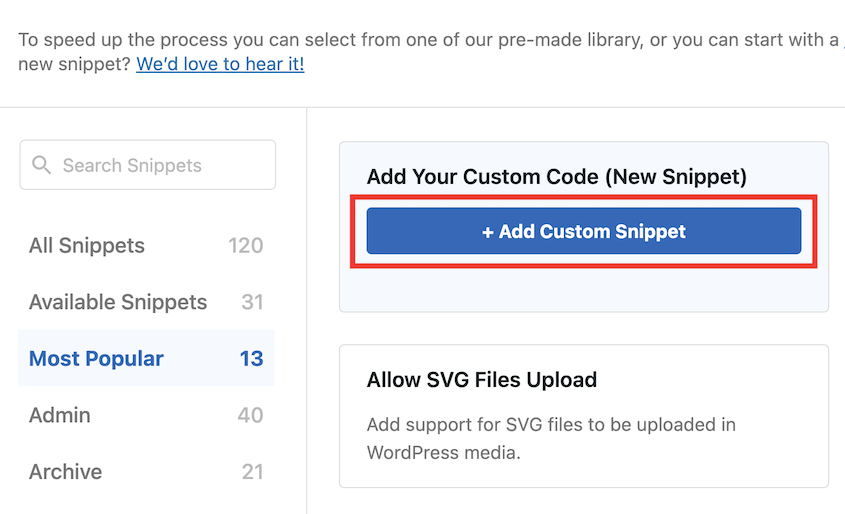
Installieren Sie WPCode und fügen Sie einen neuen benutzerdefinierten Codeausschnitt hinzu.
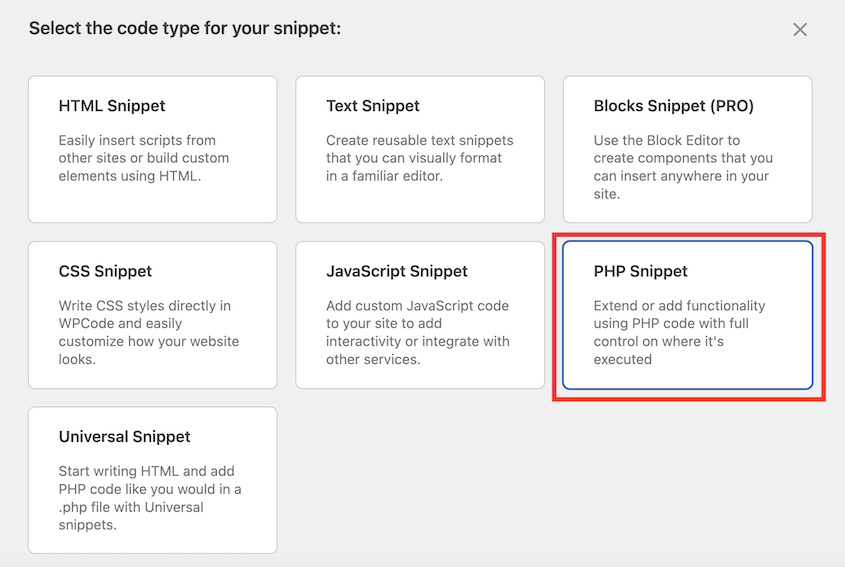
Wählen Sie als Codetyp „PHP-Snippet“ .
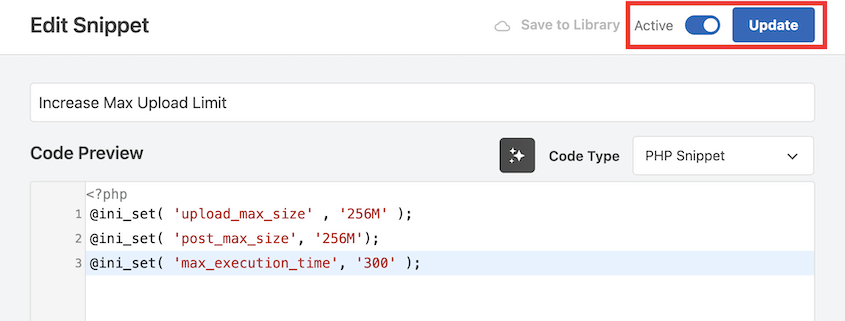
Fügen Sie im Editor diesen Code hinzu:
@ini_set( 'upload_max_size' , '256M' );

@ini_set( 'post_max_size', '256M');

@ini_set( 'max_execution_time', '300' );
Speichern und aktivieren Sie das Code-Snippet.
Methode 5: Code zur .htaccess-Datei hinzufügen
Eine weitere Möglichkeit, die Upload-Dateigröße zu erhöhen, besteht darin, die .htaccess-Datei zu ändern.
Stellen Sie dazu per FTP eine Verbindung zu Ihrer Website her. Suchen Sie die .htaccess-Datei in Ihrem WordPress-Stammverzeichnis.
Fügen Sie der Datei die folgenden Zeilen hinzu:
php_value upload_max_filesize 256M

php_value post_max_size 256M

php_value max_execution_time 300

php_value max_input_time 300
Speichern Sie die Datei und laden Sie sie wieder auf Ihren Server hoch.
Methode 6. Verwenden Sie ein Plugin, um die Upload-Größe von WordPress-Dateien zu erhöhen
Wenn Sie sich mit der direkten Bearbeitung von Dateien nicht wohlfühlen, können Sie ein WordPress-Plugin verwenden, um Ihr Upload-Limit zu erhöhen. EasyMedia (ehemals Increase Maximum Upload File Size) ist eine gute Option.
Nachdem Sie das Plugin aktiviert haben, gehen Sie zu Medien » EasyMedia. Wählen Sie eine höhere Upload-Größe und speichern Sie die Änderungen.
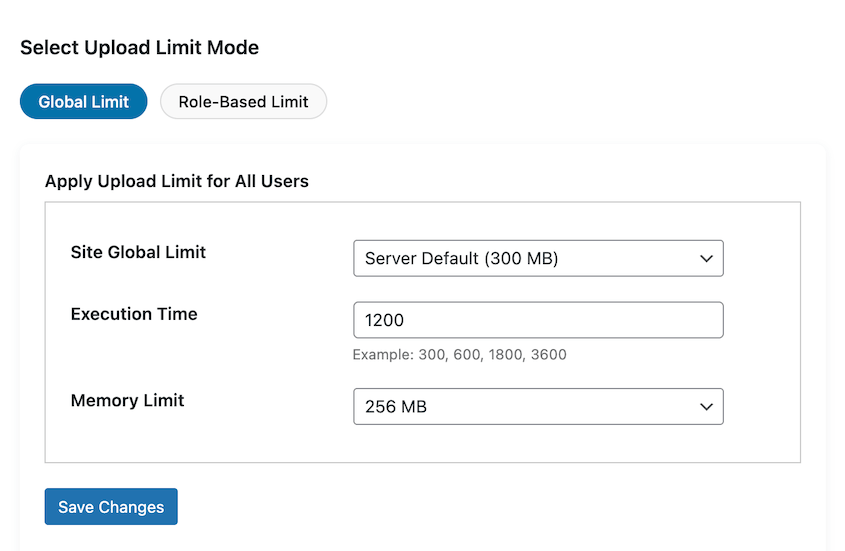
Das Plugin gibt Ihnen nur die maximale Datei-Uploadgröße, die Ihr Webhost zulässt. Wenn Sie mehr benötigen, wenden Sie sich an Ihren Hosting-Anbieter.
Methode 7: Erhöhen Sie die Datei-Uploadgröße in Multisite
Wenn Sie ein WordPress-Multisite-Netzwerk betreiben, können Sie die Datei-Uploadgröße direkt in Ihrem Dashboard erhöhen.
Melden Sie sich beim Netzwerkadministrator-Dashboard an. Klicken Sie auf Einstellungen » Netzwerkeinstellungen . Ändern Sie in den Upload-Einstellungen den Wert für die maximale Upload-Dateigröße .
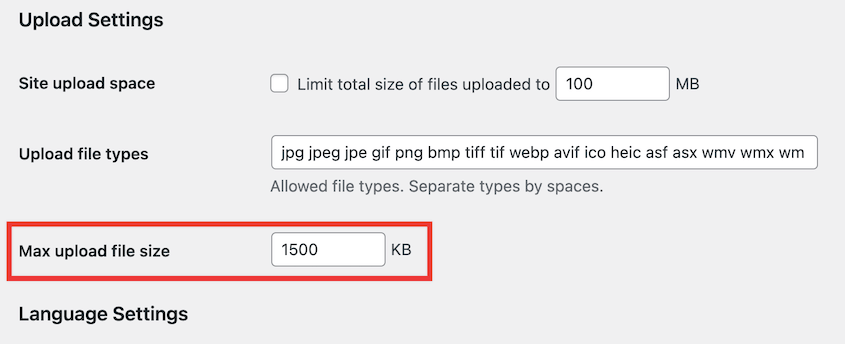
Wenn Sie diesen Wert höher einstellen, als Ihr Server zulässt, wird er von Ihrem Server ignoriert. Sie müssen sich daher möglicherweise auch an Ihren Hosting-Anbieter wenden, um das Limit für Ihr Multisite-Netzwerk zu erhöhen.
Häufig gestellte Fragen (FAQs)
Wie erhöhe ich die Upload-Größe in All-in-One WP Migration?
Die kostenlose Version von All-in-One WP Migration hat ein Datei-Upload-Limit von 512 MB. Wenn Sie diesen Wert erhöhen möchten, müssen Sie eine Erweiterung für 69 $ erwerben.
Wenn Sie Timeouts und Fehler bei Dateiuploadlimits vermeiden möchten, sollten Sie stattdessen Duplicator verwenden. Dieses Migrations-Plugin verfügt über ein benutzerdefiniertes Dateiformat (DupArchive), das für die Verarbeitung großer Dateiübertragungen entwickelt wurde.
Wie lade ich große Dateien in die WordPress-Medienbibliothek hoch?
Um große Dateien in Ihre Medienbibliothek hochzuladen, müssen Sie möglicherweise die maximale Datei-Uploadgröße erhöhen. Sie können dies tun, indem Sie Ihre php.ini-, functions.php- oder .htaccess-Datei bearbeiten. Sie können sich auch an Ihren Hosting-Anbieter wenden, um Hilfe zu erhalten.
Wie erhöhe ich die maximale Datei-Uploadgröße in cPanel?
Öffnen Sie in cPanel den MultiPHP INI-Editor. Suchen Sie nach upload_max_filesize und erhöhen Sie diesen Wert nach Bedarf. Speichern Sie Ihre Änderungen.
Bereit für unbegrenzte Uploads?
Einschränkungen beim Hochladen von Dateien müssen Sie nicht ausbremsen.
Für die meisten Anfänger ist es am einfachsten, sich zunächst an ihren Hosting-Anbieter zu wenden. Wenn Sie jedoch mit Dateien vertraut sind, können Sie durch Bearbeiten Ihrer php.ini-Datei oder Verwenden von WPCode zum Hinzufügen eines benutzerdefinierten Snippets mehr Kontrolle über Ihre Server-Einstellungen erlangen.
Und wenn Sie eine große Website migrieren und dabei an Upload-Limits stoßen, vergessen Sie nicht Duplicator. Das DupArchive-Format wurde entwickelt, um große Dateiübertragungen ohne die üblichen Fehler und Zeitüberschreitungen zu bewältigen.
Duplicator Pro bietet die zuverlässigste Möglichkeit, Ihre Website auf einen neuen Host zu übertragen, ohne Daten zu verlieren. Verwenden Sie es, um Beschränkungen beim Hochladen von Dateien zu vermeiden!
Während Sie hier sind, werden Ihnen diese zusätzlichen WordPress-Anleitungen bestimmt gefallen:
- So migrieren Sie eine große WordPress-Site
- So sichern Sie eine große WordPress-Site
- So migriert Ergo Creative große Websites in weniger als 20 Minuten
- So erhöhen Sie das Speicherlimit in WordPress
- WordPress-Debugging meistern: Von den Grundlagen bis zu fortgeschrittenen Techniken




