


How to Delete Duplicate Images in WordPress (And Reclaim Gigabytes of Server Space)
 Joella Dunn
Joella Dunn
Joella Dunn
 John Turner
John Turner
John Turner
You upload one photo to your WordPress site. Your server stores twelve versions of it.
This isn’t an exaggeration. WordPress automatically generates multiple sizes of every image you upload—thumbnail, medium, large, and sometimes several custom dimensions depending on your theme and plugins.
Add in the photos you’ve uploaded twice accidentally (we’ve all done it), and your media library becomes a bloated mess.
Once this happens, backup files will take forever to generate because they’re stuffed with redundant images. Hosting bills creep up because you’re paying for gigabytes of files that serve no purpose.
In this post, I’ll show you how to find and remove duplicate images in WordPress. We’ll look at automated tools that scan your content before deleting anything, and manual methods for smaller cleanup jobs.
Here are the key takeaways:
- WordPress automatically creates multiple sizes of every image (thumbnail, medium, large), often storing 4+ versions of a single upload
- Themes and plugins add their own custom image sizes that remain on your server even after you stop using them
- WP Media Cleanup scans your actual content to identify truly unused images and provides a 30-day recovery window
- Manual deletion only works for small cleanups and can’t detect unused generated thumbnails without FTP access
- Removing duplicate images reduces backup times, lowers hosting costs, and speeds up site migrations
Table of Contents
Why Does Your WordPress Site Have Duplicate Images?
Understanding how duplicates accumulate helps you prevent the problem from happening again.
- WordPress generates multiple sizes automatically.
Every time you upload an image, WordPress creates several copies at different dimensions. By default, that’s at least three versions: thumbnail (150×150), medium (300×300), and large (1024×1024). Your original file stays intact, but now you have four files on the server instead of one.
- You’re uploading “just in case” files.
Maybe you’re testing different crops of the same hero image. Or you upload a photo, edit it in Photoshop, then upload the revised version without deleting the original. These add up fast, especially on sites with multiple content creators.
- Plugins and themes register their own image sizes.
Install WooCommerce, and it creates product thumbnail sizes. Switch to a new theme, and it might need specific dimensions for featured images or gallery layouts.
Each of these tools tells WordPress, “I need images at this exact size,” and WordPress generates more files.
- Old theme files never go away.
When you switch themes, all those custom image sizes from your previous theme stay on your server forever.
You’re not using them anymore. They’re not displayed anywhere on your site. But they’re eating up disk space and inflating your backups, completely invisible until you go looking for them.
This happens on every WordPress site. The question isn’t whether you have unused images—it’s how many.
How to Delete Duplicate Images in WordPress
You have two options to delete duplicate WordPress images:
- Method 1: Delete Duplicate Images with a Plugin: WP Media Cleanup scans content, identifies unused variations, includes 30-day recovery
- Method 2: Manually Delete Duplicate Images: Works for small sites and obvious duplicates only
Method 1: Delete Duplicate Images with a Plugin
WP Media Cleanup is a new tool from the Duplicator team that finds and removes unused image files. Unlike basic media cleaners, it doesn’t just scan your uploads folder and guess what’s safe to delete.
It scans your actual content. Posts, pages, widgets, theme customizer settings, Advanced Custom Fields, meta boxes—anywhere an image might be referenced.
This matters because an image can be unattached in the Media Library but still actively used as your site logo or in a custom field.
The plugin targets unused generated sizes specifically. Remember those image-300×300.jpg and image-1024×1024.jpg variations? If your content only uses the full-size original, WP Media Cleanup identifies the unused thumbnails and medium sizes as safe to remove. Your original file stays untouched.
To use it, simply scan for unused variations.
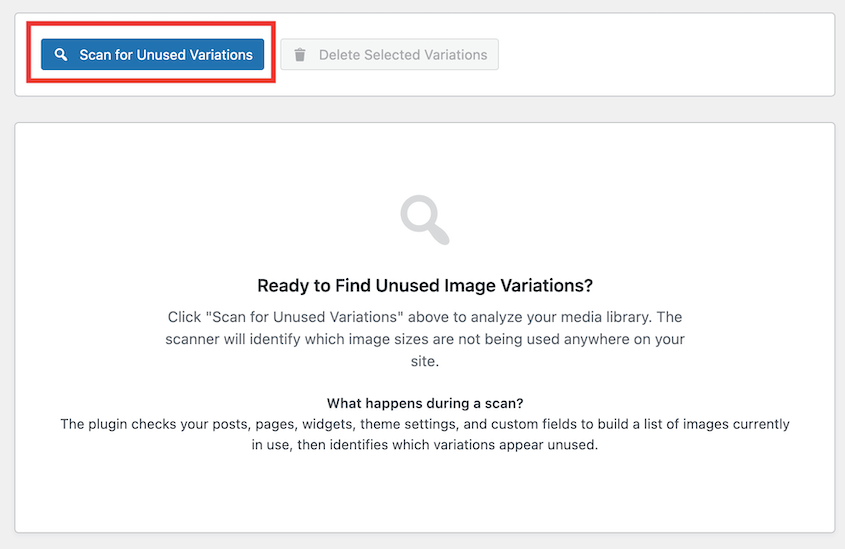
WP Media Cleanup will give you a list of every unused image on your site. Delete them individually or hit Delete All.
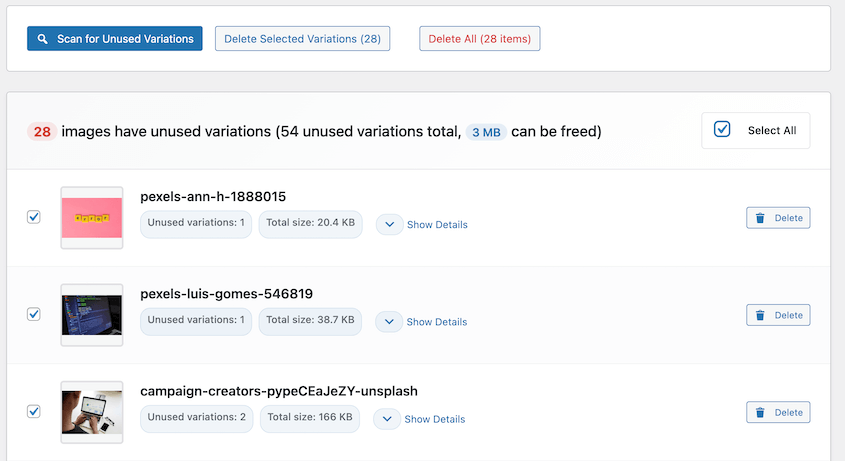
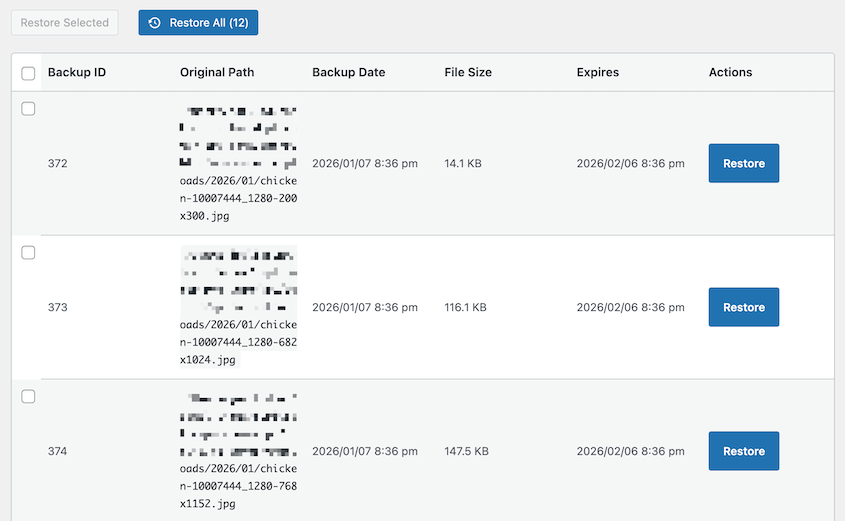
Most cleanup plugins delete files immediately. WP Media Cleanup moves them to a temporary directory first.
You get a 30-day recovery window. If you delete a batch of files and later discover a client’s favorite photo is missing from an old landing page, you can restore it with one click.
For agencies managing multiple sites, WP Media Cleanup includes WP-CLI support. You can’t manually click through dashboards when you’re responsible for 50+ WordPress installations.
Instead, run wp media-cleanup find_unused --format=table to analyze a site, review the results, then wp media-cleanup delete_unused --yes from your terminal. Scriptable, repeatable, fast.
The practical benefit shows up immediately in your backups. Smaller sites mean faster migrations, quicker restores, and lower hosting costs. Reclaiming 2-3 GB of unused thumbnails can cut your backup file size in half.
Method 2: Manually Delete Duplicate Images
Manual deletion only makes sense for very small sites or fixing obvious mistakes—like when you’ve just uploaded the same file twice in a row and caught it immediately.
Go to your WordPress dashboard and navigate to Media » Library. Switch to List View instead of the default grid. List view shows full filenames, making it easier to spot duplicates.
Click the File column header to sort alphabetically. Now scan for patterns: header.jpg followed by header-1.jpg, or product-photo.jpg next to product-photo-copy.jpg. These are your user-error duplicates.
Be careful with the Unattached filter. The media library has a dropdown that lets you filter by unattached files. This sounds useful, but it’s misleading.
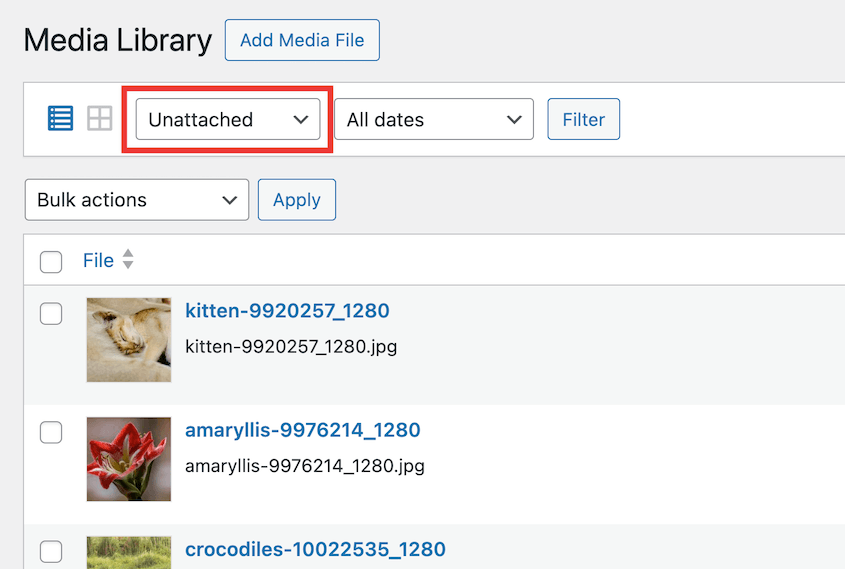
Unattached doesn’t mean unused. It means the image wasn’t uploaded directly through a post or page editor.
Your site logo, sidebar background image, and custom header in your theme options are all unattached. Deleting everything in this filter might break your site.
The bigger problem: You can’t see generated thumbnails in the Media Library interface. When you look at an image, you’re only seeing the parent file. All those variations exist on your server, but WordPress doesn’t show them to you here.
To delete specific thumbnail sizes manually, you need FTP or SFTP access to your server. You’d navigate to /wp-content/uploads/, dig through year and month folders, and delete individual files by name. It’s technical, error-prone, and frankly not worth the time for most site owners.
Frequently Asked Questions (FAQs)
How do I delete images from the WordPress media library?
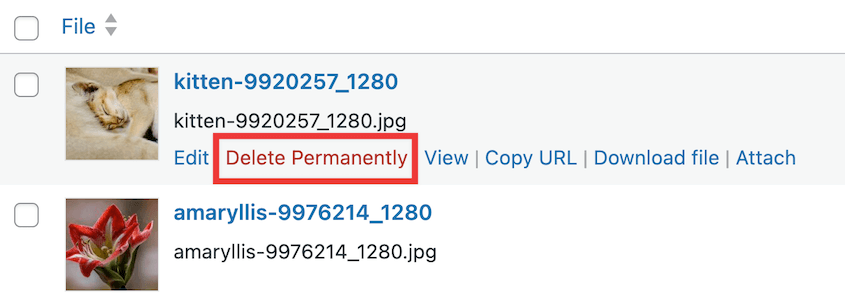
Go to Dashboard » Media » Library and hover over any image to see the Delete Permanently option. For multiple files, check the boxes next to the images you want to remove, then choose Delete Permanently from the Bulk actions menu.
Alternatives: Other popular media cleanup plugins include Media Deduper and Media Cleaner. In my experience, WP Media Cleanup works faster, safer, and more accurately.
Will deleting images break my site?
Yes, if the image is still linked in your content, widgets, or theme settings. This is why manual deletion is risky—you can’t easily see where files are being used. It’s safer to use a plugin like WP Media Cleanup that scans for unused references across your site.
What is the difference between unattached and unused images?
Unattached means the file wasn’t uploaded through a post or page editor, but it could still be your logo or a widget image. Unused means the file has zero references in your database—no posts, pages, or settings are calling it. Never delete based on Unattached status alone.
How do I stop WordPress from creating duplicate image sizes?
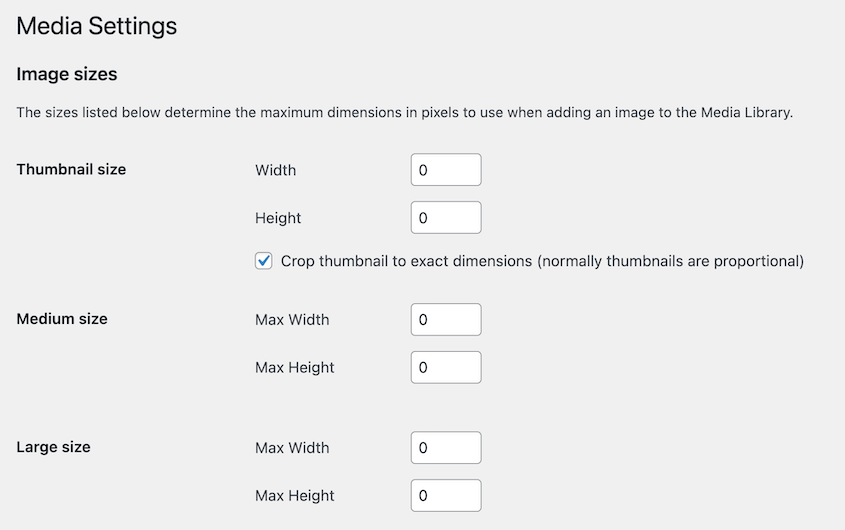
Go to Settings » Media in your WordPress dashboard and set the thumbnail, medium, and large dimensions to 0. Keep in mind that active themes and plugins can override these settings and register their own custom sizes regardless of what you configure here.
Keep Your Media Library Clean
A clean media library boosts performance, keeps backups manageable, and prevents you from paying for unnecessary server resources.
When you’re moving a WordPress site, every gigabyte counts. A backup file stuffed with 3 GB of unused thumbnails takes longer to generate, longer to download, and longer to restore on the new server. Cleaning your images first is the fastest way to shrink that backup.
The same principle applies to your hosting costs. If you’re paying for storage tiers based on disk usage, those forgotten image variations are costing you real money every month.
Stop storing files you’ll never use again. WP Media Cleanup gives you the scanner and safety net you need to remove duplicates without breaking anything. It’s available as a standalone plugin or included in the Duplicator Elite bundle.
While you’re here, I think you’ll like these other related WordPress resources:
- [NEW] WP Media Cleanup Deletes Unused Images Hiding in Your Media Library
- How to Clean Up a WordPress Site
- How to Download the WordPress Media Library
- How to Restore the WordPress Media Library
- WordPress Media Library Not Showing Images? Fix It in Under 15 Minutes




