


Checklist per la migrazione SEO: 10 passaggi per il successo nel 2026
 Joella Dunn
Joella Dunn
Joella Dunn
 John Turner
John Turner
John Turner
La migrazione del tuo sito WordPress non deve significare sacrificare il tuo posizionamento sui motori di ricerca. Con la strategia giusta, puoi preservare (e persino migliorare) la tua SEO durante l'intero processo.
Probabilmente hai impiegato anni per costruire il tuo sito e scalare i risultati di ricerca. Il pensiero di perdere tutti questi progressi durante uno spostamento del sito può essere scoraggiante, e a ragione.
In questa guida, ti accompagnerò attraverso una checklist completa per la migrazione SEO, dalla pianificazione pre-spostamento ai controlli critici post-lancio.
Sia che tu stia passando a un nuovo dominio o cambiando piattaforma, imparerai come proteggere il tuo traffico organico e mantenere la visibilità.
Ecco i punti chiave:
- Uno spostamento di successo richiede la definizione di una chiara tempistica e l'ambito per prevenire la perdita di traffico.
- Dovrai registrare le metriche SEO attuali prima di spostarti per misurare accuratamente il successo della migrazione.
- L'utilizzo di plugin come Duplicator e MonsterInsights semplifica le attività tecniche e il tracciamento dei dati.
- L'implementazione di reindirizzamenti 301 e l'esecuzione di audit post-lancio sono non negoziabili per preservare l'autorità dei link.
- Notificare Google tramite Search Console è il passo finale per garantire una rapida reindicizzazione.
Indice
- Cos'è una Migrazione del Sito?
- Come possono le migrazioni influire sulla SEO e sui posizionamenti?
- Cos'è una Migrazione SEO del Sito?
- Perché è importante la Migrazione SEO?
- SEO Migration Checklist: 10 Steps to Protect Your Rankings
- 1. Pianifica la Migrazione SEO
- 2. Preparati per la tua Migrazione Specifica
- 3. Registra i tuoi Punti di Riferimento Attuali
- 4. Crea una Copia (Backup) del tuo Sito
- 5. Aggiorna il tuo File Hosts per Zero Downtime
- 6. Crea un Nuovo Database
- 7. Importa il tuo Sito Web
- 8. Implementa Reindirizzamenti 301 per URL Vecchi
- 9. Esegui un Audit SEO
- 10. Informa Google sulla Migrazione
- Punti Chiave: Checklist per la Migrazione SEO
- Suggerimenti Post-Migrazione
- Frequently Asked Questions (FAQs)
Cos'è una Migrazione del Sito?
Una migrazione del sito web comporta lo spostamento dell'intero sito WordPress in una posizione diversa. A seconda dei tuoi obiettivi, questa potrebbe essere un nuovo server, un provider di hosting o un nome di dominio.
Ecco i diversi tipi di migrazioni:
- Aggiornamento Dominio o Sottodominio: Modifica dell'indirizzo principale del tuo sito web (da olddomain.com a newdomain.com) spesso per rebranding o consolidamento.
- Upgrade Piano di Hosting: Spostamento verso un nuovo host web o server per supportare un pubblico in crescita o migliorare le prestazioni.
- Modifica Struttura o Design del Sito: Riprogettazione o ristrutturazione di un sito web, spesso migrandolo prima in un ambiente di staging per implementare in sicurezza modifiche importanti prima di metterle online.
- Migrazione da HTTP a HTTPS: Transizione da una struttura di URL HTTP non sicura a un URL HTTPS sicuro, che richiede un certificato SSL.
- Migrazione del Sistema di Gestione dei Contenuti (CMS): Spostamento del tuo sito web su una nuova piattaforma o framework (come passare da WordPress.com a WordPress.org) per migliorare la sicurezza, la funzionalità o le prestazioni.
Come possono le migrazioni influire sulla SEO e sui posizionamenti?
Una migrazione del sito web è un'impresa significativa che può avere effetti sia immediati che a lungo termine sulla tua ottimizzazione per i motori di ricerca (SEO) e sui posizionamenti nei motori di ricerca.
Potenziali Impatti Negativi:
- Diminuzione Temporanea del Traffico Organico: Google deve reindicizzare il tuo sito WordPress, il che può portare a un calo a breve termine del traffico organico.
- Errori Tecnici: Un'esecuzione impropria può causare problemi critici come link interrotti, errori 404, immagini mancanti o contenuti duplicati.
- Aumento del Bounce Rate: Gli errori portano a un bounce rate più elevato, segnalando un'esperienza utente (UX) scadente ai motori di ricerca e potenzialmente danneggiando la tua posizione nei risultati dei motori di ricerca (SERP).
Potenziali Impatti Positivi:
- Miglioramento delle Prestazioni del Sito: La migrazione verso un hosting web migliore può aumentare drasticamente la velocità del sito e i tempi di caricamento, che sono fattori di posizionamento cruciali.
- Miglioramento dell'Esperienza Utente (UX): Un restyling del sito o un cambiamento strutturale ben eseguito possono migliorare significativamente la navigazione del sito, l'estetica e la soddisfazione generale dell'utente.
- Guadagni SEO a Lungo Termine: Sebbene possano verificarsi cali iniziali, i benefici a lungo termine di prestazioni e esperienza utente migliorate portano spesso a posizionamenti più elevati nei motori di ricerca e a un aumento del traffico organico.
Un approccio completo e pianificato in anticipo è fondamentale per minimizzare gli impatti negativi e massimizzare i benefici SEO della tua migrazione.
Cos'è una Migrazione SEO del Sito?
La migrazione SEO del sito è il processo di trasferimento di un sito web (verso un nuovo dominio, host o CMS) preservando i suoi posizionamenti esistenti nei motori di ricerca, il traffico organico e il valore SEO stabilito.
L'obiettivo è trasferire tutta l'equità SEO, minimizzare le interruzioni e garantire una visibilità continua e elevata nei motori di ricerca.
Perché è importante la Migrazione SEO?
La migrazione SEO protegge i posizionamenti guadagnati duramente dal tuo sito web nei motori di ricerca e il traffico organico durante il trasferimento dei dati a un nuovo dominio, provider di hosting o server.
Senza una corretta strategia di migrazione SEO:
- Rischierai cali significativi nella visibilità dei motori di ricerca a causa di link interrotti, pagine mancanti e problemi di indicizzazione dei contenuti.
- Potrebbero andare persi preziosi backlink e l'autorità stabilita.
- L'esperienza utente può essere gravemente compromessa, portando a tassi di rimbalzo più elevati.
D'altra parte, una migrazione SEO ben eseguita garantisce la continuità e può persino migliorare le prestazioni del tuo sito dopo lo spostamento.
Checklist Migrazione SEO: 10 Passaggi per Proteggere i Tuoi Posizionamenti
Sia che tu gestisca un blog o un negozio e-commerce, migrare i tuoi contenuti senza perdere la SEO può essere complicato. Ma non devi essere un esperto di SEO tecnica, marketing digitale o sviluppo web.
Per rendere il processo di migrazione adatto ai principianti, ho creato una checklist per la migrazione del sito web.
Seguendo questi passaggi, trasferirai rapidamente il tuo sito in un'altra posizione mantenendo il suo traffico di ricerca e le conversioni!
- 1. Pianifica la Migrazione SEO
- 2. Preparati per la tua Migrazione Specifica
- 3. Registra i tuoi Punti di Riferimento Attuali
- 4. Crea una Copia (Backup) del Tuo Sito
- 5. Aggiorna il tuo File Hosts per Zero Downtime
- 6. Crea un Nuovo Database
- 7. Importa il tuo Sito Web
- 8. Implementa Reindirizzamenti 301 per URL Vecchi
- 9. Esegui un Audit SEO
- 10. Informa Google sulla Migrazione
1. Pianifica la Migrazione SEO
Una pianificazione efficace è la chiave per ogni migrazione SEO di successo. Questa fase iniziale definisce l'intero processo.
- Definisci Obiettivi e Ambito della Migrazione: Articola chiaramente perché stai migrando (ad es. nuovo dominio, host, CMS o lavoro su sito di staging) e quali dati verranno spostati con precisione.
- Stabilisci una Tempistica Realistica: Imposta scadenze raggiungibili per ogni fase della migrazione.
- Coinvolgi gli Stakeholder Chiave: Informa tutti i membri del team pertinenti (sviluppatori, marketing, creatori di contenuti).
- Scegli una Data di Migrazione: Seleziona un periodo di traffico organico e coinvolgimento degli utenti storicamente basso. Ciò riduce al minimo le potenziali interruzioni per il tuo pubblico e diminuisce l'impatto di eventuali problemi imprevisti.
2. Preparati per la tua Migrazione Specifica
Il passaggio successivo dipenderà dal tipo di spostamento che stai intraprendendo. Esaminiamo alcuni scenari comuni.
- Migrazione di un Nuovo Dominio: Ottieni il tuo nuovo nome di dominio da un registrar di domini affidabile o dal tuo nuovo provider di hosting.
- Migrazione a un Nuovo Host: Ricerca e seleziona un provider di hosting e un piano di hosting affidabili che soddisfino le esigenze di prestazioni del tuo sito.
- Modifica della Struttura/Design del Sito: Crea un sito di staging per implementare e testare in sicurezza modifiche strutturali o di design importanti senza influire sul tuo sito web live.
- Migrazione HTTPS: Acquista e installa un certificato SSL dal tuo web host per abilitare il protocollo HTTPS sicuro.
- Cambio di Piattaforma (CMS): Seleziona il tuo nuovo sistema di gestione dei contenuti (CMS) e imposta gli account necessari e le configurazioni iniziali.
3. Registra i tuoi Punti di Riferimento Attuali
Prima di iniziare qualsiasi migrazione, dovresti acquisire un'istantanea delle metriche di rendimento attuali del tuo sito web.
Questi dati pre-migrazione serviranno come benchmark per valutare il successo e l'impatto del tuo spostamento.
Raccogli metriche chiave di rendimento SEO con MonsterInsights
Per ottenere analisi in tempo reale per il tuo sito, ti consiglio di installare MonsterInsights. Questo plugin integra perfettamente Google Analytics con la tua dashboard di WordPress.
MonsterInsights semplifica il monitoraggio della salute e della visibilità del tuo sito. Otterrai report dettagliati sui principali indicatori di rendimento SEO come:
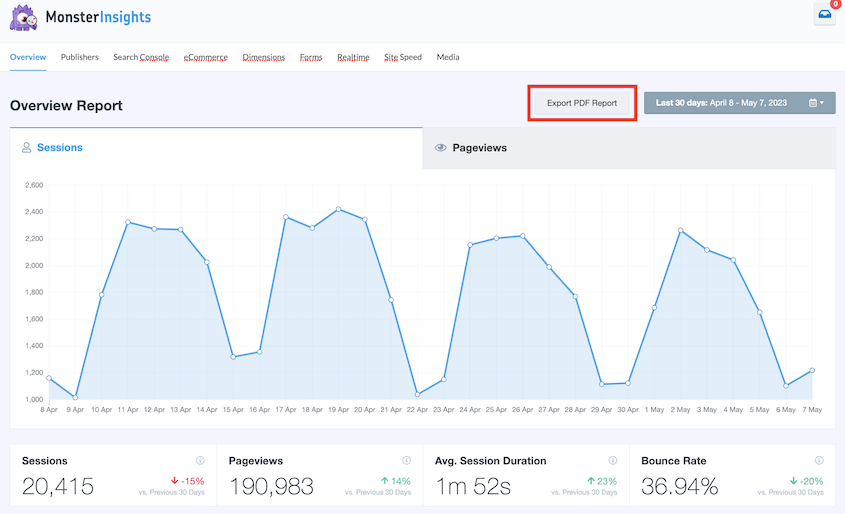
- Traffico Organico: Tieni traccia di utenti, sessioni e visualizzazioni di pagina.
- Velocità della Pagina: Rivedi i Core Web Vitals e i tempi di caricamento complessivi.
- Posizionamento delle Parole Chiave: Utilizza la scheda Search Console per identificare le tue pagine e le posizioni delle parole chiave con il ranking più alto.
Per salvare queste informazioni, premi semplicemente Esporta report PDF all'interno di MonsterInsights. Questo assicura che le prestazioni SEO pre e post migrazione siano documentate e facili da confrontare.
4. Crea una Copia (Backup) del Tuo Sito
Un backup completo del tuo sito WordPress ha due scopi: è il file sorgente per la tua migrazione, ma crea anche una rete di sicurezza per il recupero.
Potresti scaricare manualmente i tuoi file e il database, ma questo è un processo complicato. Ci sono molti modi per rompere accidentalmente il tuo sito, quindi un'opzione migliore è utilizzare un plugin di backup e migrazione di WordPress.
Duplicator è il mio strumento preferito per il backup e la migrazione di siti web WordPress. Raggruppa i tuoi file WordPress e il database in un unico file zip in pochi minuti. Quindi, Duplicator ti consente di trascinare e rilasciare semplicemente questo backup in un nuovo sito.
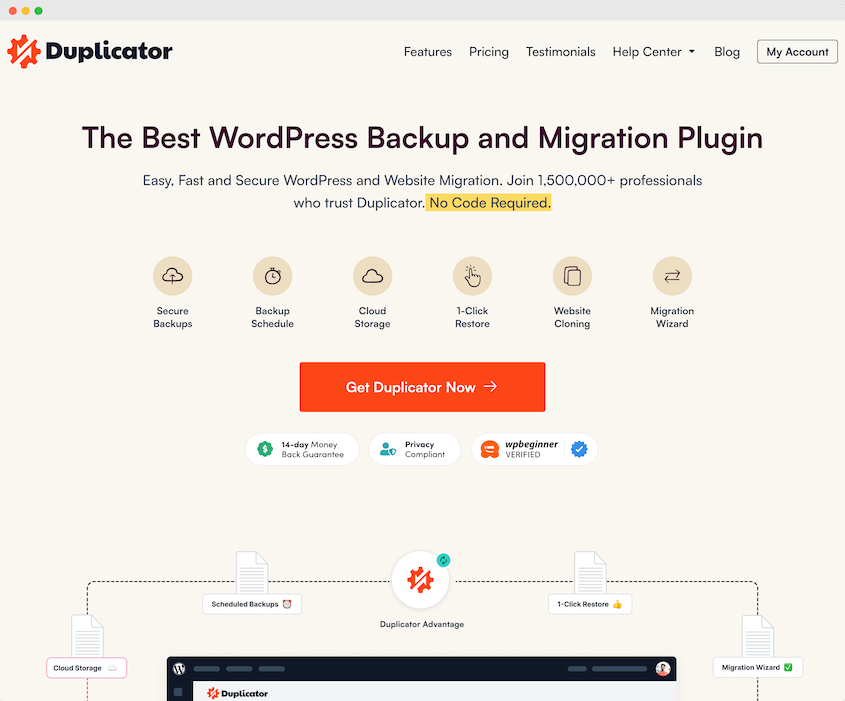
Funzionalità chiave di Duplicator Pro:
- Backup manuali e automatici
- Ripristino backup con 1 clic
- Supporto per posizioni di archiviazione di backup cloud
- Migrazioni drag-and-drop
- Procedura guidata di migrazione WordPress passo-passo
- Funzionalità integrata di ricerca e sostituzione personalizzata.
- Compatibilità con reti Multisite e siti web di grandi dimensioni.
- Archiviazione cloud Duplicator (fino a 150 GB)
- Plugin gratuito WP Media Cleanup con Elite
Riepilogo rapido: Come eseguire il backup sicuro del tuo sito con Duplicator
- Installa e attiva Duplicator Pro.
- Crea un nuovo backup.
- Dai un nome al backup e seleziona la posizione di archiviazione.
- Escludi i file non necessari per mantenere il backup snello.
- Scansiona il sito e scarica l'archivio di backup completo.
Per iniziare, seleziona un abbonamento per Duplicator Pro. Potresti scegliere la versione gratuita, ma un piano premium supporta le migrazioni drag-and-drop. Questo rende molto più facile migrare il tuo sito web senza danneggiare la SEO.
Dopo l'acquisto, apri la tua dashboard di WordPress e installa Duplicator.
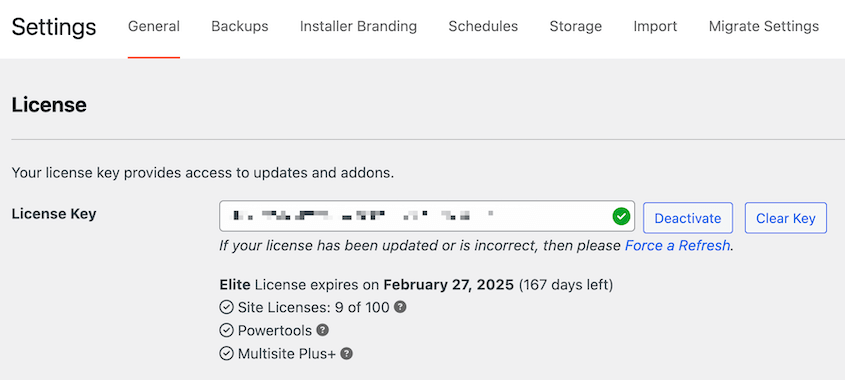
Quindi, vai su Impostazioni » Generali. Incolla la tua chiave di licenza e premi Attiva.
Sul tuo sito web, ci sono molti plugin, temi, file multimediali e tabelle di database diversi. Invece di spostare tutti questi dati separatamente, puoi combinarli in un unico file zip.
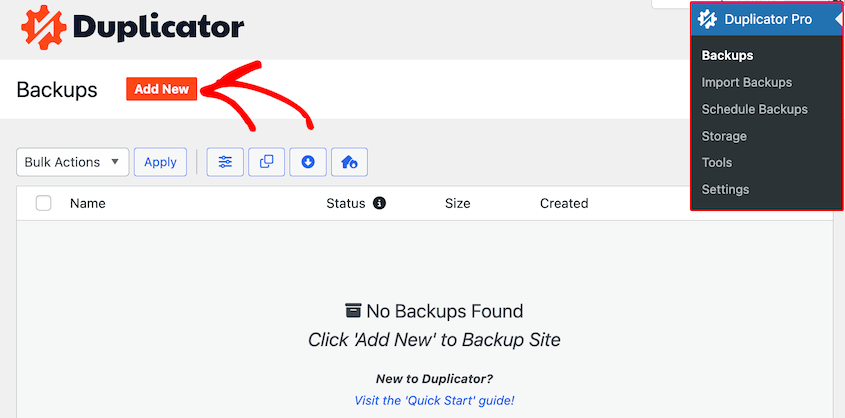
Per prima cosa, vai su Duplicator Pro » Backup » Aggiungi nuovo.
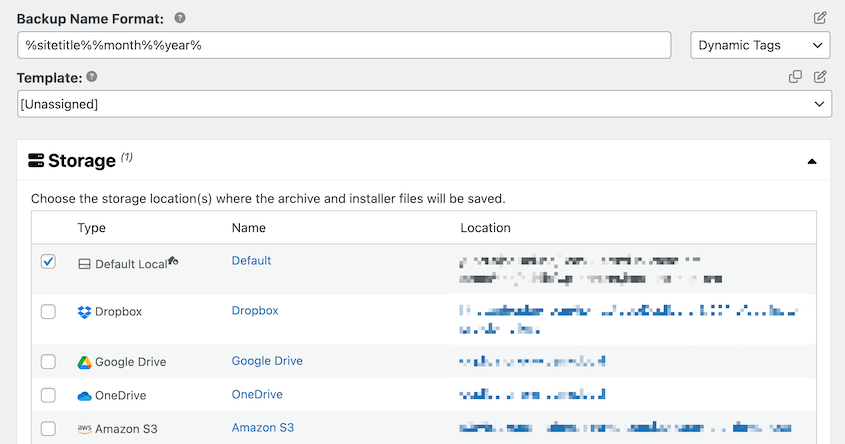
Dai un nome al backup. Sebbene Duplicator supporti molte posizioni di archiviazione cloud, salva il backup sul tuo server locale.
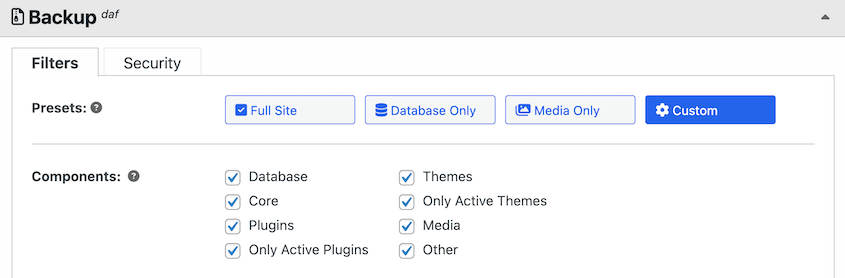
Una migrazione tipica sposterà tutti i file del tuo sito e le informazioni del database nella nuova posizione. Tuttavia, potresti voler pulire il tuo sito web migrando solo i dati necessari.
Ad esempio, puoi scegliere di eseguire il backup solo dei plugin attivi e dei temi attivi. Escludendo gli strumenti inattivi, rimuoverai tutto ciò che normalmente non usi.
Dopo aver premuto Avanti, Duplicator scansionerà l'intero sito per eventuali problemi. Questo assicura che la migrazione proceda senza intoppi.
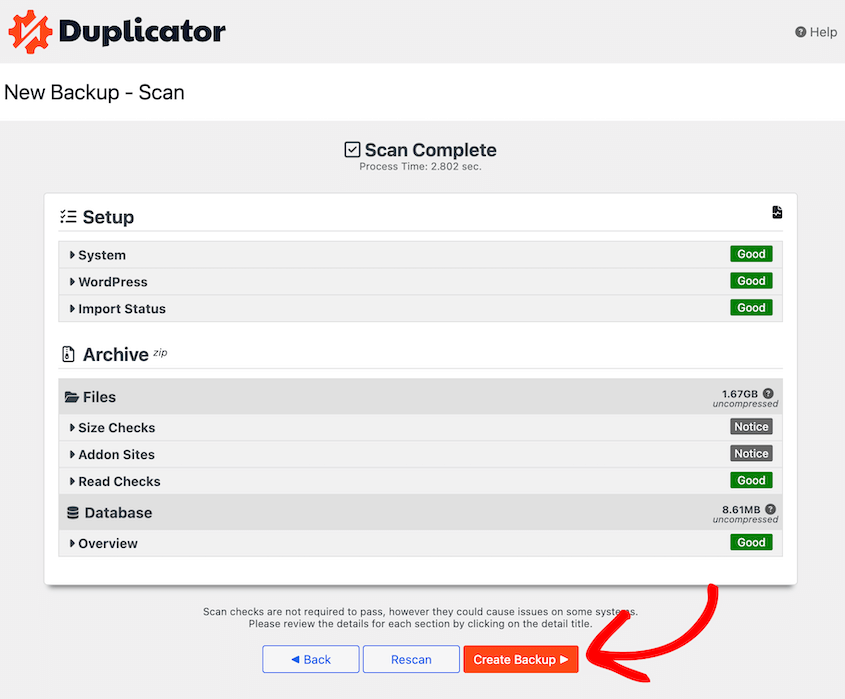
Una volta terminata la creazione del backup, dovrai scaricarlo. Riapri la pagina Backup e individua quello che hai appena creato.
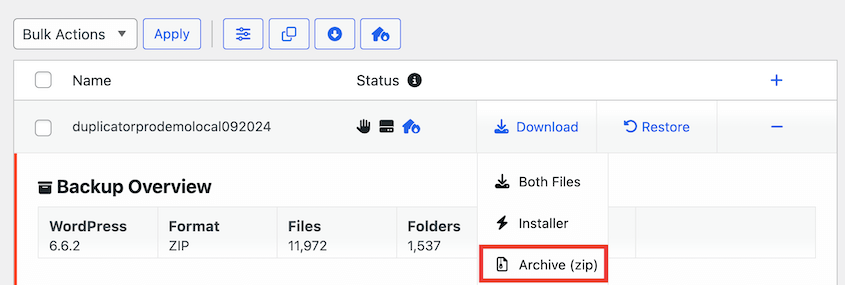
Seleziona Download » Archive.
Ora hai un backup del tuo sito WordPress che puoi ripristinare se necessario. Questa copia completa è anche il primo passo nella migrazione SEO!
5. Aggiorna il tuo File Hosts per Zero Downtime
Minimizzare i tempi di inattività durante una migrazione SEO mantiene il tuo sito accessibile sia agli utenti che ai crawler dei motori di ricerca, prevenendo qualsiasi impatto negativo sui tuoi ranking.
Per una migrazione a tempo di inattività zero, puoi aggiungere una voce al file hosts del tuo computer. Essenzialmente, questo file mappa i tuoi nomi host agli indirizzi IP.
Cos'è un file Hosts?
Un file hosts è un file del computer locale che mappa i nomi host (come www.tuodominio.com) ai loro corrispondenti indirizzi IP (Internet Protocol). Modificandolo, puoi indirizzare il tuo computer al nuovo server prima che le modifiche DNS si propaghino a livello globale.
Ecco Come Aggiornare il Tuo File Hosts in 4 Semplici Passaggi:
1. Trova l'Indirizzo IP del Tuo Nuovo Host
Per prima cosa, individua l'indirizzo IP del tuo nuovo provider di hosting. Questo varierà in base al tuo web host, ma gli utenti Bluehost possono trovarlo sotto Informazioni Generali.
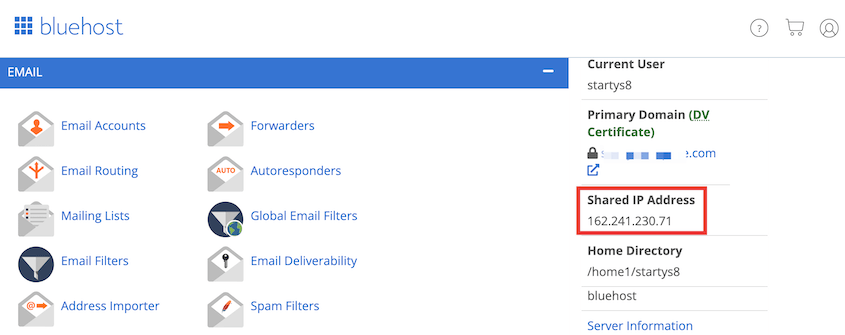
2. Apri il Tuo File Hosts
Successivamente, apri il tuo file hosts. Su Mac, puoi usare Terminal per eseguire questo comando:
sudo nano /private/etc/hosts
3. Aggiungi una Nuova Voce Hosts
Vai in fondo al file e aggiungi una nuova voce con il tuo nuovo indirizzo IP e il nome del tuo vecchio dominio, in questo modo:
192.168.1.22 www.example.com
4. Salva e Rimuovi Dopo la Migrazione
Infine, salva il file. Ricorda, questa voce dovrebbe rimanere solo mentre stai migrando il tuo sito. Eliminala una volta completata la migrazione.
6. Crea un Nuovo Database
Un database fresco è essenziale sul tuo nuovo server di hosting per ospitare i contenuti e le impostazioni del tuo sito WordPress.
Se non l'hai già fatto, dovrai creare un nuovo database sul server verso cui stai migrando. Di solito puoi farlo nella dashboard del tuo hosting.
Ecco come creare un nuovo database passo dopo passo prima di migrare il tuo sito WordPress:
1. Crea un Nuovo Database
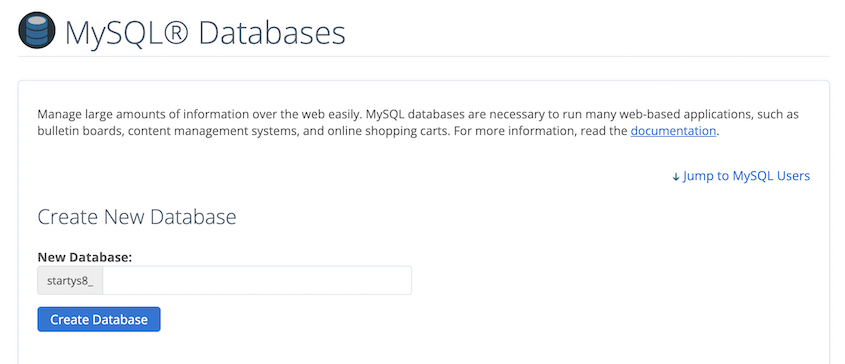
Se non l'hai già fatto, crea un nuovo database sul tuo nuovo server. Questo viene solitamente fatto tramite la dashboard del tuo hosting. Ad esempio, gli utenti Bluehost possono trovare questa opzione sotto Database MySQL.
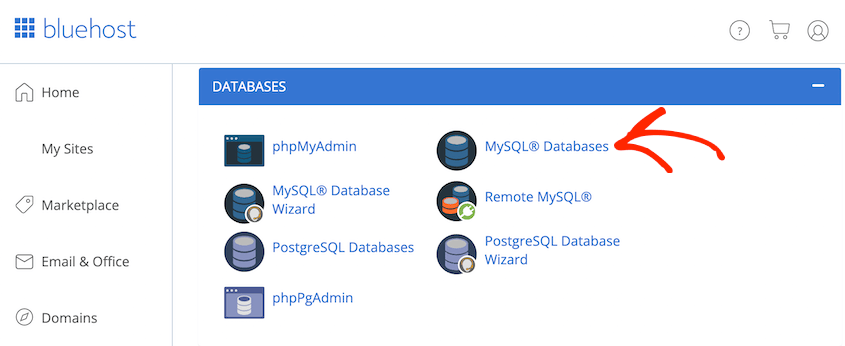
2. Dai un Nome al Tuo Database
Inserisci un nome per il tuo nuovo database e fai clic su Crea Database per configurarlo.
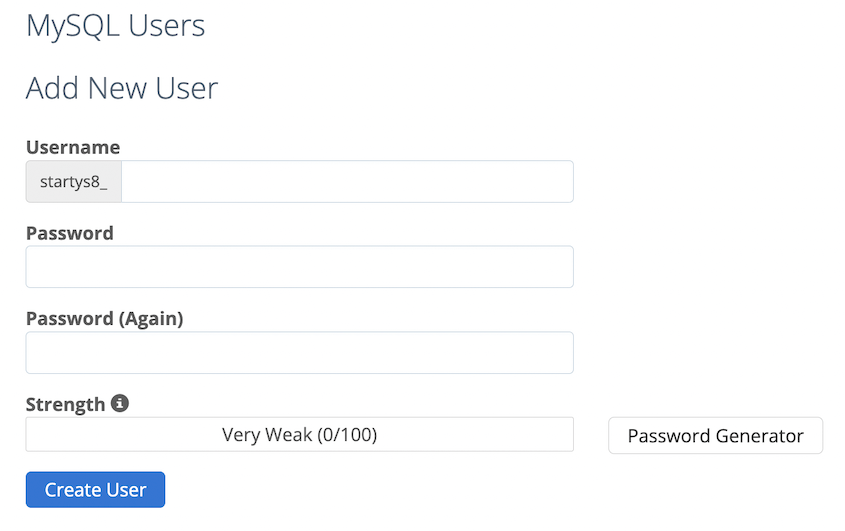
3. Crea un Nuovo Utente per il Database
Successivamente, individua la sezione MySQL Users e crea un nome utente e una password per un nuovo utente del database.
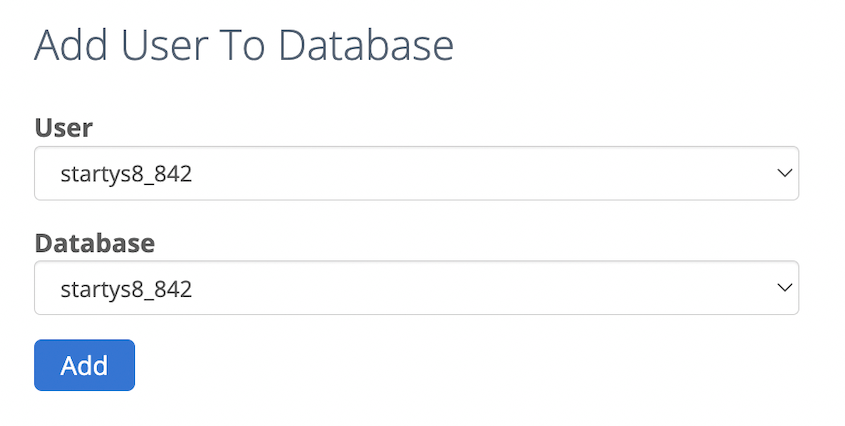
4. Assegna Utente al Database
Infine, aggiungi il nuovo utente al tuo database appena creato e concedi tutte le autorizzazioni.
Una volta completati questi passaggi, sarai pronto per migrare il tuo sito!
7. Importa il tuo Sito Web
Con il tuo nuovo database pronto, è ora di importare il contenuto del tuo sito web. Duplicator Pro semplifica notevolmente questo processo.
Riepilogo Rapido: Come Importare il Tuo Sito WordPress con Duplicator
- Installa Duplicator sul tuo nuovo sito per prepararti all'importazione.
- Carica il tuo file di backup nella pagina Import Backups.
- Connettiti al nuovo database per completare la configurazione del sito.
- Aggiorna gli URL, se necessario, utilizzando la funzione di ricerca e sostituzione.
- Finalizza la migrazione ed effettua l'accesso alla tua nuova dashboard.
Per importare il tuo vecchio sito web sul nuovo server, installa Duplicator sul secondo sito. Quindi, apri la pagina Import Backups.

Trascina il file di backup che hai scaricato in precedenza in questa casella di importazione. Una volta pronto per l'installazione, fai clic su Continue.
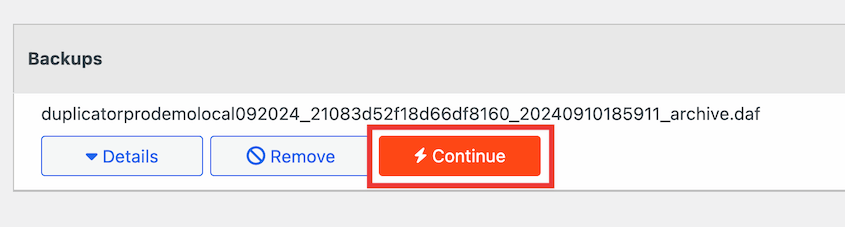
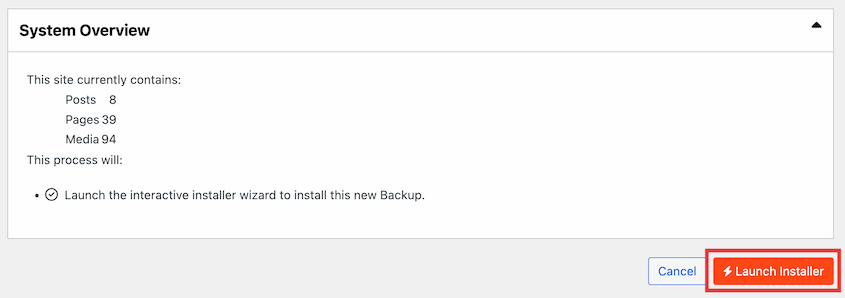
Dovrai fare clic su Launch Installer per confermare che desideri sostituire tutto sul sito corrente.
Se non desideri installare WordPress, puoi caricare i file dell'archivio e dell'installer direttamente sul nuovo server.
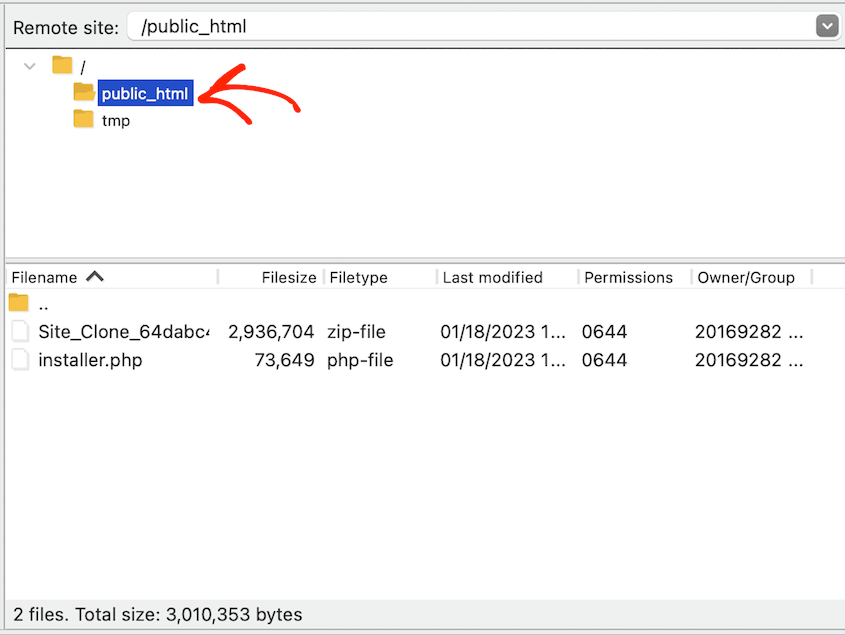
Per avviare l'installer, tutto ciò che devi fare è visitare questo URL: https://your-domain/installer.php
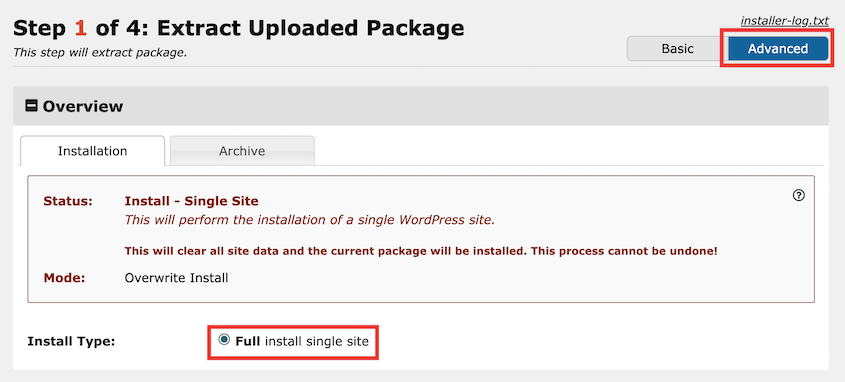
Prima di continuare con l'installazione, fai clic sull'opzione Advanced nella parte superiore della pagina. Assicurati che il tipo di installazione sia Full install single site.
Sotto Setup, compila le informazioni per il nuovo database.
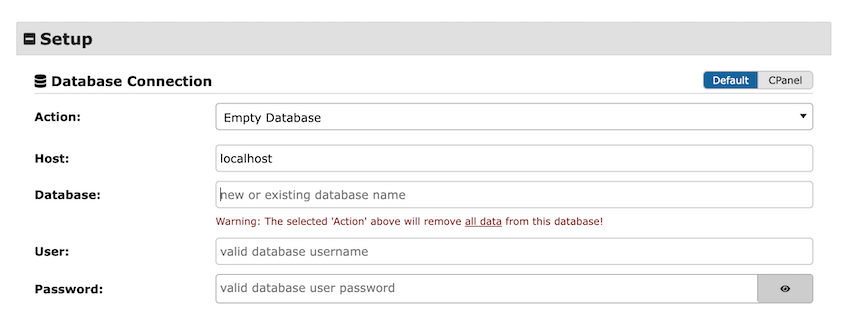
Quindi, fai clic su Validate. Accetta i termini e gli avvisi e fai clic su Next.
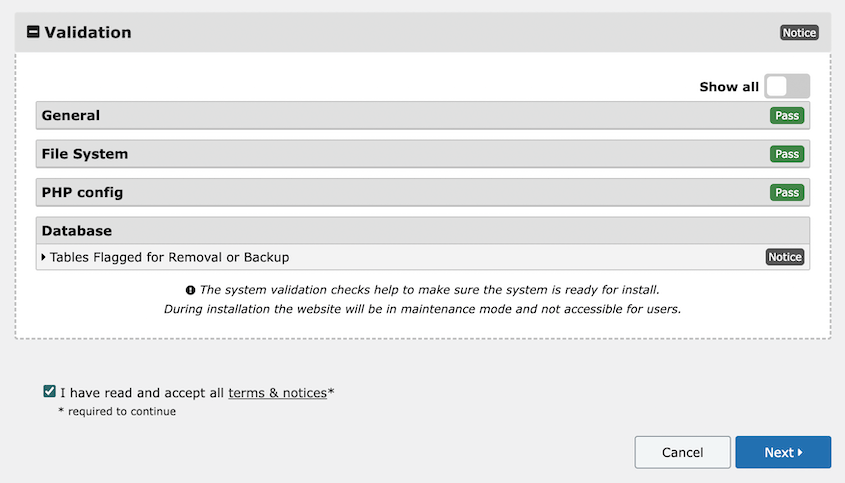
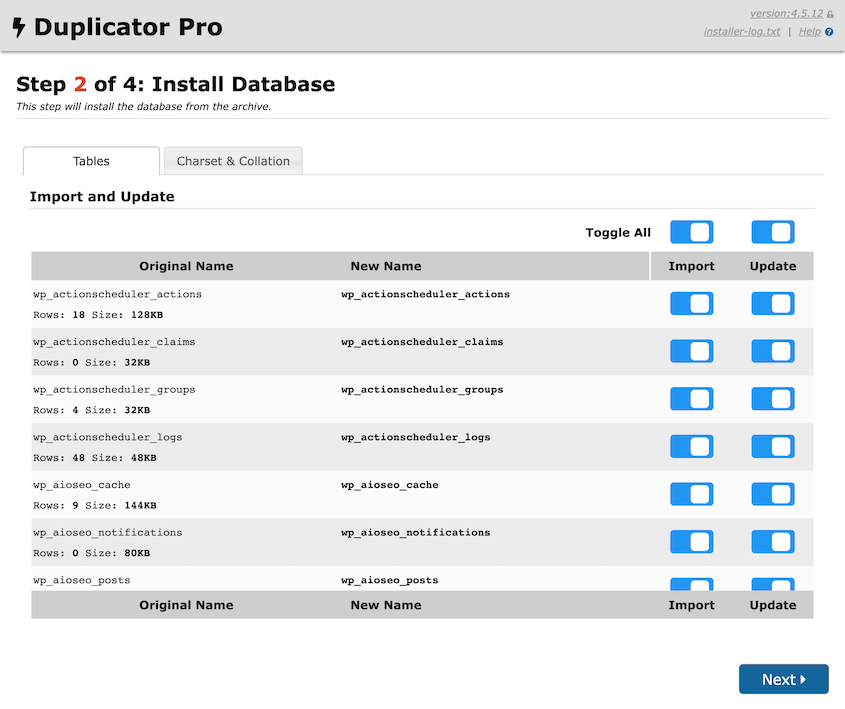
Con la visualizzazione avanzata, puoi personalizzare quali tabelle del database vengono installate.
Il passaggio successivo è importante se stai migrando a un nuovo nome di dominio. Duplicator ha una funzione integrata di ricerca e sostituzione, quindi puoi inserire il tuo vecchio URL nella casella Search e il nuovo URL nella casella Replace.
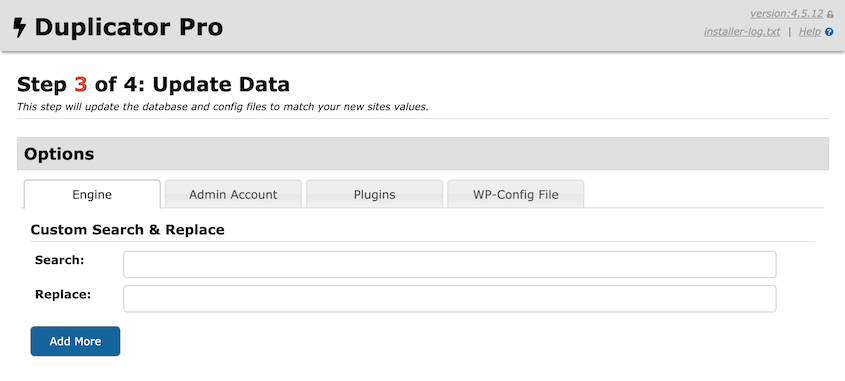
Questo sostituirà ogni menzione del tuo vecchio dominio con quello nuovo. Non dovrai eseguire manualmente una funzione di ricerca e sostituzione sul tuo database.
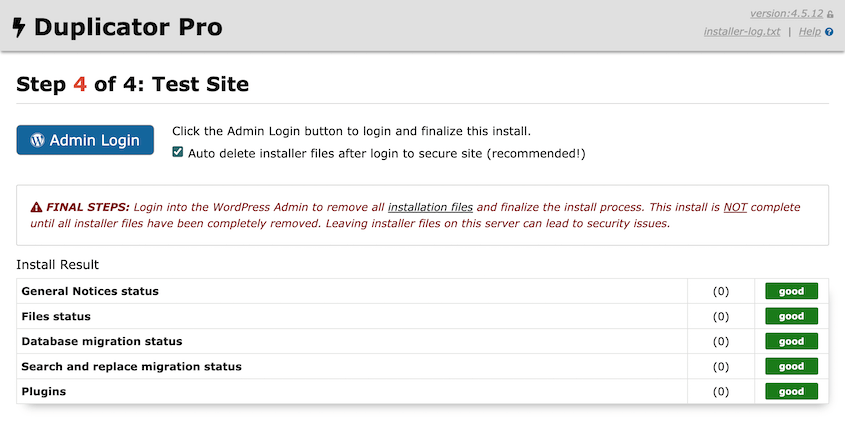
Dopo questo, il tuo sito sarà migrato! Usa il pulsante Admin Login per accedere alla tua nuova dashboard.
8. Implementa Reindirizzamenti 301 per URL Vecchi
Reindirizzare i vecchi URL è uno dei passaggi più importanti per preservare la SEO durante una migrazione. I reindirizzamenti 301 segnalano ai motori di ricerca che una pagina è stata spostata permanentemente, trasferendo la sua link equity e autorità al nuovo URL.
Utilizza un Gestore di Reindirizzamenti Affidabile:
Sebbene i reindirizzamenti manuali tramite .htaccess siano possibili, un plugin di reindirizzamento semplifica il processo.
All-in-One SEO è un plugin SEO per WordPress che ti permette di gestire la SEO del tuo sito senza un esperto. Oltre all'analisi SEO on-page e alle checklist per il controllo SEO, AIOSEO include un Gestore dei Reindirizzamenti.
Utilizzando il Gestore dei Reindirizzamenti, puoi eseguire un reindirizzamento completo del sito ottimizzato per la SEO. Questo garantirà che i backlink o i link interni vengano reindirizzati correttamente dopo una migrazione.
Ecco come fare in 3 semplici passaggi:
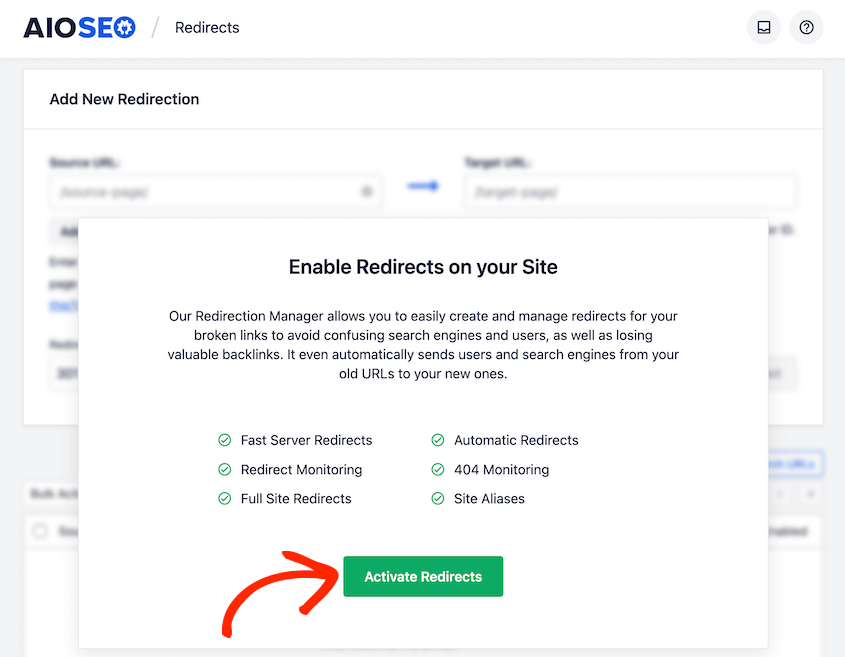
1. Attiva il Gestore dei Reindirizzamenti
Una volta installato AIOSEO, vai alla pagina Reindirizzamenti e attivalo.
2. Abilita un Reindirizzamento Completo del Sito
Successivamente, trova la scheda Reindirizzamento Completo del Sito e attiva l'impostazione Sposta sito.
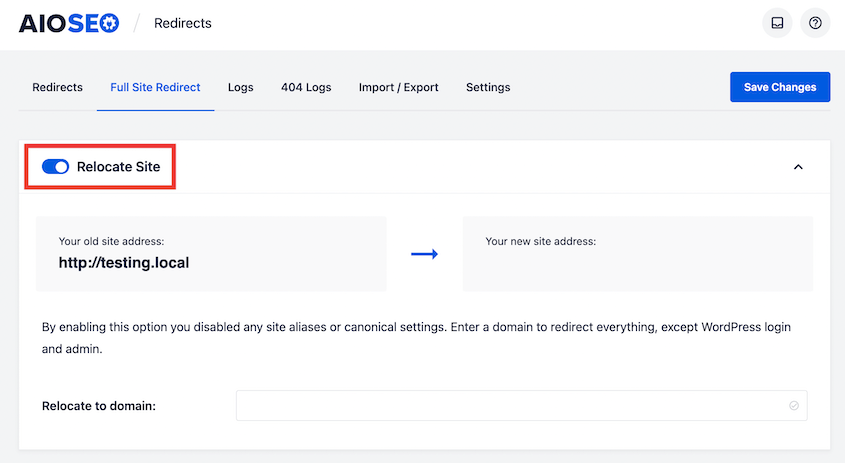
3. Imposta un URL di Destinazione
Inserisci l'indirizzo del tuo nuovo sito e fai clic su Salva Modifiche per completare il reindirizzamento.
9. Esegui un Audit SEO
Dopo che il tuo nuovo sito sarà online e i reindirizzamenti saranno impostati, un controllo SEO approfondito identificherà e correggerà eventuali problemi emersi durante la migrazione.
Usa uno Strumento di Controllo SEO: Strumenti come AIOSEO scannerizzeranno completamente il tuo sito web per individuare eventuali nuovi problemi che potrebbero essere emersi dopo la migrazione.
Principali Aree di Focus del Controllo SEO:
- Scansionabilità e Indicizzabilità: Assicurati che tutte le pagine previste siano scansionabili e indicizzabili dai motori di ricerca.
- Link Interrotti: Ricontrolla eventuali link interrotti interni o esterni che potrebbero essere sfuggiti.
- Contenuti Duplicati: Verifica che non siano emersi problemi di contenuti duplicati tra il vecchio e il nuovo sito.
- Tag Canonici: Conferma che i tag canonici puntino correttamente alle versioni preferite (nuove) delle pagine.
- Metadati: Rivedi tutti i titoli, le meta descrizioni e le intestazioni per accuratezza ed efficacia SEO.
Come Eseguire un Controllo SEO sul Tuo Sito con AIOSEO:
1. Accedi all'Analisi SEO
Nella tua dashboard, vai su All in One SEO » Analisi SEO. Qui, il tuo sito viene valutato in base a come è impostata la sua SEO.
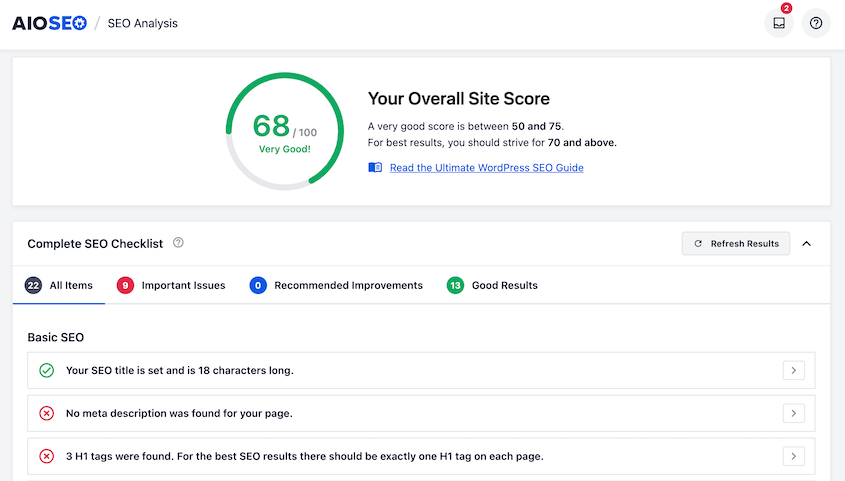
2. Rivedi e Correggi i Problemi SEO
Scorri la checklist SEO. Correggi prima i problemi importanti, poi continua con le raccomandazioni di AIOSEO.
3. Abilita la Sitemap XML
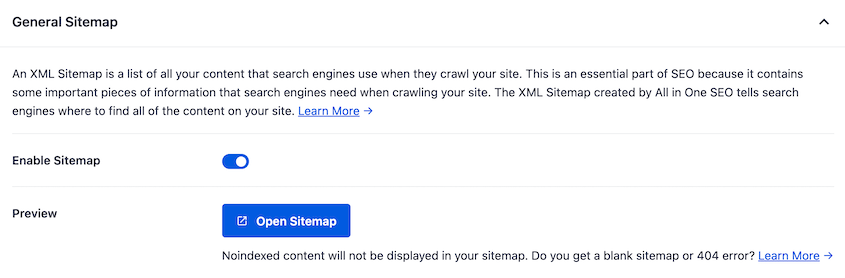
Trova la pagina Sitemap. Abilita la sitemap sul tuo sito appena spostato.
4. Invia la Sitemap a Google Search Console
Una sitemap XML è fondamentale per un'indicizzazione efficiente. Usa la pagina Sitemap di AIOSEO per abilitare la tua sitemap, quindi collega il tuo account Google Search Console per inviarla automaticamente.
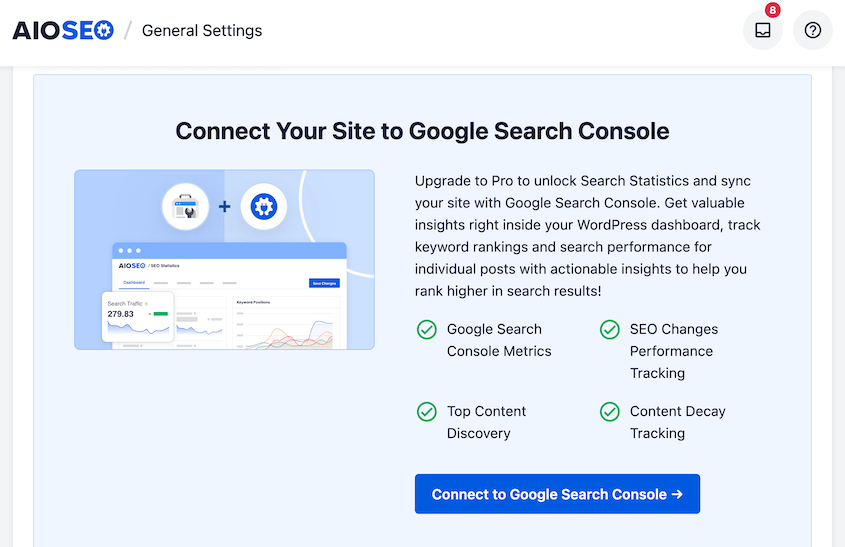
Ciò notifica a Google tutte le pagine importanti del tuo nuovo sito, aiutando una rapida ri-indicizzazione dopo la migrazione.
Una volta terminato, avrai un sito completamente ottimizzato per i motori di ricerca!
10. Informa Google sulla Migrazione
Notificare a Google la migrazione del tuo sito aiuta a garantire una ri-indicizzazione rapida e accurata e protegge la tua visibilità di ricerca esistente.
Ecco come aggiungere il tuo nuovo dominio come proprietà separata in Google Search Console (GSC) e verificarne la proprietà:
1. Aggiungi Proprietà Dominio Nuova
Apri Google Search Console e aggiungi il tuo nuovo dominio come proprietà.
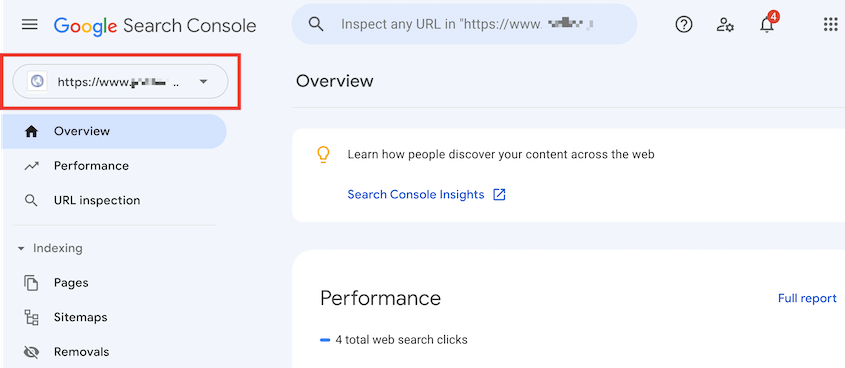
2. Seleziona Proprietà Dominio Vecchia
Nella Console, scegli la proprietà del tuo vecchio dominio, quella da cui stai migrando.
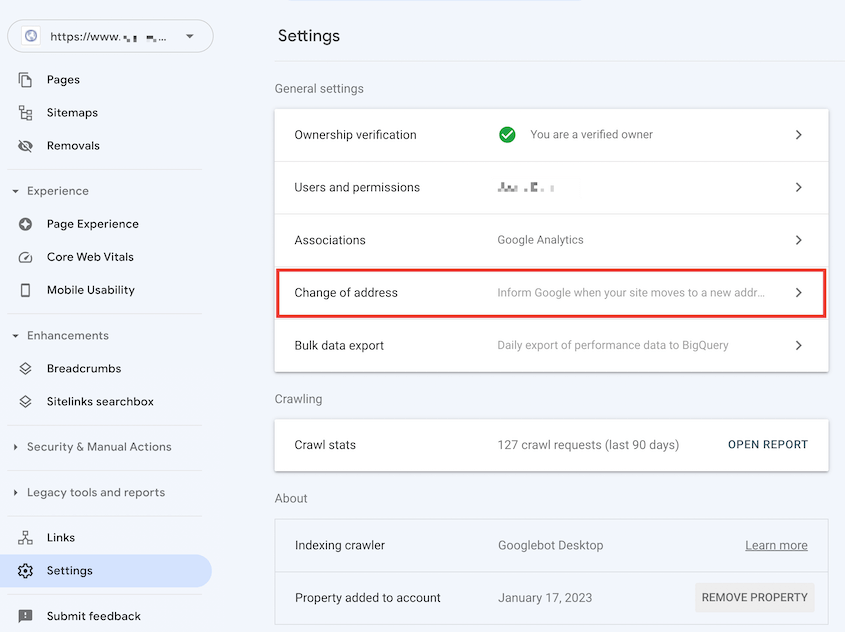
3. Avvia Modifica Indirizzo
Vai su Impostazioni » Modifica indirizzo per iniziare il processo di migrazione.
4. Valida e Conferma Migrazione
Seleziona il tuo nuovo dominio, fai clic su Valida e Aggiorna, e Google inizierà a trasferire i segnali SEO al nuovo sito.
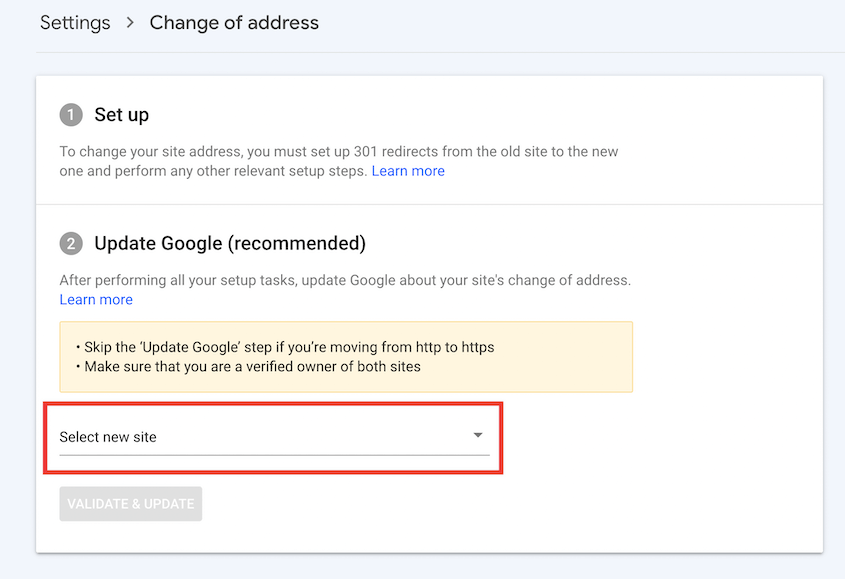
Ora che hai reindirizzato il tuo sito e informato Google sulla migrazione, tutte le tue nuove pagine avranno infine lo stesso traffico organico di quelle vecchie!
Punti Chiave: Checklist per la Migrazione SEO
1. Pianifica in Anticipo: Definisci gli obiettivi e le tempistiche della migrazione. Scegli periodi ottimali per ridurre al minimo le interruzioni del traffico.
2. La Preparazione è Fondamentale: Personalizza le tue azioni in base al tipo di migrazione: modifiche di dominio, host o CMS richiedono preparazioni specifiche.
3. Confronta le Prestazioni Attuali: Utilizza strumenti come MonsterInsights per documentare le metriche attuali del sito, assicurandoti di poter misurare il successo post-migrazione.
4. Esegui il Backup del Tuo Sito: Utilizza strumenti affidabili come Duplicator per eseguire un backup sicuro dell'intero sito per un facile ripristino, se necessario.
5. Gestisci le Modifiche DNS: Aggiorna il file hosts del tuo computer per prevenire tempi di inattività.
6. Imposta Nuova Infrastruttura: Stabilisci un nuovo database pronto per la migrazione utilizzando strumenti come cPanel.
7. Migra i Contenuti in Modo Efficiente: Utilizza un plugin come Duplicator per trasferimenti di siti facili con un rischio minimo di perdita di dati.
8. Assicura un Corretto Reindirizzamento: Installa strumenti SEO come AIOSEO per reindirizzare gli URL vecchi a quelli nuovi, preservando l'equità dei link.
9. Esegui un Audit SEO Post-Migrazione: Analizza il tuo sito con AIOSEO per individuare e correggere eventuali problemi SEO causati dalla migrazione.
10. Informa i Motori di Ricerca: Notifica Google delle tue modifiche tramite Search Console per assicurarti che il tuo sito venga indicizzato correttamente.
Suggerimenti Post-Migrazione
Per mantenere forti prestazioni SEO e un'esperienza utente fluida dopo la migrazione, assicurati di implementare queste best practice aggiuntive:
- Notifica Altri Motori di Ricerca: Utilizza lo strumento di spostamento del sito di Bing Webmaster Tools per informare Bing della modifica del tuo dominio, preservando la visibilità nelle ricerche di Bing.
- Aggiorna le Inserzioni Locali: Revisiona le informazioni della tua attività su Google My Business e Bing Places per riflettere il tuo nuovo dominio e qualsiasi modifica all'indirizzo.
- Verifica le Campagne di Marketing: Aggiorna tutte le campagne pubblicitarie e i profili dei social media per puntare alle pagine di destinazione corrette e nuove.
- Crea Pagine 404 Personalizzate: Crea una pagina di errore 404 personalizzata e accattivante che guidi gli utenti verso contenuti pertinenti o la tua homepage, riducendo i tassi di rimbalzo.
- Revisione Contenuti e Metadati: Controlla tutti i contenuti del sito, le intestazioni, i titoli e le meta descrizioni per eventuali errori o informazioni obsolete post-migrazione.
- Verifica Tag Canonici: Conferma che tutti i tag canonici siano configurati correttamente sul tuo nuovo sito e restituiscano un codice di stato HTTP 200, indicando un'indicizzazione corretta.
- Revisione Markup Schema: Se il markup Schema (schema prodotto, recensione e FAQ) non è stato migrato correttamente, copia e incolla manualmente l'HTML o JavaScript necessario nei file del tuo nuovo sito.
- Monitora Velocità Sito: Valuta la velocità di caricamento del tuo nuovo sito con i Core Web Vitals per garantire miglioramenti delle prestazioni.
- Traccia Classifiche Parole Chiave: Monitora continuamente le prestazioni delle parole chiave utilizzando strumenti come Semrush per tracciare eventuali fluttuazioni o guadagni.
- Annulla Vecchio Hosting: Una volta che sei sicuro della stabilità e delle prestazioni del nuovo sito, annulla il tuo precedente account di hosting.
- Aggiorna Backlink: Contatta proattivamente i siti web chiave che linkano al tuo vecchio dominio e chiedi loro di aggiornare i loro backlink ai tuoi nuovi URL.
Domande frequenti (FAQ)
Perché la SEO è importante in una migrazione di siti web?
La SEO è importante in una migrazione di siti web perché aiuta a mantenere le classifiche del tuo sito web sui motori di ricerca e il traffico organico. Strategie SEO eseguite correttamente assicurano che i motori di ricerca comprendano il tuo nuovo sito, riducendo al minimo il rischio di perdere visibilità e autorevolezza.
Durante quale fase di una migrazione dovresti misurare le metriche di performance del sito?
Dovresti misurare le prestazioni del tuo sito prima di iniziare a migrare il tuo sito web. In questo modo, sarai in grado di confrontare le tue metriche SEO e vedere se la mossa ha influito su qualche area. Per fare ciò, installa MonsterInsights e scarica i tuoi report in formato PDF.
Alternativa: Screaming Frog è un'agenzia SEO che può aiutarti a scansionare il tuo sito prima e dopo le migrazioni. Puoi anche usare Semrush per monitorare la tua visibilità e le classifiche delle parole chiave.
La riprogettazione di un sito web danneggia la SEO?
La riprogettazione di un sito web può migliorare la SEO se ottimizzi la navigazione e l'esperienza utente (UX). Tuttavia, assicurati di testare il nuovo design su un sito di staging prima. Quindi, spostalo in produzione usando Duplicator Pro. Infine, esegui un audit post-lancio per assicurarti che tutto funzioni correttamente.
Cosa è necessario per una migrazione di siti?
Tutto ciò di cui hai bisogno per una migrazione di siti è un plugin di migrazione WordPress come Duplicator Pro. Usando Duplicator, puoi eseguire il backup del tuo sito in un file zip mobile. Quindi, semplicemente trascina e rilascia questo file sul nuovo server!
Assicurati che la tua prossima migrazione di siti web sia SEO-Friendly
Eseguire una migrazione di siti SEO in modo efficace ti aiuterà a mantenere e persino migliorare le prestazioni del tuo sito web sui motori di ricerca.
Ecco cosa rende una migrazione di siti web fluida e sicura per la SEO:
- Pianifica attentamente: Definisci i tuoi obiettivi di migrazione e la tempistica. Coinvolgi le persone giuste fin dall'inizio.
- Misura la tua SEO: Esegui il backup dei tuoi dati e monitora le prestazioni attuali.
- Usa gli strumenti giusti: Duplicator Pro semplifica le migrazioni. All in One SEO aiuta a preservare le tue classifiche.
- Verifica a fondo dopo la migrazione: Controlla link interrotti, problemi di indicizzazione ed errori di reindirizzamento.
Seguendo questa checklist, minimizzerai i rischi, proteggerai il tuo traffico e preparerai il tuo sito per il successo SEO a lungo termine.
Mentre sei qui, potresti anche apprezzare queste altre guide di WordPress:
- La checklist definitiva per la migrazione di WordPress
- Come spostare un sito WordPress live su un host locale (Il modo facile)
- I 9 migliori plugin di migrazione per WordPress (Scelta degli esperti)
- Come migrare un sito WordPress di grandi dimensioni: La guida definitiva
- Come Migrare Manualmente un Sito WordPress
- La migrazione del tuo sito fallirà (a meno che tu non eviti questi errori)
- Come migrare un sito WordPress GRATUITAMENTE
Sei pronto a passare a un nuovo web host? Prova Duplicator Pro per trasferire agevolmente i tuoi dati senza influire sulla SEO!




