


WordPress Doesn’t Track Activity by Default: Here’s What I Do About It
 Joella Dunn
Joella Dunn
Joella Dunn
 John Turner
John Turner
John Turner
A client calls. Something on their site looks different—a page is gone, a plugin stopped working, or a setting changed.
You check the site. Everything looks fine to you, or maybe it doesn’t, but either way you have no idea what happened or who touched it.
WordPress doesn’t keep a record of changes. There’s no record of who logged in, what got edited, which plugin got updated, or when a setting quietly changed. When something goes wrong, you’re working backward from the result with no trail to follow.
A WordPress activity log fills that gap.
It records every action taken on your site: logins, content changes, plugin updates, and settings edits. Each event is tied to a specific user, time, and IP address.
When something breaks or looks off, you’re not guessing. You’re reading a detailed audit log.
In this post, I’ll explain what a WordPress activity log is, why it matters, and how to set one up!
Here are the key takeaways:
- WordPress has no built-in activity log. You need a plugin to track who did what and when on your site.
- An activity log records logins, content edits, plugin changes, and settings updates, each tied to a user, timestamp, and IP address.
- Activity Log by Duplicator tracks 60+ events across 9 categories and starts logging the moment it’s activated.
- Severity levels (Low, Medium, High, Critical) let you filter noise and focus on events that actually need attention.
- For full incident response, pair the activity log with Duplicator backups—one tells you what changed, the other lets you fix it.
Table of Contents
- What Is a WordPress Activity Log?
- Does Your WordPress Site Need an Activity Log?
- Who Needs a WordPress Activity Log?
- What Should a WordPress Activity Log Track?
- How to Set Up an Activity Log on Your WordPress Site
- Understanding Activity Log Severity Levels
- Tips for Getting the Most Out of Your WordPress Activity Log
- Frequently Asked Questions (FAQs)
What Is a WordPress Activity Log?
An activity log is a running record of every action taken on your WordPress site. Every login, content edit, plugin change, and settings update gets captured and stored with a timestamp and a user attached to it.
That’s different from other logs you might already have access to.
An error log tells you something broke. A server log tracks traffic hitting your site. An uptime monitor tells you when your site went down.
None of those tell you what changed or who changed it. An activity log does.
It covers the things that actually matter day to day:
- Which user logged in to wp-admin and from where
- What content got edited or deleted
- Which plugin was installed or deactivated
- Whether a core setting like your site URL or admin email was modified
WordPress doesn’t include any of this out of the box. There’s no native audit trail, built-in history, or change log sitting somewhere in the admin.
If you want visibility into what’s happening on your site, you need a WordPress activity log plugin.
Does Your WordPress Site Need an Activity Log?
Yes, I’d recommend having an activity log for your WordPress site. It lets you trace exactly what changed on your site and when it happened. If something breaks, you can match the timeline of events to the problem instead of checking everything blindly.
Here are some key reasons I have WordPress admin activity logs on every website:
- Security
Failed login attempts, unexpected role changes, and logins from unfamiliar IP addresses—these signals get missed when nothing is being recorded. An activity log doesn’t prevent attacks, but it gives you the evidence to spot patterns and respond before things escalate.
- Accountability
This matters more than people expect. When multiple users have access to a site, questions come up.
Who published that post? Who changed that setting? Who deleted that page? An activity log answers those questions with specifics, not guesswork.
- Client work
For agencies, it goes further. Clients ask what changed on their site. Sometimes they’re curious, sometimes they’re upset.
Either way, being able to pull up an exact record of every action taken builds trust in a way that “we’ll look into it” never does.
- Compliance
If your site handles user data or operates in a regulated industry, you’ll need exportable records of site activity. Having logs already in place is a lot easier than trying to reconstruct a history after the fact.
Who Needs a WordPress Activity Log?
The short answer is anyone running a WordPress site. But it looks different depending on how you work.
Solo site owners might assume a log isn’t worth it if they’re the only ones with access. It is.
You’d be surprised how often you forget a change you made two weeks ago, especially when something starts behaving unexpectedly. The log doesn’t just catch other people—it catches you too.
Bloggers and content teams need to know who published what, who edited a draft, and who deleted something that shouldn’t have been deleted. When multiple people are touching content, version confusion is inevitable without a record.
Agencies have the most to gain. A client relationship can turn on a single question: “What changed on my site last Tuesday?”
Being able to answer that immediately, with specifics, is the difference between looking competent and scrambling to explain yourself.
WooCommerce store owners are running a business where small changes have real consequences. A product price that changed, an order that got modified, a shipping setting that shifted—any of these can affect revenue. Traceability isn’t optional when money is involved.
Developers managing multiple client sites, especially with WP-CLI, benefit from being able to pull log data programmatically. It fits into the kind of automated site management workflow where checking dashboards manually doesn’t scale.
What Should a WordPress Activity Log Track?
A basic activity log might only catch logins and little else. A more useful one covers the full range of actions that can actually impact how your site looks, behaves, and performs.
- Users: Logins, logouts, failed login attempts, and role changes.
This is the foundation. If someone’s credentials are compromised or a user’s permissions get quietly elevated, you want a record.
- Content: Posts, pages, and custom post types
This includes when they’re created, edited, deleted, or published. On a busy WordPress blog with multiple contributors, content changes are the most frequent events in the log.
- Media: File uploads, deletions, and featured image changes.
Media libraries get messy fast, and deletions are permanent. Knowing who removed something matters.
- Plugins and themes: Installs, updates, activations, and deactivations.
Plugin changes are one of the most common causes of site breakage. A log that timestamps these events makes troubleshooting significantly faster.
- WordPress core settings: Site URL, admin email, permalink structure.
These are low-frequency but high-impact. A change to any of them can break things in ways that aren’t immediately obvious.
- Taxonomy and comments: Category and tag changes, comment moderation actions.
Less critical for most sites, but worth having on record.
- WooCommerce: Product edits, order updates, and store setting changes.
If your log plugin supports WooCommerce events, turn them on. Sales-affecting changes need to be traceable.
How to Set Up an Activity Log on Your WordPress Site
Here’s a quick look at how to set up a WordPress activity log:
- Step 1: Install Activity Log by Duplicator: This plugin starts tracking 60+ events across 9 categories immediately after activation.
- Step 2: Configure Email Notifications: Set alerts for high-priority events like failed logins, role changes, and core settings edits so you’re notified in real time without checking the dashboard manually.
- Step 3: Export Your Logs: Use CSV or JSON exports with filters applied (date, user, severity) for client reports, compliance reviews, or keeping records outside the plugin database.
- Step 4: Use WP-CLI for Advanced Log Management (Optional): Script log exports and purge schedules across multiple client sites from the command line using built-in WP-CLI support.
Step 1: Install Activity Log by Duplicator
Activity Log is built by the Duplicator team, the same people behind one of WordPress’s most widely used backup and migration plugins. It tracks 60+ events across 9 categories:
- User
- Content
- Media
- Plugin
- Theme
- WordPress
- Appearance
- Taxonomy
- Settings
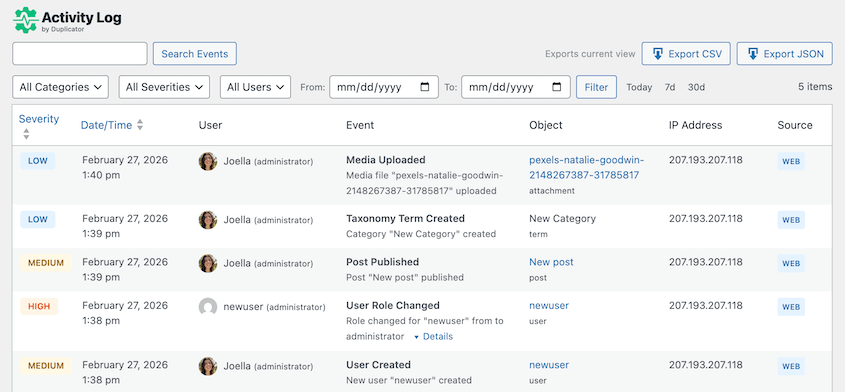
Four severity levels are built in (Critical, High, Medium, and Low), and sensitive data like passwords and API keys is automatically redacted from log entries.
The standalone plugin is available for $29/year. It’s also included with Duplicator Elite alongside WP Media Cleanup, which is the plan with the most value.
Once you download and install Activity Log, the dashboard appears in your WordPress admin immediately. Tracking begins the moment the plugin is active.
You’ll have a searchable, filterable timeline of every event recorded on your site. Each entry shows the event type, the user who triggered it, the timestamp, the IP address, and the severity level.
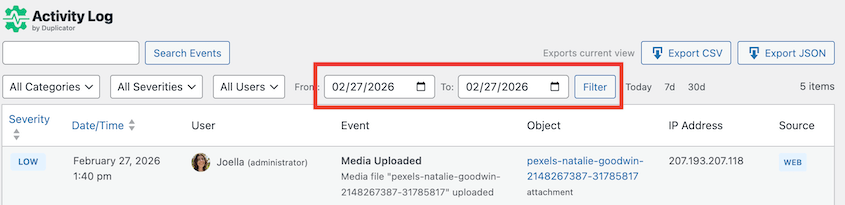
You can filter by date range, specific user, event category, severity level, or IP address. For most troubleshooting tasks, filtering by date and severity gets you to the relevant events fast.
The category system keeps things organized. Instead of one long list, events can be sorted by type so you can focus on the area that matters (logins, content changes, plugin activity) without scrolling through everything else.
Step 2: Configure Email Notifications
Email notifications let you flag specific events for immediate attention without having to check the dashboard manually.
In the notification settings, choose which events trigger an alert and set the recipient email address. Not every event warrants a notification—the goal is to target the ones that need a response, not to fill your inbox.
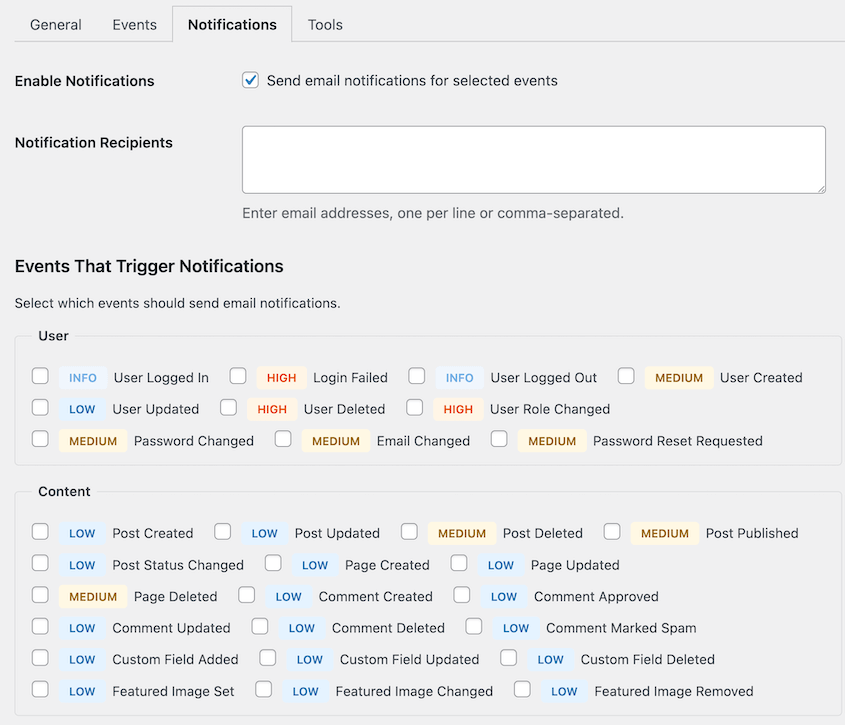
Good candidates for email alerts:
- Failed login attempts
- Core settings changes
- New user creation
- Role changes
Plugin updates and content edits are worth having in the log, but they don’t usually need to interrupt you in real time. Use notifications for the events that need immediate action.
Step 3: Export Your Logs
Logs can be exported in CSV or JSON format. Before exporting, apply filters to narrow the data by date range, user, event type, or severity level. Exporting a filtered set is almost always more useful than exporting everything at once.
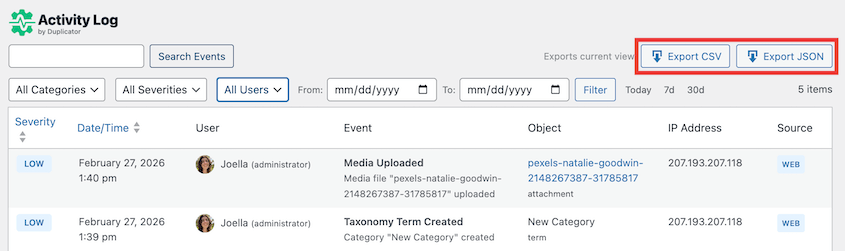
Bulk export is available, so you’re not limited to whatever fits on the current page view. For client reporting, compliance reviews, or security audits, you can pull a complete filtered record in one go.
CSV works well for sharing with clients or dropping into a spreadsheet. JSON is more useful if you’re processing the data programmatically or feeding it into another tool.
Step 4: Use WP-CLI for Advanced Log Management (Optional)
For developers and agencies managing multiple sites from the command line, Activity Log by Duplicator includes WP-CLI support.
The basic export command is:
wp duplicator-activity-log exportYou can filter exports by date range and format, allowing you to pull logs for a specific time window without touching the dashboard.
For agencies running automated site management workflows, log exports and purge schedules can be scripted across an entire client portfolio rather than handled site by site.
It’s an optional layer, but for anyone already working with WP-CLI, it fits naturally into how you’d manage sites at scale.
Understanding Activity Log Severity Levels
On an active site, the log fills up fast. Routine logins, draft saves, and minor edits all get recorded. If every event looks the same, finding the one that actually matters means scrolling through a lot of noise.
Severity levels fix that. They sort events by how much attention they deserve so you can triage quickly instead of reading through everything.
Activity Log by Duplicator uses four levels: Low, Medium, High, and Critical.
Low covers routine, expected activity like saved post drafts or approved comments. Nothing to act on, but useful context if you’re reconstructing a timeline.
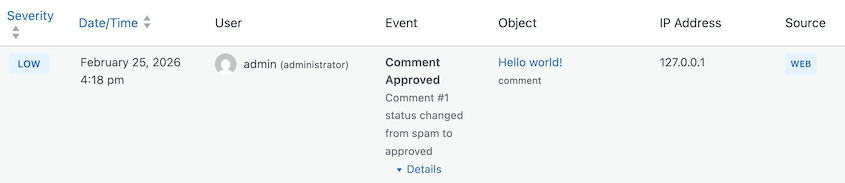
Medium flags changes that are worth knowing about but not urgent. This can include plugin updates, content edits, or theme changes. Normal site activity, just recorded for reference.
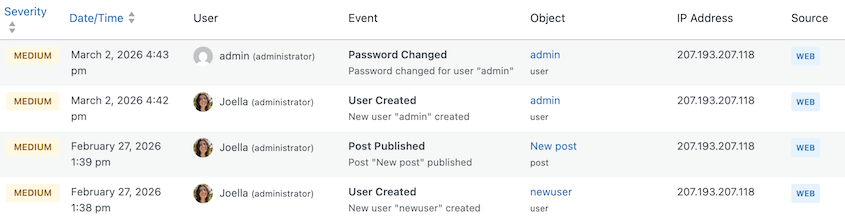
High marks events that warrant attention, like a new user account being created, failed login attempts, or a role being changed. These are actions that can become problems if they weren’t intentional.
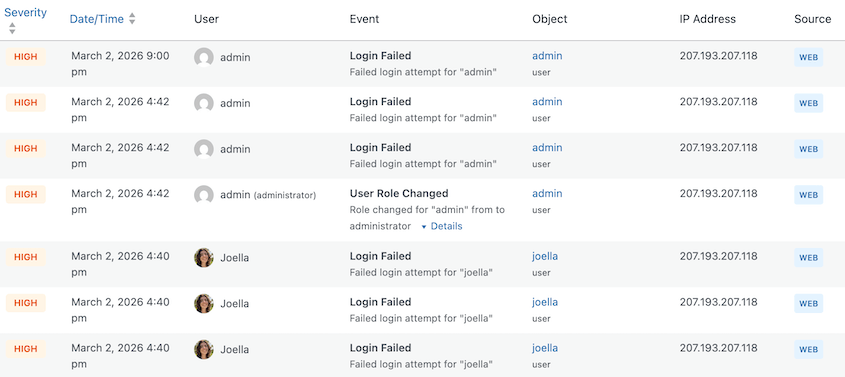
Critical marks large-scale errors that impact your entire website.
The practical value is speed. When you open the log after something goes sideways, you can filter to High and Critical events and work from there. You’re not reading a list of two hundred mixed events to find the three that matter.
Tips for Getting the Most Out of Your WordPress Activity Log
Check High and Critical events on a schedule. Don’t wait for something to break before opening the log. A weekly review of the top two severity levels takes a few minutes and catches problems before they become emergencies.
Use IP address filtering to spot repeated suspicious behavior. A single failed login is noise. Ten failed logins from the same IP address is a pattern worth acting on.
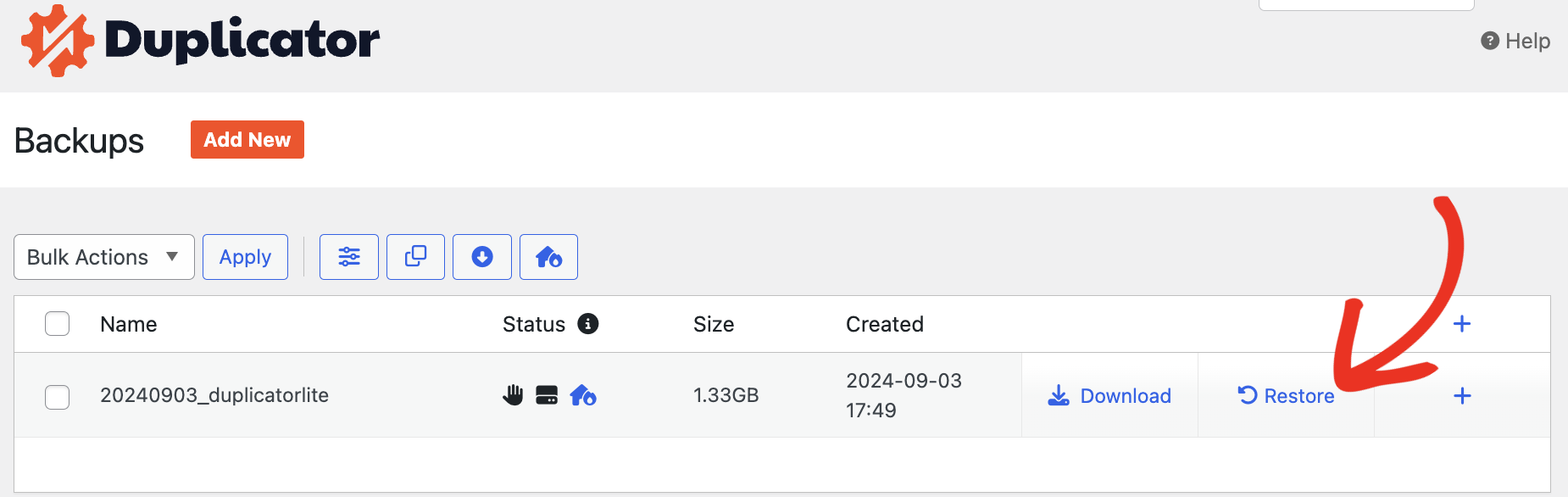
The log tells you what went wrong and when. A backup from before that moment lets you fix it. Together they cover both sides of incident response: diagnosis and recovery.
If you see suspicious activity or a hacking attempt, you could restore a backup created beforehand. Duplicator allows you to do this with one click.
Tell your team their actions are being logged. Transparency about monitoring changes behavior, usually for the better. People are more careful when they know there’s a record.
Export logs on a schedule, not just when something goes wrong. Regular exports mean you have records outside the plugin database, which matters if you ever need to restore the site from a backup or switch plugins.
Frequently Asked Questions (FAQs)
Does WordPress have a built-in activity log?
No. WordPress doesn’t log site activity by default. You need a plugin like Activity Log by Duplicator to track what’s happening on your site.
Will an activity log slow down my site?
Activity Log by Duplicator is built to keep database overhead low, so the performance impact is minimal for most sites.
Is Activity Log by Duplicator free?
The standalone plugin starts at $29/yr. It’s also included at no extra cost in Duplicator Elite, which bundles Duplicator, Activity Log, and WP Media Cleanup.
Is logging IP addresses GDPR compliant?
Logging IPs is permitted under GDPR as long as you disclose it in your privacy policy and don’t retain the data longer than necessary. Activity Log by Duplicator automatically redacts passwords and API keys to reduce your compliance exposure.

Start Logging Your WordPress Site Activity
Visibility into what’s happening on your site isn’t a luxury for large teams or enterprise installs. It’s useful from day one, even on a simple site with a single admin.
An activity log gives you the record you’ll wish you had the next time something breaks, a client asks what changed, or a login looks suspicious. The events are already happening. The only question is whether you know about them.
Install Activity Log by Duplicator today! It starts tracking immediately, and it requires no configuration to be useful.
For complete incident response, pair Activity Log with Duplicator. The log tells you exactly what changed and when. The backup lets you roll it back. Between the two, you’re covered on both ends: knowing what happened and being able to fix it.
While you’re here, I think you’ll like these related WordPress resources:
- Your WordPress Site Could Vanish Tomorrow (Unless You Do This)
- How to Recover a Hacked WordPress Site
- WordPress Security Checklist: Step-by-Step Guide to Protect Your Site
- How to Protect Your Website From Hackers (Ultimate Security Guide)
- How to Prevent Website Downtime
- Don’t Let WordPress Maintenance Break Your Site (Use These Tools Instead)




