

Configuring Activity Log Settings
The Activity Log settings page lets you control how events are recorded, which categories are tracked, who gets email alerts, and how to manage your log data. To get there, go to Activity Log › Settings in your WordPress admin sidebar. You’ll find four tabs: General, Events, Notifications, and Tools.
General Tab
The General tab is where you control the core logging behavior, manage your license, and set display preferences.
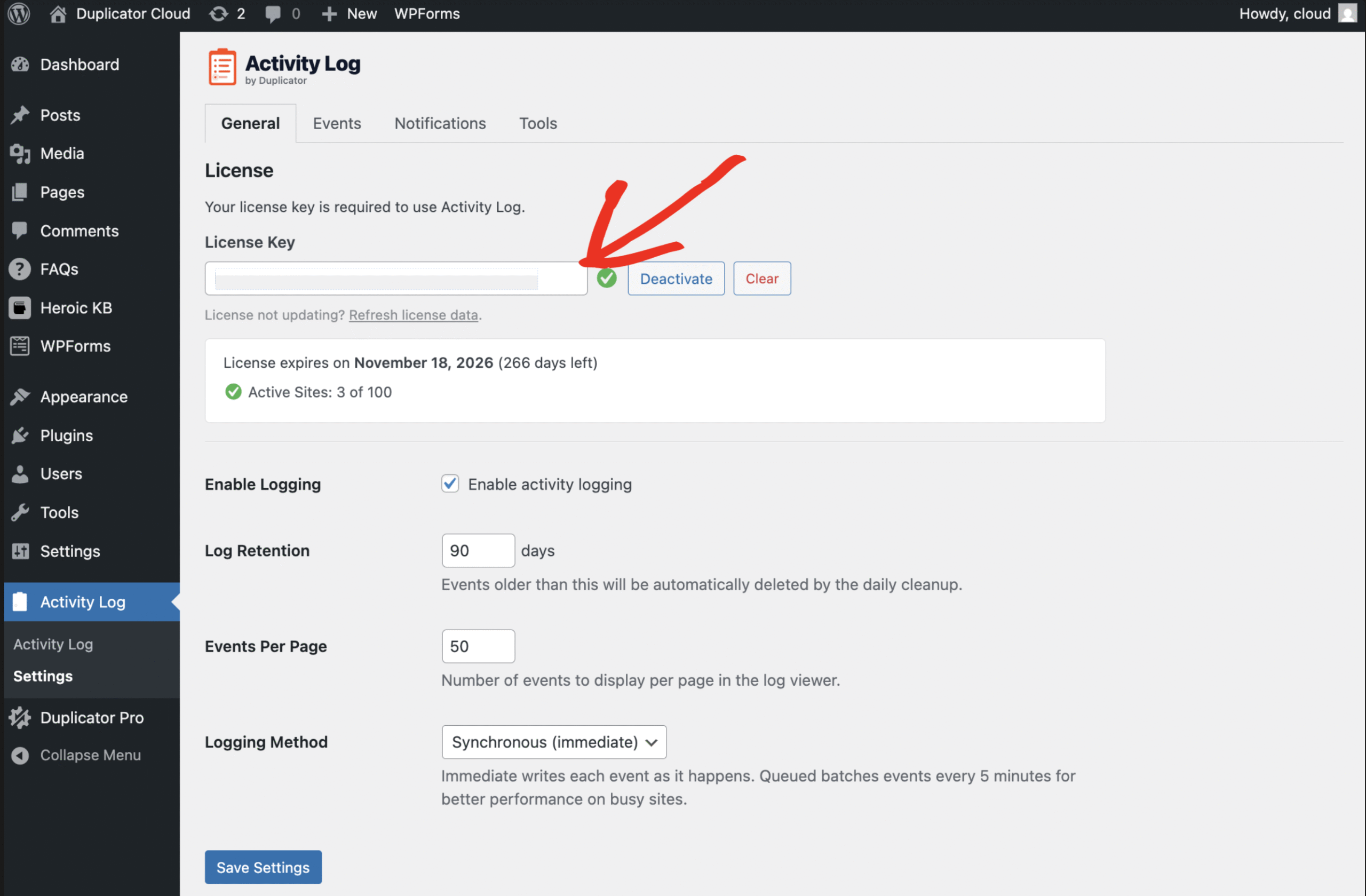
License — At the top of the General tab, you can enter, activate, deactivate, or clear your license key. Your expiration date and active site count are shown once the key is validated.
Enable Logging — Toggle to turn activity logging on or off entirely. When disabled, no new events are recorded (existing log data is preserved).
Log Retention — Set how many days to keep log entries. The default is 90 days. A daily background task automatically deletes entries older than this value. Set to a higher number for longer audit trails, or lower to keep your database lean.
Events Per Page — Controls how many events appear per page in the log viewer. Default is 50. Accepts values from 10 to 100.
Logging Method — Choose between Synchronous (immediate) and Asynchronous (queued). Synchronous writes each event to the database as it happens. Asynchronous batches events in a queue and writes them every 5 minutes — better for high-traffic sites where you want to reduce database writes.
Events Tab
The Events tab lets you enable or disable entire event categories. Uncheck any category to stop recording those events entirely. Changes take effect immediately after you click Save Event Settings.

Below the category checkboxes, you’ll find the Registered Event Types list — a full reference of every specific event the plugin can track, organized by category with their event codes and severity levels. Click any category row to expand it and see the full list of events inside.
Notifications Tab
The Notifications tab lets you set up email alerts for specific events, so you’re notified the moment something important happens on your site.

Enable Notifications — Check this box to turn email alerts on. When disabled, no notification emails are sent regardless of other settings.
Notification Recipients — Enter the email addresses that should receive alerts. You can enter multiple addresses, one per line or comma-separated.
Events That Trigger Notifications — Select exactly which events send an email. Events are grouped by category with their severity badges shown, so you can easily check just Login Failed and User Role Changed without enabling everything.
Click Save Notification Settings when done. Use the Send Test Notification button on the Tools tab to verify emails are delivering correctly.
Tools Tab
The Tools tab provides four utility actions and a system information panel.

Send Test Event — Creates a test entry in your activity log to confirm that logging is working correctly.
Send Test Notification — Sends a test email to your configured recipients to verify notifications are set up and delivering.
Purge All Logs — Permanently deletes all log entries. This is irreversible. Use this if you want to start fresh or clear out a large volume of old data.
Reset Settings to Defaults — Restores all General, Events, and Notification settings back to their original defaults. Existing log data is not affected.
System Information — Shows the current plugin version, WordPress version, PHP version, and database schema version. Useful when contacting support.
That covers all four settings tabs. If you need to clear your log or troubleshoot, the Tools tab is your starting point.


