

How to Restore WordPress Multisite (4 Methods That Work in 2026)
 Joella Dunn
Joella Dunn
Joella Dunn
 John Turner
John Turner
John Turner
A single-site WordPress install going down is a bad afternoon. A multisite network going down causes every client to call you at the same time.
That’s the part people underestimate about WordPress multisite. The shared infrastructure makes it efficient to manage dozens of sites from one dashboard, but one corrupted database table, bad plugin update, or failed migration can take the whole network offline.
I’ve had to recover multisite networks from most of the scenarios that will bring someone to this post: a PHP update that killed the network admin, a botched host migration that left the database pointing at nothing, a plugin conflict that locked every subsite behind a fatal error.
Multisite recovery isn’t as complicated as it looks, but it does depend heavily on what’s still working when things go wrong.
In this post, I’ll cover a few methods for restoring your WordPress multisite network. Start with what’s still accessible, pick the right method, and work through it. By the end, your network will be back!
Here are the key takeaways:
- A broken multisite network is recoverable in most cases. The data is usually still there, even when every subsite is down.
- Your recovery method depends on what’s still accessible: wp-admin, a disaster recovery URL, Duplicator Cloud, or raw FTP and phpMyAdmin access.
- Duplicator Pro (Pro or Elite license) is the fastest path to recover a multisite network. Manual recovery is a fallback that works without any plugin.
- You can restore a single subsite without touching the rest of the network, but only if the backup was customized to that subsite when it was created.
- The steps that make future recovery faster (scheduled backups, disaster recovery URLs, and a configured recovery connector) take minutes to set up and should be done before you need them.
Table of Contents
- When You Might Need to Restore a WordPress Multisite Network
- What You Need Before You Start
- What Gets Restored (and What Doesn't)?
- How to Restore a WordPress Multisite Network
- How to Restore a Single Subsite Without Touching the Network
- Troubleshooting: When the Restore Doesn't Go Smoothly
- Frequently Asked Questions (FAQs)
- Your Network Is Back. Here's What to Do Before the Next Crisis.
When You Might Need to Restore a WordPress Multisite Network
Not all multisite failures look the same, and the scenario you’re in shapes which recovery method makes sense. Here’s where you might be right now.
- Failed core, plugin, or theme update. The most common trigger. One incompatible update throws a fatal error that locks every subsite out simultaneously. The network admin may still be accessible, or it may be completely gone depending on what broke.
- Database corruption. A crashed MySQL table, a failed import, or a write error mid-update can break the entire network’s data layer. The files are intact, but WordPress can’t read the data it needs to function.
- Hacked or compromised network. Malware, injected code, or a brute-force attack can leave the network in an untrustworthy state. Cleaning up manually is possible, but restoring from a clean backup is usually faster and more reliable.
- Failed migration. Moving a multisite to a new host is more complex than moving a single site. A partial migration, files transferred but the database not updated, leaves the network broken in ways that aren’t always obvious until you try to load a subsite.
- Accidental deletion. A subsite removed mistakenly, a critical plugin deactivated network-wide, a configuration setting changed that shouldn’t have been.
- Server or hosting failure. Infrastructure goes down, and when it comes back up, WordPress doesn’t. The files may be intact, but the database or configuration is gone.
- A single subsite breaking. This one doesn’t always require a full network restore. If only one subsite is affected, a selective subsite restore is faster and safer than rolling back everything. The bonus section at the end of this post covers that specifically.
What You Need Before You Start
Your restoration method depends on what’s still accessible. Run through this list before picking a method below.
- A backup that predates the problem. Confirm the timestamp before you do anything else. Restoring a backup that already contains the corruption or the bad update won’t help.
- Knowledge of what’s still working. Can you access wp-admin? Is the server responding? Is the database up? Your answers to these questions determine which methods are available to you.
- Duplicator Pro for Methods 1, 2, and 3. Multisite support requires a Pro or Elite license. The Lite version does not support multisite. If you’re not sure which license you have, log into your account at duplicator.com.
- Network Admin access for Methods 1 and 2. Duplicator Pro only appears at the network level. You won’t find it in an individual subsite dashboard. If Network Admin is inaccessible, skip to Method 2 or 3.
- A recovery connector configured in Duplicator Cloud for Method 3. This is a one-time setup that stores your server’s FTP/SFTP credentials in Duplicator Cloud so it can write files directly to your server. If this wasn’t configured before the problem started, Method 3 isn’t available to you. Note it for after you’ve recovered.
- Server credentials for Method 4. If you don’t have Duplicator, you’ll need FTP or SFTP access, your database credentials (host, name, username, password), and access to phpMyAdmin or WP-CLI. Check your hosting dashboard or welcome email if you’re not sure where these are.
What Gets Restored (and What Doesn’t)?
Multisite restores behave differently from single-site restores, and knowing where the edges are saves you a confusing hour afterwards.
- Network users are shared, not per-site. Multisite keeps every account in one wp_users and wp_usermeta table for the whole network. Roll the network back, and you roll back accounts created since the backup, across every subsite at once.
- Each subsite has its own tables. Subsites store content in numbered tables (wp_2_posts, wp_3_posts, and so on). A subsite-scoped backup captures only that site’s numbered set, which is what makes a single-subsite restore possible.
- Media lives in per-subsite folders. Uploads sit under wp-content/uploads/sites/ in a numbered directory per site. This is the single most commonly missed folder in a manual restore.
- Network-activated plugins are a network-level setting. Restoring rolls back the plugins that were network-activated at backup time, so a plugin activated across all sites since then will be off again afterwards.
- The backup’s scope is the restore’s scope. You can’t narrow a full-network backup down to one subsite at restore time. That decision is made when the backup is built.
How to Restore a WordPress Multisite Network
If you’re reading this mid-crisis, take a breath. A broken multisite network feels catastrophic, especially when every subsite is down at once, but in most cases the data is still there.
The method you use depends on what’s still accessible. Some options below take a few clicks. Others take more time and require working directly on the server.
Either way, by the end of this post you’ll have a working path forward.
- Method 1: Restore from the Duplicator Pro Backups Page: The fastest option if wp-admin is still accessible. A few clicks inside the dashboard, and Duplicator handles the full network restore automatically.
- Method 2: Use the Disaster Recovery URL: Works even when wp-admin is completely down. Paste a pre-generated URL into a browser, and Duplicator’s standalone installer runs outside of WordPress entirely.
- Method 3: Restore via Duplicator Cloud Without wp-admin: The worst-case recovery path. If backups are in Duplicator Cloud and a recovery connector was set up in advance, the entire restore runs remotely from the cloud dashboard via FTP/SFTP.
- Method 4: Manual Restore via FTP and phpMyAdmin: The fallback for when Duplicator isn’t installed or plugin-based tools aren’t an option. Takes the most steps and requires server credentials but works on any host without pre-installed tools.
- Only one subsite broken? You don’t need any of these. Skip to restoring a single subsite and leave the rest of the network alone.
Which Method Should You Use?
Find the row that matches what’s still working, then jump to that method.
| Restore Method | Needs wp-admin? | Needs Duplicator? | Roughly how long | Use it when |
|---|---|---|---|---|
| Backups page restore | Yes | Yes, Duplicator Pro | Minutes | Network Admin still loads |
| Disaster recovery URL | No | Yes, Duplicator Pro, with URL saved in advance | Minutes | wp-admin is down and you saved the URL |
| Duplicator Cloud | No | Yes, Duplicator Cloud + recovery connector | Minutes, runs remotely | Server is only reachable over FTP |
| Manual FTP + phpMyAdmin | No | No | 30 to 60 minutes or more | No Duplicator, or nothing else worked |
| Single subsite only | Yes | Yes, Duplicator Pro + subsite-only backup | Minutes | One subsite broke and the rest are fine |
Method 1: Restore from the Duplicator Pro Backups Page
If your wp-admin dashboard is still accessible, this is the fastest and most reliable path to a working network.
Duplicator Pro is a WordPress backup, migration, and recovery plugin built to handle multisite networks the same way it handles single sites: completely, from one dashboard, without requiring manual database work or FTP access.
It backs up every subsite, stores copies automatically in cloud storage, and when something goes wrong, restores the entire network in a few clicks.

For agencies and developers managing multiple sites on one network, it’s the tool that makes recovery fast and easy.
The Lite version doesn’t support multisite. You’ll need a Pro or Elite license, which both cover full network backup, restore, migration, and disaster recovery features.
When I’m doing a routine restore, recovering from a bad update, or rolling back after a staging test went sideways, Duplicator is what I use.
Step 1: Find the Right Backup and Restore It
Go to My Sites » Network Admin » Duplicator Pro » Backups. Duplicator Pro only appears at the network level in a multisite install. If you’re looking at an individual subsite dashboard, you won’t find it there.
If your backups are stored in cloud storage (Google Drive, Amazon S3, Dropbox, or Duplicator Cloud), they’ll appear on this page automatically. You won’t need to re-upload them.
Look for the last backup dated before the problem started. Check the timestamp carefully. Restoring a backup that was already affected by whatever broke the network puts you back in the same position.
Click the Restore button next to the backup. Duplicator launches the installer in a new browser tab.
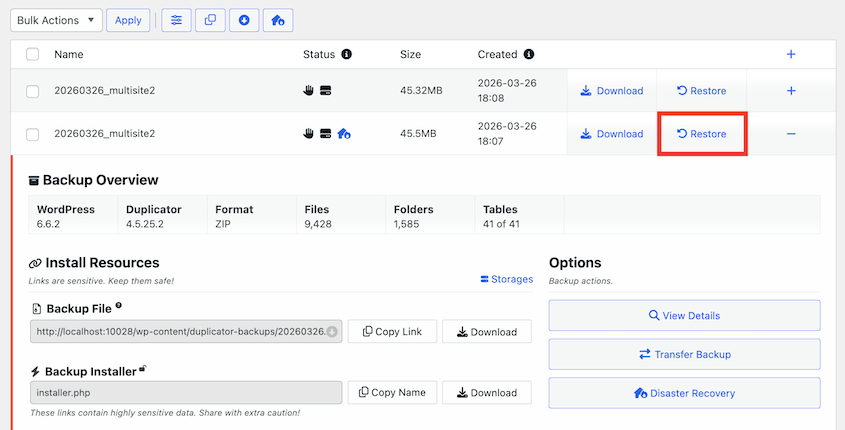
Before you click: this will overwrite your current multisite installation. Any content, settings, or subsite changes made after the backup’s timestamp will be gone. Confirm the date before proceeding.
Step 2: Follow the Installer
At this point, you’re looking at the step-by-step Duplicator restoration wizard.
Duplicator pre-fills the database credentials and site URL from the backup. You’ll just need to accept the terms and notices at the bottom and hit Restore Backup.
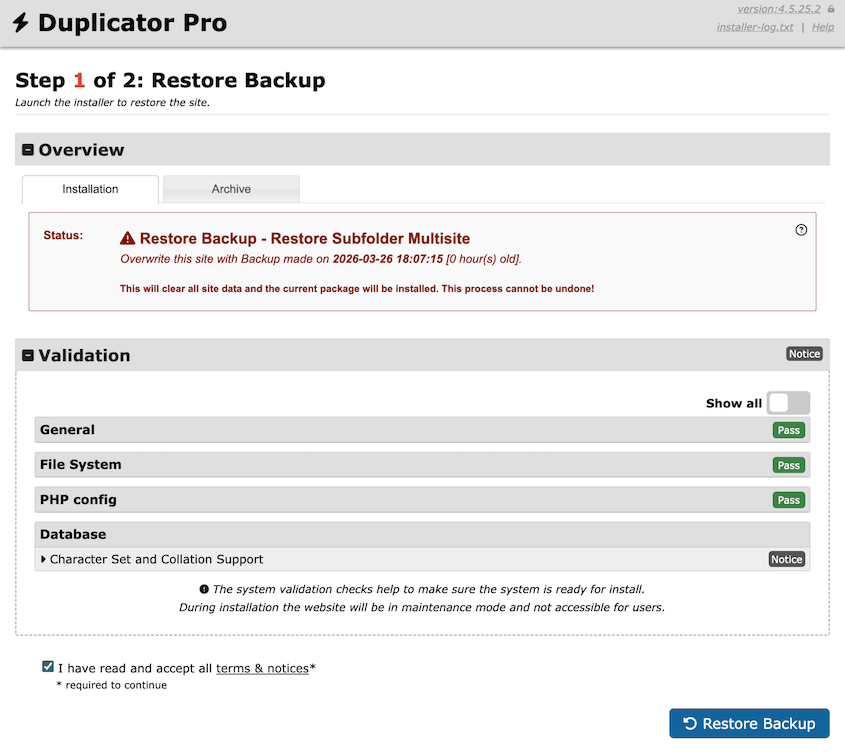
Confirm the restoration in the pop-up and let the installer run.
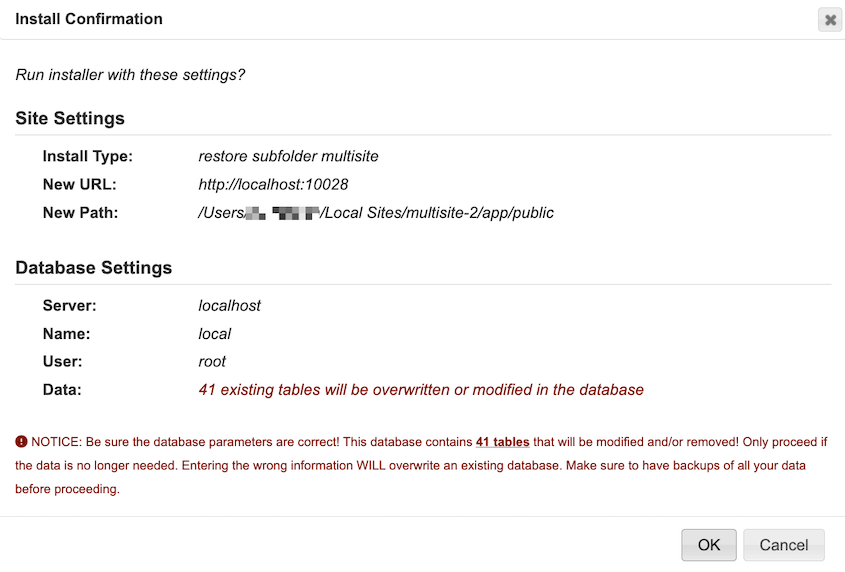
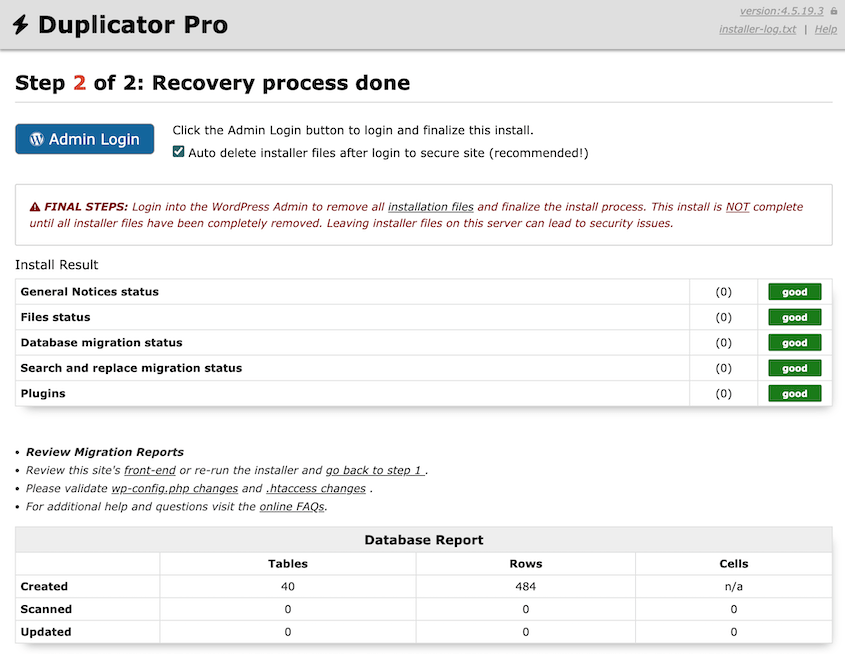
When it finishes, you’ll see a completion screen with a link back to your Network Admin.
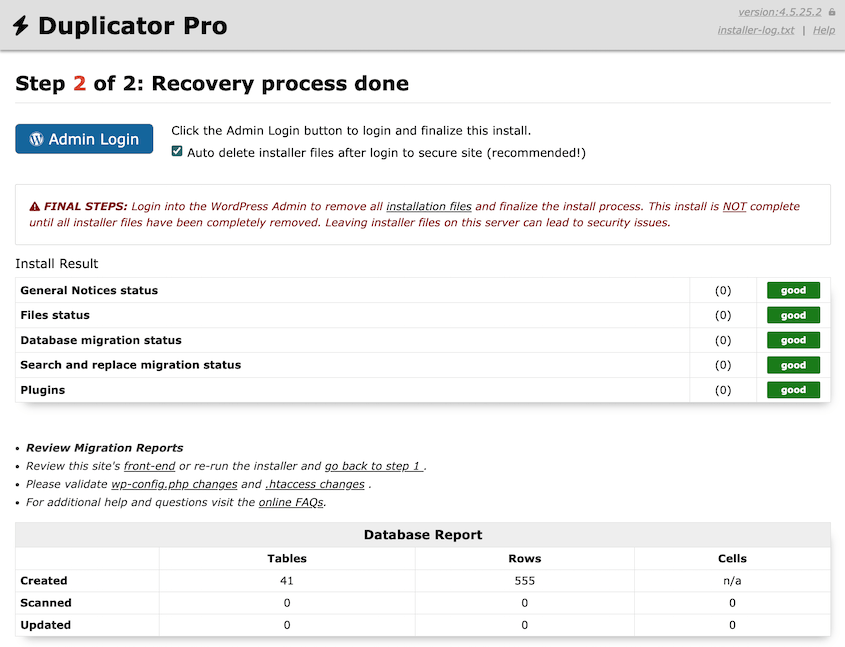
Your site is back online!
Method 2: Use the Disaster Recovery URL
If wp-admin won’t load and you can’t get into the dashboard at all, you can still restore your network. Duplicator runs outside of WordPress, so a fatal error, a broken theme, or a locked-out admin panel doesn’t stop it.
One way to recover your network is with a disaster recovery URL. Hopefully, you saved a copy of this before anything happened to your site.
You saved this when the backup was created, either as a copied URL or as a downloaded launcher file.
One thing to note: the disaster recovery URL has to exist before something goes wrong. It’s generated from a specific backup and stored wherever you keep it safe.
If you never generated one, skip to Method 3. Come back to this section after you’ve recovered and set one up.
I keep mine in a password manager, one entry per site. If a network ever goes fully dark, it’s the first thing I reach for.
Step 1: Find Your Disaster Recovery URL
If you’re not sure whether you have a disaster recovery URL, check Duplicator Pro in Network Admin. Go to Backups, look for a green disaster recovery icon.
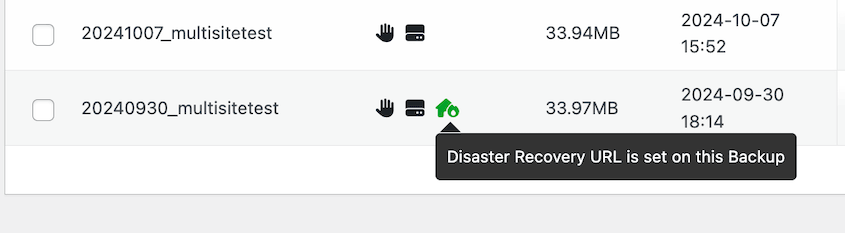
If your wp-admin is working, click on it and copy the recovery link.
You might also have this saved off-site in a password manager or other safe location.
Step 2: Paste the URL Into Your Browser
Open a fresh browser tab and paste your recovery URL. Duplicator’s standalone installer loads directly, completely outside of WordPress. It doesn’t need WordPress to be functional at all.
If your site is returning a blank page, a fatal error, or a database connection error, this installer will still load.
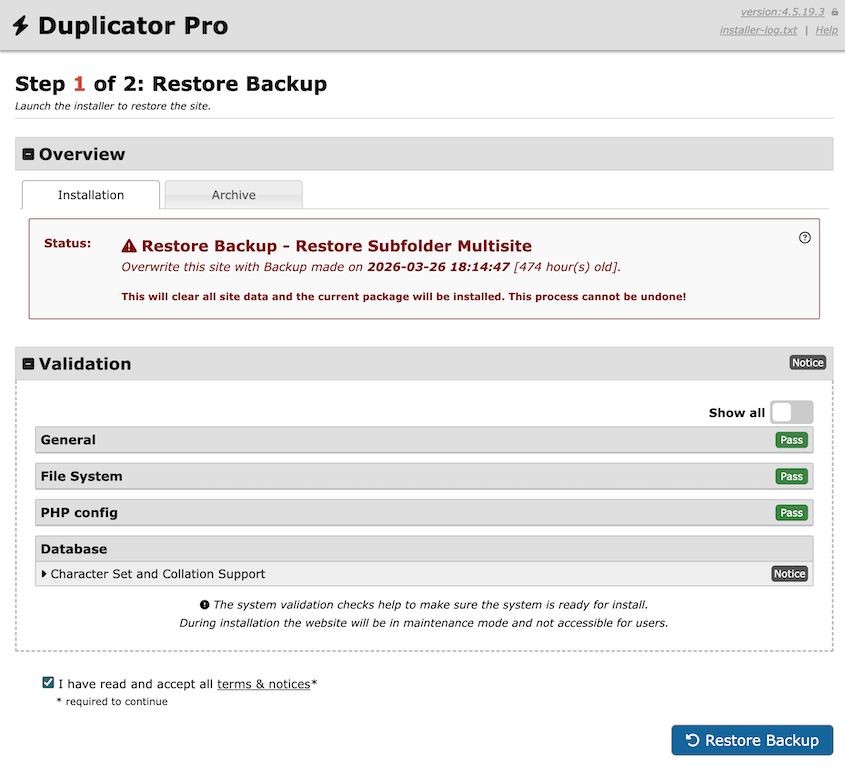
Accept the terms and run the restore. Duplicator handles the rest.
When it completes, you’ll see a link back to your restored Network Admin. Click it, confirm your subsites are loading, and run through any post-restore cleanup the wizard flags.
Set This Up Before You Need It Again
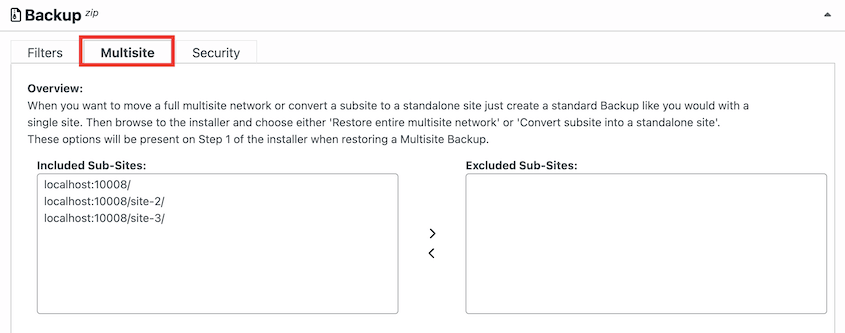
After the network is back, set up disaster recovery immediately. In Duplicator Pro, go to Backups and create a new full-site backup with all of your sub-sites included.
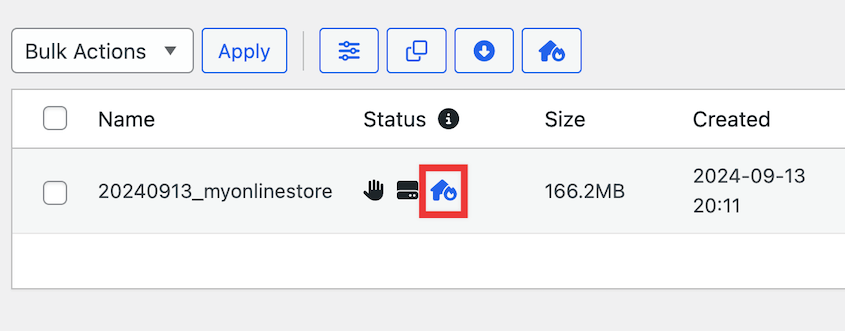
Click on the blue house icon next to the finished backup.
Continue setting disaster recovery.
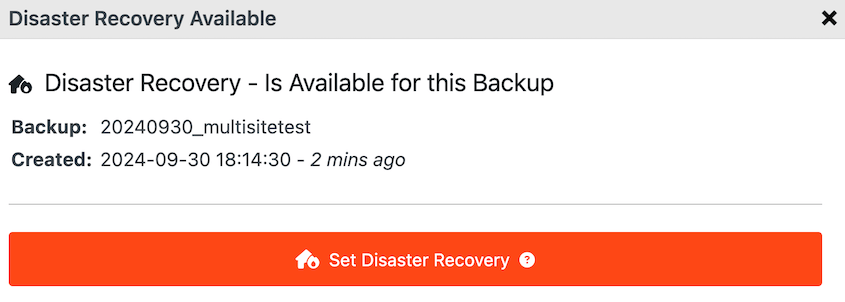
Copy the URL. Store it somewhere that doesn’t depend on your WordPress site being up: a password manager, a shared team doc, a secure note.
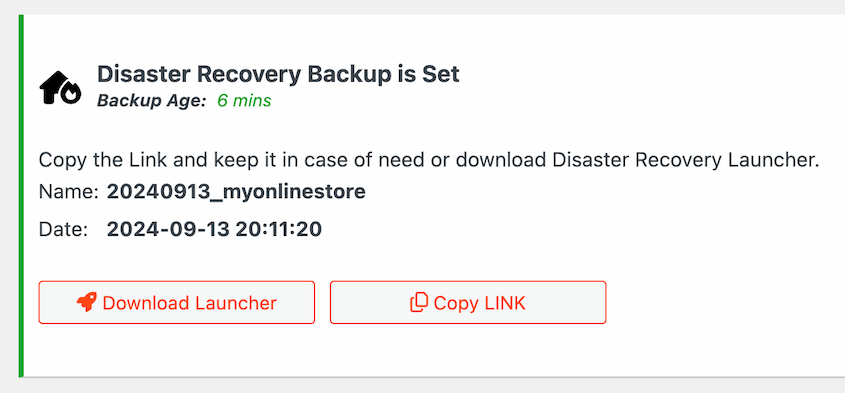
Do the same for every individual sub-site on the network you’d need to recover independently.
It takes two minutes, and could be the key to an easy recovery next time your site goes down.
Method 3: Restore via Duplicator Cloud Without wp-admin
This is the recovery path for the worst-case scenario. WordPress isn’t running, and wp-admin is inaccessible. You need to restore, but you can’t get into the dashboard to trigger anything.
If your backups are stored in Duplicator Cloud and you configured a recovery connector before the problem started, the entire restore runs from the Duplicator Cloud dashboard.
Your server doesn’t need WordPress running. It just needs to be reachable via FTP or SFTP.
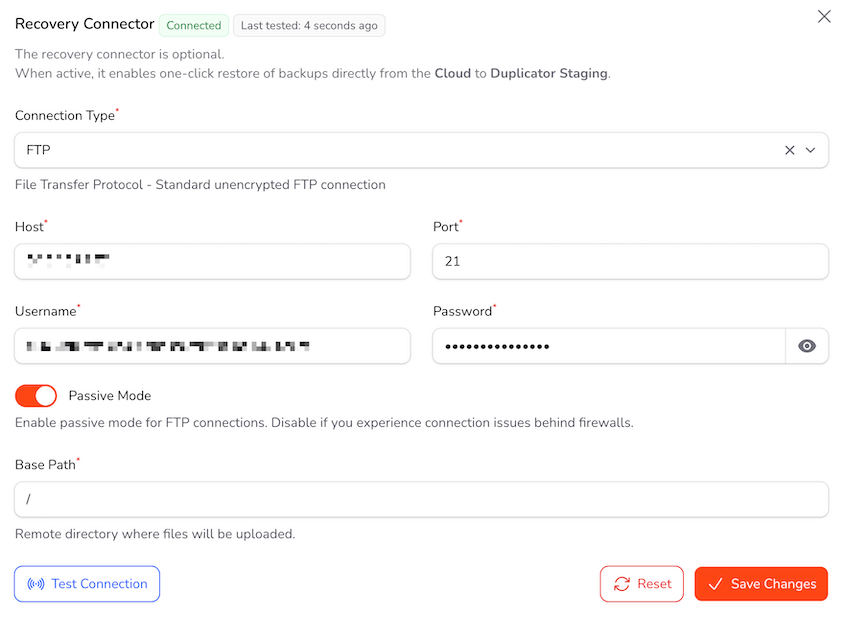
The recovery connector is the one piece that has to exist before the disaster. It’s a stored set of FTP/SFTP credentials that Duplicator Cloud uses to write files directly to your server. If it wasn’t configured in advance, you can still enter those credentials during the restore process, but you’ll need FTP access available.
If FTP is also down, contact your host before going further, or skip to Method 4.
Step 1: Log Into Duplicator Cloud and Set Up Recovery Connector
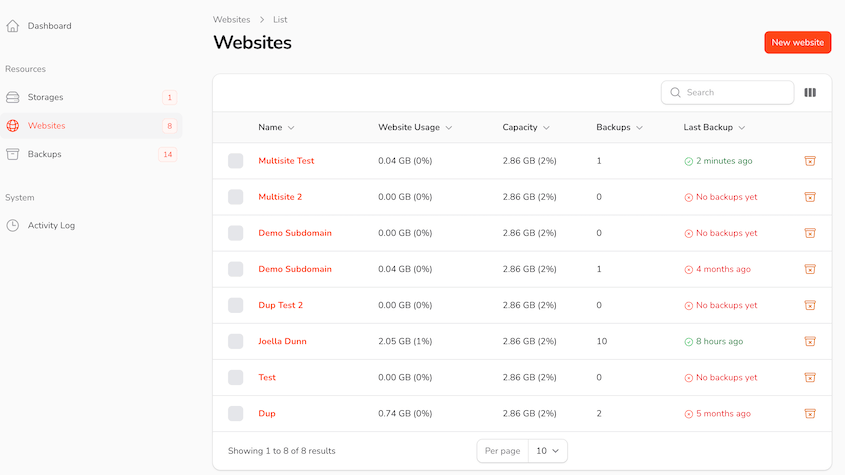
Go to duplicator.com and log into your Duplicator Cloud account. From the dashboard, select the site you need to restore.
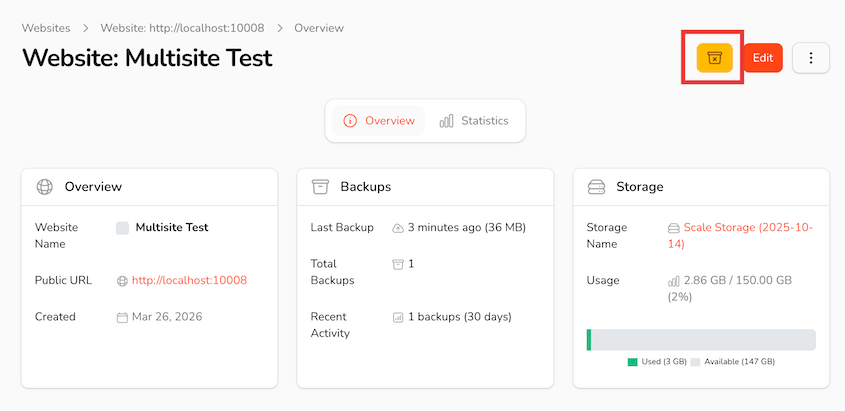
Click on the yellow Recovery From Cloud button in the top-right corner.
Enter your FTP/SFTP credentials. Test the connection.
Step 2: Let Duplicator Cloud Run the Restore
Look through the backup list and find the last clean backup dated before the problem started. Check the timestamp carefully, the same way you would in any other method.
Click Restore Full Backup.
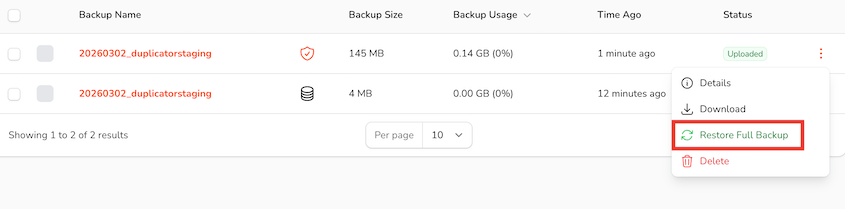
Duplicator Cloud connects to your server via FTP or SFTP, transfers the backup files, and runs the installer remotely. Watch the progress from the cloud dashboard. Nothing needs to happen on your end during this step.
When the restore completes, your multisite network will be back and accessible at its original URL. Log into Network Admin, confirm your subsites are loading, and check that media files and permalinks are working correctly.
Configure the Recovery Connector Now If You Haven’t Already
After you’re back up, set this up before anything else. In your Duplicator Cloud account, go to your site’s settings and look for the Recovery Connector option.
Enter your FTP or SFTP credentials and test the connection. Duplicator Cloud will confirm whether the connection is working.
This is the setup that makes off-site cloud recovery fully available the next time something goes wrong. Combined with a disaster recovery URL, you have two ways to restore your network without needing WordPress to be running at all.
Method 4: Manual Restore via FTP and phpMyAdmin
This is the hardest method on this list. It requires the most steps, the most technical comfort, and the most time.
I’d only consider doing a manual restoration when Duplicator Pro isn’t installed, the plugin-based restore tools aren’t working, or you don’t have a backup and need to work with whatever files and database exports you have.
If any of Methods 1, 2, or 3 are available to you, use those first. This is the fallback for when they’re not.
Step 1: Locate Your Backup Files
Before touching the server, confirm you have two things: a copy of the WordPress files (everything in the site root and the /wp-content/ directory) and a database export in .sql format.
You need both. Restoring files without the database, or the database without the files, leaves the network broken.
If you don’t have a manual backup on hand, check your hosting panel first. Most managed hosts (WP Engine, Kinsta, SiteGround, and others) store automated daily snapshots in the dashboard. Look for a Backups or Restore section and download from there.
Step 2: Restore the WordPress Files via FTP
Connect to your server using an FTP client. FileZilla is free and works well. Navigate to your WordPress root directory, the folder that contains wp-config.php, wp-admin/, and wp-content/.
Upload your backup files, overwriting what’s currently on the server.
One folder to pay close attention to: /wp-content/uploads/sites/. This is where multisite stores per-subsite media files, organized into numbered subdirectories for each site on the network. It’s easy to overlook during a restore, and it’s where most post-restore media failures come from.
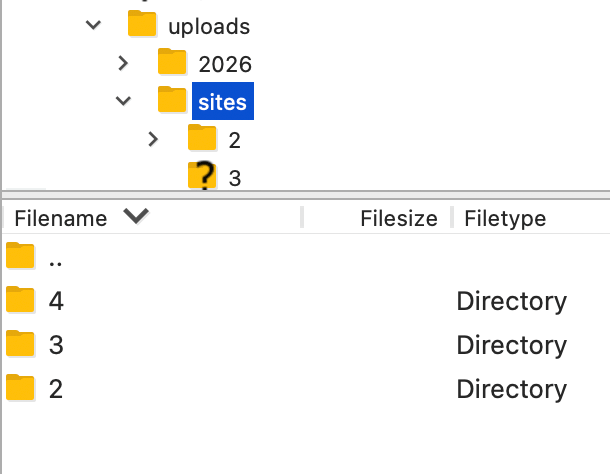
Before you upload: this overwrites your current installation. Any changes made after the backup was created will be gone. If anything on the live server is worth keeping, download it before you start.
Step 3: Import the Database via phpMyAdmin
Open your hosting panel and launch phpMyAdmin. In the left panel, select your WordPress database. Go to the Import tab, click Choose File, and select your .sql backup file. Then click Go.
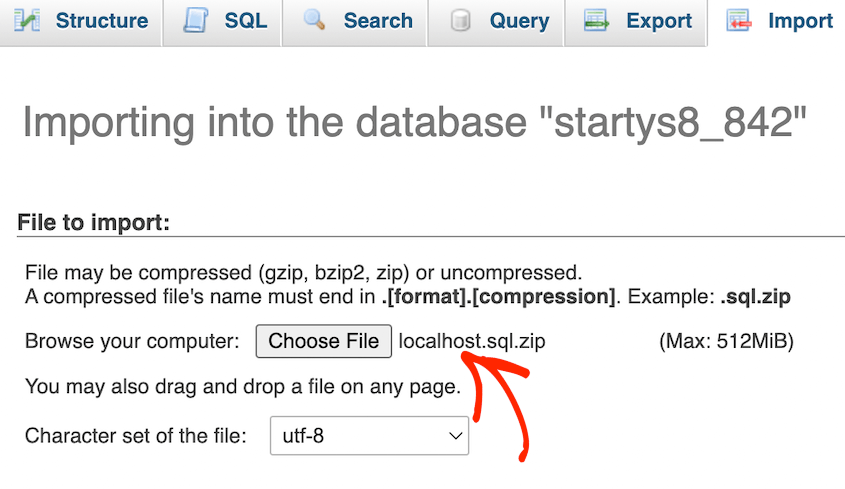
phpMyAdmin is the browser-based database tool most hosts include by default. If you haven’t used it before, it looks more complex than it is. You’re only using the Import tab.
Before you import: large multisite databases can exceed phpMyAdmin’s default execution time limit. If your database is over a few hundred megabytes, it may time out partway through.
If that happens, use WP-CLI instead: run wp db import backup.sql from your server’s command line. Alternatively, contact your host and ask them to run the import. It’s a standard request, and most support teams handle it quickly.
Step 4: Update wp-config.php If Needed
If you’re restoring to the same server and the same database, you can skip this step. If you’re restoring to a new server or a new database, open wp-config.php via FTP and update these four constants to match the new environment:
- DB_HOST
- DB_NAME
- DB_USER
- DB_PASSWORD
For multisite, also check DOMAIN_CURRENT_SITE. This constant tells WordPress what domain the network runs on.
If it doesn’t match the actual domain, you’ll hit a redirect loop when the site loads. It needs to match what’s in the wp_site and wp_blogs tables in your database.
Step 5: Flush Rewrite Rules and Confirm Subsites Load
Log into Network Admin. Go to Settings » Permalinks and click Save Changes without changing anything.
You don’t need to modify the permalink structure. Just saving forces WordPress to regenerate the .htaccess file with the correct multisite rewrite rules.
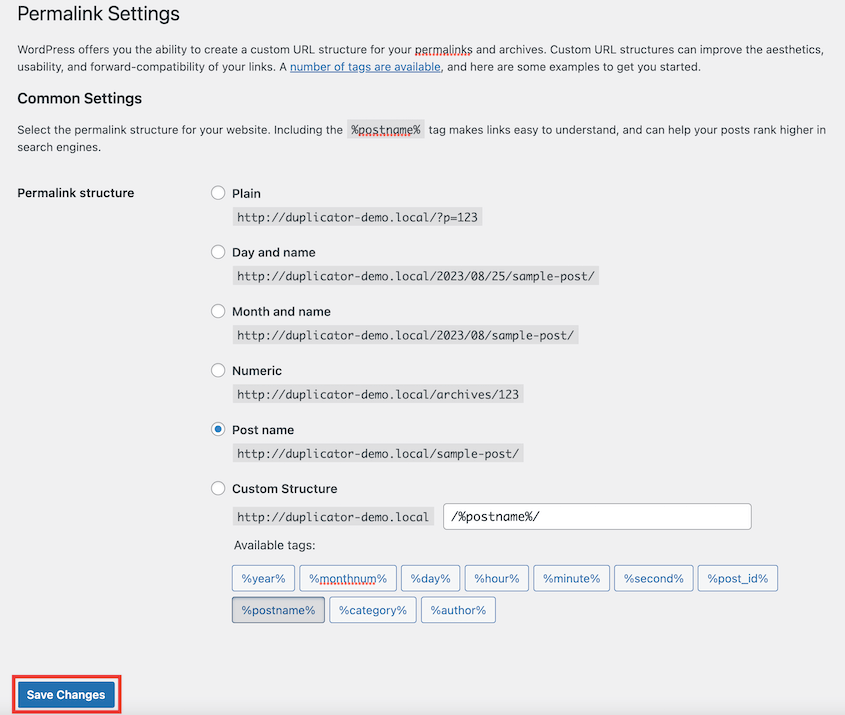
Then check your subsites. Click through to a few from the Network Admin sites list. They should load cleanly.
If any return a 404 or “site not found,” the .htaccess rewrite rules may not have updated correctly. See the troubleshooting section below.
How to Restore a Single Subsite Without Touching the Network
Not every multisite failure calls for a full network restore. If only one subsite is broken, rolling back the entire network means losing changes across every other site on the network since the last backup. That’s usually not worth it.
Duplicator Pro lets you create a backup of a single subsite or any combination of sites on the network. Restore that backup, and only those sites come back. Everything else stays untouched.
How Subsite-Selective Restore Works
The key is in how the backup is created. When building a new backup in Duplicator Pro, the Backup settings include a subsite selector under Multisite.
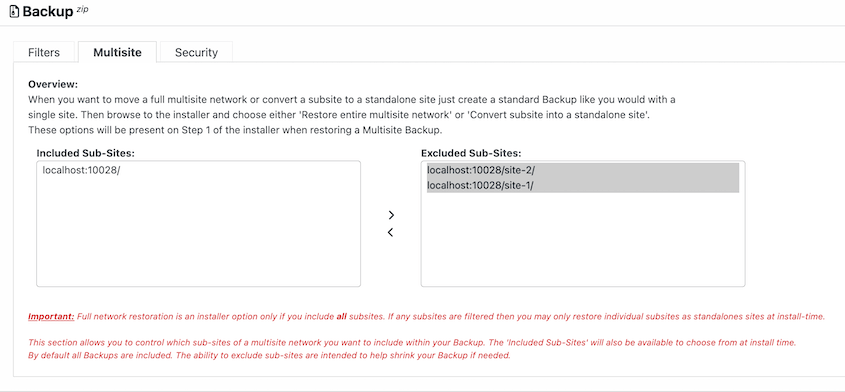
Select the specific subsite you want to capture. Build the backup. Duplicator includes only that site’s content and its corresponding database tables.
When you restore it, Duplicator restores exactly what’s in the backup. A single-subsite backup restores a single subsite. If you backed up the full network, you restore the full network.
To restore, follow the same process as rolling back a full multisite network. Go to Backups in Network Admin and find the backup that only includes the single sub-site.
Click Restore, and run the installer.
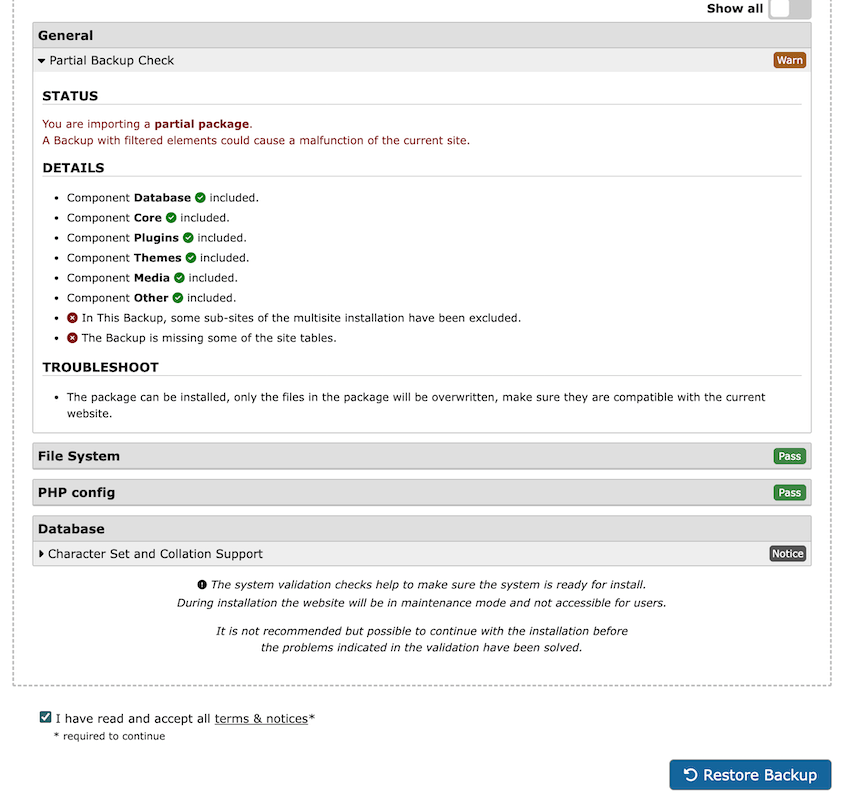
The network stays intact. Only the subsite in the backup is affected.
Moving a Subsite to a Standalone Server
This is one of the more useful things Duplicator handles that most people don’t know about. Say a client’s subsite has outgrown the network and needs its own hosting, or you’re splitting off a subsite to hand to another team.
Back up the subsite only. On the destination server, install Duplicator and upload the backup to the Import Backups page.
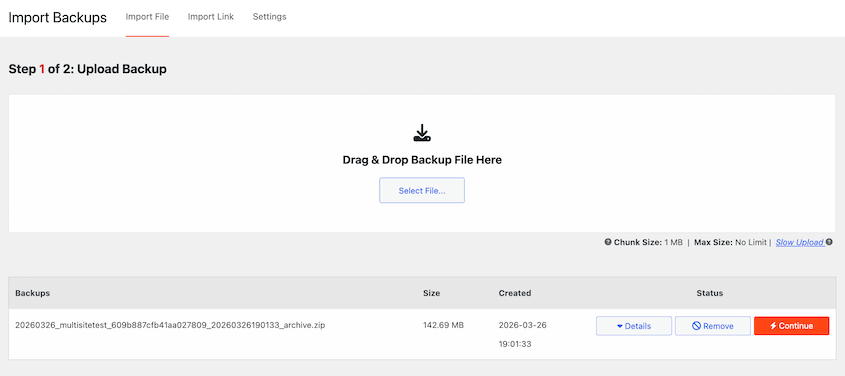
Select Convert network subsite to standalone site in the Install Type. Duplicator converts the subsite into a standalone WordPress install at the new location.
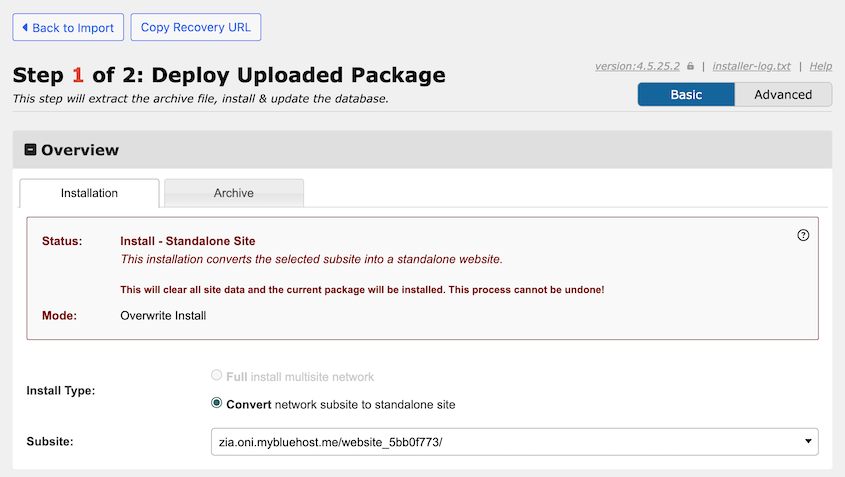
After the restore completes, confirm a few things before handing it off: media files are loading correctly, permalinks work, and any domain-specific settings are updated for the new URL.
If the subsite was running on a subdomain or subdirectory of the network, it’ll need its own domain pointed at the new server. SSL will need to be configured independently as well.
Troubleshooting: When the Restore Doesn’t Go Smoothly
Multisite restores have failure points that don’t come up on single-site installs. Most of them are fixable in a few minutes once you know what you’re looking at.
Here’s what each one looks like and how to work through it.
Subsite URLs Return 404 After Restore
What you see: The main network loads, but clicking into any subsite returns a 404 or “site not found” error. The network admin works fine. The subsites don’t.
Why it happens: WordPress didn’t regenerate the rewrite rules after the restore. The .htaccess file either wasn’t updated or is missing the multisite-specific rewrite block entirely.
How to fix it: Go to Network Admin » Settings » Permalinks and click Save Changes without modifying anything. This forces WordPress to rewrite the .htaccess file with the correct multisite routing rules. Check your subsites again after saving.
If they’re still returning 404s, open .htaccess directly via FTP and check its contents.
A standard single-site .htaccess won’t route multisite traffic correctly. The file needs to contain the multisite rewrite block.
If it’s missing, deactivate and reactivate the network to regenerate it, or copy the correct block from the WordPress documentation for your network type (subdomain or subdirectory).
Redirect Loop on the Main Domain
What you see: The browser shows ERR_TOO_MANY_REDIRECTS when loading the network’s primary domain. The site never loads.
Why it happens: The DOMAIN_CURRENT_SITE constant in wp-config.php doesn’t match the domain stored in the wp_site and wp_blogs tables in your database. This mismatch is common after restoring to a different domain or when the domain changed at some point between when the backup was created and when it was restored.
How to fix it: Open wp-config.php via FTP. Find the line that reads define( 'DOMAIN_CURRENT_SITE', 'yourdomain.com' ); and confirm the domain matches exactly what’s stored in the wp_site table in your database. Open phpMyAdmin, select the database, and check the domain column in wp_site. Correct wp-config.php to match, save the file, and reload the site.
Media Files Missing Across Subsites
What you see: Images are broken site-wide. Media URLs point to paths like /wp-content/uploads/sites/2/2025/04/image.png but return 404s.
Why it happens: The backup didn’t include the full /wp-content/uploads/sites/ directory. Multisite stores each subsite’s media in a numbered subdirectory under uploads/sites/. If the restore only captured the root uploads folder, per-subsite media is gone.
How to fix it: Check whether the backup included the uploads/sites/ directory. If you’re using Duplicator Pro, review the Archive settings on the backup that was used. If the directory was excluded, you’ll need to source media from a different backup or restore it manually via FTP from a separate media backup.
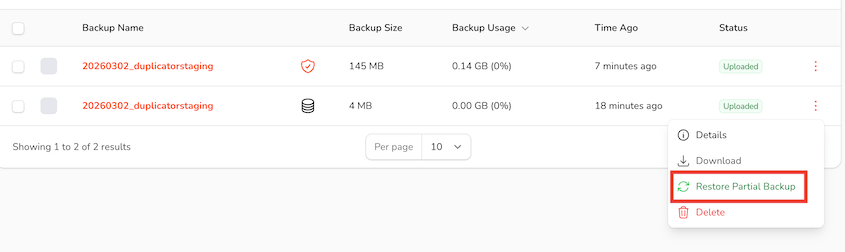
If you’re using Duplicator Cloud, a partial restore targeting only the media library can patch this without triggering a full network restore.
phpMyAdmin Times Out During Database Import
What you see: The import progress bar stalls. phpMyAdmin returns a timeout error partway through the .sql file.
Why it happens: Multisite databases are large, and phpMyAdmin’s default maximum execution time is low. The import process hits the time limit before it finishes.
How to fix it: Switch to WP-CLI. From your server’s command line, run wp db import backup.sql from the WordPress root directory. It handles large databases without time limits. If you don’t have command-line access, contact your host and ask them to run the import. Alternatively, split the .sql file into smaller chunks and import them in sequence.
Installer Returns a Blank Page or 500 Error
What you see: You navigate to yourdomain.com/installer.php and get a blank white page or a 500 internal server error.
Why it happens: Two common causes. Either the file permissions on installer.php are wrong and the server won’t execute it, or the PHP memory limit on the destination server is too low to handle the archive.
How to fix it: Check that installer.php has 644 permissions. You can set this in FileZilla by right-clicking the file and selecting File Permissions. Then check your PHP memory limit. For multisite archives, 256MB is a minimum. 512MB is safer. If you can’t adjust php.ini directly, add php_value memory_limit 512M to your .htaccess file or ask your host to raise it. It’s a routine request.
Frequently Asked Questions (FAQs)
Does restoring a multisite network restore all subsites?
A full network restore rolls back everything captured in the backup: all subsites, the database, and the files. Any content, settings, or subsite changes made after the backup’s timestamp will be gone. If you only need to recover one subsite, use a subsite-scoped backup and restore just that site. The backup scope determines the restore scope, so what you back up is what gets restored.
Can I restore a WordPress multisite without a backup plugin?
Yes. You can do a full manual restore using FTP and phpMyAdmin. You need a backup that includes both the WordPress files and a database export in .sql format, FTP access to the server, and access to phpMyAdmin or WP-CLI. It takes more steps than a plugin-based restore, but it works on any host without any pre-installed tools.
What if wp-admin is completely inaccessible?
You have three options, depending on what was set up in advance. If you generated a disaster recovery URL before the problem, paste it into a browser, and the standalone Duplicator installer loads without needing WordPress to run. If you have Duplicator Cloud with a recovery connector configured, restore directly from the cloud dashboard via FTP or SFTP. If neither was set up, restore manually via FTP and phpMyAdmin.
Can I restore just one subsite without affecting the rest of the network?
Yes, but only if the backup was limited to that subsite when it was created. In Duplicator Pro, the multisite backup settings include a subsite selector. If you chose a specific subsite at backup time, restoring that package brings back only that site’s content and database tables. The rest of the network is untouched. A full network backup restores the full network; there’s no way to scope that down at restore time.
How long does a multisite restore take?
It depends on archive size and server speed. A small network under 1GB typically restores in a few minutes with Duplicator. Larger networks with heavy media libraries and many subsites can take 15 to 30 minutes or more. Manual FTP restores are slower and depend entirely on your connection speed and the size of the uploads directory. Database imports via phpMyAdmin are usually fast, but very large databases may need WP-CLI or host assistance.
What is the difference between “Restore multisite network” and “Full install multisite network” in the Duplicator installer?
“Restore multisite network” overwrites an existing multisite installation at the same location. Use this for standard disaster recovery when the network already exists at the destination. “Full install multisite network” builds a fresh multisite installation from the backup. Use this when restoring to a new server, setting up on a blank environment, or when the original installation is completely gone and there’s nothing to overwrite.
Can I use a multisite backup to move a subsite to its own standalone WordPress site?
Yes. Back up the subsite using Duplicator’s subsite selector. On the destination server, run the Duplicator installer and choose Convert network subsite to standalone site as the Install Type. Duplicator converts the subsite into a standalone WordPress installation at the new location. After the restore, update the domain settings, configure SSL independently, and verify that media files and permalinks are working correctly at the new URL.
Your Network Is Back. Here’s What to Do Before the Next Crisis.
Getting a multisite network restored is the hard part. Keeping it recoverable is the part most people skip until they’re back in the same situation six months later.
A few things worth doing now, before you close the tab. First, if you don’t have automated backups scheduled, set them up today.
Duplicator Pro supports scheduled backups on whatever interval fits your network: hourly, daily, weekly, or monthly, sent automatically to cloud storage. A backup that runs without you thinking about it is the only kind that’s actually there when you need it.
Second, generate a disaster recovery URL for every site on the network that matters. It takes two minutes per site.
Third, if you’re storing backups in Duplicator Cloud, configure the recovery connector now. It has to exist before the problem, not after.
More than 1.5 million WordPress professionals trust Duplicator to make sure they don’t lose their websites. Upgrade to Duplicator Pro for automated backups, disaster recovery URLs, cloud restore without wp-admin access, and full WordPress Multisite support.
If this tutorial helped, these guides are worth bookmarking too:
- How to Back Up WordPress Multisite
- How to Migrate WordPress Multisite
- How to Convert WordPress Multisite to a Single Site
- Best WordPress Multisite Backup Plugins for Network Security
- How CodeVidia Migrates Multisite Networks Safely and Easily




