

WordPress Autoload Data: What It Is and How to Clean It Up
 Joella Dunn
Joella Dunn
Joella Dunn
 John Turner
John Turner
John Turner
Site Health had been flagging a critical issue on one of my sites for months: Autoloaded options could affect performance.
I ignored it. The site felt fine.
Then someone asked me why the dashboard took the better part of ten seconds to load when the homepage came up instantly. So, I finally checked the autoload size and found megabytes of options sitting in the database, most of it written by plugins I’d uninstalled years earlier.
The frustrating part is that most advice on this topic is out of date. WordPress 6.6 changed how autoload works, and the query nearly every guide still publishes now returns the wrong number.
A lot of the standard cleanup advice doesn’t reduce autoload size either, for reasons buried in WordPress core.
In this post, I’ll show you what WordPress autoload data is, how to measure it correctly on a modern install, what’s safe to remove, and how to clean it up without breaking your site.
Here are the key takeaways:
- Autoload data is loaded on every request that reaches WordPress, including admin pages, REST calls, and cron jobs, so page caching never hides it from you.
- WordPress flags a critical Site Health issue above 800 KB of autoloaded options, which is the closest thing to an official limit you’ll find.
- The SQL query in most guides now undercounts. WordPress 6.6 replaced the old yes/no autoload values with five possible values, so filtering on autoload=’yes’ misses newer rows.
- Clearing expired transients barely changes your autoload size. Transients created with an expiration date aren’t autoloaded in the first place, which is why database cleanup plugins seem to do nothing here.
- The real bloat is usually orphaned plugin options, left behind by plugins you removed years ago, since nothing cleans those up automatically.
- Duplicator’s DB Optimizer measures autoload size as part of its database health score, which makes it the easiest way to track the number over time. Clearing autoloaded options is still manual work.
- Flipping autoload off is safer than deleting. The data stays in the database in case a plugin needs it, and the change is reversible.
- Never edit wp_options without a current backup. You’re working in the one table that can take your whole site offline.
- If autoload size climbs back within days of a cleanup, a plugin is rewriting it on every run, and no amount of cleaning will hold.
Table of Contents
- What Is Autoload Data in WordPress?
- How Much WordPress Autoload Data Is Too Much?
- Why Most Autoload Guides Now Give You the Wrong Number
- What SQL Query Should You Run Instead?
- How Do You Check Your WordPress Autoload Size?
- Why Didn't a Database Cleanup Fix Your Autoload Size?
- How Do You Clean Up WordPress Autoload Data?
- How Do You Keep WordPress Autoload Data From Coming Back?
- Frequently Asked Questions (FAQs)
- WordPress Autoload Data Is a Maintenance Habit, Not a One-Time Fix
- Before You Touch wp_options, Make Sure Your Site Is Protected
What Is Autoload Data in WordPress?
Every WordPress site stores its settings in a database table called wp_options. Your site URL lives there. So does your list of active plugins, theme settings, and the configuration for nearly every plugin you’ve installed.
Each row in that table has an autoload column. That column answers one question: should WordPress load this row on every single page, or only when something asks for it?
When the answer is yes, the option is autoloaded. That’s all the term means. It’s loaded automatically, whether the current page needs it or not.
WordPress does this for a good reason. Rather than running a separate database query every time a plugin asks for a setting, it grabs all autoloaded options in one query at the start of the request and holds them in memory. One query beats a few hundred small ones.
Here’s what typically ends up stored as autoloaded options:
- Core settings your site can’t run without, like siteurl, home, active_plugins, template, and stylesheet
- Plugin configuration, often stored as one large serialized array per plugin
- License keys and activation data from premium plugins and themes
- Cached API responses that a plugin saved as a regular option instead of a proper transient
- Leftovers from plugins you removed, which nothing cleans up on its own
- Transients created without an expiration time, which get autoloaded by default
The design is fine. It’s the accumulation that causes problems.
Why Does Autoload Data Slow Down Your Site?
Every request that reaches WordPress pays for your autoload size. This affects not just page views from visitors, but also admin screens, REST API calls, WP-Cron jobs, AJAX requests, and every background task your plugins fire off.
The cost isn’t only the query. Option values are stored serialized, so PHP has to unserialize all of them into memory on each load. A 3MB autoload table means your site rebuilds 3MB of PHP arrays before it renders a single word of content.
That’s memory and CPU, on every request, forever.
Page caching doesn’t help here. A cache serves visitors a finished HTML page, so those requests skip WordPress entirely. Your own requests don’t.
Here’s where a bloated autoload table shows up first:
- wp-admin feels slow while the front end stays fast, since admin pages are never cached
- The block editor lags when saving or loading because every editor request goes through a full WordPress load
- WooCommerce carts and checkout crawl, since those pages are excluded from caching by design
- Logged-in users get a slower site than everyone else, which makes the problem hard to reproduce
- Cron jobs stack up, because each one carries the same overhead
If your host has ever told you the database looks fine while your dashboard drags, this is usually why. Autoload size doesn’t show up in the metrics most hosts check.
I want to be honest about scope, though. Autoload bloat is rarely the only thing slowing a site down, and clearing it won’t rescue a site with a slow host and unoptimized images.
It’s just the piece almost nobody checks, and it quietly grows every month you keep running your site.
How Much WordPress Autoload Data Is Too Much?
Search this question, and you’ll get five different answers. Some guides say 300KB, others say 1MB.
WordPress 6.6 drew the line for everyone. Site Health now shows a critical issue when your total autoloaded options exceed 800KB.
Here’s how I read the ranges in practice:
- Under 800KB: healthy. Site Health stays quiet, and you have nothing to chase.
- 800KB to 1MB: worth a look. You’re over the core threshold, and it’s usually one or two plugins doing it.
- 1MB to 3MB: a real problem. Expect noticeably slower admin screens, especially on shared hosting.
- Over 3MB: something is actively writing junk on a schedule, and cleaning up won’t hold until you find it.
You can raise the threshold with the site_status_autoloaded_options_size_limit filter, but that only hides the warning. The queries still run at the same size.
Size alone doesn’t tell you everything, either. A hundred small orphaned rows are worth less of your attention than one 2MB serialized array from a slider plugin you stopped using in 2022.
Chase the biggest offenders, not the count.
One more piece of good behavior worth knowing about: since WordPress 6.6, any new option larger than 150KB is set to not autoload by default.
Core made that call because oversized autoloaded options were such a common performance problem. It’s filterable through wp_max_autoloaded_option_size, though raising it is a bad idea.
That protection only applies going forward. Anything already sitting in your database from before is still autoloading exactly as it always did.
Why Most Autoload Guides Now Give You the Wrong Number
For most of WordPress history, the autoload column held one of two values: yes or no. Simple. Every tutorial ever written about autoload data leaned on that assumption.
WordPress 6.6 replaced it with five possible values:
- on: explicitly set to autoload, and it always will
- off: explicitly set not to autoload, and it never will
- auto: no explicit preference was given, so WordPress decides (and currently autoloads it)
- auto-on: WordPress decided dynamically that it should autoload
- auto-off: WordPress decided dynamically that it shouldn’t, usually because the value is over 150KB
Existing rows weren’t migrated. Options created before the change keep their original yes and no values, which core treats as equivalent to on and off.
So any site that’s been running across the 6.6 upgrade now holds a mix of old and new values in the same column.
Many people will tell you to run a query filtered on autoload='yes'. On a modern site, that query silently skips every option written since 6.6, along with anything core marked as auto or auto-on.
You get a number. It just isn’t your number, and it’s always too low.
The fix is to check against every value that WordPress treats as autoloading. Core exposes exactly that list through wp_autoload_values_to_autoload(), which returns yes, on, auto-on, and auto by default.
What SQL Query Should You Run Instead?
If you have access to phpMyAdmin or your host’s database tool, these two queries will tell you almost everything you need. Run them against your site’s database in the SQL tab.
Before you run anything against wp_options, create a backup. These two queries only read data and change nothing, but the next section has you editing rows, and it’s better to be safe than sorry.
Start with your total autoload size:
SELECT ROUND(SUM(LENGTH(option_value)) / 1024, 2) AS autoload_kb,

COUNT(*) AS option_count

FROM wp_options

WHERE autoload IN ('yes', 'on', 'auto', 'auto-on');
That returns your total in kilobytes alongside a count of how many options are involved. Compare it against the 800 KB threshold from the last section.
Then find out what’s responsible:
SELECT option_name,

ROUND(LENGTH(option_value) / 1024, 2) AS size_kb,

autoload

FROM wp_options

WHERE autoload IN ('yes', 'on', 'auto', 'auto-on')

ORDER BY LENGTH(option_value) DESC

LIMIT 20;
This gives you the twenty largest autoloaded options by name, with their individual sizes and their current autoload value. On most sites, the top three or four rows account for the majority of the problem.
Two things to watch before you copy these:
- Your table prefix might not be wp_. Plenty of installs use something custom for security reasons. Check wp-config.php for the
$table_prefixvalue and swap it into the query. - Multisite works differently. Each subsite has its own options table (
wp_2_options,wp_3_options, and so on), plus a network-widewp_sitemetatable. You’ll need to check them separately.
If you’d rather use the command line, WP-CLI handles both jobs in one line each. This returns your total in bytes:
wp option list --autoload=on --format=total_bytesAnd this lists autoloaded options with their stored sizes:
wp option list --autoload=on \

--fields=option_name,autoload,size_bytes \

--format=table
Not everyone wants to touch a database console, and you don’t have to. The next section covers two routes that stay inside the WordPress dashboard.
How Do You Check Your WordPress Autoload Size?
You can’t fix what you haven’t measured, and you’ll want to measure again after every change you make.
There are three ways to get the number, depending on how close to the database you want to get.
Option 1: Site Health (The Fastest Route)
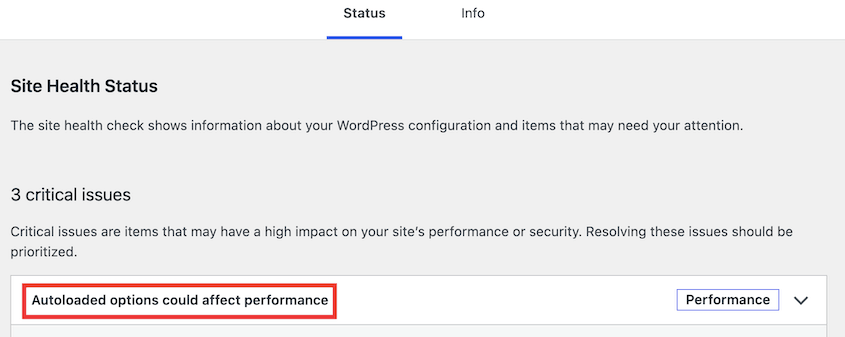
WordPress already checks this for you. Go to Tools » Site Health and open the Status tab, then look for Autoloaded options could affect performance in the list.
Expand it and you’ll get your total size.
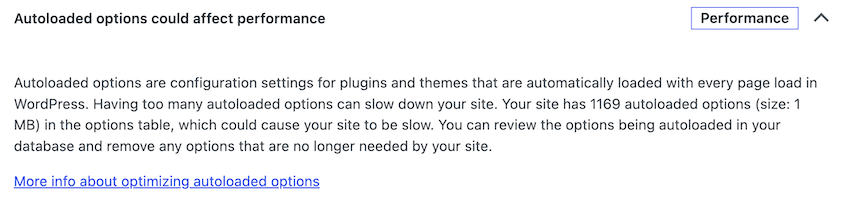
The catch is that this check only appears once you’re over 800 KB. Silence doesn’t mean you’re at zero; it means you’re under the line. It also gives you a single snapshot with no history and no way to act on what it shows you.
Option 2: DB Optimizer’s Health Score (The Easiest to Track)
If you want to track autoload size over time rather than checking it once, DB Optimizer puts it on a dashboard.
Open DB Optimizer, and you’ll get a database health score from 0 to 100. Five color-coded bars break the score down: table overhead, transients, revisions, autoload size, and trash items.
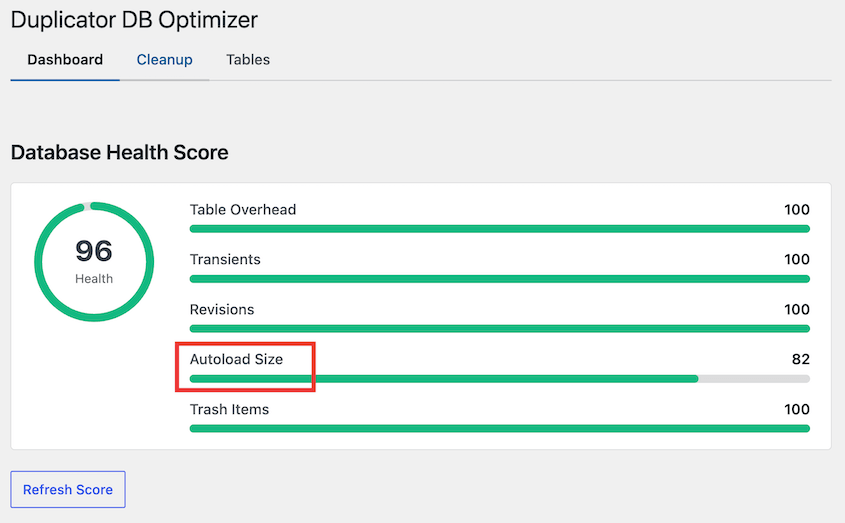
Let me be clear about what this does and doesn’t do. DB Optimizer measures your autoload size and reports it. It doesn’t clear autoloaded options.
Removing autoloaded data is still manual work, and I’ll walk through it below.
What it does clean is post revisions, auto drafts, trashed content, spam comments, expired transients, pingbacks, trackbacks, and oEmbed cache. Those are genuinely worth clearing. They’re just a different problem from autoload.
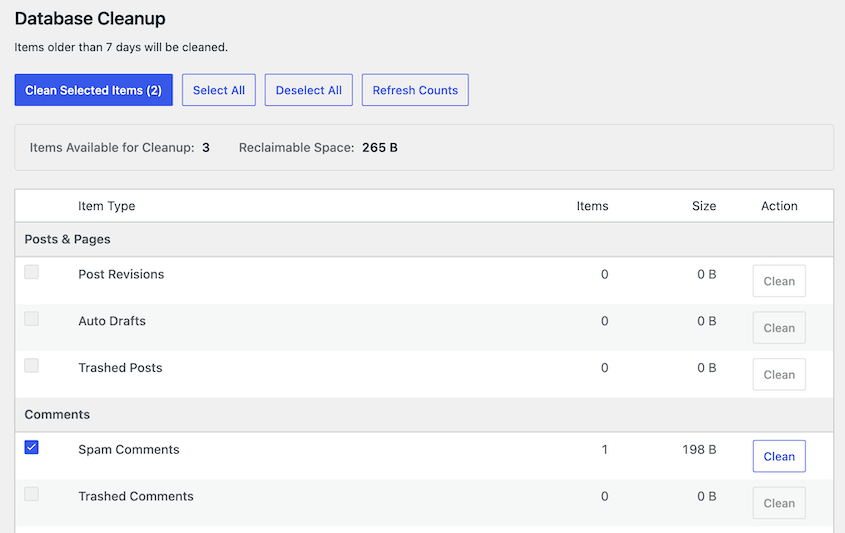
Before you start a manual cleanup, it can’t hurt to do a quick database clean. Open the Cleanup tab and run all available optimizations.
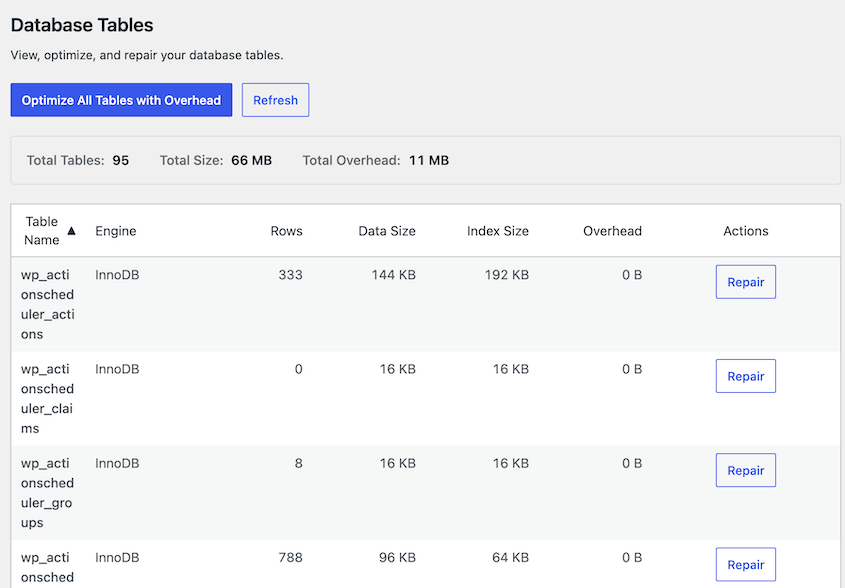
Then, go to the Tables tab. Optimize all tables with overhead.
Hit Refresh Score in the dashboard, and watch what happens to the autoload size:
- The score increases noticeably: non-expiring transients were part of your problem, and you’ve cleared some of it.
- The score barely moves: your bloat is orphaned plugin options, and no cleanup tool will touch it. Go straight to the manual methods.
- The score increases and drops back within days: an active plugin is rewriting autoloaded options on every run.
That last case is worth catching early. It saves you from cleaning the same rows every month and wondering why nothing sticks.
DB Optimizer also warns you when you don’t have a recent backup and links straight to creating one. It’s included free with Duplicator Pro and Elite plans, so you can keep your site safe and running smoothly.
Option 3: Run the Query Yourself (The Most Precise)
The SQL and WP-CLI commands in the previous section give you the exact number and the full ranked list, with no threshold hiding anything from you.
This is the route I use when I’m about to change something, because it’s the only one that shows you every row’s current autoload value. You need that before you start editing.
Why Didn’t a Database Cleanup Fix Your Autoload Size?
Here’s the piece of advice you’ll find on nearly every article about this topic: clear your transients, and your autoload size will drop.
It’s mostly wrong, and WordPress core is where you can prove it.
Look at what set_transient() does when it creates a transient. If you pass an expiration time, WordPress stores that transient with autoload set to false. Only transients created without an expiration date get autoloaded, and those are the minority.
Expired transients are, by definition, transients that had an expiration. This means they were never autoloaded. You can delete fifty thousand of them, shrink your wp_options table by a hundred megabytes, and move your autoload number by almost nothing.
Both cleanups are worth doing. A huge wp_options table slows down queries, bloats your backups, and makes migrations time out. It’s just a different problem with a different fix, and conflating the two is why so many people think their cleanup plugin is broken.
So what’s left once the transients are gone? In my experience, it’s almost always one of these:
- Serialized settings arrays from plugins you uninstalled. Most plugins never clean up after themselves on deletion, and those settings keep autoloading forever.
- License and activation data from premium plugins, including ones whose licenses lapsed years ago.
- Cached API responses stored as plain options rather than proper transients, usually by social feed, analytics, or SEO plugins.
- Log-style options that grow without limit, where a plugin appends to a single option row on every event instead of using its own table.
- Non-expiring transients, which are the genuine exception here and the only kind a transient cleanup will help with.
None of those come out with a one-click tool. That’s the honest answer, and it’s why the next section is hands-on.
How Do You Clean Up WordPress Autoload Data?
There’s no plugin that fixes this in one click. Clearing autoloaded options means identifying specific rows and deciding what to do with each one.
That sounds worse than it is. On most sites, three or four rows account for the bulk of the problem, so you’re making three or four decisions rather than hundreds.
Here are the three methods, ordered from safest to most involved:
- Turn off autoload for heavy options: flips a single column value without deleting anything, and it’s fully reversible.
- Delete orphaned options from removed plugins: permanently clears rows left behind by plugins that are gone for good.
- Replace the plugin that keeps writing it: the only fix that holds when something is regenerating bloat on every run.
Take a full backup before you start any of them. Duplicator Pro creates a complete copy of your database and files in a few minutes, and its one-click restore means a bad UPDATE statement costs you ten minutes instead of your weekend.
Method 1: Turn Off Autoload for Heavy Options
Start here, because nothing gets deleted. You’re changing one column value, and you can change it back.
Take the top offenders list from your query and work down it. For each large option, the question is whether the site needs that data on every page load.
Before disabling autoload, verify how and where the plugin reads the option. Some configuration arrays are legitimately needed on front-end requests; others are admin-only or rarely accessed and are better loaded on demand.
To stop an option from autoloading, update its autoload value:
UPDATE wp_options

SET autoload = 'off'

WHERE option_name = 'your_option_name_here'

AND autoload IN ('yes', 'on', 'auto', 'auto-on');
On WordPress 6.6+, use off. WordPress also recognizes the legacy no value as non-autoloaded, so it remains compatible with older installations.
WP-CLI handles it in one command, and it accepts on, off, yes, or no:
wp option set-autoload your_option_name_here offThe data stays exactly where it is. WordPress just stops loading it on every request and fetches it on demand when something calls get_option() instead.
After each change, do two things: re-run your size query to confirm the number dropped and load both your front end and wp-admin to confirm nothing broke.
Don’t batch twenty changes and then test. If something goes wrong, you want to know which row did it.
One thing to watch for: if an option returns to autoloading after a plugin update, that plugin is rewriting the value on activation or upgrade. Your change didn’t fail; it got overwritten.
That’s worth a support ticket with the plugin’s developers, and it’s a strong signal you’re headed for Method 3.
Method 2: Delete Orphaned Options From Removed Plugins
Deleting is permanent, so this method needs more care than the last one.
Work through your top offenders list and match each option name to the plugin that created it. Most use a recognizable prefix, though not all of them are obvious.
Search the option name before you touch it, since a name that looks abandoned sometimes belongs to something still running.
Then confirm the plugin is genuinely gone.
Deactivated isn’t gone. A deactivated plugin still has its files on disk and will pick its settings right back up when you reactivate it, so deleting its options mid-deactivation just loses your configuration.
Before you delete an option, verify that you’ve targeted the exact row you intend to remove. This read-only query shows the option’s ID, name, current autoload status, and stored size without changing anything:
SELECT option_id, option_name, autoload, LENGTH(option_value) AS size_bytes

FROM wp_options

WHERE option_name = 'orphaned_option_name_here';
Once you’re sure, remove the row:
DELETE FROM wp_options

WHERE option_name = 'orphaned_option_name_here';
Never run a DELETE with a LIKE wildcard on this table unless you’ve read every row it matches first. A pattern that looks specific can match far more than you expect, and wp_options is the one table where a mistake takes the whole site down rather than breaking one feature.
When you can’t identify a row at all, don’t delete it. Flip its autoload to off using Method 1 and leave it there.
You get the full performance benefit, the data survives, and you can reverse it in seconds if something turns out to need it.
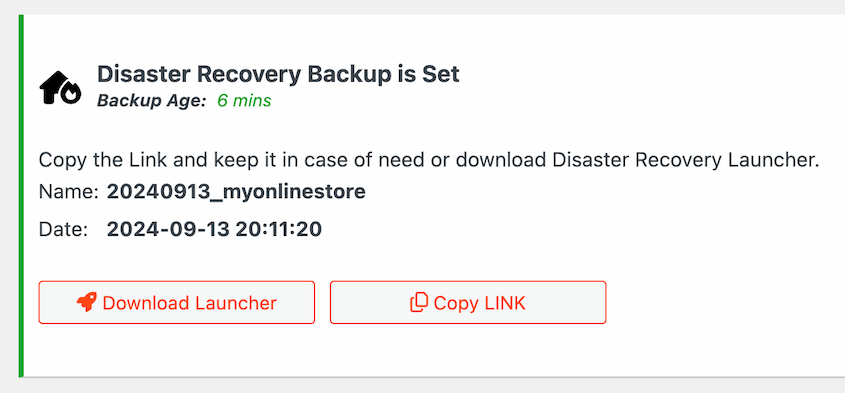
This is the point where the backup stops being a formality. You’re deleting rows from the most important table in your WordPress database, and Duplicator Pro’s disaster recovery URL will restore the site even if a bad query locks you out of wp-admin.
Method 3: Replace the Plugin That Keeps Writing It
If your autoload size climbs back over 1MB within days of a cleanup, stop cleaning. Something is actively writing on every run, and you’ll be doing this forever.
The usual suspects, based on what I keep finding:
- Slider and page builder plugins that store enormous serialized configuration arrays
- Analytics and stats plugins that log to an option row instead of their own table
- Security plugins that keep event logs as options
- Abandoned redirect managers, where every redirect rule lives in one growing option
- Social feed plugins that cache API responses as plain autoloaded options
Finding the culprit is easier than it sounds. Note your top offenders, wait a few days, then re-run the query. Whatever grew is your answer.
Swapping a plugin on a live site is where this gets risky, and it’s the one part of this process I’d never do on production first.
Duplicator Pro lets you turn any full-site backup into a staging site in a few clicks, without a separate hosting account or manual file transfers.
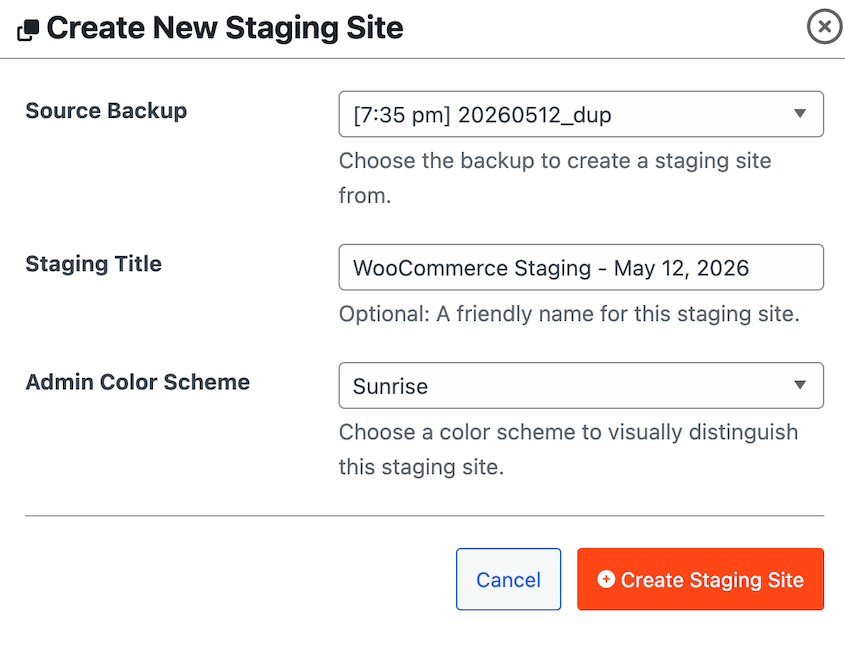
Test the replacement there, confirm the site still works and the autoload size stays flat, then make the change on production.
How Do You Keep WordPress Autoload Data From Coming Back?
Cleanup isn’t a one-time job, because WordPress autoload data grows as a side effect of normal site maintenance. Every plugin you try leaves something behind.
A few habits keep it from getting away from you again:
- Check your score monthly, or after any batch of plugin changes. DB Optimizer’s dashboard makes this a ten-second job, but Site Health works fine if you’d rather not add a plugin.
- Delete plugins properly instead of deactivating them. Deactivating leaves every option in place. Deleting at least gives a well-built plugin the chance to clean up, though plenty still don’t.
- Check the option before you uninstall. If you know a plugin leaves data behind, note its option names while it’s still installed and easy to identify.
- Install fewer plugins. It’s the least satisfying advice on this list and the most effective. Every plugin you don’t try is autoload data you never have to clean up.
- Keep a current backup running on a schedule, so database cleanup is a low-stakes decision instead of a nervous one.
- Watch Site Health rather than waiting for the site to feel slow. By the time you notice the lag, you’re usually well past 2 MB.
Frequently Asked Questions (FAQs)
What is autoload data in WordPress?
Autoload data is the set of options in your wp_options database table that WordPress loads on every page request, whether or not the page needs them. Each option row has an autoload column that controls this. WordPress fetches all of them in a single query and holds them in memory, which is faster than querying for each setting individually.
How do I check my WordPress autoload size?
The quickest way is Tools » Site Health » Status, where WordPress flags autoloaded options above 800 KB and lists the largest ones. DB Optimizer shows the same number as a tracked score on its dashboard. For exact figures, run a SQL query against wp_options filtering on the autoload values yes, on, auto, and auto-on.
Is it safe to delete autoloaded data?
It depends entirely on the row. Deleting core options like siteurl, home, or active_plugins will break your site immediately. Options from plugins you’ve fully uninstalled are generally safe to remove. When you’re unsure, set the option’s autoload value to off instead of deleting it. You get the same speed benefit, and the change is reversible.
What is a good autoload size for WordPress?
Under 800 KB, which is the threshold where WordPress Site Health raises a critical issue. Between 800 KB and 1 MB is worth investigating. Above 3 MB, a plugin is almost certainly writing junk on a schedule. Focus on your largest individual options rather than the total count, since a few big rows usually cause most of the problem.
Does caching fix autoloaded data problems?
No, and this is the most common misconception about it. Page caching serves visitors a finished HTML page, so those requests never reach WordPress. Every request that does reach WordPress still pays the full autoload cost, including admin screens, the block editor, REST API calls, cron jobs, and WooCommerce checkout pages that can’t be cached.
Did WordPress 6.6 change how autoload works?
Yes, significantly. WordPress 6.6 replaced the old yes and no values with five: on, off, auto, auto-on, and auto-off. It also stopped autoloading new options larger than 150 KB by default and added the Site Health check that warns above 800 KB. Existing rows kept their old values, so most sites now have a mix.
Can autoloaded data slow down wp-admin?
Yes, and it’s the most common symptom. Admin pages are never served from a page cache, so every dashboard screen loads the full set of autoloaded options first. That’s why a site can have a fast homepage and a dashboard that takes several seconds, which makes the problem easy to overlook if you only test as a logged-out visitor.
WordPress Autoload Data Is a Maintenance Habit, Not a One-Time Fix
Autoload bloat is the accumulated cost of every plugin your site has ever tried. That’s worth sitting with, because it reframes the problem.
It isn’t a bug or a sign you did something wrong. It’s the ordinary residue of running a WordPress site for a few years, and nothing in WordPress cleans it up for you.
I’d rather be straight about the work involved. Editing wp_options by hand carries real risk, the tools available will measure the problem more readily than they’ll fix it, and you’ll be back here in six months if you keep installing plugins (which you will).
Set a reminder, check the number quarterly, and treat it like any other maintenance task.
Here’s one more thing worth doing that I haven’t mentioned yet: check your autoload size right before a migration. It’s the cheapest possible way to shrink a backup archive and cut import time on the other end.
A bloated wp_options table is one of the most common reasons a database import stalls or times out on a new host, and it’s genuinely frustrating to debug a failed migration. Ten minutes of cleanup before you export saves that entirely.
Before You Touch wp_options, Make Sure Your Site Is Protected
Cleaning autoload data means running UPDATE and DELETE statements against the one table that can take your entire site offline. One misplaced wildcard in a query, and you’re looking at a white screen with no way into wp-admin to fix it.
Duplicator Pro makes that a recoverable mistake instead of a disaster. Take a full backup before you start, and restore in minutes with one click if anything goes sideways.
Its disaster recovery URL brings a site back even when WordPress is completely locked out, which is exactly the scenario a bad database query creates. Try it out today!
If this post got you thinking about what else is sitting in your database, these guides are worth reading next.
- How to Delete All Transients in WordPress (4 Methods)
- How to Optimize Your WordPress Database: Get a Fast Site in 10 Steps
- WordPress Database Cleanup: A Beginner’s Guide to Removing the Junk
- 7 WordPress Database Warning Signs Most Site Owners Miss
- How to Fix a Slow WordPress Database: A 4-Step Checklist
- WordPress Database Maintenance: What to Do Weekly, Monthly, and Quarterly




