

![[NEW] Duplicator DB Optimizer: Clean Your WordPress Database Before It Becomes a Problem](https://duplicator.com/wp-content/uploads/2026/06/Announcement-DB-Optimizer.jpg)
7 WordPress Database Warning Signs Most Site Owners Miss
 Joella Dunn
Joella Dunn
Joella Dunn
 John Turner
John Turner
John Turner
Your site is loading. Visitors aren’t complaining. Nothing in wp-admin is throwing errors.
Yet your database has been quietly accumulating dead weight for months, maybe years.
Database bloat doesn’t always show up on the front end. Your pages can look the same to visitors whether your database is lean or carrying thousands of post revisions.
The problems surface somewhere else: a backup that takes twice as long to complete, a migration that stalls halfway through, or an admin dashboard that feels sluggish on every page load.
I’ve seen this on sites that were otherwise well-maintained. Nobody had looked at the database in years, and it showed the moment we tried to migrate.
These signs are specific and diagnosable. You don’t need to run SQL queries or dig through phpMyAdmin to know whether your database needs attention. You just need to know what to look for.
I’ll show you the key signs your WordPress database needs optimization and what a healthy database looks like so you have a target to aim for.
Here are the key takeaways:
- Database bloat can be invisible on the front end, especially on cached pages. The signs often show up in backup sizes, migration times, and admin speed rather than on your live site.
- The signs to watch for: slow admin, post save errors, “waiting for database” delays in speed tests, slow uncached page loads, oversized backups, slow migrations, and disproportionate database size.
- Autoloaded data above roughly 800KB to 1MB can become a concern, depending on the site and caching setup. The wp_options table is the first place to check.
- Orphaned tables from uninstalled plugins accumulate silently and contribute to database size without adding anything useful.
- DB Optimizer gives your database a health score from 0 to 100 across five categories so you know exactly what needs attention before you migrate or back up.
- Clean before you migrate, not after. A smaller database means a smaller backup, a faster transfer, and less to debug if something goes wrong.
Table of Contents
- What Accumulates in Your WordPress Database?
- 7 Signs Your WordPress Database Needs Optimization
- Your WordPress Admin Is Noticeably Slow
- You're Getting Errors When Saving Posts
- Speed Test Tools Show "Waiting for Database" Delays
- Page Loads Are Slow on Uncached Requests
- Your Backups Are Larger Than They Should Be
- Migrations Take Longer Than Expected
- Your Database Has Orphaned Tables or Disproportionate Size
- What a Healthy Database Looks Like
- How to Check Your Database Health Before Your Next Migration
- Frequently Asked Questions (FAQs)
What Accumulates in Your WordPress Database?
WordPress generates a surprising amount of data that has nothing to do with your actual content. This isn’t your fault; it’s just how the platform works.
Post Revisions
Every time you save or update a post, WordPress stores a revision of it. There’s no built-in cap by default unless you set one.
A post you’ve edited 50 times has 50 stored copies sitting in your database. On an active blog or a site where multiple editors are working, those copies stack up fast.
Expired Transients and Autoloaded Data
Transients are temporary records that plugins store in your database. Things like API responses, cached query results, and short-lived settings.
They’re designed to expire on their own after a set period. Often, they remain in the database until they’re cleaned up or accessed again.
Expired transients can pile up in your wp_options table, which is where WordPress stores site-wide settings. The ones flagged as “autoloaded” are loaded on every uncached page request.
When autoloaded data climbs into the 800KB to 1MB range or beyond, it can become a performance concern. It adds overhead to every page load on your site, admin or otherwise.
Spam Comments, Trash, and Orphaned Metadata
Trashing a post or marking a comment as spam doesn’t remove it from the database. It sits there until you permanently delete it.
Deactivated plugins leave behind rows in wp_postmeta and wp_options. Once a plugin is gone, those rows have no parent record to attach to.
They’re called orphaned metadata, and they accumulate silently every time you swap out a plugin.
Table Overhead
When rows get deleted from a database table, MySQL doesn’t automatically reclaim that space. The gaps left behind are called overhead.
Tables that handle frequent writes (like wp_options and wp_postmeta) can accumulate overhead faster than others. Overhead doesn’t usually break anything, but it wastes disk space and can make some maintenance tasks less efficient.
7 Signs Your WordPress Database Needs Optimization
A slow site is easy to blame on hosting or plugins. These signs are more specific than that. Each one points to the database directly.
- Slow WordPress admin: The dashboard bypasses page caching and queries the database on every load. A bloated wp_options table makes every admin page sluggish.
- Errors when saving posts: Write failures and table corruption produce save errors that look like plugin conflicts but trace back to the database.
- “Waiting for database” in speed tests: GTmetrix identifies this specifically. High TTFB with slow server response points to fragmented tables, not your host.
- Slow uncached page loads: Logged-in users, editors, and WooCommerce checkout pages bypass caching. If those flows are slow, the database is likely why.
- Oversized backups: Backup size reflects database size directly. Dead weight gets backed up along with everything else.
- Slow migrations: A bloated database produces a larger migration package, a slower upload, and more that can go wrong mid-transfer.
- Disproportionate database size: If your database is far larger than your content count suggests, orphaned tables and accumulated junk explain the gap.
Your WordPress Admin Is Noticeably Slow
This is usually the first thing site owners notice. The front-end feels fine, but the dashboard, post list, and media library load slowly.
WordPress admin bypasses page caching entirely. Every admin page depends on database queries.
When wp_options is bloated with expired transients and leftover plugin settings, WordPress has more data to process on every uncached request.
I’ve seen this on sites where the autoloaded data had grown past 2MB. Every wp-admin page was taking several seconds to respond.
The fix wasn’t a hosting upgrade. It was cleaning the database.
You’re Getting Errors When Saving Posts
Intermittent errors during post saves are easy to blame on a plugin conflict. The database is often the actual cause.
A database under strain from corruption, locking issues, or server constraints can start failing under write load. You might see a generic “Are you sure you want to do this?” prompt, a white screen, or a post that appears to save but doesn’t.
Table corruption (which can happen when a database operation gets interrupted) produces the same symptoms.
If you’ve ruled out plugin conflicts and the errors keep coming back, check your database health before anything else.
Speed Test Tools Show “Waiting for Database” Delays
Tools like GTmetrix show you where time is being spent during a page load.
In GTmetrix, the purple bar in the waterfall chart represents “waiting time” — the time between the browser sending a request and receiving the first byte back from the server.
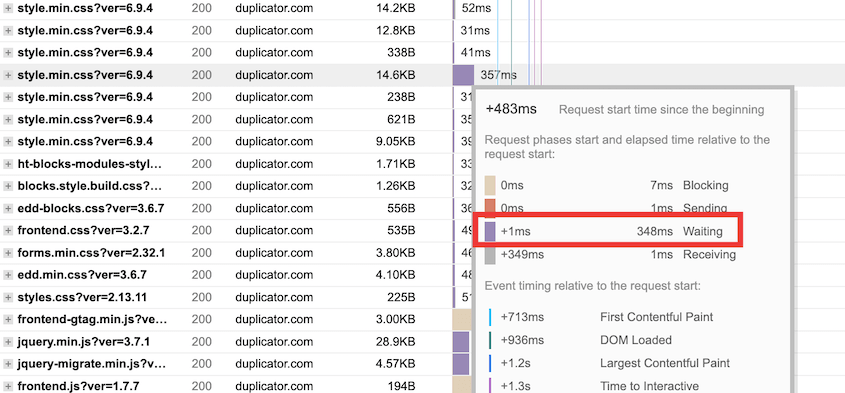
A long purple bar points to slow server-side processing. That processing includes database queries.
When fragmented tables take longer to scan than they should, queries that should run in under 10 milliseconds start stacking up. The purple bar gets longer.
A high TTFB (Time to First Byte, the time between a browser request and the first byte of a response) with slow server response time is one of the clearest measurable signals that your database needs attention.
Page Loads Are Slow on Uncached Requests
Caching hides database problems from most visitors. It serves a stored copy of the page instead of querying the database fresh every time. But caching doesn’t cover everyone.
Admin users, editors, and logged-in members bypass page cache entirely. WooCommerce cart and checkout pages typically bypass it too. If those flows feel slow, the database is likely the cause.
Your Backups Are Larger Than They Should Be
Backup size is a direct reflection of database size. Dead weight gets backed up right along with everything else.
A database carrying 100,000 post revisions and 50,000 expired transients adds real megabytes to every backup. That means longer transfer times, more cloud storage consumed, and slower restores if you ever need one.
Most people don’t notice this because backups run in the background. You only feel it when a backup times out or a restore takes an hour longer than expected.
Migrations Take Longer Than Expected
When you migrate a WordPress site, the full database moves with it. Every orphaned row, expired transient, and revision copy makes the trip.
A bloated database produces a larger migration package. That means a slower upload, more time for something to go wrong mid-transfer, and a messier situation to debug if the migration fails.
The right order is to clean the database first, then create your backup, then migrate.
Your Database Has Orphaned Tables or Disproportionate Size
Every plugin that creates its own database tables leaves them behind when uninstalled — unless the developer explicitly wrote cleanup code.
Tables from plugins you removed years ago could still be sitting in your database. They take up space and add clutter to every query that scans your table list.
If your database is 500MB but you only have 300 posts, orphaned tables and accumulated junk may explain the gap.
Most hosting dashboards show your database size. If you haven’t checked recently, it’s worth a look.
What a Healthy Database Looks Like
Here’s what a well-maintained WordPress database looks like:
- Autoloaded data under roughly 800KB to 1MB, depending on the site and caching setup
- Table overhead at or near zero after a recent cleanup
- Transients either cleared or expiring as expected
- Post revisions limited or periodically pruned
- No leftover tables from deactivated plugins
Most site owners have no way to check these things without running SQL queries or digging through phpMyAdmin. That’s the gap DB Optimizer fills.
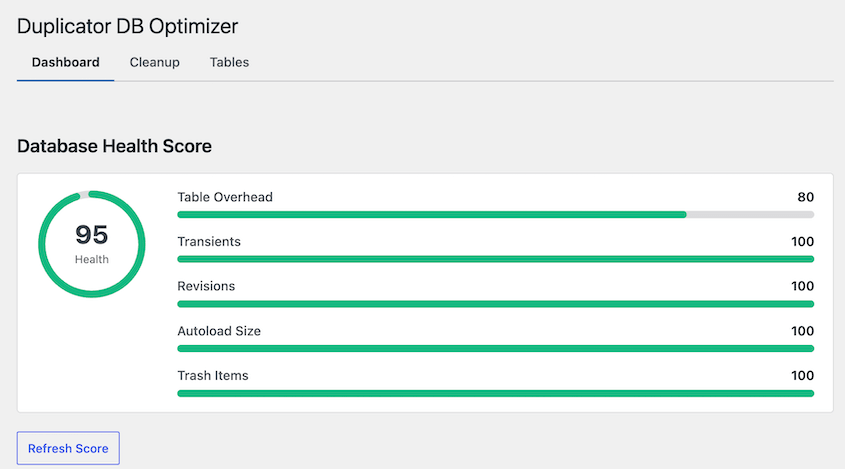
DB Optimizer is a plugin that gives your database a health score from 0 to 100. It rates five categories: table overhead, transients, revisions, autoload size, and trash items.
Each category gets its own progress bar and a color-coded grade. Green means you’re in good shape. Yellow means something needs attention. Red means it’s time to clean up.
Optimize your entire database in bulk with the Cleanup tab. DB Optimizer cleans your post revisions, spam comments, transients, trackbacks, and other unnecessary data.
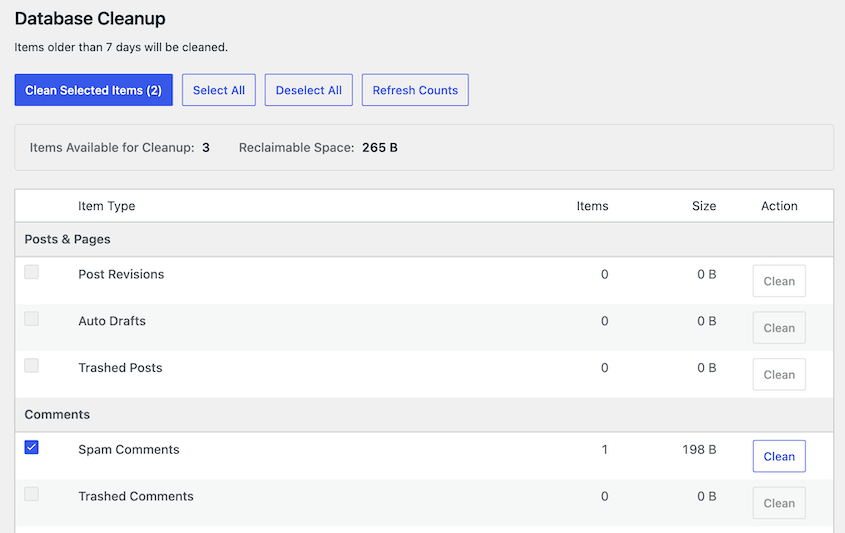
That changes database maintenance into a simple task you can actually stay on top of.
How to Check Your Database Health Before Your Next Migration
If you’re planning a migration, this is the right time to check your database health. Not after the transfer takes twice as long.
Open DB Optimizer and check your health score. Look at which categories are green, yellow, or red. That tells you where the problems are before you touch anything.
Go to the Cleanup tab. Before running anything, DB Optimizer shows you the total number of items available for cleanup and the reclaimable space across your entire database. You decide what to clean and what to leave alone.
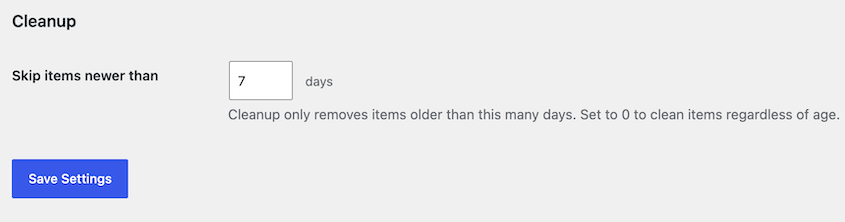
Set your retention threshold. The default is 7 days, which means anything created in the last week is off-limits regardless of what cleanup types you’ve selected.
If you’re being cautious, set it higher. If you want a clean slate before migrating, set it lower.
DB Optimizer shows item counts and estimated size for each cleanup type before anything runs. Review the list, deselect anything you want to keep, and confirm when you’re ready.
DB Optimizer detects Duplicator automatically and puts a direct link to create a backup right next to the cleanup controls. Click it, since you don’t want to lose anything important.
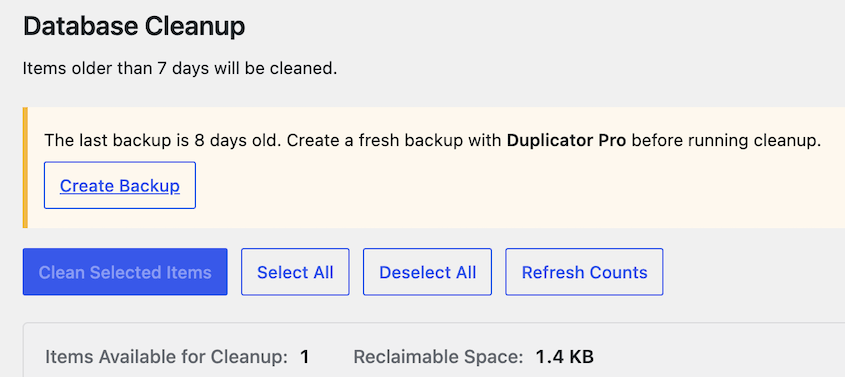
A cleaner database means a smaller backup, a faster transfer, and less to sort through if something goes wrong.
Frequently Asked Questions (FAQs)
How do I know if my WordPress database is too big?
Check your database size in your hosting dashboard or phpMyAdmin. A database that’s significantly larger than your actual content suggests accumulated bloat. If you have a few hundred posts but your database is several hundred megabytes, orphaned tables, post revisions, and expired transients are the likely cause. Also check your autoloaded data specifically. Anything above 800KB is a sign the wp_options table needs attention.
Does database bloat affect front-end speed?
It depends on what’s bloated. Autoloaded data impacts every page load regardless of caching because WordPress loads it before serving any request. Fragmented tables and high overhead affect uncached requests, which include logged-in users, WooCommerce checkout pages, and any page your cache misses. Visitors hitting cached pages may notice nothing. Everyone else feels it.
How often should I optimize my WordPress database?
Monthly for active sites with regular publishing, frequent plugin changes, or WooCommerce transactions. Quarterly at minimum for lower-traffic sites. Always run a cleanup before a major migration or a significant WordPress update. The longer you wait between cleanups, the more there is to sort through when you finally do it.
Is it safe to delete post revisions?
Yes. Deleting post revisions removes historical copies of your content, not the published version. Your live posts are not affected. That said, always take a backup before running any database cleanup. If you delete a revision you needed, a backup is the only way to get it back.
What is table overhead in WordPress and does it matter?
Table overhead is unused space left behind in a database table after rows are deleted. MySQL doesn’t reclaim that space automatically. It matters because overhead wastes disk space and forces MySQL to scan through empty gaps during queries. On a heavily used site with frequent deletions, overhead accumulates faster than most people expect.
Will cleaning my database break my site?
Not if you approach it carefully. Use a retention threshold to keep recent data off-limits. Preview exactly what will be removed before confirming. Take a full backup first. Cleanup permanently removes database records with no built-in undo, so the backup is what gives you a recovery option if something goes wrong.
What causes errors when saving posts in WordPress?
Database table corruption and write failures under strain are two common causes that often get misdiagnosed as plugin conflicts. A fragmented or overloaded database can fail during write operations, producing generic save errors or white screens. If you’ve ruled out plugin conflicts and the errors keep returning, run a database health check before looking elsewhere.
A Bloated Database Doesn’t Fix Itself
The performance problems covered in this post are real, but they surface in backup sizes and migration times and admin response speeds, not on your frontend. That’s why they get ignored.
The cost shows up later. A migration that should take 20 minutes takes two hours. A backup fails mid-transfer because the file got too large. A post save starts throwing errors, and you spend an afternoon ruling out plugin conflicts when the database needed a cleanup.
Database maintenance is easy to postpone indefinitely because the consequences are invisible until they aren’t.
One check worth doing right now, before you install anything: open your hosting dashboard or phpMyAdmin and look at the size of your wp_options table. On a typical WordPress site, it should be somewhere under 3 to 5MB.
If it’s 10MB or more, autoloaded data is almost certainly the issue. That single table, when bloated, adds overhead to every page load on your entire site, cached or not. It’s the fastest way to get a rough read on whether your database has a problem worth addressing.
DB Optimizer shows you a more complete picture. It gives you a database health score, a full preview of what’s available to clean before anything runs, and a configurable retention threshold that keeps recent data off-limits automatically.
DB Optimizer is included in the Duplicator Elite plan alongside WP Media Cleanup, Activity Log, and Duplicator Pro. Four tools for keeping your WordPress site healthy, backed up, and ready to move when you need it.
If this post got you thinking about your database health, these guides are worth reading next.
- How to Optimize Your WordPress Database
- Here Are the WordPress Database Repair Steps I Took Myself (No Developer Needed)
- WordPress Database Maintenance: What to Do Weekly, Monthly, and Quarterly
- How to Back Up a WordPress Database (Complete Guide)
- How to Restore a WordPress Database (3 Methods)
- 13 Best WordPress Database Plugins for Easy Data Management




