

![[New] Introducing Duplicator 5.0: AI Backups, AutoTune, and Extra Free Features](https://duplicator.com/wp-content/uploads/2026/09/Duplicator-5-0-Announcement.jpg)
Duplicator vs WP Staging: I Tested Both Staging Plugins Head-to-Head
 Joella Dunn
Joella Dunn
Joella Dunn
 John Turner
John Turner
John Turner
Most WordPress disasters don’t happen with a bang. A plugin update goes out, the checkout page silently stops working, and nobody notices until a customer emails asking why their cart won’t load.
By the time anyone catches it, the damage is already done.
A staging site is how you catch problems before they happen. It’s a private copy of your site where you can run updates, test a new theme, or try a plugin without touching the version your visitors see.
I ran two local installs side by side for testing: one with Duplicator, one with WP Staging. I wanted to see which WordPress staging plugin was better.
I cloned a live site on each and walked through every screen in the staging workflow. In this post, I’ll share how they stack up.
Here are the key takeaways:
- Duplicator builds staging sites from a backup in one click. It can also turn a backup into a portable package you can deploy almost anywhere WordPress runs.
- WP Staging clones your live site directly, no backup step required, with granular control over which database tables and files come along.
- WP Staging’s push-to-live feature requires its Business plan ($158/year). The free version can clone but can’t merge changes back.
- Duplicator has no one-click push button, but its backup-and-restore system lets you migrate staging files onto the live site easily.
- Duplicator’s standalone installer sets up a copy anywhere: a subdomain, subdirectory, local dev environment, or new host, without installing WordPress first.
- Duplicator includes a disaster recovery point and recovery link, so you can get back online even if you’re locked out of wp-admin. WP Staging doesn’t offer this.
- Both plugins are free to start: Duplicator’s free version handles FTP migrations and full backups, and WP Staging’s free version handles staging and basic backups.
- Duplicator pulled a 4.9/5 rating across 4,900 reviews with 1 million+ active installs. WP Staging sits at 4.8/5 across 2,300 reviews with 100,000+ installs.
Table of Contents
What Is a WordPress Staging Plugin?
A staging plugin creates a copy of your WordPress site that lives separately from the one your visitors see. You make changes there first (like plugin updates, theme swaps, code edits, and redesigns). If something breaks, it breaks on a copy nobody else can see.
Staging sites help you avoid risk on your WordPress site. A staging plugin helps you build staging sites quickly and safely.
A staging site doesn’t prevent every problem. It gives you a place to find problems before your visitors do.
What to Look for in a Staging Plugin
Not every staging plugin solves the same problem the same way. Before comparing Duplicator and WP Staging feature by feature, it helps to know what actually matters when you’re choosing one.
- Cloning that doesn’t require a second hosting account. Some staging tools need a separate subdomain or server setup before you can even start. The best ones work inside your existing install.
- A staging copy that’s isolated from production. Emails shouldn’t fire to real customers from a test environment. Cron jobs and WooCommerce actions shouldn’t run against live data either.
- A way to bring tested changes back to the live site, whether that’s a one-click push or a backup you control manually.
- Backup integration, since a staging plugin that can’t also protect your live site is solving only half the problem.
- Support for WooCommerce and multisite if you’re running either. Staging a store or a network adds complications a basic blog clone doesn’t have.
What Is Duplicator?
Duplicator started as a backup and migration plugin. It’s the tool people reach for when they need to move a WordPress site to a new host, clone it for a client, or recover from a disaster.
It works by downloading your entire website. You can save this zip file as a backup or move it to a new location.
Once you have a backup, set up this copy anywhere that supports WordPress. You could migrate your site to a local development environment, custom subdomain, or an entirely different host.
Duplicator is unique because of its standalone installer. Instead of having to install the plugin on the second site and use the WordPress admin to migrate the backup, you can upload a site backup and installer file to the new site via FTP.
The migrator launches without you having to install WordPress first. This makes Duplicator a go-to for developers who need new sites set up fast.
Recently, it added one-click staging functionality as a beginner-friendly way to make staging sites.
On WordPress.org, Duplicator sits at 4.9 out of 5 stars across 4,900 reviews, with more than 1 million active installs.
What Is WP Staging?
WP Staging took the opposite path. It started as a staging-first plugin, built specifically to clone a live site fast and safely. Backups came later.
The plugin instantly creates a copy of your site and sets it up in a separate location on your server. You’re free to test anything you want and push changes back when you’re ready.
WP Staging holds a 4.8 out of 5 rating across 2,300 reviews, with more than 100,000 active installs.
When I tested it, the plugin had been updated nine hours earlier, which says something about how actively it’s maintained.
Duplicator vs WP Staging: Compared
I tested both plugins on local WordPress installs running side by side. Here’s how they compare.
Staging Creation Workflow
Duplicator builds a staging site from a backup you’ve already created.
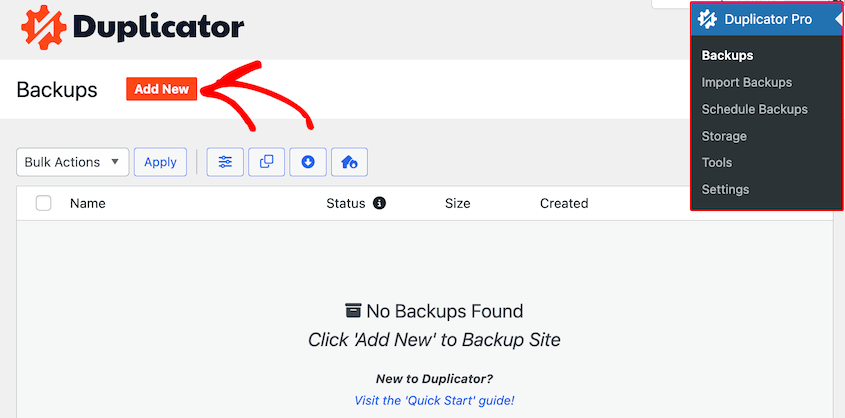
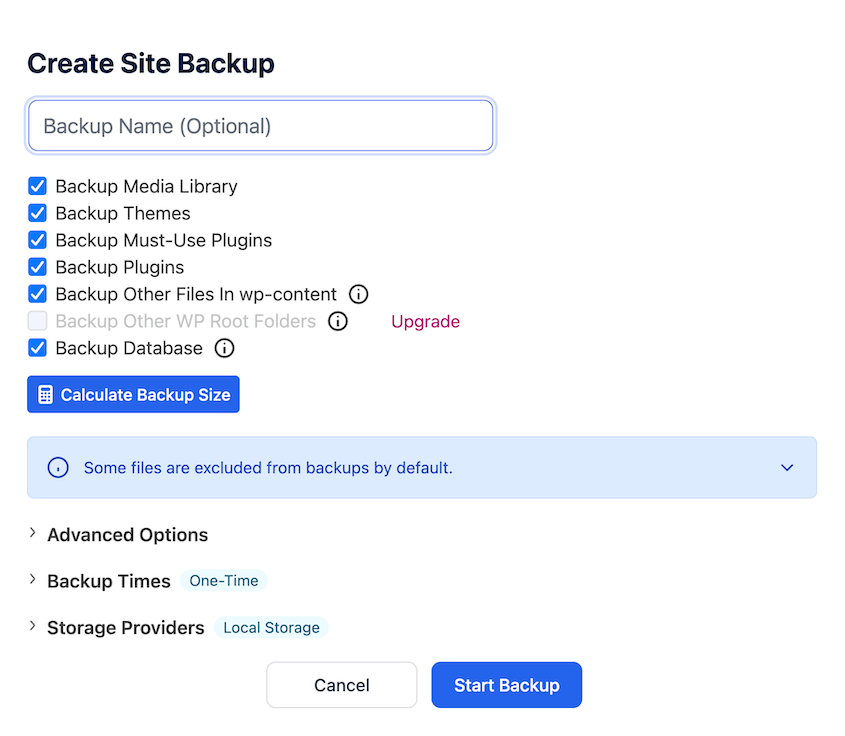
When you build a backup, you’ll have easy-to-use presets to customize what data comes over. I selected the Full Site option to build a staging site from a full copy of my site.
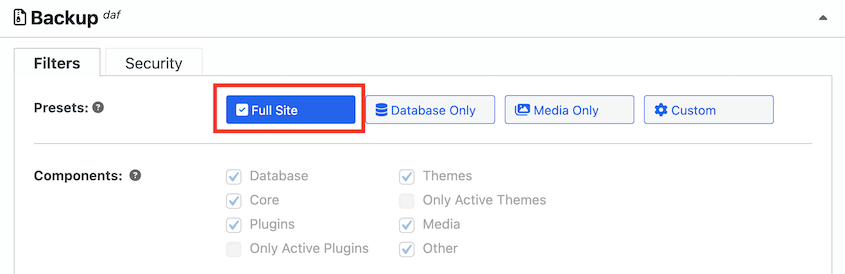
Finish the backup, making sure it’s saved locally.
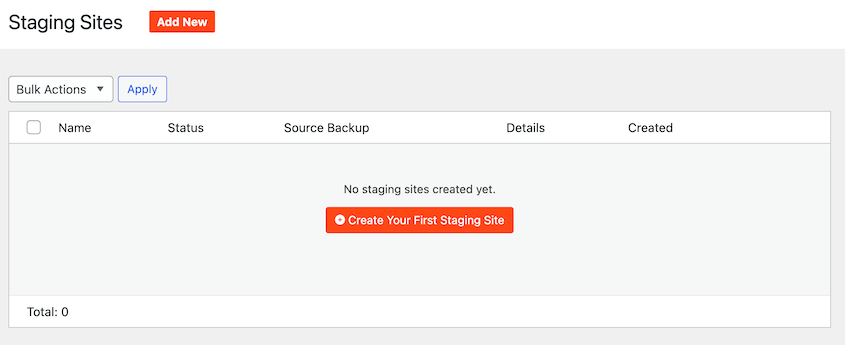
To create a staging site, simply go to Duplicator Pro » Staging » Add New.
You’re asked for three things: a source backup, a staging title, and an admin color scheme.
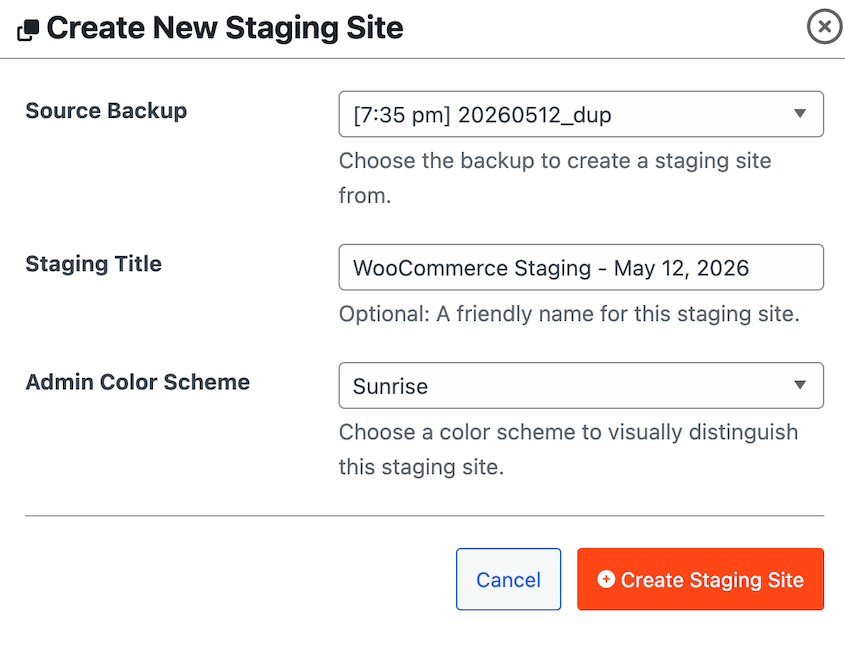
Select the backup you just created. Give the site a name. Customize the color scheme to visually set the staging site apart from production.
Click Create Staging Site, and Duplicator copies your data into a new staging subfolder.
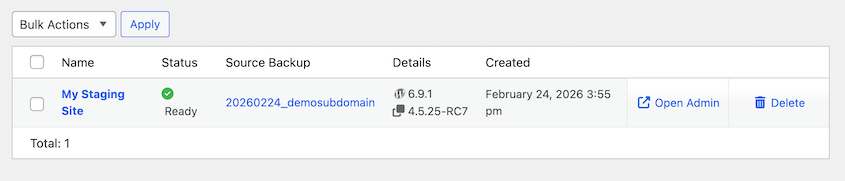
Duplicator offers more flexibility if you’re familiar with FTP. You can set up a copy of your site anywhere that supports WordPress.
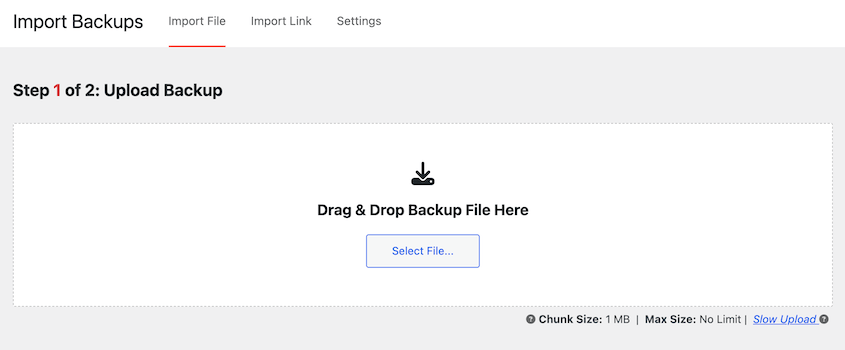
Once you create a backup, download both files. Upload them to the new server. Launch the installer with this URL: https://your-new-domain/installer.php
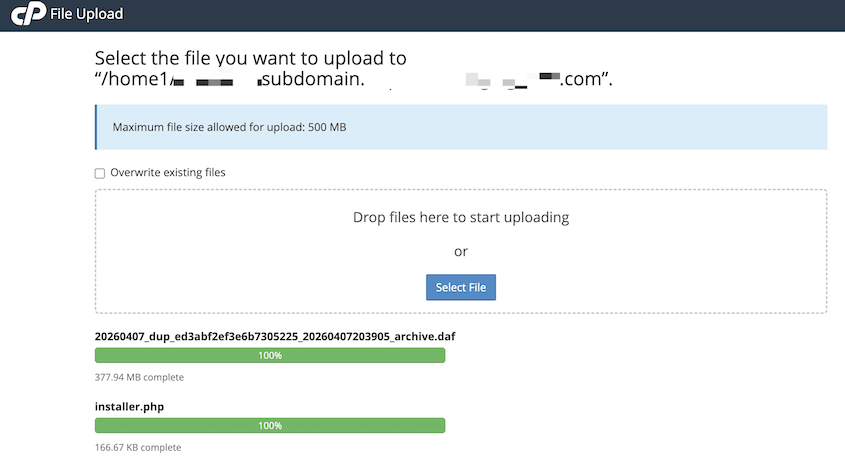
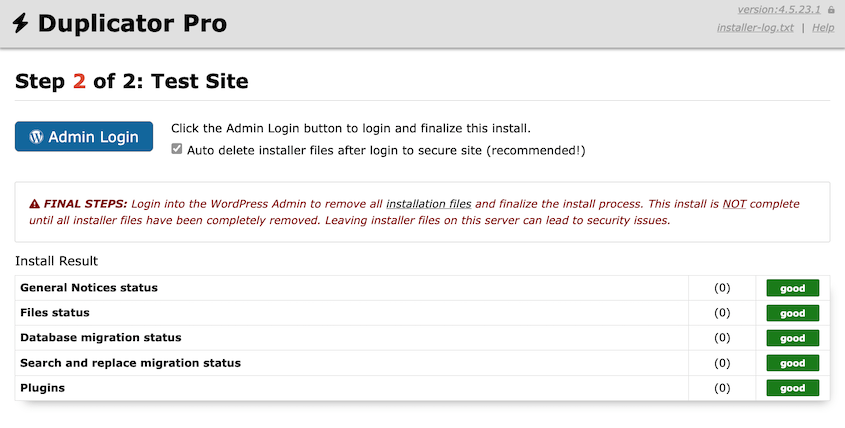
Use Duplicator’s migration wizard to connect to the new database and install all your original data. You’ll get a new staging site without having to install WordPress.
This works anywhere: a local development environment, subdomain, subdirectory, or live test server.
WP Staging works without a backup step first. Install it, then hit Create Staging Site.
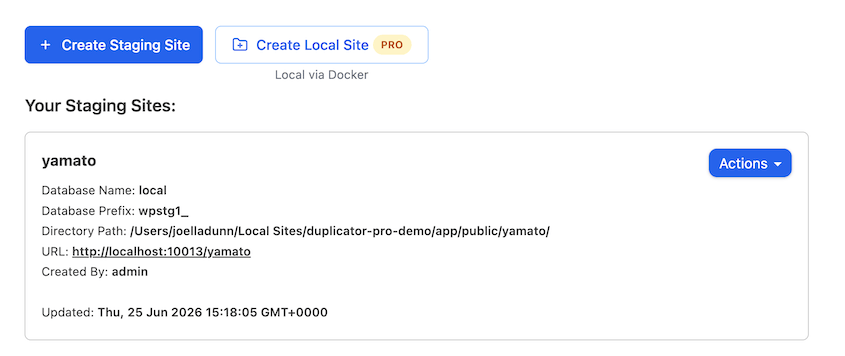
You can leave the defaults as-is and let WP Staging run.
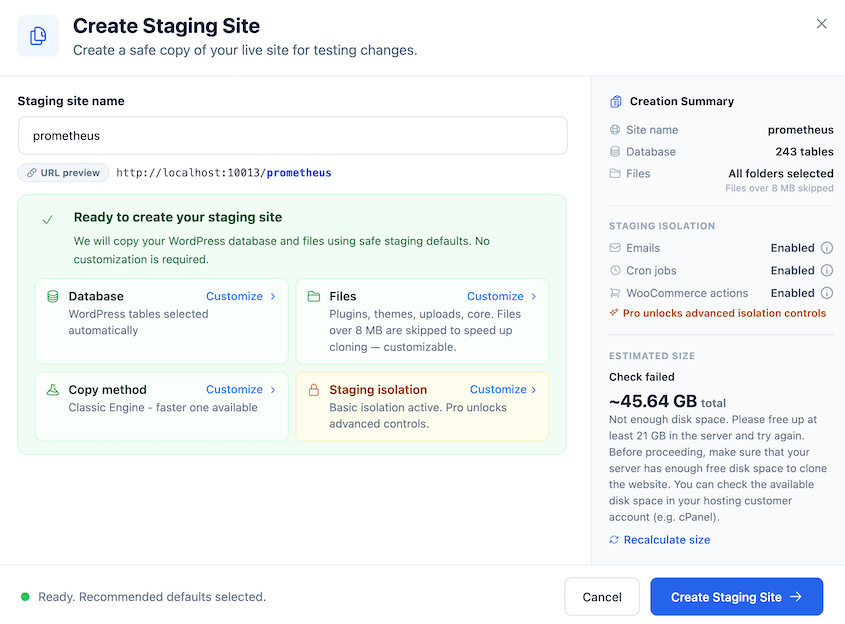
However, there are options to customize which files and database tables are copied to staging.
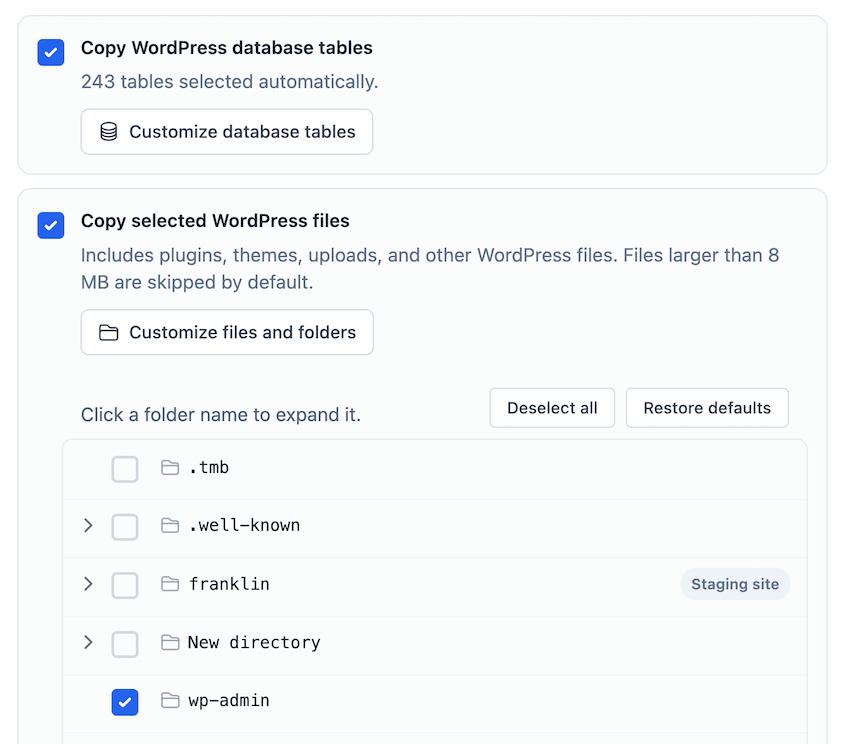
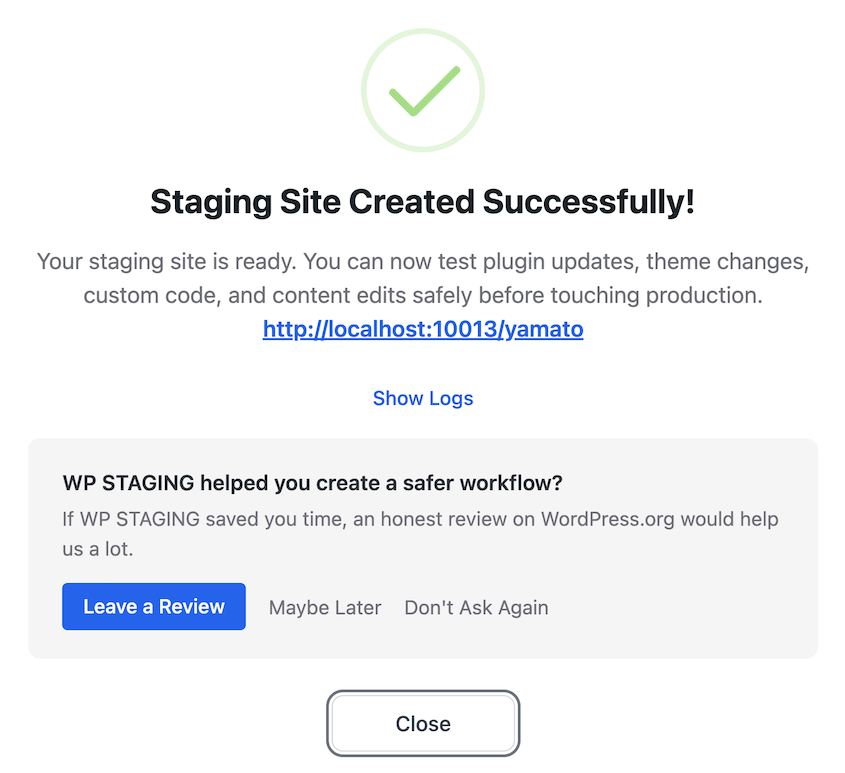
When I ran it, the process moved through three visible stages: copying the database, search-replacing URLs, then copying files, each with a live percentage and an elapsed timer. It took under three minutes on a small test site.
Safety and Isolation Signals
Once you’re inside a Duplicator staging site, it’s obvious you’re not on the live one. The admin color scheme changes (mine showed up in red), and a banner across the dashboard reads: “Staging Site. This is a staging copy of your site. Emails are disabled.”
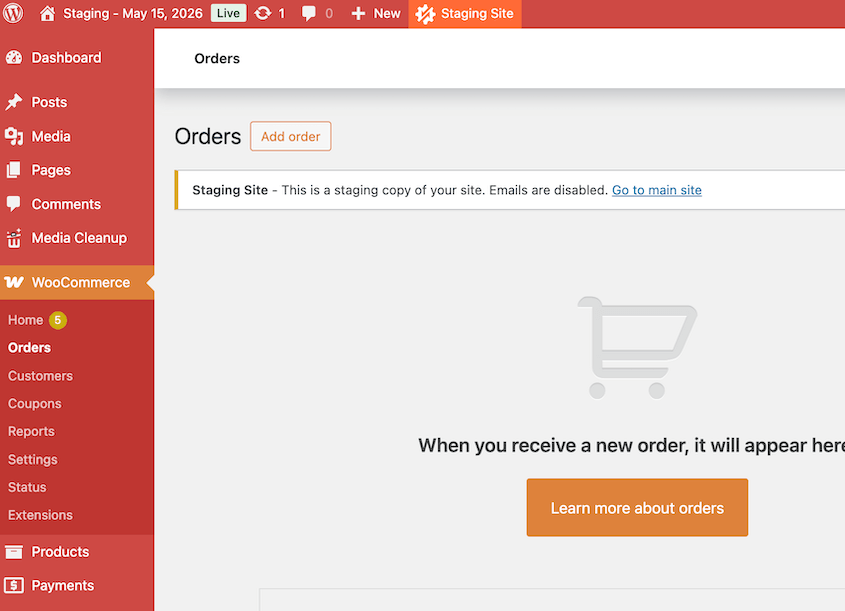
That kind of visual signal matters more than people expect. It’s easy to forget which tab is staging and which is live when you’ve got six WordPress sites open at once.
WP Staging does the same thing. When I logged in, I had an orange bar at the top of the admin screen.
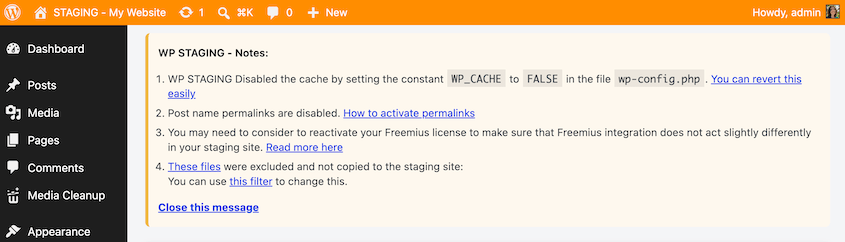
Both plugins disable emails and search engine indexing, which is standard practice for staging sites.
Deployment Flexibility
Duplicator’s staging feature is really just its backup-and-installer system pointed at a new destination, and that’s a bigger deal than it sounds.
The same two files Duplicator generates for a staging site (an archive and a standalone installer.php) can be dropped onto a subdomain, a subdirectory, a completely different host, or a local development environment.
Run the installer, and it rebuilds the full site there automatically, handling the database import, file extraction, and URL replacement without anyone touching code.
WP Staging’s clone is tied to the server it was created on. When I created mine, it landed at a subfolder of the same install, and there’s no built-in path to deploy that same clone onto a different host without exporting it as a backup first and restoring it manually elsewhere.
Pushing Changes Live
WP Staging Pro, starting at its Business tier, includes a one-click Push Changes button. Make your edits on staging, click push, and the plugin merges those changes back into the live site automatically.
Duplicator doesn’t have an equivalent push button. What it has instead is the same backup system used everywhere else in the plugin.
Create a backup of your staging site, then drag and drop that backup file onto the live site to bring the changes over.
Backup Integration
Duplicator’s backups aren’t an add-on. They’re the foundation the entire plugin runs on, which is why staging, migration, and recovery all use the same underlying system.
You can schedule backups every hour, day, week, or month.
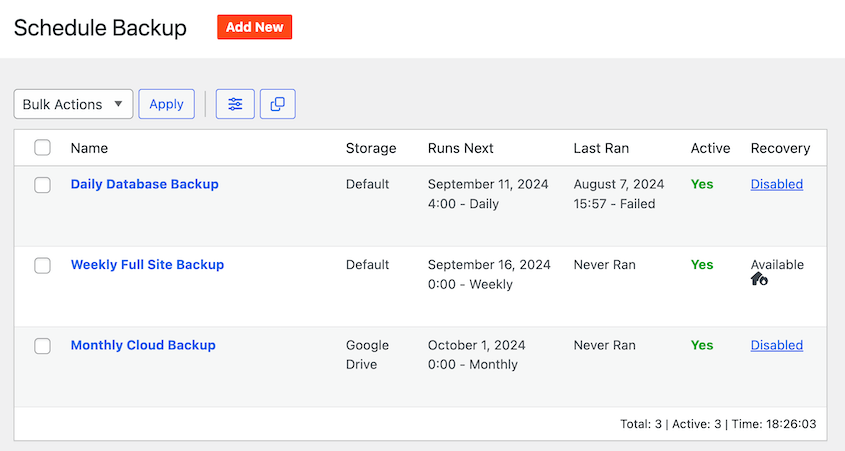
Backups can be stored in all the major cloud storage locations, plus Duplicator Cloud. This custom cloud storage location gives you a third-party dashboard for easy disaster recovery.
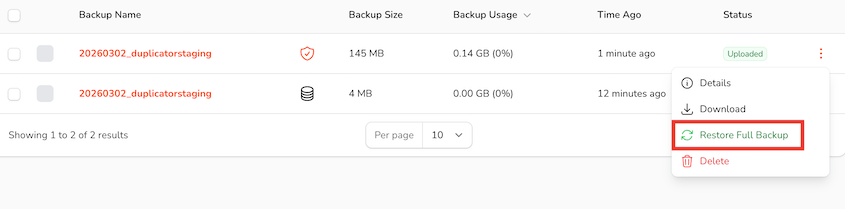
With Duplicator, backups can become a staging site, a migration package, or a restore point.
WP Staging also offers backups, but it was primarily built for staging. It performs basic backups and restores, but doesn’t have a custom cloud storage yet.
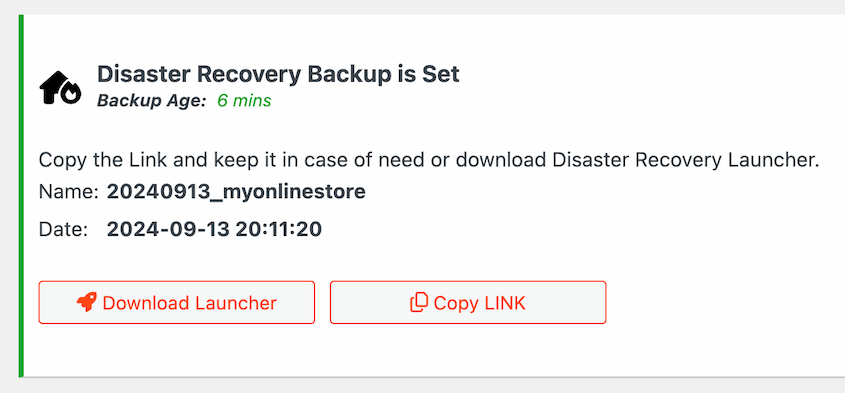
Unlike Duplicator, WP Staging can’t restore your WordPress site if you’re locked out of WordPress. Duplicator’s unique standalone installer allows you to set a disaster recovery point, then use a recovery link to instantly get back online.
Pricing
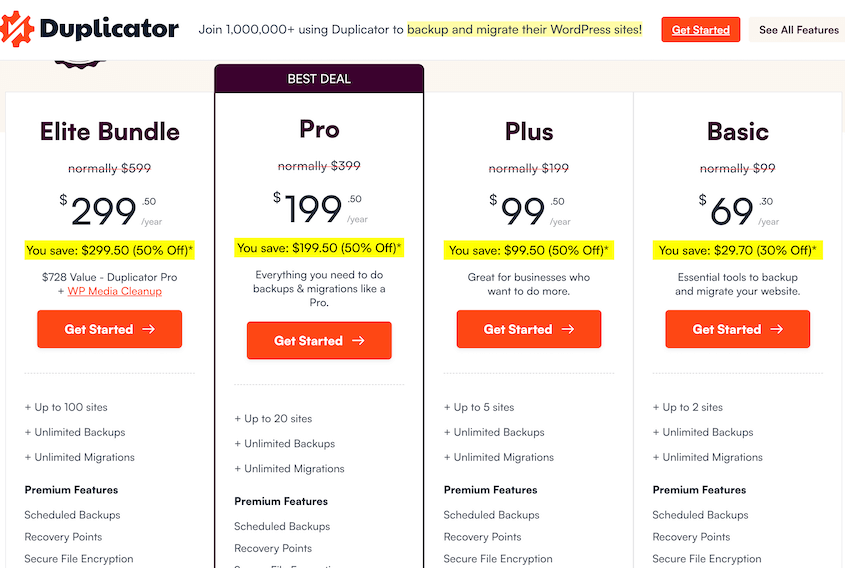
Duplicator Pro’s one-click staging feature requires its Pro tier, which starts at $199.50 a year for up to 20 sites.
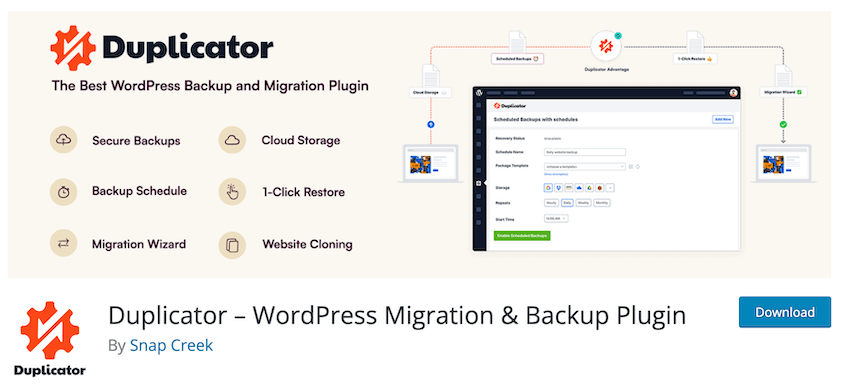
If you’re familiar with FTP migrations, you can use the completely free version of Duplicator. It’ll create full backups of your site and give you an installer.
WP Staging also has a free basic version. It’ll clone your site into a subdirectory for staging. You can also use it as a backup tool.
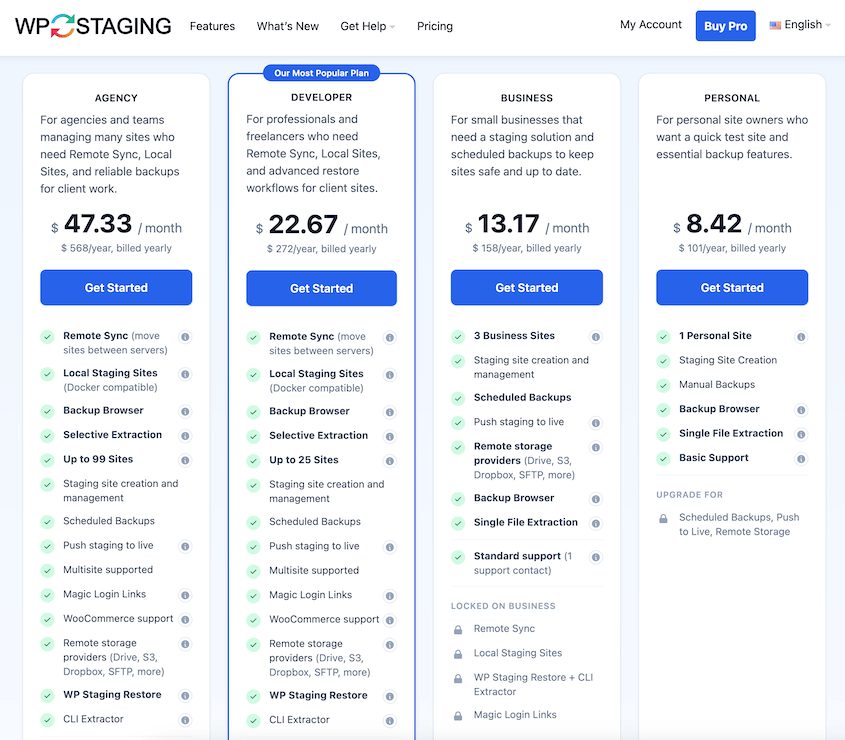
WP Staging Pro offers pushes from staging to live, magic login links, remote syncing, restores, and selective extraction. It starts at $101/yr, but you’ll probably need at least the Business plan for push-to-live, which costs $158/yr.
User Reviews
On WordPress.org, Duplicator has a solid reputation. It’s actively used on over 1 million websites. Users have rated it 4.9 out of 5 stars.
WP Staging has a slightly lower score: 4.8 out of 5 stars. It’s a newer plugin, so it only has 100,000 active installs.
Both numbers reflect plugins that are actively maintained and widely trusted. Duplicator has the larger install base and review count by a wide margin, which tracks with its longer history as a general-purpose backup and migration tool rather than a staging specialist.
Duplicator vs WP Staging: Pros and Cons
Duplicator Pros:
- Staging, backups, migration, and disaster recovery all run on the same backup-and-installer system, so you’re not learning multiple separate workflows
- A standalone installer means you can set up a copy anywhere that supports WordPress: a local development environment, subdomain, subdirectory, or remote server, all without installing WordPress first
- Includes a disaster recovery point and recovery link, so you can get back online even if you’re locked out of wp-admin entirely
- A free version exists for FTP-based migrations and full backups; no cost to get started
- Backups can be scheduled hourly, daily, weekly, or monthly, and stored across multiple cloud destinations (plus Duplicator Cloud)
- Visual safety signals (color-coded admin, staging banner) make it obvious which site you’re in
Duplicator Cons:
- No one-click push-to-live button. Bringing staging changes to production means backing up the staging files and migrating that backup to the live site manually
WP Staging Pros:
- Instantly clones your live site into a staging subfolder, no backup step required first
- Customizable database table and file selection if you don’t want the defaults
- Real-time progress visibility during cloning, with a percentage and elapsed timer at each step
- A free basic version handles staging and backups at no cost
- One-click push-to-live in the premium version
WP Staging Cons:
- Free version can clone a site but can’t safely bring changes back without upgrading
- Staging clones are tied to the original server, with no built-in path to deploy one elsewhere
- Can’t restore your WordPress site if you’re locked out of wp-admin entirely, unlike Duplicator’s recovery link
- No custom cloud storage destination yet; backups stay more limited than Duplicator’s options
Which Should You Choose?
Choose Duplicator if you want one plugin for backups, migrations, staging, and disaster recovery. Its standalone installer also means you’re not locked into your current host. You can deploy a copy anywhere WordPress runs.
Choose WP Staging if push-to-live is the one feature you care about most. Just budget for the Business plan to actually use it.
Most site owners get more long-term value from Duplicator’s all-in-one approach than from WP Staging’s single standout feature.
Frequently Asked Questions (FAQs)
Does Duplicator support push-to-live staging?
Duplicator doesn’t have a one-click push button. Instead, back up your staging site and drag that backup onto the live site to bring changes over. But be careful: restoring the full backup will overwrite the live database too, not just the files you meant to change.
Is the free version of WP Staging good enough?
It’s good enough to clone a site safely. It’s not enough to actually use staging the way most people expect, since pushing changes back to the live site requires the Business tier or higher. Treat the free version as a preview, not a complete workflow.
Can I move a Duplicator staging site to a different server?
Yes. Duplicator’s staging sites are built from the same backup-and-installer files used for migrations. Drop those files on a subdomain, a new host, or a local environment, run the installer, and it rebuilds the site there. WP Staging’s clones stay tied to the server they were created on.
Which plugin is better for a WooCommerce store?
Both isolate WooCommerce actions during staging so test orders and emails don’t reach real customers. WP Staging lets you toggle that isolation at creation time. Duplicator handles it automatically with its staging banner and disabled emails. Either works, but Duplicator’s backup-first approach gives you more disaster recovery coverage if something goes wrong during testing.
Do I need a developer to set up staging with either plugin?
No. Duplicator and WP Staging are built for WordPress users without coding knowledge. Duplicator’s staging creation asks for a backup, a name, and a color scheme. WP Staging asks a few more configuration questions during creation, but neither requires touching code.
How much does staging cost with each plugin?
Duplicator’s staging feature requires its Pro tier, $199.50/yr for up to 20 sites. WP Staging includes staging in its lowest tier, but push-to-live requires the Business tier at $158/yr for 3 sites.
Before You Test Anything, Protect Your Data
A staging site only helps if your live site is backed up first. Skip that step, and a bad restore or a failed update has nothing to fall back on.
Duplicator Pro builds that protection in from the start. Create a backup, turn it into a staging site in a few clicks, test your changes, then bring them back to production with the same system.
Over 1.5 million WordPress professionals already run their backups, migrations, and staging through Duplicator. Join them today!
While you’re here, I think you’ll find these other guides useful:
- How to Create a WordPress Staging Site
- Do You Need a Staging Site?
- How to Convert WordPress to a Staging Site
- How to Create a WooCommerce Staging Site (+ What to Test Before Going Live)
- How to Back Up Your Website’s Staging Site Before Every Push




