
WordPress Login Temporarily Disabled: Find the Cause, Skip the Wait
 Joella Dunn
Joella Dunn
Joella Dunn
 John Turner
John Turner
John Turner
You type your WordPress password and hit enter. Instead of your usual dashboard, you see an error: “Login Temporarily Disabled.”
I’ve hit this more than once testing sites for clients. The first time, I assumed it was a security breach. It wasn’t, and in almost every case, it isn’t that for you either.
WordPress, or something guarding it, noticed repeated failed logins and shut the door for a while. That’s useful when it’s blocking a bot. It’s frustrating when it’s blocking you.
In this post, I’ll show you what’s causing your specific lockout, how to identify it, and what to do next.
Here are the key takeaways:
- No native WordPress lockout exists. The message always comes from something added on top of core: a plugin, your host, a CDN, or a manual server rule.
- The block doesn’t distinguish attackers from mistakes. A bot guessing passwords and a teammate trying an old one look identical to whatever system is watching.
- Most lockouts clear in 15 to 20 minutes. Waiting is the fastest fix if you’re confident the failed attempts were your own.
- Retrying during a lockout extends it. Each failed attempt while blocked resets the timer, so hammering “try again” makes things worse.
- Database access clears the block instantly. Plugins like Limit Login Attempts Reloaded store the lockout in wp_options, and deleting that row via phpMyAdmin or WP-CLI removes it right away.
- Skipping the login page entirely is possible with a disaster recovery backup, but only if it was set up before the lockout happened.
- Whitelisting your IP prevents repeat lockouts once you’ve identified which layer, plugin, host, or CDN is doing the blocking.
- The lockout message alone isn’t proof of a hack. It means suspicious activity was detected, not that a breach occurred.
Table of Contents
- What Does "Login Temporarily Disabled" Mean?
- Where Is the Block Coming From?
- How Long Does the WordPress Login Lockout Last?
- Clear the Lockout Yourself via phpMyAdmin or WP-CLI
- What Do You Do If You Can't Wait?
- How Do You Prevent Temporary WordPress Lockouts From Happening Again?
- Is This the Same as Being Hacked or Banned?
- Frequently Asked Questions (FAQs)
- The Message Is Doing Its Job: Here's How to Work With It
- Before You're Locked Out for Good, Make Sure You Can Get Back In
What Does “Login Temporarily Disabled” Mean?
WordPress, on its own, doesn’t limit login attempts. Install it fresh, and nothing stops someone from typing wrong passwords all day. There’s no built-in lockout timer anywhere in core.
So when you see “Login Temporarily Disabled,” that message isn’t coming from WordPress itself. It’s coming from something you or your host added.
Temporary lockouts are usually caused by one of four things:
- A security plugin you installed, watching login attempts and blocking after a set number of failures
- Your hosting company‘s firewall, running independently of anything installed on the site
- A CDN or external firewall sitting in front of your server entirely
- A manual server rule someone configured, often forgotten about until it fires
Whatever the source, the trigger is the same. Too many failed logins from one IP address or against one username, and that source decides you look like an attack.
It shuts the login page down for everyone hitting it from that IP, at least for a while.
I’ve seen this trip after a client tried old passwords. The system watching doesn’t know the difference between a real threat and someone who forgot which password manager entry is current. Both get treated the same way.
Where Is the Block Coming From?
Before you touch any settings, figure out what locked you out. The fix is different for each one, and guessing wrong wastes time you don’t have.
Your Security Plugin
If you installed a security plugin, it’s the most likely source.
Wordfence, Limit Login Attempts Reloaded, and All In One WP Security all include this kind of brute-force blocking by default.
Here’s what to do:
- Check which plugin is active by connecting through FTP or your host’s file manager, since you can’t get into wp-admin to check
- If you suspect one plugin in particular, rename its folder inside wp-content/plugins, which deactivates it without needing to log in
- Once you’re back in, look for a setting called something like Lockout Duration or Max Login Attempts; that’s where the plugin controls this behavior
- Whitelist your IP address in the plugin’s settings once you’ve confirmed it’s the source, so this specific lockout doesn’t happen to you again
Your Host’s Firewall or Server Rule
Sometimes the block never touches WordPress at all. It happens at the server level, before WordPress even loads.
Many managed WordPress hosts run their own login protection independent of any plugin, so deactivating plugins won’t fix anything.
Check your hosting control panel’s security or firewall logs, or contact support and ask directly whether they’ve blocked your IP. If this keeps happening, ask your host to whitelist your IP address, especially if you work from a consistent location.
A CDN or External Firewall
If the site runs Cloudflare, Sucuri, or a similar service, the block can happen before the request ever reaches your server.
These services watch traffic to /wp-login.php and /wp-admin and can block requests that look automated, even from a real person typing too fast or retrying too many times.
If you suspect your CDN or firewall is the cause:
- Check the CDN’s firewall or security event log for blocked requests matching your IP address
- Whitelist your IP in the CDN’s firewall rules once you’ve confirmed this is the source
How Long Does the WordPress Login Lockout Last?
Most first-time WordPress lockouts run 15 to 20 minutes. Wait that out, and the login page comes back on its own.
If someone keeps trying to log in during that window, the clock resets. Each failed attempt during an active lockout extends it, which is why hammering “try again” makes things worse.
If you’re confident this was your own mistake (from a wrong password, a stale saved login, or a teammate testing something), waiting is the fastest fix. Set a timer and come back later.
If the lockout keeps returning every time you try, even after waiting, that’s a different problem. Something is still actively attacking the login page, or the threshold is set so tight that normal use trips it.
Either way, waiting won’t solve it. You need to locate the source using the steps above and address it directly.
Clear the Lockout Yourself via phpMyAdmin or WP-CLI
If you have database access, you don’t have to wait. Most lockout plugins store the block as a row in your site’s database, and deleting that row clears it immediately.
Limit Login Attempts Reloaded saves the active lockout as an option or transient inside the wp_options table. Find that row, remove it, and the plugin forgets you were ever blocked.
Here’s the phpMyAdmin path:
- Log into phpMyAdmin through your hosting control panel and open your site’s database
- Open the
wp_optionstable - Search the
option_namecolumn for something matching the plugin’s name, likelimit_login_lockoutsor a transient starting with_transient_limit_login - Delete that row, then try logging in again
If you’re comfortable on the command line, WP-CLI gets you there faster:
- Deactivate the offending plugin directly with a command like
wp plugin deactivate limit-login-attempts-reloaded - Or delete the specific transient holding the lockout with
wp transient deleteonce you know its name
What Do You Do If You Can’t Wait?
Sometimes waiting twenty minutes isn’t an option. You’re mid-launch, a client is watching, or something else on the site needs attention right now, and the WordPress dashboard is the only way to get to it.
If you’ve got a recent backup with disaster recovery configured, there’s a way in that skips the login page entirely.
Duplicator’s disaster recovery URL restores your site directly from a saved recovery point. You paste the URL into your browser, and it goes to work without wp-admin.
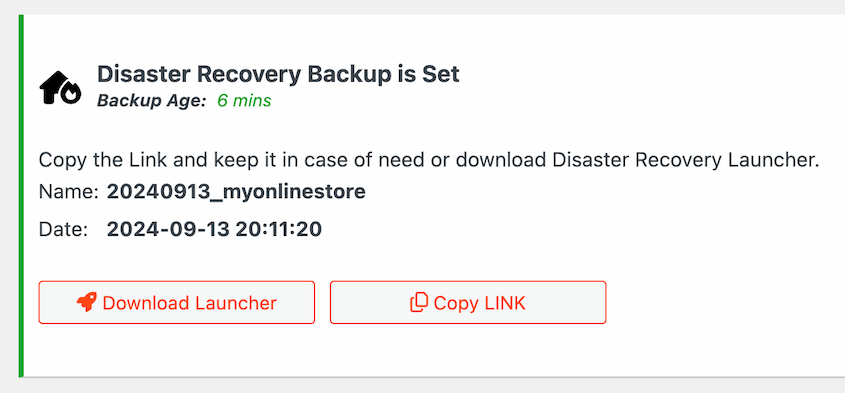
This is your safety net when waiting or troubleshooting isn’t fast enough.
However, it only works if you set it up before the lockout happened. Disaster recovery requires an existing backup with that option turned on; it can’t create one after the fact.
If you didn’t have this in place already, go back to identifying the source of the temporary lockout.
How Do You Prevent Temporary WordPress Lockouts From Happening Again?
Once you’re back in, it’s worth spending ten minutes making sure you don’t end up here again.
Here’s what I’d do:
- Set your login attempt threshold to match how your team actually works. Three attempts lock out anyone who fumbles a password; ten or more attempts give real attackers too much room to guess
- Add two-factor authentication so a blocked login attempt isn’t the only thing standing between an attacker and your dashboard
- If brute-force attempts are frequent, consider hiding your login URL so bots can’t find /wp-login.php
- Keep a recent, tested backup with disaster recovery turned on, set up before you need it, not scrambled together after a lockout catches you off guard
Is This the Same as Being Hacked or Banned?
No, and it’s worth saying plainly, because the wording makes people assume the worst.
With temporary WordPress lockouts, you don’t have to worry about these issues:
- It’s not a permanent ban. The block is temporary by design, and normal access returns once the lockout window passes or you clear it yourself
- It’s not proof your site was hacked. It means something detected suspicious login activity, which is different from confirming a breach.
- It’s not something WordPress does on its own out of the box. Core has no native lockout feature, so this is always coming from something you or your host added
- To confirm nothing else happened during the lockout, Activity Log gives you a full record of every action taken on your site, so you’re not guessing.
Frequently Asked Questions (FAQs)
Why does WordPress say my login is temporarily disabled?
WordPress core doesn’t generate this message itself. A security plugin, your host’s firewall, a CDN, or a server rule detected repeated failed login attempts from an IP address or against a username and blocked the WordPress login page as a precaution. It’s a protective measure against brute-force attacks, not a sign anything is broken on your site.
How long does the WordPress login lockout last?
Most first-time lockouts last 15 to 20 minutes. If failed login attempts continue during that window, the timer resets and extends the block. If you’re sure the failed attempts were your own, waiting it out is the simplest fix. Repeated lockouts even after waiting usually point to an ongoing attack or an overly strict threshold.
Can I remove the login lockout without waiting?
Yes, if you have database access. Plugins like Limit Login Attempts Reloaded store the active lockout as a row in the wp_options table. Deleting that row through phpMyAdmin or using WP-CLI to deactivate the plugin clears the block immediately. This fixes the symptom, though, not whatever triggered the lockout in the first place.
Does WordPress limit login attempts by default?
No. A fresh, unmodified WordPress install has no built-in limit on login attempts. Anyone could try passwords indefinitely without triggering a block. The “Login Temporarily Disabled” message always comes from something added on top of core: a security plugin, hosting-level protection, or a CDN firewall.
Is “login temporarily disabled” a sign my site was hacked?
Not on its own. It means something detected repeated failed login attempts and blocked access as a precaution, which is different from confirming a breach happened. It’s worth checking your site for other signs of compromise afterward, but the lockout message by itself is evidence of a defense working, not a successful attack.
I’m the only user and I’m locked out, what now?
First, confirm the failed attempts were yours (old passwords, a stale saved login) and wait out the 15 to 20 minute window if so. If you have database or WP-CLI access, clear the lockout directly instead. If neither works and you need in immediately, a disaster recovery backup (set up in advance) gets you into the dashboard without logging in at all.
The Message Is Doing Its Job: Here’s How to Work With It
WordPress didn’t break when you saw this message. Something protecting it worked exactly as designed, closing the door after too many failed attempts. That’s the part worth remembering the next time it happens.
The real problem isn’t the lockout itself. It’s that most sites run these thresholds on whatever default the plugin or host shipped with, never adjusted for how the actual team logs in. That mismatch is what turns a security feature into a daily annoyance.
One thing worth doing once you’re back in: open your security plugin’s lockout log. It records the IP address and username behind every blocked attempt.
A log full of one IP hitting random usernames is a real attack. A single IP matching your own, tied to your username, is just you. That log tells you which one you’re dealing with, and whether it’s time to change a password or just adjust a threshold.
Before You’re Locked Out for Good, Make Sure You Can Get Back In
Getting locked out once is inconvenient. Getting locked out with no way back in (because there’s no backup and no recovery option set up) is a much worse day.
Duplicator Pro‘s disaster recovery URL gets you into your dashboard directly from a saved backup, but only if it’s already set up. Over 1.5 million WordPress professionals use Duplicator to keep their sites backed up and recoverable, lockouts included.
Set up disaster recovery before you need it!
If this post got you thinking about lockouts and site access more broadly, these guides are worth reading next.
- Locked Out of WordPress? 16 Ways to Get Back In (Fast)
- There Has Been a Critical Error on This Website: How to Fix It Fast
- How to Manually Restore Your WordPress Site
- How to Update Your WordPress Database
- How to Fix the Error “Cookies Are Blocked or Not Supported by Your Browser”




