
How Much Storage Do Incremental Backups Use? We Measured 3 Real Sites
 Joella Dunn
 John Turner
Hourly backups sound right for any site that changes during the day. Then you do the math, and 24 full-site backups a day start to add up, both in server resources and storage.
Incremental backups are supposed to fix that.
An incremental backup starts with one full copy of your site, called the baseline. Each backup after that is a snapshot that saves only what changed. Together, they form a chain, and you can restore your full site from any point.
Most savings figures are estimates, though. So my team and I tested Duplicator’s new incremental backups on three real WordPress sites: a quiet blog, a nonprofit course site, and a busy online store.
On all three, incremental backups used far less storage than full backups on the same schedule.
The busy store went from about 85 GB to about 12.8 GB, which is 85% less. Against daily full backups, the two quiet sites still came out ahead. The store didn’t, and the reason is the most useful part of this post.
Here are the key takeaways:
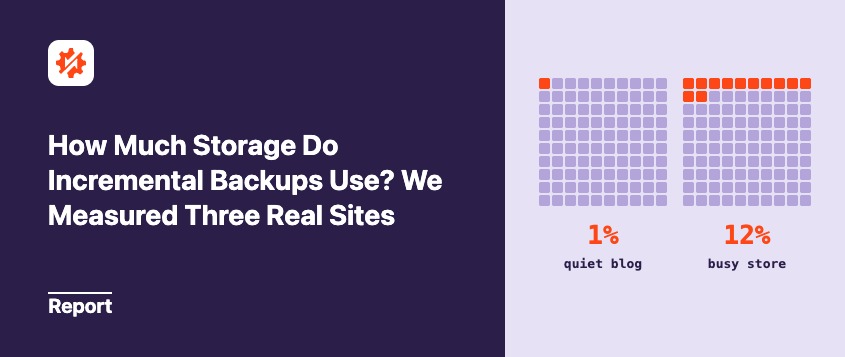
- A typical incremental snapshot was about 1% of the full site on the blog and the course site, and about 12% on the store.
- On quiet sites, hourly incremental backups use less storage than keeping daily full backups for the same period. Over 10 days, we projected about 68% less on the blog and 10 to 56% less on the course site, with 24 restore points a day.
- On a busy store, incremental backups used 85% less storage than full backups on the same 2-hour schedule. The database drives snapshot size, since so many tables change between runs. Against daily full backups, we projected about 46% more storage, in exchange for 12 restore points a day.
- Across all three sites, we projected 88 to 99% less storage than full backups taken just as often over 10 days.
- On low-traffic sites, hourly only means hourly with a real cron job.
Table of Contents
- Key Findings: How Much Storage Do Incremental Backups Use?
- How Did We Measure Incremental Backup Storage?
- The Storage Math: Incremental vs. Daily Full Backups
- How Much Storage Does an Hourly Snapshot Use on a Quiet Blog?
- What Happens on a Course Site When Plugins Update?
- Why Are Incremental Snapshots Bigger on a Busy Store?
- How Do Incremental Backups Work in Duplicator?
- How Do You Get the Most From Incremental Backups?
- Frequently Asked Questions (FAQs)
Key Findings: How Much Storage Do Incremental Backups Use?
Here’s how the three sites compared:
| Quiet blog | Course site | Busy store | |
|---|---|---|---|
| Full site (baseline) | about 390 MB | about 540 MB | about 3.5 GB |
| Typical snapshot | about 3.5 MB | about 7.5 MB | about 400 to 460 MB |
| Snapshot vs. full site | about 1% | about 1% | about 12% |
| Schedule | hourly | hourly | every 2 hours |
| Runs skipped (no changes) | about 1 in 20 | about half | none |
How Did We Measure Incremental Backup Storage?
We ran Duplicator Pro’s incremental backups on all three sites with the default table settings. Every size comes from the Size column in Duplicator’s Snapshots table, which matches what Duplicator Cloud reports.
Note: These are three real sites, not an average across Duplicator users. The store’s snapshot sizes cover about 2 days, the course site’s about 6 days, and the blog’s about 10 hours (with about a week of run history). The blog ran a Duplicator Pro 5.2 beta, and the other two ran 5.1.0. We didn’t test real-time backups, other storage, or restore speed.
The Storage Math: Incremental vs. Daily Full Backups
Most savings figures compare incremental backups with full backups taken just as often. Almost nobody runs 24 full backups a day, though, so we also compared them with daily full backups.
Here’s each site projected over the same 10 days of history:
| 10 days of history | Incremental chain | 10 daily full backups | Full backups just as often |
|---|---|---|---|
| Quiet blog (hourly) | about 1.2 GB | about 3.9 GB | about 93 GB |
| Course site (hourly, if every run fires) | about 2.4 to 4.9 GB | about 5.4 GB | about 130 GB |
| Busy store (every 2 hours) | about 52 GB | about 35 GB | about 425 GB |
All three sites use far less space than full backups taken just as often. The store drops from about 425 GB to about 52 GB. Compared with daily full backups, the blog and the course site still take less space. The store takes about 1.5 times the space, in exchange for 12 restore points a day instead of one.
Snapshot size explains the gap. Each restore point costs you one snapshot instead of one full backup, so smaller snapshots save more. With 1% snapshots, you can save up to about 99% as your chain grows. With 12% snapshots, the limit is about 88%.
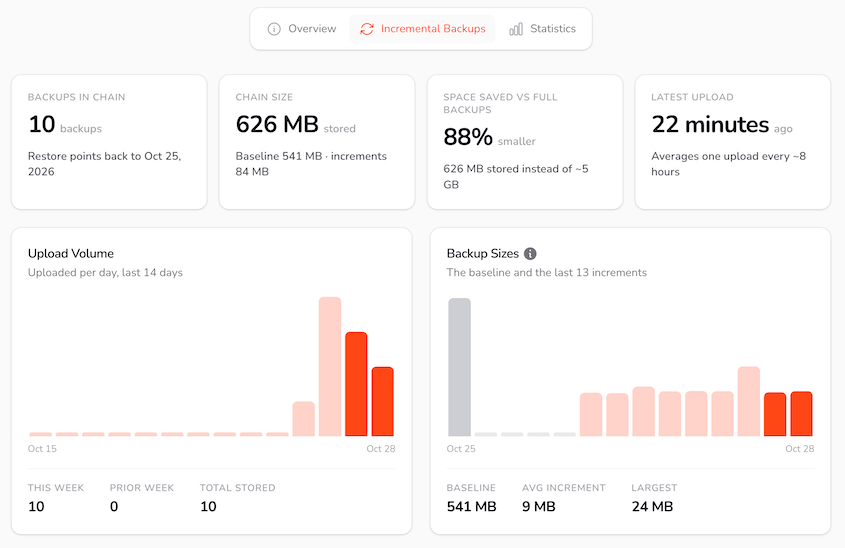
Short chains save less, because the baseline makes up more of the total. The blog saved 89% over 10 backups.
Incremental backups go to Duplicator Cloud only, so your total maps straight to a cloud plan. Over 10 days of history, the blog would fit the 2 GB plan, the course site a 10 GB plan, and the store the 100 GB plan (about 52 GB is just over the 50 GB plan).
How Do You Do Backup Storage Math for Your Site?
You can run this once you have a few days of snapshots. If you haven’t started yet, follow our guide to running incremental backups first.
Both sizes are in the Snapshots table under Duplicator Pro » Incremental Backups. Use the Baseline row, plus the middle value of your other snapshots (not the biggest).
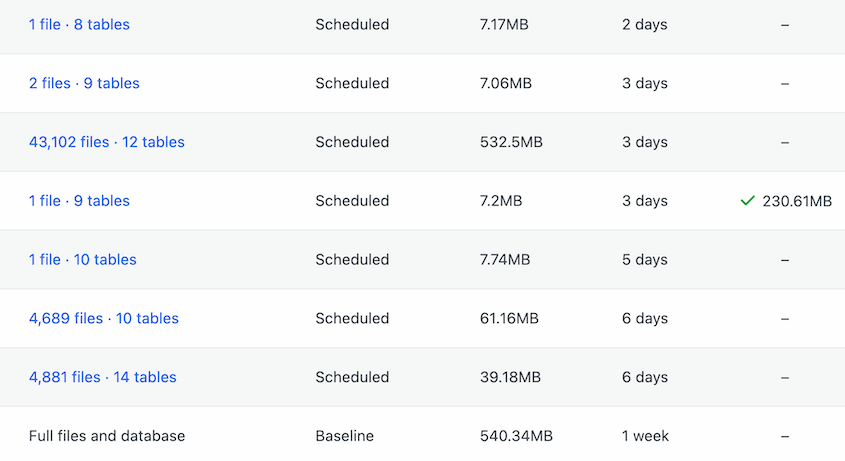
Not running incremental backups yet? Use your latest full backup size as the baseline. For the snapshot, try 1% of that on a quiet site or 12% on a busy store.
Enter them in this calculator to estimate your own incremental backup storage:
Incremental Backup Storage Calculator
Enter your numbers to estimate how much storage your incremental backups will use.
| History you’d keep | |
|---|---|
This is an estimate that assumes every scheduled run uploads a typical snapshot and older snapshots fold into the baseline. Leave extra room for update days and big imports.
For example, a 1 GB site with 10 MB snapshots and a week of hourly history (168 backups kept) needs about 2.7 GB. A week of daily full backups would take 7 GB.
How Much Storage Does an Hourly Snapshot Use on a Quiet Blog?
The blog's baseline was about 390 MB, and each hourly snapshot was about 3.5 MB.
That's roughly 1% of the site.
What surprised me was how rarely it skipped. Only about 1 in 20 runs found nothing to back up, even on days with no new posts. Almost every snapshot said No file changes · 8 tables, because plugins write to the database in the background.
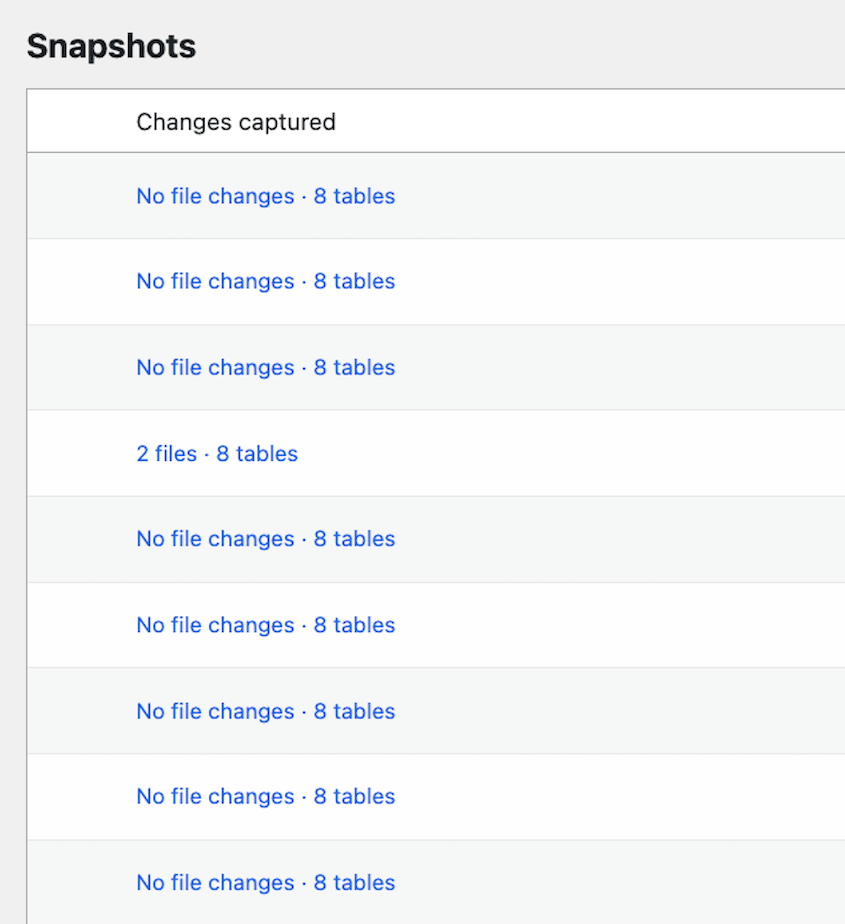
That's normal, and it uses very little space.
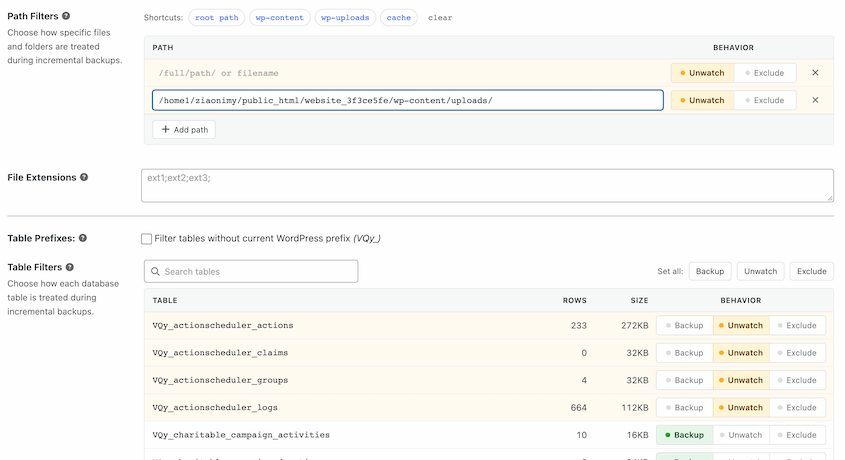
If you want fewer snapshots, go to Duplicator Pro » Incremental Backups » Settings and set noisy tables (ones plugins update constantly) to Unwatch. They stay in your backup, but their changes won't trigger a new snapshot.
What Happens on a Course Site When Plugins Update?
The course site's baseline was about 540 MB, and a typical snapshot was about 7.5 MB. That's about 1% again.
Update day looked different. Two snapshots captured thousands of changed plugin files and came in at about 7% and 11% of the site. Those were the biggest spikes from normal activity, and still far smaller than a full backup.
About half of the runs were skipped. When nothing changed, Duplicator marked the run Skipped and uploaded nothing.
There was one catch. The schedule was set to hourly, but over a month it ran about once every 4 hours. WordPress only runs scheduled tasks when someone visits, and a small nonprofit site doesn't get visits every hour.
The fix is a real cron job (a task your host runs on a timer, even when nobody's visiting). Look for Cron Jobs in your hosting control panel and point it at your site's wp-cron.php every hour.
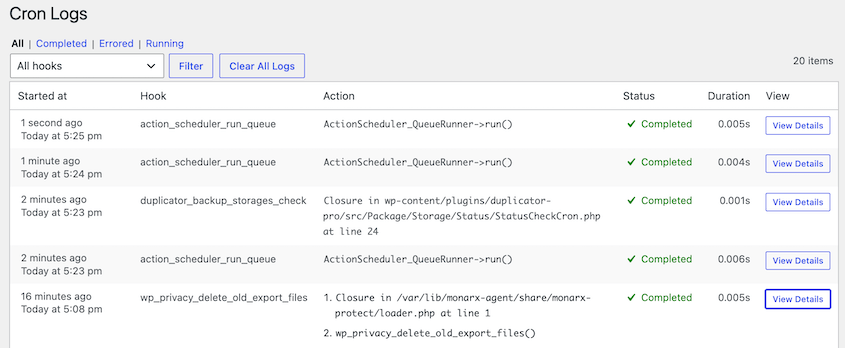
To check that it's working, install WP Crontrol, a free plugin. Turn on logging for an hourly event, then open Cron Logs to see every time it runs. Gaps of several hours mean cron still isn't keeping up.
Why Are Incremental Snapshots Bigger on a Busy Store?
The store's baseline was about 3.5 GB. A typical snapshot was about 400 to 460 MB, or about 12% of the site.
The reason is the database. Between every two snapshots, 31 to 58 tables changed (orders, customers, logs). Changed tables are saved in full, so a busy multi-GB database adds hundreds of megabytes every run.
Files barely moved. Even a batch of almost 600 changed files didn't stand out.
Over 24 snapshots (one every 2 hours), the chain used about 12.8 GB. The same 24 restore points as full backups would have taken about 85 GB.
That's 85% less storage for the same restore points.
How Do Incremental Backups Work in Duplicator?
Duplicator handles the chain for you. Once you connect Duplicator Cloud, go to Duplicator Pro » Incremental Backups and click Create Baseline Snapshot.
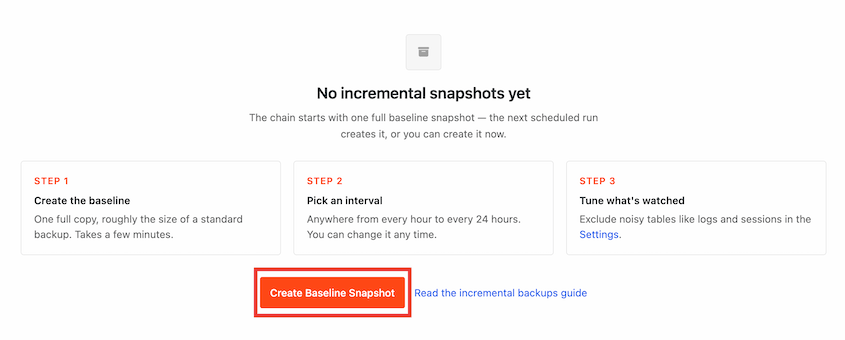
Then choose how often to back up and how many backups to keep.
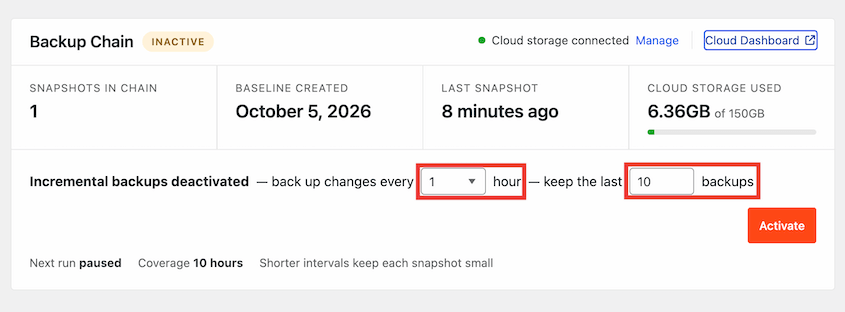
From there, Duplicator will compare your site to the last snapshot. If anything changes, it’ll back up just those differences.
Once your chain reaches the number of backups you keep, older snapshots fold into the baseline, so your total levels off instead of growing forever.
Here's what you get:
- Hourly protection: Back up as often as every hour, so you lose far less than a day's work.
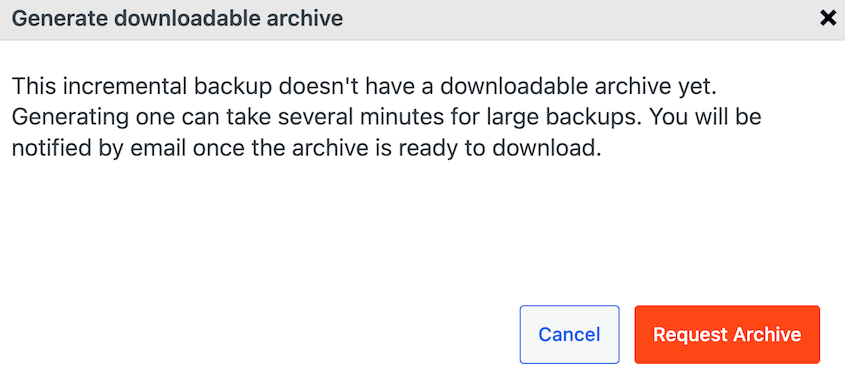
- Full-site restores: Pick any snapshot, and Duplicator rebuilds your whole site up to that point. If Cloud needs to prepare the archive first, it takes a few minutes, and you'll get an email.
- A clear record: Each snapshot lists the files and tables it captured.
- No wasted uploads: If nothing changed, the run is skipped.
How Do You Get the Most From Incremental Backups?
Your total depends mostly on how many backups you keep, so keeping fewer is the quickest way to use less storage. A few other choices help too.
Here's what I'd do on any site:
- Keep only the history you need. Backups kept × hours between backups is your history, as long as every run fires.
- Set up a real cron job so hourly means hourly. It won't shrink your storage, but you'll get the restore points you're counting on.
- Unwatch noisy tables in the Settings tab, so background activity doesn't trigger extra snapshots.
- Keep a separate full backup in a second off-site location before big changes.
Frequently Asked Questions (FAQs)
Do incremental backups save storage?
Yes. After one full baseline, each snapshot only stores what changed. In our test, a typical snapshot was about 1% of the full site on a blog and a course site, and about 12% on a busy store. Even the store used 85% less storage than full backups on the same schedule. Your savings depend on how much of your database changes between runs.
Why is my incremental snapshot so big?
Usually it's the database. A snapshot isn't just your new posts. A store with constant orders changes many tables between runs, so it can add hundreds of megabytes per snapshot. Plugin updates also add thousands of files at once.
Can I restore my whole site from one snapshot?
Yes. Pick any snapshot, and Duplicator rebuilds your full site from the baseline plus every change up to that point. If Duplicator Cloud hasn't prepared a downloadable archive yet, you'll see a Request Archive prompt. It can take several minutes, and you'll get an email when it's ready.
Can incremental backups go to Google Drive or Amazon S3?
No. Duplicator's incremental backups go to Duplicator Cloud only, which needs a storage plan. Your standard backups can still go to Google Drive, Amazon S3, and other storage, so you can keep a second copy somewhere else.
Do I still need full backups if I run incremental backups?
You can usually cut back, but don't drop them completely. Incremental snapshots restore your full site, so they can handle everyday restores. It's still smart to keep a copy somewhere else, so keep a separate full backup in a second off-site location on a longer schedule (like weekly), and before a redesign, a migration, or a major update.
Hourly Backups Use Less Space Than You'd Guess: Unless Your Database Never Sleeps
On the quiet sites we tested, hourly incremental backups took less storage than keeping daily full backups. What decides it isn't your site's size. It's how much of your database changes every hour.
A busy store pays more per snapshot, but it still used 85% less storage than full backups on the same schedule. That's a fair trade for losing two hours of orders instead of a day.
One tip: after a week, open the change list on a few regular snapshots. If the same tables show up every time on a quiet site, review them in Duplicator's incremental backup settings.
Get Hourly Backups Without Paying for 24 Full Copies a Day
With a daily backup, you can lose up to a day of orders, form entries, or course progress. Hourly incremental backups close that gap without filling your storage.
Incremental backups are available on Duplicator Pro and Elite plans, and they need a Duplicator Cloud storage plan. Join over 1.5 million WordPress professionals who use Duplicator to protect their sites!
If this post got you thinking about backup storage, these guides are worth reading next.
- What Is an Incremental Backup in WordPress? (And How to Run Them)
- How Often Should You Back Up Your WordPress Site?
- Website Backup Retention Policies: How Long to Keep Backups?
- Stop Guessing Why Backups Fail (Check These Logs Instead)
- WordPress Backup Storage Size: How Much Space You Need and How to Shrink It
- How to Fix a Failed WordPress Backup: Settings vs. Server Limits