

Storing Your Backup to Vultr S3
This guide walks through sending WordPress backups to Vultr Object Storage using Duplicator Pro, from creating the storage and bucket in Vultr to connecting it as a backup destination.
Vultr Object Storage is S3-compatible cloud storage, giving backups an off-site destination separate from the web server.
Create an Object Storage in Vultr
You can visit the Vultr website if you haven’t created a Vultr S3 account yet.
Once your account is all set up with adding Payment Method, completing your profile, and deploying your first instance, add Object Storage.
You can add an object storage subscription in a few clicks.
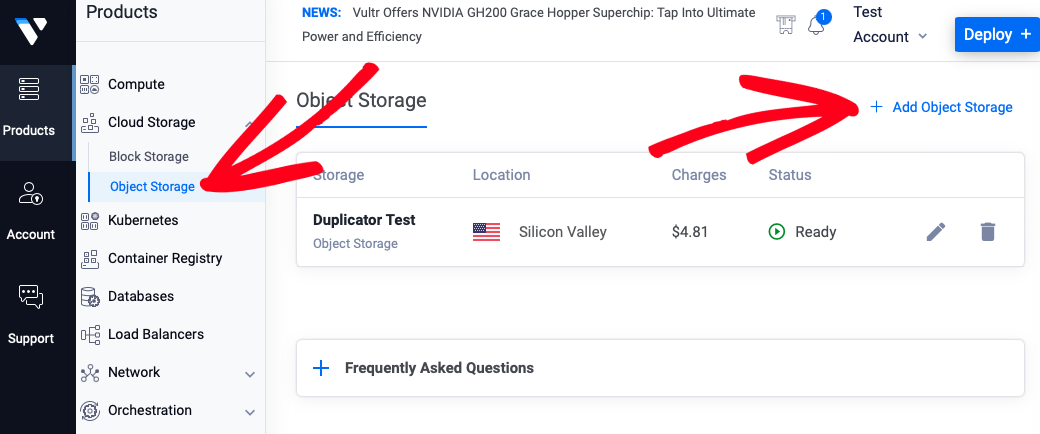
1. Go to the Objects Storage tab in the Vultr customer portal. Under the Products Tab » Cloud Storage,» go to Object Storage » and click on Add Object Storage:
2. Choose a location for your object storage, such as Amsterdam.
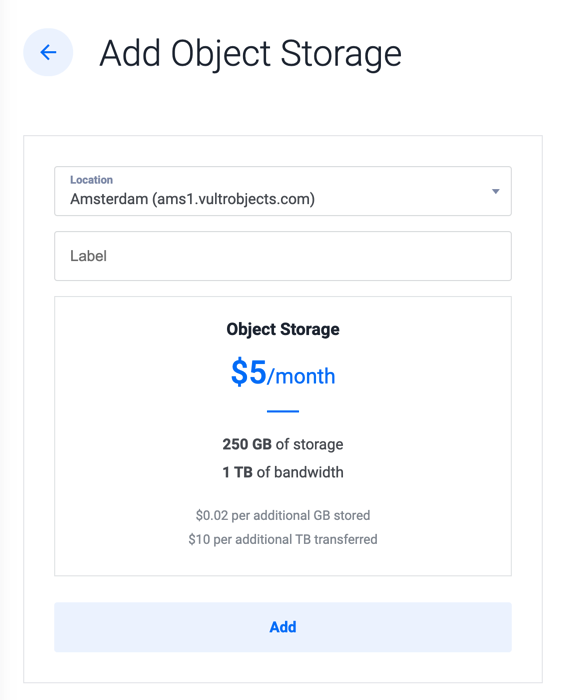
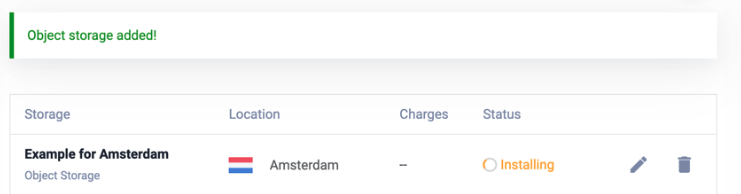
3. Give your new object storage a label to identify it, then click Add. You’ll return to the object storage list, and the status column shows Installing.
Create a Bucket
Now, you’ll need to create a Bucket for the above Object Storage that you’ve created. Go to Manage Object Storage here:
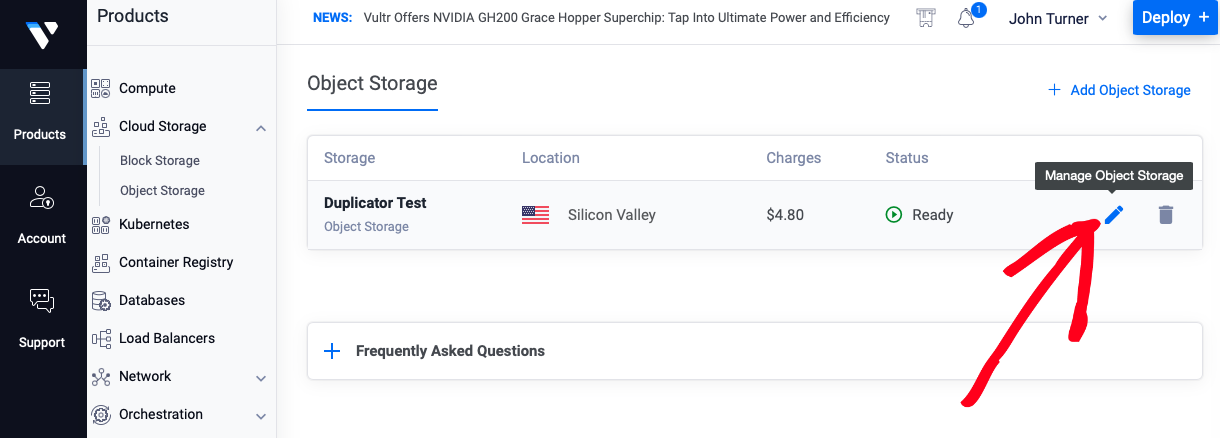
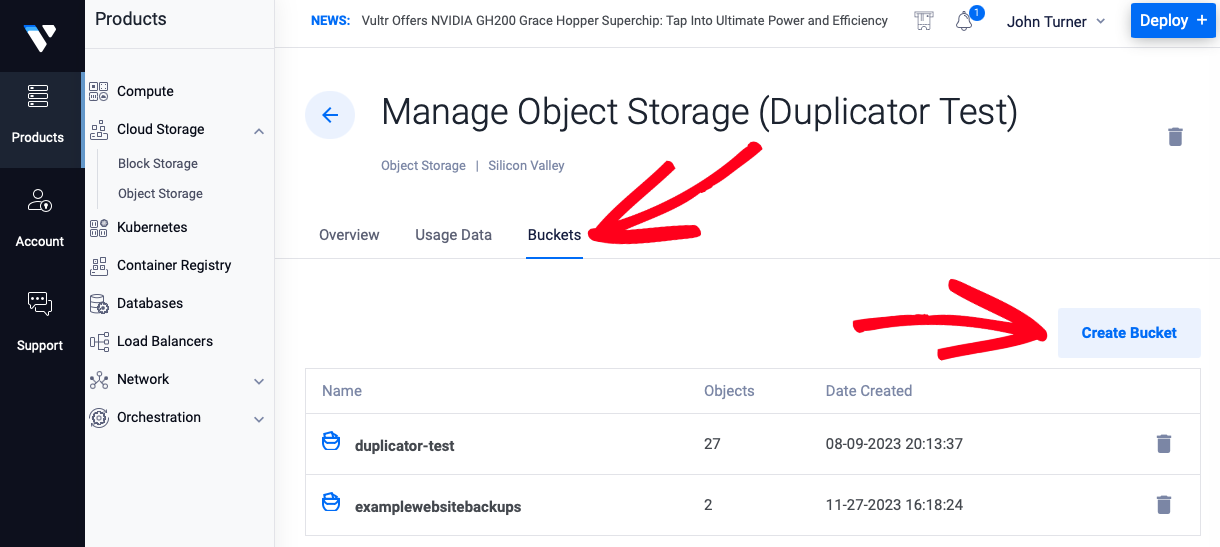
Navigate to the Bucket tab and Create a new Bucket:
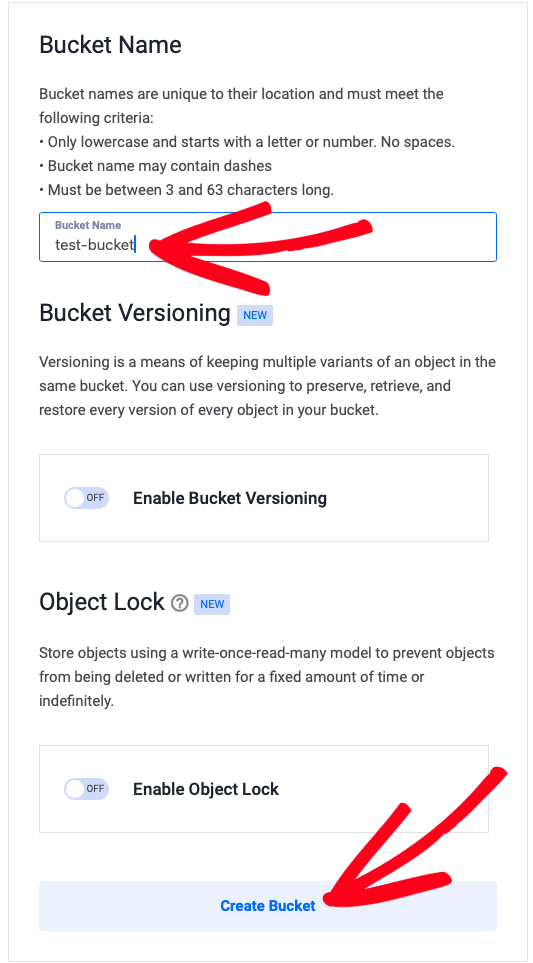
Name your Bucket with the required criteria, and keep the Bucket Versioning and Object Lock disabled.
Locating Your S3 Credentials
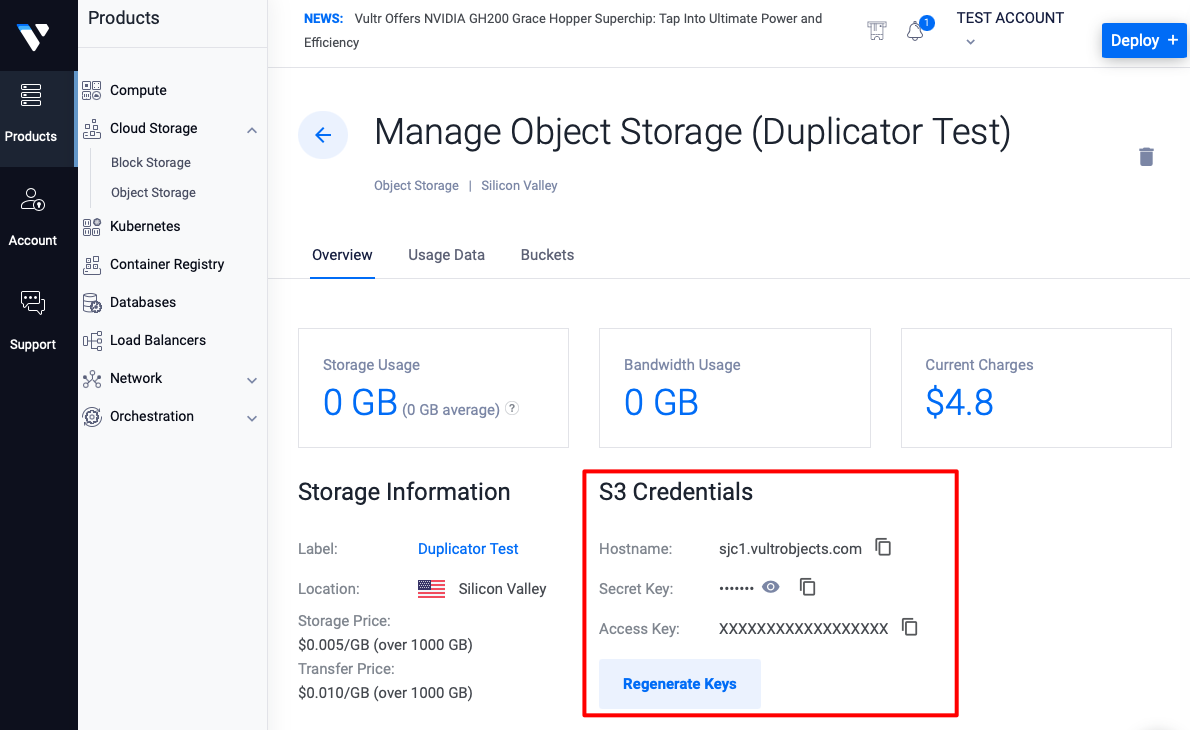
To connect your Vultr account with Duplicator, you’ll need the S3 Credentials like Secret Key, Access Key, and Endpoint. You can keep them handy by navigating to the Overview tab:
Connecting Vultr S3 to Duplicator
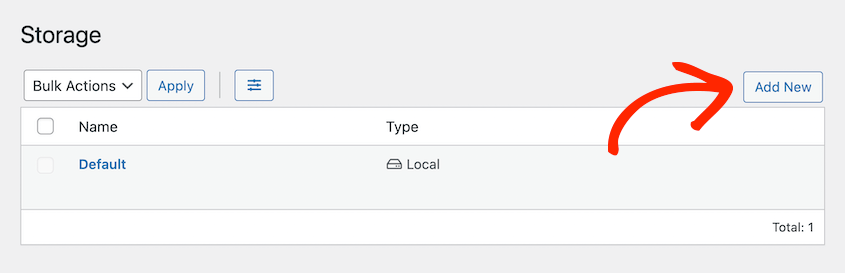
1. To begin with, go to Duplicator Pro » Storage » Add New:
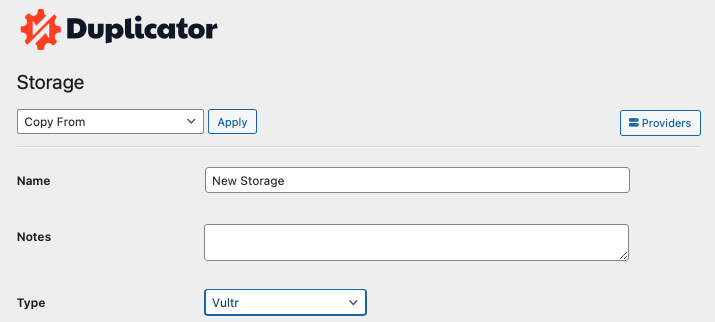
2. Name the new storage location. Under Type, select Vultr:
3. Now, scroll down to the Authorization section. Paste the Access key, Secret key, and Endpoint as hostname from the S3 Credentials.
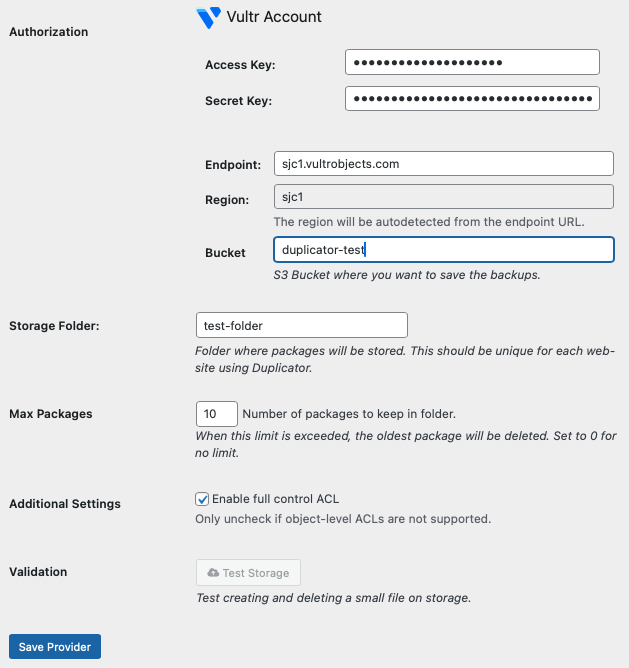
4. Set the exact name of the bucket created in the Vultr account’s Object Storage » Bucket tab. In the Storage Folder field, add the folder name to save backups to.
5. Set the number of backups to store in the defined folder using the Max Backups field.
6. Click Save Provider, then run a Test. If it reports success, the setup is complete. If not, go back through the previous steps and confirm nothing was missed. If the test still fails, see How do I fix issues with Amazon S3 or S3-compatible storage types?
About Settings
| Access Key | The access key from the Vultr account’s S3 Credentials. |
| Secret Key | The secret key from the Vultr account’s S3 Credentials. |
| Endpoint | The S3-compatible hostname for the object storage location, for example ewr1.vultrobjects.com. |
| Region | Autodetected from the Endpoint value once entered. |
| Storage Folder | Folder where backups are stored. This should be unique for each website using Duplicator. |
| Bucket | The Vultr bucket where backups are saved. |
| Max Backups | Specify the number of backups to keep in the Storage Folder. Set to 0 for no limit. |
| Validation | Validate that the credentials and settings entered above are working. |
With Vultr Object Storage connected, backups upload there automatically each time a backup is created, giving the site a secure, off-site copy separate from the web server.
To connect a different storage provider or compare available options, see Backup to the Cloud.


