

![[NEW] Duplicator DB Optimizer: Clean Your WordPress Database Before It Becomes a Problem](https://duplicator.com/wp-content/uploads/2026/06/Announcement-DB-Optimizer.jpg)
How to Install WordPress on Laragon
 Joella Dunn
Joella Dunn
Joella Dunn
 John Turner
John Turner
John Turner
TL;DR: In a hurry? Here’s how to do it step by step:
- Download the Full version of Laragon (Windows only)
- Create a WordPress project from Menu » Quick app
- Finish the WordPress install in your browser
- Optionally migrate your live site in with Duplicator
Testing changes on a live WordPress site is a gamble. One bad plugin or theme edit, and your visitors see the mess. Local development fixes that, and Laragon makes it about as easy as it gets.
If you’re a WordPress developer, designer, or site owner, a local development environment is like a safe playground for your website. You can test new themes, try out plugins, and make major changes without affecting your live site.
In this guide, I’ll walk you through installing WordPress on Laragon: one of the most user-friendly local development tools available.
Whether you’re building a new site from scratch or want to work on your existing WordPress site locally, I’ll cover everything you need to know.
Table of Contents
What Is Laragon?
Think of Laragon as a personal web server that lives on your computer. It’s a development environment that packs everything you need to run WordPress locally (PHP, MySQL, Apache, and other technical tools) all wrapped up in a clean, easy-to-use interface.
Unlike other local development tools that can be complex and resource-heavy, Laragon is designed to be lightweight and straightforward. The Laragon core is under 6MB and uses as little as 4MB of RAM.
What makes Laragon stand out is its “just works” approach. When you install it, it automatically:
- Sets up all the necessary web server components
- Configures your system for optimal performance
- Creates virtual hosts for your projects
- Manages databases without any manual configuration
- Lets you switch between different PHP versions with a single click
Plus, it’s incredibly portable. You can move it to a different folder or even a different computer without breaking anything. This is perfect for developers who work on multiple machines.
Why Install WordPress on Laragon?
Imagine being able to make major changes to your website without worrying about your visitors seeing half-finished work. That’s exactly what local development gives you: a private testing ground for your WordPress projects.
With Laragon, your changes stay private until you’re ready to show them. Want to redesign your entire homepage? Go ahead! Your live site remains unchanged while you work.
Everything runs at lightning speed. Since you’re working directly on your computer rather than over the internet, pages load instantly. This means faster development and testing.
You can work offline. Your local WordPress site works perfectly even when you’re not connected.
The risk factor drops to zero. Want to try out a new plugin or theme? If something goes wrong, it only affects your local copy. Your live site stays safe and sound.
How to Install WordPress on Laragon
Now let’s install WordPress on localhost using Laragon!
Step 1: Download Laragon
Head over to the official Laragon website and download the latest “Full” version of Laragon. This version comes with everything you need for WordPress development, already pre-configured.
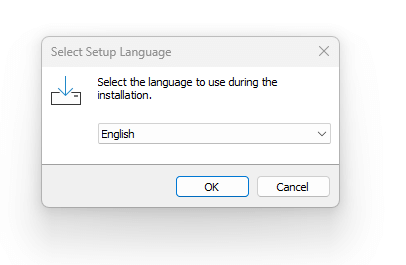
Laragon will download as an .exe file. Open this file and choose a language.
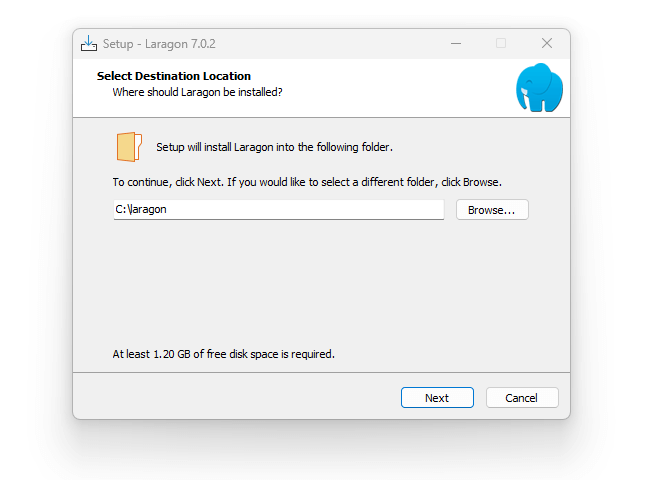
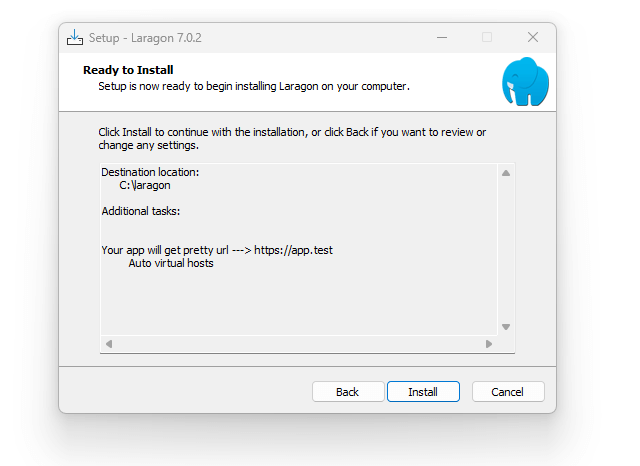
Then, Laragon shows you its default installation settings. You can choose a different destination if you like.
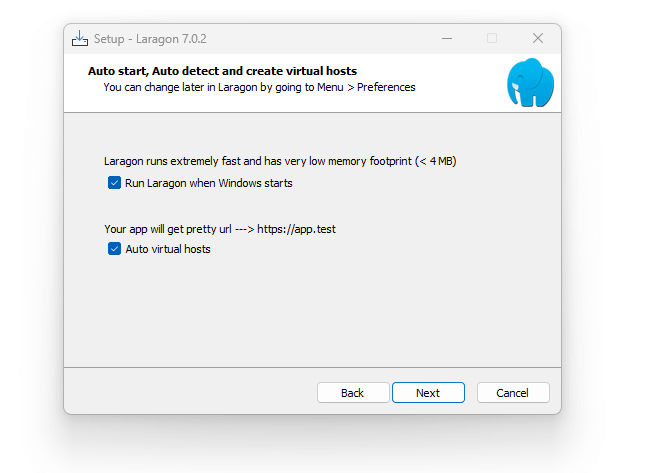
Next, decide if you want Laragon to auto-start when you start your computer. It can also auto-create and detect virtual hosts, giving your local WordPress site a pretty URL.
After this, install Laragon.
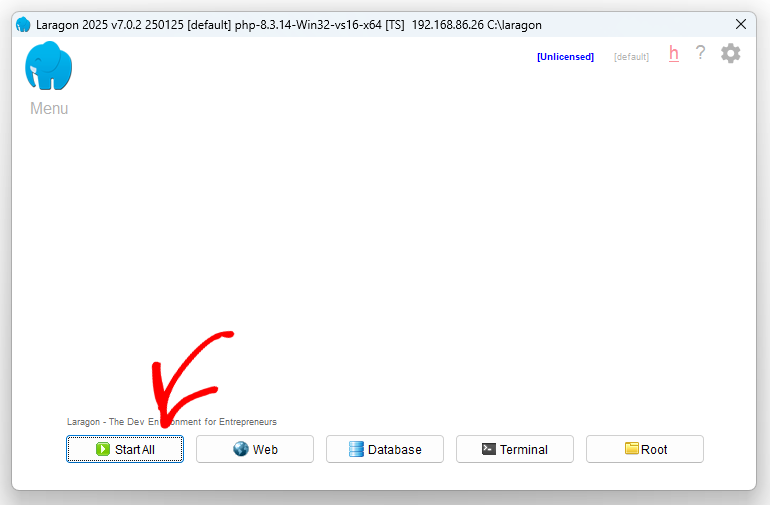
Click on the Start All button. Laragon will start running on your computer, ready for you to set up WordPress.
Step 2: Create a New WordPress Project
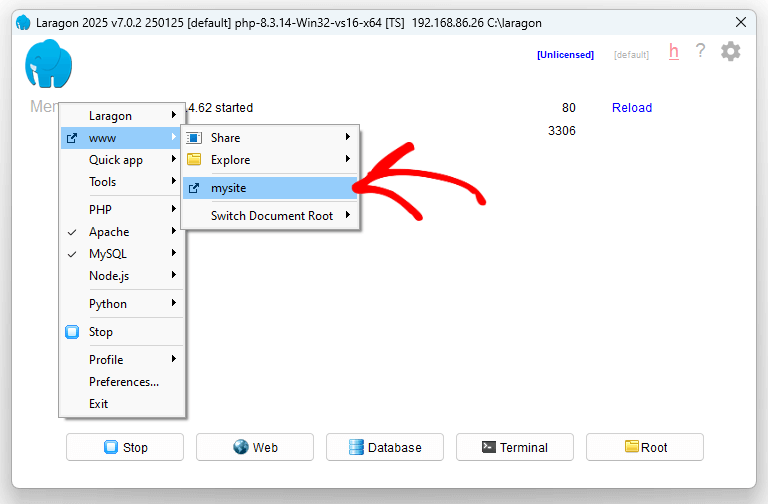
Once Laragon is installed, starting your first WordPress project is surprisingly simple. Go to Menu » Quick app » WordPress.

Enter a name for your project (like ‘mysite’). Laragon will automatically set up a new folder in C:/laragon/www.
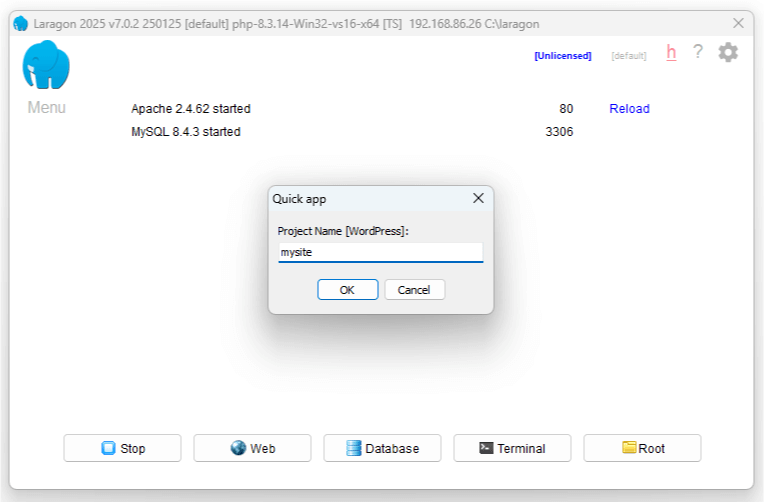
It’ll also create a fresh WordPress installation, set up your database, and configure everything you need. This usually takes just a few minutes.
Step 3: Install WordPress
Once Laragon finishes creating your project, it’s time to complete the WordPress installation.
Open your web browser and go to http://mysite.test (replace ‘mysite’ with whatever you named your project). You can also go to www » mysite in Laragon’s menu.
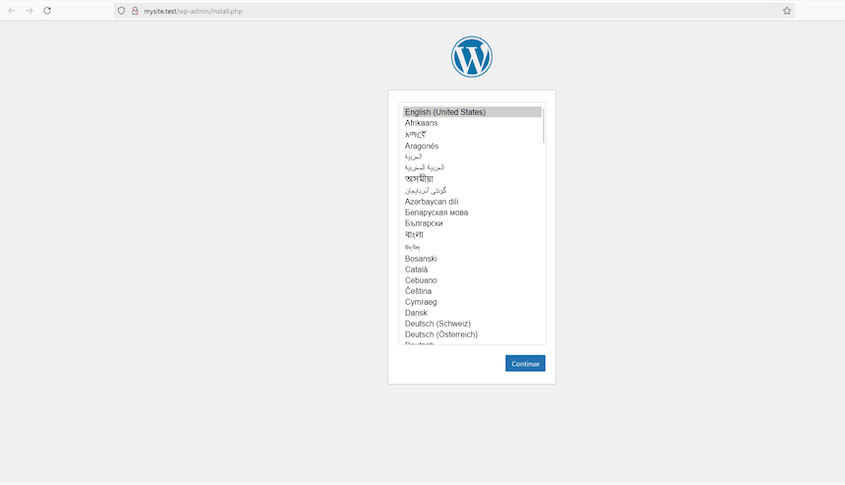
You’ll see the WordPress installation page. Choose your language when prompted.
Next, set up your WordPress database connection. Here’s the information you should use:
- Database Name: Your project name
- Username: root
- Password: Leave blank
- Database Host: localhost
On the next page, fill in this basic information for your site:
- Site Title
- Admin Username (avoid using ‘admin’ for better security)
- Password (make it strong, even though it’s local)
- Your Email Address
- Search Engine Visibility
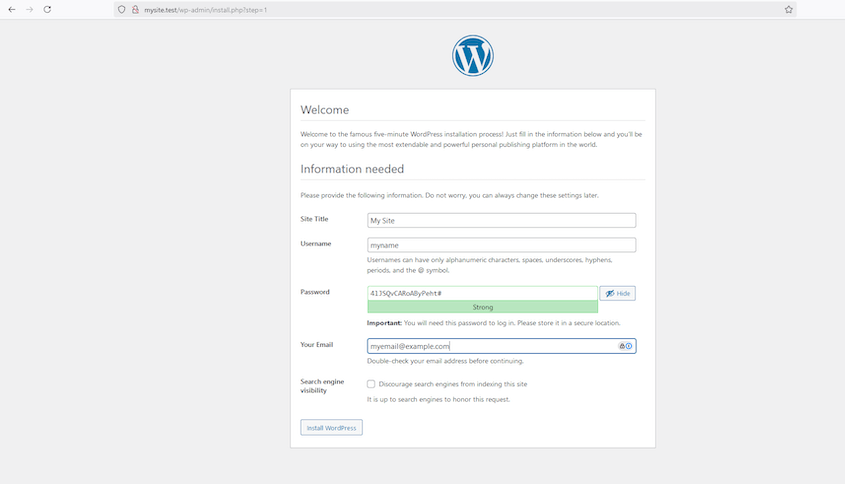
Click Install WordPress. Now you have a fresh WordPress installation ready for development!
(Optional) Step 4: Migrate Your Live Site Into Laragon
While creating a fresh WordPress installation is great for new projects, you might want to work on your existing live site locally. This is where Duplicator becomes your best friend.
Duplicator is a powerful WordPress migration plugin that makes moving WordPress sites easy. It creates an exact duplicate of everything: your posts, pages, themes, plugins, settings, and even your database. You’ll get a perfect clone of your live site to work with locally.
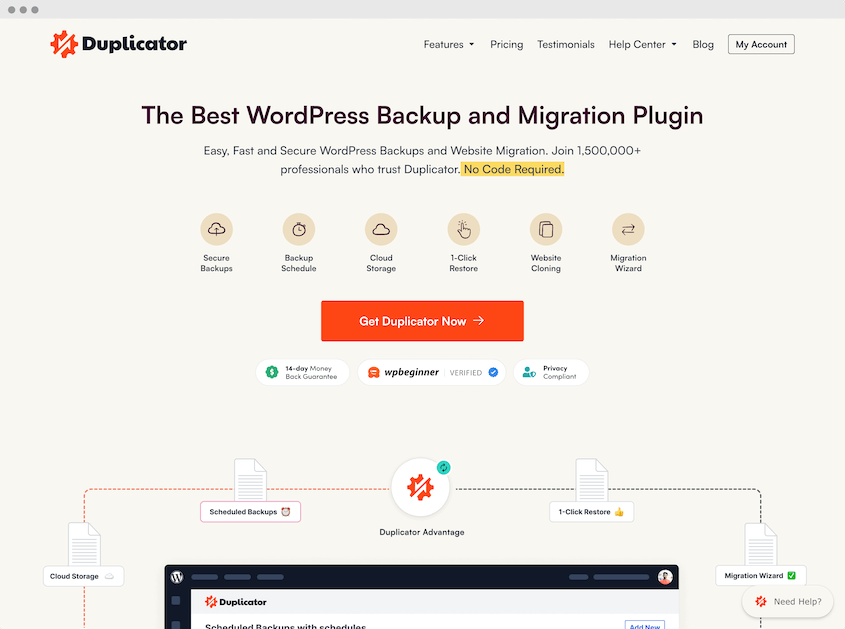
Why use Duplicator for this process?
- Zero downtime on your live site during migration
- All your content, settings, and customizations come along
- Your media files, plugin settings, and theme configurations transfer automatically
- The process is straightforward and automated
- You maintain a perfect testing environment that matches your live site
- When you’re ready, you can push changes back to your live site using the same tool
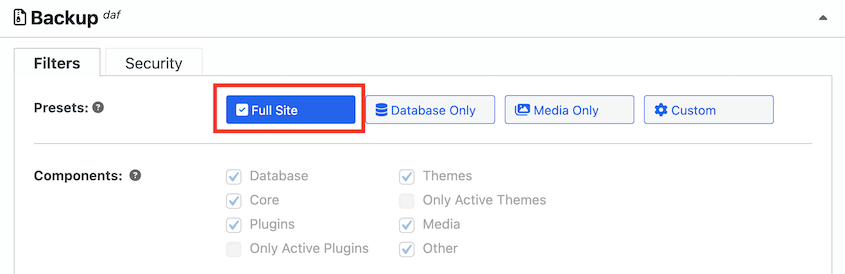
On your live site, install and activate Duplicator Pro. Create a new backup with the Full Site preset.
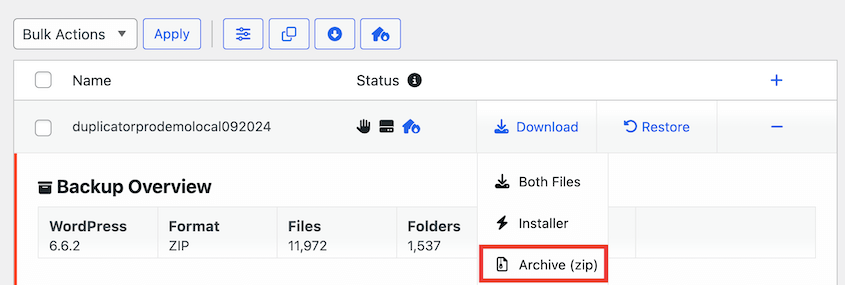
Continue building the backup. Then, download the backup archive file.
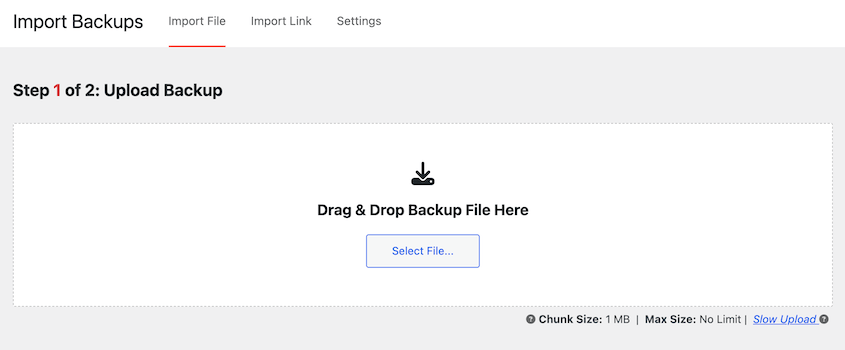
Open your Laragon site’s WordPress dashboard. Install Duplicator here and go to the Import Backups page. Drag and drop the backup file into the import box.
Duplicator will walk you through the steps of replacing the default WordPress installation with a copy of your live site.
Once complete, you’ll have an exact copy of your live site running locally on Laragon. Any changes you make here won’t affect your live site until you’re ready to migrate them back.
Troubleshooting Common Laragon Errors
Laragon’s setup usually goes smoothly, but here are the issues you’re most likely to hit and how to fix them.
- The .test URL won’t load: If http://mysite.test doesn’t open, make sure Laragon is actually running (click Start All) and that you enabled auto-create virtual hosts during setup. Restarting Laragon usually gets the pretty URL working.
- “Error establishing a database connection”: Double-check your database details during the WordPress install: the database name is your project name, the username is root, the password is blank, and the host is localhost.
- HTTP 500 or a white screen: This is usually a PHP version mismatch or a plugin issue. Use Laragon’s menu to switch to a different PHP version, or (if you’ve already imported a site) rename your plugins folder to deactivate everything and find the culprit.
- Laragon won’t start: Another program may be using port 80 or 3306 (Skype and other local servers are common offenders). Close the conflicting app, or change Laragon’s ports in its settings.
What to Do After Installing WordPress
Your local site is live on your machine. Here’s how to start putting it to work.
- Log in to your dashboard: Go to http://mysite.test/wp-admin and sign in with the admin username and password you just created.
- Install a theme: Head to Appearance » Themes » Add New to try out designs without any risk to a live site.
- Test plugins freely: This is the whole point of a local environment. Install anything you want and see how it behaves before it ever touches production.
- Add some test content: Create a few posts and pages so you have something realistic to design and build against.
Frequently Asked Questions (FAQs)
How do I run a project in Laragon?
To run a project in Laragon, start Apache and MySQL, and navigate to your project’s URL (http://your-project-name.test) in a browser.
How do I use phpMyAdmin on Laragon?
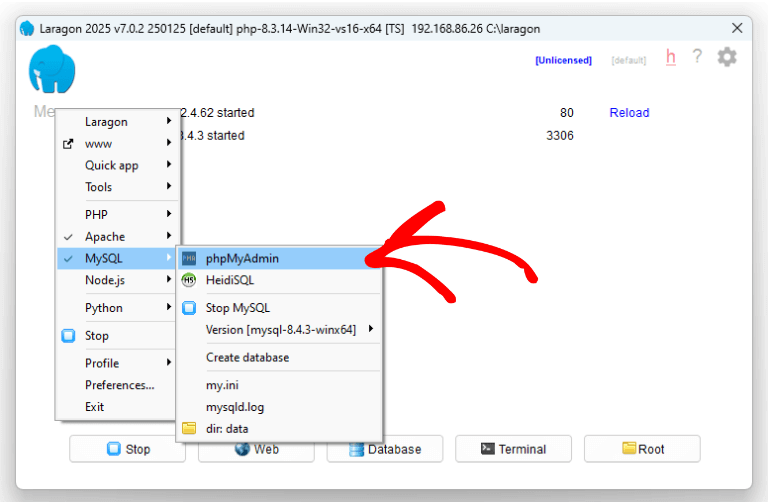
To use phpMyAdmin in Laragon, go to Menu » MySQL » phpMyAdmin. Sign in with root as the username and a blank password.
How do I install a WordPress theme in localhost?
Install a WordPress theme on localhost by accessing your local WordPress admin dashboard. Navigate to Appearance » Themes and click Add New. Choose a theme from the WordPress repository or upload a ZIP file of your theme. Click Install and then Activate to enable the theme.
Can I install Laragon on Mac?
You cannot install Laragon directly on Mac as it is designed for Windows. However, you can use alternatives like MAMP or set up Laragon on Mac using a virtual machine or compatibility layer like Wine, though this requires additional configuration.
Is Laragon free?
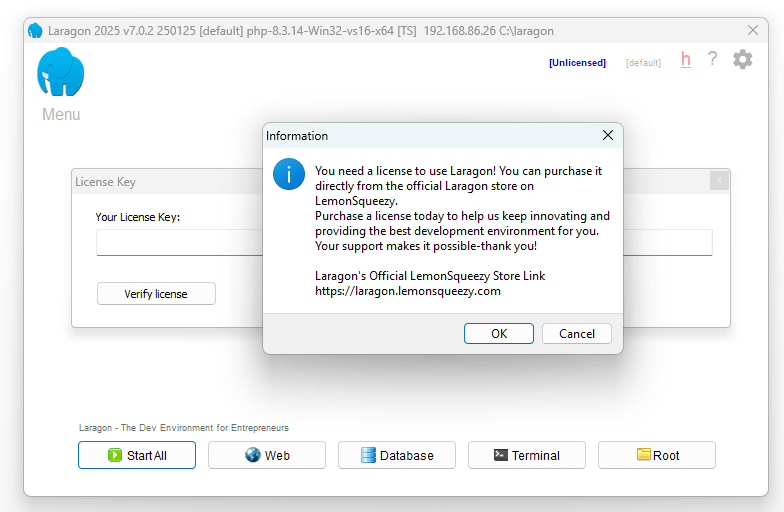
Laragon introduced a paid licensing model, but it’s still free to use. Newer versions show a popup asking you to buy a license, but you can close it and keep using all the features at no cost (you just won’t get automatic updates). A license is optional: a non-commercial one is a $10 one-time purchase and commercial plans start at $49 per year.
Final Thoughts
Setting up WordPress on Laragon opens up a whole new world of possibilities for risk-free development and testing.
Whether you’re building a new site from scratch or working on an existing one, having a local development environment gives you the freedom to experiment without consequences.
If you’re new to local development, start small. Try making a few minor changes to your local site, get comfortable with the workflow, and gradually take on bigger projects. Before you know it, you’ll wonder how you ever developed WordPress sites without Laragon.
Ready to take your WordPress development to the next level? Download Laragon and give it a try. And don’t forget to grab Duplicator Pro to make moving your sites a breeze.
Remember, the goal of local development isn’t just to make changes safely; it’s to help you build better WordPress sites with confidence. With Laragon and Duplicator in your toolkit, you’re well-equipped to do exactly that.
While you’re here, I think you’ll like these other WordPress guides:
- 10 Best Local Development Environments
- How to Move a Live Site to a Local Host
- How to Move a Local WordPress Site to a Live Server
- How to Redesign a WordPress Site (Without Downtime)
- 9 Best Plugins to Clone a WordPress Site




