


How to Sync Your Local Development Environment with Production
 Joella Dunn
Joella Dunn
Joella Dunn
 John Turner
John Turner
John Turner
When your local development setup doesn’t match your production server, you’re basically coding blind.
You might think everything works. It probably does work—on your machine. But that’s not where it matters.
Having a reliable process to sync local dev with production isn’t just a nice-to-have. It’s what separates professionals from people who cross their fingers every time they deploy.
In this post, I’ll walk you through proven methods for keeping your environments in sync. You’ll find one that fits your workflow!
Here are the key takeaways:
- Syncing environments eliminates compatibility problems and catches bugs before users see them
- You can use Duplicator for a beginner-friendly local sync workflow or GitHub + WP-CLI for command-line control
- Always pull the database down from production and push only code changes up to avoid overwriting live data
- WordPress sites have three parts to sync: code (Git), database (WP-CLI), and media files (rsync)
- Always back up before syncing anything, use staging environments for testing, and maintain a proper .gitignore file
Table of Contents
Why Sync Your Local and Production Environments?
You could probably survive without syncing environments. Plenty of people do. They just deal with the occasional surprise bug, the random production issue that didn’t happen locally, and the nagging uncertainty every time they push an update.
But why put yourself through that?
Keeping your local and production environments in sync eliminates tons of problems. Here’s what you actually get from doing it right.
Catch Errors Before They Go Live
A synced local environment mirrors your production server’s actual configuration. It’ll have the same PHP version, database structure, and plugins at the same versions.
This matters more than you might think.
When you work on a local setup that matches production, compatibility issues surface immediately. You catch them at your desk, not in front of users. That’s the difference between a minor inconvenience and a real problem.
A Realistic Sandbox for Testing
Testing against dummy data is fine for building initial features. But at some point, you need to see how things actually behave.
Real user content is messy. Product catalogs have weird edge cases.
Your local site needs that real data to give you an accurate picture of what’s happening.
Syncing down from production gives you the actual posts, users, and products your code will interact with. You’re not guessing anymore; you’re testing against reality.
No Compatibility Issues
Every developer has said, “But it worked on my machine” at least once. It’s basically a meme at this point.
But it’s also a symptom of environments that don’t match. When your local setup is basically identical to production, this excuse disappears. If it works locally, it works live.
That kind of confidence changes how you work. You stop second-guessing every deployment.
Improve Team Collaboration
When you’re working solo, you can get away with a messy process. Add a second developer to the mix, and things get complicated fast.
A consistent sync process means everyone starts from the same baseline. You’re all testing against the same database, using the same content structure, and running the same environment setup.
Without that, you end up with three different versions of “local,” and nobody’s sure which one is closest to production. That’s not collaboration; that’s chaos.
How to Sync Your Local Environment with Production
You could do this manually. Export the database through phpMyAdmin, download it, import it locally, and manually find and replace all the URLs in the SQL file. Then FTP into your server, zip up the uploads folder, download that, extract it locally…
I’m exhausted just typing that out.
Manual methods are tedious and risky. Miss one URL replacement, and your local site starts pointing to production resources. Forget to update a serialized array correctly, and you’ve corrupted your database.
There’s a better way. Here’s how to sync your local dev and production environments:
- Duplicator: Migration plugin with automatic URL replacement and guided installers—perfect for beginners or quick syncs
- GitHub + WP-CLI: Command-line control for syncing code via Git, database via WP-CLI exports, and media via rsync—ideal for developers who want granular control
Sync Local and Production Sites with Duplicator
This is the most straightforward method, especially if you’re not comfortable living in the terminal.
Duplicator creates a complete snapshot of your site and gives you an installer that handles all the tricky parts automatically. You won’t have to worry about manual URL replacements or database configuration headaches.

Pulling from Production to Local (The Common Workflow)
This is what you’ll do most often. You want to grab the current state of your live site and work with it locally.
Start by installing Duplicator Pro on your production site and create a new full-site backup. Think of this as taking a snapshot of your entire site at this exact moment.

The backup creation takes a few minutes depending on your site size. Once it’s done, you’ll have two files: an archive (usually a .daf or .zip file) and an installer script (a .php file). Download both.
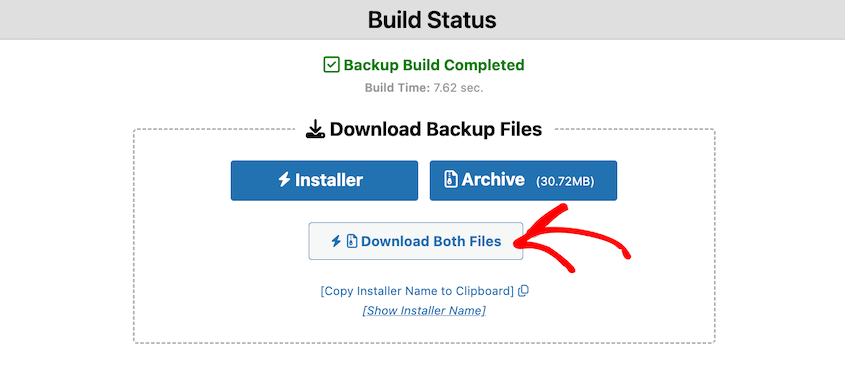
Now go to your local environment. Create an empty directory where you want your local copy to live. Drop both files—the archive and the installer—into that empty directory.
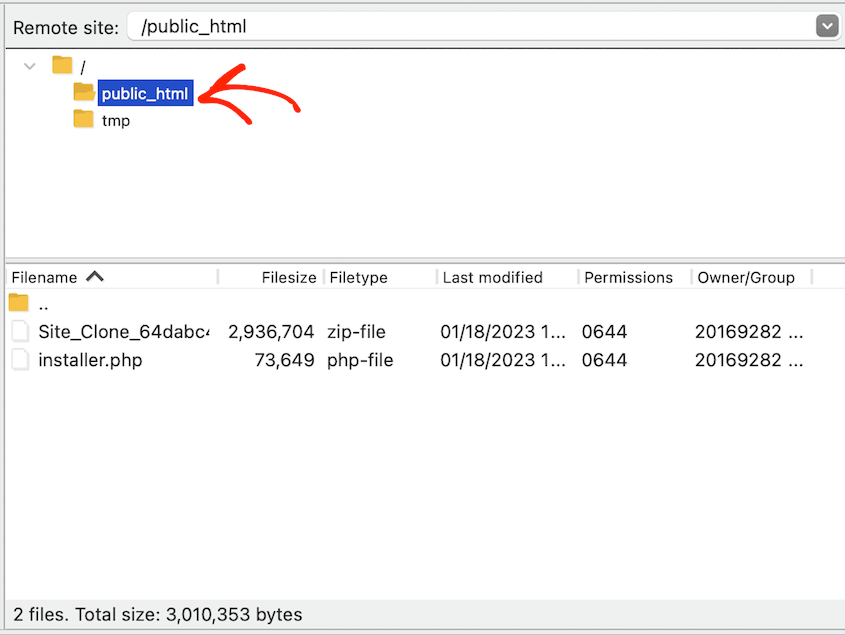
Open your browser and navigate to that directory. Something like http://localhost/mysite/installer.php. The Duplicator installer wizard launches.
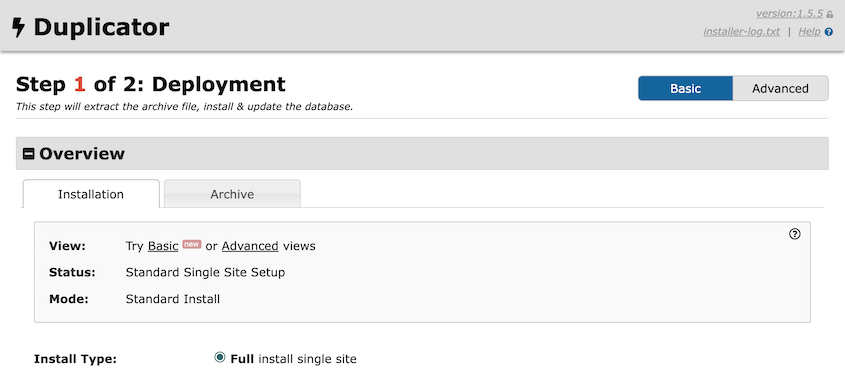
The wizard walks you through connecting to your local database and handles all the URL replacements automatically.
It knows your production site was at https://mysite.com and your local site is at http://localhost/mysite. It fixes every reference in the database without you touching a thing.
Five minutes later, you’ve got a perfect local copy of your production site.
Pushing from Local to Production
This workflow goes in the opposite direction. You’re taking your local site and deploying it to production.
Be careful here. This is really only for new site launches or complete redesigns. If you’ve got a live site with active users, you probably don’t want to do this. You’ll overwrite their recent posts, comments, and orders.
If you do need to push local to production, the process is similar but reversed.
First—and I can’t stress this enough—back up your production site completely before you do anything else.
Then, create a backup of your local site using Duplicator and download it. Upload both backup files to your production server via FTP or drag and drop the archive into the Import page.

Again: only do this if you’re sure you want to completely replace production. To make sure you can easily roll back any unexpected changes, be sure to set a recovery point.
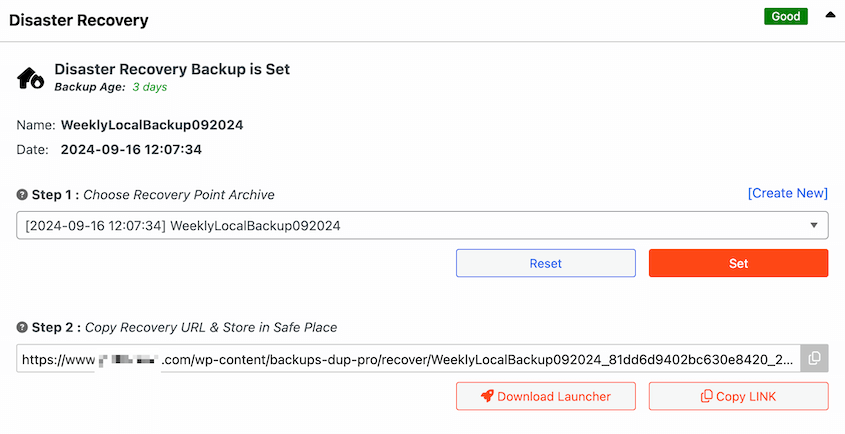
Duplicator will give you a recovery URL that restores a recent backup, even if your site is completely broken.
Sync Local and Production Sites with GitHub and WP-CLI
If you’re comfortable with the command line, this method gives you more control and fits into a Git-based workflow.
Here’s the thing about WordPress sites: they’re made of three distinct parts that all need to be synced separately.
- Code: your theme files, plugins, and core WordPress files. This is what Git handles.
- Database: all your content, settings, and configurations. Git doesn’t touch this. You need WP-CLI.
- Media: everything in your /wp-content/uploads/ folder. Also not in Git. You need rsync or a similar tool.
Understanding this separation is key. Git alone won’t cut it.
The Workflow for Pulling from Production
Let’s walk through bringing your production site down to local.
For code, it’s simple. If your theme and custom plugins are in a Git repository, just run:
git pull origin main
Your local code now matches production.
For the database, SSH into your production server and export the database using WP-CLI:
wp db export production-backup.sql
Download that .sql file to your local machine. Then import it locally:
wp db import production-backup.sql
But you’re not done yet. Your database still has all the production URLs in it. You need to replace them with your local URLs:
wp search-replace 'https://mysite.com' 'http://localhost/mysite'
This search and replace command hunts through every table and field, updating URLs wherever they appear. It even handles serialized data correctly, which is critical for WordPress.
Skip this step, and your local site will try to load images from production, redirect you to the live site, and generally behave like it doesn’t know where it lives.
For media files, use rsync. It’s built for syncing large directories efficiently.
rsync -avz user@mysite.com:/path/to/wp-content/uploads/ ./wp-content/uploads/
The -avz flags mean “archive mode, verbose output, compress during transfer.” This command only downloads files that have changed, so subsequent syncs are fast.
Run these three steps (pull code, import database, sync media), and you’ve got a complete local copy of production.
Best Practices to Ensure a Smooth and Safe Sync
You can have the best tools in the world, but it doesn’t matter if you use them wrong.
I’ve seen developers wipe out production databases because they pushed when they should have pulled. I’ve watched people skip backups because “it’s just a quick sync” and then spend the weekend recovering data.
Don’t be that person.
These best practices can be the difference between a smooth workflow and a career-ending mistake.
Always Back Up First
Before you sync anything in any direction, take a backup. The one time you skip it, something will go wrong.
Duplicator makes this easy—it’s both a migration and backup plugin. The first step in every push or pull migration will be a full-site backup, protecting your site.
If anything happens, hit the one-click Restore button.
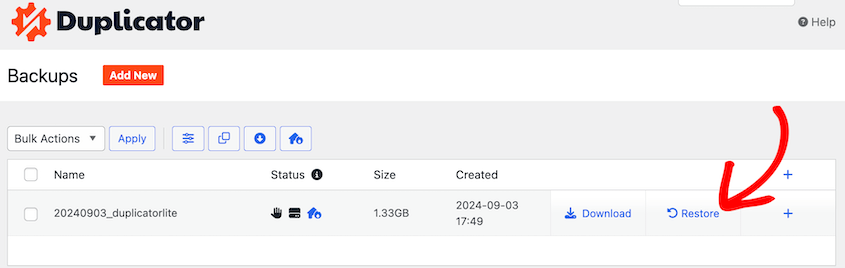
Or, upload both backup files back onto the same server. Run the installer and follow the recovery instructions.
If you’re using command-line tools, run a quick wp db export before you do anything else.
Five minutes of backup creation can save you days of recovery work.
Pull Down, Push Code Up
Here’s the standard professional workflow: pull the database and media files down from production to local. Only push code changes up to production via Git.
You should rarely push your local database to production unless you’re launching a brand-new site.
Why? Because production has real data that’s changing constantly. If you overwrite the production database with your local copy, all of that recent activity disappears.
Use a Staging Environment
The ideal workflow isn’t Local » Production. It’s Local » Staging » Production.
A staging environment is a copy of your production site that lives on an actual server but isn’t public-facing. It’s your final testing ground before changes go live.
You develop locally. Then, test on staging with the real server configuration and recent production data. Only after everything checks out on staging, deploy to production.
This adds a safety buffer. If something breaks on staging, no users see it. You catch it and fix it before it matters.
Not every project needs staging, especially small sites. But for anything with real traffic or e-commerce functionality, it’s worth setting up.
Use a .gitignore File
If you’re using Git, you need to tell it what not to track.
Your wp-config.php file has database credentials that are different on every environment. It shouldn’t be in version control.
Your /wp-content/uploads/ folder can be gigabytes of images and files. Those don’t belong in Git either—that’s what rsync is for.
Create a .gitignore file in your repository root and add these at minimum:
wp-config.php

.htaccess

wp-content/uploads/

*.log
This keeps your repository clean and prevents you from accidentally committing sensitive information or bloating your repo with binary files.
Frequently Asked Questions (FAQs)
How do you synchronize media libraries?
If you’re using Duplicator, the media library is included in full-site backups automatically. When you move backups to or from production, you’ll move your media files as well. For a manual workflow, rsync is the best tool because it only transfers files that have changed since the last sync.
How do you sync local dev with production on GitHub?
GitHub (Git) only syncs code. It does not sync the database or media library—you need a separate process for those, like WP-CLI and rsync.
Is Git enough to sync a WordPress site?
No. It only handles the code, which is just one of three essential parts. Your site will be broken without the database and media files.
How often should I pull from production to my local site?
You should pull your site from production to local before starting any new feature or task. This prevents you from breaking your live site.
Perfect Your WordPress Sync Workflow
Moving beyond manual methods is one of those turning points in your development career. You stop being someone who copies files around and crosses their fingers. You become someone with a process.
A repeatable workflow—whether you’re using a tool like Duplicator or running commands in the terminal—replaces deployment anxiety with confidence.
Your future self will thank you the next time you need to test a feature against real production data, or pull down the latest content, or deploy with zero stress.
Ready to stop juggling command-line tools and worrying if you missed a step? Duplicator Pro gives you a complete, reliable toolkit for migrating and backing up your site.
Create a full-site backup, send it directly to cloud storage, and deploy it to a new location with a simple, guided installer that handles all the heavy lifting. Check out Duplicator Pro to simplify your workflow today!
While you’re here, I think you’ll like these other hand-picked WordPress resources:
- How to Use WordPress CLI: Master the Command Line
- How to Move a Live WordPress Site to a Local Host (The Easy Way)
- How to Move a Local WordPress Site to a Live Server
- Code Smarter, Not Harder: WordPress Developer Tools For Every Pro
- How a Developer Easily Migrates Online Stores with 150,000 Products




