


The Best WordPress Importer Plugins: Expert Pick for 2026
 Joella Dunn
Joella Dunn
Joella Dunn
 John Turner
John Turner
John Turner
I remember when I first tried to migrate content to WordPress. Between wrestling with formatting issues, losing images in transit, and the sheer frustration of things just not ending up where they should, I felt completely overwhelmed.
If you’ve ever stared blankly at a screen wondering how to smoothly transfer your data into WordPress without losing your mind (or your content!), you’re in the right place.
Thankfully, there are tools out there to make this process significantly less painful.
In this post, I’ll round up my favorite WordPress importer plugins. This way, you can easily migrate any type of website data!
Here are the key takeaways:
- WordPress’s built-in importer has limitations: It struggles with large files, can’t handle full site migrations, and only transfers media links (not the actual files)
- Duplicator Pro is our favorite importer plugin: It handles complete site migrations with drag-and-drop functionality, custom backups, and works great with large sites
- Whether you’re moving from Shopify or transferring WooCommerce products, there’s a specialized tool for you
- The best importer plugins offer drag-and-drop migrations, customizable data selection, and large file support
Quick Summary of the Best WordPress Importer Plugins
Here’s a quick overview of the best WordPress importer plugins!
| Importer Plugin | Free Version? | Pricing | Best For |
| Duplicator Pro | ✅ | $69.30/yr | Migrating an entire WordPress site, specific files, or databases to a different location |
| SeedProd | ✅ | $39.50/yr | Importing and exporting theme files |
| Shopify to WP | ✅ | Free | Moving an online store from Shopify to WooCommerce |
| WP All Import | ✅ | $99 | Importing XML, CSV, or Excel files |
| Product Import Export for WooCommerce | ✅ | Free | WooCommerce imports |
Table of Contents
- How Does the WordPress Import Feature Work?
- What Are the Limitations of the Native WordPress Importer?
- What Is a WordPress Importer Plugin?
- What to Look For in a WordPress Importer Plugin
- Why Trust Us?
- Our Favorite WordPress Importer Plugins
- Frequently Asked Questions (FAQs)
- Choose the Right WordPress Import Method
How Does the WordPress Import Feature Work?
WordPress has a built-in import and export feature that allows you to move data without a third-party plugin. It can import content from another WordPress site or a different publishing platform like Blogger or Joomla.
To start moving your site’s data, go to Tools » Export. You can choose to export all your content or just pages, posts, or media files.
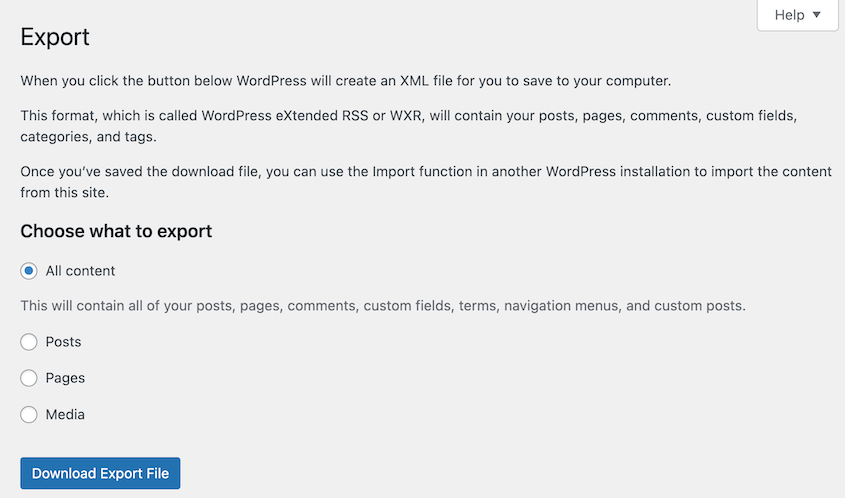
You’ll get an XML file that you can upload to another WordPress installation.
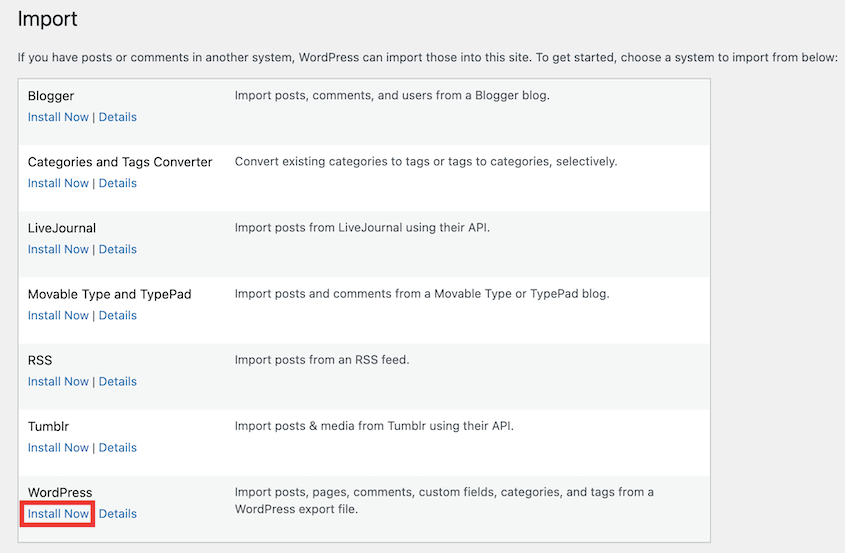
Find Tools » Import. If you’re transferring content between two WordPress sites, hit Install Now next to the WordPress option.
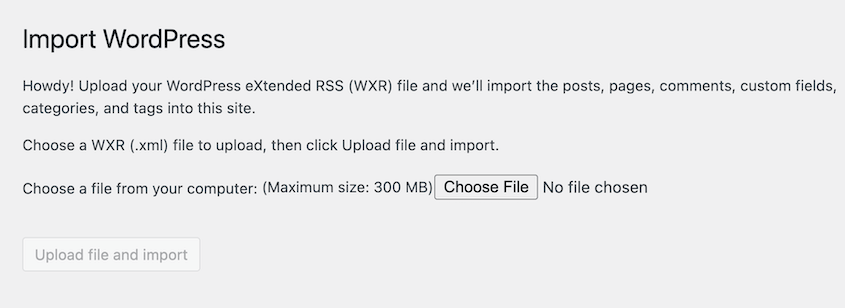
Click on Run Importer. Now you can simply upload the XML file you saved earlier.
What Are the Limitations of the Native WordPress Importer?
I’ve found that the native WordPress importer does have some limitations. Although it’s easy to use, it’s not the most effective migration tool.
When moving your Media Library, for example, the importer will only transfer the links to your media files. Once you delete the original files on the old site, these image links will break.
Plus, it’s easy for the import to time out. To migrate a WordPress site, your compiled file will have a lot of data. The native import tool isn’t well-equipped to process large files over 300MB.
You may also need to export widgets, plugins, or other important WordPress data. The WordPress importer won’t be able to handle this type of migration.
What Is a WordPress Importer Plugin?
A WordPress importer plugin is a tool that helps you migrate website data from one WordPress installation to another. Depending on the plugin, you’ll be able to migrate your entire site, or just posts, pages, widgets, and other specific data.
What to Look For in a WordPress Importer Plugin
The WordPress import feature can be useful for transferring blog posts or pages to a new site. However, you may run into problems when you try to move your entire website.
Since the exported file will be large, you could exceed your web host’s PHP memory limit. In this case, it’s time to install a WordPress migration plugin, otherwise known as an importer plugin.
Here’s what you should look for in a WordPress importer plugin:
- Easily transfers WordPress files, plugins, themes, and database information
- Drag-and-drop migrations
- Customize what data is included in your migration
- Supports large websites and WordPress Multisite networks
- Step-by-step import installer
The best WordPress importer plugins will have a user-friendly interface that makes site migrations easy. You’ll be able to save all of your website’s data into one file and transfer it to a different location.
Why Trust Us?
At Duplicator, we live and breathe migrations. Our team has spent over a decade in the WordPress ecosystem, helping users navigate the exact challenges I talked about at the beginning of this post.
We created Duplicator, the most trusted migration and backup plugin on the market. Having helped millions of users successfully move their websites, we’ve seen every possible error and understand what it takes to build a truly reliable importer tool.
The recommendations on this list come from years of deep, hands-on experience solving the very problem you’re facing right now. We’re confident in these tools because we know what works!
Our Favorite WordPress Importer Plugins
Below, you’ll find a list of my favorite WordPress importer plugins! You’ll be sure to find a tool that simplifies site migrations so you can easily move to a new domain, host, or server.
Here are the best WordPress importer plugins:
- Duplicator Pro: Custom data backups and complete site migrations with drag-and-drop functionality
- SeedProd: Theme file imports/exports for consistent website design
- Shopify to WP: Fast and free migrations from Shopify stores to WooCommerce
- WP All Import: Powerful XML, CSV, and Excel file imports with scheduled automation
- Product Import Export for WooCommerce: Bulk product transfers between WooCommerce stores
Duplicator Pro
Duplicator Pro is the best WordPress importer plugin. This flexible tool can build backups of your site and smoothly move them to any location.
Rather than being limited by the native WordPress import/export feature, Duplicator migrates sites of any size, including WordPress multisite.
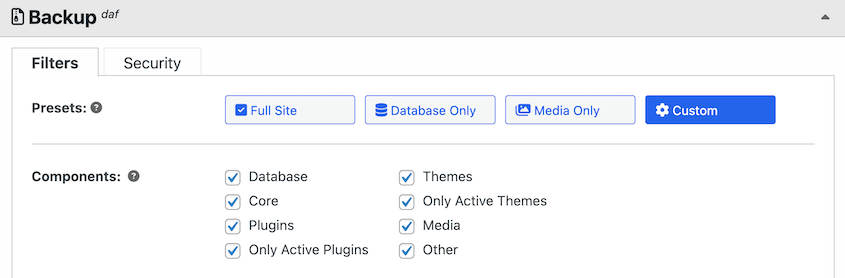
Using Duplicator, you can customize exactly what data you want to transfer to the new location.
Simply expand the Backup section and select what components to include. You could choose to only back up active plugins and themes to remove any unnecessary tools during the move.
After you download the backup, open your new website and find the Duplicator Import Backups page. You can import files by dragging and dropping them here.

Duplicator’s installation wizard will walk you through the import process! In my experience, it takes less than 5 minutes to completely import the old site into the new one.
Unlike other plugins, Duplicator is well-equipped to import large sites. You’ll be able to back up a lot of data into a single zip file without overloading your server and causing time-out issues.
On top of this, Duplicator is much more than an importer tool. Here are some other features you can look forward to:
- Export data in plugins, themes, and database
- Complete WordPress backups
- One-click restores
- Automatic backup schedules
- Cloud backup storage to Duplicator Cloud and third-party locations
- Supports managed hosting
- Developer features
- Backup encryption
- Custom search and replace
- Multisite compatibility
- Free WP Media Cleanup plugin included
Pricing: Duplicator is available for free on WordPress.org. If you want drag-and-drop imports and a step-by-step migration wizard, you can upgrade to Duplicator Pro starting at $69.30 per year.
Why We Chose Duplicator
Duplicator Pro is the best importer plugin for moving entire sites to different locations. It can help you back up your site, migrate it to a new host, set up staging sites, and much more.
SeedProd
As a freelancer or designer, you may want to export your custom WordPress theme and use it on another website. Using SeedProd, you can do just that.
SeedProd is a drag-and-drop page builder that allows you to easily design every part of your website.
It comes with landing page templates, professional blocks, animations, and much more. You can even start with a theme template kit to start developing your WordPress theme without coding experience.
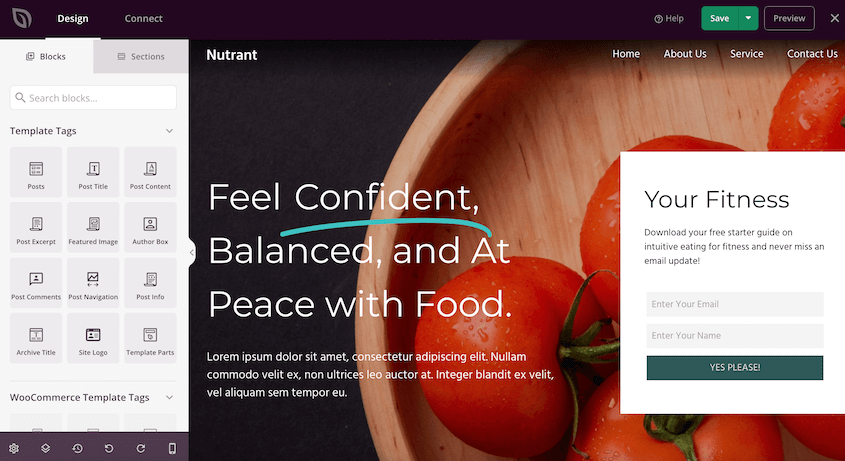
When you’re ready, go to SeedProd » Import/Export and hit Export Theme Files.
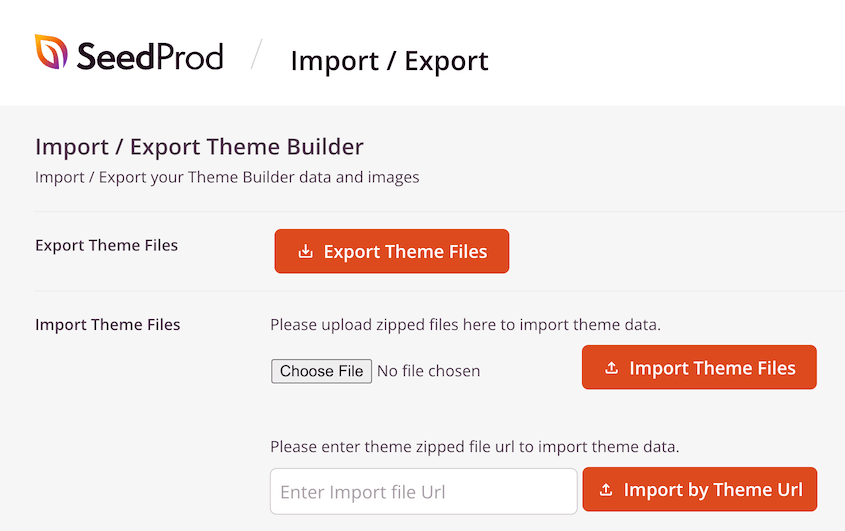
You can then open a blank WordPress installation and install SeedProd. Visit the same Import/Export page and import the theme you just downloaded. Your theme will automatically be applied!
Additionally, you may want to just reuse small sections of your page design. With SeedProd, you can simply copy and paste sections from your old site onto a different website.
Key features of SeedProd:
- Drag-and-drop page builder
- Theme builder
- 150+ landing page templates
- 90+ full website theme kits
- 90+ blocks
- 45+ animations
- Save page templates, sections, and blocks
- Copy and paste sections across different pages or different sites
- AI assistant and theme builder
Pricing: There is a completely free version of SeedProd. To start importing and exporting theme files, it’s important to select a premium subscription. These start at $39.50 yearly.
Why We Chose SeedProd
SeedProd is a great option for designers or agencies that need to export themes and use them on multiple websites. It can also import and export smaller parts of a web page as reusable elements.
Shopify to WP
When you first start an online store, you might prefer Shopify because it is a fully hosted ecommerce platform that comes with less maintenance. However, WooCommerce is a better alternative if you want more flexibility and fewer transaction fees.
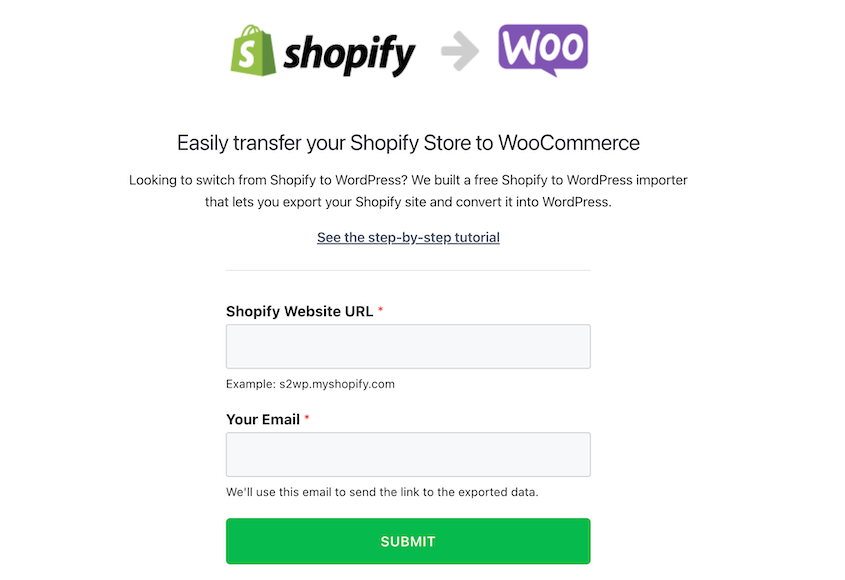
If you’re moving your Shopify site to WooCommerce, I’d recommend using Shopify to WP. This importer tool is specifically designed for this type of migration. Plus, it avoids the need to hire an expensive migration service.
All you’ll need to do is create a WordPress website. Then, paste your website’s URL and your email into Shopify to WP. You’ll be redirected to your Shopify store, where you can start downloading your data for the migration.
When you import this file into WordPress, Shopify to WP will automatically convert your Shopify products into WooCommerce products. This can be a huge time-saver as you’re setting up your first WooCommerce store.
Pricing: Shopify to WP is free to use.
Why We Chose Shopify to WP
You should use Shopify to WP if you’re planning on transitioning from Shopify to WooCommerce. It instantly makes your Shopify data compatible with WordPress.
WP All Import
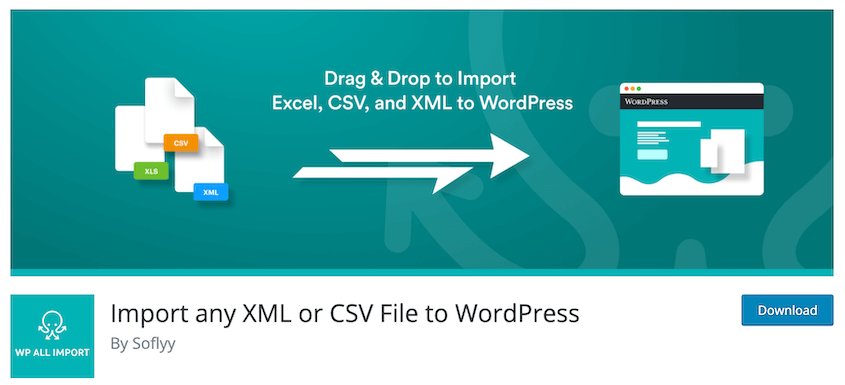
Another powerful import plugin is WP All Import. You can use this tool to import any XML, CSV, or spreadsheet file into your WordPress site. Plus, it’ll work with large files and shared hosting plans.
With WP All Import, you can migrate WordPress posts, categories, image galleries, custom post types, and more. The plugin will automatically detect any custom fields and taxonomies. Plus, you’ll even be able to set up scheduled imports if needed.
Key features of WP All Import:
- Drag-and-drop interface
- XML, CSV, or Excel file formats
- Import data into any plugin or theme
- Import images from a server, FTP, or your computer
- Automatically detects categories, tags, users, and products
- Scheduled imports
- Integrates with WooCommerce, WPML, and All-in-One SEO
Pricing: The basic plugin is free and the premium plans start at $99. You can also package WP All Import with WP All Export. Together, these plugins cost as little as $199.
Why We Chose WP All Import
WP All Import is a popular importer plugin that makes it easy to upload XML, CSV, or Excel files to your WordPress site.
Product Import Export for WooCommerce
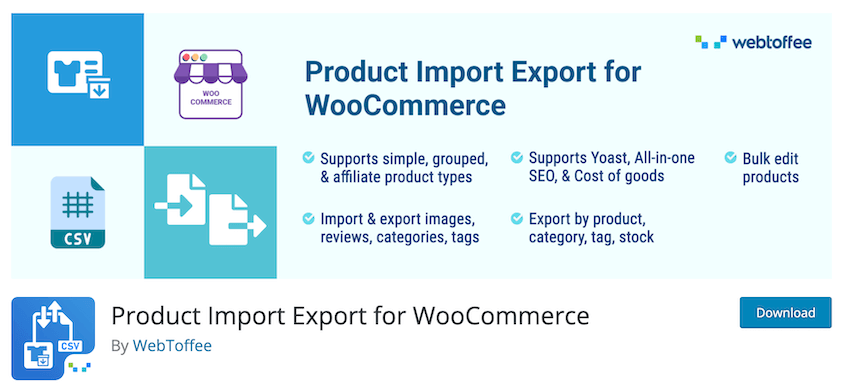
As you’re planning the migration of your ecommerce site, you might be overwhelmed by the thought of manually exporting product information. Product Import Export for WooCommerce is a plugin that was designed to make this process easier.
With this tool, you can export your WooCommerce products as a CSV file. This can then be uploaded to another WooCommerce site, allowing you to import products in bulk.
Key features of Product Import Export for WooCommerce:
- Export WooCommerce products into CSV file
- Import CSV file into WooCommerce
- Add products in bulk
- Supports simple, grouped, and external/affiliate products
- Export and import product reviews and ratings
Pricing: Product Import Export for WooCommerce is a free WordPress plugin.
Why We Chose Product Import Export for WooCommerce
With this plugin, WooCommerce store owners will find it easy to export and import their products into another store.
Frequently Asked Questions (FAQs)
Which is the best WordPress importer plugin?
Duplicator is the best WordPress importer plugin. You can use it to export custom backups of your WordPress site. Then, simply drag and drop this backup into another location.
Do I need a WordPress importer plugin?
If you want to quickly and easily move your website, you need a WordPress importer plugin. A tool like Duplicator Pro can streamline migrations and minimize downtime. There are also specific importer plugins for moving widgets, WooCommerce products, and other data.
How do I import pages and posts into WordPress?
You can import pages and posts into WordPress using Duplicator Pro. Simply install it and create a backup of your blog. Then, open the WordPress dashboard for your new site and drag and drop the archive file into it.
How long does a WordPress import take?
A WordPress import takes only a few minutes with the right tools. Using a plugin like Duplicator Pro, you can easily download your whole site and transfer it to a new location. Ultimately, this saves you hours of work spent manually importing your WordPress website.
How do I upload an entire website to WordPress?
You can upload an entire website to WordPress using Duplicator Pro. After installing the plugin, create a backup of your site. Then, go to the new WordPress site and find Duplicator Pro » Import Backups. Drag and drop your backup file here to start importing your old content.
Choose the Right WordPress Import Method
Complete site migrations require tools like Duplicator Pro that handle database content, themes, plugins, media files, and server configurations. This approach works best when moving entire WordPress installations between hosts or creating staging environments.
WordPress’s native importer works fine for posts, pages, and comments under 300MB. This method suits bloggers moving content between different WordPress themes or consolidating multiple sites.
Product catalog imports need specialized tools like WP All Import that excel at CSV and XML data with complex field mapping requirements. Platform migrations require specialized tools like Shopify to WP.
Are you ready to import your site into a different WordPress installation? Download Duplicator Pro to move your entire website in just a few minutes!
While you’re here, you may also enjoy these extra WordPress tutorials and guides:
- How to Move a WordPress Website to a New Host
- 9 Best Plugins to Clone a WordPress Site (Expert Pick)
- How to Move a Live WordPress Site to a Local Host
- Migrations Without the Money: Best FREE WordPress Migration Plugins
- How to Move From WordPress.com to WordPress.org
- 26 Best WordPress Plugins For Any Type of Website




