


How I Restore a Cloud WordPress Backup to Recover Broken Websites
 Joella Dunn
Joella Dunn
Joella Dunn
 John Turner
John Turner
John Turner
Your server just went down at 11 PM on a Tuesday. Or a bad plugin update wiped your database clean. Or your host had a catastrophic failure, and the support ticket says, “we’re investigating.”
The moment you realize your site is gone, only one question matters: can you get it back?
A lot of WordPress site owners discover the answer to that question in the worst possible way.
They have backups sitting in a cloud storage folder somewhere. But between “backup exists” and “site is restored,” there’s a gap most setups never address. The backup is there. The path back isn’t.
In this post, I’ll show you how to restore a cloud WordPress backup and what to do when your server is completely offline and standard restore tools can’t run.
Here are the key takeaways:
- Cloud backups only protect you if you can restore them when WordPress is unreachable
- A complete WordPress backup requires both the site files and the database; one without the other won’t restore a working site
- Standard backup plugins fail when the server is down because they need a live WordPress install to run
- Duplicator Cloud’s remote recovery feature lets you restore a full site from a cloud dashboard using only FTP/SFTP credentials, no working server required
- Always test your restore process on a staging environment before an actual emergency forces you to figure it out in real time
- Store backup credentials somewhere accessible outside your server; if the server is gone, you’ll need them to reach what you saved
Table of Contents
Why Do You Need Cloud WordPress Backups?
Most WordPress site owners think having a backup means they’re protected. That’s only half of it. Where that backup lives determines whether you can actually use it when things go wrong.
Local backups feel convenient right up until the moment the server fails. When the server goes down, anything stored on it goes down too. The backup you were counting on is now sitting on the same machine that just became the problem.
This isn’t a theoretical risk. In March 2021, a fire at OVH’s data center in Strasbourg destroyed servers and damaged adjacent buildings. Sites hosted there were wiped out.
The ones that came back online were the ones with off-site backups. The ones with only local or on-server storage had nothing to restore from.
The 3-2-1 rule exists for exactly this reason: keep 3 copies of your data on 2 different types of media, with 1 stored off-site.
Cloud storage is that off-site copy. It’s the copy that survives when everything local is gone.
How to Restore a Cloud WordPress Backup
There are a few different ways to restore a WordPress site from a cloud backup, and the right method depends on whether your server and WordPress dashboard are still accessible.
I’ll cover two restore methods:
- Method 1: Duplicator Cloud Recovery: restore backups with one click through the plugin or off-site cloud dashboard (when your server is down)
- Method 2: FTP + phpMyAdmin: a manual fallback when the dashboard is down but the server is still reachable via FTP and a database management tool
Method 1: Restore a Cloud Backup with a Backup Plugin
I’ve tested a lot of WordPress backup plugins over the years, and Duplicator Pro is the one I keep coming back to for cloud backup restores specifically.

Most plugins make you download the backup first, then figure out the restore yourself. Duplicator keeps the whole process inside WordPress.
You connect Duplicator to any of these cloud storage locations:
- Duplicator Cloud
- Google Drive
- Dropbox
- Microsoft OneDrive
- Amazon S3
- Wasabi
- Google Cloud
- DreamObjects
- Vultr
- DigitalOcean Spaces
- Cloudflare R2
- Backblaze B2
Once you create a cloud backup, they’ll show up directly in the plugin dashboard, and the restore wizard handles everything from there. If you’re managing business-critical sites and you haven’t set this up yet, it’s worth doing before you need it.
Restoring a Duplicator Backup for Minor Errors
Duplicator’s restore process is built for site owners who don’t want to dig into phpMyAdmin or FTP manually. As long as your WordPress dashboard is still accessible, this is the fastest path back to a clean site.
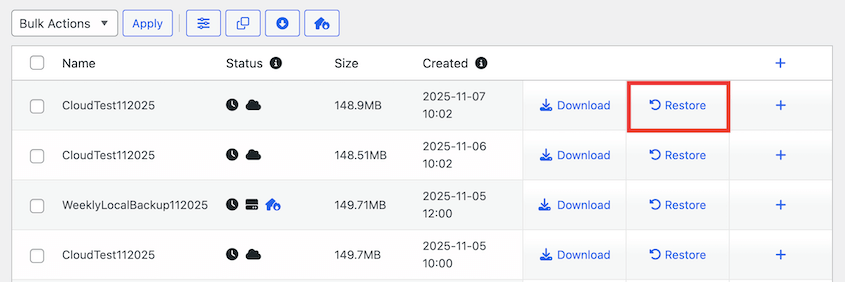
Log into your WordPress dashboard and open the Duplicator Pro plugin. Navigate to Backups and find the backup you want to restore. Click the Restore button.
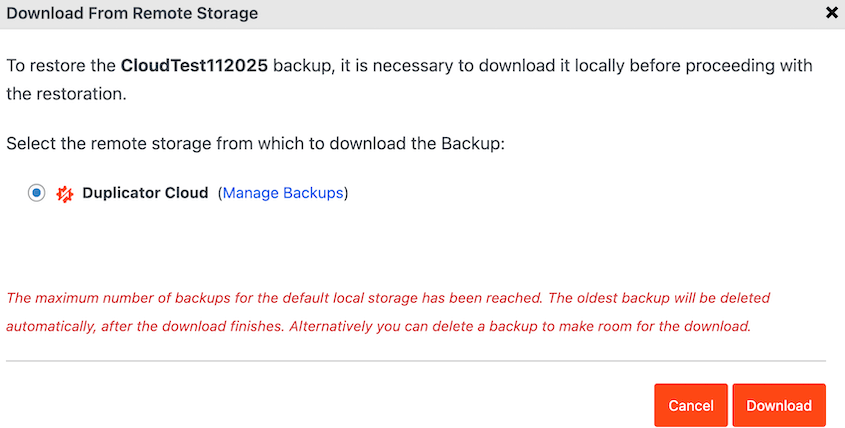
If your backup is stored in the cloud, Duplicator will download it for you.
Then, Duplicator launches a restoration wizard that walks you through the process step by step.
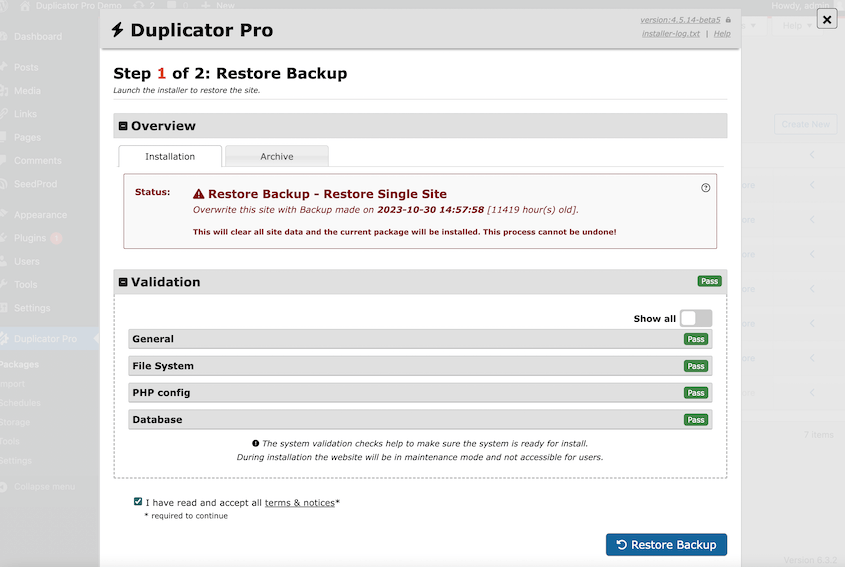
It’ll handle the heavy work like file extraction, database import, and wp-config.php updates. You don’t need to touch those pieces manually.
Once the restore completes, clear your caches and run through the site to confirm everything is back in order.
Restoring a Duplicator Cloud Backup for Major Errors
This is the method that most backup plugins don’t offer. If your server is offline, your WordPress dashboard is gone with it, and every plugin-based restore tool becomes useless.
Duplicator Cloud solves that problem.
If you send your backups to the built-in Duplicator Cloud storage, your data will be stored in an off-site dashboard. It’s safe from local server errors, and you can use these backups to roll back your site remotely.
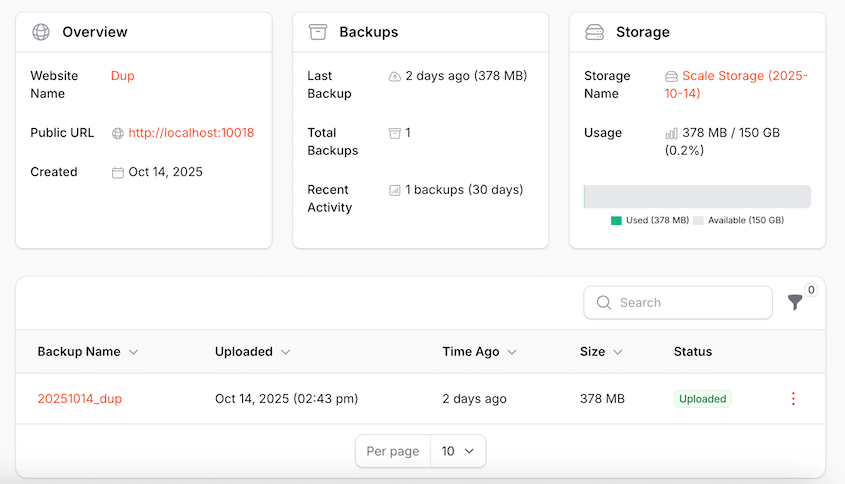
The entire restore process runs from the Duplicator Cloud dashboard. Your server doesn’t need to be online, and WordPress doesn’t need to be running.
You can initiate a full-site recovery from any device, on any internet connection, from anywhere in the world.
The setup is a one-time step. In your Duplicator Cloud dashboard, configure a recovery connector for your site by entering your FTP/SFTP credentials: hostname, username, password, and the path to your site files.
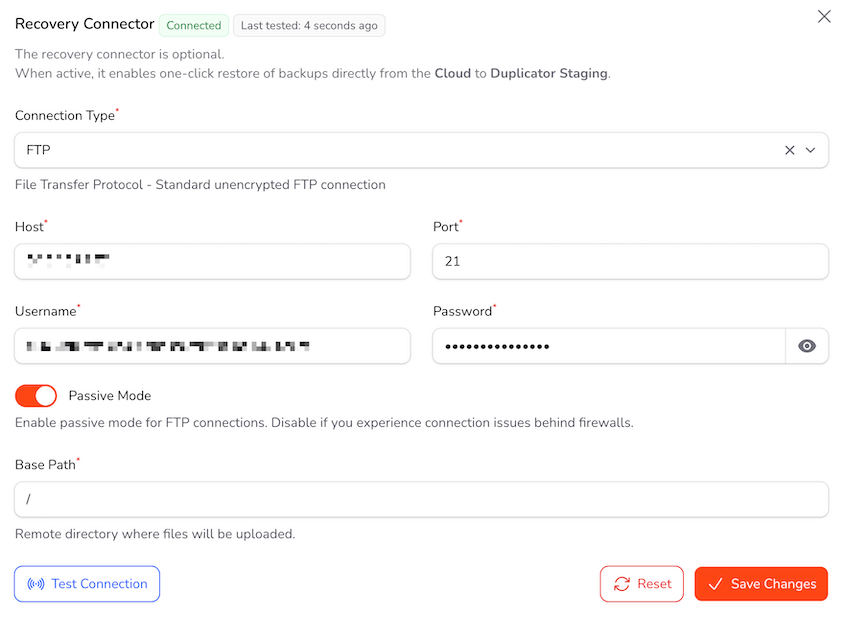
Test the connection to confirm it works. Once the connector is configured, future restores take only a few clicks.
When disaster hits, open the site’s storage in the Duplicator Cloud dashboard, find the latest clean backup, and click Restore Full Backup.
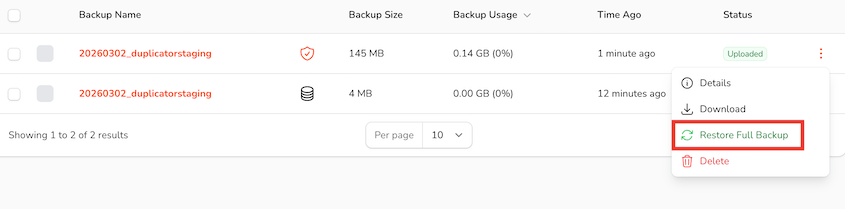
Duplicator downloads the installer script and backup files automatically, then launches the restoration wizard. Accept the terms, let the process run, and log back into a working site.
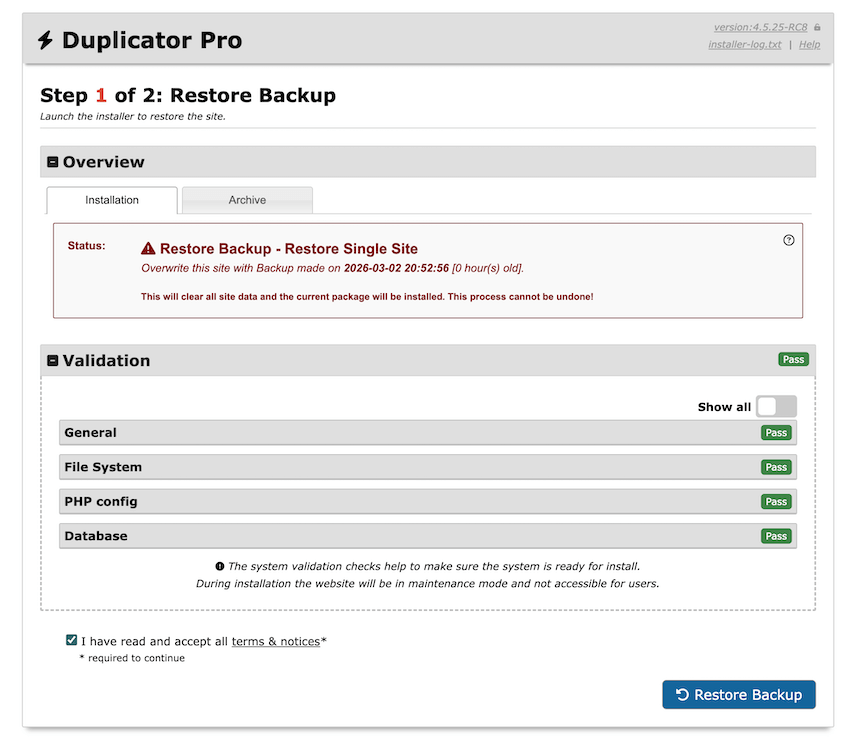
You’re not limited to full restores either. If the problem is isolated, Duplicator Cloud supports partial restores. Roll back just the database, just the media library, or specific files, without touching the rest of the site.
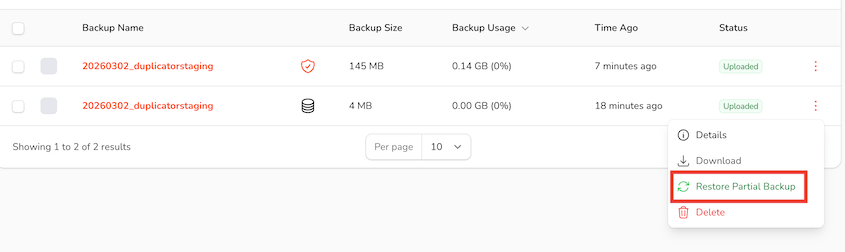
I find this useful when a single bad change caused the problem and a full rebuild would mean losing recent content.
Method 2: Manually Restore a Cloud WordPress Backup
When the WordPress dashboard isn’t accessible but the server is still reachable, a manual restore via FTP can be a fallback. It takes more steps, but it works reliably when plugin-based restore tools can’t run.
Start by downloading your backup files from cloud storage to your local machine. You’ll need both the files archive and the database export before you touch anything on the server.
Open an FTP client (I like FileZilla) and connect to your server. Delete your old the WordPress files from public_html and upload your backup files. Depending on your host, your root directory is typically public_html or a subdirectory within it.
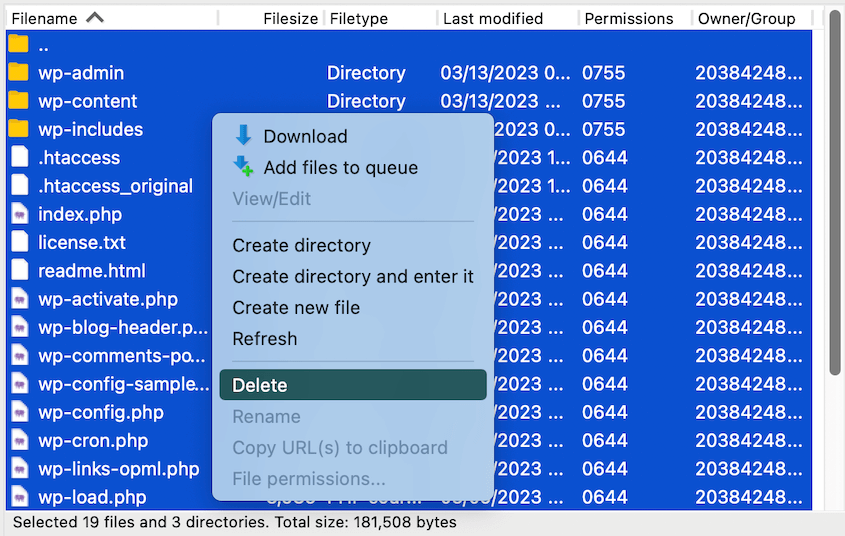
Once the files are in place, open phpMyAdmin through your hosting control panel. Select the correct database, then use the Import function to upload your .sql file.
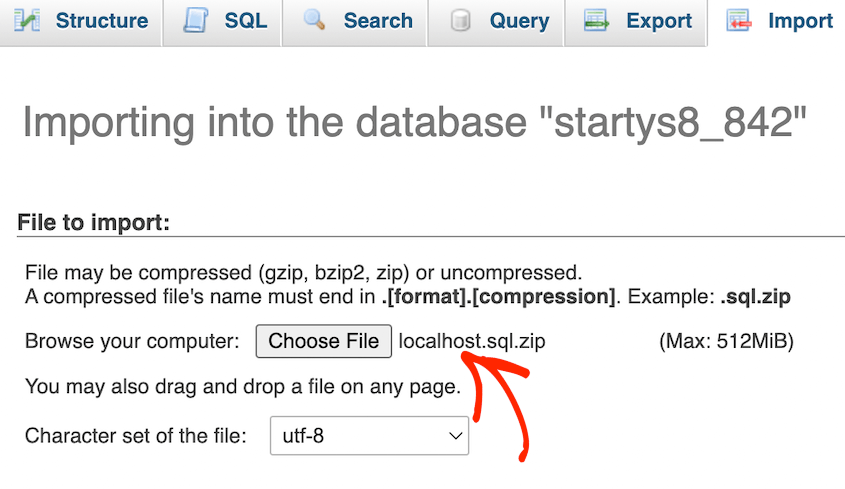
For larger databases, this step can take a few minutes. Let it finish before moving on.
After the import completes, open wp-config.php and confirm the DB_NAME, DB_USER, DB_PASSWORD, and DB_HOST values match your current database credentials. If anything changed during a migration or server move, this is where a restored site fails to connect and shows a database error on the front end.
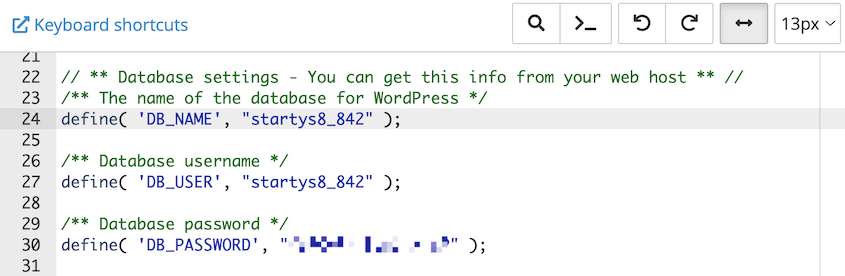
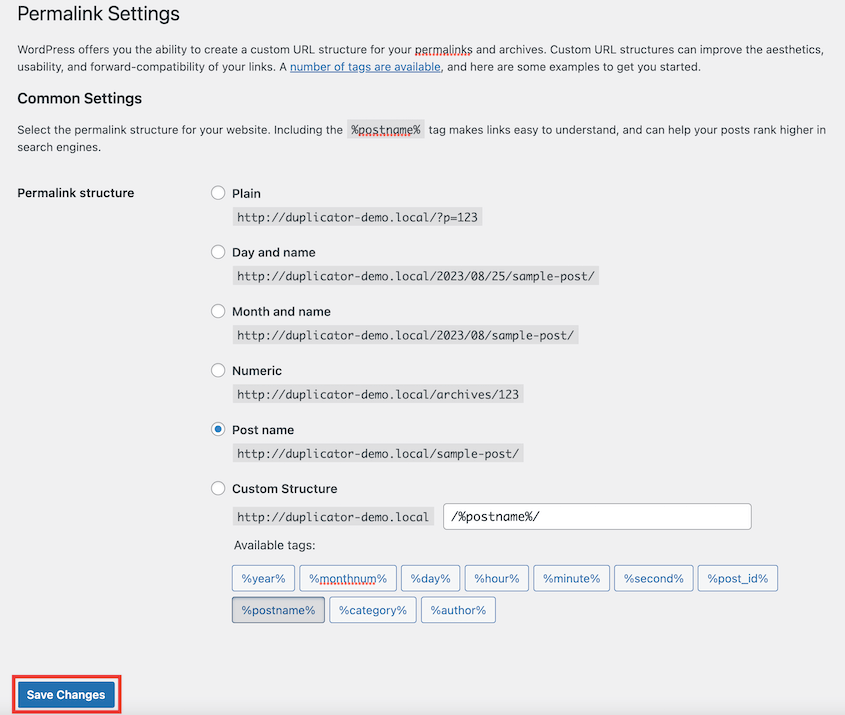
Once the site is back up, flush your permalinks by going to Settings » Permalinks and clicking Save Changes. Then, clear any server-side caches.
If your backup was created with Duplicator Pro, this process gets considerably easier. Instead of uploading raw WordPress files and importing a separate .sql file, you hit Restore from the cloud.
My Advice for a Foolproof WordPress Cloud Backup Restore
Having a cloud backup is only the starting point. These practices are what separate a backup strategy that holds up under pressure from one that looks good until it actually needs to work.
Automate Backups So You’re Never Caught Without One
Manual backups get skipped. Automated schedules don’t.
Duplicator Pro lets you set up backup schedules, storage destinations, and retention rules from one place, so the whole thing runs without you thinking about it.
In Duplicator Pro, use the Schedule Backups page to create time-based backups and send them directly to Duplicator Cloud or any other connected storage destination.
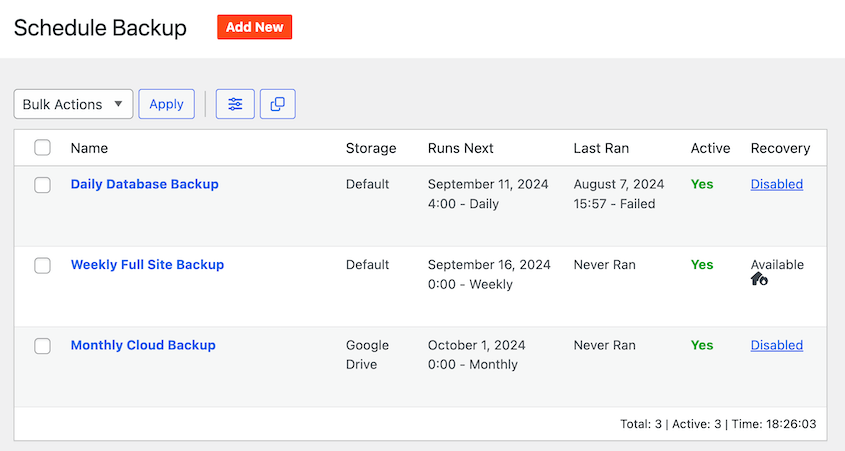
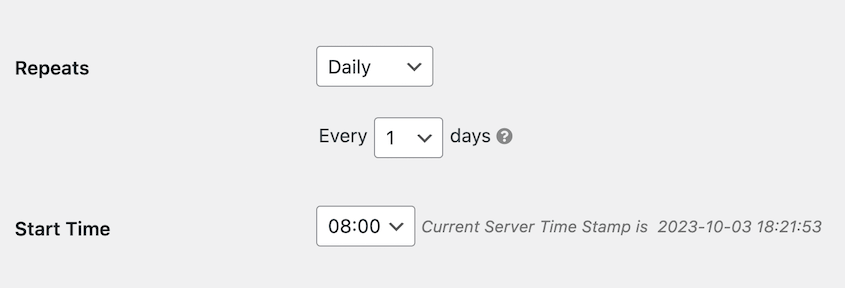
Duplicator supports hourly, daily, weekly, and monthly automatic backups.
Set daily automated backups at a minimum. High-traffic sites and anything running WooCommerce should run more frequently. Every hour your backup schedule doesn’t cover is an hour of potential data loss if something goes wrong in that window.
Always include both your files and database in the backup. Partial backups create partial recoveries, and you won’t know what’s missing until you actually need to restore.
Duplicator lets you define how many backups to keep in the cloud, so old backups are cleared automatically without manual cleanup. Storage fills up faster than most people expect when daily full backups are running.

For WooCommerce sites specifically, consider scheduling more frequent database-only backups between full-site runs. Orders and customer records change constantly. A lightweight database backup running every few hours captures that activity without the overhead of a full package every time.
Test Restores Before You Actually Need One
A backup you’ve never tested is an assumption. You’re trusting that the files are complete, the database exported cleanly, the credentials still work, and that you know what to do when the restore wizard asks you something. That’s a lot to assume.
Run a test restore on a staging environment at least once a quarter. Walk through the full process: download or locate the backup, initiate the restore, and confirm the site comes back clean. You’ll find out quickly if anything in your setup has drifted since you last checked.
Duplicator’s staging feature lets you spin up a copy of your site for testing.
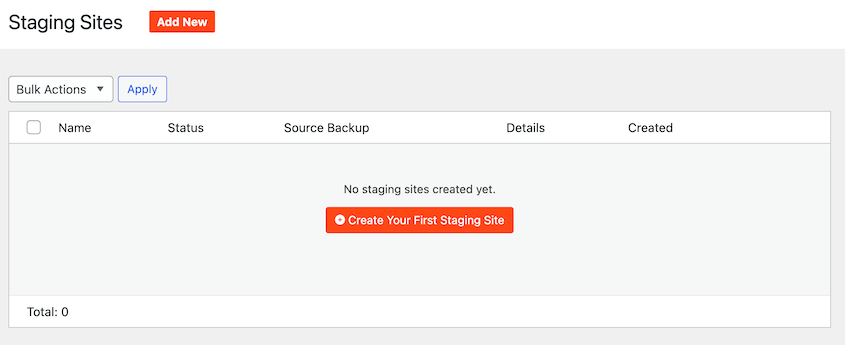
Run the restore there. Poke around the site. Confirm the database is intact and the files are where they should be.
Use Multiple Storage Locations
Relying on a single cloud destination is one compromised account away from leaving you with nothing.
A storage provider goes down. An account gets locked. A billing issue interrupts access. Any of those scenarios, at the wrong moment, turns a good backup into an unreachable one.
Duplicator Pro supports simultaneous delivery to multiple storage providers. Connect it to Duplicator Cloud plus a second destination like Amazon S3, Google Drive, or Backblaze B2, and configure automatic backups to send to both.
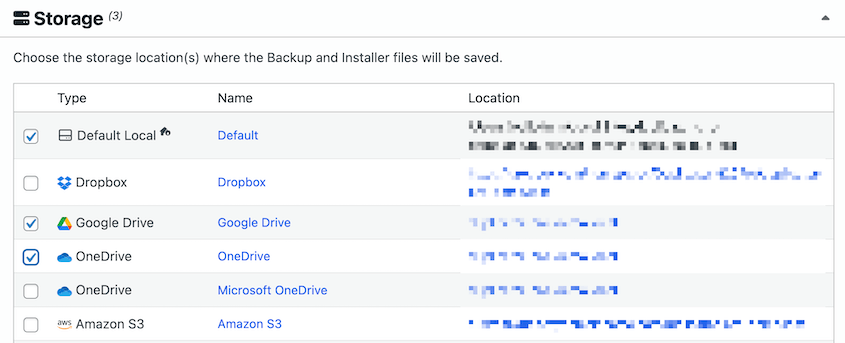
One practical detail that gets overlooked: keep your backup storage credentials stored somewhere accessible outside your server. A password manager, a secured document, somewhere you can reach from a different machine.
If the server is gone, you’ll need those credentials to access your backups. Don’t store them only on the machine that just failed.
Secure Your Backups
A backup file contains everything on your site: user data, database credentials, API keys, and configuration files. It deserves the same level of protection as your live site, and in practice most backup setups treat security as an afterthought.
Encrypt your backup archives. Duplicator Pro supports password-protected backups, and enabling that takes about thirty seconds.
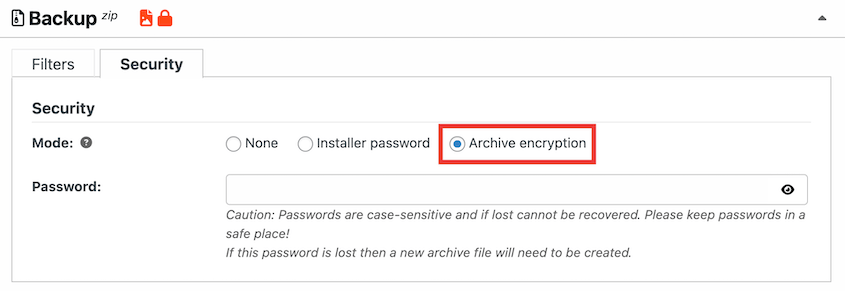
Use strong, unique credentials for every FTP/SFTP account and cloud storage destination connected to your backup workflow. Reused passwords across hosting accounts and storage providers are a single breach away from exposing everything.
Periodically audit who has access to your Duplicator Cloud dashboard and connected storage accounts.
Team members change. Agencies lose contracts. Access that made sense six months ago may not make sense now.
A quarterly check takes a few minutes and closes gaps before they become problems.
Frequently Asked Questions (FAQs)
What should I do if my WordPress site won’t load after restoring from backup?
Start with wp-config.php and confirm the database credentials match the environment you restored into. If the credentials are correct, check file permissions, flush your permalinks, and disable plugins via FTP to rule out a conflict.
How long does it take to restore a WordPress site from backup?
Most small to medium WordPress sites complete a full restore in a few minutes. Larger sites with substantial media libraries or heavily populated databases can take twenty to forty minutes, depending on server speed and connection quality. Restoring through an automated wizard like Duplicator is consistently faster than a manual FTP and phpMyAdmin restore because the process runs server-side once the backup is in place.
How do I restore a WordPress site to a previous date without a backup?
Check your hosting control panel first since some hosts retain server snapshots for a few days that aren’t immediately visible in the dashboard. Beyond that, options are limited. The Wayback Machine can recover visible page content in some cases, but no database records, media files, or configurations come with it. Restoring without a backup is damage control, not recovery, and whatever you salvage will be incomplete.
How do I take a backup of a WordPress site without a plugin?
Connect to your server via FTP and download the full WordPress directory, then log into phpMyAdmin through your hosting control panel and export the database as a .sql file.
Together, those two items make a complete backup, but the process is entirely manual with no automation or restore wizard to lean on. Manual backups work as a one-time snapshot before a major update, but it’s not a practical strategy for a site that changes regularly.
Should I back up to more than one cloud location?
Yes, always. I recommend two destinations as a minimum. A single storage provider going down, an account access issue, or a billing interruption can make a backup temporarily or permanently unreachable at the worst possible time. Duplicator Pro makes it straightforward to configure multiple destinations and schedule automatic backups to both.
Can I restore WordPress without access to the admin dashboard?
Yes, with Duplicator Cloud’s remote restore feature. The entire process runs from the Duplicator Cloud dashboard using your FTP/SFTP credentials. WordPress doesn’t need to be running. Configure a recovery connector once, and then restore any backup with a single click.
Your Site Will Go Down Eventually. What Happens Next Is Up to You.
Every site owner finds out at some point whether their backup strategy actually works.
The ones who’ve already run a test restore, set up cloud storage, and configured a recovery connector don’t panic when that moment comes. They just start the process.
Duplicator gives you the full setup in one place: scheduled backups, multi-destination cloud storage, a staging environment for testing restores, and remote disaster recovery through Duplicator Cloud that works even when your server is completely offline.
Most backup plugins stop being useful the moment WordPress goes down. Duplicator Cloud doesn’t.
That last part matters more than most people realize until they’re staring at a server error with no clear path forward.
Get Duplicator Pro and Duplicator Cloud storage, configure your recovery connector, and run one test restore. You’ll know your backups are complete and how fast recovery takes. You’ll also have a documented process ready before any crisis forces you to figure it out under pressure.
While you’re here, I think you’ll like these related resources:
- The Real Cost of Cloud Storage Limits for WordPress Site Owners
- How to Create a Cloud WordPress Backup
- 11 Best Cloud Storage Services for WordPress Backups
- Cloud Storage That Costs NOTHING: Free Offsite Backup Options to Consider
- How to Remotely Back Up and Restore WordPress
- Site Just Crashed? Here’s Your Complete Website Recovery Plan




