



WordPress Backup File Extensions: .zip, .sql, .daf, and More Explained
 Joella Dunn
Joella Dunn
Joella Dunn
 John Turner
John Turner
John Turner
When I first started working with websites, backups felt like a mystery. I knew I should do them, but I didn’t really get what I was backing up. Then I started paying attention to the files.
Your backup files likely end in .zip or .sql. Those endings are called “file extensions.”
At first, I ignored those extensions. But then I realized they are like clues. They tell you what kind of file it is and what it does. For example, seeing .sql in a WordPress backup tells you it’s the database – the heart of your website!
Understanding file extensions changed how I looked at backups. It’s not just about making a copy. It’s about knowing what kind of copy you are making and if you have everything you need.
This article is all about those file extensions. I’ll break down the most common ones you’ll see when backing up websites. Knowing these extensions will make you a backup pro!
Table of Contents
Backup File Extension List
Here’s our comprehensive list of different types of backup file extensions.
| Extension | What It Is | Common Use |
|---|---|---|
| .zip | Common compressed archive format that bundles multiple files and folders into one | Full website backups combining files and database in a single download |
| .tar | Tape Archive format, bundles files together without compression, common on Linux servers | Archiving website files, often before further compression with .gz |
| .gz / .gzip | Gzip compressed file, frequently paired with .tar to form a .tar.gz archive | Compressing .tar archives to reduce storage size |
| .sql | Database backup file containing all your site’s content, settings, and user data as SQL statements | Exporting and restoring a WordPress database |
| .dump | Another database backup format, functionally similar to .sql | Database backups — often interchangeable with .sql depending on the tool used |
| .bkp | Generic backup file extension that clearly marks a file as a backup copy | General-purpose backups when the specific format is less important. |
| .backup | Same purpose as .bkp, a plain extension indicating the file is a backup | Broad backup purposes, similar use cases to .bkp |
| .bak | Short for “backup.” One of the oldest and most widely recognized backup extensions | Backup copies of configuration files, databases, or important logs |
| .dafDuplicator | DupArchive format, Duplicator’s own archive type, built for large and complex WordPress sites | Duplicator Pro backups and migrations, especially for sites too large for standard .zip |
| .7z | 7-Zip archive format, known for high compression ratios. Smaller file sizes than .zip | Archiving large backups where storage space is a concern |
| .rar | Popular proprietary archive format. Similar functionality to .zip but requires specific software to open | Archiving backups, similar use cases to .zip |
| .docx | Microsoft Word document format | Backing up word processing documents |
| .xlsx | Microsoft Excel spreadsheet format | Backing up spreadsheet data |
| .pptx | Microsoft PowerPoint presentation format | Backing up presentation files |
| .txt | Plain text file. No formatting, universally readable | Backing up simple text-based data or configuration files |
| .svg | Scalable Vector Graphics format, XML-based image format that scales without quality loss | Backing up logos, icons, and other vector graphics |
| .mp3 | Compressed audio file format | Backing up music, podcasts, or sound recordings |
| .xml | Extensible Markup Language, open format for structured data and documents | Backing up structured data, feeds, or WordPress export files |
What Are Backup File Extensions?
Ever see those letters at the very end of backup filenames? Like .zip, .tar, or .sql?
These are file extensions, which are clues about the file type. Think of them like little labels. They tell your computer what kind of file it is.
It’s just like a food label in your kitchen. Is it a can of soup? A box of cereal? A bottle of juice? The label tells you what’s inside.
File extensions do the same thing. They tell your computer if it’s looking at a document, an image, or a website backup.
Understanding these “labels” is really helpful. It helps you quickly spot your backup files. And finding them fast means you can restore your website faster.
Common Backup File Extensions
There are lots of different backup file extensions. It might seem like a jumble at first.
Don’t worry! We can sort through the most common ones together. Let’s explain what each one means without all the techy jargon.
.zip
ZIP is a common backup file format that supports lossless data compression. ZIP files are used to reduce the size of files and folders, and to bundle multiple files together into a single archive for easier storage and transfer.
Think about “zipping up” a jacket. You close it all together, right? ZIP files are similar. It’s a common file format to compress files and folders into one package.
This is the format that many backup plugins use by default. For example, when you make a backup with Duplicator, it’s usually a .zip file. It helps save space and keeps everything neat.
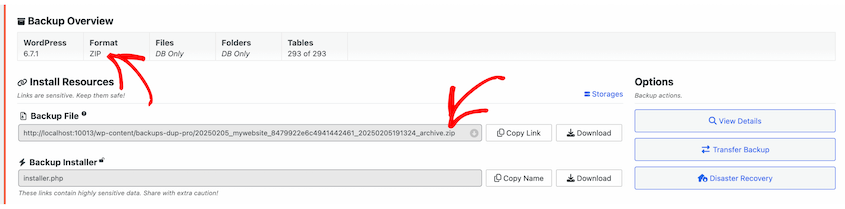
You might see a file named something like website_backup_today.zip. That .zip tells you it’s a compressed backup archive.
.tar
.tar stands for “Tape Archive”. It’s like a .zip file because it’s a collection of saved files. However, .tar files aren’t zipped.
You see .tar files a lot if you use Linux computers. It’s a common format in that world.
It is commonly used to create backups of directories and files. It’s often combined with compression utilities like gzip.
.gz or .gzip
GZIP is a file format used for file compression and decompression. It typically uses the .gz or .gzip extensions. GZIP is often used to compress single files, or to compress TAR archives, resulting in .tar.gz or .tgz files.
“Gzipped” just means it’s compressed using a special method. Think of it like squeezing even more air out of a vacuum-sealed bag.
.gz files are often used with .tar files. You’ll see files like .tar.gz. This is double-zipping your files for extra compression.
A file named website_backup.tar.gz is a .tar archive that’s been compressed even further with gzip.
.sql
.sql stands for “Structured Query Language.” Simply put, .sql files are for your database.
Your database is where all your website’s important stuff lives. Things like your posts, pages, settings, and user info. It’s super important to back it up!
You might see your database backup as website_database.sql. That’s your website’s database in a file.
.dump
.dump is a generic term for a file that contains a copy of data from a database. .dump files can be in various formats depending on the system that created them. They often require specific tools to restore.
In the context of databases, it’s similar to a .sql file but might be in a binary format or a different text-based format specific to the database system.
You could have a file named database_backup_Feb2026.dump. That’s another database backup file.
.bkp or .backup
.bkp is a very generic extension often used to indicate a backup file. .bkp files can be in any format, as it is simply a user-defined or application-defined extension to signify that the file is a backup copy of something. You’d need to know the context or application that created the .bkp file to understand its specific format.
.bkp or .backup are very straightforward. They clearly tell you, “Hey, I’m a backup file!” They might not be as specific as .zip or .sql, but they are still helpful to spot.
You might find files like website_backup.bkp or full_site.backup. Easy to understand, right?
.daf
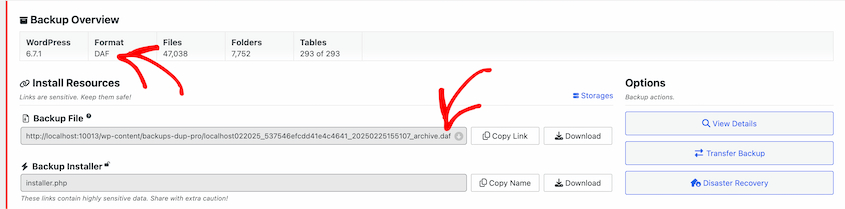
.daf is special! It’s a custom backup file format created by Duplicator, a backup plugin used by over 1 million website owners.

DupArchive was designed to avoid common timeout issues for large sites. It creates the backup in manageable chunks instead of doing everything at once and overwhelming the server.
It’s great at backing up or migrating more complex websites. I’ve seen it work wonders with really large sites (up to 400GB!).
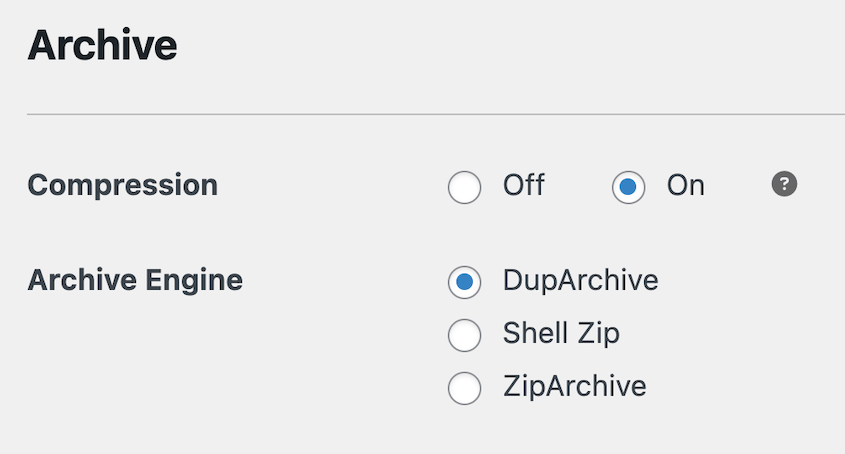
If you choose to use a DupArchive, your backup files will be .daf files. You’ll get a file like website-backup.daf.
Why Knowing File Extensions Matters for Backups
At some point, you may need to get your website back online, fast. You go to your cloud storage or local server and see a long list of files.
Some have dates in the names. Some have cryptic words. Which one do you actually need to restore your website?
Without knowing file extensions, it’s a guessing game. It can feel overwhelming.
From what I’ve seen, people start clicking randomly. They open file after file, hoping to find the right one.
This takes time. And while you are searching, your website is still offline. That’s lost visitors. That could be lost sales.
But, if you understand file extensions, things change. Immediately, your eyes are drawn to .zip, .daf, or .sql files.
You recognize these extensions and instantly know: “These are my backup files!” No more guessing. No more random clicking.
Because you know what to look for, you find your backup quickly. This means you can start the restore process right away. Getting your site back online becomes much faster.
Every minute saved is important when your website is down. Knowing file extensions is a straightforward way to save that time and prioritize data protection. It makes website recovery less stressful and much more efficient.
Simplify Website Backup Extensions with Duplicator
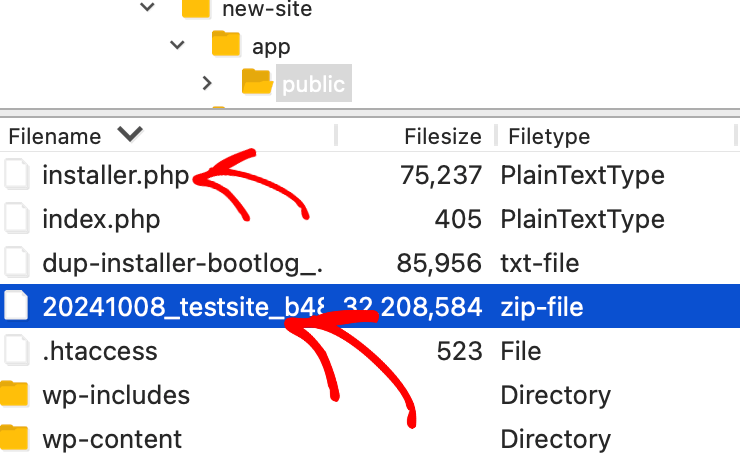
When you back up your site with Duplicator (the free version or Pro), you download two main files. It’s important to know both.
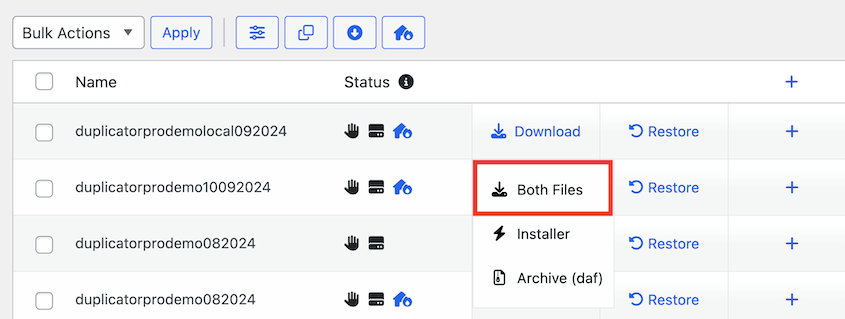
The first file is the Archive. This is the saved copy of your website. Depending on your customization, it could be a full backup or individual database files.
Usually, this archive file will be a .zip file. This archive file holds everything. All your website files and your database, all together in one place.
The second file is the Installer file. This one is always named installer.php. No matter if you use .zip or .daf for the archive, it always comes with an installer.php file.
Think of installer.php as the tool you need to open up your archive file and restore your website. You absolutely need this file.
So, with Duplicator, you are looking for a pair. A .zip file and installer.php. Or, if you used DupArchive, a .daf file and installer.php.
This two-file system is what makes Duplicator restores so easy, in my experience. No guessing which file to use. It’s clear and straightforward.
For easy disaster recovery, upload both files to your site’s root directory. Search for https://your-domain/installer.php in a browser window and follow the instructions.
For migrations, repeat this process on a different server. Easy!
Frequently Asked Questions (FAQs)
What is the file extension for backups?
The file extension for backups varies depending on the software used. Common backup file extensions include .bak (Microsoft SQL Server, general backups), .tar (Unix/Linux compressed archives), .zip (compressed backups), and .bkf (Windows Backup Utility). Backup programs may use extensions like .tib (Acronis) or .vhd (virtual disk backups).
How do I open a .bak file?
To open a .bak file, determine its source. For database backups (SQL Server), use SQL Server Management Studio (SSMS) to restore the database. For general file backups, try renaming it to a known format (e.g., .zip) or using the original software. Some .bak files require specialized tools.
What is the file extension for backing up files in Windows 10?
The file extension for backing up files in Windows 10 is usually .bak. You can also change this to a different extension. Older versions of Windows may use .bkf instead.
What is the file extension for VM backups?
The file extension for VM backups depends on the virtualization software. VMware uses .vmdk for disk files and .vbk for Veeam backups. Hyper-V uses .vhdx for virtual disks and .avhdx for checkpoints. Other backup tools may use .tib (Acronis) or .bak for specific configurations.
How many file extensions are there?
There are thousands of file extensions, each serving different purposes. Common categories include document files (.docx, .pdf), image files (.jpg, .png), audio files (.mp3, .wav), video files (.mp4, .avi), and system files (.exe, .dll). The total number constantly grows as new formats emerge.
Backup File Extensions: Not So Scary After All
Backup file extensions might sound a bit technical at first. But really, they are just simple labels.
Knowing these common extensions gives you more control. You can confidently manage your website backups with no more confusion about what’s what.
And when you need to restore your site? You can do it quickly because you’ll know exactly which files to use.
Take a few minutes to look at the list we discussed. Familiarize yourself with .zip, .tar, .sql, .daf, and the others. It’s a small thing you can do today.
Need a backup file that can handle any site, no matter how big? Download Duplicator Pro to back up your site with DupArchive, a custom large site backup file!
While you’re here, I think you’ll like these other WordPress guides:
- How to Back Up a WordPress Site
- How to Restore WordPress From a Backup (In Less Than 5 Minutes)
- STOP Making These Website Backup Mistakes
- WordPress Debugging Tools That Find Errors in Minutes
- How a Travel Website Handles 400GB Backups with Duplicator




