

![[New] Introducing Duplicator 5.0: AI Backups, AutoTune, and Extra Free Features](https://duplicator.com/wp-content/uploads/2026/09/Duplicator-5-0-Announcement.jpg)
How to Back Up Your Website’s Staging Site
 Joella Dunn
Joella Dunn
Joella Dunn
 John Turner
John Turner
John Turner
You’re about to push your staging changes to production, and something made you stop and ask whether you should back up first.
That instinct is correct.
Most WordPress tutorials tell you to back up your live site before a push. That’s good advice, but it’s only half the picture.
Your staging site needs its own backup too. If the push fails or corrupts your staging environment, you lose the testing baseline you just spent hours building. There’s no production backup in the world that gets that back.
I’ve seen it happen. A botched push wiped a staging site clean. The changes were gone. The only option was to rebuild from memory and retest everything.
In this tutorial, I’ll walk you through backing up your staging site before any push happens. By the end, you’ll have a complete backup of both your staging environment and your production site, so you can push with confidence no matter what goes wrong.
Here are the key takeaways:
- A production backup isn’t enough. You need to back up your staging site and your live site before pushing any changes.
- A staging backup saves the exact, validated configuration of your testing environment if a botched push corrupts it.
- Duplicator Pro handles the entire workflow, allowing you to easily capture a full-site backup (files and database) on both environments.
- Always download a local copy to your computer and send another copy to cloud storage to survive potential server failures.
- Don’t delete your staging backup immediately after a successful push; hold onto it for a month in case hidden bugs surface later.
Table of Contents
Why Back Up Your Staging Site?
Most people back up their live site before a push and call it done. That protects production, but it leaves something important exposed: your work.
Your staging site isn’t just a copy of production. At the moment you’re ready to push, it holds the exact configuration you validated: updated plugins, theme changes, new features, all tested and confirmed working together.
That’s your baseline. If the push fails and takes down the staging environment with it, that baseline is gone. Restoring production from its backup doesn’t bring staging back.
That’s why you need two backups before every push.
The first backup is of your staging site. It protects the testing work you just did. If staging gets corrupted, you can restore it to the state you verified and figure out what went wrong without starting from scratch.
The second backup is of your production site. It protects your live site. If something breaks on production after the push, you can roll back to the last known good state.
They serve different recovery scenarios. You need both.
What You Need Before You Start
Before you run a single backup, make sure you have the following ready. Getting these in order now means no interruptions mid-process.
- Duplicator needs to be installed on your staging site, not just your live site.
- Admin access to your staging site’s wp-admin: You’ll need to log in directly to the staging environment, not the live site.
- Enough server disk space for a full-site backup: If you’re not sure how much space you have, check your hosting control panel before starting.
- A cloud storage destination configured in Duplicator Pro (optional but strongly recommended): Dropbox, Google Drive, Amazon S3, and Duplicator Cloud are all supported. If you don’t have one set up yet, local storage works for now, but plan to add cloud storage before your next push.
- Your staging site’s URL: whether it’s a subdomain (staging.yoursite.com) or a subdirectory (yoursite.com/staging), know where it lives before you start.
How to Back Up Your Website’s Staging Site
Backing up your staging site with Duplicator Pro takes about 10 minutes. The process is the same whether your staging environment lives on a subdomain, a subfolder, or a separate server.
Here’s what you’ll do:
- Step 1: Install and activate Duplicator on your staging site: Install the plugin directly on your staging environment. If you used Duplicator Pro’s one-click staging to create the site, it’s already installed, and you can skip this step.
- Step 2: Create a full-site backup of your staging environment: Use the Full Site backup preset to capture your files and database together in a single package. Name it clearly and choose at least one storage destination before running it.
- Step 3: Download a local copy of the backup: Download the archive file and installer.php to a labeled folder on your computer so you have a copy that survives a full server failure.
- Step 4: Back up your production site too: Repeat the same process on your live site. You need both backups before a push.
Step 1: Install and Activate Duplicator on Your Staging Site
Before you can back up your staging site, you need a backup tool installed on it. The tool I recommend for this is Duplicator.
Duplicator is a WordPress backup, migration, and staging plugin used by 1.5 million WordPress professionals. It creates a complete snapshot of your site in a single package you can store locally or send to the cloud.

What makes it the right fit for staging backups specifically is that it handles the whole workflow in one place.
You can use Duplicator to back up staging, back up production, push your changes, and restore if something breaks. You don’t need a separate plugin for each step.
If you created your staging site using Duplicator Pro’s one-click staging feature, you’re already set. Duplicator Pro is automatically installed and active on the staging site. Skip ahead to Step 2.
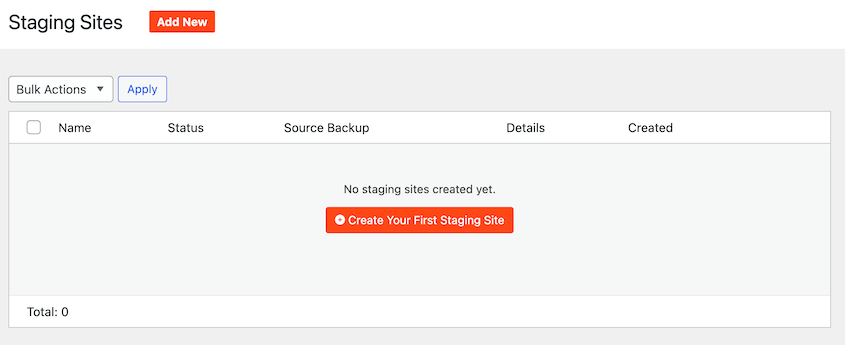
If your staging site was created another way (via your host’s staging tool, a manual subdomain setup, or another plugin), you’ll need to install Duplicator Pro directly on the staging site.
Go to your staging site’s wp-admin and navigate to Plugins » Add New. Search for Duplicator, install it, and click Activate.
The free version of Duplicator can handle a basic staging-site backup. If you want features like drag-and-drop migrations, one-click restores, cloud storage, and other advanced tools, upgrading to Duplicator Pro is the better choice.
Your license key lives in your account dashboard at duplicator.com. Copy it, then paste it into the license field settings.
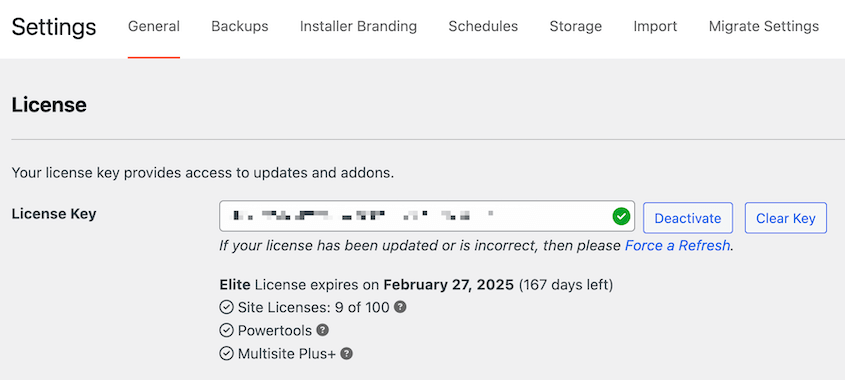
Your Pro license covers multiple sites, so activating it on your staging environment counts under the same plan. No extra purchase needed.
You should see a green checkmark next to your license key. Once that’s confirmed, you’re ready to create the backup.
Step 2: Create a Full-Site Backup of Your Staging Environment
This is the backup that protects your testing work. Run it before you decide to push your staging changes to your live site, just in case anything goes wrong.
In your staging site’s wp-admin, go to Duplicator Pro » Backups and click the Add New button.
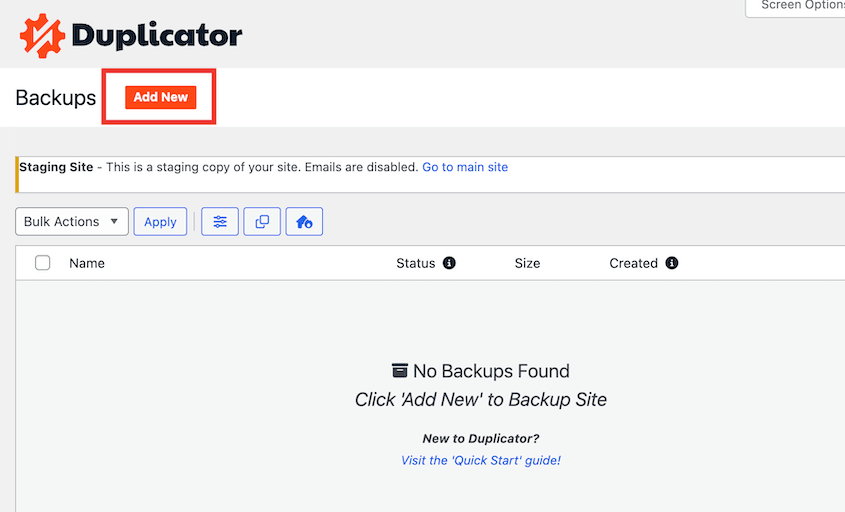
Give it a name you’ll recognize later.
Next, choose where the backup will be saved. You have two options:
- Local storage saves the backup to your server. It’s fast, but if your server goes down, the backup goes with it.
- Cloud storage sends the backup to Dropbox, Google Drive, Amazon S3, or Duplicator Cloud. It’s accessible even if the server is completely unreachable.
Select at least one cloud destination if you have one configured. If you don’t, local storage works for now, but make a note to set up cloud storage before your next push.
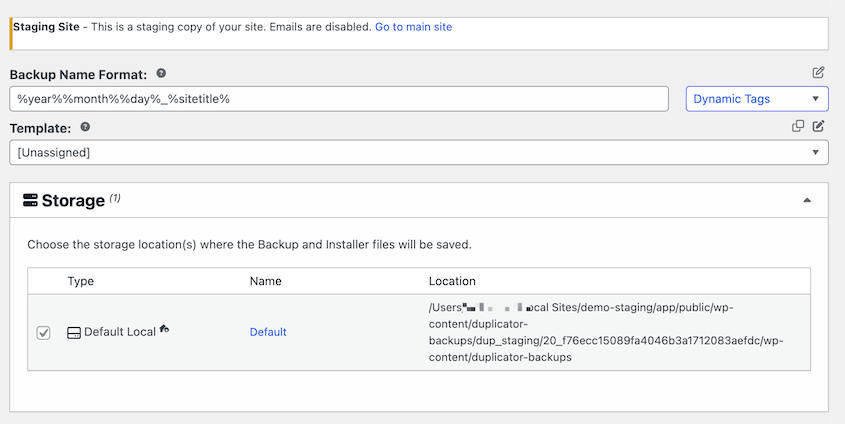
In the Backup settings, select the Full Site preset. This captures your files and database together in a single package.

Don’t pick a custom preset that only covers one or the other. A partial backup won’t help you if staging needs a full restore.
On the next page, you’ll see a full scan of the staging site. Review any notices and hit Create Backup.
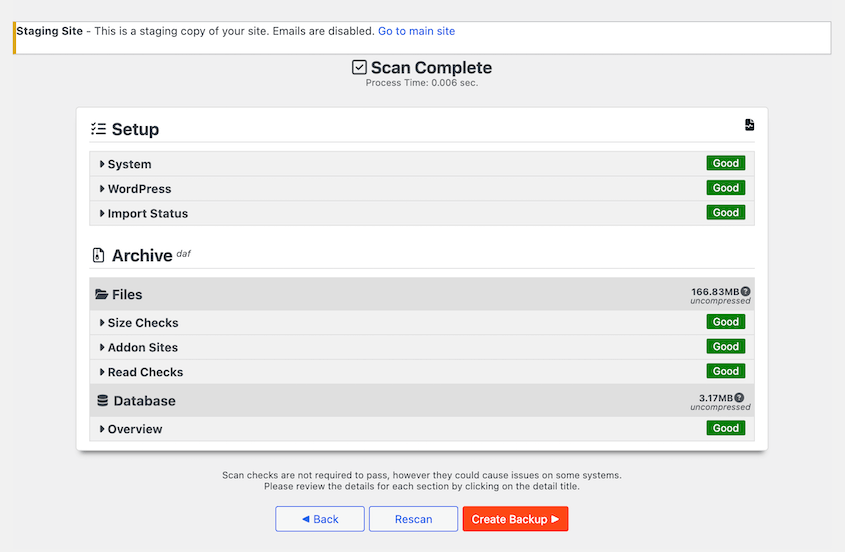
Let the backup run. When it finishes, you’ll see the new files listed on the Backups page.
Step 3: Download a Copy of the Backup
Cloud storage covers the scenario where your server goes down. If you sent the backup to the cloud, it’ll be protected from any local errors.
For local backups, I’d recommend downloading them. This takes two minutes, and it’s the copy you’ll be glad you have when nothing else is accessible.
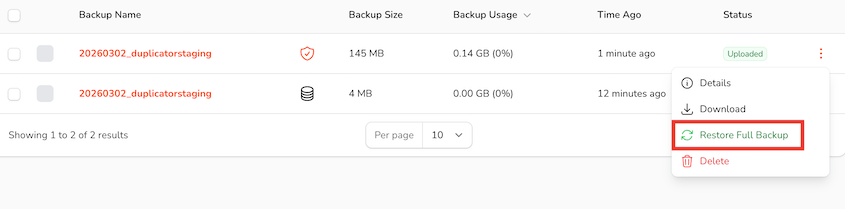
Find the backup you just created. Download both files.
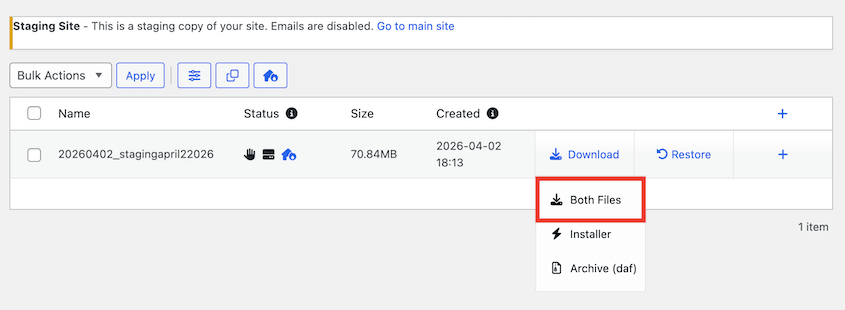
Two files will download: the archive (.daf or .zip) and installer.php. Here’s the difference:
- The archive file holds your site data
- The installer.php unpacks your data to restore/migrate your site
Keep both files together in a clearly labeled folder on your computer.
Some browsers modify filenames on download, adding a number or changing the extension. Check that installer.php downloaded with its exact filename before you store it. Renaming it can break the restore process.
Step 4: Back Up Your Production Site Too
Your staging site is protected. Now do the same thing on your live site before you push anything.
Switch to your production site’s wp-admin and follow the same process: Duplicator Pro » Backups » Add New, select the Full Site preset, and give it a clear name.
Run the backup, wait for it to complete, and download a local copy.
When you’re done, you should have two backups downloaded locally. That’s the best state to be in before a push.
Two environments backed up, two recovery options ready. Now you can push changes without worrying about errors!
What to Do with the Staging Backup After a Successful Push
The push went through, and production is looking good. Before you close everything out, there’s one more decision to make about the staging backup.
Don’t delete it yet.
Production issues from a push don’t always surface immediately. A caching layer can hide a broken template for days. An edge case in your checkout flow might not get triggered until real traffic hits it.
If you haven’t already sent it to cloud storage, do that now. Local copies on your computer are useful, but they’re tied to one machine.
Cloud storage gives you something you can access from anywhere if you need to reference or restore it later. I always use Duplicator Cloud because it integrates well with Duplicator and was specifically designed for storing WordPress backups.
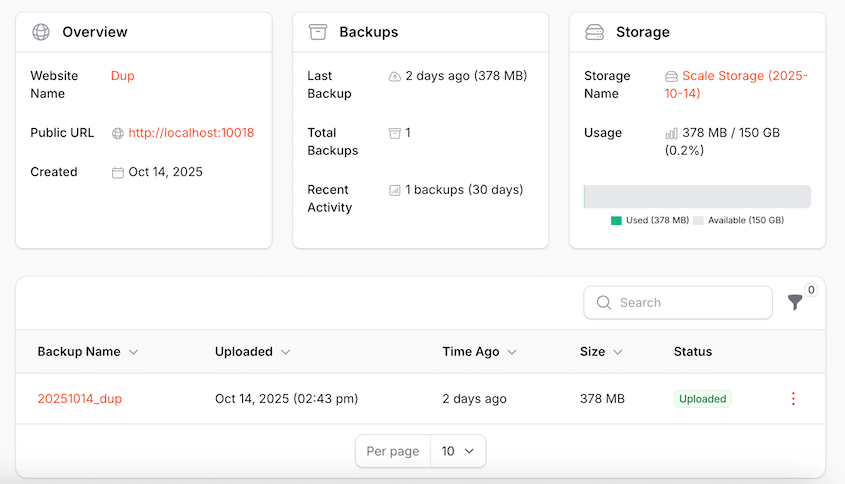
When you’re ready to start the next round of changes, your staging environment will likely get re-synced from production. At that point the old staging backup becomes less important.
However, hold onto it until the new staging environment is set up and confirmed working. You don’t want to delete your safety net before the new one is in place.
Frequently Asked Questions (FAQs)
Do I need Duplicator Pro on my staging site or just my live site?
Duplicator Pro needs to be installed on whichever site you’re backing up. To back up your staging site, it needs to be active on the staging environment, not just production. If you created your staging site using Duplicator Pro’s one-click staging feature, it’s already there. If your staging site was set up another way, install and activate Duplicator Pro directly on the staging site before running the backup.
Can I use Duplicator Lite to back up my staging site?
Duplicator Lite can create basic backups, but it doesn’t include scheduled backups, cloud storage destinations, or one-click staging. If you’re running backups before every push, Duplicator Pro makes that routine significantly faster and more reliable. All paid plans come with a 14-day no-questions-asked refund if it’s not the right fit.
What’s the difference between backing up my staging site and backing up production?
They protect different things. The staging backup protects your testing work. If the push fails and corrupts your staging environment, you can figure out what went wrong without having to completely rebuild it.
The production backup protects your live site. If the push breaks something on production, you can roll back to the last known good state.
I recommend backing up both your production and staging site before every push.
How often should I back up my staging site?
At minimum, before every push to production. If you’re actively developing on staging across multiple sessions, I back it up at the end of each working session too. Staging environments can be reset or wiped by hosting providers without warning, and there’s no autosave for a WordPress site.
What if my staging site is on the same server as production?
Back up both environments and send them to cloud storage like Duplicator Cloud. If the server goes down, both your live site and your staging site are inaccessible at the same time. A cloud copy of each backup is the only option that survives a full server failure. You can restore any Duplicator Cloud backup without needing access to wp-admin.
Can I restore my staging site from a Duplicator backup if the push breaks it?
Yes. The downloaded backup files are everything you need to restore your staging environment to the exact state it was in when you ran the backup. Run installer.php on the staging subdomain or subfolder and follow the prompts.
How large will my staging site backup be?
Roughly the same size as your production site, since staging is typically a copy of it. A basic WordPress site without much media might be up to 500MB. A site with large image libraries or video uploads can run several GB. Check the file size in the backup details screen after the backup completes. That’s your best reference for planning storage.
Your Staging Work Is Worth Protecting
You now have a complete backup of your staging environment and your production site, stored locally and in at least one cloud destination. That’s the right state to be in before a push. Two environments covered, two recovery paths ready if something goes wrong.
Going forward, build this into your routine before every push, not just the big ones. Small changes break things too, and the pushes that feel low-risk are often the ones nobody thinks to back up before running.
A failed push can wipe a staging environment that took hours to configure and test. Without a backup, the only option is to rebuild from scratch, re-install plugins, re-test everything, and hope you remember what the working state looked like.
A dated, verified backup stored in at least two places means that scenario never has to happen.
Over 1.5 million WordPress professionals use Duplicator Pro to protect their sites before every migration, update, and push. With one-click staging, scheduled backups, and support for 10+ cloud storage destinations, it’s built for exactly the workflow this tutorial covers.
If this tutorial helped, these guides are worth bookmarking too.
- How to Create a WordPress Staging Site (For Safe Testing)
- How to Convert WordPress to a Staging Site
- Do You Need a Staging Site?
- Cloud Backup vs. Local Backup: Which One Protects Your WordPress Site?
- How to Migrate a WordPress Site (Beginner’s Guide for 2026)




