

![[NEW] Duplicator DB Optimizer: Clean Your WordPress Database Before It Becomes a Problem](https://duplicator.com/wp-content/uploads/2026/06/Announcement-DB-Optimizer.jpg)
How to Fix a Slow WordPress Database: A 4-Step Checklist
 Joella Dunn
Joella Dunn
Joella Dunn
 John Turner
John Turner
John Turner
Your WordPress admin dashboard shouldn’t take five seconds to load. If it does, the problem might not your hosting plan or your images. It could be your database.
Your database is quietly carrying years of accumulated junk like expired transients, thousands of post revisions, and autoloaded data from plugins you deleted years ago.
Most of it is invisible in wp-admin and doesn’t affect what visitors see. But it adds up, and eventually it slows everything down.
I’ve diagnosed sites where a single plugin was triggering 80 database queries per page load. The host was fine. The caching was set up correctly. None of it made a difference until the actual database problem got fixed.
In this post, I’ll show you how to identify the bottleneck, clean up database bloat, fix the heavy tables that survive cleanup, and reduce how often WordPress hits the database in the first place.
Here are the key takeaways:
- A slow admin dashboard almost always points to the database, not your host or images. The admin bypasses page caching, so it’s the clearest signal you have.
- Post revisions, expired transients, orphaned plugin data, and bloated autoload options are the most common culprits, and they tend to be visible in wp-admin.
- Query Monitor (free) identifies which plugin or query is the bottleneck before you delete anything.
- DB Optimizer gives your database a health score across five categories and shows a full preview of what gets removed before you confirm a cleanup.
- Autoloaded data in wp_options should stay under 1MB. Above that, every page load carries unnecessary weight.
- Object caching with Redis or Memcached can significantly improve slow admin dashboards that page caching cannot touch.
- Run a cleanup pass before every major backup or migration. A smaller database means a faster transfer and a smaller backup file.
Table of Contents
- What Causes a WordPress Database to Slow Down?
- How to Fix a Slow WordPress Database
- Troubleshooting: When the Database Is Still Slow
- Frequently Asked Questions (FAQs)
- Your Database Isn’t Going to Clean Itself
What Causes a WordPress Database to Slow Down?
Before diving into the fixes, it helps to know what you’re dealing with. WordPress databases slow down for predictable reasons, and most sites have more than one at the same time.
Post revisions
Every time you save or update a post, WordPress creates a new copy. On an active site, a single post can have dozens of revision copies sitting in the database indefinitely.
They’re invisible to visitors but add weight to every query against the posts table.
Expired transients
Plugins use transients to temporarily cache data from external API calls and scheduled tasks. They’re supposed to expire and delete themselves automatically.
Often they don’t, and the expired records pile up in the wp_options table long after they serve any purpose.
Orphaned rows and leftover plugin tables
When a plugin is deleted, its data usually stays behind: custom fields, user metadata, post metadata, and sometimes entire database tables named after the plugin. A site that has cycled through a dozen plugins over the years carries the ghost data of each one.
Autoloaded data in wp_options
Options flagged as autoload = yes load on every single page request before WordPress renders anything. Plugins that abuse this flag add weight to every page load, including pages that have nothing to do with that plugin.
Total autoloaded data should stay under 1MB. Many slow sites are sitting at 5MB or more.
Table fragmentation
When rows are deleted, MySQL doesn’t automatically reclaim the space they occupied. Over time, tables become fragmented and MySQL has to work harder to read through them.
This is why running an “Optimize Table” command can speed things up even when the data itself looks clean.
Slow or excessive plugin queries
Some plugins are simply written poorly. They run dozens of queries on a single page load, or they query columns that are not indexed, forcing MySQL to scan entire tables row by row instead of jumping to the right record.
How to Fix a Slow WordPress Database
To fix a slow WordPress database, you’ll need to find what’s slow, remove the clutter causing it, fix the tables that survive cleanup, then reduce how often the database gets queried at all.
Here’s what you’ll do:
- Step 1: Identify What Is Slowing Down Your Database: use the free Query Monitor plugin to see every query firing on your site, how long each takes, and which plugin triggered it.
- Step 2: Clean Up Database Bloat: use DB Optimizer to score your database across five health categories, preview exactly what gets removed, and clean it up safely with a built-in retention threshold.
- Step 3: Address Heavy Tables: fix autoload bloat in wp_options, enable WooCommerce HPOS if relevant, check for MyISAM tables that should be InnoDB, and optimize table overhead without phpMyAdmin.
- Step 4: Reduce How Often WordPress Queries the Database: add page caching if you haven’t already, then enable object caching with Redis or Memcached to fix admin slowness that page caching cannot reach.
Step 1: Identify What Is Slowing Down Your Database
Query Monitor is a free plugin that shows every database query firing on the current page, how long each one takes, and which plugin or theme triggered it. Install it from the WordPress plugin directory and activate it like any other plugin.
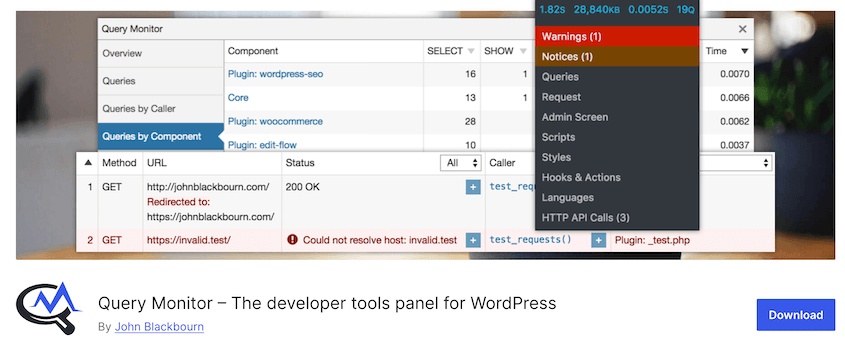
Once active, a new item appears in your admin toolbar showing the total query count and page load time for whatever screen you are on. Click it to open the full panel.
Go to the Database Queries tab. Look for queries taking longer than 0.05 seconds and for any plugin generating an unusually high number of calls.
Query Monitor names the responsible plugin or theme directly, so you don’t have to guess.
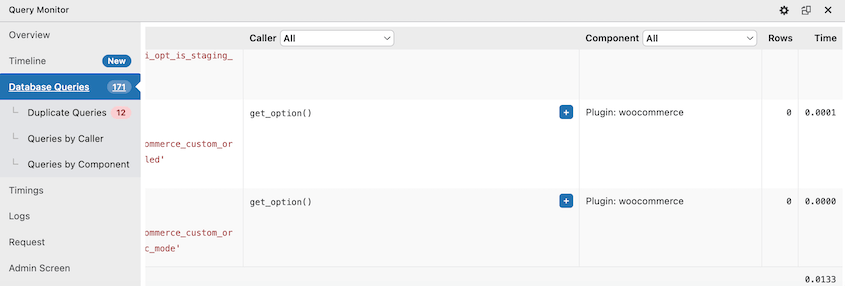
If one plugin is generating 40 or more queries per page or has queries consistently over 0.05 seconds, that’s your bottleneck. Deactivate it and test again.
If no single query stands out, the problem is general bloat distributed across the database, not a specific bad actor. Move to Step 2.
One thing to check before moving on: Query Monitor only shows behavior on the current page. Run it on the admin dashboard, on a WooCommerce product page if you have one, and on a standard post.
Slowness is often page-specific, and a query problem on the checkout page won’t show up while you’re looking at the dashboard.
Step 2: Clean Up Database Bloat
Most people skip database cleanup because they don’t know what’s safe to delete. That hesitation is reasonable. Deleting the wrong thing in a database can’t be undone.
DB Optimizer solves that by showing you exactly what’s in your database before you remove anything. The first thing you will see is a health score from 0 to 100.
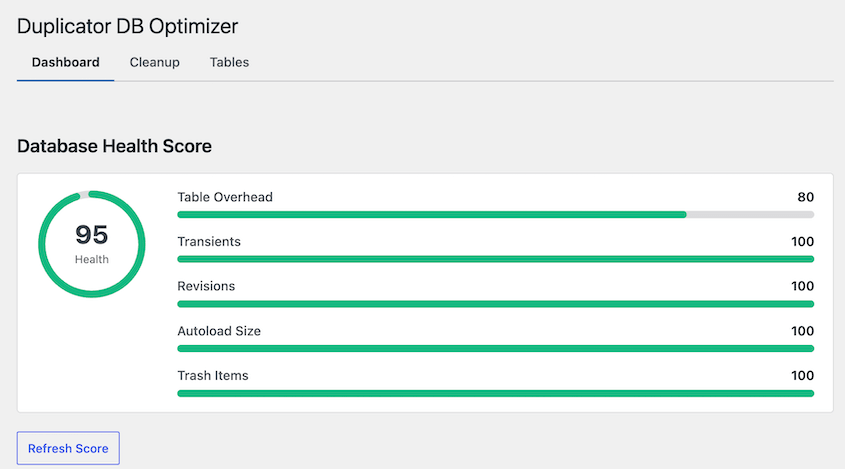
It breaks down across five categories: table overhead, transients, revisions, autoload size, and trash items. Each gets a progress bar and a color-coded grade.
Green means that category is in good shape. Yellow means it needs attention. Red means it is dragging your score down. Hit the Refresh Score button at any time to update it.
Once you know what’s pulling the score down, go to the Cleanup tab. A summary bar at the top shows the number of items available for cleanup and the total reclaimable space across your entire database.
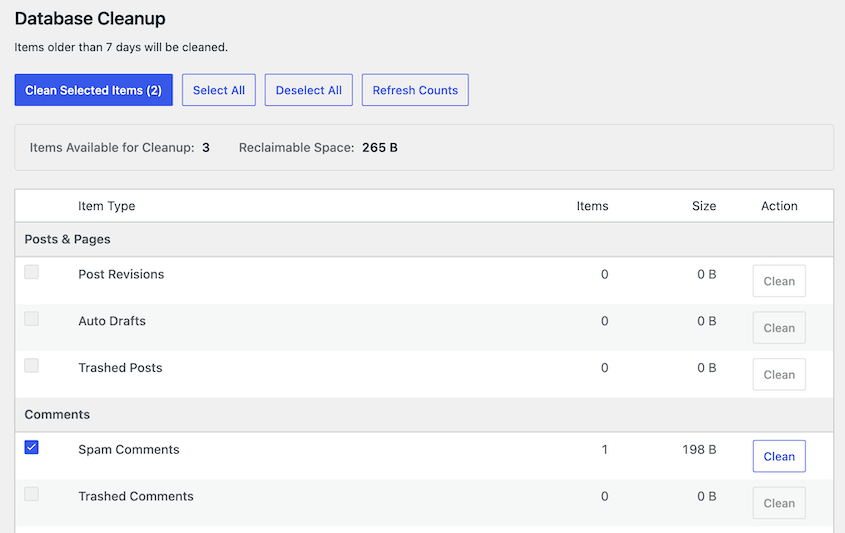
Below that, each cleanup type (Posts and Pages, Comments, Transients and Cache) shows an item count and estimated size. You can see exactly what you’re dealing with before anything gets deleted.
DB Optimizer defaults to a 7-day retention threshold. Anything created in the last week is off-limits, regardless of which cleanup types you have selected.
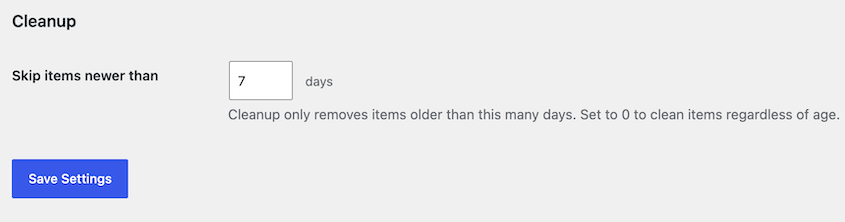
If you’re preparing for a migration and want a clean slate, lower it. If you are working on a sensitive site and want extra caution, raise it. Set it to 0 only if you want to clean everything regardless of age. Your preference saves automatically.
After cleanup, add one line to your wp-config.php file to cap future revisions before they pile up again:
define('WP_POST_REVISIONS', 3);Add it above the line that reads “That’s all, stop editing!” This limits WordPress to keeping three revisions per post going forward.
DB Optimizer handles what’s already there. This line prevents it from coming back.
Step 3: Address Heavy Tables
Cleanup removes loose data, but two specific tables cause ongoing slowness even after a thorough cleanup: wp_options and wp_postmeta. The storage engine your database uses matters here too.
Autoloaded data in wp_options
DB Optimizer shows your autoload size as one of its five health categories. If it’s still above 1MB after running cleanup, a plugin is actively writing autoloaded options on every run. Cleanup removes old entries but can’t stop new ones from being added.
Use Query Monitor tab to see what is currently autoloading, then identify which plugin is responsible. Deactivating it or contacting its support team is the fix.
Wp_postmeta
This table stores custom field data and gets large fast on WooCommerce or ACF-heavy sites.
Query Monitor will flag queries against this table if it’s a consistent bottleneck. Fixing it at the query level is developer territory, but knowing it’s the problem is half the battle.
WooCommerce users: enable HPOS
If you run WooCommerce, go to WooCommerce » Settings » Advanced » Features and turn on High Performance Order Storage.
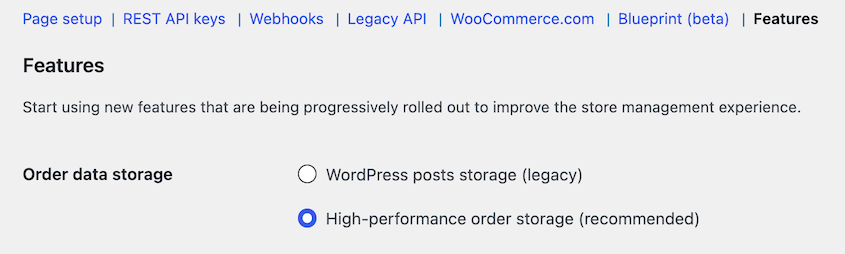
This moves order data out of wp_postmeta into dedicated, purpose-built tables. It can dramatically speed up order queries on any store with more than a few hundred orders.
After enabling it, WooCommerce may prompt you to migrate existing order data. Run the migration before moving on.
Storage engine: MyISAM vs. InnoDB
MyISAM locks the entire database table during every write operation, which causes queuing under any meaningful write load. InnoDB locks only the specific row being written to.
WordPress has defaulted to InnoDB since MySQL 5.7, but sites migrated from older hosting environments sometimes still have MyISAM tables.
DB Optimizer’s Tables tab shows the storage engine for each table. If you see MyISAM tables, converting them to InnoDB is a one-line SQL change, but it’s worth handing off to a developer or asking your host whether they can handle it through their control panel.
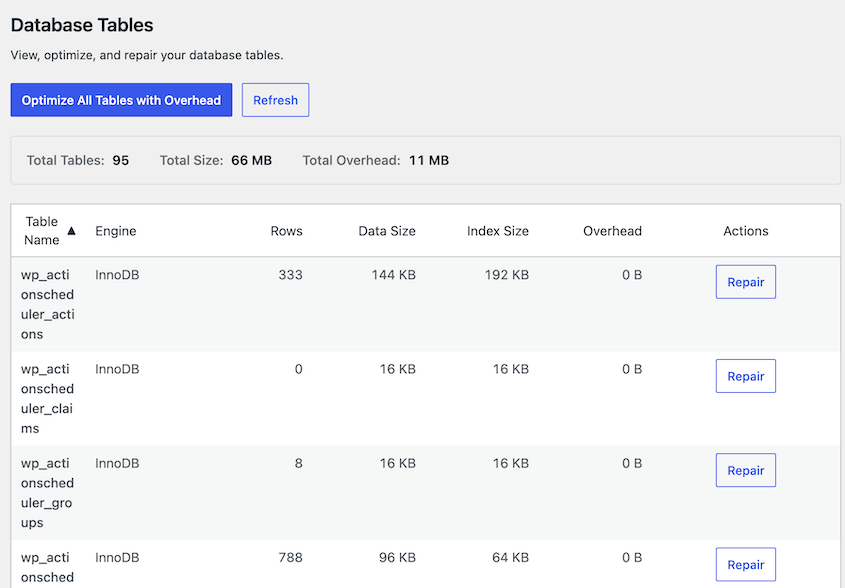
Table overhead
DB Optimizer highlights any table carrying overhead and shows an Optimize button next to it. You can handle them individually or clear all overhead at once.
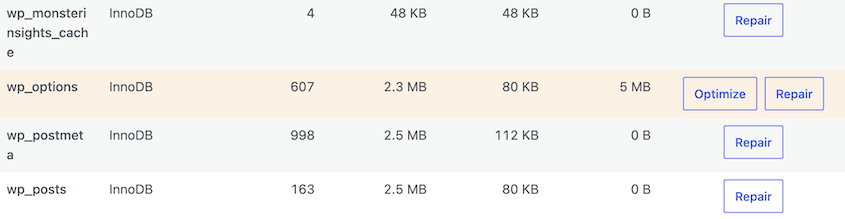
Run this after cleanup, since deleting rows is what creates overhead in the first place.
Step 4: Reduce How Often WordPress Queries the Database
Even a clean, optimized database gets queried on every page load. Caching layers intercept those queries so the database does less work overall.
Page caching saves the full HTML output of a page so WordPress skips the database entirely for that request.
If you don’t have a caching plugin, add one before anything else. WP Rocket, W3 Total Cache, and LiteSpeed Cache all handle this. Page caching is the highest-impact change you can make for frontend visitors.
You should also enable object caching. Object caching saves individual database query results in server memory so repeated queries hit the cache instead of the database.
Admin requests, WooCommerce checkouts, and any page that cannot be fully cached all benefit from it.
Ask your host whether Redis or Memcached is available. Many managed WordPress hosts include one or both.
If Redis is available, install the Redis Object Cache plugin and follow your host’s connection instructions. The plugin displays a Connected status when it is working correctly.
Don’t install Redis Object Cache unless your host actually provides a Redis server. Without an active connection, the plugin throws errors and provides no benefit.
Optional: WP-CLI Commands to Fix a Slow Database
If you manage WordPress from the command line, these commands cover the same ground as the steps above without a plugin interface.
wp db optimizeRuns MySQL’s optimization utility on every table in the database.
wp transient delete --expiredRemoves all expired transients from wp_options.
wp post delete $(wp post list --post_status=trash --format=ids)Permanently deletes all posts currently in the trash.
wp post delete $(wp post list --post_type='revision' --format=ids)Deletes all stored post revisions.
Back up with Duplicator before running any of these. They execute immediately with no preview step and no confirmation prompt.

WP-CLI doesn’t provide the health scoring, retention thresholds, or per-category previews that DB Optimizer does. It just gives you a faster path to the same cleanup tasks.
Troubleshooting: When the Database Is Still Slow
If you’ve worked through all these steps and the site is still slow, one of these scenarios is likely the cause.
Query Monitor Shows No Obvious Culprit
What you see: every individual query is under 0.05 seconds but the page still loads slowly.
The problem could be total query volume, not any single slow query. Two hundred queries at 0.01 seconds each still adds two full seconds of database time before anything renders.
Check the summary bar in Query Monitor. If the total query count is above 50 to 75 on a standard page, that’s worth investigating.
Deactivate plugins one at a time, reload the page after each deactivation, and watch the count drop. The plugin that causes the biggest drop is your target.
Autoload Size Stays High After Cleanup
What you see: DB Optimizer still shows autoload size above 1MB after running cleanup.
Cleanup removes expired and orphaned autoloaded entries, but it cannot stop a plugin from writing new ones. If the number keeps climbing back up, something is actively adding to the autoload pool on every request.
Query Monitor shows every option being autoloaded on the current page. Look for entries from plugins you don’t recognize or actively use, then deactivate those plugins one at a time and refresh the score.
WooCommerce Checkout Is Still Slow After Cleanup
What you see: checkout pages take three to five seconds to load after cleanup.
HPOS may be enabled but the data migration may not be complete. Go to WooCommerce » Status » Tools and look for a Migrate order data option. If it’s there, run it.
Incomplete migrations leave WordPress reading from both the old and new table structures simultaneously, which is slower than either one alone.
If the migration is already complete, a conflicting plugin may be forcing WooCommerce back to the legacy order tables. Disable plugins one at a time and test checkout speed after each.
Object Caching Shows Connected But Admin Is Still Slow
What you see: the Redis Object Cache plugin shows “Connected” but admin pages are still slow.
A plugin is likely flushing the object cache on every request, which defeats the purpose of having it. Open Query Monitor and and check the cache. If the cache hit ratio is below 80%, something is flushing aggressively.
Identify it by deactivating plugins in groups of two or three, checking the ratio after each group. When the hit ratio jumps, the last group you deactivated contains the problem.
Nothing Is Working
If all four steps are complete and performance has not improved, the problem is likely outside the database itself. Insufficient MySQL memory on shared hosting forces the server to use disk swapping instead of RAM, which no amount of cleanup will fix.
Contact your host and ask specifically about MySQL memory allocation and whether server-side slow query logging is available. A developer reviewing the slow query log can identify problems that Query Monitor can’t catch.
Frequently Asked Questions (FAQs)
How do I know if my WordPress database is the cause of a slow site?
The clearest signal is a slow WordPress admin dashboard. The admin bypasses page caching, so if it loads slowly, the database is almost certainly involved. Install Query Monitor and check total query count and load time. High Time to First Byte on cached pages is another strong indicator. It means the server is waiting on the database before it can respond.
What is a healthy database size for a WordPress site?
Total database size is not a reliable performance indicator on its own. A 500MB database that’s clean and well-structured can be faster than a 100MB database with 5MB of autoloaded data. Focus on autoload size (keep it under 1MB) and table overhead (should be near zero) rather than overall database size.
Is it safe to delete post revisions?
Yes. Post revisions are backup copies WordPress creates automatically during editing. Deleting them doesn’t affect any published content. DB Optimizer’s 7-day retention threshold keeps recent revisions untouched while removing older ones, so you’re not deleting anything you might still need.
What is autoloaded data and why does it slow down WordPress?
Autoloaded data is stored in the wp_options table and loaded on every WordPress page request before any content renders. Plugins that store large amounts of data with autoload enabled add overhead to every page load, even pages that have nothing to do with that plugin. Keeping total autoloaded data under 1MB is a reliable benchmark for a healthy site.
What is the difference between page caching and object caching?
Page caching saves the full HTML output of a page so WordPress skips the database entirely for that request. Object caching saves individual database query results in server memory so repeated queries return from cache instead of re-running against the database. Page caching helps frontend visitors. Object caching helps admin users, WooCommerce checkouts, and any page that cannot be fully cached.
Will cleaning my database delete content visitors can see?
No. Database cleanup removes data that is invisible to visitors: expired transients, post revisions, spam comments, and orphaned metadata. Published posts, pages, products, and media are not touched. That said, take a backup before running any cleanup. It takes a few minutes and removes all risk from the process.
Do I need a developer to optimize my WordPress database?
Not for most sites. The steps in this guide cover the most common causes of database slowness without any SQL or command-line work. You may need a developer if Query Monitor identifies slow queries inside custom plugin or theme code, if your wp_postmeta table has indexing problems, or if the storage engine conversion is outside your comfort level.
What is HPOS and do I need it?
High Performance Order Storage is a WooCommerce feature that moves order data into dedicated database tables instead of the default wp_postmeta table. It speeds up order queries significantly on any store with meaningful order volume. Enable it under WooCommerce » Settings » Advanced » Features. It’s recommended for any WooCommerce store with more than a few hundred orders.
Your Database Isn’t Going to Clean Itself
You’ve done something most WordPress site owners never do: you diagnosed a database bottleneck, cleaned up data that has been accumulating for years, addressed the specific tables that cause persistent slowness, and reduced how often the database has to work.
Going forward, run DB Optimizer’s health check once a month. Database bloat comes back gradually, and a monthly pass keeps it from compounding.
And keep in mind that optimization permanently modifies your database. A backup before you start is the difference between a fixable mistake and a permanent one.
Over 1.5 million WordPress professionals use Duplicator to back up and migrate their sites. The free plan covers full site backups and takes about two minutes to set up. Upgrade for cloud storage, automatic backups, and a free DB Optimizer plugin with Duplicator Pro!
If this guide helped, these posts are worth bookmarking too.
- How to Optimize Your WordPress Database
- Here Are the WordPress Database Repair Steps I Took Myself
- WordPress Database Maintenance: What to Do Weekly, Monthly, and Quarterly
- How to Back Up a WordPress Database
- The Best WordPress Database Optimization Plugin I’ve Used (Plus 3 Alternatives)




