

WordPress DNS Hijacking: How to Tell If Your Domain Was Stolen or Your Site Was Hacked
 Joella Dunn
Joella Dunn
Joella Dunn
 John Turner
John Turner
John Turner
You type your domain into a browser, and something else loads, like a parked page covered in ads or a pharmacy site in a language you don’t read.
Almost everyone’s first thought is the same: I’ve been hacked.
Maybe. But four different problems look identical from the browser, and their fixes have nothing in common.
Here’s what could be happening:
- Someone took control of your domain at your registrar or DNS host.
- Your WordPress files got infected and are redirecting.
- Your device is resolving the domain wrong while everyone else sees your site fine.
- Or nothing was attacked at all, and it’s a migration, a propagation delay, or an expired domain
The fixes have almost nothing in common. Cleaning your WordPress install does nothing for a hijacked domain. Resetting your registrar password does nothing for injected code. Restoring a backup, which is the advice you’ll get most often, only helps with one of the four.
So before you change anything, you need to know which problem you have.
In this post, I’ll cover what DNS hijacking is and how to narrow the cause down in about ten minutes. After that, I’ll show you how to recover a domain that was genuinely stolen and how to lock things down so it doesn’t happen twice.
Key Takeaways
- Four different problems produce the same symptom. A stolen domain, injected redirect malware, a device lying to you, or nothing attacked at all.
- DNS hijacking never touches your WordPress install. Your files stay pristine; the domain just stops pointing at them.
- Restoring a backup does nothing for a hijacked domain. Your domain isn’t in a backup file; it’s a registration held at a registrar.
- A backup fixes other causes. If redirect malware was injected into your files or database, a clean copy from before the infection removes it.
- The thirty-second test comes first. Load your site on cellular with Wi-Fi off. If you’re the only one seeing the problem, your domain is fine.
- Your WHOIS updated date is the clearest single signal. A change you didn’t make tells you what happened and roughly when it happened.
- Your email goes with your nameservers. MX record control means password resets route to whoever holds the domain, which changes how you handle recovery.
- You can’t file a TDRP dispute yourself. It runs between registrars, so your registrar files on your behalf, within twelve months of the transfer.
- Prevention is account hygiene, not software. Registrar lock and a recovery email that doesn’t live on the domain cover most real cases.
Table of Contents
What Is DNS Hijacking?
DNS (Domain Name System) is the system that turns your domain name into the address of the server holding your site. Every time someone visits, their browser asks a DNS resolver where yourdomain.com lives, and the resolver answers back with an IP address.
DNS hijacking means that lookup returns an answer you didn’t choose.
Your site can be running perfectly. Your files can be completely untouched. If the answer coming back points somewhere else, your visitors go somewhere else, and nothing inside WordPress can stop it.
What Are the Four Types of DNS Hijacking?
There are four DNS hijacking attack types, and each one happens somewhere different. Where the attack lands determines who can fix it and how, so all four are worth knowing.
- Registrar or DNS host account takeover. Someone gets into the account that controls your domain and changes your nameservers or your A record (the entry that maps your domain to a specific IP address). Your site is untouched, but your domain now points at somebody else’s server.
- Local or router hijacking. Malware on a device or a compromised router changes which resolver that machine uses. Only people on that device or that network are affected. Everyone else loads your site normally.
- Rogue or dishonest resolver. The DNS server being queried answers incorrectly on purpose, usually for ad injection or censorship. It’s typically outside your control.
- DNS cache poisoning. False records get injected into a resolver’s cache, so it hands out a wrong answer until that cached entry expires.
If you’ve read three articles about this and gotten three different definitions, that’s why. DNS hijacking is the umbrella term. Domain hijacking and DNS cache poisoning are specific cases sitting underneath it.
Is It DNS Hijacking or Redirect Malware Inside WordPress?
Both problems dump your visitors on a site that isn’t yours, so people treat them as one emergency. What separates them is where the redirect happens: before the request ever reaches your server, or after it gets there.
Redirect malware lives in your files and your database. Your DNS is fine. Your domain is fine. Your own server is handing visitors poisoned code, exactly as it was told to.
DNS hijacking never touches your WordPress install. Your files are pristine. The domain just stopped pointing at them.
There’s no overlap in the fixes. Scanning and cleaning a WordPress site does nothing when the problem lives at your registrar. Locking down your registrar does nothing when the problem is a line of JavaScript in your theme header.
Which is why what comes next is five checks, not a simple one-fix-all.
Why Does DNS Hijacking Hit WordPress Sites Harder Than People Expect?
The obvious damage from a DNS attack is that visitors land on the wrong page. The damage that catches people off guard is everything else riding on those same DNS records.
Your email goes with it. Nameserver control means MX record control, and MX records are what route mail to your domain.
Whoever owns your nameservers can point your mail somewhere they read it. This affects password resets, client invoices, and confirmation messages from your registrar.
Sit with that for a second, because it changes how you handle recovery. The account recovery flow you’re about to start probably emails you at your domain.
Then there’s SSL. Every visitor gets a certificate warning, because the server they’ve been sent to doesn’t hold a valid certificate for your name. That’s usually how you find out. Someone emails to ask if you know your site is broken.
Google crawls whatever your domain resolves to now. If that’s a spam or malware destination, your domain can get flagged, and the flag outlasts the fix by a long way.
The reputation damage runs longer than the repair too. Clients who saw a pharmacy ad on your domain could remember it even after the DNS is corrected.
WordPress operations carry one extra exposure that most sites don’t, and if you manage more than a handful of sites, it’s the first thing I’d go check.
What Is Dangling DNS and Why Do WordPress Sites Collect It?
The most common way a WordPress operation gets hijacked isn’t a sophisticated attack. It’s a record nobody remembered to delete.
A dangling DNS record points at a service you no longer control. The service got decommissioned, the hosting lapsed, or the server was shut down. The record stayed exactly where it was.
Anyone who can claim that service now controls what loads on your subdomain.
The pattern is easy to spot once you know it. There’s blog.example.com from a campaign that ended two years ago or dev.example.com from a redesign. The hosting stopped. The CNAME record didn’t.
Open your zone file and delete anything pointing at a host you don’t pay for anymore.
How Do You Know If Your DNS Was Hijacked?
Here’s how to detect DNS hijacking in five checks. The order matters, because it stops you from fixing the wrong thing, and the cheapest test happens to rule out the most.
- Check 1: Does anyone else see it? Thirty seconds on cellular data tells you whether the problem is your domain or just your device.
- Check 2: What do WHOIS and your nameservers say? Four fields reveal whether someone changed your domain, and when they did it.
- Check 3: Do different resolvers agree? Consistent wrong answers mean the record changed at the source; inconsistent ones mean propagation.
- Check 4: What does WordPress itself say? Site URLs, .htaccess, and modification timestamps expose injected redirect code.
- Check 5: Have you ruled out the boring explanation? Migrations, expired domains, and stale caches cause this more often than attacks do.
Check 1: Does Anyone Else See the Problem?
This single test splits the problem in half in about thirty seconds, so run it before you touch anything.
Pull out your phone, turn off Wi-Fi, and load the site over cellular data. Or ask someone in a different city to try it. If you’d rather not bother anyone, a third-party uptime checker will load your site from its own servers.
If you’re the only one seeing the problem, your domain is fine. The trouble is on your device, your router, or in your hosts file.
Your hosts file deserves special attention. If you’ve ever migrated a site, you probably added a hosts file entry to preview it on the new server, and there’s a decent chance you never took it back out.
Your computer is still being told to send that domain to an old IP address. Everyone else loads the site correctly while you sit there convinced you’ve been hacked.
I’ve done this to myself. More than once. So before you dig into more extensive troubleshooting, check your hosts file.
Check 2: What Do Your WHOIS Record and Nameservers Say?
Your registrar record is the source of truth for who controls the domain, and it conveniently timestamps the attack for you.
Run a WHOIS lookup and read four fields:
- Nameservers. These should belong to your DNS host or your registrar. If you don’t recognize them, skip ahead to the recovery section right now.
- Registrant email. If this changed to an address you don’t own, the account is already gone.
- Expiry date. More on this in a moment, but look at it while you’re here.
- Updated date. This is the clearest signal. A change you didn’t make, on a date you can point to, tells you what happened and roughly when.
While you’re in there, look at the EPP status codes. Those are standardized flags the domain registry keeps on your domain, and the one you want to see is clientTransferProhibited. That’s the registrar lock, and it blocks transfer requests at the registry level before they go anywhere.
A missing lock plus a recent update date is the worst combination on that page.
One more thing before you panic. Check whether the domain simply expired. An expired domain produces a symptom identical to a hijack.
Check 3: Do Different DNS Resolvers Give the Same Answer?
This check tells you whether the record changed or whether something in between is lying to you.
On macOS or Linux, ask your default resolver, then ask a specific public one, then look at your nameservers directly:
dig example.com +short

dig @8.8.8.8 example.com +short

dig example.com NS +short
On Windows, nslookup does the same job:
nslookup example.com

nslookup example.com 8.8.8.8
If terminals aren’t your thing, a global DNS propagation checker will query resolvers in a couple dozen countries and show you every answer side by side.
Then read what comes back:
- Every resolver agrees on an IP that isn’t yours. The record changed at the source. That’s a real hijack, or a change somebody on your team made and forgot to mention.
- Answers disagree depending on region. Propagation is still in progress, which almost always means a change you or your host made recently.
- One network disagrees with everyone else. Local or ISP-level interference, which sends you back to Check 1.
Check 4: What Does WordPress Say?
If DNS comes back clean, the problem is inside your install, and now you’re hunting for injected code.
Start with your site URLs. Go to Settings » General and compare WordPress Address (URL) and Site Address (URL) against your real domain.
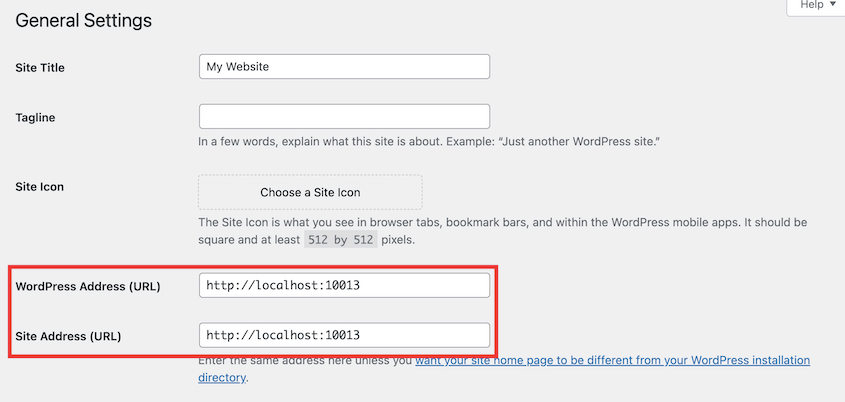
If you can’t log in, those same values live in the siteurl and home rows of the wp_options table, and you can read them through phpMyAdmin or WP-CLI.
Check the files infections like most:
- .htaccess, for redirect rules you didn’t write
- wp-config.php
- index.php, especially the very top of the file
- Your active theme’s header and footer files
Sort everything by modification date while you’re in there. Most infections leave a cluster of timestamps from the same afternoon, and that cluster is usually the entire map.
One behavior sends people down the DNS path incorrectly, and it’s worth knowing about. Plenty of redirect malware fires conditionally. It triggers only for visitors on mobile, or only for people arriving from a search result, and it leaves direct visits completely alone.
So you type your domain, the site loads perfectly, and you conclude the problem has to be somewhere outside WordPress.
It isn’t. DNS has no idea what device is asking or where a visitor came from. Only code running on your server can tell the difference.
This is when a malware scanner earns its money. It’s also the one way restoring a clean backup fixes the problem.
Check 5: Have You Ruled Out Boring Explanations?
Before you escalate anything, spend two minutes on the causes that aren’t attacks at all:
- A migration in the last 48 hours that’s still propagating
- A domain that expired or an auto-renew payment that failed quietly
- A CDN or reverse proxy is still pointed at your old origin server
- Stale browser cache, stale DNS cache, or a hosts file entry
Flush your local DNS cache and try again in a private window before you draw any conclusions.
By now, you have the WHOIS record and the resolver answers sitting in front of you. That’s what you need to tell a propagation delay from a real change.
Quick Reference: DNS Hijacking Symptoms, Causes, and Fixes
If you’re mid-outage and want the short version, find your DNS hijacking symptom in the left column.
| What you’re seeing | Most likely cause | What fixes it | Does restoring a backup help? |
|---|---|---|---|
| Only you see the wrong site | Local DNS, router, or hosts file | Flush DNS, check the router, edit the hosts file | No |
| Everyone sees a parked or unrelated page | Registrar or DNS account takeover | Recover the registrar account | No |
| Site loads but redirects to spam for some visitors | WordPress redirect malware | Clean files and database, or restore a clean backup | Yes |
| Wrong site right after a host change | Propagation or a stale record | Wait, or correct the A record | No |
| Site is gone and WHOIS looks wrong | Expired domain or unauthorized transfer | Renew, or open a dispute through your registrar | No |
How Do You Recover a Hijacked Domain?
Knowing how to fix DNS hijacking is mostly a matter of order of operations, not speed, and the first hour is worth more than the week after it.
I’ll be honest about the timeline up front. If the domain is still sitting at your registrar, this takes hours. If it’s been transferred away, plan for weeks.
Get Back Into the Registrar Account First
Nothing you do matters until you control the account that controls your domain.
Start recovery at the registrar directly, not through your email. If your MX records went with your nameservers, your mail is routing through the compromised domain, and a password reset lands in somebody else’s inbox.
Call them. Registrars keep phone support for exactly this, and a phone call is out of band, meaning it doesn’t travel over anything the attacker controls.
Have your proof ready before you dial: original registration receipts, billing records, card statements showing renewals, old invoices with the domain on them. Support will ask for it, and having it in front of you cuts hours off the process.
When you get access back, write down what changed and when you noticed. You’ll need that in a minute.
Lock It Down Once You’re Back In
Someone who got in once will try the same door twice, so close all of them before you do anything else.
- Turn on registrar lock and confirm clientTransferProhibited appears in your WHOIS record.
- Enable two-factor authentication on your registrar and your DNS host separately.
- Reset the EPP code, also called the authorization code. It’s the password required to move a domain between registrars, and resetting it invalidates any copy the attacker made.
- Move the registrant contact email to an address that doesn’t live on this domain.
- Audit every DNS record, not just the one that changed. Check your MX records specifically, because mail redirection is much quieter than site redirection and can run for weeks before anyone notices.
What If the Domain Was Already Transferred to Another Registrar?
This is the hard case, and it’s slower and less within your control.
If your domain has already been transferred, contact your losing registrar immediately. That’s the one you were with before the transfer, and they’re the party with standing to act.
ICANN’s Registrar Transfer Dispute Resolution Policy, the TDRP, is a dispute between registrars. The complainant is either the losing registrar or the gaining registrar. You can’t file one yourself as the domain owner.
Plenty of articles tell readers to go file a TDRP, and if you go looking for that form, there isn’t one for you. What you do instead is hand your losing registrar the evidence and ask them to file on your behalf.
Two timelines are worth knowing:
- The filing deadline is twelve months after the alleged violation. After that, the transfer stands regardless of how it happened.
- Registrars are expected to try resolving it between themselves first, before the formal procedure applies.
One rule works in your favor. When registrant contact information changes, ICANN requires a 60-day lock that prevents the domain from transferring again. It exists to stop registrar hopping, and it means a thief generally can’t keep moving your domain out of reach while you chase it.
Expect weeks. The documentation you gathered in the first hour is what wins this.
Rebuild on Clean Infrastructure While You Wait
The domain fight and the site rebuild are two separate tracks, and there’s no reason to run them back to back.
Assume your hosting account may be compromised too, especially if it shared a password or a recovery email with your registrar. Whoever got in almost certainly tried both.
So don’t rebuild in place. Take a backup from before the incident and stand the site up on a server the attacker has never had access to.
This is where a portable backup is key. Duplicator’s standalone installer puts your complete site onto a blank server without needing WordPress pre-installed.
You’ll just need a previously saved backup. Upload both backup files to the new server and launch Duplicator’s installer.
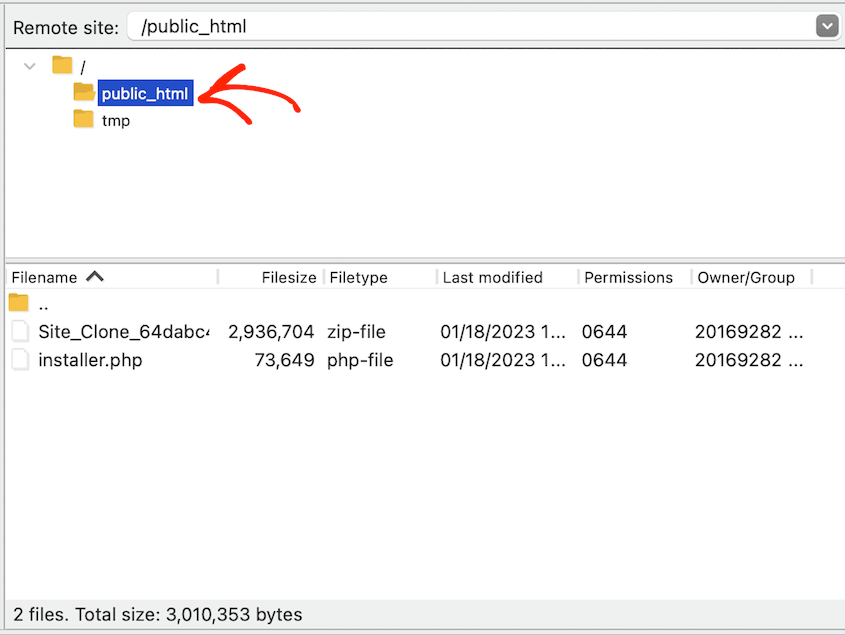
Add a hosts file entry on your own machine sending your real domain to the new server’s IP, and load the site. You’re testing the actual domain against the new server privately, while everyone else still sees whatever is being served in your name.
When DNS control comes back, you’re not starting a rebuild. You’re changing one A record to point at a server that’s already tested and already clean.
What a Backup Can and Can’t Do About DNS Hijacking
When something bad happens to your site, the first instinct is to restore a backup. However, even site backups have limitations.
What a backup can’t fix:
- A stolen domain. Your domain isn’t in your backup. It’s a registration held at a registrar, and no archive file anywhere contains it.
- A nameserver or A record change. Those records live in DNS at your DNS host, not in your site files.
- A rogue resolver on a visitor’s router. That’s their device, not your server.
- Cache poisoning at an ISP. Nothing on your end reaches it.
If your domain was hijacked, restoring last night’s backup accomplishes nothing. The site was never the problem. You’ll end up with a flawless copy of a site nobody can reach.
Now the other half, because a backup isn’t useless here either:
- It fixes the redirect malware branch, and that’s the more common cause of the same symptom
- It gives you a known-good copy to stand up somewhere else the moment you regain control
- It gets you off a compromised host in an afternoon instead of negotiating with one for a week
- It proves what your site looked like before the incident, which matters for clients, insurers, and anyone asking questions later
So back up your site, because it offers tons of security. Just be aware a backup can’t roll back a DNS hijack.
How Do You Prevent DNS Hijacking?
Learning how to stop WordPress DNS hijacking is almost entirely a matter of account hygiene, not software. There’s no plugin for any of it, which is probably why it gets neglected.
Here’s how to secure your website’s DNS:
- Registrar lock. Turn on clientTransferProhibited and confirm it in WHOIS rather than trusting the toggle in your dashboard. If it isn’t showing, that’s your first task today.
- Two-factor authentication on the registrar and the DNS host. Separate accounts, separate logins, separate 2FA. Use an app or a hardware key instead of SMS, because SIM swapping is a well-worn path into exactly this kind of account.
- A registrar email that doesn’t live on the domain. Nearly everyone gets this one wrong, and it’s the difference between a bad afternoon and a bad month. If your registrar login is you@yourdomain.com, then losing the domain and losing your recovery inbox happen in the same instant. Use an address on a completely different domain, and set it up now, because adding it afterward does you no good at all.
- Auto-renew with a card that isn’t expired. An expired domain looks identical to a hijack, gets sniped just as quickly, and happens far more often. Check the card on file once a year.
- Registry lock for domains you can’t afford to lose. It sits a step above registrar lock. Changes require manual, out-of-band verification, so an attacker holding your password still can’t move anything. Most registrars charge for it, and for a business domain, it’s cheap.
- DNSSEC, with realistic expectations. It signs your DNS records cryptographically so a resolver can verify they weren’t tampered with in transit, which covers DNS spoofing and cache poisoning. It does nothing whatsoever if somebody logs into your registrar and changes the records legitimately. Turn it on; just don’t file it under handled.
- A quarterly DNS record audit. Open your zone file and delete anything pointing at a service you no longer control. That’s the dangling DNS problem from earlier, and fifteen minutes a quarter closes it.
- Fewer people with registrar access. Every extra login is another way in. Contractors who moved on, agencies you stopped working with, the old team member whose account nobody ever deactivated.
Two of these carry most of the weight: the registrar lock and the off-domain email. If you only do two things this week, do those.
Frequently Asked Questions (FAQs)
Can restoring a backup fix DNS hijacking?
Not if your domain was taken. Your domain lives at a registrar and isn’t included in any backup file, so restoring one gives you a perfect site nobody can reach. A backup does fix the other common cause of the same symptom. If redirect malware was injected into your files or database, restoring a clean copy from before the infection removes it.
How long does it take to recover a hijacked domain?
It depends on whether the domain moved. If it’s still at your registrar and you can prove ownership, expect hours. If it was transferred to another registrar, expect weeks, since the dispute runs between the two registrars. Gather your registration receipts and billing records first. That documentation drives the timeline more than anything else.
Is DNS hijacking the same as DNS poisoning?
No. People use DNS hijacking and DNS poisoning interchangeably, but they describe different things. DNS cache poisoning means false records were injected into a resolver’s cache, so it hands out a wrong answer until that entry expires. DNS hijacking is the broader umbrella term, and it usually refers to changing records or settings at the source, like your registrar account or your nameservers.
How do I check if my router’s DNS has been hijacked?
Open your router’s admin page and compare its DNS settings against your ISP’s values or a known public resolver. Anything you don’t recognize is your answer. Run a faster test first: load the site on your phone with Wi-Fi off. If it works on cellular and fails on your own network, the problem is local.
Does DNSSEC stop DNS hijacking?
Partly. DNSSEC signs your DNS records cryptographically so resolvers can verify nothing was altered in transit, which covers spoofing and cache poisoning well. It gives you no protection against someone logging into your registrar with your password and changing the records legitimately, because those changes get signed too. Turn it on, then pair it with registrar lock and two-factor authentication.
My site redirects to spam but only on mobile. Is that DNS?
Almost certainly not. DNS resolves a domain name to an IP address and has no visibility into what device is asking or where a visitor came from. Conditional behavior like a mobile-only or search-referrer-only redirect needs code running on your server, which points at injected malware in your files, database, or .htaccess file.
Your Domain Is the One Thing You Can’t Restore
You own your files and database. You rent your domain.
That’s easy to forget, because a domain feels like property right up until the moment somebody else is holding it.
Diagnosing DNS hijacking attacks can be fast. Thirty seconds on your phone with Wi-Fi off rules out half the possibilities, and a WHOIS lookup handles most of the rest.
Recovery can be difficult. If the domain moved, you’re waiting on two registrars to talk to each other, and there’s very little you can do to hurry them. To prevent future issues, I recommend spending an afternoon hardening your DNS security.
Rebuild Fast, Whatever Happens to Your Domain
A DNS dispute is a fight you might win in a week. Your site shouldn’t sit dark waiting on the outcome. The part of this you fully control is having a clean, portable copy ready to deploy the moment your records come back.
Duplicator Pro covers that side of it. You’ll get automated full-site backups, a standalone installer that drops your site onto a blank server with no WordPress pre-installed, one-click restores, and a disaster recovery URL that works even when WordPress is locked out.
More than 1.5 million WordPress professionals use Duplicator, and it has over 4,000 five-star reviews. Every paid plan comes with a 14-day, no-questions-asked refund.
If this post got you thinking about how exposed your domain and your site really are, these guides are worth reading next.
- How to Protect Your WordPress Website from Hackers
- WordPress Security Checklist: Step-by-Step Guide to Protect Your Site
- 4 WordPress Malware Removal Plugins That Clean Infected Files (Not Just Flag Them)
- Why Your WordPress Site Is Stuck in a Redirect Loop (And How I Fixed It in 5 Minutes)
- How to Create a WordPress Staging Site (For Safe Testing)




