

Duplicator Cloud vs Dropbox: Which Is Better for WordPress Backups?
 Joella Dunn
Joella Dunn
Joella Dunn
 John Turner
John Turner
John Turner
Most people choose WordPress backup storage by comparing price per gigabyte. That’s the one number that turns out not to matter.
What matters is whether your backups are still there in eight months, whether anyone else can reach them, and whether you can rebuild your site when your dashboard won’t load.
Two names come up constantly when WordPress owners go looking: Dropbox, which most people already have an account for, and Duplicator Cloud, storage built by the team behind the Duplicator plugin.
So, I used both for a few weeks. I filled a free Dropbox account on purpose to see what a failed upload leaves behind, then made both WordPress dashboards unreachable and tried to get the sites back.
Below, I’ll compare them on storage limits, retention, security, and what your options are when your site won’t load.
Here are the key takeaways:
- The Dropbox Backup feature can’t touch your website. It protects computers and external drives, not WordPress sites.
- With Duplicator driving it, Dropbox is a good backup destination. On its own, it can’t schedule a backup, build an archive, prune old copies, or restore anything.
- The free 2GB is smaller than most sites’ backups, and there’s no middle tier. Business sites usually produce 1GB to 5GB archives, and Dropbox jumps straight from 2GB free to 2TB at $119.88 a year.
- Duplicator Cloud is the cheaper option below 50GB, at $49 a year for 10GB against Dropbox’s $119.88. Above 50GB, that flips.
- The restore is what separates them. Duplicator Cloud runs a full restore from cloud.duplicator.com even without WordPress working. Dropbox requires you to download files, re-upload them to your root directory, and run the installer yourself.
Table of Contents
- Duplicator Cloud vs Dropbox: The Short Version
- What Is a Duplicator Cloud?
- What Is Dropbox?
- How to Get a WordPress Backup Into Duplicator Cloud vs. Dropbox
- What Recovery Looks Like
- How Do They Compare on Security?
- What Does Each One Cost?
- Which One Is Better for Storing Backups From Multiple Sites?
- Should You Pick Duplicator Cloud or Dropbox?
- Frequently Asked Questions (FAQs)
- Dropbox Is Built for Files You're Working On, Not Files You're Saving For Later
Duplicator Cloud vs Dropbox: The Short Version
| Duplicator Cloud | Dropbox | |
|---|---|---|
| What you need to use it | Duplicator (free or Pro) and a Duplicator Cloud account | A Dropbox account, plus a Duplicator Pro license (Basic or above) to connect it |
| Free storage | None, plans start at $29/year | 2GB on Dropbox Basic |
| Paid plans | $29 to $199 a year, by storage size | $9.99/month billed annually for 2TB, then team plans from $15/user/month |
| Cost at 10GB stored | $49/year | $119.88/year |
| Cost at 50GB stored | $99/year | $119.88/year |
| Storage range | 2GB to 150GB | 2GB free, 2TB on Plus, 3TB and up on team plans |
| Restore with WordPress running | One click from your dashboard | One click from your dashboard (only with Duplicator Pro) |
| Restore with WordPress down | Runs from cloud.duplicator.com using saved FTP or SFTP details | Download the archive and installer, upload them over FTP, run the installer yourself |
| Organized by site | Yes | No, you get folders |
| Encryption | AES-256, encrypted at rest, 99.9% uptime SLA | AES-256 at rest, TLS in transit |
| WordPress-aware | Yes | No |
| Best for | WordPress backups that restore even if your site is down | Files you’re working on and a second copy of your backups |
Dropbox looks like a good option, and it should. The free tier is real, the encryption is serious, and the restore is one click.
However, look at what’s producing those results. The schedule that ran the backup, the archive it packed, the retention count that pruned last month’s copy, the restore wizard: none of that is Dropbox.
What makes Dropbox a decent WordPress backup storage location is Duplicator. It’ll pack up your files for you and upload them to third-party storage.
On its own, Dropbox is just a generic data storage solution that isn’t designed for WordPress. I recommend using Duplicator Cloud as the best WordPress-native option.
What Is a Duplicator Cloud?
Duplicator Cloud is first-party storage for WordPress backups. It’s run by Duplicator, a backup and migration plugin used by over 1.5 million people.
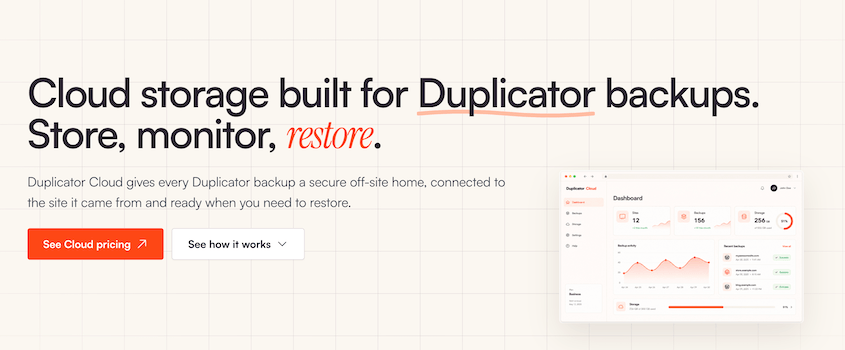
What sets it apart from the other destinations in Duplicator’s storage list is that no second company is involved. You don’t open an account somewhere else, generate keys, or approve an authorization request that can be withdrawn later. You connect it with the Duplicator Pro license you’re already paying for.
The storage lives at cloud.duplicator.com, and you sign in with the same email and password you use on duplicator.com.
Here’s what you can do from that dashboard:
- Check every connected site from any browser, including which ones haven’t backed up recently.
- Download the archive or the installer directly, even without a working WordPress install.
- Start a full restore without signing in to your dashboard.
- Revoke one site’s access while every other site stays connected.
- Share a backup through a download link that expires on its own.
To use it, you need Duplicator (the plugin) and a cloud plan. These run from $29 to $199 a year depending on how much space you need.
What Is Dropbox?
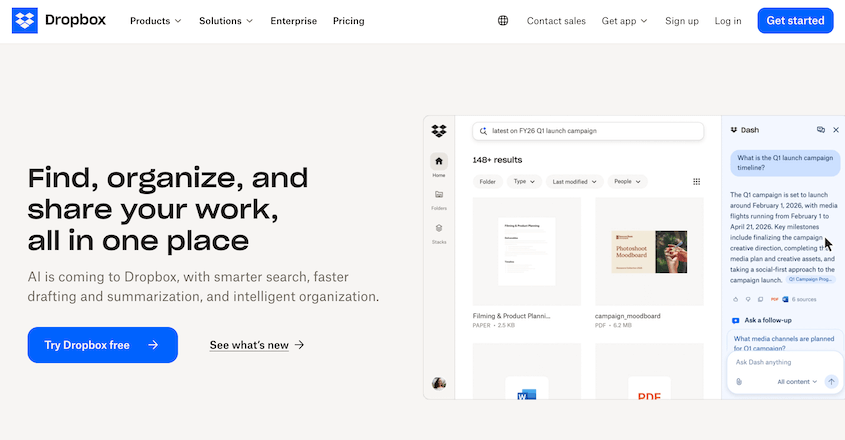
Dropbox launched in 2007 and made file syncing easy for people who’d never thought about it before. It’s grown into a collaboration platform since then, but the core idea hasn’t changed.
Underneath, Dropbox is a sync engine. It watches a folder, and anything you change in that folder gets mirrored to Dropbox’s servers. The changes are saved on every other device on your account.
When a file changes, it uploads only the parts that changed instead of the whole file again. That’s called block-level sync.
However, when you store WordPress backups in Dropbox, you’ll upload a dated archive as a finished file instead of syncing your site folder.
Here’s what a Dropbox account gives you:
- A folder that stays identical on every device you’ve signed into.
- Sharing by link, with no account needed on the other end.
- 30 days of version history on personal plans, and longer on team plans.
- Rewind, which rolls a folder back to the way it looked at an earlier point in time.
- Dropbox Backup, which protects the files on your computer and your external drives.
All you need to start is a Dropbox account. The free tier, Dropbox Basic, gives you 2GB and lets you stay logged in on three devices at a time.
Paid plans start at $9.99/month for 2TB.
To use Dropbox as a WordPress backup destination, you also need Duplicator Pro. Otherwise, you’ll be manually downloading backups and uploading them to Dropbox by hand.
What Is Dropbox Good At?
Dropbox has been doing one thing longer than almost anyone, and it shows in the places that matter day to day.
Here’s where it earns its reputation:
- The sync engine is fast. Because it only uploads the parts of a file that changed, a small edit to a large file takes seconds.
- The desktop client stays out of your way. It handles conflicts, offline edits, and reconnections more gracefully than the alternatives I’ve used.
- Sharing takes one link. Whoever you send it to doesn’t need a Dropbox account to open it.
- It runs everywhere. Windows, macOS, Linux, iOS, Android, and the browser.
- The Duplicator connection is one of the simpler ones in the list. There’s no API console, key pair, or policy document to get right.
If your backups are sitting on the same server as your site right now, connecting Dropbox is a real upgrade. However, I don’t recommend it as the only WordPress storage location you’re using.
Does Dropbox Backup Work for a WordPress Site?
No, and this is the part that catches people.
Dropbox Backup is a product included with every Dropbox plan. It protects the files on your computer and external drive. At that job, it works well.
What it can’t do is reach your website.
Your site doesn’t live on your laptop. It lives on a web host in a directory you get to over FTP or SSH, with a MySQL database. Dropbox Backup has no way in.
So, it can’t copy your wp-content folder or export your database. By itself, Dropbox can’t put a site back together.
Rewind gets misread the same way. It rolls a folder back to how it looked at an earlier point, which is useful when someone overwrites your data. It isn’t a site restore.
What Happens If You Back Up to Dropbox Without a Backup Plugin?
With Duplicator, Dropbox is a good place to store WordPress backups. The plugin runs the schedule, packs the archive, prunes old copies once you hit your retention limit, and pulls the file back down when you need a restore. Your backups end up protected from server errors.
Take the plugin away, and the backup process becomes manual.
Dropbox doesn’t know what WordPress is or that your site exists at all. Doing this manually looks like this:
- Packing your site files into an archive, which means a shell session or a trip through your host’s file manager each time you want a copy.
- Pulling the database out on its own, with phpMyAdmin or WP-CLI, then remembering which dump pairs with which archive.
- Uploading both files through the Dropbox app or the website.
- Inventing a naming system, because a folder of generic zip files tells you nothing.
- Deleting old copies by hand before they fill a 2GB quota (if you need to stay on free storage).
- Rebuilding the site manually if necessary, which means unpacking files and importing the database by hand.
I’ve run that sequence. It works, but it’s tedious.
How to Get a WordPress Backup Into Duplicator Cloud vs. Dropbox
Both storage connections happen inside your WordPress dashboard and take only a few minutes. Duplicator Cloud works slightly faster since it’s native to Duplicator and connects with your license key.
How Do You Add Dropbox as a Storage Location?
Duplicator handles the Dropbox side for you, so you’re not registering an app or generating tokens by hand.
Here’s how to connect Dropbox to WordPress:
- Open Duplicator Pro » Storage and click Add New.
- Give the location a name you’ll recognize.
- Open the Type dropdown and choose Dropbox.
- Click Connect to Dropbox, then Authorize Dropbox to open Dropbox in a new tab.
- Sign in and approve the request.
- Dropbox will hand back an authorization code. Copy it.
- Return to WordPress, drop that code into the field under Step 2, and click Finalize Setup.
- Scroll down and click Test Storage before you trust it.
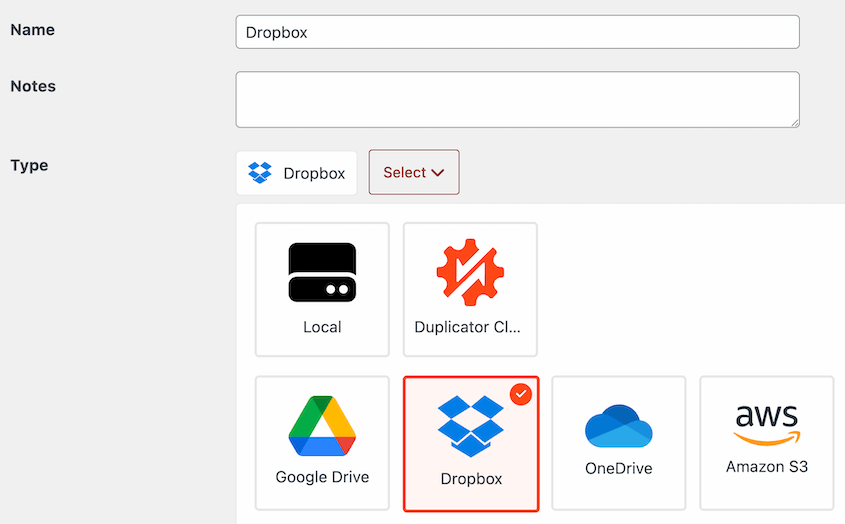
Before you leave that screen, set the Max Backups value. It caps how many copies Duplicator keeps in Dropbox before it starts removing the oldest.
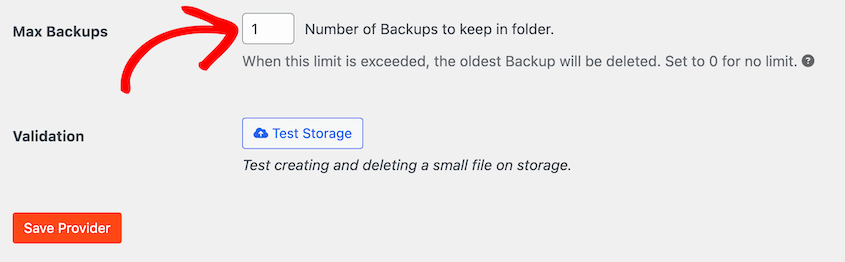
On a free account, that number decides whether you have working backups or a full quota by the end of the month.
How Do You Turn On Duplicator Cloud?
You can connect Duplicator Pro and Duplicator Cloud through your license key. Here are the steps:
- Open Duplicator Pro » Storage and click Add New.
- Name the storage location.
- Open the Type dropdown and choose Duplicator Cloud.
- Under Authorization, click Connect via Duplicator Pro License.
You don’t need to create an account with another company. It’s simple to use, and you can even connect it with the free version of Duplicator. When you open the Storage page, click Connect next to Duplicator Cloud.
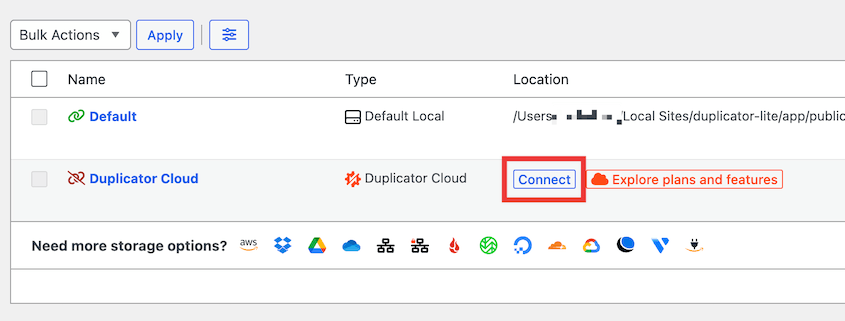
Then, get a connection token from duplicator.com and paste it to connect.
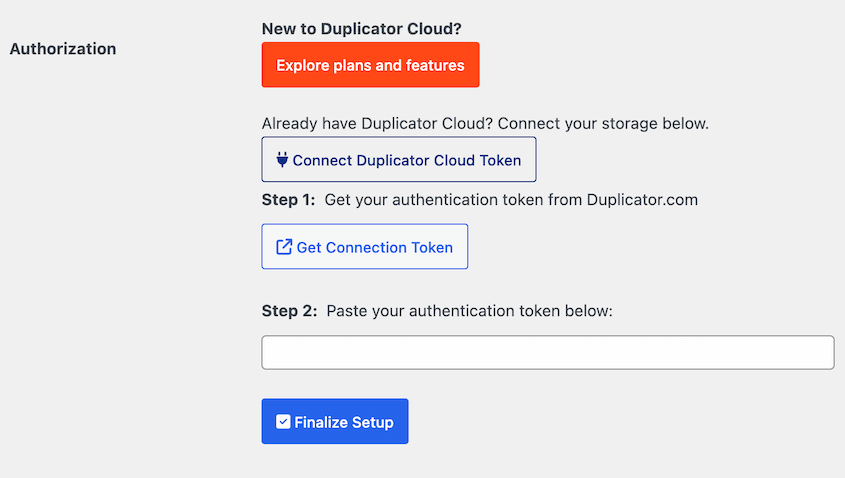
Remember to hit Test Storage to make sure the connection is working properly before your first cloud backup.
What Happens When a 3GB Backup Meets a 2GB Quota?
This is the part I wanted to see for myself, so I pointed a real site at a free Dropbox account and let it run.
A small static site fits in 2GB comfortably. A business site carrying a few years of media usually doesn’t.
Most land between 1GB and 5GB, which means one backup can exceed your entire free quota before you’ve thought about how many to keep.
There’s a second cost if Dropbox is also where you work. Backup archives eat the room your documents need. You could end up filling your backup storage and your working storage at the same time.
Duplicator Cloud doesn’t share storage with non-WordPress files. You’ll know exactly how much room you have left to store new backups.
What Recovery Looks Like
Backup storage earns its keep on the day you need to restore your website.
So I ran the restore two ways: once with WordPress working normally, and once with the dashboard completely unreachable.
With the site up, the two are hard to tell apart. Duplicator Pro restores from third-party storage remotely, so a backup sitting in Dropbox comes back with one click from Duplicator Pro » Backups.
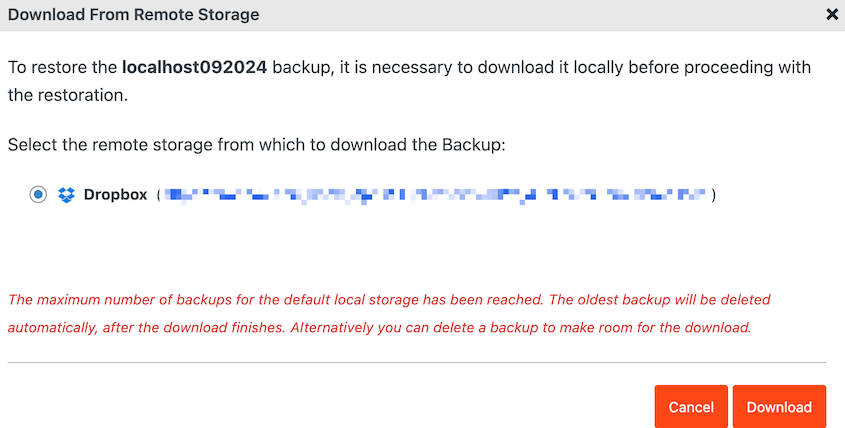
Dropbox hands over a file when asked. Knowing which file, fetching it, unpacking it, and rewriting the URLs inside it was all Duplicator. Which is fine, right up until the plugin can’t run.
What Can You Do When the WordPress Dashboard Won’t Load?
The failures that cost real money aren’t the tidy ones. You could face an error so bad that your dashboard is gone.
The one-click restore lived inside it, so that’s gone too.
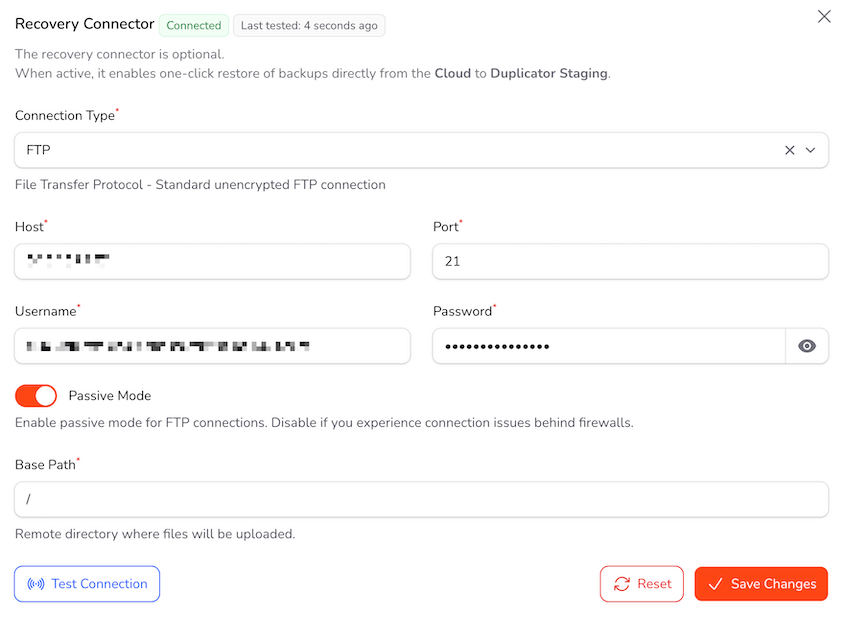
Duplicator Cloud’s answer is the recovery connector. You set it up once, in advance, for infinite site protection.
Add your site’s FTP or SFTP details (hostname, username, password, and the path to your WordPress files) in the Duplicator Cloud dashboard. Run the connection test, then leave it alone until you need it.
When something goes wrong, you sign in at cloud.duplicator.com, pick the most recent backup you trust, and click Restore Full Backup.
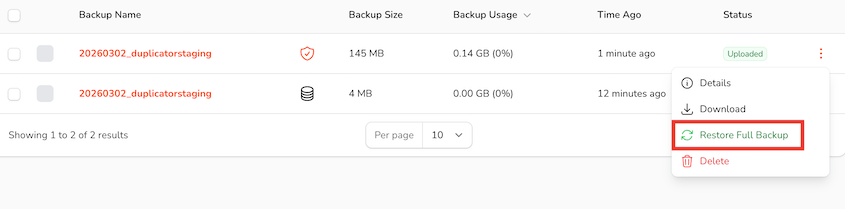
The restore runs from the off-site dashboard down onto your server, using the credentials you saved earlier.
Your site doesn’t have to be working for any of that to happen.
With no dashboard to work from, recovering a Dropbox backup goes like this:
- Log into Dropbox and locate your backup folder.
- Identify a matching archive and installer pair for the correct site from the correct date.
- Download both files.
- Transfer them back up to your web server with an SFTP client.
- Launch the installer in a browser and complete the restore steps.
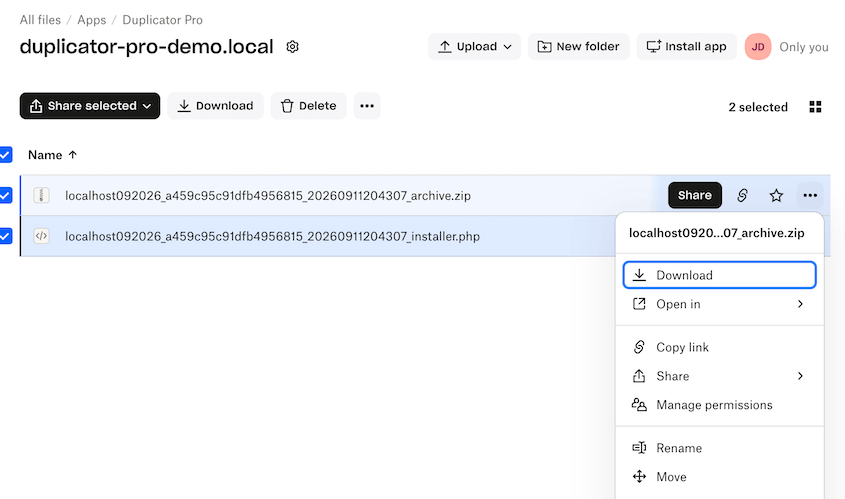
Manual Dropbox restores take a lot more time. Even more if you don’t have Duplicator at all. You’ll have to re-upload all your files over FTP and your database in phpMyAdmin.
One more problem with Dropbox. A free account limits you to three signed-in devices at a time. If you’re recovering on a borrowed laptop because your own machine is part of the problem, that’s a limit you meet at the worst possible moment.
How Do They Compare on Security?
Both Duplicator Cloud and Dropbox encrypt your files with AES-256 while they sit in storage. If you’re using Duplicator Pro as your backup plugin, you can add extra encryption before the backup leaves your server.
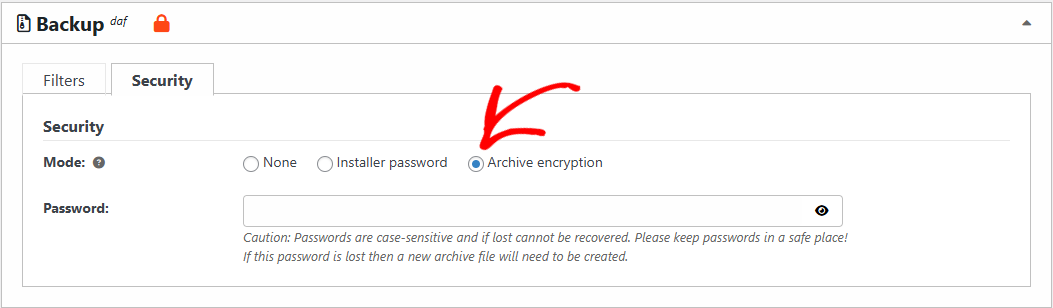
Dropbox adds two-factor authentication and geo-redundant data centers. Duplicator Cloud has a 99.9% uptime SLA, ties access to your Duplicator Pro license, and expires the download links it hands out.
Dropbox manages encryption keys itself, which means it can technically read your files, and so can anyone who accesses your Dropbox account.
For most WordPress sites, that changes nothing. If you handle client data under rules that require you to hold your own keys, it changes everything, and you already know which of those you are.
The more useful question isn’t who could theoretically decrypt your backups. It’s who can reach them on an ordinary day.
What Does a Shared Folder Do to a Backup?
Dropbox is built for sharing, and sharing is where backups get complicated.
Say you share a client’s backup folder with a contractor so they can grab an archive. Three things happen that wouldn’t happen with a folder you kept to yourself:
- The folder counts against their storage quota as well as yours, which on a free account can fill their Dropbox on its own.
- It syncs down onto their machine, so your client’s database is now sitting on a laptop you’ve never seen.
- It stays shared until somebody remembers to undo it
The last one is a problem. Access granted in a hurry outlives the reason it was granted, and a shared backup folder is a complete copy of the site.
Duplicator Cloud handles this differently. Download links expire by themselves, and access is granted per site rather than per folder, so cutting off one site leaves the rest alone.
What’s Sitting in Your WordPress Database?
Connecting Dropbox stores an authorization in your site’s database. That’s what lets the scheduled upload run without asking you every week.
It’s scoped to Dropbox, so it isn’t a skeleton key. It’s still a working credential living on your web server, pointing at the account where your files are.
If that site gets compromised, you’re revoking Dropbox access, auditing what else that account holds, and working out what somebody could have downloaded while they had it.
Duplicator Cloud keeps that reusable credential out of your database. A compromised site costs you that site’s access and nothing more. There’s no second account to audit, because there was never a second account.
The realistic threat to your backups was never a break-in at Dropbox. It’s a full quota, a permission somebody withdrew, or a folder still shared with a contractor who finished the job back in March.
What Does Each One Cost?
Duplicator Cloud is priced by how much storage you want:
| Duplicator Cloud Plan | Storage | Per year |
|---|---|---|
| Starter | 2GB | $29 |
| Basic | 10GB | $49 |
| Plus | 25GB | $69 |
| Business | 50GB | $99 |
| Pro | 100GB | $149 |
| Scale | 150GB | $199 |
Duplicator Cloud bills you one flat fee for the year. Restoring a site doesn’t add to the bill, and neither does downloading a backup.
Dropbox is priced by what kind of customer you are:
- Basic is free and gives you 2GB.
- Plus is $9.99 a month billed annually, which works out to $119.88 a year, for 2TB.
- Standard is $15 per user per month, starting at 3TB across the team.
- Advanced is $24 per user per month, starting at 15TB.
Dropbox jumps from 2GB straight to 2TB. There’s nothing in between.
For backups, that makes the decision binary. Either your site fits inside 2GB, which most business sites don’t, or you’re paying $119.88 a year and using a fraction of one percent of what you bought.
Here’s how the two line up at the sizes real sites need:
| Backups you’re storing | Duplicator Cloud | Dropbox |
|---|---|---|
| 2GB | $29/year | Free |
| 10GB | $49/year | $119.88/year |
| 25GB | $69/year | $119.88/year |
| 50GB | $99/year | $119.88/year |
| 100GB | $149/year | $119.88/year |
| 150GB | $199/year | $119.88/year |
Anywhere from a few gigabytes up to 50GB, Duplicator Cloud costs less. Past 50GB, Dropbox does, because the next Duplicator Cloud tier is $149.
Even so, the invoice is the wrong reason to choose either one. The gap at these sizes is a few tens of dollars a year, which is less than an hour of anybody’s time. What you get back on a bad day is worth more than the difference.
Which One Is Better for Storing Backups From Multiple Sites?
Duplicator Cloud is better for multi-site management.
It groups your storage by website, not generic folders. Across a portfolio, that gives you:
- Every connected site in one dashboard, so you can see the whole portfolio without opening ten WordPress installs.
- Storage broken down per site, which means you watch a ceiling coming rather than finding out you hit it.
- Audit trails, so you can see who changed a schedule and when a restore was run.
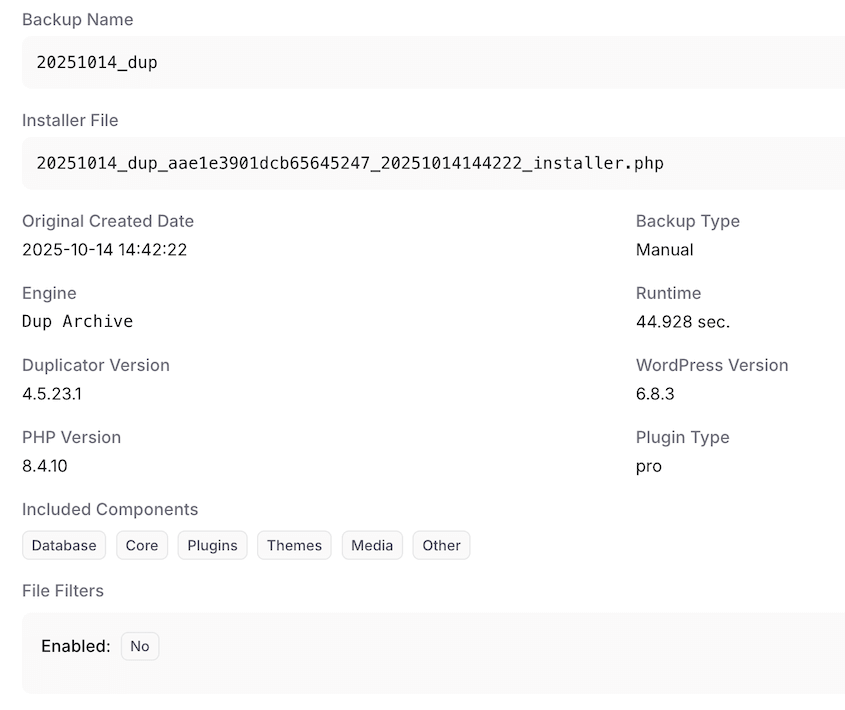
- Backup reports, including archive size, database size, and processing time, so a site that’s quietly growing shows up as a trend.
- Per-site restrictive access, so offboarding a client doesn’t mean rotating anything else.
- Per-site recovery connector, so any of them can be restored without touching the rest.
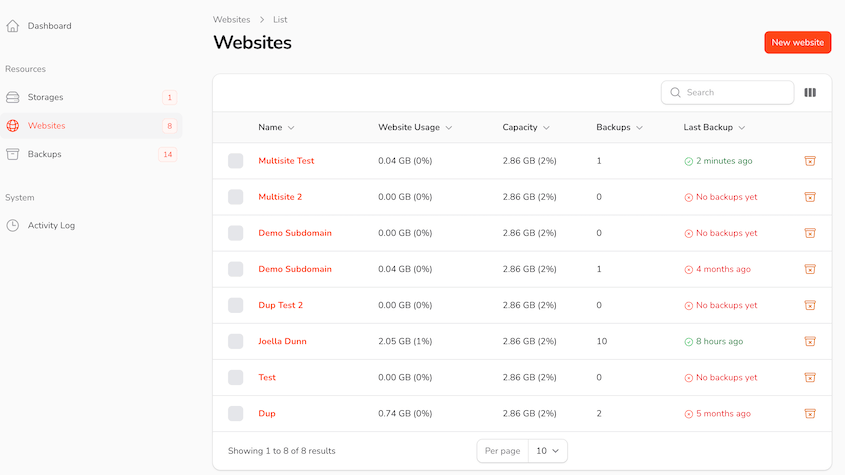
Dropbox gives you folders.
You can make that work, and plenty of people do. One folder per site, sensible names, and it holds together for a while.
A folder, though, has no idea what it’s holding. It can’t tell you whether last night’s backup ran, which archive pairs with which installer, or whether certain files are still needed. You work that out by reading filenames.
With Duplicator Cloud, you’ll have all the information you need about any of your site’s backups.
There’s also a storage problem that only appears at portfolio scale. Ten sites at 3GB each, keeping three copies apiece, is 90GB. On Dropbox that’s a Plus plan doing nothing but holding backups, or a team plan where those archives compete for room with the files your team is working on.
Should You Pick Duplicator Cloud or Dropbox?
Duplicator Cloud, if you want the short answer. Here’s the longer one, sorted by situation.
You run one small site, and money is tight.
- Dropbox’s free 2GB, with Max Backups set to 1, is a real off-site backup at no cost. Take it. Move up when your archive outgrows the quota, which you’ll find out about when the uploads start failing.
You run one business site that your income depends on.
- Duplicator Cloud. Your backups are almost certainly past 2GB already, which puts Dropbox at $119.88 a year against $49 for a 10GB plan, and the restore keeps working when your dashboard doesn’t. This is the clearest case in the post.
You manage sites for clients.
- Duplicator Cloud, and it isn’t close. You get per-site logs, per-site access, and a connection that belongs to the license rather than to whoever happened to set it up. Folders can’t give you any of that.
Your team already lives in Dropbox.
- Keep Dropbox, but don’t let it be the only destination. Use it as the copy you share and add Duplicator Cloud as the copy you restore from. Duplicator Pro writes to both with separate retention counts, so give Dropbox a Max Backups of 1 and let Duplicator Cloud hold the history. You’re paying for Dropbox either way, so doing this properly costs you one storage plan.
Every advantage Dropbox holds in this comparison depends on Duplicator being able to run. If you’re manually creating backup files and uploading them to Dropbox, it loses its appeal.
Frequently Asked Questions (FAQs)
Is Dropbox good for WordPress backups?
Yes, with a backup plugin driving it. Duplicator handles the schedule, builds the archive, prunes old copies, and runs the restore, while Dropbox holds the files somewhere your server can’t take them down with it. On its own, Dropbox can’t back up WordPress at all. It won’t export a database or rebuild a site.
Does Dropbox Backup back up a website?
No. Dropbox Backup protects files on your computer and your external drives. It has no route to your web host, so it can’t copy your wp-content folder, export your MySQL database, or put a site back together.
Can you back up WordPress to Dropbox for free?
Yes, within limits. Dropbox Basic gives you 2GB of storage, and Duplicator Pro can write backups straight into it. Most business sites produce archives between 1GB and 5GB, so a single copy can fill that quota on its own. Set Max Backups to 1 and check your storage regularly. You’ll also need a paid Duplicator Pro license to connect any cloud storage.
How long does Dropbox keep backups before deleting them?
Deleted files stay recoverable for 30 days on Basic, Plus, and Family; 180 days on Professional, Standard, and Essentials; 365 days on Advanced and Enterprise. After that, they’re gone for good. Files you haven’t deleted stay indefinitely, as long as you’re under your storage limit.
Can Duplicator restore a WordPress site directly from Dropbox?
Duplicator Pro can restore from third-party storage remotely, so one click from your dashboard pulls the Dropbox archive down and starts the restore wizard. Without the dashboard, retrieve the archive and installer by hand and re-upload them to your root directory over FTP.
Does Duplicator Cloud come with Duplicator Pro?
No. It’s a separate storage subscription that starts at $29 a year for 2GB, and no Duplicator tier bundles it. Connecting it takes either the free or premium version of Duplicator, plus a cloud plan. Budget for two things: the plugin and the storage that sits behind it.
Can I use Dropbox and Duplicator Cloud together?
Yes, and it’s a sensible setup. One backup can go to several destinations at once, and you set the retention count for each separately. Make Duplicator Cloud the copy you restore from, and let Dropbox hold the copy you share, capped at one archive with Max Backups so it fits a free account. That satisfies the 3-2-1 rule without extra effort.
Is Dropbox or Duplicator Cloud more secure?
Both use AES-256 on stored files and protect transfers, and Dropbox runs serious infrastructure security. Where they diverge is reach. A Dropbox connection leaves an authorization sitting in your site’s database, pointed at everything else in that account. With Duplicator Cloud there’s no such credential on your server, and cutting off one site leaves the rest untouched.
Dropbox Is Built for Files You’re Working On, Not Files You’re Saving For Later
Here’s my honest read after weeks with both.
Dropbox is a good second copy and a workable first one for a small site. You might consider it if you’re already paying for Plus and your backups fit alongside your other Dropbox data.
If you’re starting from scratch, put your backups in Duplicator Cloud since it doesn’t store other data. Below 50GB, that’s also the cheaper option.
More than 1.5 million WordPress professionals use Duplicator Pro, and Duplicator Cloud is the storage built to match it. Duplicator Cloud connects through your license, encrypts data at rest, and restores your site even when WordPress is down.
Plans start at $29 a year, and every one of them carries a 14-day refund, no questions asked.
Still working out where your backups should live? These go deeper on the parts this post moved past quickly.
- How to Back Up a WordPress Site to Dropbox (Updated for 2026)
- 6 Best WordPress Dropbox Plugins (Tested and Compared)
- Duplicator Cloud vs Amazon S3: Which Should Store Your WordPress Backups? (2026)
- 12 Best Cloud Storage Services for WordPress Backups
- Cloud Backup vs. Local Backup: Which One Actually Protects Your WordPress Site?
- How to Set Up WordPress Auto Backups to Google Drive, Dropbox, & S3




