

Storing Your Backup to Cloudflare R2
Are you looking to create a Cloudflare R2 backup? Welcome to our guide on using Cloudflare R2 and Duplicator for storing your backups. In today’s world, keeping your important backups safe is super important. Cloudflare R2 is a great way to store your backups online, and Duplicator makes it easy to do. This guide will show you step-by-step how to connect Duplicator with Cloudflare R2, so you can keep your website backups safe and sound. Whether you’re a tech whiz or just starting out, we’ve got you covered!
Cloudflare R2 is an object storage service for storing large amounts of unstructured data like pictures, videos, data lakes, website backups, and more. Similar to other providers like Amazon S3, Wasabi, and Google Cloud, Cloudflare R2 organizes data as objects inside buckets.
Create a Cloudflare R2 Bucket
- The first 10GB of storage is free, so click Get Started for Free.
- Register for a new account, then verify your email address.
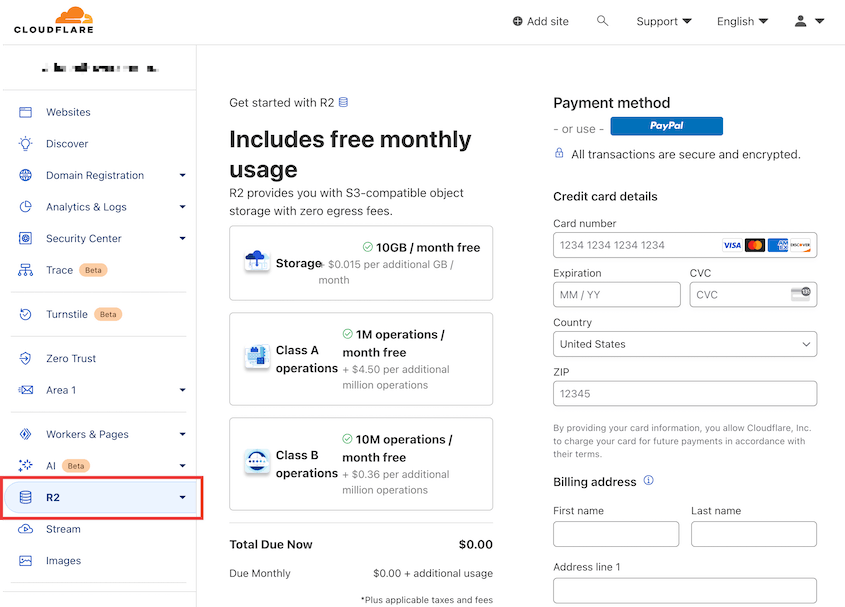
- In the Cloudflare dashboard, click the R2 tab and enter your payment information. Cloudflare only charges you if you exceed the monthly storage limits:
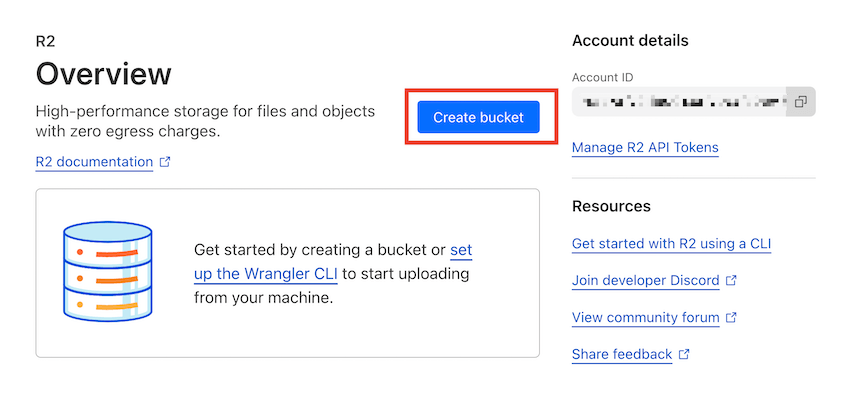
- Now, go ahead and click on Create Bucket:
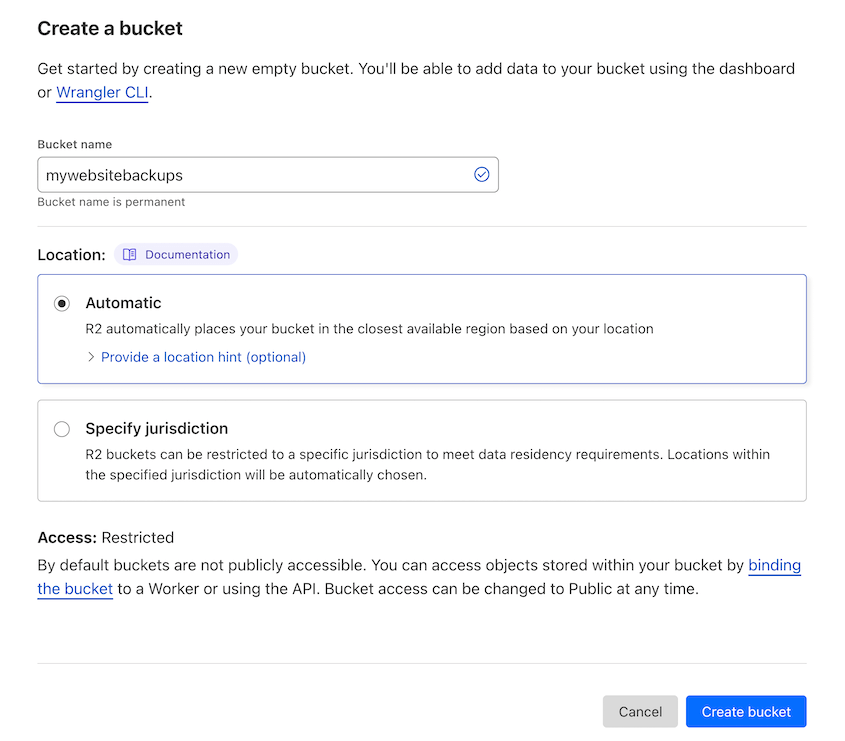
- Name the new bucket. You can allow Cloudflare to automatically choose your bucket’s region, or specify one yourself. Next, hit Create Bucket again:
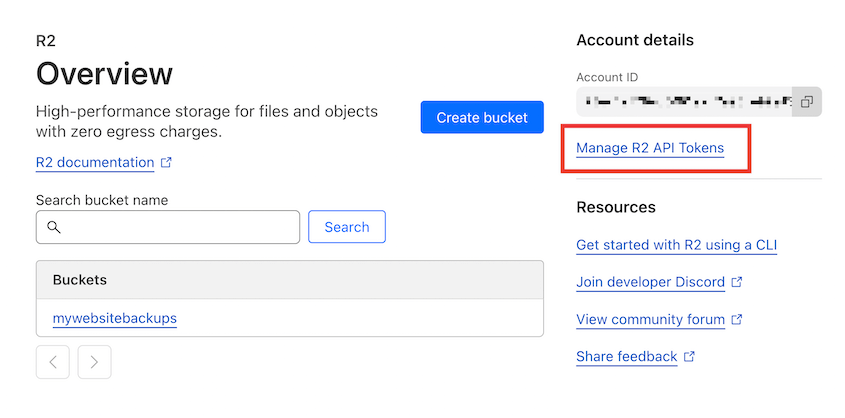
You now have a cloud storage bucket ready to store your backups.
Copy Your Access Keys
To authenticate, you’ll need to generate the access keys.
- On the Overview page in your dashboard, click on Manage R2 API Tokens:
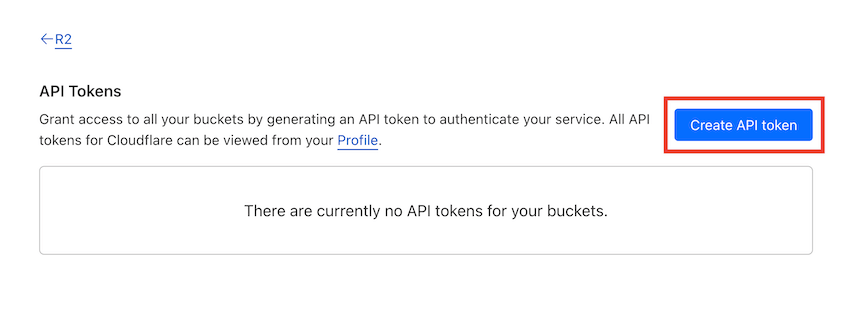
- Next, click on Create API Token:
- Name the token, and select the Object Read & Write permissions level:
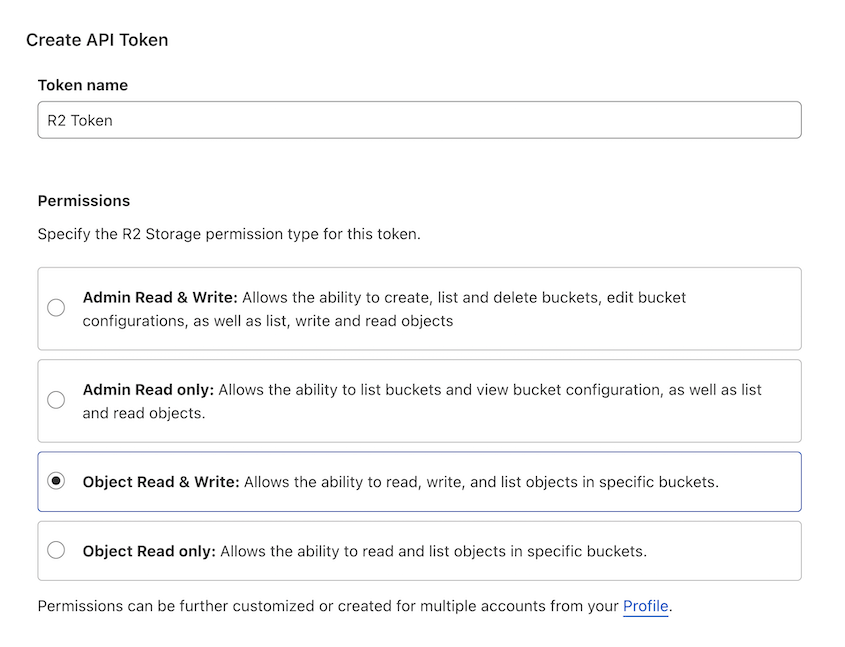
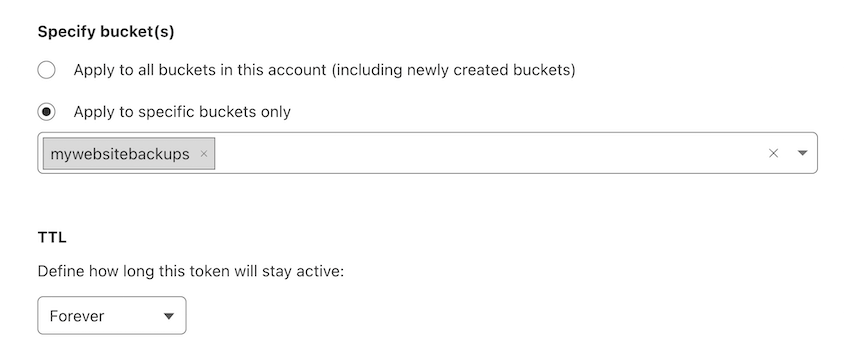
Note: The token must have the Object Read & Write permission scoped to the bucket you use for backups. A token scoped to read-only access, or to the wrong bucket, causes Duplicator’s backup uploads to fail. - Apply these permissions to all of your buckets, or the one you just created. You can also decide how long this token will stay active:
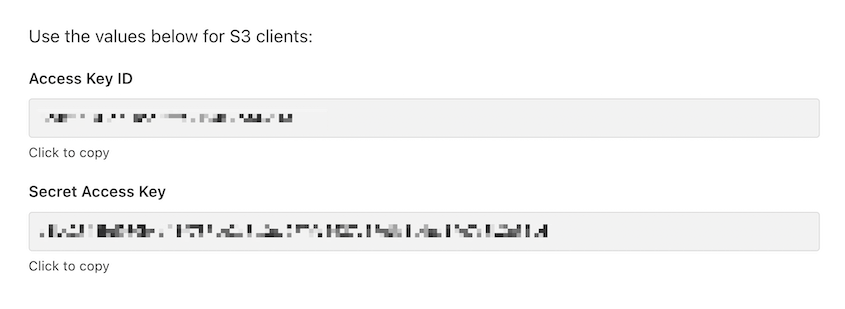
- Once the API token is generated, you’ll get access keys. Copy these so you can use them in the next step:
- You’ll also need your S3 API endpoint, in the format
https://<accountid>.r2.cloudflarestorage.com. Fetch it from your bucket settings: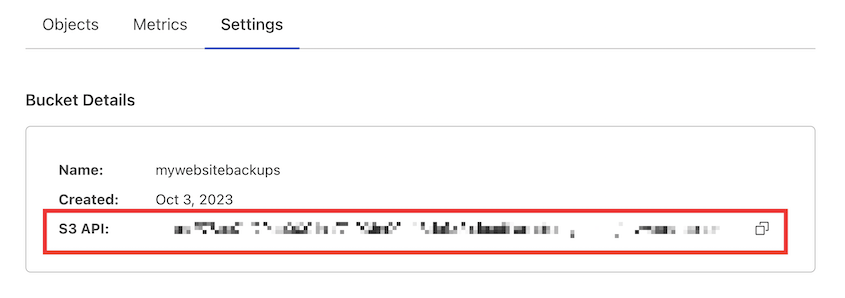
With the above information, you can successfully authorize Duplicator to send backups to Cloudflare R2!
Connect Cloudflare R2 to Duplicator
- Navigate to Duplicator Pro » Storage » Add New:
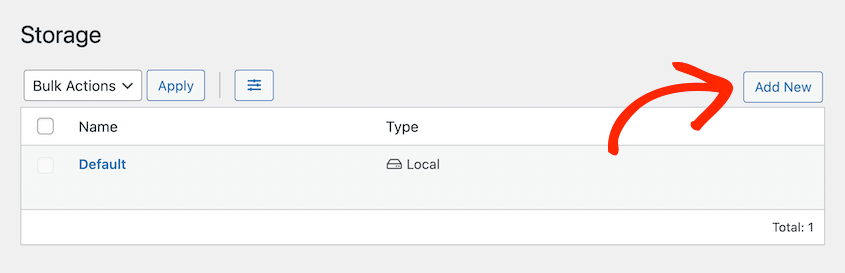
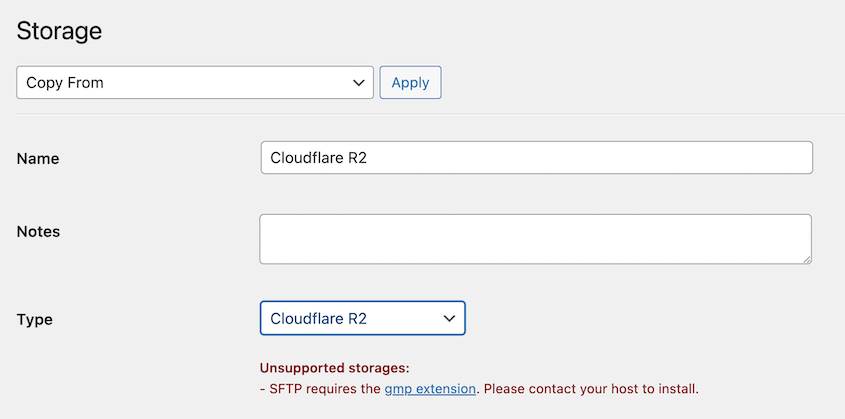
- Name the new storage and select Cloudflare R2 as the Type:
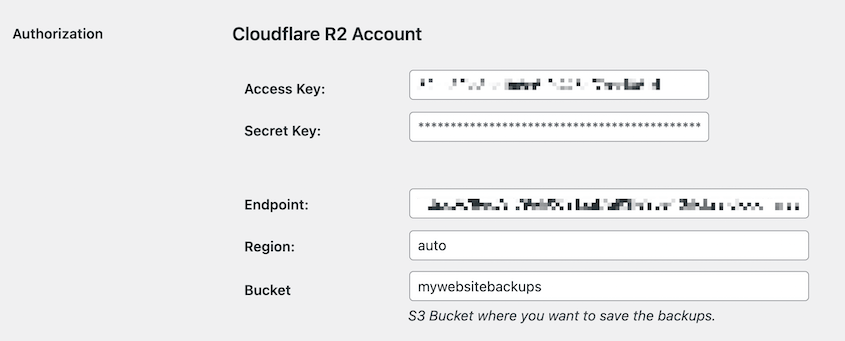
- Under Authorization, paste your access key, secret key, and endpoint. If you allowed Cloudflare to choose your region, enter auto. Finally, add your bucket name:
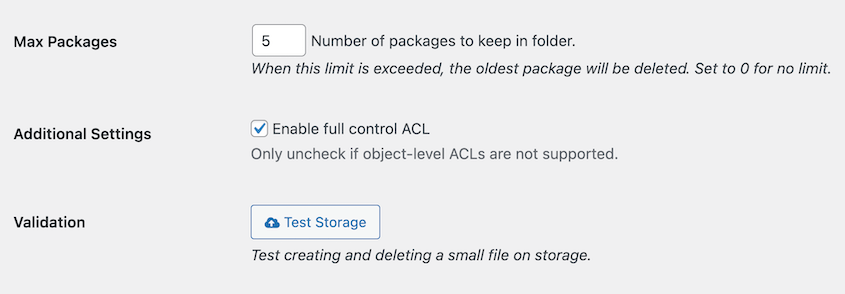
- You can adjust the Max Backups value if you want to avoid storing too many backups in your Cloudflare account. Duplicator will delete old backups, optimizing your storage space.
You have successfully connected Cloudflare R2 to Duplicator. Your website backups now upload to Cloudflare R2 automatically each time you create a backup, giving you a secure, off-site copy in case anything happens to your server.
Would you like to automate this process further? Check out our guide to Create Automated Backup to schedule backups on a recurring basis.


