
AI Broke My WordPress Site: How to Get It Back
 Joella Dunn
 John Turner
You asked an AI assistant to tidy up your plugins or fix a layout. Now a page is blank, a menu is missing, or wp-admin won’t load.
If you have a backup from before the session, this is a short job. A full site restore through Duplicator’s recovery link only takes about a minute.
In this post, I’ll show you how to stop the session, work out what changed, and roll back the right amount.
Quick takeaways:
- Stop the AI assistant before it tries to fix its own mistake.
- Ask
Is my site protected right now?first to see your latest off-site backup and whether a recovery point is set. - A full restore also rolls back new orders and form entries, so undo a single change when you know what broke.
- If wp-admin won’t load, the recovery link (Duplicator Pro) still works, as long as you set a recovery point beforehand.
- An AI assistant can find your backups and hand you the recovery link, but it can’t run the restore.
Table of Contents
- What You Need Before You Start
- How to Get Your WordPress Site Back After AI Breaks It
- Step 1: Stop the AI Assistant Before It Tries Again
- Step 2: Work Out What Changed
- Step 3: Find Your Last Good Backup
- Step 4: Decide Whether to Undo One Change or Roll Back Everything
- Step 5: Restore From wp-admin (If You Can Still Log In)
- Step 6: Restore With the Recovery Link (If wp-admin Is Down)
- Step 7: Check the Site and Clean Up
- How Do You Make the Next AI Session Easy to Undo?
- Troubleshooting: When Getting Your Site Back Doesn't Go to Plan
- Frequently Asked Questions (FAQs)
What You Need Before You Start
You probably have most of this already. Here’s what to gather:
- A backup from before the AI session. From Duplicator, your host, or another backup plugin (Duplicator is the only backup plugin with AI abilities).
- Your hosting login. You’ll need it if wp-admin is down.
- Your WordPress admin login. A restore signs you out.
- A recovery point (Duplicator Pro). The recovery link only works if you set one before things broke. Create one at the beginning of every AI chat.
Both the free and paid versions of Duplicator restore in one click from the Backups screen.
Recovery points need Duplicator Pro. On the free version, if wp-admin is down, you’ll use the manual installer or a Duplicator Cloud remote restore.
How to Get Your WordPress Site Back After AI Breaks It
Each step narrows down how much you need to roll back. That way, you don’t undo good work by accident.
Here’s what you’ll do:
- Stop the assistant: Nothing else changes while you assess the damage.
- Work out what changed: Get a rough list before you pick a fix.
- Find your last good backup: Confirm it still exists and covers the whole site.
- Decide what to roll back: Undo one change or restore everything.
- Restore from wp-admin: Use one-click Restore if you can log in.
- Restore with the recovery link: Get back in when WordPress won’t load.
- Check the site and clean up: Confirm it worked and remove leftover files.
Step 1: Stop the AI Assistant Before It Tries Again
An AI assistant that broke something will usually offer to fix it. Say no.
A second round of changes stacks on the first. That makes the rollback harder to sort out.
Tell the assistant to stop, then end the session.
To cut the connection completely, disconnect the site in your WPVibe account. Or go to Users » Profile » Application Passwords and revoke the WPVibe entry.

If you want your assistant’s help finding backups in the next steps, end the session instead of disconnecting. Then, start a fresh chat that only checks your backups.
Did you paste AI-written code instead? If you see “There has been a critical error on this website,” remove the snippet first. Our guide to fixing the critical error walks you through it.
Step 2: Work Out What Changed
You need a rough list before you decide how much to roll back. Here’s where to look:
- The assistant. Ask it to list every action it took. Treat the answer as a starting point, not a record.
- Duplicator’s log. It shows what happened to your backups.
- The Activity Log plugin. It shows what happened to your site.
The assistant can read Duplicator’s backup logs for you. You can ask:
Read Duplicator's log for today.It’ll list backups, scans, schedule runs, deletions, and settings changes. Backups an assistant made are titled AI Assistant: plus the backup name.
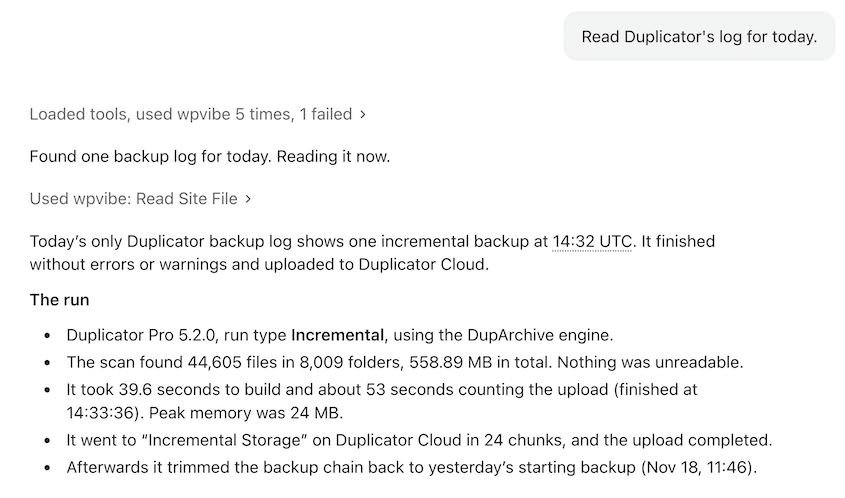
It won’t show page edits, deleted menus, or plugins the assistant switched off.
For that, you need Activity Log (included free with Duplicator Elite). In my test session, it recorded everything that changed.
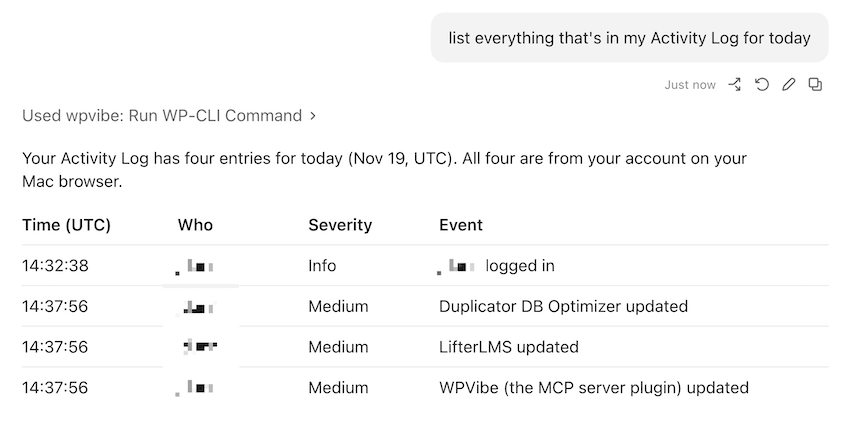
No log at all? Check these by hand:
- Plugins for recent activations or deactivations
- Revisions on pages the assistant edited
- Appearance » Menus for missing items
Step 3: Find Your Last Good Backup
Before you plan around a backup, make sure it’s still there. Start with this prompt:
Is my site protected right now?The assistant will names your last off-site backup and tells you whether a recovery point is set.
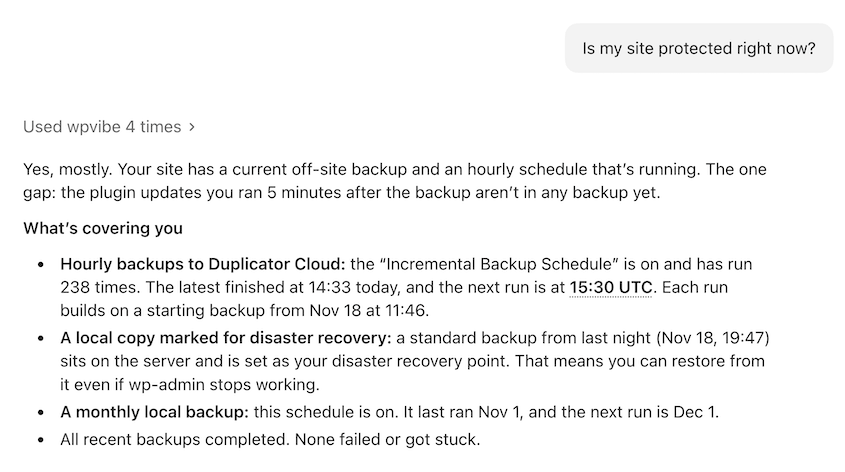
“Not protected” doesn’t always mean you have no backup. The check only counts recent backups with an off-site copy, so list all your backups next.
List my backups and tell me which one is from before today's session.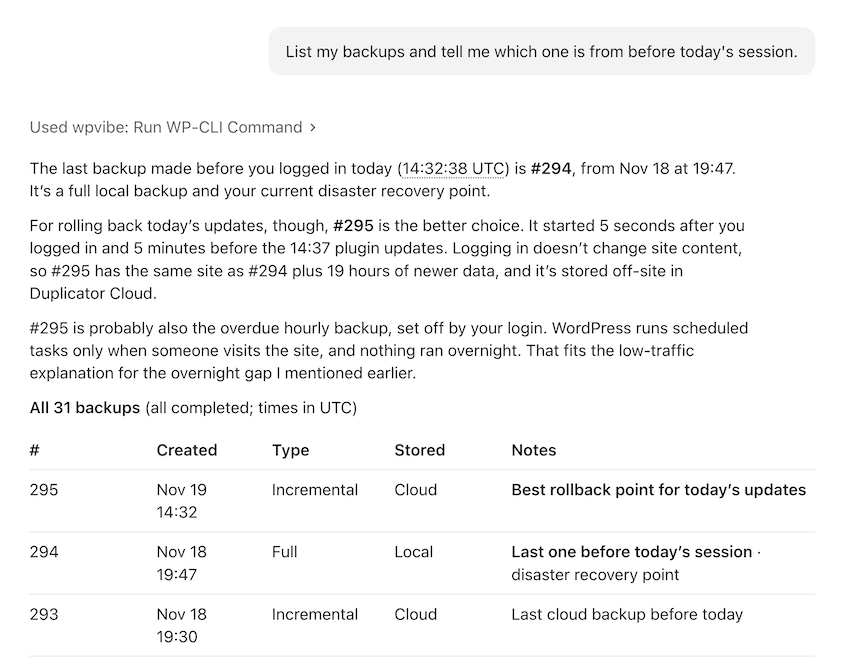
Find the best pre-session backup that still includes the most data you want to preserve. You can also check Duplicator » Backups in wp-admin.
If you’re rolling back files too, make sure it’s a full-site backup, not database only.
Step 4: Decide Whether to Undo One Change or Roll Back Everything
This one’s quick. Here’s how I decide:
- One change you can name: Undo just that.
- Several changes, or you’re not sure: Roll back the entire site.
A full restore returns the site to the moment of the backup. That includes good changes since then, like new orders and form entries.
On a store or membership site, note the backup time. Then check your orders afterward.
In my testing, I told Claude I wanted to restore a specific backup. It listed everything I’d lose in the process.
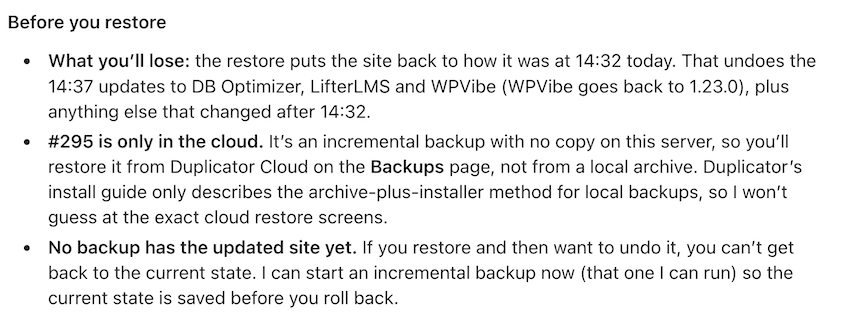
To see all the specific new changes on your site since the last full backup, check your incremental backups. Duplicator will list the specific files and database tables that were modified on your site.
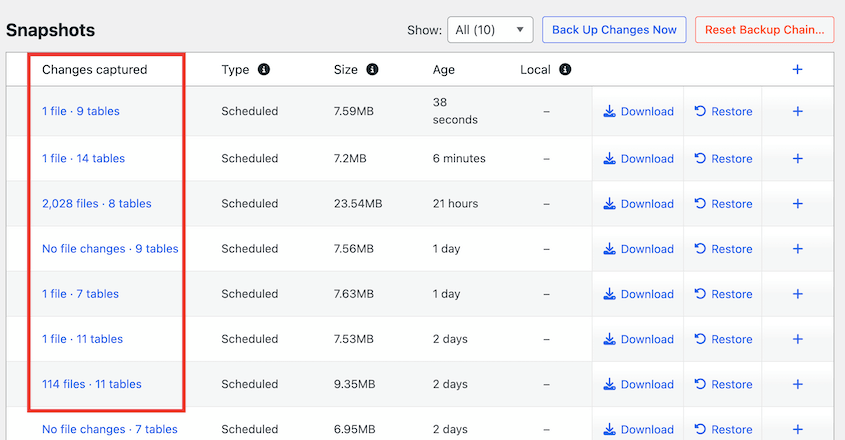
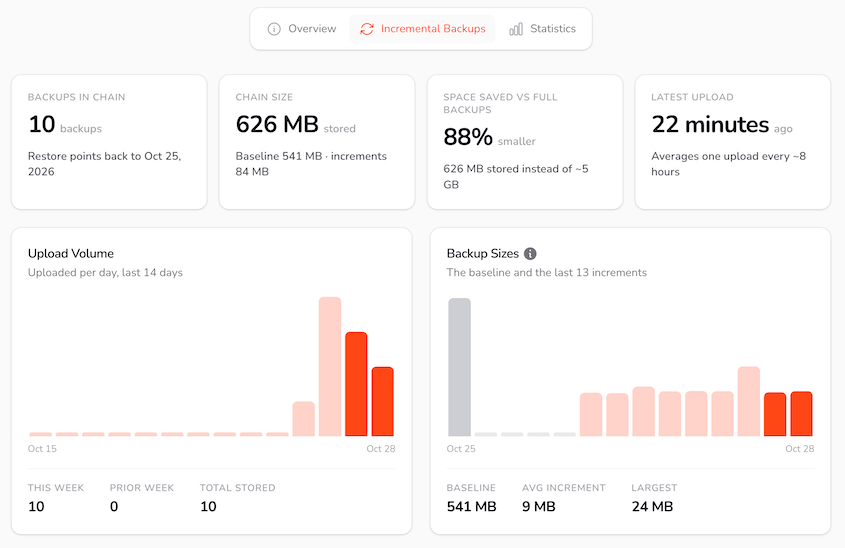
You can check this both in wp-admin under Duplicator Pro » Incremental Backups or in Duplicator Cloud. Cloud storage is a great option if an error has locked you out of the dashboard.
Step 5: Restore From wp-admin (If You Can Still Log In)
If wp-admin loads, this is the fastest path. It works in the free and paid versions.
Go to Duplicator » Backups. Find your pre-session backup and click Restore. Then follow the installer.
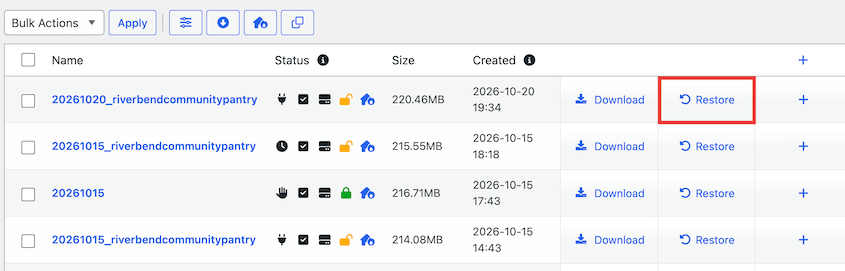
For more details, see how to restore WordPress from a backup.
Step 6: Restore With the Recovery Link (If wp-admin Is Down)
If you have a recovery point set, you can paste your recovery link into a web browser. The Duplicator installer launches automatically, even when WordPress won’t load.
However, it only works if you set a recovery point before things broke.
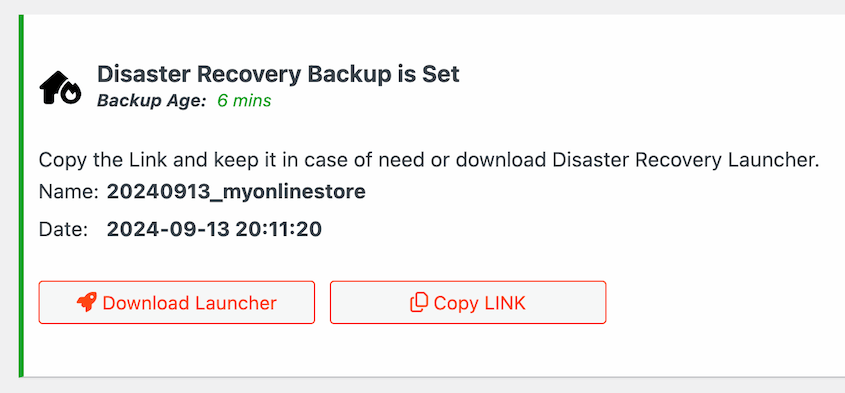
How you get the link depends on what still works:
- You saved it: Paste it into your browser.
- WordPress runs, but wp-admin doesn’t: The assistant can usually still reach the site. Ask it for the link.
- The site is completely down: The assistant can’t reach it either. That’s why the link belongs outside your site.
When the assistant can connect, ask:
Give me my recovery link.It returns the link, plus the backup it restores and its date.
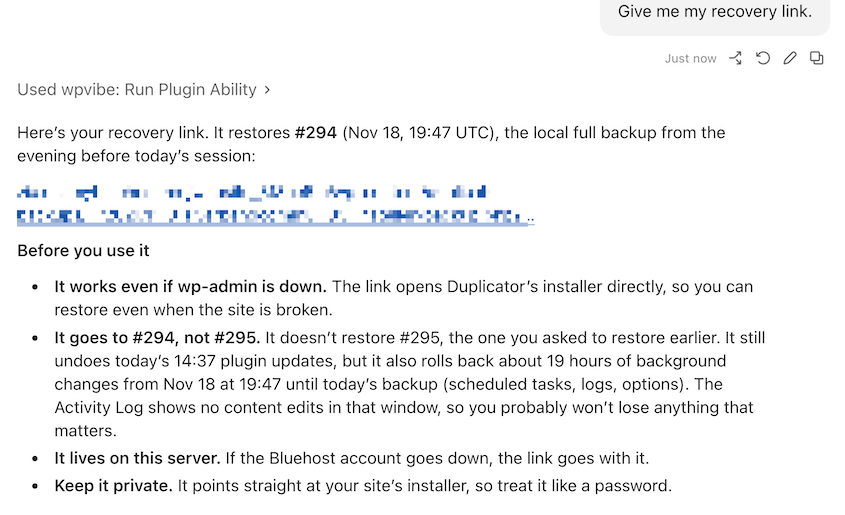
There’s one catch. The link counts as a sensitive action.
It only works when Allow AI assistants to run unsafe actions is on in Duplicator » Settings » General. If it’s off, the assistant’s refusal names that screen. It can’t turn the setting on itself.

The disaster recovery link opens a recovery installer on your own server. It runs without WordPress, so it gets you past fatal errors and lockouts.
No Recovery Link? Two Ways Back In
Without a recovery point, you still have two options:
- Use the manual installer. Upload the backup’s archive and installer to your site’s folder. Then open the installer in a browser. See our classic installation guide.
- Restore from Duplicator Cloud. A recovery connector runs the restore from the Duplicator Cloud dashboard, so your server doesn’t need to work. You set it up in advance. See how to back up a WordPress site to the cloud.
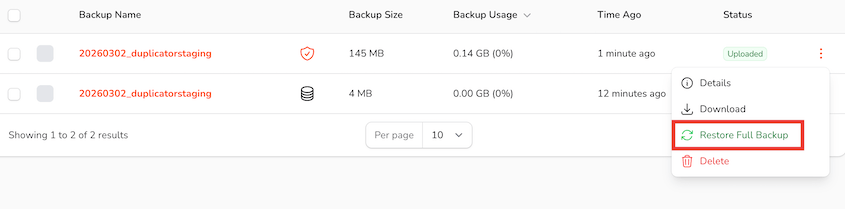
If the assistant can still connect, ask it to Explain how to install a backup with Duplicator. It walks you through the manual installer steps.
Step 7: Check the Site and Clean Up
Five minutes here saves you a second incident. Here’s my checklist:
- Sign in again. The restore ends your session.
- Test what the assistant touched. Then check your forms and checkout.
- Delete leftover installer files. Go to Duplicator » Tools » General and click Delete Installation Files.
- Check your recovery point. In Duplicator Pro, confirm one is set under Tools » Recovery.
- Turn sensitive actions back off. Do this if you turned the setting on for the recovery link.
Until you delete the installer files, Duplicator shows a Restore Backup Almost Complete! notice. That’s normal.
How Do You Make the Next AI Session Easy to Undo?
Set up the rollback before your AI assistant changes anything. Here’s the routine I’d use:
- Start every session with a backup and recovery point. Ask:
Make a full backup and set it as my recovery point, then give me the recovery link. - Save the link outside your site. A password manager works.
- Keep sensitive actions off by default. Turn the setting on for one task, then off again.
- Test risky jobs on staging first. Duplicator Pro turns any full backup into a staging site.
New to this? Start with the safe way to back up WordPress with AI agents.
Troubleshooting: When Getting Your Site Back Doesn’t Go to Plan
Most rollbacks go smoothly. Here are the snags I’d expect and how to get past each one.
The Assistant Can’t Find Any Backups
What you see: The assistant connects but has no Duplicator tools or backups.
Why it happens: Duplicator’s AI abilities need WordPress 6.9 or newer. WPVibe connects on older versions, so the connection looks fine. The connected user may also lack Duplicator access.
How to fix it: Update WordPress. Then confirm the assistant’s account can open Duplicator » Backups.
Your Pre-Session Backup Is Gone
What you see: The backup you were counting on isn’t listed.
Why it happens: A newer backup pushed it out under your backups-kept limit.
How to fix it: Check Duplicator Cloud or your other remote storage. They keep their own copies.
The Assistant Won’t Give You the Recovery Link
What you see: A refusal about sensitive actions, or a note that no recovery point is set.
Why it happens: The sensitive-actions setting is off, or you never set a recovery point.
How to fix it: If you can reach wp-admin, copy the link from Duplicator » Tools » Recovery. If not, use the manual installer or Duplicator Cloud.
The Problem Is Still There After a Restore
What you see: The site looks the same after restoring.
Why it happens: The change predates that backup, or it lives outside WordPress (DNS, hosting, or a CDN cache).
How to fix it: Purge every cache and check again. If it’s still broken, restore an older backup.
Frequently Asked Questions (FAQs)
Can an AI assistant restore my WordPress site?
Not today. With Duplicator Pro 5.2, a connected assistant can check whether you’re protected, find your backups, and set a recovery point. It can also hand you the recovery link. You run the restore yourself.
How do I know what AI changed on my WordPress site?
Ask the assistant for a list of its actions, then check the logs. Duplicator’s log covers backups and Duplicator settings. The Activity Log plugin (included with Duplicator Elite) covers page, plugin, and menu changes.
Will restoring a backup undo changes made after it?
Yes. A full restore returns your site back to the moment of the backup. That includes new orders, form entries, and comments. To reverse just one change, undo it directly.
Can I stop an AI assistant from deleting things on my site?
Partly. Duplicator won’t let an assistant delete backups, schedules, or storage until an admin allows sensitive actions. WPVibe also asks for approval on actions marked destructive. Not every delete asks first, though, so back up before each session.
Start Every AI Session with a Backup
You’ve stopped the session, found what changed, and rolled back.
Watch the gaps between sessions. Backups rotate out, and recovery points get replaced. Run the protection prompt before each bigger job.
I’d also suggest giving your pre-session backup a reason. Ask, Back up the site before the menu cleanup. Duplicator saves that reason with the backup. Next time, you’ll know which one to restore.
An assistant can change a lot of your site in a few minutes. A backup you can restore just as fast makes that safe.
With Duplicator Pro, your assistant can set a recovery point before every session. It can also hand you a link that works when wp-admin doesn’t.
More than 1.5 million WordPress professionals already trust Duplicator with their sites. Join them!
If this tutorial helped, these guides are worth bookmarking too.
- The Safe Way to Back Up WordPress With AI Agents
- How to Restore WordPress From a Backup (In Less Than 5 Minutes)
- How to Undo Changes in WordPress: 5 Methods for Every Situation
- Locked Out of WordPress? 16 Ways to Get Back In (Fast)
- How to Manually Restore Your WordPress Site
- WordPress Doesn’t Track Activity by Default: Here’s What I Do About It