


How WordPress Backups Affect Site Performance (and How to Fix It)
 Joella Dunn
Joella Dunn
Joella Dunn
 John Turner
John Turner
John Turner
I was troubleshooting a slow site last year and couldn’t find anything obvious. No new plugins, no traffic spike, nothing in the error logs that stood out.
Then I checked the backup schedule. It was set to run at noon, every day, on a shared hosting account. That was it.
Most WordPress users install a backup plugin, pick a schedule, and never touch it again. It’s one of those tasks that feels done once the plugin is active.
But the default settings on most backup plugins aren’t optimized for performance. They’re optimized for simplicity.
A daily full backup stored on Dropbox sounds responsible. On a small site with generous hosting, it is. On a larger site or a budget shared host, it’s a recurring performance hit you might not even be connecting to backups.
In this post, I’ll show you what happens when a backup runs, why some setups hit the server harder than others, and the specific changes that bring the impact down to near zero.
Here are the key takeaways:
- Backups are resource-heavy: Compressing files, exporting databases, and uploading to the cloud consume significant CPU, disk I/O, and bandwidth simultaneously.
- Shared hosting limits can cause silent failures: Hidden PHP timeouts and CPU/I/O quotas on budget hosts often kill long-running backups mid-process, leaving you with corrupt or incomplete files.
- Backup format matters: Standard ZIP archives run in one continuous pass, making them highly vulnerable to server timeouts. Chunked formats like Duplicator’s custom DupArchive bypass these constraints entirely.
- Optimization is easy: You can nearly eliminate the performance hit by running backups during off-peak hours, excluding cache files, relying on server cron, and scheduling database-only backups more frequently than full-site backups.
Table of Contents
- What Happens on Your Server When a Backup Runs?
- Why Is Budget Hosting Backup Performance Worse?
- Does Backup File Format Matter?
- How to Run Backups Without Slowing Down Your Site
- Signs Your Backups Are Affecting Site Performance
- Protect Your Site Before You Change Anything
- Frequently Asked Questions (FAQs)
What Happens on Your Server When a Backup Runs?
A backup isn’t just copying your files to another location. It’s a multi-step process that runs entirely on your server, competing for the same resources that serve your site to visitors.
While the backup is running, your server is doing two jobs at once. On shared hosting, where those resources are already split between dozens of other sites, that matters.
File Compression and CPU Load
Every file in your WordPress install gets read and compressed into an archive during a backup. That process is CPU-intensive.
On shared hosting, your account gets a limited slice of the server’s processing power, and a backup compressing hundreds of megabytes of files will eat into it.
Larger sites make this worse. More files mean a longer compression window, which means more time your CPU is under pressure.
A small blog with minimal media might compress in under a minute. A site with years of uploaded images can take significantly longer.
Database Export and Table Locking
The database export is often the hidden culprit. Most users think about their files when they picture a backup, but WordPress stores your posts, settings, users, and everything else in a MySQL database, and that requires a separate export process.
Most backup plugins export the database using a method that temporarily locks the tables it’s reading. While those tables are locked, incoming WordPress queries have to wait.
Even a few seconds of table locking can cause timeouts on a slow or busy server.
Disk I/O: The Bottleneck Most People Ignore
Reading thousands of files for a backup creates substantial disk activity. Your server’s storage has a limit on how many read and write operations it can handle per second, and a backup running through your entire WordPress install pushes that limit.
Budget and shared hosts frequently still use traditional hard drives rather than SSDs. On those servers, high disk activity during a backup slows everything that touches storage, including the database queries and file reads that generate your pages.
Cloud Upload and Bandwidth
The performance impact doesn’t end when the archive finishes building. Most backup setups then upload that archive to cloud storage: Dropbox, Google Drive, or S3. That upload runs on the same server connection serving your visitors.
A 2GB backup uploading to Dropbox at a typical shared hosting upload speed takes several minutes. During that window, your available bandwidth can get contested.
Why Is Budget Hosting Backup Performance Worse?
Budget and shared hosts impose server-level limits that most users never see documented anywhere.
These aren’t bugs or misconfigurations. They’re intentional caps that prevent one account from consuming resources that affect every other site on the same server.
The problem is that those same caps interfere with backup processes, and the failures they cause aren’t always obvious.
PHP Timeouts
PHP has a maximum execution time setting. On budget shared hosts, it’s often set to 30 to 60 seconds. A backup process on a larger site can take much longer than that, and when it hits the limit, the host kills the process mid-run.
The result is an incomplete archive file. It looks like a backup exists. The file is there, but it was cut off before it finished, which means it can’t restore.
The site took the full performance hit of a running backup and got nothing reliable out of it. A corrupt backup file is worse than no backup because it creates false confidence that you’re protected when you’re not.
CPU and I/O Quotas
Most shared hosts throttle CPU usage per account. Once you hit the cap, the host doesn’t stop your processes outright. It slows them down. Everything running under your account slows down, including incoming page requests from visitors.
I/O limits work the same way. Your account gets a ceiling on read and write operations per second. A backup compressing a large media library will frequently hit that ceiling.
This is why some backups succeed at 3 AM but fail at noon with identical settings. Off-peak hours mean lower baseline server load, which means more headroom before the quota kicks in.
Does Backup File Format Matter?
Most backup plugins default to ZIP archives. That’s not a bad choice for a small site on a well-resourced server. But ZIP processes files sequentially, one at a time, in a single uninterrupted pass.
On a constrained shared hosting environment, that single uninterrupted pass is exactly what PHP timeouts are designed to kill.
The archive format your backup plugin uses determines how hard it pushes the server and whether it can survive the constraints of budget hosting. This almost never comes up in conversations about backup performance, and it’s often the difference between a backup that completes reliably and one that fails silently.
How DupArchive Handles Server Constraints
Duplicator is a WordPress backup plugin with its own backup format called DupArchive. It was built specifically for WordPress backups and migrations, with budget hosting constraints as a core design consideration.

Where a standard ZIP process runs as one continuous operation, DupArchive works in smaller chunks. Each chunk completes within the server’s execution time limits, then the process picks up where it left off.
PHP timeouts that would kill a ZIP-based backup mid-run don’t have the same effect, because each chunk is short enough to complete before the limit triggers.
It also handles larger sites without the file size ceiling that causes ZIP failures. Real-world migrations using DupArchive have completed at over 400GB!
For most shared hosting users, that headroom means the format simply works where a ZIP-based approach would time out or corrupt.
Shell Zip vs. ZipArchive
Duplicator lets you choose your backup archive engine.
Shell Zip hands compression off to the operating system rather than running it through PHP. It’s significantly faster when available because the OS handles compression more directly than a PHP process can.
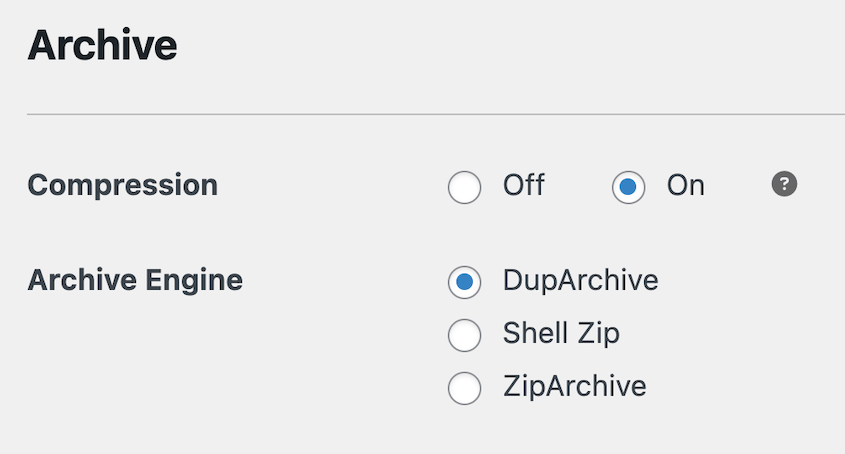
Budget hosts sometimes disable Shell Zip. If yours does, you can ask them to enable it or consider it a signal that Duplicator’s DupArchive chunked processing is the right fallback.
How to Run Backups Without Slowing Down Your Site
The goal is to make backups invisible to your visitors. They run, complete, and upload without anyone noticing a difference in site speed.
That’s achievable on most setups with a handful of settings changes. None of them require switching hosts or hiring a developer.
The most effective ways to run backups without slowing down your site:
- Schedule Backups at Low-Traffic Times: Timing is everything. Pinpointing your site’s quietest hours ensures backups don’t compete with real visitors for server resources.
- Exclude Files That Don’t Need Backing Up: Removing cache directories, logs, and temporary files drastically reduces backup size, saving CPU power and disk I/O.
- Run Database Backups More Often Than Full Backups: Since your database changes constantly but your files don’t, running fast, daily database backups allows you to scale back heavy full-site backups to just once a week.
- Use Server Cron Instead of WP-Cron: Switching from WordPress’s traffic-dependent scheduling to a dedicated server cron job guarantees backups run exactly when they are supposed to.
Schedule Backups at Low-Traffic Times
Timing is the highest-leverage fix available regardless of your hosting tier. A backup running at 3 AM on a quiet server has far more headroom than the same backup running at noon competing with real visitor traffic.
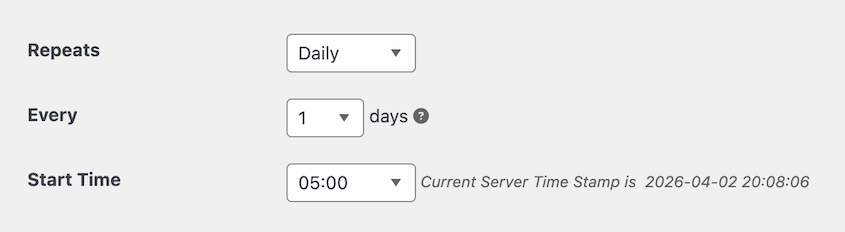
The standard recommendation is 2 to 5 AM local time. That holds for most sites, but it’s worth checking your actual analytics.
Open MonsterInsights, look at traffic by hour, and find your real valley. Some sites serving international audiences have no clean low-traffic window. Others see their lowest point in the early evening rather than overnight. Schedule around your data, not a generic rule.
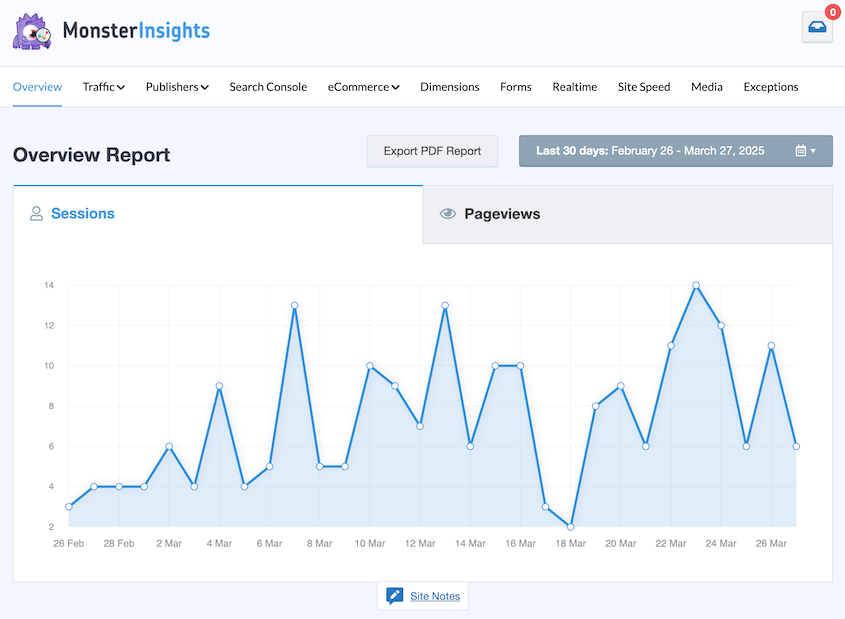
Don’t schedule backups during high-traffic moments. If you send a newsletter at 9 AM on Tuesdays, don’t run a backup at 9 AM on Tuesdays. Traffic spikes from campaigns are presicely when you don’t want extra server load.
Exclude Files That Don’t Need Backing Up
The fastest way to reduce backup load is to reduce what’s being backed up. Smaller archives compress faster, upload faster, and put less pressure on disk I/O throughout the process.
Cache directories are the biggest win. Your caching plugin regenerates them automatically when the site loads, so there’s no recovery value in backing them up.
Also worth excluding:
- Log files
- Temporary upload folders
- Any archive files left on the server by other backup plugins
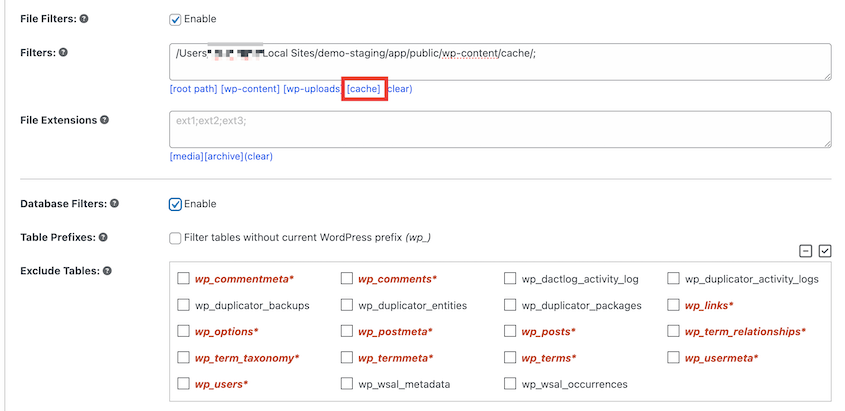
In Duplicator, use file and database filters to exclude unnecessary data. I’d recommend the built-in Cache filter.
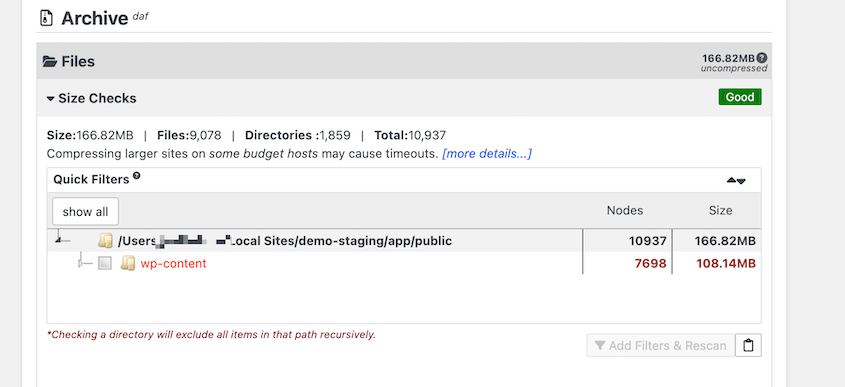
The pre-backup scan report surfaces large files before the build runs. It’s worth reviewing before you set a recurring schedule. A few minutes with that report can cut your backup size significantly.
Run Database Backups More Often Than Full Backups
Your media library barely changes. Your database changes constantly.
Every new post, comment, order, and form submission goes into the database. That’s what you actually need backed up frequently.
Daily database-only backups are fast, often completing in under 30 seconds, and put minimal load on the server. Reserve full site backups (files plus database) for weekly runs at off-peak hours.
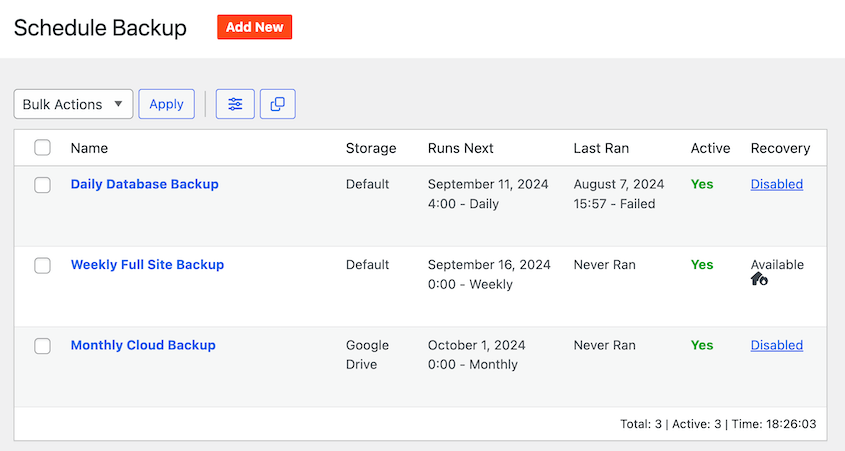
This approach gives you frequent recovery points for the data that matters most while keeping the heavy full-site process infrequent.
Use Server Cron Instead of WP-Cron
WordPress has a built-in scheduling system called WP-Cron. The catch is that it only fires when someone visits the site.
If no one visits at 3 AM, the backup doesn’t run. Worse, a visitor at noon might inadvertently trigger a delayed backup that was supposed to run overnight.
A real server cron job runs on a fixed schedule regardless of traffic. Most hosting control panels provide access to cron configuration.
Setting one up for your backup plugin takes a few minutes and eliminates the unpredictability of WP-Cron entirely. Duplicator’s documentation covers the setup process of server-side cron if you haven’t done it before.
Signs Your Backups Are Affecting Site Performance
You might not connect site slowdowns to backups because the timing isn’t obvious. A backup running at an odd hour doesn’t announce itself. But there are patterns worth looking for if your site has felt sluggish and you haven’t been able to pin down the cause.
These are the signals that point to backups slowing down your site:
- Site slowdowns spike at the same time each day or week, matching your backup schedule
- Backup logs show failed, incomplete, or missing runs
- Your hosting control panel shows CPU or I/O spikes on a predictable schedule
- Visitors report slowness that doesn’t line up with your normal peak traffic hours
If two or more of those match what you’re seeing, check your backup schedule first before digging into anything else.
Protect Your Site Before You Change Anything
Before you adjust backup schedules, switch archive formats, or change any server settings: take a full backup first.

That sounds obvious, but it’s easy to skip when you’re mid-troubleshoot and impatient to fix something. I’ve done exactly that and created a gap in my backup history right before making changes that didn’t go as expected.
Configuration mistakes during backup setup can leave you without a working backup at all. The irony of breaking your backup safety net while trying to improve your backup setup is real.
If you want to test new scheduling or backup file settings before applying them to your live site, staging gives you an isolated environment to confirm everything works first.
Duplicator Pro lets you create a staging site from any existing backup in a few clicks. No separate hosting account required.
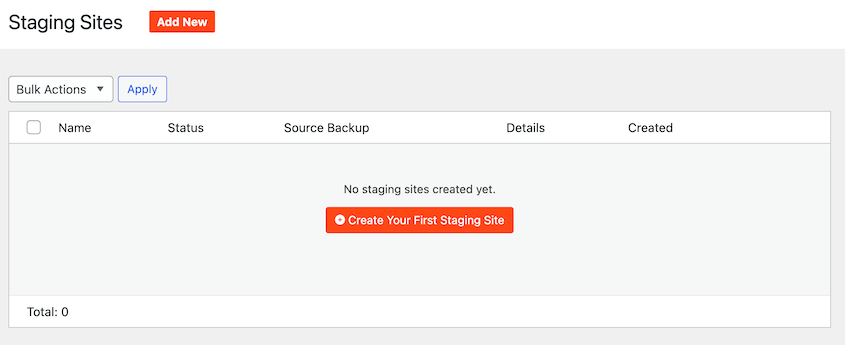
Once you build the staging area, you’re free to troubleshoot without risk.
Frequently Asked Questions (FAQs)
Do WordPress backups slow down my site?
They can, especially on shared hosting. Backups use CPU to compress files, lock database tables during export, and consume disk I/O while reading your site’s files. The impact depends on your site’s size, your hosting tier, and when the backup runs. Scheduling during low-traffic hours and excluding unnecessary files keeps the impact minimal for most sites.
When is the best time to schedule a WordPress backup?
Most sites see the lowest traffic between 2 and 5 AM in their visitors’ primary timezone. Check your analytics by hour to find your actual valley rather than relying on a generic recommendation. Avoid scheduling backups to coincide with newsletters, product launches, or promotional events. Those moments spike traffic when you don’t want extra server load competing with visitors.
Why do my backups keep failing on budget hosting?
Budget hosts enforce PHP execution time limits, often 30 to 60 seconds, along with CPU quotas and I/O caps. When a backup process hits those limits, the host kills it mid-run. The fix is usually a combination of three things: exclude large unnecessary files like cache directories and logs, switch to an archive format built for constrained environments like DupArchive, and run backups during off-peak hours when server load is lower.
What files should I exclude from WordPress backups?
Cache directories are the biggest win. They’re auto-generated when your site loads, so there’s no recovery value in backing them up. Also exclude log files, temporary upload folders, and archive files from other backup plugins stored on the server. In Duplicator, the pre-backup scan report surfaces large files before the build runs, so you can make those decisions before committing to a schedule.
Does backup size affect site performance?
Indirectly, yes. A larger backup takes longer to compress and longer to upload to cloud storage. Both operations compete with your site for server resources. Cutting unnecessary files from the archive, especially large media caches and log files, reduces backup size, cuts backup time, and shrinks the window during which your server is under additional load.
Are incremental backups better for performance than full backups?
Usually, yes. A full backup reads and compresses your entire site every time it runs. An incremental backup only processes files that changed since the last run. For sites with large media libraries that rarely change, incremental backups can reduce backup time from several minutes to under 30 seconds. The trade-off is that restoring from incremental backups requires piecing together multiple backup sets rather than restoring from a single file.
Your Site Deserves a Backup That Works With It
Backups are supposed to protect your site, not tax it. The performance hit from a poorly configured backup is real, but it’s almost always fixable without switching hosts or rebuilding anything.
The three levers that matter most are when backups run, what they include, and what format they use. Most sites can get to near-zero performance impact by addressing those three things.
Your backup plugin should protect your site without competing with it for server resources. That’s a harder balance to strike than it sounds, especially on shared and budget hosting where the constraints are real and not always documented.
Over 1.5 million WordPress professionals use Duplicator Pro to handle backups, migrations, and disaster recovery. The DupArchive format was built specifically for the hosting environments where standard ZIP-based backups fail most often: constrained servers with PHP timeouts, CPU quotas, and I/O limits.
And if you want to test any configuration changes before applying them to your live site, one-click staging lets you spin up a copy of your site from any existing backup without a separate hosting account.
If this post got you thinking about backup performance and site health, these guides are worth reading next.
- Your WordPress Site is Bleeding Money Every Second It’s Slow (Here’s the Fix)
- How to Encrypt Website Backup Files for Maximum Data Security
- Site Just Crashed? Here’s Your Complete Website Recovery Plan
- Website Backup Retention Policies: How Long to Keep Backups?
- Why Your WordPress Site Needs Backup Monitoring (Not Just Backups)




