

![[Nuevo] Presentamos Duplicator 5.0: Copias de seguridad con IA, AutoTune y funciones gratuitas adicionales](https://duplicator.com/wp-content/uploads/2026/09/Duplicator-5-0-Announcement.jpg)
Cómo hacer una copia de seguridad de un sitio WordPress en Dropbox (Actualizado para 2026)
 Joella Dunn
Joella Dunn
Joella Dunn
 John Turner
John Turner
John Turner
Millones de sitios web de WordPress son hackeados cada año.
Sin embargo, la mayoría de los propietarios de sitios que conozco todavía dependen únicamente del sistema de copias de seguridad de su proveedor de hosting. Es como guardar todos tus ahorros debajo de un colchón: arriesgado e innecesario.
Por eso empecé a usar Dropbox como mi solución de copias de seguridad. No porque sea elegante o caro (en realidad es gratis hasta 2 GB), sino porque me da algo invaluable: control.
Cuando tu sitio se cae, no quieres esperar a que el soporte de hosting restaure tu copia de seguridad. Necesitas acceso inmediato a una copia reciente y funcional de tu sitio.
¡Déjame mostrarte exactamente cómo protejo los sitios de WordPress usando Dropbox!
En esta publicación, aprenderás:
- Por qué Dropbox es una solución de copias de seguridad ideal para sitios de WordPress
- Cómo instalar y configurar un plugin de copias de seguridad de Dropbox
- Instrucciones paso a paso para crear tu primera copia de seguridad en la nube
- Cómo configurar copias de seguridad automáticas para que se ejecuten según tu horario
- El proceso completo para restaurar tu sitio desde una copia de seguridad de Dropbox
Resumen rápido: Cómo hacer una copia de seguridad de WordPress en Dropbox
Tabla de Contenidos
¿Por qué hacer una copia de seguridad de tu sitio de WordPress en Dropbox?
Puedes mantener las copias de seguridad de tu sitio web en tu servidor, pero esta no es la opción más segura. Tu servidor podría ser hackeado o corromperse. Podrías perder tus copias de seguridad.
Para proteger tus datos, considera usar almacenamiento en la nube. Cuando guardas una copia de seguridad en una ubicación de almacenamiento de terceros, sabrás que siempre podrás acceder a una copia funcional de tu sitio.
Almacenar tus copias de seguridad fuera del sitio también puede reducir la carga en tu servidor. Las copias de seguridad en la nube no requerirán recursos de tu proveedor de hosting web.
Existen muchas soluciones de almacenamiento en la nube, por lo que es posible que no sepas por dónde empezar. Sin embargo, Dropbox es una opción popular. Esta herramienta proporciona un centro para almacenar, organizar y recuperar las copias de seguridad de tu sitio.

Aquí tienes algunos beneficios clave de hacer una copia de seguridad de tu sitio de WordPress en Dropbox:
- Gratis hasta 2 GB
- Sincronización de archivos entre diferentes dispositivos
- Oportunidades de colaboración en equipo
- Permisos de edición y opciones de compartir
- Cifrado de archivos
- Almacena archivos y carpetas eliminados durante 30 días
- Varios planes para escalar tu espacio de almacenamiento
Dropbox podría ser adecuado para ti si deseas almacenamiento gratuito en la nube. Puedes registrarte para obtener una cuenta gratuita y acceder a hasta 2 GB de espacio de almacenamiento.
Si necesitas más, hay muchos planes de precios diferentes disponibles a partir de 9,99 $ al mes. Los planes de pago cubren 2 TB o más de almacenamiento, que podrías necesitar para archivos de copia de seguridad más grandes.
Cómo hacer una copia de seguridad de un sitio de WordPress en Dropbox
Dropbox puede ser una solución de copia de seguridad eficaz para tu sitio web. ¡Vamos a discutir el proceso paso a paso para vincular WordPress a Dropbox!
Esto es lo que cubriremos:
- Instala un plugin de copia de seguridad de Dropbox: Obtén Duplicator Pro, que se conecta a Dropbox y a más de 10 servicios de almacenamiento en la nube
- Conecta tu cuenta de Dropbox: Autoriza a Duplicator a acceder a tu almacenamiento de Dropbox utilizando un token de autenticación seguro
- Crea tu primera copia de seguridad: Crea una copia de seguridad completa de tu sitio y envíala automáticamente a Dropbox
- Configura copias de seguridad automáticas: Programa copias de seguridad regulares (cada hora, a diario, semanalmente o mensualmente) para que tu sitio esté siempre protegido
Paso 1: Instalar un plugin de copias de seguridad de Dropbox
Aunque podrías crear manualmente una copia de seguridad y subirla a Dropbox, esto desperdicia un tiempo valioso.
Para facilitar este proceso, considera instalar un plugin de copia de seguridad de WordPress. Duplicator Pro es mi opción favorita porque se conecta a más de 10 servicios de almacenamiento en la nube, incluido Dropbox.
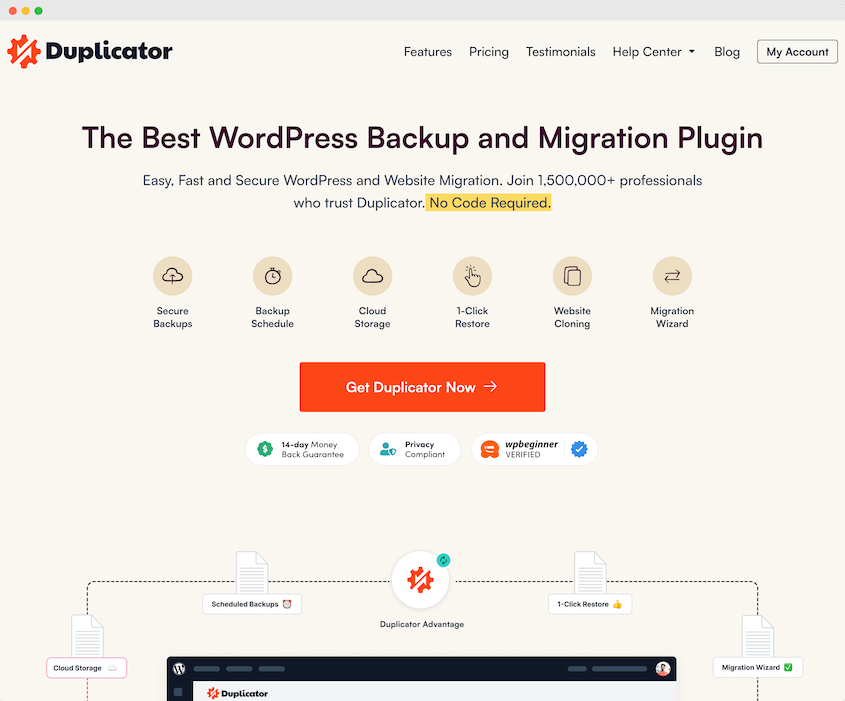
Con Duplicator, puedes crear copias de seguridad y enviarlas automáticamente al almacenamiento en la nube. Aquí tienes todas las opciones de almacenamiento remoto que podrías usar:
- Duplicator Cloud
- FTP
- Google Drive
- Dropbox
- Microsoft OneDrive
- Amazon S3
- Wasabi
- Google Cloud
- DreamObjects
- Vultr
- DigitalOcean Spaces
- Cloudflare R2
- Backblaze B2
Para empezar, elige una suscripción para Duplicator Pro. Aunque existe una versión gratuita, los planes premium incluyen integraciones de almacenamiento en la nube.
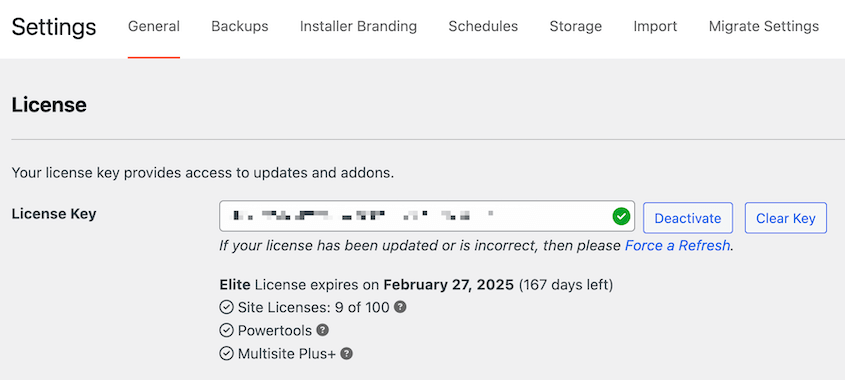
Una vez que compres Duplicator, descarga el plugin. También necesitarás copiar tu clave de licencia única.
Luego, abre tu panel de WordPress e instala y activa Duplicator.
Ve a la página de Ajustes de Duplicator. Luego, busca General. Pega la clave de licencia que recibiste con el plugin y haz clic en Activar.
Paso 2: Conectar tu cuenta de Dropbox
Por defecto, Duplicator guardará tus copias de seguridad en tu servidor local. Si quieres empezar a usar opciones de almacenamiento en la nube como Dropbox, necesitarás conectar tu cuenta de terceros.
Busca Duplicator Pro » Almacenamiento. Verás la opción de almacenamiento local. Para añadir Dropbox, haz clic en Añadir nuevo.
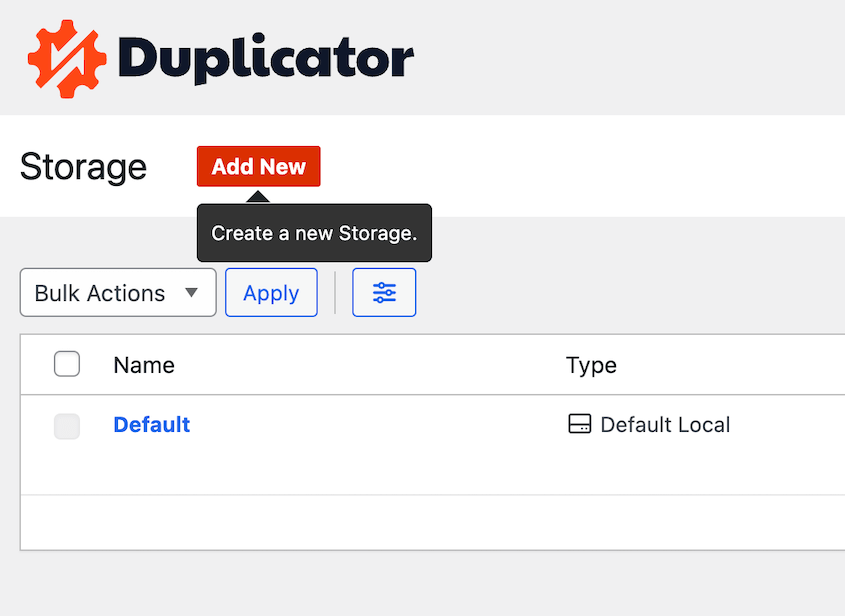
En la parte superior de la página, ponle un nombre a la ubicación de almacenamiento para que sea fácil de encontrar más tarde. También puedes añadir notas si quieres. En Tipo, selecciona Dropbox.
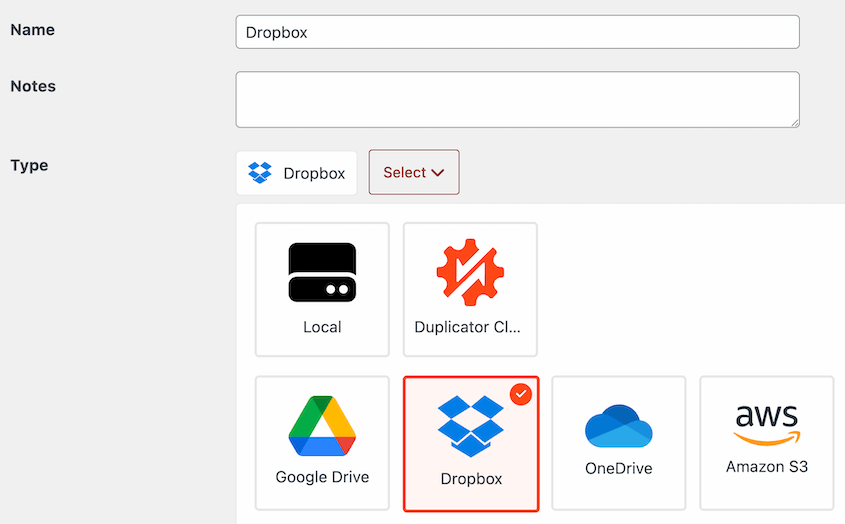
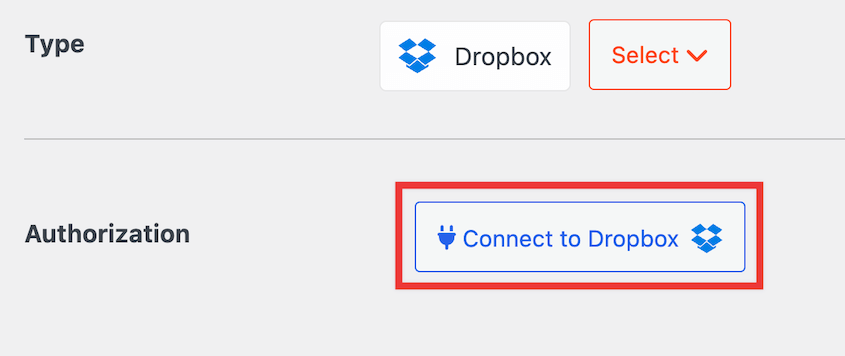
Luego, pulsa Conectar a Dropbox.
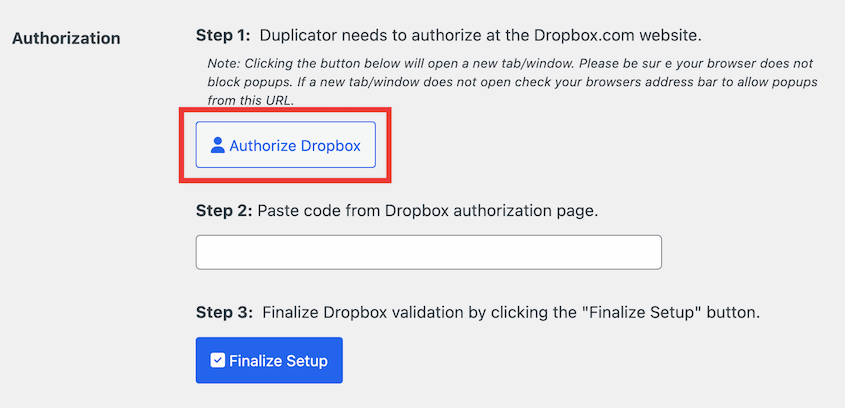
Verás nuevos pasos para conectar tu cuenta de Dropbox. Haz clic en Autorizar Dropbox para abrir Dropbox en una nueva pestaña.
Inicia sesión en tu cuenta de Dropbox o regístrate para obtener una nueva.
Dropbox te proporcionará un código de autenticación. Cópialo y vuelve a tu panel de administración de WordPress.
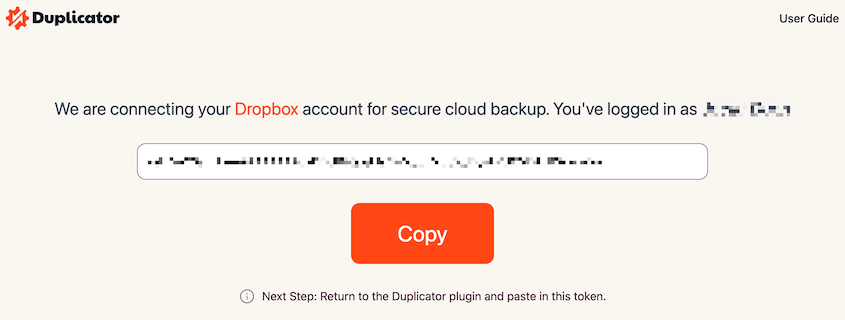
Para el Paso 2 de la sección Autorización, pega el código de autorización. Haz clic en Finalizar configuración.
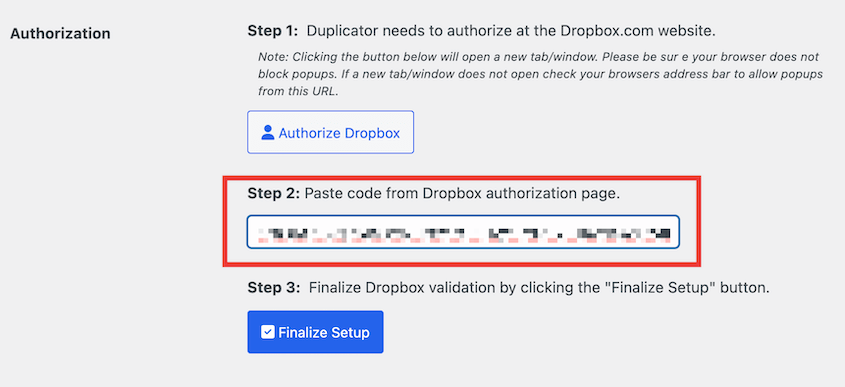
¡Esto añadirá Dropbox como una nueva ubicación de almacenamiento para tus copias de seguridad!
Paso 3: Crear una copia de seguridad de Dropbox
Una vez que configures Dropbox como ubicaci ilde{A3}n de almacenamiento, podr ilde{A2}s crear una copia de seguridad en la nube de tu sitio web. Para ello, navega a Duplicator Pro » Copias de seguridad » A ilde{A3}adir nueva.
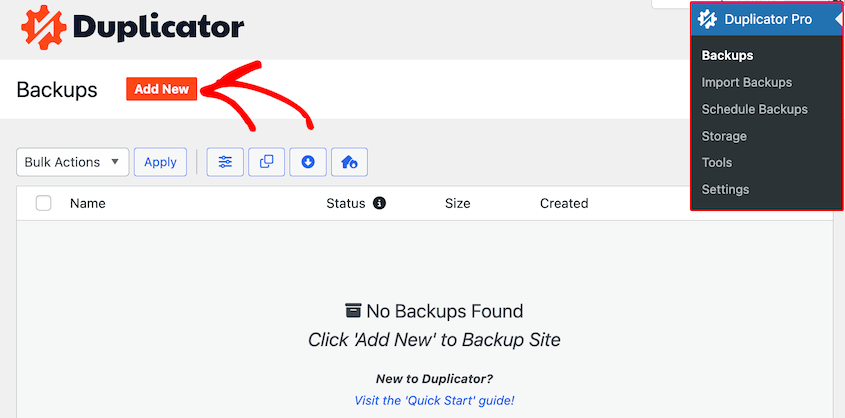
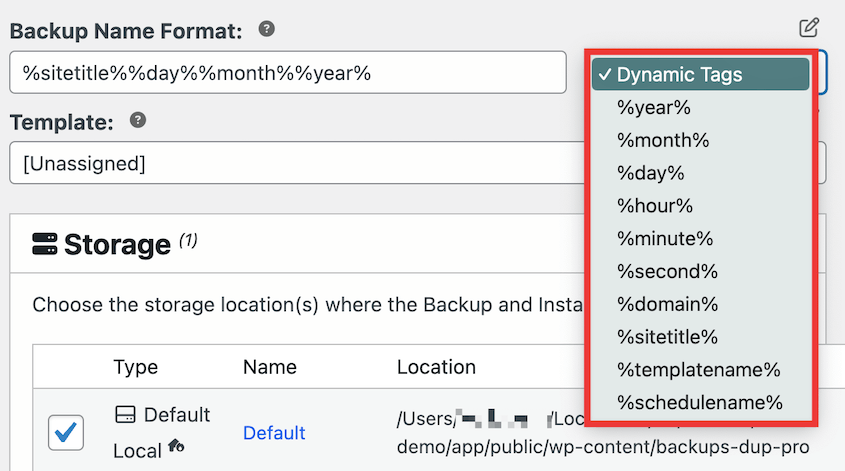
Tus copias de seguridad solo son ilde{A1}tiles si puedes encontrarlas. Por lo tanto, te recomiendo a ilde{A3}adir tus etiquetas din ilde{A2}micas favoritas para nombrar la copia de seguridad.
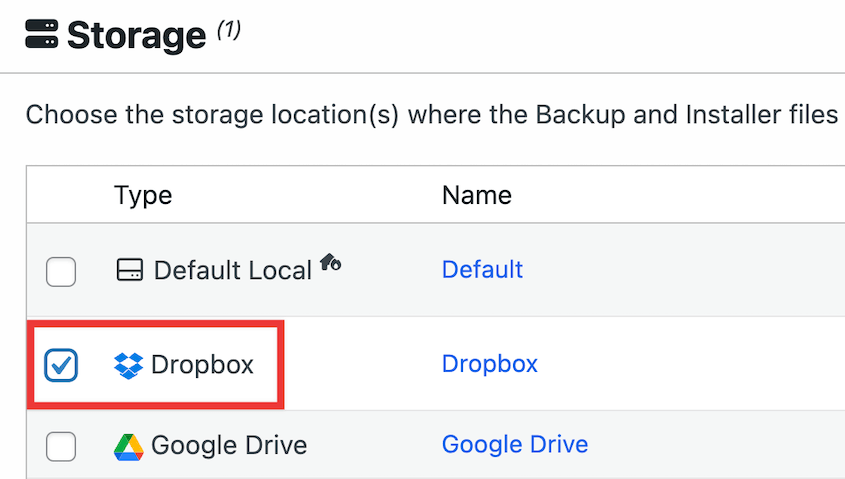
A continuaci ilde{A3}n, abre la secci ilde{A3}n Almacenamiento. Ver ilde{A2}s todas las opciones de almacenamiento en la nube que has activado para tu sitio web. Para hacer una copia de seguridad en Dropbox, selecc ilde{A3}nala.
Una copia de seguridad completa incluir ilde{A2} los archivos de WordPress, plugins, temas, base de datos y biblioteca de medios. Si solo deseas guardar datos espec ilde{A2}ficos, puedes crear una copia de seguridad personalizada.
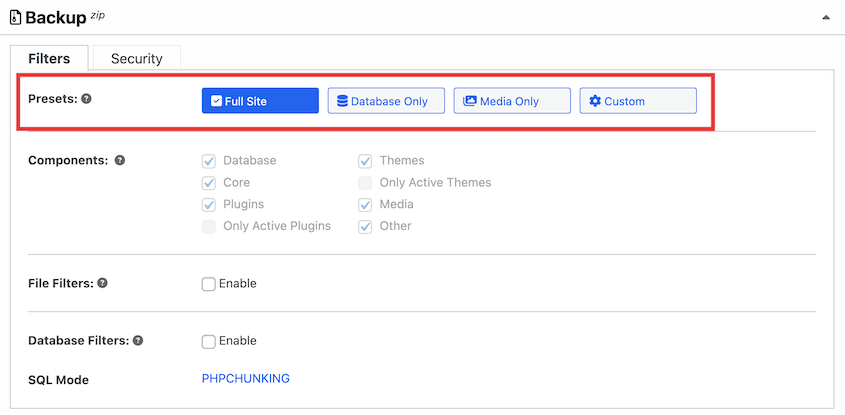
Despu ilde{A3}s de hacer clic en Siguiente, Duplicator escanear ilde{A2} tu sitio web. Recibir ilde{A2}s notificaciones si hay alg ilde{A1}n problema.
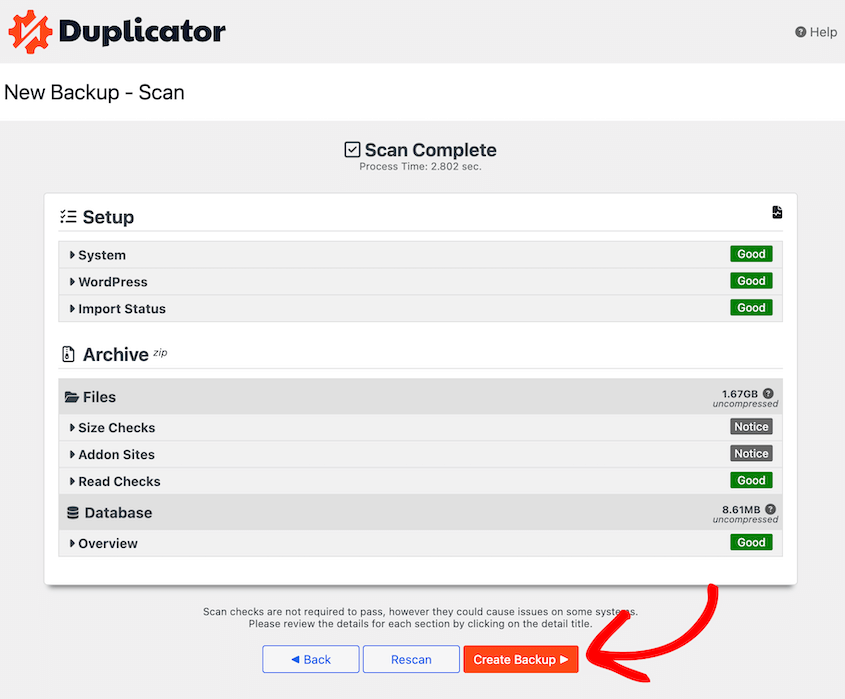
Pulsa Crear copia de seguridad. Tu copia de seguridad se generar ilde{A2} primero en el servidor local y se transferir ilde{A2} autom ilde{A2}ticamente a Dropbox.
Paso 4: Configurar copias de seguridad automáticas
Aunque siempre podr ilde{A2}as hacer copias de seguridad manuales, es posible que desees dedicar m ilde{A2}s tiempo a crear entradas de blog o vender productos.
Considera configurar copias de seguridad autom ilde{A2}ticas en su lugar. Puedes elegir un horario que se ajuste a tus necesidades, y tu sitio web de WordPress se respaldar ilde{A2} autom ilde{A2}ticamente por ti.
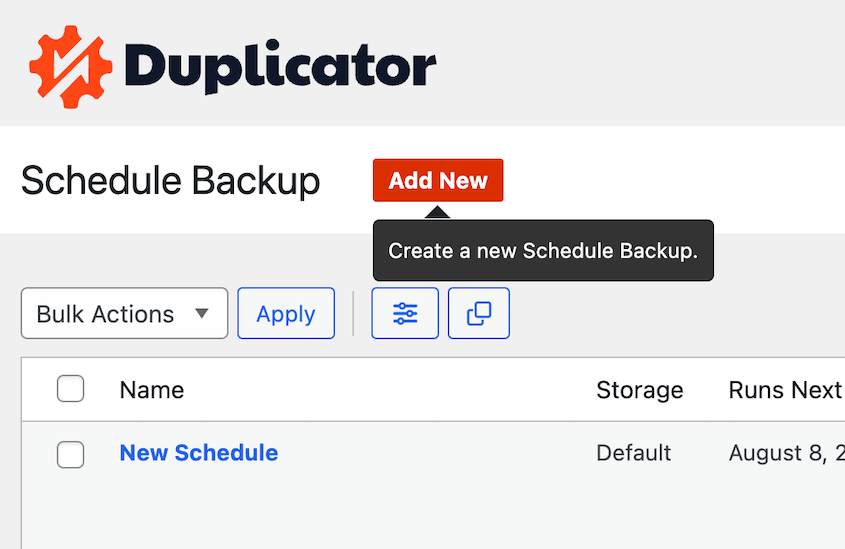
Para configurar un horario, dir ilde{A2}gete a Duplicator Pro » Programar copias de seguridad » A ilde{A3}adir nueva.
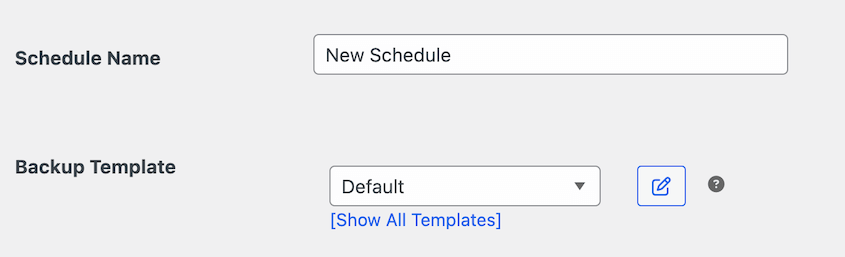
Comienza nombrando tu horario de copias de seguridad. Si deseas realizar copias de seguridad completas, elige la plantilla de copia de seguridad Predeterminada.
Ve a la secci ilde{A3}n Almacenamiento y selecciona Dropbox.
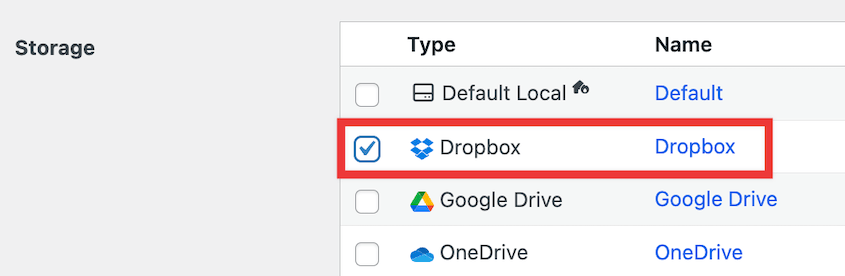
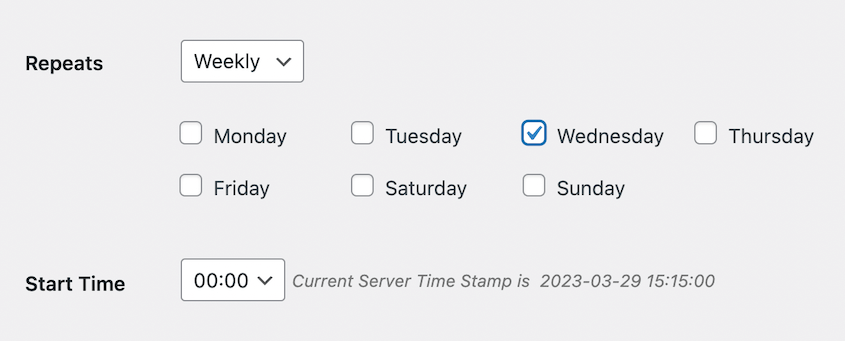
Duplicator admite copias de seguridad mensuales, semanales, horarias y diarias. Una vez que selecciones una de estas opciones, puedes personalizar exactamente cu ilde{A2}ndo se ejecuta la copia de seguridad.
En la parte inferior de la p ilde{A2}gina, marca la casilla junto a Habilitar este horario.
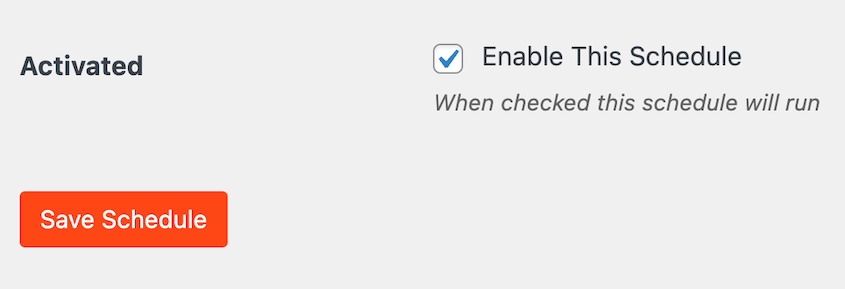
Despu ilde{A3}s de guardar este nuevo horario, Duplicator har ilde{A2} una copia de seguridad autom ilde{A2}tica de tu sitio a la hora programada. Adem ilde{A2}s, estas copias de seguridad se guardar ilde{A2}n en Dropbox.
Cómo restaurar tu copia de seguridad de Dropbox
Una vez que env ilde{A2}es copias de seguridad regulares a Dropbox, siempre tendr ilde{A2}s una copia funcional de tu sitio a mano.
Si hay errores cr ilde{A2}ticos, p ilde{A3>rdida de datos, tiempo de inactividad del servidor o ciberataques, puedes restaurar f ilde{A2}cilmente la copia de seguridad m ilde{A2}s reciente. Esto devolver ilde{A2} inmediatamente tu sitio web a la normalidad.
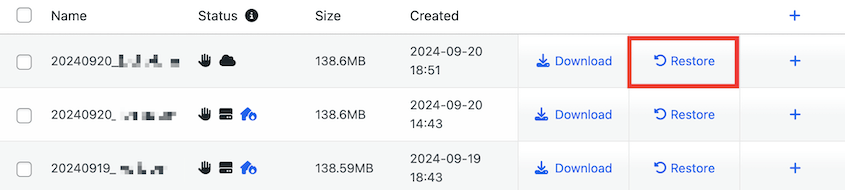
Para restaurar tu copia de seguridad, abre la p ilde{A2}gina Copias de seguridad de Duplicator. Busca la copia de seguridad m ilde{A2}s reciente de Dropbox anterior al error.
Junto a ella, pulsa el bot ilde{A3}n Restaurar.
En la ventana emergente, haz clic en Descargar.
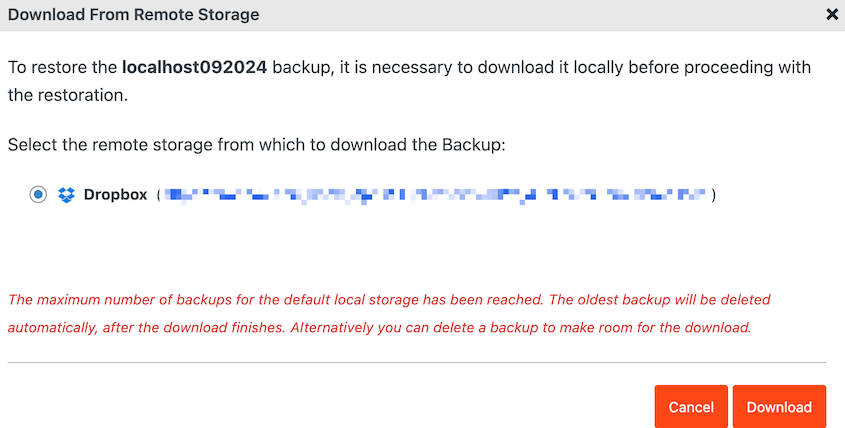
Duplicator descargar ilde{A2} la copia de seguridad desde el almacenamiento remoto. Abrir ilde{A2} autom ilde{A2}ticamente el asistente de restauraci ilde{A3}n.
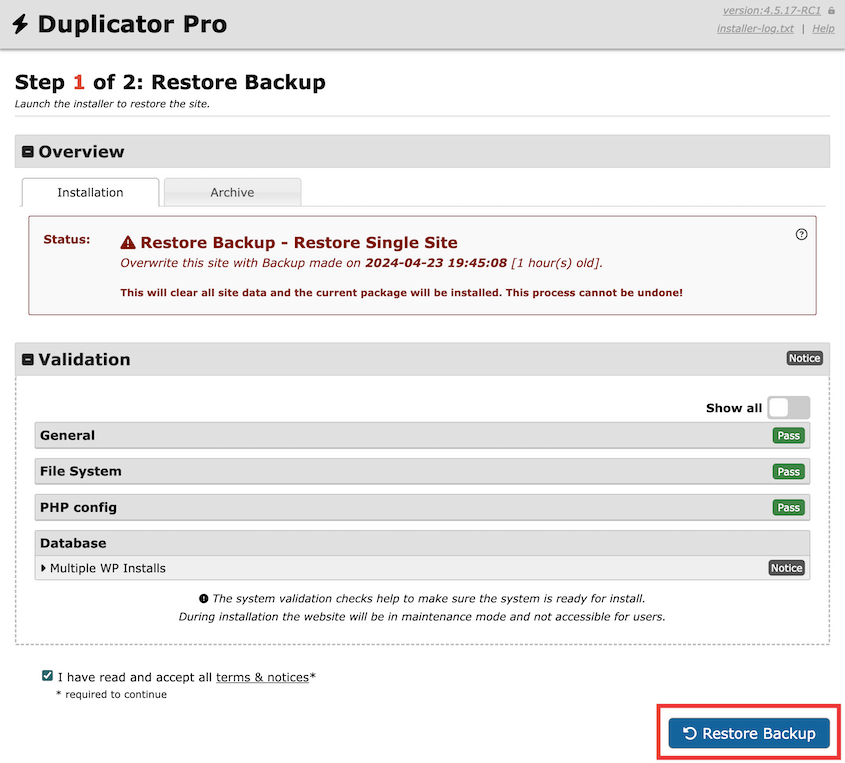
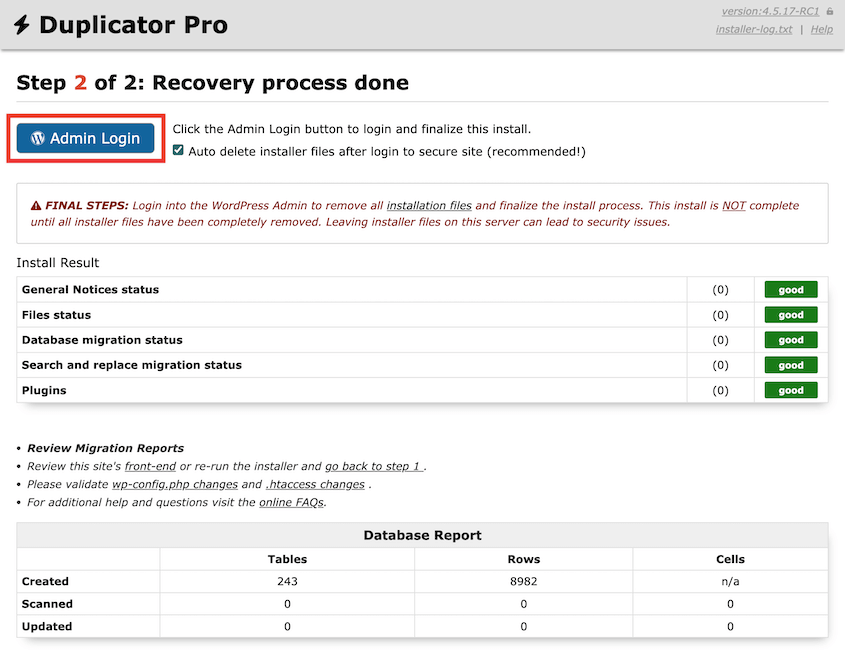
Una vez que selecciones Restaurar copia de seguridad, tu sitio web volver ilde{A2} a la versi ilde{A3}n anterior. Para acceder al nuevo sitio, tendr ilde{A2}s que volver a iniciar sesi ilde{A3}n.
Preguntas Frecuentes (FAQs)
" extbf{Can you use Dropbox as a backup?}"
Sí, puedes usar Dropbox para hacer una copia de seguridad de tu sitio web. Simplemente instala un plugin de copia de seguridad como Duplicator Pro. Luego, crea una nueva copia de seguridad y elige Dropbox como tu ubicación de almacenamiento preferida.
¿Cuál es el mejor plugin de WordPress para subir archivos a Dropbox?
Duplicator Pro es el mejor plugin de WordPress para subir archivos a Dropbox. Una vez que hagas una copia de seguridad de tu sitio de WordPress, Duplicator enviará tus archivos de copia de seguridad a una carpeta de Dropbox. Usando esta herramienta, harás una copia de seguridad/restaurarás tu sitio web siempre que lo necesites.
Alternativas: UpdraftPlus, BackWPup, BlogVault y BackupBuddy también admiten copias de seguridad en Dropbox. Para ayudarte a decidir entre estas herramientas, consulta nuestra comparativa de los mejores plugins de copia de seguridad de WordPress.
¿Cómo subo un sitio web a Dropbox?
Para subir un sitio web a Dropbox, empieza por instalar Duplicator Pro en tu panel de WordPress. A continuación, añade tu cuenta de Dropbox como una nueva ubicación de almacenamiento. Por último, crea una copia de seguridad y selecciona Dropbox en Almacenamiento.
¿Cómo hago una copia de seguridad de todo mi sitio de WordPress?
Puedes hacer una copia de seguridad de todo tu sitio de WordPress con Duplicator Pro. Asegúrate de que la nueva copia de seguridad incluya todo en tu sitio web, incluidos la base de datos, los archivos principales de WordPress, los plugins, los temas y la biblioteca de medios.
¿Cómo integro Dropbox con WordPress?
Hay un montón de plugins que pueden ayudarte a integrar Dropbox y WordPress. Para enviar las copias de seguridad de tu sitio a la nube, considera usar Duplicator. Con WPForms, puedes crear formularios de carga a Dropbox. Para tiendas WooCommerce, el plugin WooCommerce PDF Invoices añadirá nuevos albaranes a tu cuenta de Dropbox.
Tu proveedor de hosting no puede ser tu única red de seguridad
Ahora tienes un sistema de copia de seguridad externa fiable, uno que no depende de tu proveedor de hosting para salvar el día.
Eso es muy importante. La mayoría de los propietarios de sitios no se dan cuenta de lo vulnerables que son hasta que algo sale mal y la copia de seguridad de su host no existe, está corrupta o está desactualizada.
Dropbox cambia eso. Con tus copias de seguridad almacenadas de forma independiente en la nube, ya no estás a merced de un único punto de fallo. Ya sea un hackeo, una mala actualización de un plugin o un fallo del servidor, tendrás una copia limpia de tu sitio lista para usar.
¿Buscas el mejor plugin de WordPress para Dropbox? ¡Prueba Duplicator Pro para hacer una copia de seguridad de tu sitio web en servicios de almacenamiento en la nube como Dropbox, Google Drive y más!
Ya que estás aquí, quizás te interesen estas guías adicionales de WordPress:
- Cómo crear una copia de seguridad en la nube de WordPress
- Cómo hacer una copia de seguridad de WordPress Multisite
- Los 9 mejores servicios de mantenimiento de WordPress para una gestión sencilla del sitio
- Cómo hacer copias de seguridad y restaurar WordPress de forma remota
- Los 8 Mejores Plugins de Dropbox para WordPress para Almacenamiento Seguro en la Nube
- Cómo implementar un plan de copia de seguridad 3-2-1 que funcione siempre




