


Do You Need a Staging Site?
 Joella Dunn
Joella Dunn
Joella Dunn
 John Turner
John Turner
John Turner
A staging site is a private copy of your WordPress website where you can test changes before they go live. It’s one of those things experienced developers swear by, but many site owners skip because it seems like extra work.
Here’s why that’s a problem.
WordPress updates break things. Plugin conflicts happen without warning. A simple CSS tweak can cascade into a layout disaster.
When these problems hit your live site, they affect real visitors, customers, and search engine crawlers.
A staging site gives you a safety net. It’s a complete clone of your website, but isolated from your production environment.
You can break things, test updates, troubleshoot conflicts, and experiment with new features without risking downtime on your actual business.
In this post, I’ll explain why you benefit from using a staging site and how to set one up!
Here are the key takeaways:
- A staging site is a private clone of your live website where you can safely test updates and changes without affecting real visitors
- You need staging to prevent costly downtime from plugin conflicts, theme updates, and WordPress core upgrades
- Staging protects your revenue, reputation, and SEO rankings by catching errors before they reach your production site
- The potential risks of staging include accidentally overwriting live data and the extra maintenance time required
- Online stores, agencies, and high-traffic sites benefit most from staging environments
- You can create staging either through your web host’s control panel or by using a migration plugin like Duplicator
Table of Contents
- Quick Summary: Do You Need a Staging Site?
- Pros and Cons of Staging Sites
- What Is a Staging Site?
- Why Use a Staging Site?
- What are the Risks of Not Using a Staging Site?
- What are the Downsides of Using a Staging Site?
- Who Needs a Staging Site?
- How to Create a Staging Site
- Best Practices for Using Your Staging Site
- Frequently Asked Questions (FAQs)
- Stop Cowboy Coding on Your Live Site
Quick Summary: Do You Need a Staging Site?
Yes, you need a staging site. A staging site is a private copy of your live website where you can safely test plugin updates, theme changes, and code modifications without risking downtime or breaking your production site. It prevents the costly mistakes that happen when you update WordPress core, test new features, or troubleshoot conflicts directly on your live site where customers can see everything go wrong.
Pros and Cons of Staging Sites
Let’s be honest about what you’re getting into.
Pros:
- Risk-free testing environment: You can break things without consequences. Test a plugin update or try new code without plastering errors across your website for visitors to see.
- Better troubleshooting: Turn on WordPress debug mode, check error logs, and actually figure out what’s causing conflicts without scaring away customers with warning messages.
- Peace of mind during updates: Update plugins, themes, and WordPress core without worrying. If something breaks, your live site keeps humming along like nothing happened.
Cons:
- Setup and sync time: You’re maintaining two versions of your site now. That takes extra time and attention.
- Potential costs: Some hosting companies charge extra for staging environments. Cheaper shared hosting plans often don’t include it at all.
- Data drift: While you’re testing changes on staging, real things are happening on your live site. When you push your changes from staging to live, you risk overwriting all that new data.
What Is a Staging Site?
A staging site is an independent clone of your website that lives in its own corner of the internet.
Usually, it sits on a subdomain like staging.yoursite.com. You can see it, but the public can’t, and search engines can’t index it. It’s invisible to everyone except the people who need to work on it.
It’s your same WordPress installation, plugins, theme, and content. Everything looks identical to your live site.
But here’s the important part: it’s completely isolated. When you test something on staging, it doesn’t affect your live site.
Payment gateways should be disabled or switched to test mode. Email notifications should be turned off so you don’t accidentally spam real customers.
It’s your website, but with all the dangerous stuff unplugged.
You can break it. Rebuild it. Test wild ideas. And when something inevitably goes wrong (because it will), your actual business keeps running like nothing happened.
Why Use a Staging Site?
Let’s get specific about when staging benefits your WordPress website.
Plugin Updates
Here’s a real scenario: You update a plugin, but the new version has an unexpected conflict with another plugin.
On a live site, you might not notice the error for days. If your contact forms or purchase gateway malfunctions, you’ll lose business.
On staging? You roll back the update immediately. You can solve the problem before it ever touches real visitors.
Major Core Updates
WordPress regularly releases version updates. You might have to upgrade your core WordPress software or PHP version to keep your site performing well.
These aren’t small changes. Because of the update, old code could break or deprecated functions could stop working. Plugins that haven’t been updated in years might suddenly throw errors.
That’s why you should test any update on a staging site first. You’ll see how it’ll affect your website without any risks.
Design Tweaks
Maybe you’re adjusting CSS, fixing padding issues, or realigning your header.
Without staging, your visitors watch you work in real-time. They see the broken layout, which is not a good look.
You’ll want to go through the entire design process on staging and migrate the changes when you’re sure they’re effective.
Switching Themes
Different themes handle shortcodes differently. Page builders don’t always translate. Your carefully crafted homepage might turn into a wall of raw shortcode text.
That transformation needs to happen in private (your staging area), not in front of customers trying to buy something.
What are the Risks of Not Using a Staging Site?
Not having a staging site poses some serious risks for your website. Here are just a few.
Downtime
How much does an hour of downtime cost you?
For an eCommerce site earning $10,000 a day, that’s over $400 gone. For a SaaS company, it’s missed signups you’ll never get back. For a lead generation site, it’s potential clients who clicked away and called your competitor instead.
And here’s the brutal part: downtime rarely lasts just an hour. You have to figure out what broke, search for a solution, and troubleshoot.
That’s half a day. Sometimes more.
With a staging site, you would’ve caught the problem before it ever reached production.
That plugin conflict or PHP error? You’d see it in testing. Your live site would’ve stayed up the entire time.
Reputation
Broken sites look unprofessional. Visitors don’t think, “Oh, they must be updating something.” They think “This company can’t keep their website working.”
Trust evaporates fast. Winning it back takes forever.
A staging site lets you test design changes, theme updates, and major overhauls privately.
Your visitors never see the broken layouts, the misaligned buttons, or the half-finished homepage. They only see the polished final result.
SEO Impact
Google’s crawler doesn’t care that you’re in the middle of fixing something. It shows up, sees errors or broken pages, and takes notes.
If your site returns 500 errors during a crawl, Google starts questioning whether it should keep ranking you. Serve enough broken pages, and you’ll watch your rankings slide.
Staging prevents this entirely. You test updates, catch errors, and fix them before deployment. Google never sees a broken page because you never published one.
Without staging, you’re rolling the dice every time you update something—and hoping Google doesn’t crawl your site during the 20 minutes it’s broken.
What are the Downsides of Using a Staging Site?
Staging isn’t perfect, so let me show you some realistic problems you’ll run into.
Overwriting Live Data
You spend two days building new features on staging. Everything works. You’re ready to push it live, so you hit the deploy button.
For an e-commerce site, this will delete every order that came in during those two days. Every new user registration, blog comment, and contact form submission will disappear.
Why? Because you pushed your staging database to production, and your staging database is two days old. It doesn’t know about anything that happened on the live site while you were working.
This catches people all the time, and it can be devastating.
Maintenance Overhead
You’re managing two websites now.
Your staging site needs to stay current. If it gets too old, it stops being useful for testing. Testing plugin updates on three-month-old data doesn’t tell you much about how they’ll behave with your current setup.
So you’re constantly rebuilding staging, syncing databases, and making sure everything matches.
It’s extra work. There’s no way around it.
Who Needs a Staging Site?
If you fall into any of these categories, staging isn’t optional.
Online Stores
One hour of a broken checkout could cost you thousands. One database overwrite could lose customer data permanently.
You can’t test checkout flows on a live store. You don’t want to risk breaking the payment gateway while real customers are trying to buy.
If money flows through your site, you need a staging area to debug errors while your live store stays error-free.
Agencies and Freelancers
For freelancers or agencies, your clients need to approve changes before they go live.
You can’t show them works-in-progress on the production site. They need to see the new homepage design, click around, request changes, and sign off—all before real visitors see anything.
Plus, every client site is unique. You need a safe place to test whether your changes will cause conflicts.
High-Traffic Sites
If you’re getting thousands of visitors a day, downtime is expensive. You also can’t afford to have visitors see broken layouts or error messages during your peak traffic hours.
It’s important to test everything on staging first. Then, push changes during low-traffic windows.
How to Create a Staging Site
There are multiple ways to set up your first staging site. The right method depends on your hosting provider and how technical you want to get.
Let’s cover the two main approaches.
- Method 1: Use your host’s staging tool in your control panel if available
- Method 2: Use the Duplicator plugin to turn any full-site backup into a staging site
- Method 3: Install the Duplicator plugin on your live site, create a backup, and migrate it to a subdomain or different server (works with any host)
Method 1: Create a Staging Site with Your Web Host
Many managed WordPress hosts include staging environments built into their control panels.
Bluehost, SiteGround, and WP Engine all offer one-click staging creation. You log into your hosting dashboard, find the staging option, click a button, and wait a few minutes while it clones your site.
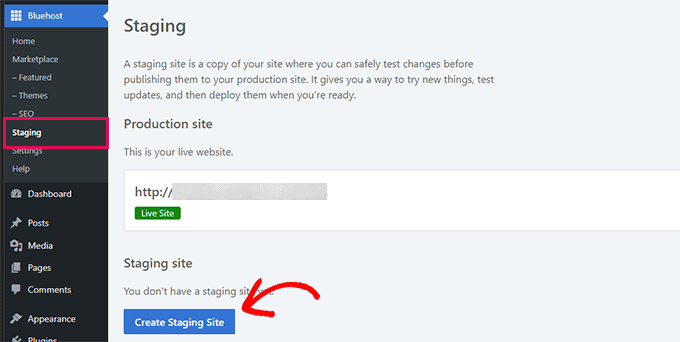
The interface usually gives you options to push changes back to production too. Some hosts let you push everything. Others let you choose whether to push files only or the entire database.
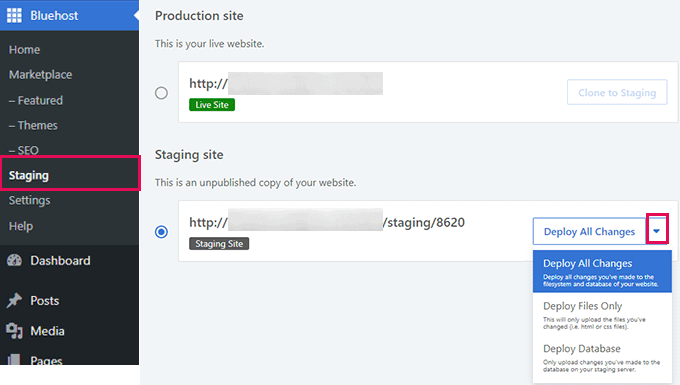
But here’s the catch: cheaper shared hosting plans often don’t include this feature. You might need to upgrade to a higher tier. Some hosts charge extra for staging access.
Method 2: Create a Staging Site with Duplicator
No matter your web host, you can create a staging site with Duplicator. This is a backup and migration plugin that creates a copy of your website and can instantly use it as a blueprint for a new staging area.

All you’ll need to do is install Duplicator and create a full-site backup of your website.

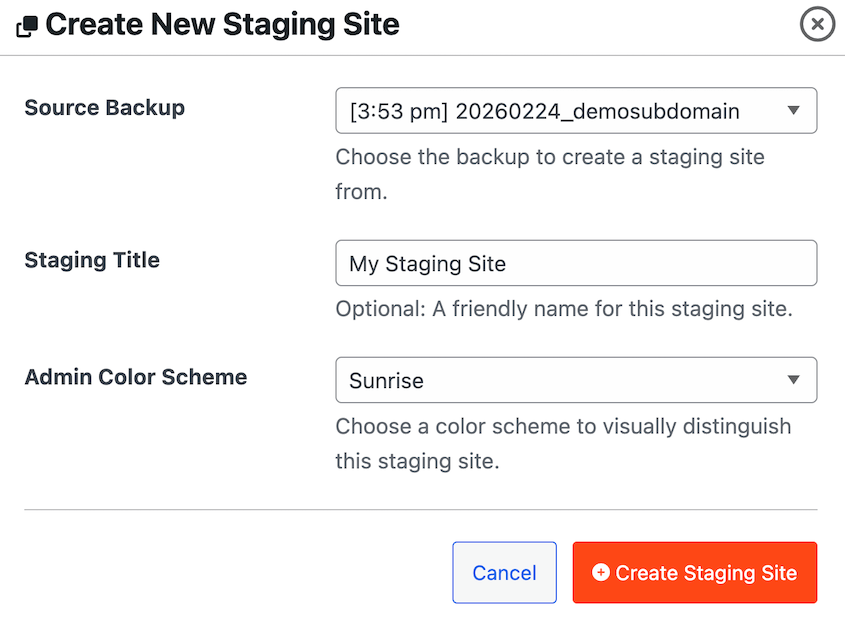
Once it’s built, go to Duplicator’s Staging page. Click Create Your First Staging Site.
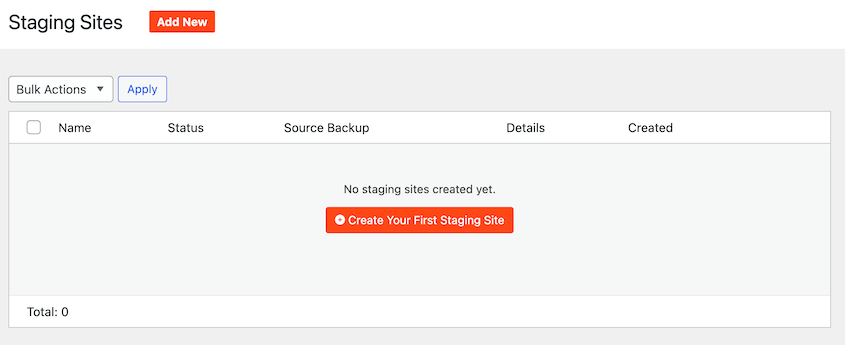
Choose the backup you just built as the Source Backup. Name the staging site and give it a unique WordPress admin color scheme. This helps you know which dashboard is which.
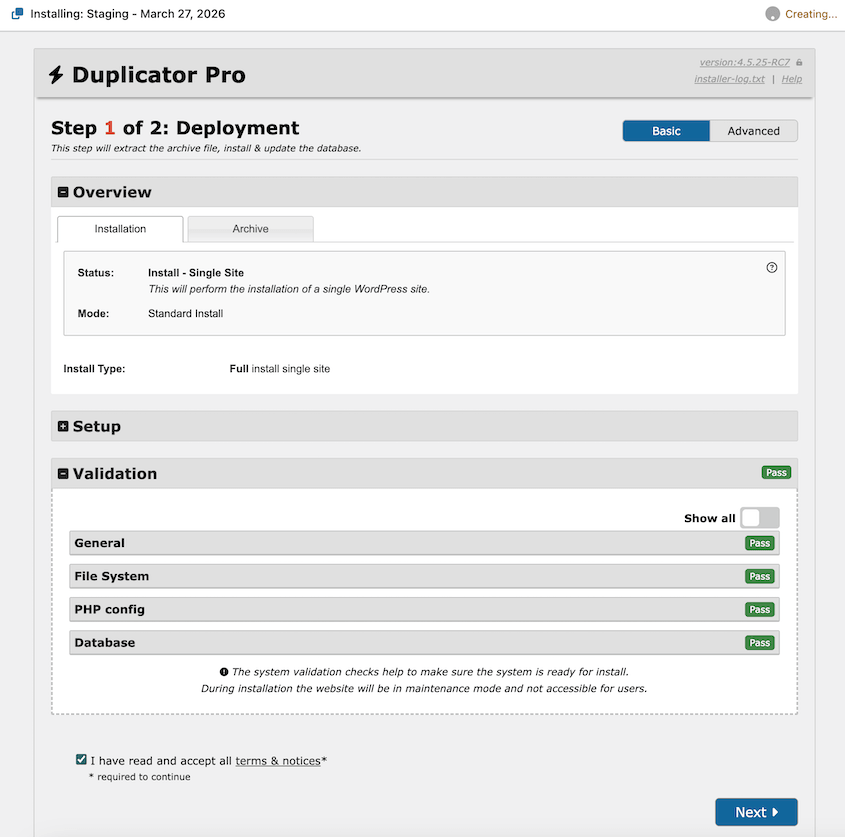
In the Duplicator installer, accept the terms and notices. Hit Next.
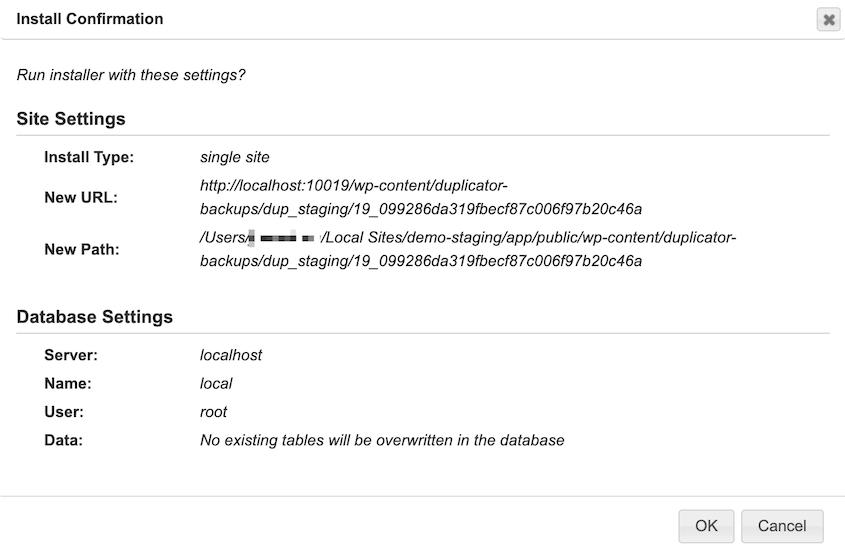
A pop-up will open, asking you to confirm the installation settings. Click OK to finish.
Your staging site is ready to use! Log into the dashboard using the admin credentials for your live site. You’ll see all the same configuration as your real site, except with a newly colored admin dashboard.
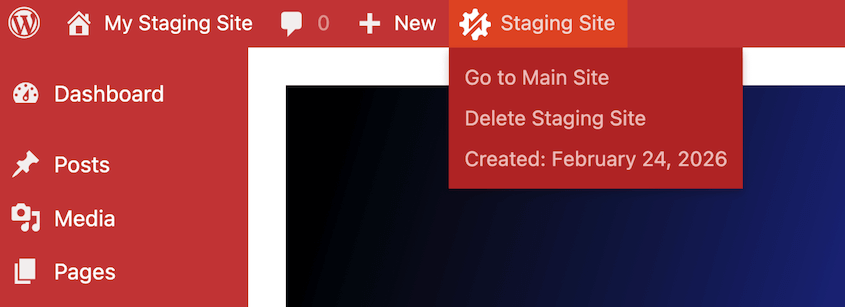
Make any changes you want, knowing that it’ll never affect your live site.
Method 3: Migrate Your Website to a Staging Area
Duplicator can create a copy of your website and move it anywhere that supports WordPress. I like using it to spin up staging sites on local or different live servers.
Install Duplicator on your live site. Create a full site backup and download it.
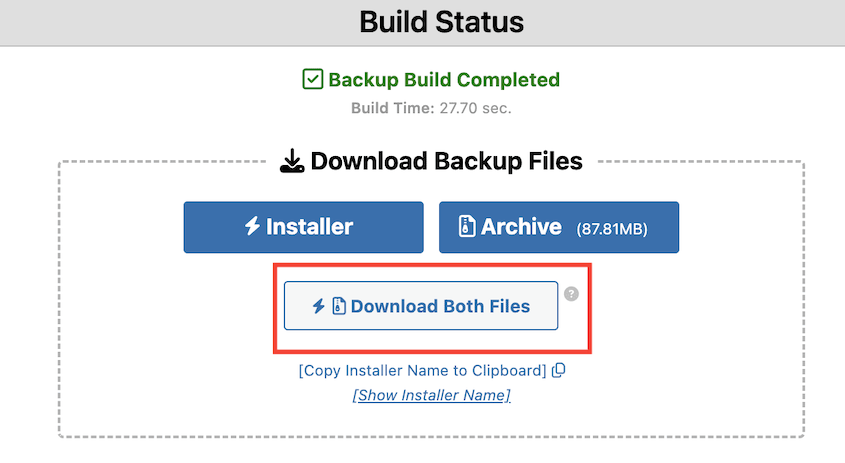
You can install this backup on a subdomain or a completely different server. You could even install it locally on your computer using something like LocalWP.
Choose a location that works best for you. Find the root directory of the new site and upload your original backup files.
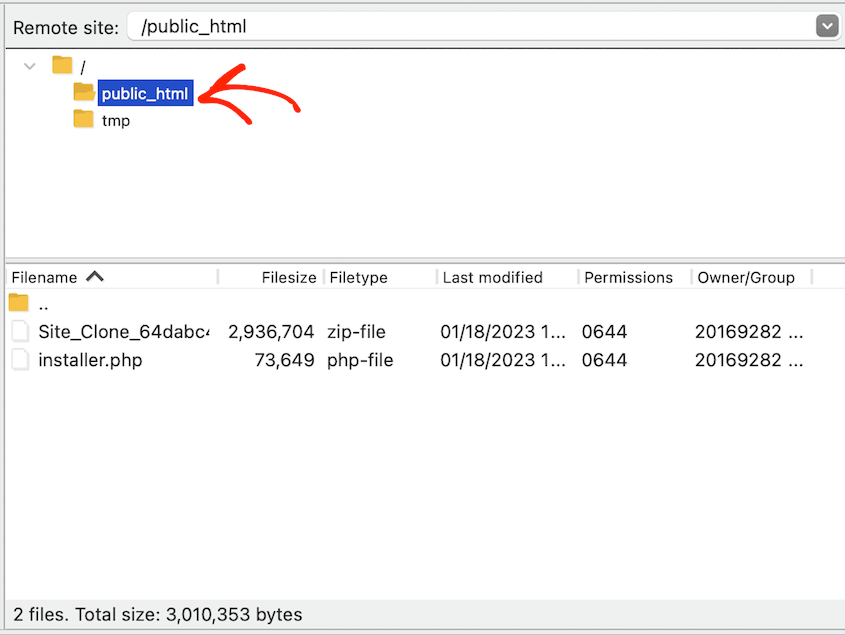
Open the installer with a URL like this: https://example.com/installer.php
Duplicator will walk you through the installation process. You’ll need to connect to the new site’s database and confirm the migration.
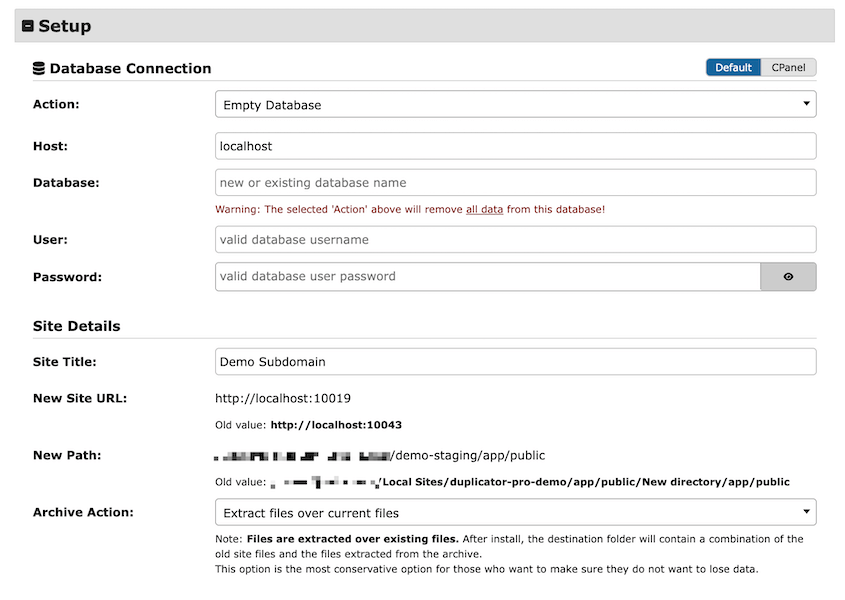
Now you’ll have a copy of your site on a staging server. It’ll contain the same content and settings, so you can experiment without fear.
Best Practices for Using Your Staging Site
Having a staging site is one thing. Using it correctly is another. Here’s how to avoid the common mistakes.
Always Clone Fresh
Don’t test major updates on a staging site that’s three months old. Testing on stale data tells you nothing about how changes will behave in your current environment.
Your live site has changed since then. It might have new plugins, different settings, or updated content.
Before you start testing, overwrite your staging site with fresh data from production. Clone your original site again, so you’ll start with an exact replica of what’s live right now.
Fresh data = accurate testing.
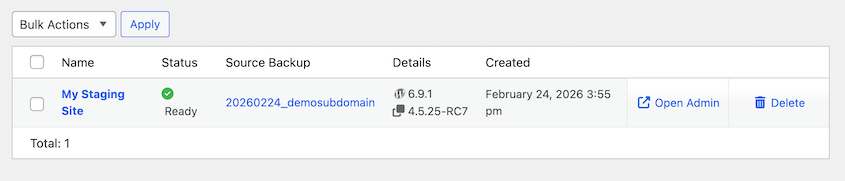
With Duplicator, delete old staging sites at any time. Use the simple cloning process to create a new staging site with your new data.
Turn Off Emails and Indexing
Your staging site shouldn’t email real customers.
On your staging site, disable your SMTP plugin. Switch your email service to test mode.
Otherwise, you’ll accidentally spam your entire customer list with test order confirmations. Or send someone a password reset email because you were testing the login flow.
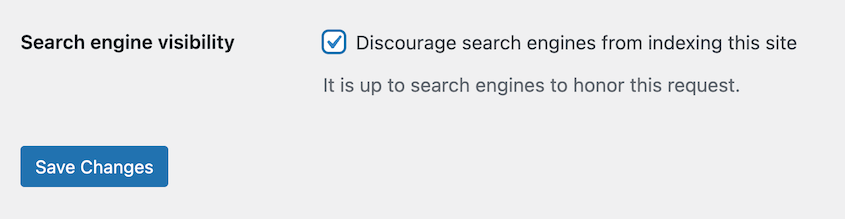
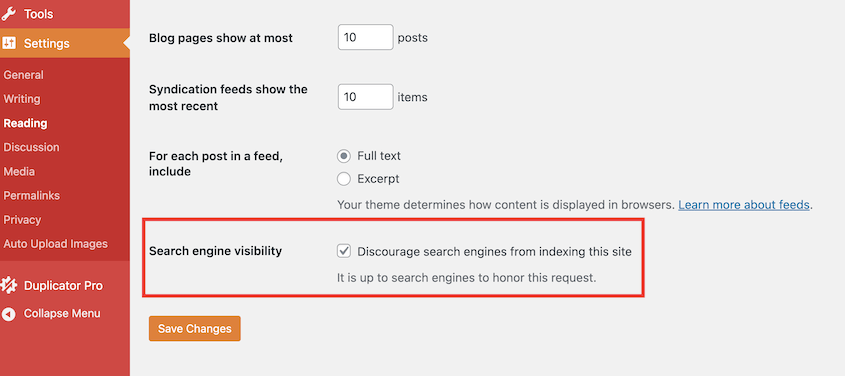
You also don’t want Google to index your staging site. You can disable indexing in your staging site’s admin dashboard.
Password Protect Your Staging Site
Random people shouldn’t stumble onto your staging website. By password protecting it, you’ll keep testing private and prevent duplicate content issues with search engines.
You can add password protection with your web host. Bluehost keeps this under Directory Privacy.
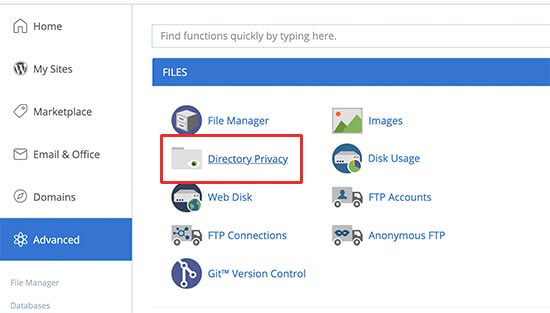
Find your staging site’s directory. Check Password protect this directory.
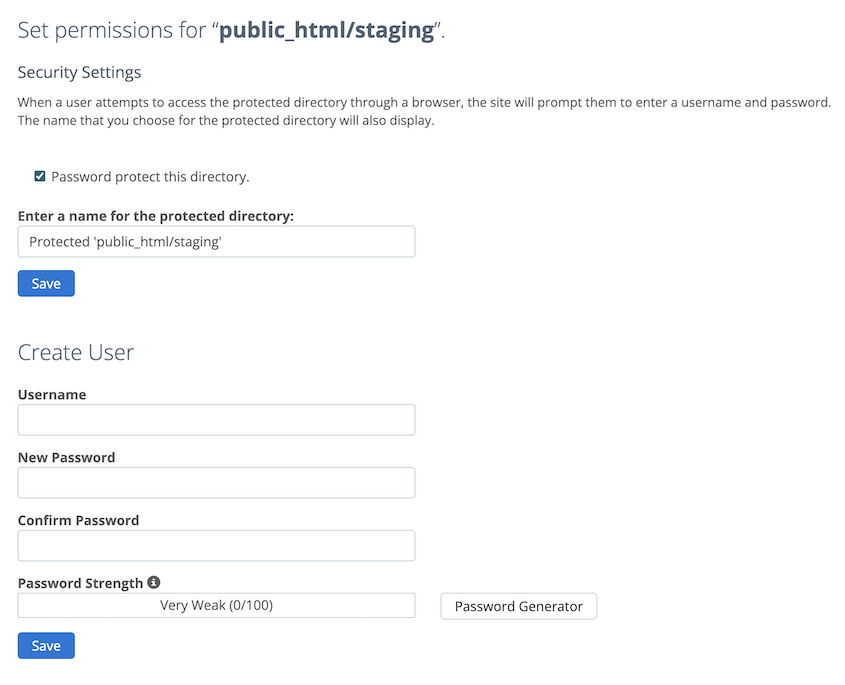
Enter a name for the protected directory. Add a username and password that only you (or your team) know.
Push Selectively
When you’re ready to move changes from staging to live, push only files whenever possible.
That means themes, plugins, and uploaded media. Not the database.
Why? Because your live database has new data that staging doesn’t know about. If you push your staging database to production, all that new data vanishes. It’s overwritten by your older staging database.
When you’re ready to push changes live, create a backup of your staging site that includes everything but the database. Duplicator makes this easy with backup component checkboxes.
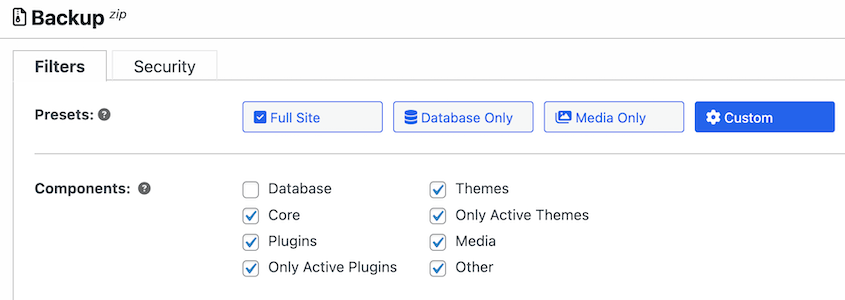
Once you upload this backup to your production site, your database won’t be overwritten. You’ll keep new orders, customers, and other data.
Leave the database alone unless you absolutely need to change it—and if you do, back up production first.
Frequently Asked Questions (FAQs)
What are the different environments for websites?
Website environments include development, staging, and production. Development hosts active coding. Staging replicates production for testing. Production delivers the live site to users. These environments separate work, testing, and deployment to reduce risk, maintain stable performance, and ensure consistent updates across teams and systems.
How do I create a staging site with Bluehost?
Log into your Bluehost site’s WordPress dashboard. Click on Bluehost » Staging. Here, click on the Create Staging Site button. You can visit the staging site by hitting the Staging Environment button at the top of your live site’s dashboard.
Do you really need a staging environment?
You need a staging environment to test changes in a safe replica of your real website. A staging environment prevents outages, catches bugs before release, and simulates real conditions. Staging reduces deployment risk, protects user experience, and ensures stable updates.
What’s the difference between a production site and staging site?
Production is your public website that’s indexed by search engines and accessible to everyone. Staging is a private, password-protected clone that’s hidden from search engines. They should look and function identically, but staging is where you test before changes go live.
When do I deploy to staging?
Deploy to staging before any plugin, theme, or WordPress core updates. You should also use staging before adding new features or making design changes. Basically, deploy before doing anything that could potentially break your site. Clone to staging first, test there, then push to production.
Stop Cowboy Coding on Your Live Site
You can spend 30 minutes setting up a staging site now, or you can spend hours in panic mode later when something breaks on your live site.
Most WordPress site owners eventually adopt staging. Not because someone convinced them it was a good idea, but because they learned the hard way after an update took down their site at the worst possible time.
You don’t have to learn that lesson the expensive way.
If you need a straightforward way to move your site between environments (whether that’s creating fresh staging sites or pushing changes back to live), Duplicator Pro handles the migration process. Clone your site, move it where you need it, and keep a solid backup before any major updates.
Try out Duplicator Pro today for one-click staging, drag-and-drop migrations, custom backups, cloud storage, and more!
While you’re here, I think you’ll like these other WordPress resources:
- 9 Best WordPress Staging Plugins (+ Our Expert Reviews)
- How to Create a WordPress Staging Site (For Safe Testing)
- How to Move a Live WordPress Site to a Local Host (The Easy Way)
- 10 Best Local Development Environments (Expert Pick)
- Code Smarter, Not Harder: WordPress Developer Tools for Every Pro




