


How to Import Medium Blog Posts into WordPress
 Joella Dunn
Joella Dunn
Joella Dunn
 John Turner
John Turner
John Turner
I get why you started on Medium.
It was easy. You signed up, wrote your first post, and hit publish without hosting bills or theme decisions. Medium gave you a clean editor and a built-in audience of readers who might actually care about what you wrote.
But here’s the problem: you don’t own any of it.
Medium controls the algorithm that decides if your posts get seen. Your content lives on someone else’s server, under someone else’s terms.
They set the rules for monetization. They can change their platform overnight, and you have zero say in it.
Moving to WordPress allows you to take back ownership of your intellectual property.
Now, I won’t pretend Medium makes this easy. There’s no “Export to WordPress” button. They give you HTML files when WordPress wants XML. It’s annoying, and it feels like they designed it that way on purpose.
But it’s absolutely possible.
In this guide, I’ll walk you through importing Medium blog posts to WordPress!
Here are the key takeaways:
- Use the free Medium to WordPress Importer to convert Medium’s raw HTML export zip file into a WordPress-compatible XML file.
- WordPress cannot import Medium images automatically; you must upload them to your Media Library and use a search & replace plugin to fix broken image paths.
- Since you cannot create server-side 301 redirects on Medium, use the Canonical Link feature in Medium’s advanced settings to pass SEO authority to your new site.
- Do not delete your Medium posts immediately; leave them up with a link at the top directing readers to your new WordPress URL to funnel traffic.
Table of Contents
Why Import Your Medium Blog Posts to WordPress?
Before you make the move, let’s talk about why WordPress might be a better fit for your blog posts than Medium.
You Keep 100% of Your Revenue
On Medium, you’re stuck with the Partner Program. You write, people read, and Medium decides how much you get paid based on reading time and member engagement.
You have no control over the payout structure, and you can’t run your own ads or affiliate links.
On WordPress, every dollar you make is yours. You can:
- Run Google AdSense
- Join affiliate programs and drop links directly into your posts
- Sell your own products without Medium taking a cut
If you want to monetize your writing, you need to own the platform.
You Build an Email List That Belongs to You
Medium doesn’t let you collect email addresses. Readers can follow you on their platform, but you can’t export that list or email them directly.
If Medium shuts down tomorrow or changes their algorithm, you lose access to everyone who ever cared about your work.
WordPress integrates with tools like AWeber, Constant Contact, and ConvertKit. You can build a list of your own and email those people whenever you want, about whatever you want. That’s an asset.
You Build SEO Authority for Your Own Domain
Right now, Medium gets all the SEO credit for your writing. When someone searches for topics you’ve written about, Medium’s domain ranks—not yours.
You’re building their authority, not your own.
When you move to WordPress, every backlink, every search ranking, and every bit of traffic builds equity in your domain. Over time, that compounds.
With WordPress, your site becomes the authority. You stop being a tenant and become the landlord.
You Control Your Brand
Medium posts all look the same. Same fonts, same layout, same white background. You can’t change it.
WordPress lets you build something that looks like you. You pick the colors, the fonts, and the layout. You can make your site professional, playful, minimal, or chaotic. You control the experience readers have when they visit your site.
That matters if you’re trying to build a brand instead of just renting space on someone else’s platform.
How to Import Medium Blog Posts to WordPress
Here’s how to import Medium blog posts into WordPress:
- Step 1: Set Up Your WordPress Website: Secure your domain and hosting, then install a theme and backup plugin to prepare the foundation.
- Step 2: Export Your Medium Blog Posts: Download your data from Medium and use a converter tool to turn the HTML files into a WordPress-ready format.
- Step 3: Import Your Medium Posts into WordPress: Use the native WordPress importer tool to upload your converted content and assign authors.
- Step 4: Import Your Images from Medium to WordPress: Verify your media library and fix any broken image links using a search and replace plugin.
- Step 5: Set Up Redirects from Medium to WordPress: Add canonical links to your old Medium posts to tell Google your new site is the original source.
Step 1: Set Up Your WordPress Website
If you don’t have a WordPress site yet, you need three things:
- A domain name
- A hosting account
- WordPress installed
Hosts like Bluehost and SiteGround make this easy—most of them install WordPress automatically when you sign up.
Once WordPress is running, pick a theme.
SeedProd is a drag-and-drop page builder that works on top of any WordPress theme. You don’t need to write code. It lets you click elements, drag them where you want, and adjust settings in a visual panel.
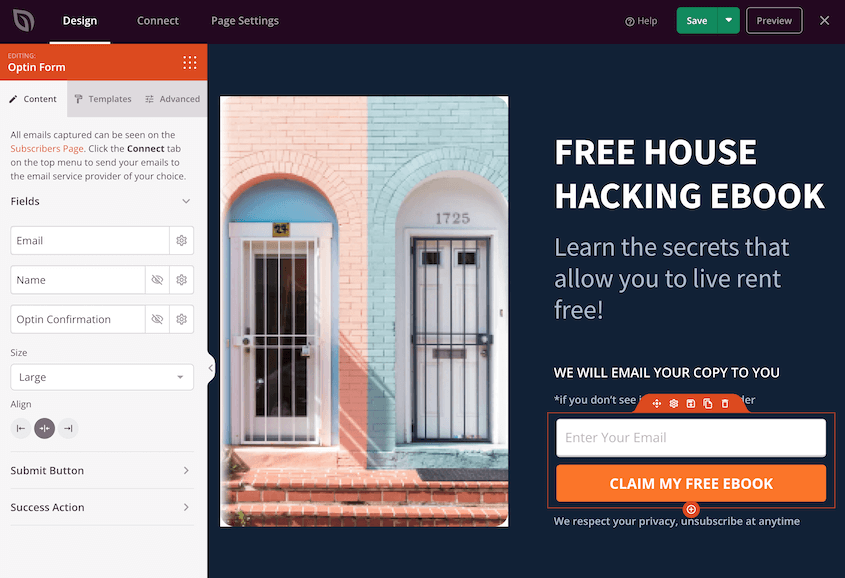
It comes with pre-built templates for blogs, landing pages, and full websites. If you want complete design control but don’t have technical skills, SeedProd handles it.
It also works with WooCommerce if you ever want to sell products directly from your site.
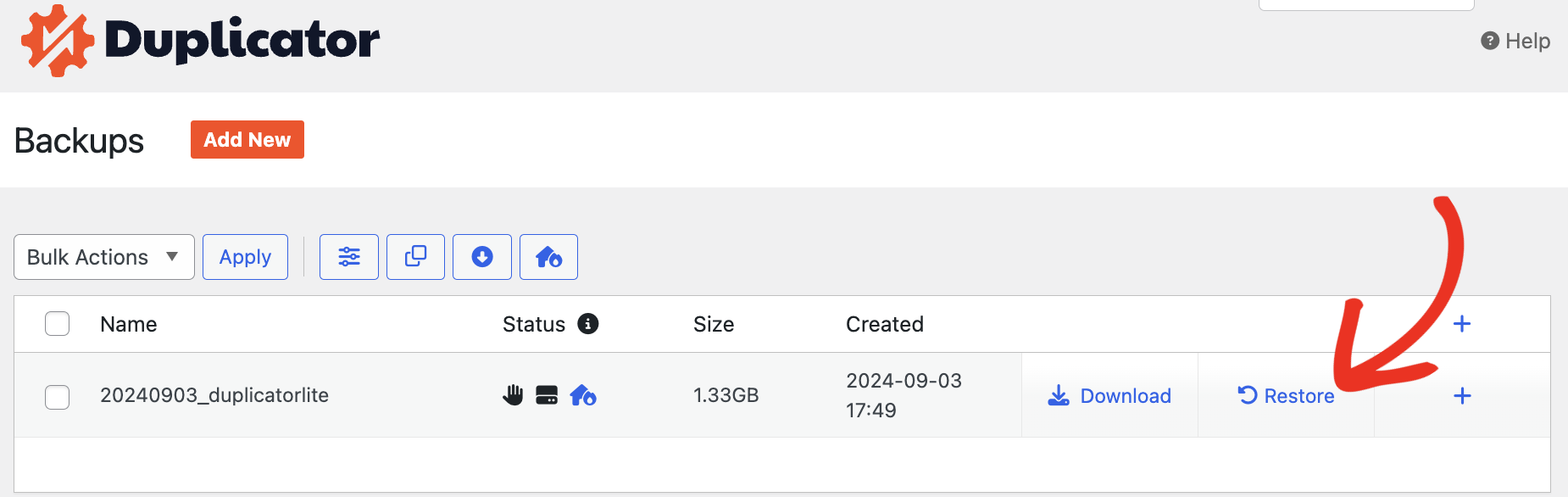
Now, before you import anything from Medium, install Duplicator.
You’re about to upload messy HTML files and run a conversion process that could break things. You need a clean backup point. If the import fails or your site looks broken afterward, Duplicator lets you roll everything back to exactly how it was before you started.

Here’s what Duplicator does: it creates a complete snapshot of your site—your database, your files, your settings, everything.

If something goes wrong during the import, you don’t need to troubleshoot for hours. You just restore the backup and start over with a clean slate.
Step 2: Export Your Medium Blog Posts
Medium exports your posts as HTML files inside a ZIP folder. WordPress imports content as XML files. The formats don’t match, so you need to bridge that gap with a converter.
The tool I recommend for the job is Medium to WordPress Importer. All you’ll need to do is paste your Medium website’s URL.
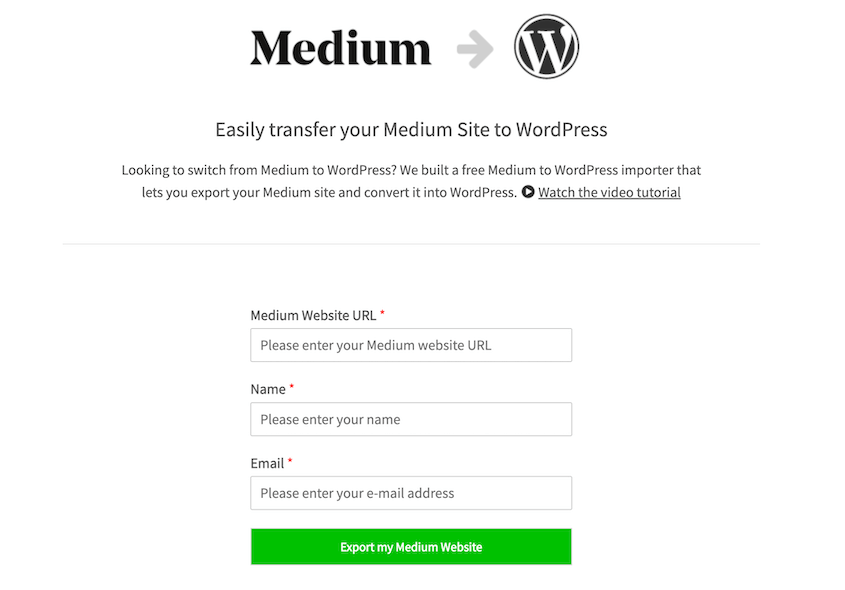
However, if you don’t have a custom domain on Medium, you’ll have to upload an export file. You can download this in your Medium account.
Log into Medium. Click your profile picture in the top right corner, then go to Settings. Scroll down to Security and apps, and look for the option that says Download your information.
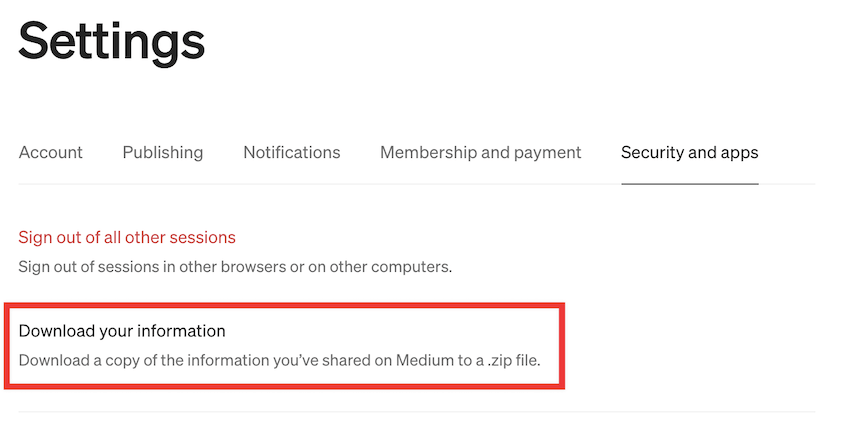
Medium will email you a ZIP file. This usually takes a few minutes.
When you download and open that ZIP file, you’ll see a folder full of HTML files—one for each post you’ve written. This is not a WordPress-ready format.
WordPress expects an XML file with structured metadata. Medium gives you raw HTML with inline styles and embedded images.
So, go back to the Medium to WordPress Importer. Upload your export file and hit Export my Medium Website.
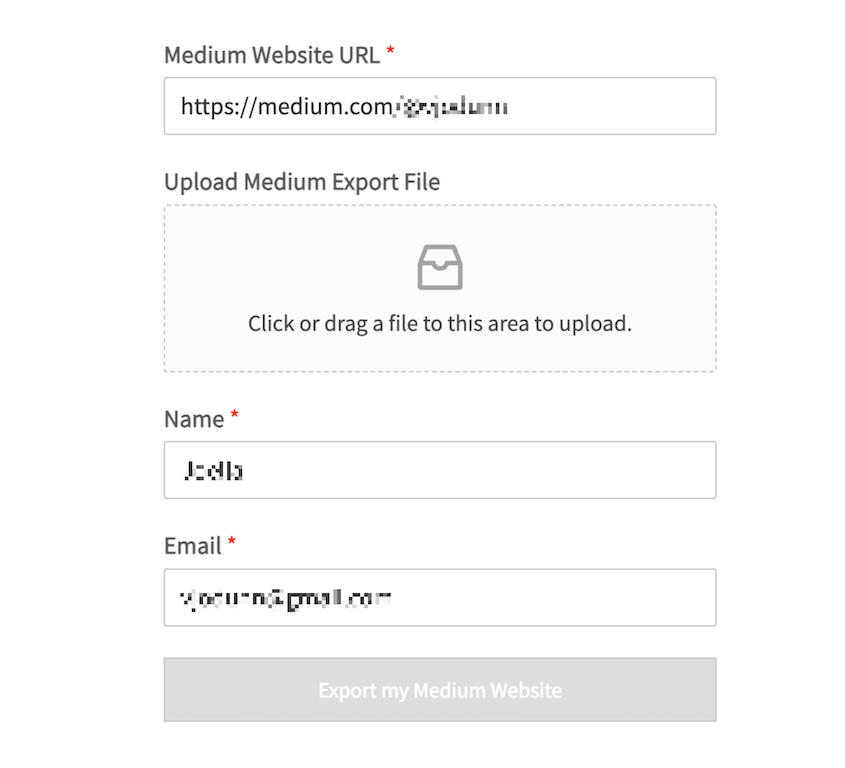
Download the new export file. This will be a WordPress-compatible version of your Medium file.
Step 3: Import Your Medium Posts into WordPress
Go to your WordPress dashboard. Navigate to Tools » Import. You’ll see a list of platforms WordPress can import from.
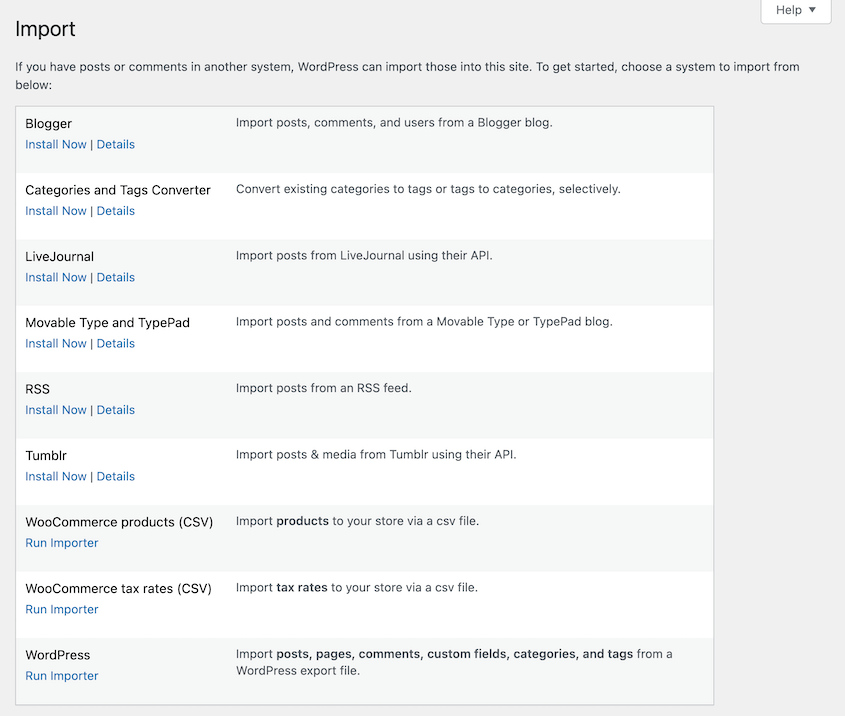
Find WordPress in that list and click Install Now. Once it installs, click Run Importer.
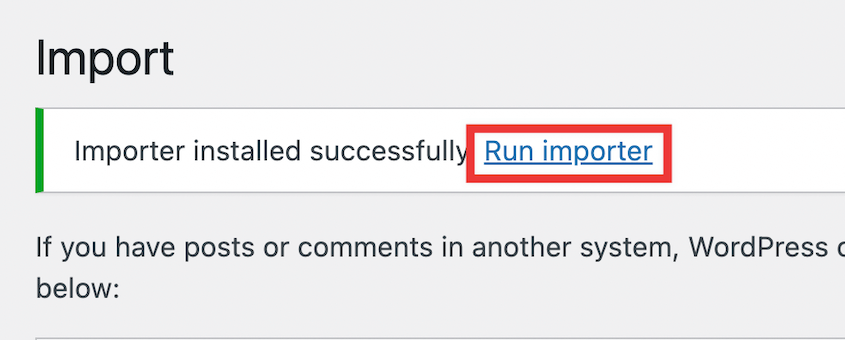
WordPress will ask you to upload a file. Select the file you just downloaded and click Upload file and import.
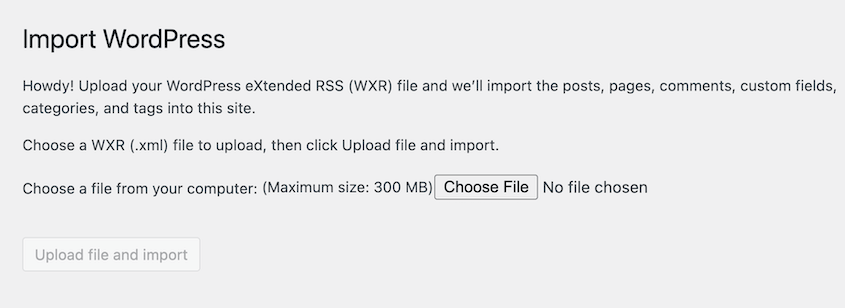
The importer will process the file and convert your Medium posts into WordPress posts. When it finishes, you’ll see a screen asking you to assign the imported posts to a user account.
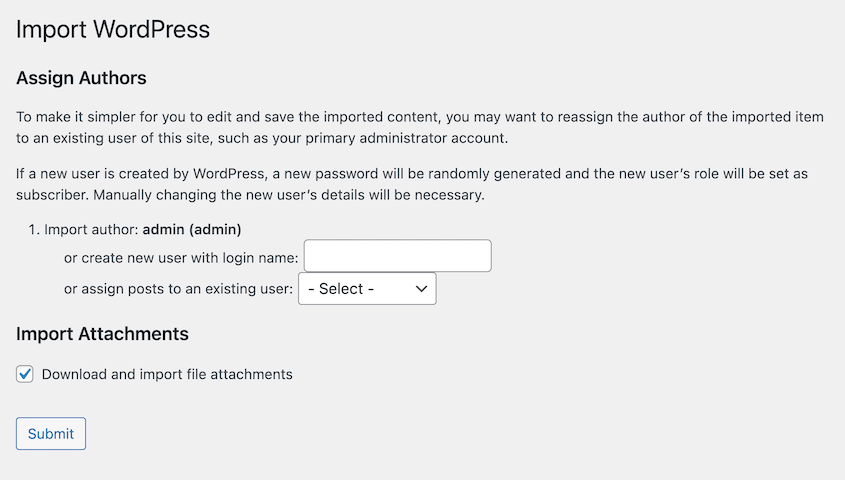
You have two options here:
- Assign all the posts to your existing WordPress user account. This makes sense if you’re the only author and want everything under your name.
- Create a new user specifically for the imported content. This is useful if you want to separate your Medium archive from new content you’ll write directly in WordPress, or if multiple authors contributed to your Medium blog.
After choosing one of these options, check the box next to Download and import file attachments. This uploads the images from Medium posts to your WordPress website.
Hit Submit to finish the import.
Step 4: Import Your Images from Medium to WordPress
Some of your images might not have uploaded properly to WordPress. It’s time to check this, so that your blog posts render correctly.
Open your WordPress Media Library. Check for the images you had on Medium.
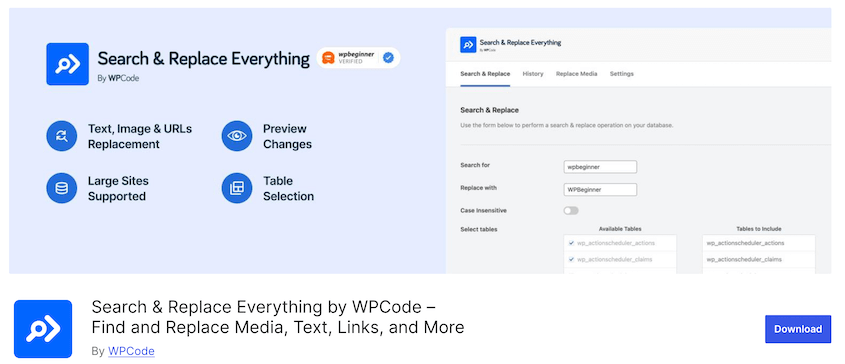
If any are missing, upload them. If you see broken images, you can fix them with a plugin like Search & Replace Everything.
After installing the plugin, find Tools » WP Search & Replace » Replace Media.
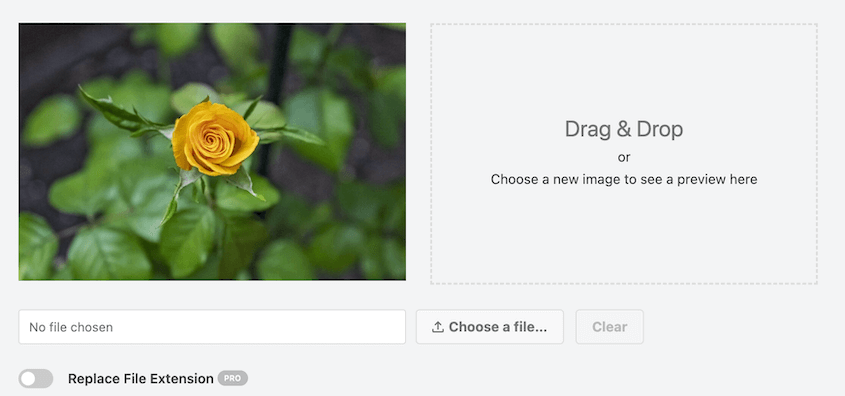
Hover over the image and click Replace.
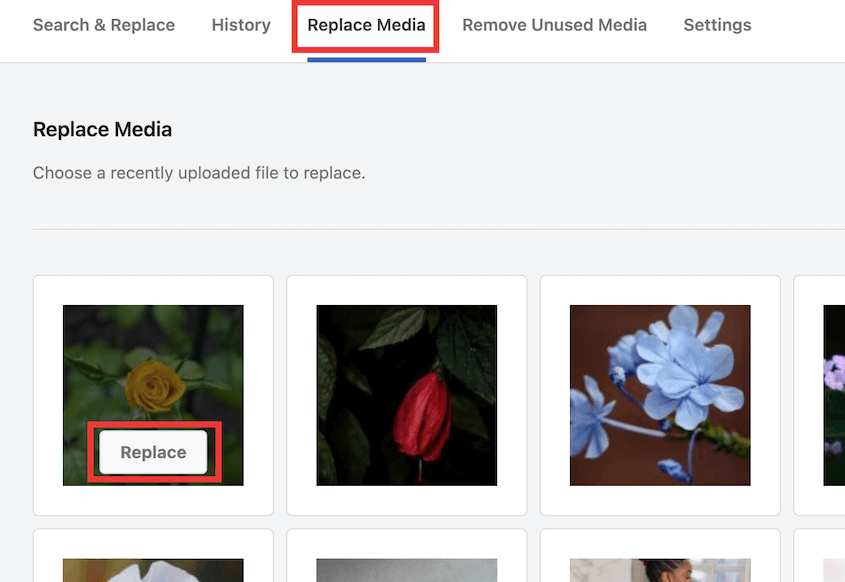
Upload the correct image and hit Replace Source File.
Step 5: Set Up Redirects from Medium to WordPress
You can’t set up traditional 301 redirects from Medium to WordPress.
You don’t own Medium’s server, so you don’t have access to their .htaccess file or server configuration. You can’t tell Medium to automatically send visitors from your old posts to your new WordPress site.
But you can use canonical links, and that’s almost as good.
A canonical link tells search engines which version of a piece of content is the “original” or “preferred” version. If the same article exists in two places—on Medium and on your WordPress site—Google needs to know which one to rank.
Without a canonical link, Google sees duplicate content. It might split the ranking power between both URLs, or it might rank the Medium version and ignore your WordPress version entirely. Either way, you lose.
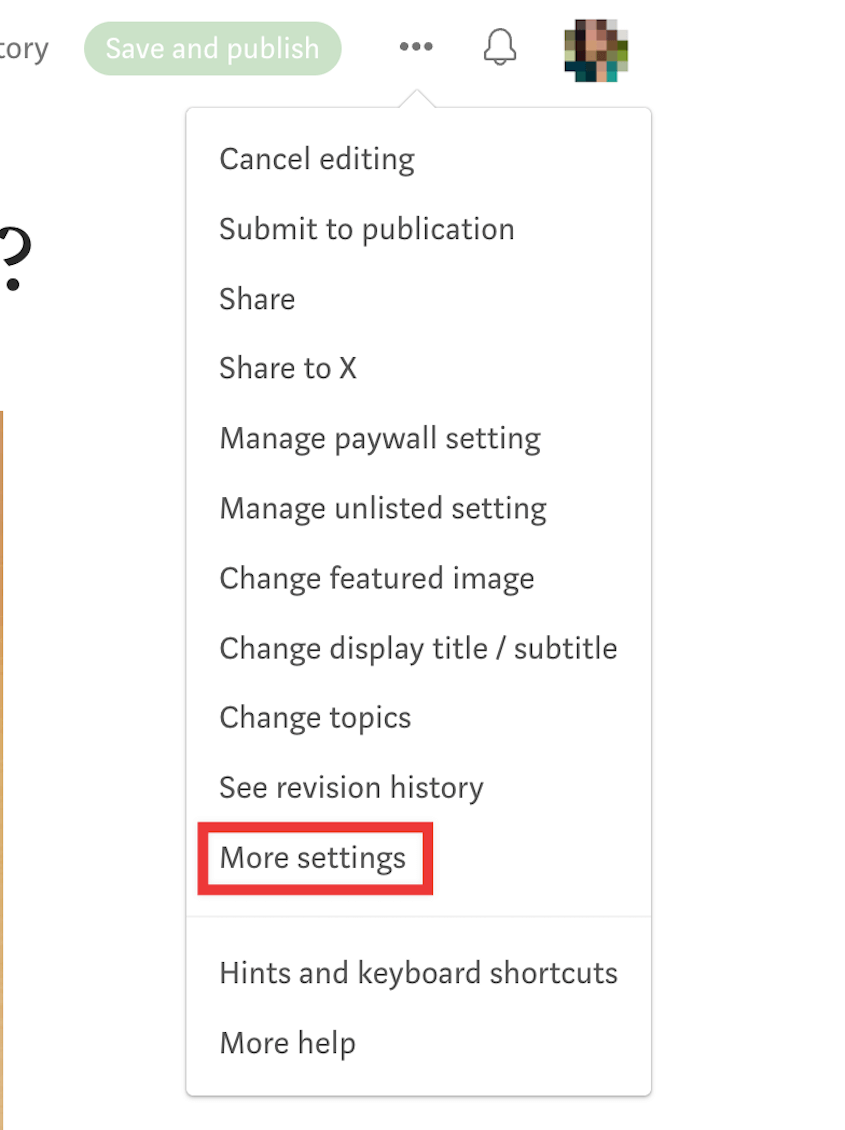
Go to your Medium post. Click the three-dot menu in the top right corner and select Edit Story. Click the three-dot menu again and click More Settings.
Scroll down to Advanced Settings. Check the box next to This story was originally published elsewhere. Paste the URL of the new WordPress version of that post into this field.
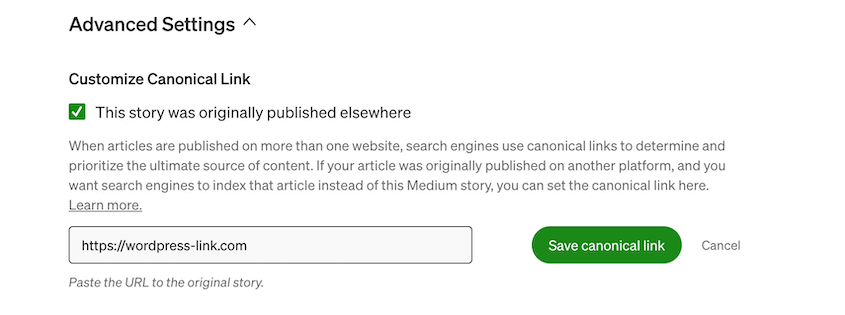
Save the changes.
Medium will add a canonical tag to the HTML of that post. Google will see it and understand that your WordPress site is the primary source.
Over time, your WordPress URL will inherit the ranking power, and the Medium version will fade from search results.
While you’re editing the Medium post, you could also add a short notice at the top of the article:
“This post has moved. Read the updated version here: [Your WordPress URL]”
Make the URL a clickable link. This gives human readers a way to find your new site, not just search engines. If someone lands on your Medium post from an old bookmark or social share, they’ll know where to go.
Don’t delete your Medium posts. Leave them up with the canonical link and the notice. They still drive traffic, and that traffic now funnels to your WordPress site.
Frequently Asked Questions (FAQs)
Will importing Medium posts hurt my SEO?
Only if you don’t use canonical tags. If both versions of your content exist online without a canonical link, Google sees duplicate content and has to choose which version to rank. It might split the ranking power between both, or it might choose the Medium version and ignore yours. With the canonical tag pointing from Medium to WordPress, Google knows your WordPress site is the original source. The SEO value transfers to your domain instead of staying with Medium.
Do images import automatically from Medium to WordPress?
The importer brings over the text and the HTML code that displays images, but the actual image files stay on Medium’s servers. Your WordPress posts link to those Medium URLs. You need to upload the files to your own Media Library and replace any broken images with Search & Replace Everything.
Can I set up 301 redirects from Medium to WordPress?
You don’t have access to Medium’s server or .htaccess file, so you can’t create server-side redirects. Canonical tags are your only option. They tell search engines which version is the primary one, but they don’t automatically send human visitors to your new site. That’s why you should add a visible link at the top of your Medium posts directing readers to the WordPress version.
Should I delete my Medium account after moving?
Not immediately. Keep your Medium posts live with canonical links pointing to your WordPress site. This funnels existing traffic to your new platform. Add a notice at the top of each Medium post with a link to the updated version on WordPress. Over time, your WordPress site will build authority, and you can decide later whether to remove the Medium content entirely.
Build Your Audience with WordPress
Moving from Medium to WordPress is about security and control.
Medium is convenient, but convenience comes with risk. You’re trading ownership for ease of use. When you move to WordPress, you take back control of your content, your revenue, and your relationship with your audience.
Once you’ve moved your content, you need to protect it. You’ve just spent hours migrating posts, fixing formatting, and downloading images. If your site crashes, gets hacked, or breaks during a plugin update, you could lose everything.
Set up automatic backups now, before something goes wrong.
Duplicator Pro lets you schedule backups that run automatically (daily, weekly, hourly, or monthly) on a schedule that makes sense for how often you publish. You’re not manually creating snapshots every time you add a post.
It happens in the background, and your content stays safe. If your site breaks, you restore a backup, and you’re back online in minutes instead of hours.
You moved to WordPress to own your platform. Now protect what you built.
While you’re here, I think you’ll like these related WordPress guides:
- How to Update WordPress (And Stay Ahead of the Curve)
- 11 WordPress Maintenance Tasks You Won’t Want to Forget
- How to Create a WordPress Site From Scratch (Step-by-Step Guide)
- How to Start a WordPress Blog (Step-by-Step Guide)
- How Long Does It Take to Learn WordPress?




