


How to Migrate Your Website from Joomla to WordPress
 Joella Dunn
Joella Dunn
Joella Dunn
 John Turner
John Turner
John Turner
I’ll be honest—if you’re still running Joomla in 2026, you’re probably not doing it by choice.
Maybe you inherited a site that was built back when Joomla was actually competitive. Maybe you’ve been putting off the migration because it sounds painful.
Joomla was solid ten years ago, but managing it today feels like you’re fighting the software instead of building with it.
And if you’ve tried hiring someone to fix things? Good luck. Finding a Joomla specialist is nearly impossible now.
I recommend moving to WordPress. It’s easier to manage, easier to find help for, and—most importantly—you won’t need a developer every time you want to add a contact form. The plugin ecosystem alone will save you hundreds of hours and thousands of dollars.
In this post, I’ll show you how to migrate your Joomla site to WordPress. Even if you have hundreds of posts, they’ll transfer over in one easy migration.
Here are the key takeaways:
- WordPress powers 43% of websites vs. Joomla’s 1.9%
- Migrating to WordPress gives you better support, 60,000+ plugins, and easier management
- Use the FG Joomla to WordPress plugin to transfer all content in one migration
- Set up redirects from old Joomla URLs to new WordPress URLs to preserve SEO rankings and prevent 404 errors
- The migration takes 4 steps: set up WordPress, import content, update permalinks, and configure redirects
Table of Contents
Why Migrate Your Website from Joomla to WordPress?
WordPress powers over 43% of all websites on the internet. In contrast, only 1.9% of sites run on Joomla, and this percentage decreases every year. This shows you just how much of an upgrade WordPress is.
WordPress is open source, so if something breaks on your website, you can Google the error message and find solutions in under a minute. With Joomla, you’ll be lucky to find a forum post from 2019 with no replies.
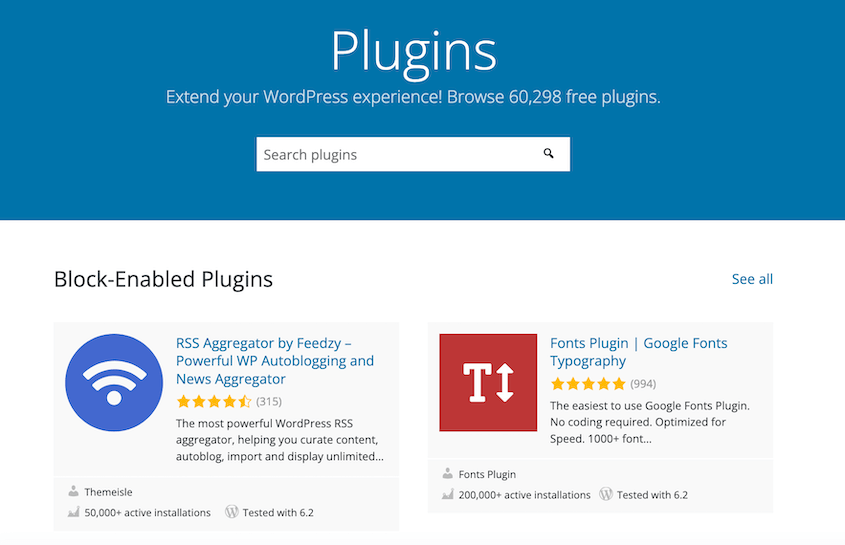
The plugin library is another reason. WordPress has over 60,000 free plugins to extend your website. Need an SEO tool? Instantly add AIOSEO. Want to add ecommerce? Easy Digital Downloads installs in two clicks.
Joomla? Most extensions are paid, poorly documented, or abandoned by developers who moved to—you guessed it—WordPress.
Then there’s the interface itself.
WordPress keeps things simple: Posts vs. Pages. You write, you publish, you’re done. Joomla makes you navigate through Sections, Categories, Articles, and a menu system that’s overly complicated.

Security is better on WordPress too. With millions of active users, vulnerabilities get patched within hours. Joomla’s smaller community means you’re waiting longer for fixes—and hoping someone’s even paying attention.
If you’re running a business, you can’t afford to be stuck on a platform that fights you at every turn.
How to Migrate from Joomla to WordPress
Here’s how to migrate your site from Joomla to WordPress:
- Step 1: Set Up Your WordPress Site: Purchase hosting (Bluehost or SiteGround), install WordPress, and back up your blank installation before importing anything
- Step 2: Import Your Joomla Content into WordPress: Install the FG Joomla to WordPress plugin, connect to your Joomla database, import all content, and modify internal links to match the new WordPress structure
- Step 3: Update Your WordPress Permalinks: Change permalink structure to Post name in Settings » Permalinks to create clean, SEO-friendly URLs
- Step 4: Add Redirects from Joomla to WordPress: Install AIOSEO, set up full site redirect from old Joomla URL to new WordPress URL, and add manual redirects for any stragglers to preserve search rankings
Step 1: Set Up Your WordPress Site
Before you touch anything in Joomla, you need a clean WordPress installation ready to receive your content.
WordPress is the software that will build your website. To get started, you need to purchase web hosting. This gives you space and resources to install WordPress.
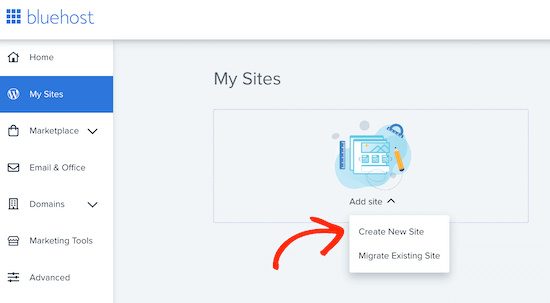
Bluehost and SiteGround both offer solid WordPress hosting. They have one-click installers that do most of the heavy lifting for you.
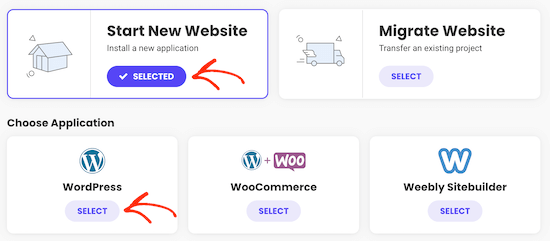
Most hosts have a one-click WordPress installer in cPanel or their custom dashboard. Click it, fill in the basics (site name, admin username, and password), and you’re live in about sixty seconds.
Now here’s the part most tutorials skip—and it’s crucial.
Install a backup plugin like Duplicator immediately. Before you import a single article or image from Joomla, back up your new WordPress site.

Why now? Because migrations fail occasionally. Imports freeze halfway through. And if that happens, you don’t want to manually reinstall WordPress and start over.
With Duplicator installed on your blank site, you can create a backup in seconds. If the migration goes sideways, you just restore this backup and try again. You’re back to square one in under a minute!
Step 2: Import Your Joomla Content into WordPress
Now it’s time to import all of your Joomla content into WordPress.
You’ll need a plugin called FG Joomla to WordPress. It’s the industry standard for this kind of migration—nothing else comes close.
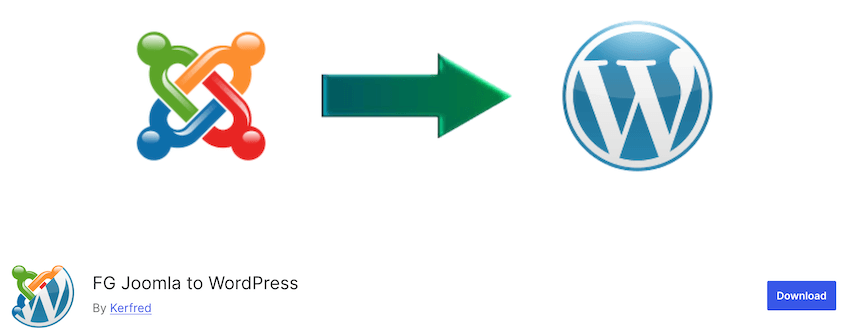
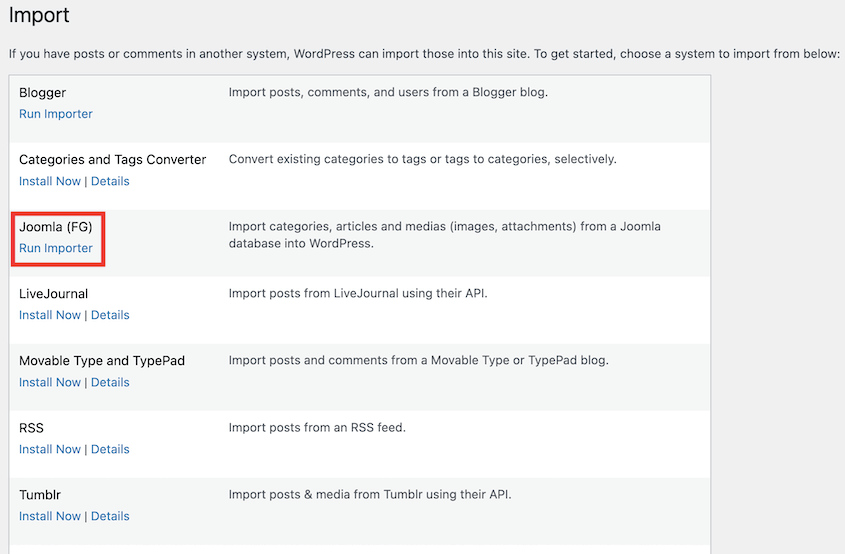
After installing the plugin, go to Tools » Import in your WordPress dashboard. You’ll see Joomla (FG) in the list. Under it, click Install Now. Once installed, run the importer.
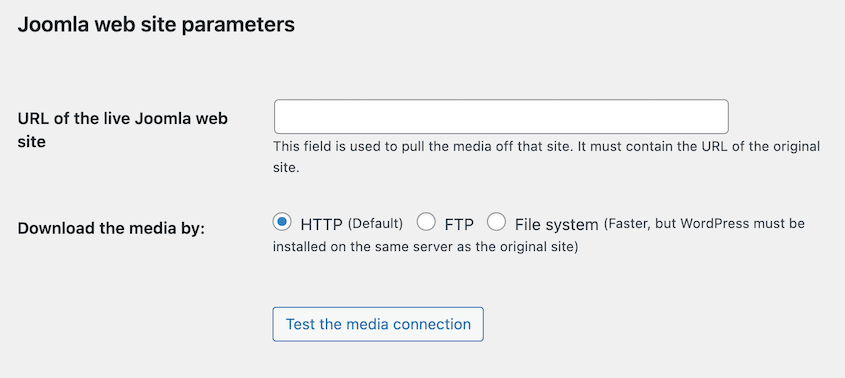
The plugin’s import settings will automatically open. Paste your Joomla URL for the Joomla web site parameters.
Now it’s going to ask for your Joomla database credentials. This tells WordPress where to find your Joomla content.
To grab those credentials, log into your Joomla’s cloud control panel and go to Application » Database.

Under MySQL Information, you’ll see your database hostname, database name, username, database prefix, and password. Copy those exactly as they appear.
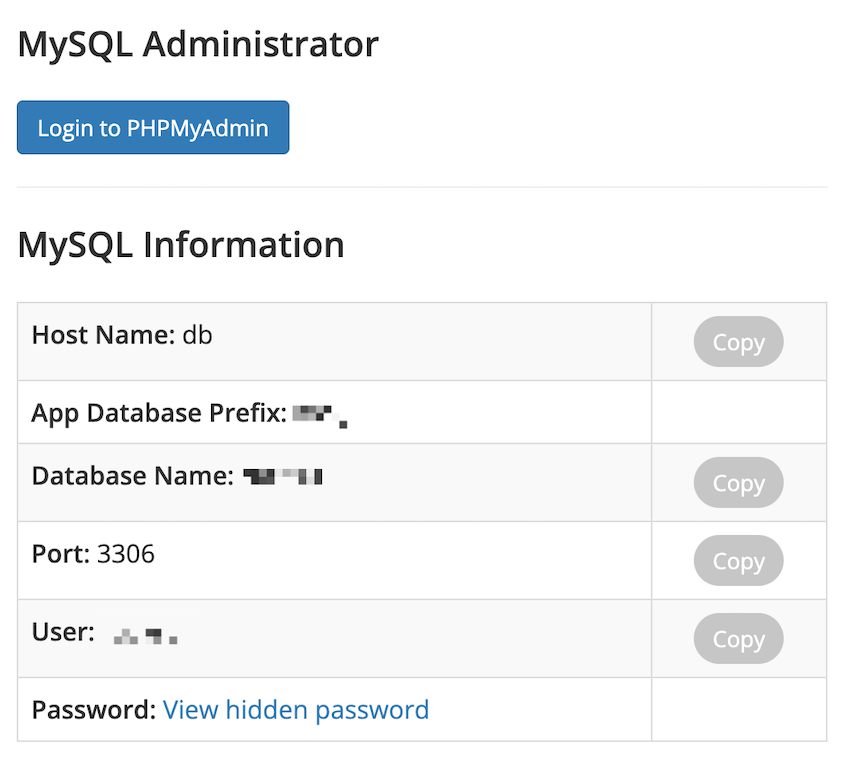
They’ll also be in your Joomla dashboard under System » Global Configuration » Server.
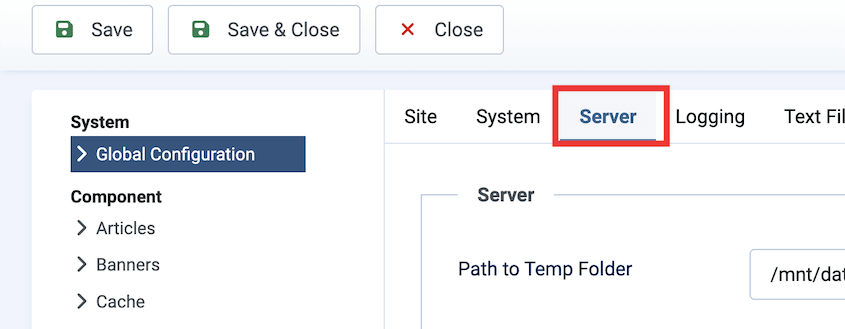
Scroll down to Database to get your information. However, the password will be hidden here.

Go back to WordPress and paste those credentials into the FG Joomla importer fields.
Before you click anything else, hit the Test database connection button. Wait for a success message. If it fails, double-check your credentials.
Under Behavior, you can customize what data is imported from Joomla. Decide how you want to import media files, categories, meta keywords, and pages.
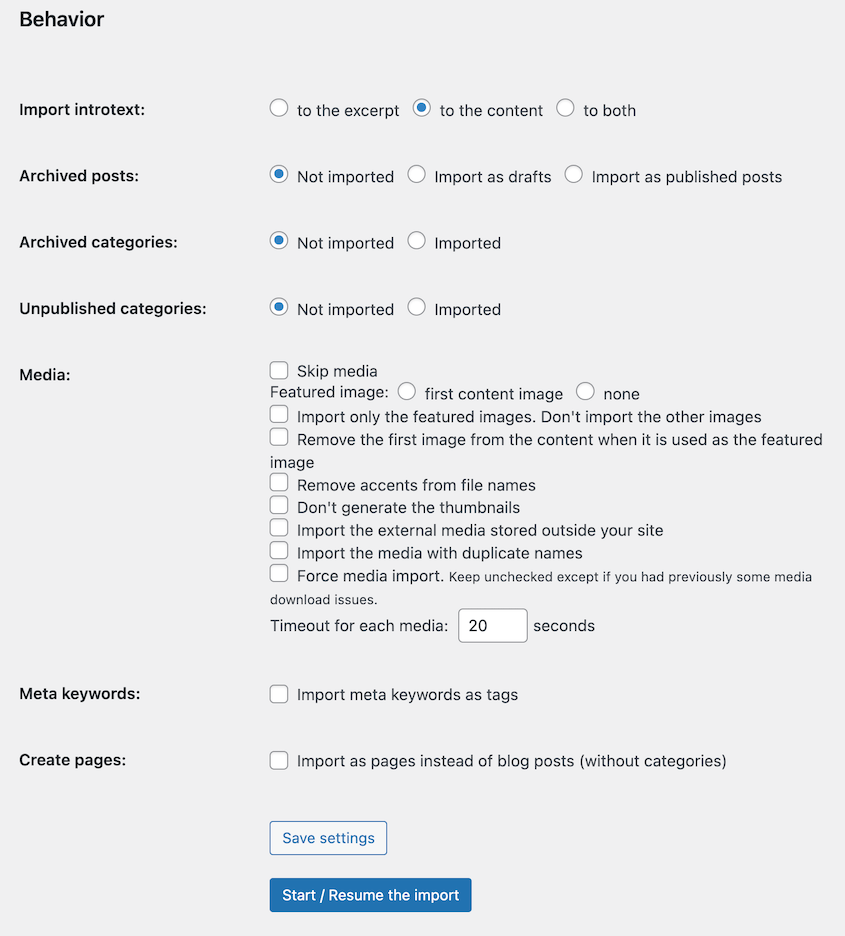
Hit Start/Resume the import.
When it finishes, you’ll see a button labeled Modify internal links.
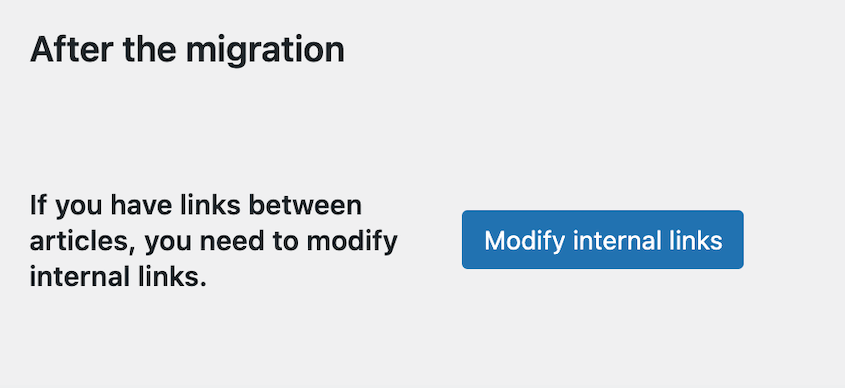
Without this step, every internal link in your old blog posts (links to other articles, images, and downloads) will still point to your Joomla URLs. The plugin rewrites those links to match your new WordPress structure.
Step 3: Update Your WordPress Permalinks
On Joomla, your site had a different URL structure than WordPress. You’ll need to update your WordPress permalinks so that users don’t see 404 errors.
Go to Settings » Permalinks in your WordPress dashboard and select Post name. This gives you URLs like yoursite.com/your-article-title.
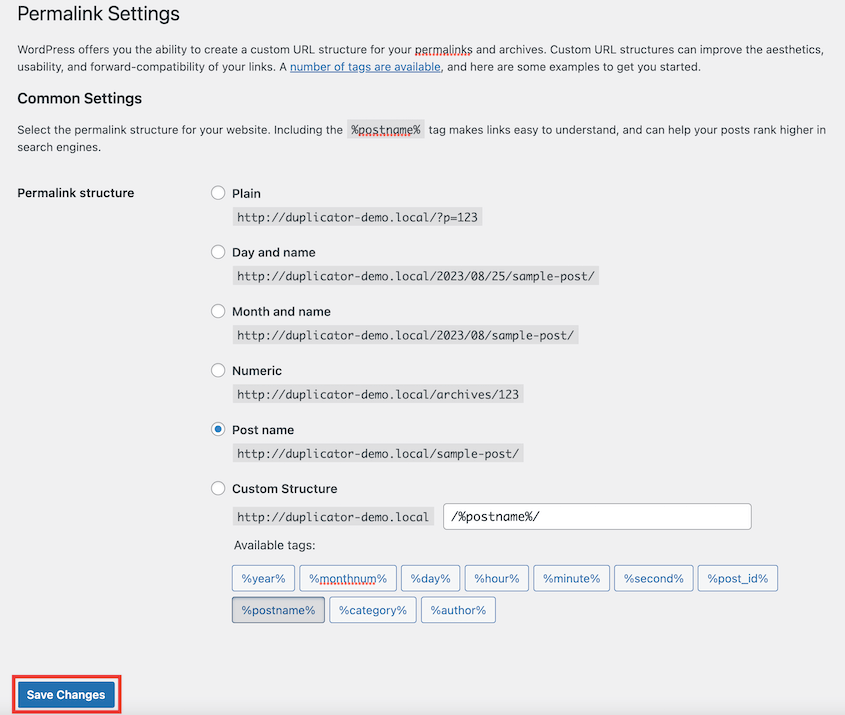
Save your changes.
That’s it. It takes ten seconds, but it matters more than you think—both for SEO and for anyone who actually has to type or remember your URLs.
Step 4: Add Redirects from Joomla to WordPress
This is the step that separates a clean migration from an SEO disaster.
Your old Joomla URLs are indexed in Google. People have bookmarked them, and other sites link to them. If you launch WordPress without setting up redirects, all of those links die, and your search rankings go with them.
I recommend installing a plugin that handles redirects for you. AIOSEO is an SEO plugin with a full site redirection add-on.
Once you install AIOSEO, go to the redirect settings and click the Full Site Redirect option. Enter your old Joomla URL, and redirect it to your WordPress site’s URL.
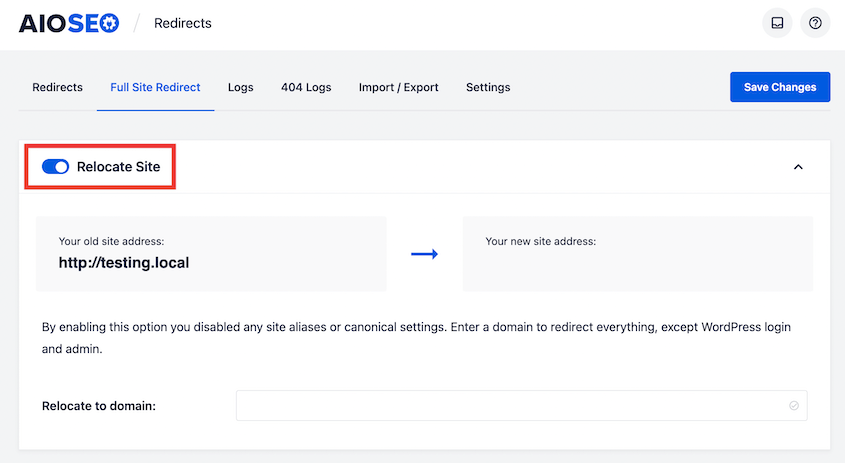
Test a few old URLs by pasting them into your browser. They should land on the correct WordPress page now—not a 404.
If you find stragglers, you can add manual redirects in AIOSEO for specific pages. The plugin has built-in 404 error tracking, so you’ll know if a page isn’t working properly.
Frequently Asked Questions (FAQs)
Is Joomla still relevant in 2026?
No, Joomla is no longer relevant in 2026 for most new websites. Joomla’s market share continues to decline as WordPress, headless CMS platforms, and modern frameworks dominate adoption. Slower ecosystem growth, fewer extensions, and higher maintenance complexity make Joomla less competitive for modern development needs.
Is Joomla better than WordPress?
No, WordPress is better than Joomla because it offers easier setup, a larger plugin and theme ecosystem, stronger community support, and lower long-term maintenance. These advantages make WordPress the preferred CMS for most businesses and publishers.
What are Joomla’s disadvantages?
Joomla’s main disadvantages include a steeper learning curve, a smaller extension ecosystem, and higher maintenance complexity. Joomla requires more technical expertise than WordPress, has fewer themes and plugins, and offers slower third-party innovation. These limitations make Joomla less suitable for beginners and small teams.
Successful Migration to WordPress? Here’s What to Do Next
You’ve moved your site, your content is live, and your redirects are working.
Now it’s time to protect your site.
You just spent hours (maybe days) getting this migration right. The last thing you want is to lose it all to a bad plugin update, a hack, or a server crash that wipes everything.
That’s where Duplicator Pro comes in.
Duplicator Pro is a backup plugin that connects to Duplicator Cloud, Google Drive, Dropbox, or any secure storage you use. Schedule it to back up your site automatically, and you’ll never worry about data loss!
While you’re here, I think you’ll like these hand-picked WordPress resources:
- How Long Does It Take to Learn WordPress?
- How to Start a WordPress Blog
- How to Create a WordPress Site From Scratch
- 11 WordPress Maintenance Tasks You Won’t Want to Forget
- How to Back Up a WordPress Site
- Site Just Crashed? Here’s Your Complete Website Recovery Plan




