


Best WordPress Backup Services to Never Worry About Backups Again
Do you want to find a WordPress backup service for your website?
To keep your site safe, you need to frequently create backups. You could do this yourself, but WordPress backup services can save you so much time.
I’ve tested or used every service on this list. Some I’ve trusted on production sites with real traffic. Some I’ve restored from in actual emergencies.
This list covers only the services worth recommending in 2026. I’ll include plugins, managed services, and SaaS backup tools specifically built for WordPress. If a service couldn’t survive scrutiny on a real site, it’s not here!
Here are the key takeaways:
- Best all-around: Duplicator Pro handles backups, migrations, cloning, staging, and disaster recovery from one plugin, with a recovery URL that works even when WordPress is locked out
- Best free option: UpdraftPlus has 3 million+ active installs, Google Drive and Dropbox support, and the free tier covers most personal sites
- Best for WooCommerce / business-critical sites: Jetpack VaultPress Backup includes real-time incremental backups that capture every order and customer record the moment it’s created
- Best SaaS offsite backup: BlogVault stores backups on their own infrastructure, not your server or your cloud account
- Best established legacy option: Solid Backups has 15+ years in the space, granular scheduling, and detailed restore controls
Table of Contents
What Is a WordPress Backup Service?
A WordPress backup service creates complete backups of your WordPress website’s files, databases, and content. Instead of manually backing up your site, these services automate the entire process for you.
With a backup service, you can schedule backups to run automatically. The service will zip up all your website’s data into a single backup file. This includes your WordPress files, media uploads, plugin/theme files, and your database.
Most quality backup services also give you options for storing your backups remotely in cloud storage. This ensures you have an off-site copy, safe from any server issues.
The best WordPress backup solutions go beyond just creating backups. They also provide easy one-click restore functionality to quickly get your site back up and running if needed.
Many include additional tools that make WordPress maintenance much easier. They might provide backup monitoring, migration capabilities, or extra security.
Why Use a WordPress Backup Service?
Without backups, you risk losing everything if something goes wrong. Whether it’s a hacker, hardware failure, WordPress update issue, or simple mistake, not having backups leaves you completely vulnerable.
With a backup service handling secure offsite backups, you can recover from any data disaster. Restoring your entire site is a matter of clicks.
Plus, manually backing up all your WordPress files, database, and uploads is incredibly tedious. Backup services automate this on a schedule so you don’t have to remember or find the time.
Knowing your website data is safely backed up provides huge peace of mind. You can focus on running your business without the looming threat of data loss.
Don’t risk it — for the relatively low cost of a backup service, you get an incredibly valuable safety net!
The 7 Best WordPress Backup Services, Reviewed
These services cover different scenarios. Which one fits depends on how much control you want, how much you’re willing to pay, and what you’re trying to protect against.
1. Duplicator
Duplicator Pro is the most complete WordPress backup tool in this comparison. It does things none of the other services do: it can restore your site when WordPress itself is completely locked out, migrate to a blank server without WordPress pre-installed, and handle backups over 400GB without hitting a size limit.
Most backup plugins create a backup. Duplicator creates a backup you can actually use in every recovery scenario, including the ones other plugins give up on.
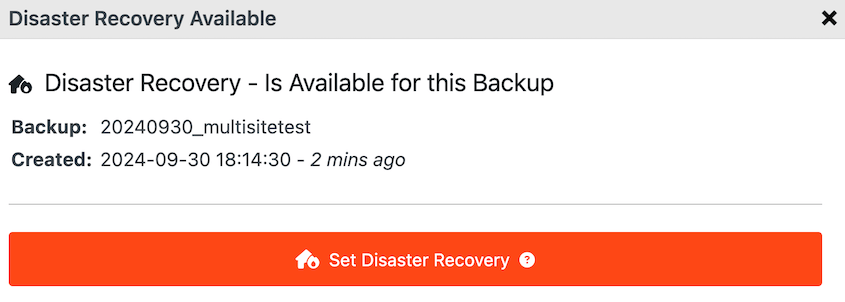
The disaster recovery URL is the feature I keep coming back to.
If your site is hacked, your wp-admin is inaccessible, and your database is corrupted, a standard backup plugin can’t help you. The recovery URL lets you restore directly from the backup archive without needing a working WordPress installation.
I haven’t found another plugin that does this.
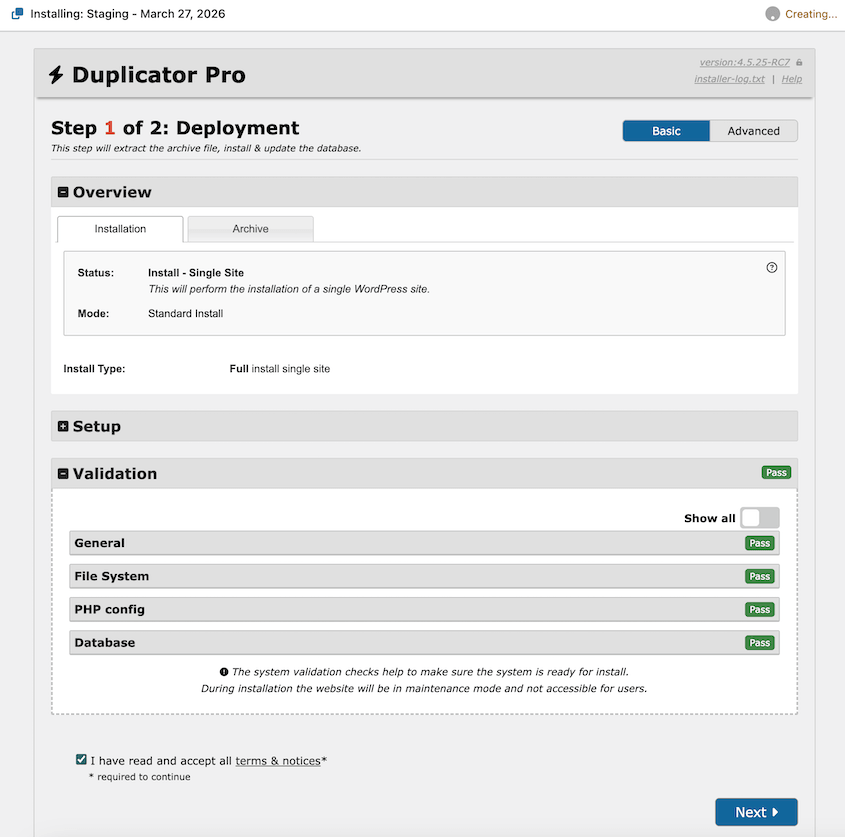
The migration and cloning workflow is what the original plugin was built for. You can move a full WordPress site to a new host using Duplicator’s standalone installer, which sets up WordPress from scratch on the destination server.
Sometimes, you could lose data due to server problems. To solve this problem, Duplicator integrates with cloud storage services including:
- Google Drive
- Dropbox
- Microsoft OneDrive
- Amazon S3
- Wasabi
- Google Cloud
- DreamObjects
- Vultr
- DigitalOcean Spaces
- Cloudflare R2
- Backblaze B2
Since Duplicator supports automatic backups, it’s a WordPress backup service! All you’ll need to do is customize when the backup runs. You can set it and forget it, knowing that your data is protected.
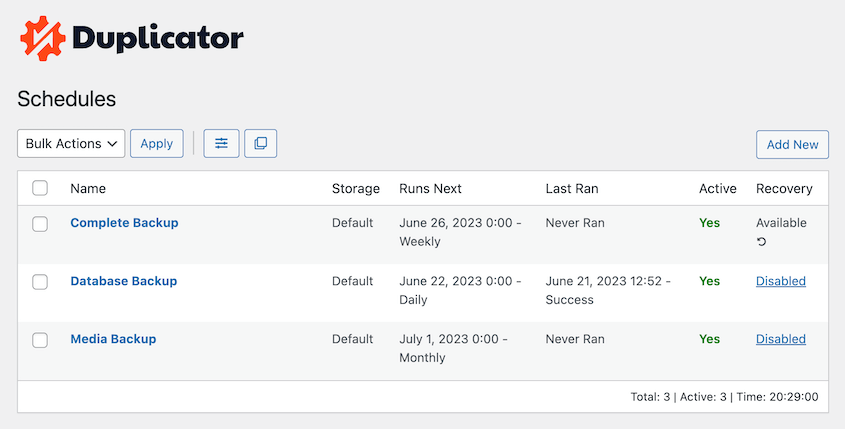
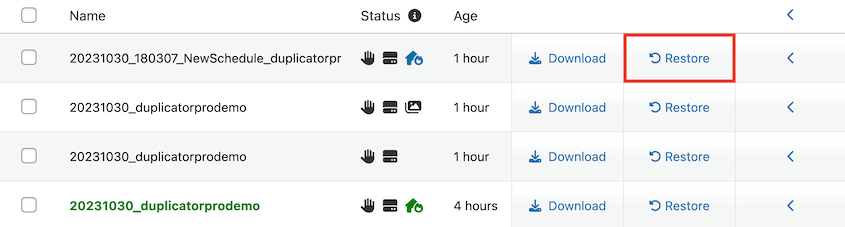
Restoration is just as straightforward. With one click, you can roll back your entire site to a previous version, preventing data loss and removing errors.
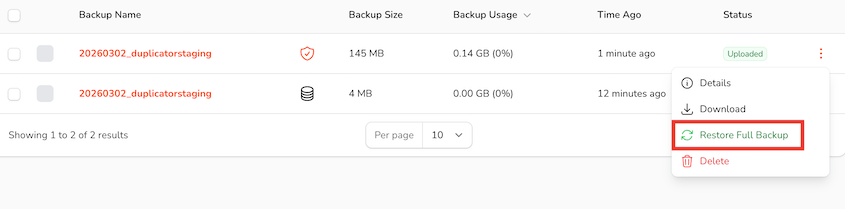
It has a native storage service called Duplicator Cloud. You can upload backups here and restore them without touching your wp-admin dashboard.
Plus, Duplicator is a migration plugin. It’ll help you move to a new web hosting provider, staging site, domain name, or other location. With all of these extra features, it’s no wonder Duplicator is our top pick for all-around backup service!
What I Liked
- Automatic and manual backups
- Plenty of cloud storage options
- Supports large sites and WordPress multisites
- Easy backup customization
- One-click restores, even from cloud storage
- Disaster recovery when you’re locked out of the dashboard
- Drag-and-drop migrations
- Email notifications with backup statuses
- Developer-friendly
- Supports managed hosts like WordPress.com and WPEngine
- One-click staging
- Native Duplicator Cloud storage
- Remote cloud restores
How Much Does Duplicator Cost?
Duplicator has a completely free version. The premium plans start at $69.30 per year.
Why I Chose Duplicator
Duplicator is the best WordPress backup service because it automates backups, sends data to cloud storage, and can even migrate entire sites.
2. WP Buffs
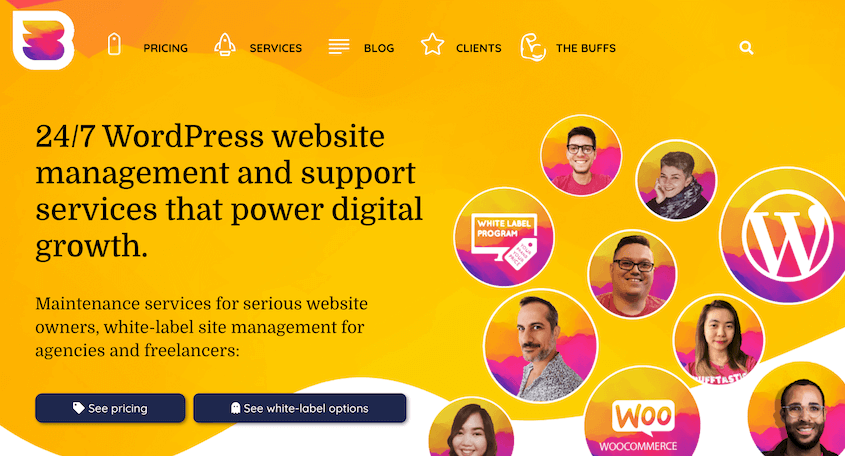
WP Buffs offers comprehensive monthly maintenance plans for WordPress sites. Their team of WordPress experts will handle creating, storing, and managing backups while you focus on your business.
All of WP Buffs’ plans come with automatic daily backups. These are stored in Amazon S3.
Although WP Buffs handles backup logistics, you can customize what files they back up. You’ll still have full control over your data.
In addition to scheduled backups, a WP Buffs plan gives you 24/7 emergency support, plugin/theme updates, malware removal, and more. They perform work on a recurring monthly basis, ensuring your site is always backed up, updated, and running smoothly.
What I Liked
- Daily backups available with any plan
- Up to 4x daily backups
- Cloud storage
- Emergency restores
- White label services if you want to start selling maintenance services
- 30-day backup history
How Much Does WP Buffs Charge For Backup Services?
The pricing for WP Buffs’ maintenance starts at $89 monthly.
Why I Chose WP Buffs
WP Buffs is a popular WordPress maintenance service with daily backups, Amazon S3 storage, and 24/7 emergency help.
3. UpdraftPlus
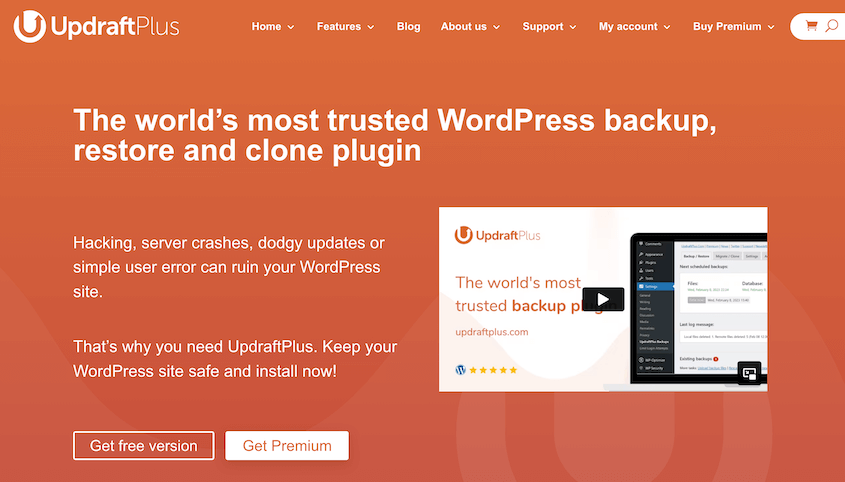
UpdraftPlus is the most-installed WordPress backup plugin. The free version does more than most paid alternatives: schedule automated backups, storage to Google Drive or Dropbox, and separate file/database archives that you can restore independently.
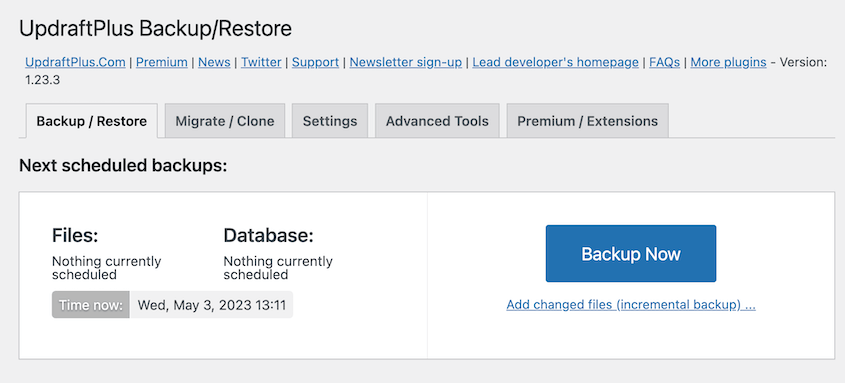
For personal sites, blogs, and low-traffic business sites that need a reliable automated backup with no plugin cost, UpdraftPlus Lite covers the basics. You can schedule daily or weekly backups to a cloud destination and restore from WordPress.
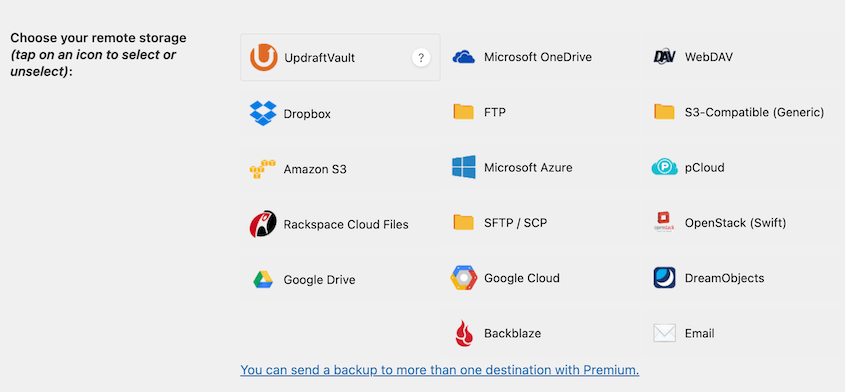
The premium version ($70/year for 2 sites) adds incremental backups, the Migrator (site cloning and migration), support for more cloud destinations, multiple simultaneous storage destinations, and multi-site support.
The incremental backup feature is meaningful for large sites. Instead of creating a full zip every time, it only backs up files that changed since the last backup. That reduces backup file size and server load significantly.
What I Liked
- Easy one-click backups
- Remote storage to Microsoft OneDrive, SFTP, Microsoft Azure, Google Cloud, Backblaze B2, pCloud, and WebDAV
- Incremental backups
- Auto-backups before updates
- Multisite support
Limitation: UpdraftPlus splits backups into separate files (database, plugins, themes, uploads). Restoring requires downloading and importing each component individually, which is slower and more error-prone than a single-archive restore. For complex migration scenarios, Duplicator’s single-package approach is significantly cleaner.
How Much Does UpdraftPlus Cost?
There is a free version of UpdraftPlus. To upgrade, the premium version starts at $70 per year.
Why I Chose UpdraftPlus
Many beginners choose UpdraftPlus because of its simple backup features. You can easily back up and restore your site even if you’re completely new to WordPress.
4. Solid Backups
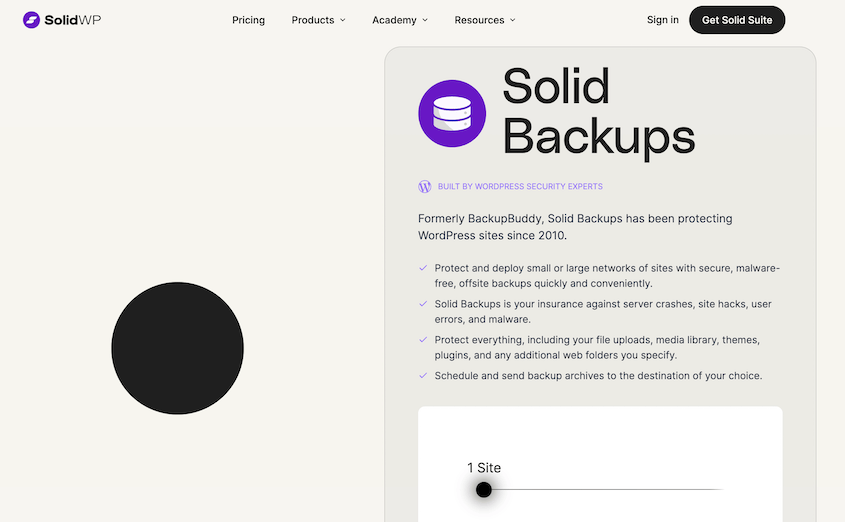
BackupBuddy launched in 2010 and is now sold as Solid Backups. It has 15+ years of real-world usage. You can see this experience in the way it handles complex hosting environments, unusual database configurations, and large media libraries.
The scheduling system is flexible: you can set different schedules for full backups, database-only backups, and file-only backups. You can store backups to multiple remote destinations per schedule.
The malware scan checks backups for known threats before restoring it — useful if the compromise happened before the backup was taken.
For agencies or developers who manage older, complex sites with non-standard setups, Solid Backups tends to handle the edge cases that newer tools miss.
What I Liked
- Restore database backups
- Restore full backups or specific files
- Cloud storage in Solid Stash or third-party services
- Scheduled backups
- Migration features
Limitation: Solid Backups is priced at the high end. It costs $99/year for a single site, with no free version. For most personal and small business sites, that cost is harder to justify.
How Much Does Solid Backups Cost?
Solid Backups is a premium backup plugin that starts at $99 per year for one site.
Why I Chose Solid Backups
Solid Backups allows for precise restoration of individual files, databases, and previous site versions.
5. Jetpack Backup (VaultPress)
Standard backup plugins run on a schedule: once a day, once a week. If your WooCommerce store processes 50 orders between the last backup and a crash, you lose those 50 orders.
VaultPress Backup, or Jetpack, avoids this by running real-time incremental backups. Every database change is captured the moment it happens.
For a business where the data between backups is financially significant (orders, customer records, membership accounts, form submissions), that real-time protection is necessary. A daily backup schedule leaves a 24-hour window of exposure. Real-time backups reduce that window to seconds.
The restoration interface is clean. You pick a point in time, down to the minute, and restore to that exact state. For WooCommerce stores that need to roll back to “just before the bad update ran at 2:47 PM,” that precision matters.
VaultPress Backup is a product from Automattic: the company behind WordPress.com. Backups are stored on Automattic’s servers, separate from your hosting. A server failure at your host doesn’t affect the backup.
What I Liked
- Real-time backups to the cloud
- 10+GB of storage
- One-click restores
- Mobile app
- 30-day backup archive
- Supports WooCommerce
Limitation: There’s also no free tier for VaultPress Backup; the free Jetpack plugin doesn’t include it.
How Much Does VaultPress Cost?
VaultPress costs $4.95 per month. You can also bundle all of the different Jetpack products for $24.95 monthly.
Why I Chose VaultPress
VaultPress, or Jetpack Backup, offers convenient cloud backups and one-click restores. I appreciated that it bundles with other helpful Jetpack products to become a comprehensive maintenance toolset.
6. BlogVault
BlogVault takes a different approach than plugin-based backup tools. Instead of storing backups on your server or in your cloud account, it sends them to BlogVault’s own managed infrastructure. You don’t configure storage; BlogVault handles it.
That means a compromised hosting account doesn’t touch your backups. If an attacker gains access to your server or cloud credentials, they can delete backups stored in your Google Drive or S3 bucket. They can’t reach BlogVault’s servers.
For the same reason, BlogVault often works when other backup methods fail. The backup process runs against BlogVault’s system, not yours.
The restore and staging workflow is polished. You can restore the full site or merge specific changes (useful for partial rollbacks after a content edit gone wrong). The staging environment feature lets you test updates on a copy of the site before applying them to production.
BlogVault also offers site management and malware scanning alongside backup, making it closer to a site monitoring platform than a pure backup service.
What I Liked
- Backup encryption
- One-click restores
- Uptime monitoring
- Malware removal
- Web Application Firewall (WAF)
- Real-time and incremental backups
Limitation: BlogVault stores backups only on BlogVault’s servers. You can’t redirect them to your own S3 bucket or cloud storage. If you want to own your backup storage location (for compliance reasons or long-term retention control), this is a hard limitation. Duplicator or UpdraftPlus give you full storage destination control.
How Much Does BlogVault Cost?
The cost of BlogVault starts at $49.50 per year.
Why I Chose BlogVault
BlogVault is a reliable backup service that prioritizes security.
7. BackWPup

For those on a tight budget, BackWPup can be a good option. BackWPup is a free WordPress backup plugin that’s active on more than 500,000 websites.
Even though it’s a free plugin, BackWPup is pretty flexible. You can use it to back up your database, files, or both. It can also export an XML file and repair your database.
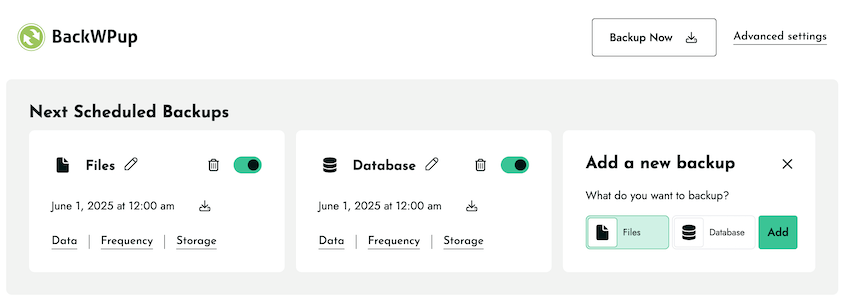
BackWPup offers cloud storage options like Dropbox, Rackspace Cloud, and SugarSync. It backs up your site manually or on a schedule.
What I Liked
- Flexible backups
- Back up custom WordPress database tables
- Database checks and repairs
- Cloud storage
- Automated backups
Limitation: BackWPup has undergone a huge redesign, which some users say is less functional.
How Much Does BackWPup Cost?
BackWPup is free. There is also a Pro version for $49.
Why I Chose BackWPup
BackWPup is a free yet flexible WordPress backup plugin with customizable backup options, cloud storage, and database repairs.
FAQs About WordPress Backup Services
Why should WordPress users back up their website?
WordPress users should back up their websites to protect them from data loss or hacking incidents. Having a recent backup allows you to quickly restore your site to a previous functional state, minimizing downtime and potential losses.
How much do WordPress backup services cost?
The cost of WordPress backup services depends on the specific provider. If you want a fully managed service, it might cost between $50-$70 every month. Alternatively, you could use a free WordPress backup plugin. Premium backup plugins can cost anywhere from $50 to $150 a year.
WordPress hosting providers usually have built-in backup features that are included in your hosting plan. This may be offered as an add-on service.
Keep in mind that manual backups are always free, although it’s a more technical option. Once you access cPanel or an FTP client, download all of your site files. Then, use phpMyAdmin to export your database.
What is the best backup service for WordPress websites?
The best backup service for WordPress websites is Duplicator Pro. This tool can automatically back up your website to the cloud. Plus, it’s a lot cheaper than similar backup plugins.
How do I back up my whole WordPress site?
To back up your whole WordPress site, create a new package with Duplicator. Select a storage location and choose what data to include in the backup. Then, download the backup files.
Protect Your Site Before Something Goes Wrong
Most site owners set up a backup service, see the confirmation email, and consider the job done. The confirmation email means the backup ran. It doesn’t mean the backup restores.
After you schedule auto backups, test one in a staging site once a quarter. It takes 20 minutes and it’s the only thing that actually tells you whether your backup works.
Over 1.5 million WordPress professionals use Duplicator to manage site backups, migrations, and disaster recovery. Duplicator Pro gives you automated scheduled backups, 10+ cloud storage destinations, one-click restore directly from cloud storage, and disaster recovery URLs that restore your site even when WordPress is completely locked out.
If you run a WooCommerce store, manage multiple client sites, or have a site with traffic you can’t afford to lose, the right time to set up proper backup protection is before you need it.
These guides are worth reading if you’re thinking seriously about backup strategy:



