

What Breaks WordPress Backups: Lessons From 1,400+ Support Tickets
 Joella Dunn
Joella Dunn
Joella Dunn
 John Turner
John Turner
John Turner
A backup that fails while you’re watching is annoying. A backup that quietly stopped weeks ago is the one that costs you the site.
Most people find out which kind of backup they have at the worst possible time.
Duplicator is a WordPress backup and migration plugin running on more than 1.5 million sites. When people run into backup trouble, they tell us, in detail, in their own words.
We reviewed more than 1,400 backup-related support requests to see where backups break. The pattern is clearer than we expected, and it splits cleanly in two.
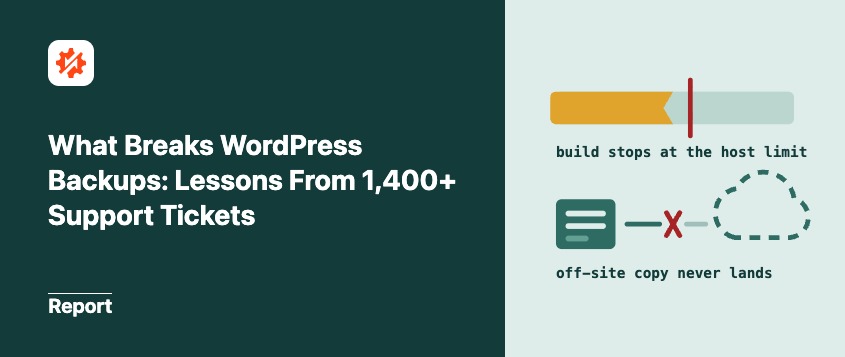
Backups run into trouble either when a host limit stops the build or when the file is created but the separate step of sending it off-site doesn’t complete.
Here’s what those tickets told us.
Table of Contents
- Key Findings
- The Two Ways Backups Can Fail
- Problem One: When a Host Limit Stops the Build
- Problem Two: When the Off-Site Upload Doesn't Complete
- How to Tell If Your Backup Is Safe Right Now
- Frequently Asked Questions (FAQs)
- The Backup You Never Check Is the One That Fails
- Before Your Next Backup, Make Sure It's Reaching Storage
Key Findings
For anyone who wants the pattern before the detail, here’s what the tickets say about where WordPress backups break. Every figure comes from Duplicator’s own support records.
- Backup trouble splits into two clusters: a host limit stopping the build and the off-site upload step not completing after the file is made.
- A host limit stopping the build partway is the most common backup-creation problem, about 1 in 4 tickets. It’s the same host-limit pattern that strains WordPress migrations, and the build almost always completes once the limit is raised.
- Among storage-connection tickets, roughly 4 in 10 are an authentication or connection failure with the cloud provider. The connection to storage de-authorizes over time on the provider’s side.
- Among scheduled-backup failures, two causes lead: the off-site upload breaking between runs (about 1 in 4) and old backups filling the server’s disk when no retention limit is set (about 1 in 7).
- Most scheduled-backup trouble starts after a working setup, not during it. The schedule was fine on day one, and the connection lapsed later.
One caveat that shapes how to read all of this. These are support tickets, so they show where backups run into trouble, not how often.
They also can’t capture the problems nobody noticed because everyone in this data spotted an issue and filed a ticket. The silent cases, the ones a site owner never sees, sit outside this dataset entirely.
The Two Ways Backups Can Fail
Nearly every backup difficulty we see is one of two stories. Once you can tell them apart, the fixes are obvious.
The first problem comes down to the server. The build starts, runs for a while, and the host stops it before it finishes, usually at the heaviest step.
The second problem is about the off-site copy. The backup file is created, but the separate step of sending it to storage doesn’t complete because that step depends on a connection outside WordPress.
Problem One: When a Host Limit Stops the Build
You start a backup, watch it run, and it fails to complete.
This is the most common backup issue we see, and it’s almost always the web host, not the backup, that gave up. The build starts, then the server cuts it off partway, usually at the point of heaviest work.
These builds almost always complete once the host limit is raised. The engine isn’t the variable; the server’s ceiling is.
One failure sits far above the rest. In about 1 in 4 backup tickets, the build stalls partway because the host cut the process off at its heaviest moment. The rest of the list is variations on the same theme:
| Where the build stops | Roughly how often | What’s usually behind it | How it gets resolved |
|---|---|---|---|
| Host limit stops the build partway | 1 in 4 | A host PHP timeout or memory cap during the heaviest step | Raise the PHP limits or use an installer built for large archives (DupArchive) |
| Archive step fails on a constrained host | About 1 in 8 | Limited disk space or PHP limits during compression | Free up disk space, raise PHP limits, then retry with a chunked build |
| Site too big for the host to handle | About 1 in 12 | A large database or media library outrunning server limits | Split the build and exclude large files you don’t need in the backup |
| PHP timeout on the server | About 1 in 20 | The execution limit is set too low for the site size | Raise max_execution_time on the server |
| Server folder permissions | About 1 in 22 | The archive can’t be written to disk | Fix folder permissions on the server |
| Server memory limit exhausted | About 1 in 25 | The build runs out of memory mid-run | Raise memory_limit |
The same cause keeps appearing: the host. The build stops because the server limited it at the moment of heaviest work, when the archive is being assembled, not because the engine gave up.
That’s also why site size matters so much. A large database or media library pushes the build right up against the host’s ceiling.
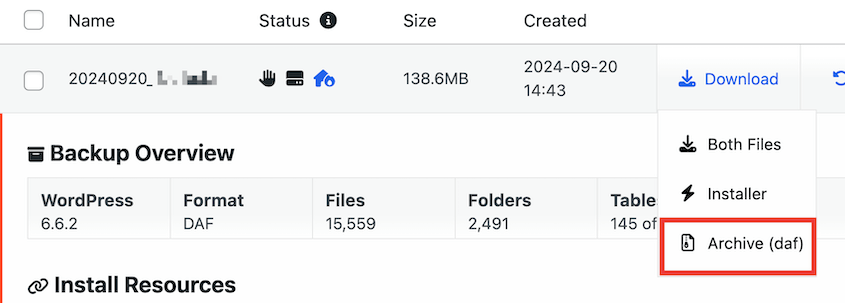
Duplicator Pro‘s standalone installer and DupArchive format are built for large site backups. DupArchive has no theoretical file-size limit and has handled real backups up to 400GB.
Problem Two: When the Off-Site Upload Doesn’t Complete
Everything looked fine for months. Then you go to pull last week’s backup from Google Drive, and the folder is emptier than you expected.
The backups were building. They just weren’t landing where you thought.
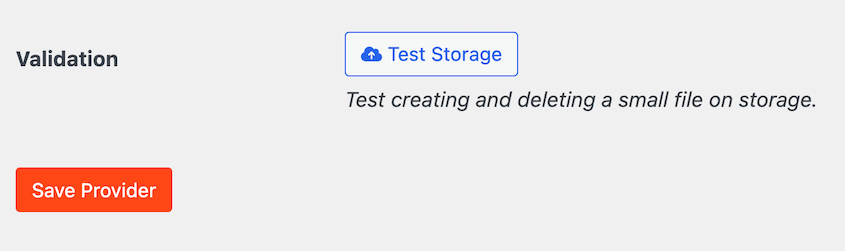
The backup file is created on your server. Sending it off-site is a separate step, and that step relies on a connection to your cloud storage or remote server outside of WordPress.
When that connection lapses, the file exists, but the off-site copy doesn’t. You won’t see the gap until you need it.
It comes down to three things.
The Storage Connection Lapsed on the Provider’s Side
Roughly 4 in 10 storage-connection tickets come down to authentication with the cloud provider. The connection worked at setup, then the provider stopped honoring it.
Cloud storage connections rely on access that expires or gets revoked over time, and that’s controlled by the storage provider, not WordPress.
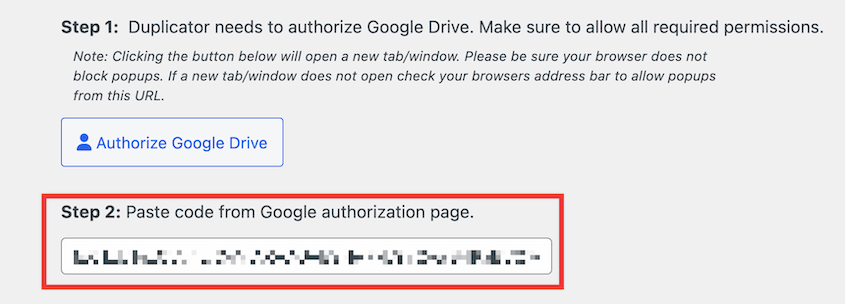
OAuth-based connections like Google Drive, Dropbox, and OneDrive use tokens that require periodic re-authorization.
Key-based connections like Amazon S3 depend on credentials that can be rotated or rejected. FTP and SFTP break when a password or path changes.
The file is made. The provider connection is what lapses.
Re-authorize the connection, then re-check it on a schedule. Any connection that uses a token will need re-authorizing eventually, so treat it as routine maintenance, not a one-time setup.
Old Backups Filled the Server’s Disk
About 1 in 7 scheduled backup failures trace to a full disk, and the fix is a setting you control.
Backups accumulate unless you set a retention limit. Without one, every scheduled backup is kept until the server runs out of space, and the next run has nowhere to write.
Duplicator lets you cap how many backups it keeps, so old ones prune automatically and the disk stays clear.

Setting a clear retention limit stops the slow creep that fills a server.
The Connection Lapsed Between Runs
A connection that worked on day one quietly drops weeks later, and the scheduled run goes down with it.
Two things usually cause this. Sometimes it’s timezone or frequency confusion. Other times the host kills the background job before it can trigger.
Either way, you want to hear about it. Duplicator alerts you when a scheduled backup or upload fails, so a broken run reaches you instead of sitting quiet.
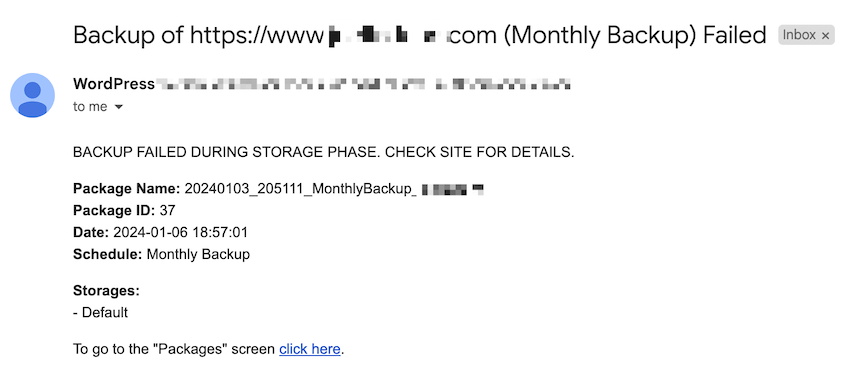
Confirm the schedule is still connected, and use a real server cron where your host supports it. Server cron is more reliable than the default WordPress cron that only fires when someone visits the site.
How to Tell If Your Backup Is Safe Right Now
You don’t need to babysit your backups. You just need to catch the five things that quietly go wrong, and you can check all five in about two minutes.
- Confirm your last scheduled backup completed, not just that a schedule exists.
- Confirm a copy is off-site, not only on the same server that holds your site.
- Confirm the storage connection is still authorized, especially if it’s been months since setup.
- Confirm a retention limit is set so the disk won’t fill.
- Turn on failure notifications so any broken run reaches you.
This report is about what to watch after that and how to catch a problem early.
Duplicator Pro helps in the two areas this data surfaces. It sends failure notifications when a backup or upload fails. It also restores directly from cloud storage, so you can revert changes without re-uploading backup files to your server.
Frequently Asked Questions (FAQs)
Why did my scheduled WordPress backup stop running?
Most often, the storage connection lapsed or the disk filled up. A scheduled backup that worked at setup can stop weeks later when its cloud connection needs re-authorizing or when old backups pile up and leave no room to write a new one. Check the connection and set a retention limit.
Why does my backup fail to upload to cloud storage?
Usually because the connection lost authorization on the provider’s side. Cloud connections use tokens or keys that expire, get revoked, or stop matching after a password change. The file is created, then it can’t upload. Re-authorize the connection and re-check it periodically rather than treating setup as permanent.
How do I know if my WordPress backup worked?
Confirm the backup file exists, confirm a copy is off-site, and once in a while, restore a backup to a staging site to prove the file is usable. A backup you’ve never restored is a backup you haven’t tested.
Where are my WordPress backups stored?
That depends on your setup. By default, many backups are kept on the same server as your site, which offers no protection if that server fails. An off-site copy in cloud storage or a remote location is what protects you. Check where yours are going, not just that they’re running.
Do I need off-site backups if my host already backs up my site?
Yes. A host backup lives on the same infrastructure as your site, so a server failure or account suspension can take both at once. An independent off-site backup is the copy you control and can restore anywhere, even if you lose access to the host.
The Backup You Never Check Is the One That Fails
The value of this data isn’t a single statistic. It’s where it tells you to point your attention.
Backup trouble shows up in two places: a host limit stopping the build and the off-site copy not completing. The first is loud, and you’ll notice it. The second is quiet, and it’s the one that leaves people without an off-site backup at the moment they need one.
We’ll state the limit one more time because it keeps this honest. This is a record of problems people reported, not of every backup that ran. It can’t see the cases nobody caught. But it’s real, and it’s firsthand.
Here’s the one habit that beats all of it. Once, restore a backup to a staging site and confirm the site comes back. A backup you’ve never restored is a guess. A backup you’ve restored once is a plan.
Before Your Next Backup, Make Sure It’s Reaching Storage
A backup that stalls or never completes its off-site upload becomes a problem when you need to restore it. That’s the worst time to find out.
Duplicator Pro is used by more than 1.5 million WordPress professionals to back up, migrate, and recover their sites. It sends backup failure notifications and restores directly from cloud storage, so the copy you built is the copy you can get back.
While you’re here, these other WordPress resources are worth a look:
- What 8,000+ Support Tickets Reveal About Why WordPress Migrations Break
- STOP Making These Website Backup Mistakes (They’re Putting Your Site at Risk)
- How Often Should You Back Up Your WordPress Site?
- How to Get Secure Backup Storage For Your WordPress Site
- Why Your WordPress Site Needs Backup Monitoring (Not Just Backups)




