



How to Clean Up Your WordPress Media Library
 Joella Dunn
Joella Dunn
Joella Dunn
 John Turner
John Turner
John Turner
Your WordPress site has been running for a while now. You’ve uploaded images for products, blog posts, pages, and theme design. Now your media library has thousands of files.
WordPress never deletes anything on its own, so every image you’ve ever uploaded is still there. Your site likely has unused thumbnail variations and duplicate images. All of it is taking up space on your server and costing you money in storage fees.
Cleaning your media library is necessary if you want a lean, fast site. But it requires care. Delete the wrong file, and you’ll break a page, a widget, or your logo.
Let me show you how to clean your media library quickly and safely!
Here are the key takeaways:
- A clean media library saves money on hosting, speeds up backups and restorations, and improves admin dashboard performance
- Unused image variations are the biggest space wasters. WordPress creates multiple sizes of every uploaded image that stick around even after you switch themes
- Always back up your site with Duplicator Pro before deleting anything to avoid breaking critical images like logos or page builder elements
- WP Media Cleanup is the best tool for safe deletion. It scans actual file usage across your entire site and soft-deletes files with a 30-day recovery window
- Never trust the “unattached” label alone. Images can be unattached in the database but still actively used in widgets, themes, or custom code
Table of Contents
Why Clean Up Your Media Library?
I’ve seen WordPress sites with 20GB of media files where only 8GB is actually in use. The rest? Dead weight that costs money and slows everything down.
Here are some reasons you need to clean your media library.
- High storage costs
Most hosts charge based on disk space or inode limits. Every unused thumbnail counts against that quota.
If you’re on a shared host with a 250,000 inode cap, a bloated media library can push you over the edge. You end up paying for files that do nothing.
- Large backup size
A 5GB site backs up faster and costs less to store than a 15GB site. If you’re using off-site backup storage, you’re paying monthly fees to archive junk. Larger backups also mean longer backup times, which increase the chance of timeouts or failures.
- Slow restorations
When something breaks and you need to restore a backup, every extra gigabyte adds minutes to your downtime. In an emergency, those minutes matter.
- Slow performance
A bloated media library means a bloated wp_postmeta table. Every unused attachment creates database rows. When WordPress queries the database to load your dashboard or filter media, it’s wading through thousands of entries that shouldn’t be there.
The result? Slower admin pages and longer load times when you’re trying to insert an image into a post.
What Clutters Your Media Library?
Unused image variations are the biggest culprit. WordPress automatically generates multiple sizes of every image you upload—thumbnail, medium, large, and any custom sizes your theme requires. Upload one image, and you’ll end up with six files on your server.
The problem compounds when you switch themes. Those old image sizes stick around even though your new theme doesn’t use them. Regenerate thumbnails, and suddenly you have two complete sets of every image.
Unattached images are files that aren’t linked to any post or page. Maybe you uploaded them for a draft you later abandoned, or you deleted a post but left the image behind. WordPress never assumes you’re done with a file just because it’s no longer in use, so these orphaned images accumulate indefinitely.
Duplicate images happen when you upload the same file multiple times, often accidentally. The result is redundant copies storing identical data across your server.
Unoptimized images are raw files straight from your camera or designer. While these files are technically in use, they waste enormous amounts of space and slow down your site. They also bloat your backups with files that could be 90% smaller.
How to Clean Up the WordPress Media Library
Now that you know what’s causing the problem, let’s fix it.
But before you delete anything, back up your site. One wrong click, and you’ll spend hours hunting down broken images or restoring data.
Use Duplicator to create a complete backup. Then send it to Duplicator Cloud for off-site storage. This gives you a safety net if something goes wrong during cleanup. It also means you’re not just backing up to the same server you’re about to clean, which would defeat the purpose if that server has issues.
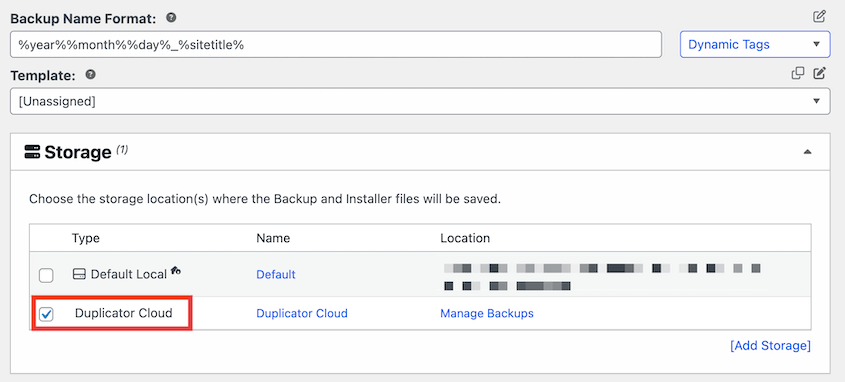
Once your backup is secure, you can start removing the clutter!
Here’s how to clean your media library:
- WP Media Cleanup scans your entire site for actual file usage and safely removes unused image variations with 30-day soft deletion and protection for original files
- Search & Replace Everything has a built-in media cleaner that cross-references database entries with server files for a database-centric cleanup approach
- Manual deletion: Free but risky method using WordPress’s unattached filter that requires careful verification before deleting anything
Remove Unused Image Variations with WP Media Cleanup
This is my top recommendation, and it’s the tool I use on my own sites. WP Media Cleanup was recently launched by the Duplicator team to solve a problem most cleaners ignore: unused image variations.
Standard media cleaners look for unused files. They check if an image is attached to a post. If not, they flag it for deletion.
But they usually miss the thumbnails.
You might delete an attachment from the media library, but the 150×150 and 768×768 versions are still sitting on your server, eating storage. WP Media Cleanup finds those.
The plugin scans your posts, pages, widgets, custom fields, and theme settings to build a list of images actually in use. Then it compares that list to the files on your server.
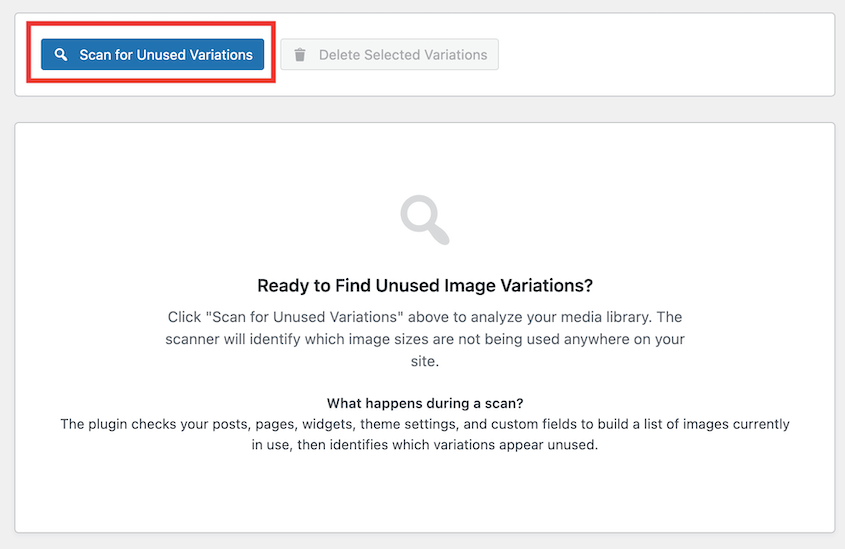
Anything that doesn’t match—especially size variations—gets flagged as unused. It’s checking the actual file system, not just the database.
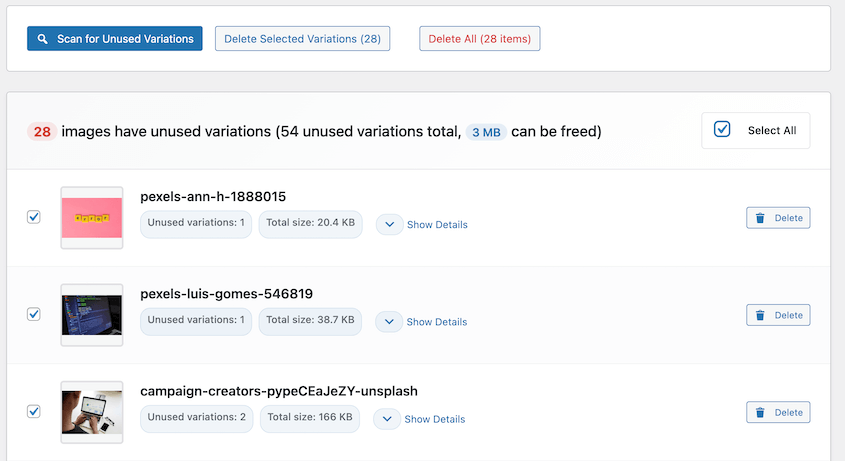
When you delete files, they’re soft-deleted first. You have 30 days to restore them if you made a mistake.
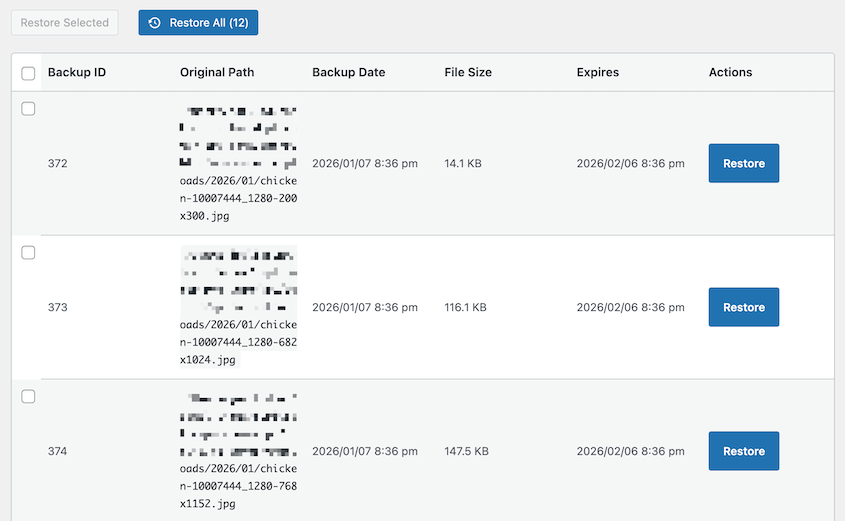
And it never deletes original full-size images, only the variations. So if you accidentally mark something as unused, you’re not losing the source file.
Remove Unused Image with Search & Replace Everything
If you’re already using Search & Replace Everything for database work, you might not realize it has a built-in media cleaner. While you’re replacing URLs, you can optimize media files.
Go to Tools » WP Search & Replace and click on Remove Unused Media. Then, begin the scan.
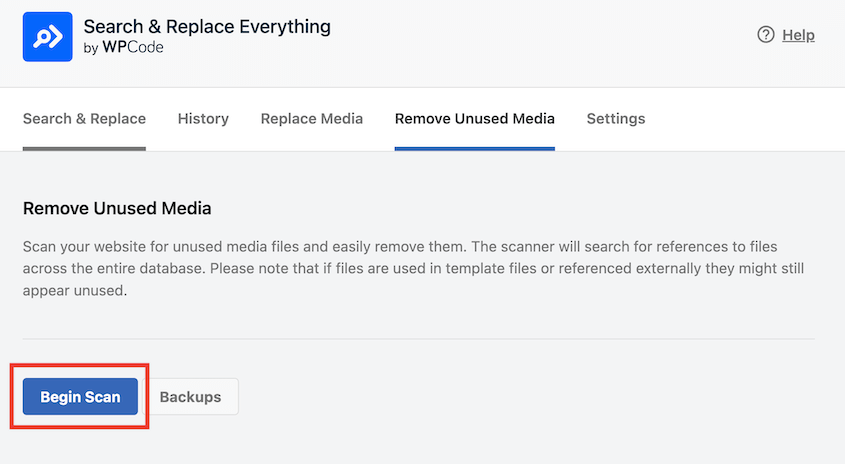
The plugin checks every database reference to your media files and cross-references them with what’s on the server.
You’ll get a detailed list of unused media, complete with file paths and sizes. To optimize your media library, delete them all.
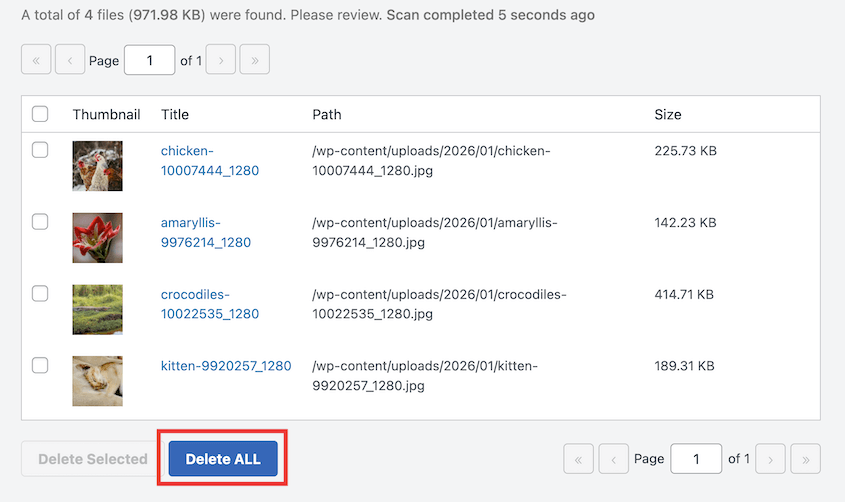
It’s a solid option if you want a database-centric approach and you’re already comfortable with a search and replace plugin.
Manually Find and Delete Unused Images
You can check for unattached images in the WordPress Media Library without a plugin. It’s tedious, but it’s free. Switch to the list view, then filter by unattached images. This means the file isn’t linked to a post.
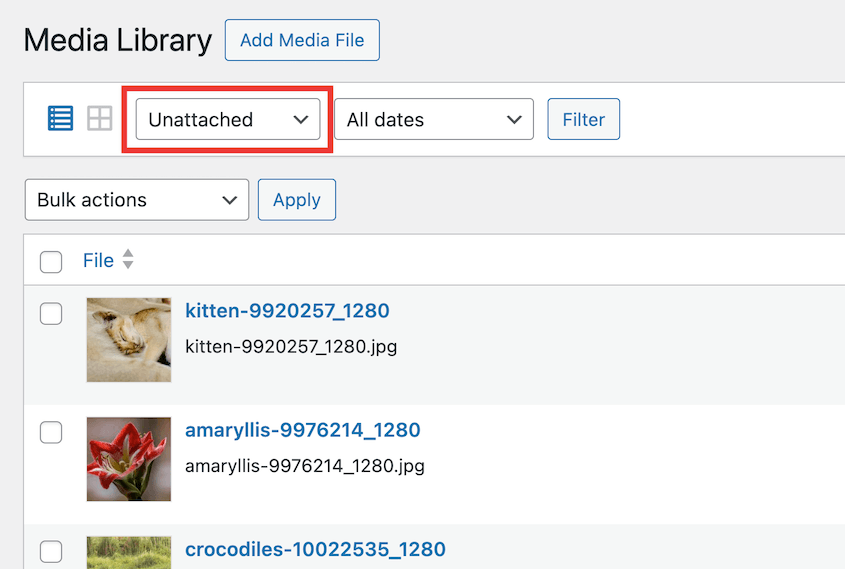
But here’s the danger. Unattached doesn’t mean unused. That image could be your site logo, a widget background, or hardcoded into a page builder.
The media library only tracks post attachments. It has no idea what your theme or plugins are doing with files outside of that system.
Delete unattached files at your own risk. If you’re going to do this manually, cross-reference every file with a site-wide search before you click delete. Even then, you might miss something.
This is why I recommend WP Media Cleanup. Manual checks are fine for small libraries, but they don’t scale and they don’t catch variations.
Common Mistakes to Avoid When Cleaning Up WordPress Images
I’ve cleaned up hundreds of WordPress sites. Here are some mistakes I see over and over.
Deleting Unattached Images Without Verification
This is the fastest way to break your site. Just because WordPress says an image isn’t attached to a post doesn’t mean it’s not in use.
These parts of your site are often unattached:
- Header logo
- Custom CSS background images
- Page builder elements
If you bulk-delete these, you’ll have broken layouts, missing logos, and angry clients. Always scan first with a tool that checks actual usage, not just database relationships. Trust a scanner like WP Media Cleanup, not the unattached label.
Skipping Backups
You think you’re being careful since you’re not deleting that many files. Then you realize you just removed every product thumbnail from your WooCommerce store.
Without a backup, you’re starting over.
Use Duplicator Pro before you touch anything. It takes seconds to create a full-site backup.

I’ve never regretted making a backup. I’ve always regretted skipping one!
Best Practices to Keep Your Library Clean
Cleaning up your media library once is good. Keeping it clean is better. Here’s how to avoid ending up back where you started.
Optimize Before Uploading
Run images through TinyPNG or a similar compressor before they ever hit your server. A 3MB image compressed to 300KB saves space and bandwidth.
Do this as a habit, not an afterthought. If you’re running an e-commerce site or a portfolio, this one habit will save you gigabytes over time.
Organize with Folders
Plugins like FileBird and Media Library Folders let you sort media into categories. Create folders for blog images, product photos, team headshots, whatever makes sense for your site.
When you need to clean up your media library later, you’ll know what’s what. You won’t be staring at a list of 3,000 files wondering which ones are important.
Schedule Quarterly Audits
Set a calendar reminder every three months to run a cleanup scan. Catching clutter early means it never becomes overwhelming.
A quarterly audit takes 20 minutes. A neglected library takes hours to fix. Make it part of your WordPress maintenance routine, like updating plugins or creating backups.
Frequently Asked Questions (FAQs)
How do I delete images from the WordPress media library?
Hover over the image in the media library and click Delete Permanently. For bulk deletion, check the boxes next to multiple images and select Delete Permanently from the Bulk Actions dropdown. Always verify the images aren’t in use first.
Does WordPress automatically delete unused images?
No. WordPress keeps every file you upload, even if you delete the post it was attached to. It also keeps every thumbnail variation generated by themes or plugins. You have to manually delete files or use a cleanup plugin like WP Media Cleanup.
Will deleting images break my website?
Yes, if the image is displayed anywhere on your site. That’s why you need a scanner that checks actual usage across posts, widgets, and theme settings. Never trust the unattached label alone.
What does unattached mean in the WordPress media library?
It means the image isn’t linked to a specific post or page in the WordPress database. But it could still be used in a widget, your site logo, a page builder, or custom code. Unattached is not the same as unused.
Get Your Media Library Under Control
A clean media library means faster backups, lower hosting costs, and better performance. But cleaning it safely requires the right tools and the right approach.
Back up first with Duplicator Pro. Then use WP Media Cleanup to remove the unused variations and files that are actually wasting space. You’ll free up storage, speed up your backups, and keep your site running lean without the risk of breaking something critical.
Your server will thank you, and so will your wallet. The next time you need to restore your site or run a backup, you’ll appreciate having a library that’s actually manageable.
While you’re here, I think you’ll like these related WordPress guides:
- How to Download the WordPress Media Library
- How to Restore the WordPress Media Library
- WordPress Media Library Not Showing Images? Fix It in Under 15 Minutes
- How to Clean Up a WordPress Site
- How to Optimize Your WordPress Database




