

10 WordPress Staging Best Practices That Prevent Live Site Disasters
 Joella Dunn
Joella Dunn
Joella Dunn
 John Turner
John Turner
John Turner
You update a plugin on your live site because it only takes 30 seconds. Then your homepage goes blank.
It’s happened to almost every WordPress site owner at some point.
A quick update, a small change, an “it’ll be fine” moment that wasn’t fine. And now you’re staring at a white screen with real visitors trying to reach your site.
That’s the problem a staging site solves. It’s a private copy of your live site where you test changes before they go anywhere near production. If something breaks on staging, nobody sees it but you.
Most casual WordPress users know staging exists. Most also skip it because it sounds like extra work.
I get it. But after watching a WooCommerce checkout go down mid-sale because of a plugin conflict that would have taken two minutes to catch on staging, I stopped treating it as optional.
In this post, I’ll show you what a staging site is, when you need one, how to set one up fast, and the practices that make staging worth doing in the first place.
Here are the key takeaways:
- Staging isn’t for every change. Minor edits like typos, price updates, and new posts don’t need a staging workflow.
- Testing against a weeks-old copy of your site produces unreliable results. Refreshing staging before each round of changes fixes this entirely.
- Pushing the full database from staging to production destroys live content. Orders, form submissions, and user registrations that arrived on production while you were working in staging get overwritten. Push code, not the database.
- An unblocked staging site damages your live site’s SEO. Password protection and noindex settings are non-negotiable.
- Debug mode on staging surfaces errors that are hidden on production. PHP notices and warnings that exist silently on your live site will show up here first.
- Updating one plugin at a time is the only reliable way to trace a conflict. Bulk updates make it impossible to identify which change caused a problem.
- The pre-push backup is what makes a bad deployment recoverable.
- Old staging environments become security liabilities. Delete them when you’re done.
Table of Contents
- What Is a WordPress Staging Site?
- When to Use a Staging Site (and When to Skip It)
- How to Set Up a WordPress Staging Site
- 10 WordPress Staging Best Practices Every Site Owner Should Follow
- 1. Always Start with a Fresh Backup
- 2. Keep Staging Private, Block Indexing, and Use a Separate Database
- 3. Mirror Your Production Environment as Closely as Possible
- 4. Enable Debug Mode on Staging
- 5. Update One Thing at a Time
- 6. Use Staging as Your Final QA Gate Before Every Push
- 7. Promote Code, Not the Whole Database
- 8. Refresh Staging Before Every Round of Changes
- 9. Take a Production Backup Before You Push
- 10. Clean Up Old Staging Environments
- Staging Done Right: A Checklist Before You Push to Production
- Frequently Asked Questions (FAQs)
What Is a WordPress Staging Site?
A staging site is a copy of your live WordPress site running at a separate URL. It’s not visible to the public, not indexed by search engines, and completely disconnected from your production site. Whatever you do on staging stays on staging until you choose to push it live.
Staging isn’t a backup. If your live site crashes, you can’t restore from staging.
They serve different purposes: backups are your recovery tool; staging is your testing environment.
Staging is also not the same as a local development environment. A local environment runs on your computer, offline, disconnected from real server conditions.
Staging runs on an actual server at a real URL, so it reflects how your site actually behaves in production.
If you want to do a full rebuild or start a site from scratch, local tools like XAMPP, WAMP, or MAMP make sense. For testing updates and changes against real server behavior, staging is the more reliable option.
And staging is not a permanent second site. It’s a temporary working environment. You make changes, test them, push what works, and reset or refresh when you start the next round.
When to Use a Staging Site (and When to Skip It)
Every post about staging will tell you to use it for everything. That’s not realistic, and following that advice leads to process fatigue, where you eventually stop using staging altogether, including for the changes that actually need it.
Here’s a more honest take.
Changes That Warrant Staging
These are the situations where something going wrong on a live site has real consequences: lost sales, broken forms, locked-out users, or a homepage that won’t load.
The time cost of staging is nothing compared to the recovery cost if one of these goes sideways.
- WordPress core updates, especially major version releases
- Plugin or theme updates, particularly WooCommerce, page builders, and security plugins
- Any change to your PHP version or server configuration
- Adding a new plugin that affects checkout, forms, or site-wide functionality
- Custom code or CSS changes that touch templates or theme files
- Full redesigns or significant layout changes
Changes That Don’t Need Staging
Staging has overhead. Creating a clone, making a change, and pushing it back: that’s overkill for edits that carry no real risk.
- Fixing a typo or updating a price
- Publishing a new blog post or adding a product
- Swapping a menu item or adjusting a widget
- Minor image updates with no code dependency
If something in this list somehow broke your site, the fix would take less time than the staging setup would have. Save the process for when it earns its keep.
How to Set Up a WordPress Staging Site
If your host offers built-in staging, that’s a reasonable starting point. WP Engine, Kinsta, and SiteGround include it in their dashboards.
If your host doesn’t offer it (or you want something that works the same way regardless of where your site is hosted), Duplicator Pro is what I use.
It turns any full-site backup into a staging site in a few clicks. You won’t need a separate hosting account, FTP, or manual database work.
You start by creating a full backup of your site.

Then, go to Staging » Create Your First Staging Site.
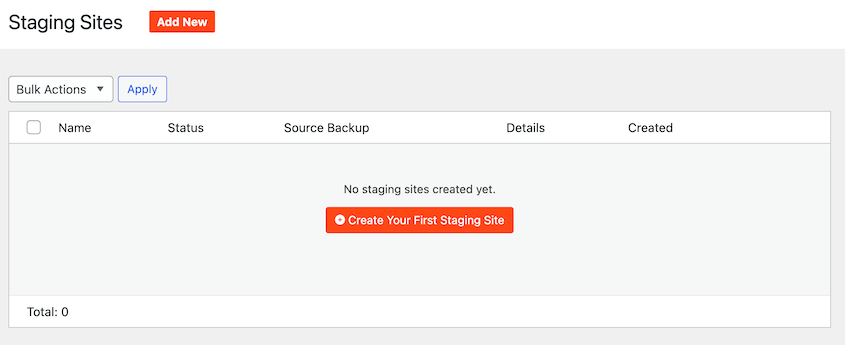
Choose the backup you created as the blueprint for the staging site. Be sure to also pick a unique admin color scheme so your staging dashboard always looks different.
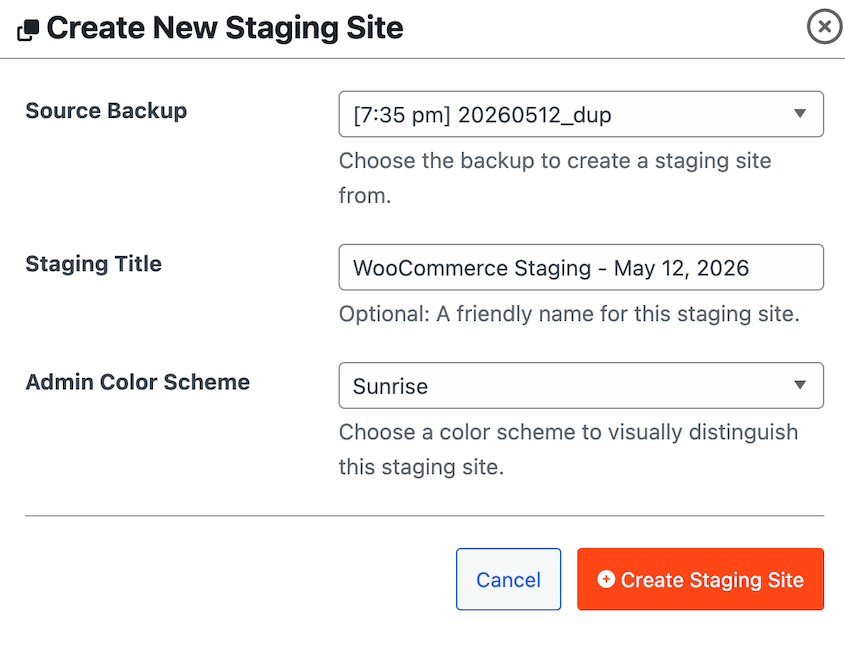
Duplicator will install the backup as a completely new staging site. Any changes made here won’t impact your real website.
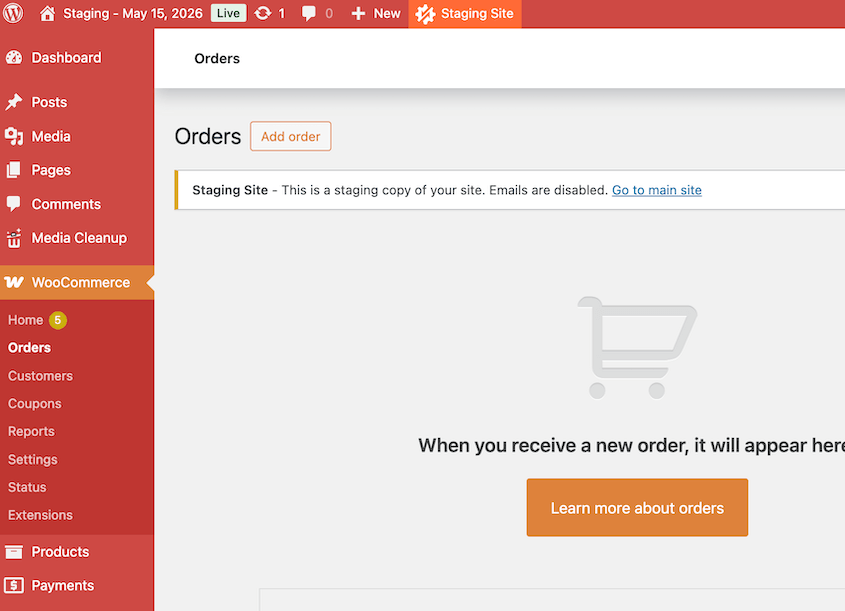
The manual route is also an option: configure a subdomain or subdirectory, transfer files via FTP, duplicate the database in phpMyAdmin, update your wp-config.php credentials, and sync URLs in the wp_options table. It works, but there are a lot of steps to get wrong.
10 WordPress Staging Best Practices Every Site Owner Should Follow
Setting up staging is the easy part. Here are a few WordPress staging best practices to avoid common mistakes:
- Always start with a fresh backup. Your recovery point if the staging setup goes wrong or a pushed change breaks the live site.
- Private, indexed-blocked, separate database. Three distinct settings that each prevent a different category of damage.
- Mirror your production environment. PHP version, server type, caching layers, and firewall rules should all match production, or your test results can’t be trusted.
- Enable debug mode. Surfaces PHP errors on staging that are hidden on your live site by default.
- One update at a time. The only way to trace a conflict back to the specific change that caused it.
- Staging as a final QA gate. A full test pass covering navigation, forms, checkout, mobile, and page speed before anything goes live.
- Code to production, not the database. Pushing the full database overwrites live content that arrived while you were working in staging.
- Refresh before every round. Stale staging gives unreliable results. Pull from production before each new batch of changes.
- Back up production before pushing. Taken immediately before deployment, not the day before.
- Regular cleanup. Delete old staging environments when you’re done with them to avoid confusion and security gaps.
1. Always Start with a Fresh Backup
Before you create a staging environment, take a full backup of your production site. If the staging setup goes sideways, you have a clean recovery point.
More importantly, that backup becomes your restore option if you push changes that break something on the live site.
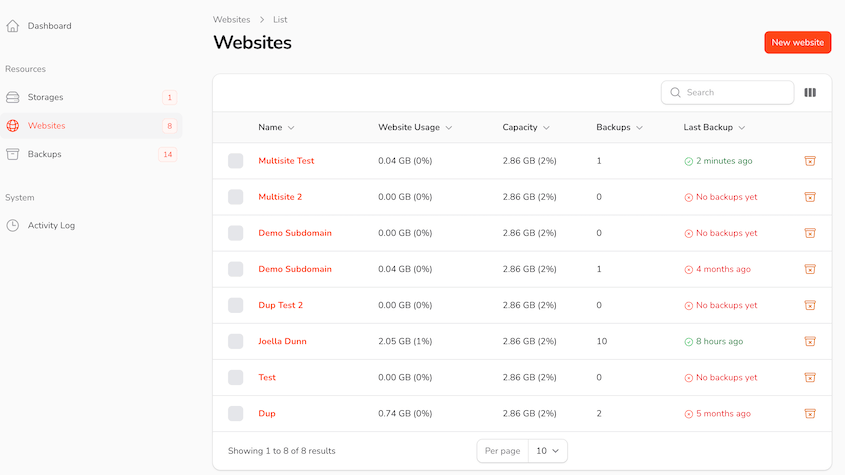
As you’re building the backup, I recommend sending at least one copy to the cloud. Duplicator Cloud gives you an off-site recovery dashboard just in case anything happens to your real site.
2. Keep Staging Private, Block Indexing, and Use a Separate Database
Start with password protection. Your staging URL should never be publicly accessible, full stop.
Anyone who lands on it sees an unfinished, potentially broken version of your site. Most hosts and staging plugins handle this automatically, but verify it yourself rather than assuming.
Blocking search engines is a separate step and just as important. Go to Settings » Reading in your staging WordPress dashboard and check Discourage search engines from indexing this site.
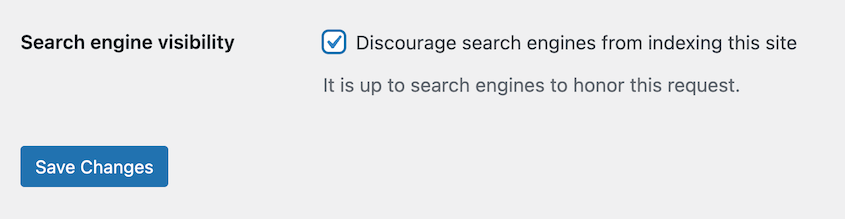
An unblocked staging site can get indexed. Google doesn’t always distinguish between staging and production if the URL is accessible, and the SEO damage from duplicate content can follow your live site’s rankings for months.
The database rule is different but just as important. Never share a database between your live site and staging.
A shared database means a staging action like an accidental save or configuration change can overwrite real production data. You could lose orders, form submissions, user accounts, or published content.
Keep the databases completely separate. Most staging setups handle this by default, but if you’re doing a manual setup, this is the one thing worth double-checking before you start.
3. Mirror Your Production Environment as Closely as Possible
The whole point of staging is to test what will happen on your live site. If staging doesn’t match production, the test results don’t mean much.
PHP version is the most common mismatch. If your staging environment runs PHP 8.1 and production runs PHP 8.3, a plugin that works fine on staging may throw errors on the live site.
Check that both environments run the same version before you test anything. You may need to upgrade one site’s PHP version.
If you’re using Duplicator to build staging sites, create a new one before a new round of testing. An old environment won’t be an accurate copy of your website.
Delete the old staging site, generate a fresh copy of your website, and use that to build a new staging site.
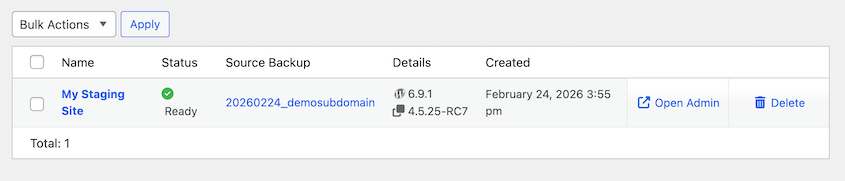
The same logic applies to your web server. Apache and Nginx handle certain configurations differently. If the environments are different, you can get bugs that are genuinely hard to trace.
Caching layers matter too, especially for performance testing. If production uses Redis or Memcached and staging doesn’t, any page speed benchmarks you run on staging won’t reflect real conditions.
Mirror the caching setup, as well as your firewall and security rules. A security plugin or WAF rule that’s active on production but not staging can cause conflicts you’ll only discover after pushing.
The closer the match, the more you can trust what staging tells you.
4. Enable Debug Mode on Staging
WordPress hides PHP errors on production by default. That’s the right call for a live site because you don’t want visitors seeing raw error messages. But it also means problems can exist on your site without any visible sign.
Staging is where you surface them, and you can do that with WordPress debugging.
Add define('WP_DEBUG', true); to your wp-config.php file on the staging environment. This enables error reporting and displays PHP notices and warnings that would otherwise stay hidden.
If a plugin update introduces a deprecation warning or a theme function throws an error, you’ll see it on staging before it ever reaches your live site.
It’s also worth enabling WP_DEBUG_LOG alongside it. This writes errors to a debug.log file in your wp-content folder so you have a record to review rather than relying on catching errors in real time.
Keep debug mode off on production. The settings are staging-only.
5. Update One Thing at a Time
When you have six plugin updates waiting, you might want to select all and update everything at once. It’s faster, but if something breaks after a bulk update, you have no idea which plugin caused it.
Update individually. After each one, run a quick check.
Load the homepage, click through a couple of pages, and make sure nothing obvious broke. Then update the next one.
It adds a few minutes to the process, but it gives you a clear map of what changed when something goes wrong.
This applies to WordPress core updates too. If you’re updating core and several plugins in the same session, update core first, test it, then work through the plugins one by one.
A conflict between a major core update and a specific plugin is much easier to diagnose when you haven’t changed multiple things at the same time.
6. Use Staging as Your Final QA Gate Before Every Push
Staging isn’t just a place to experiment with changes. It’s the mandatory last check before anything touches your live site.
Before pushing any change, run a full test pass. That means more than checking the page you just updated.
Here are some key actions to take:
- Click through your main navigation on both desktop and mobile.
- Submit any forms the site uses, including contact forms, newsletter signups, and anything that feeds into a third-party service.
- If you’re running WooCommerce, go through the full checkout flow: add to cart, checkout, payment.
- Check your page load speed with Google PageSpeed Insights and compare it against your baseline.
- Look at the pages your change was supposed to affect and a few pages it wasn’t supposed to touch at all.
Conflicts don’t always show up where you expect. A plugin update that affects your checkout might not break the checkout page visually but might quietly break order confirmation emails.
Ten minutes of thorough clicking catches what a five-second spot check misses.
7. Push Code, Not the Whole Database
When you push changes from staging to production, move code — themes, plugins, custom scripts, and configuration changes. Don’t push the entire database unless you have a specific reason and fully understand what you’re overwriting.
While you were working on staging, your live site kept running. New orders came in. Contact forms were submitted. Users registered. Blog comments were posted.
If you push a full database from staging to production, you overwrite all of that.
The rule is: code flows from staging to production; content stays on production.
If you made content changes on staging that need to go live, migrate those pieces manually rather than pushing the whole database.
If your host or staging plugin supports selective push, use it. It lets you push specific files or tables without touching everything else. That level of control is worth a lot when your live site has active users or ongoing transactions.
For Duplicator, you can create a custom backup of the staging site that doesn’t include the database.
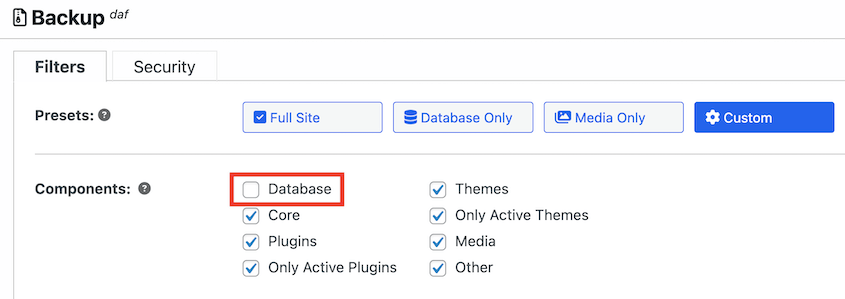
Download it, then upload it to your production site.

However, make sure you have a disaster recovery plan in place and you avoid pushing changes during high traffic windows. You may need to debug errors or roll back a backup if something goes wrong on production.
8. Refresh Staging Before Every Round of Changes
A staging environment that’s weeks or months old is not a reliable test environment. It’s a snapshot of what your site looked like at the time you created it, which may have very little in common with your site today.
Plugin versions on staging may be behind production. Content structures may have changed. Settings you updated on the live site may not exist on staging.
When you test against a stale copy, the results reflect conditions that no longer exist.
Pull a fresh copy from production before each new batch of changes. This is the single habit that eliminates the most staging errors. It means every test you run is against a current, accurate version of your site.
If you’re using Duplicator Pro, refreshing staging is as fast as the original setup: run a new backup, turn it into a staging environment, and you’re done.
9. Take a Production Backup Before You Push
Even after careful, thorough staging work, a push can still go wrong. Server caching behavior, a plugin that reacts differently on the live environment, a configuration that works on staging but conflicts in production: these things happen, and they’re not always predictable.
The answer is to always have a recovery point ready before you push.
Take a new full-site backup of your production environment immediately before deploying anything from staging. That way, if something breaks on the live site, you restore that backup, and you’re back to normal in minutes.
Without it, you’re either debugging a broken live site in real time or trying to piece things back together manually.
I treat this as a non-negotiable step. Staging can go perfectly, and the push can still surprise you. The backup is what makes that recoverable rather than catastrophic.
Duplicator is the only backup plugin with disaster recovery URLs that work even if WordPress is down. After you create a full-site backup, set it as the disaster recovery point.
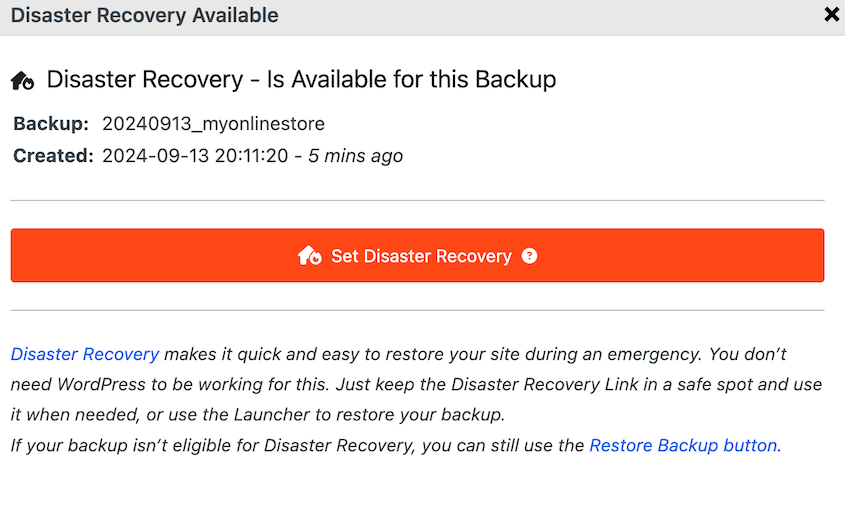
Then, copy the recovery URL and save it in a safe place.
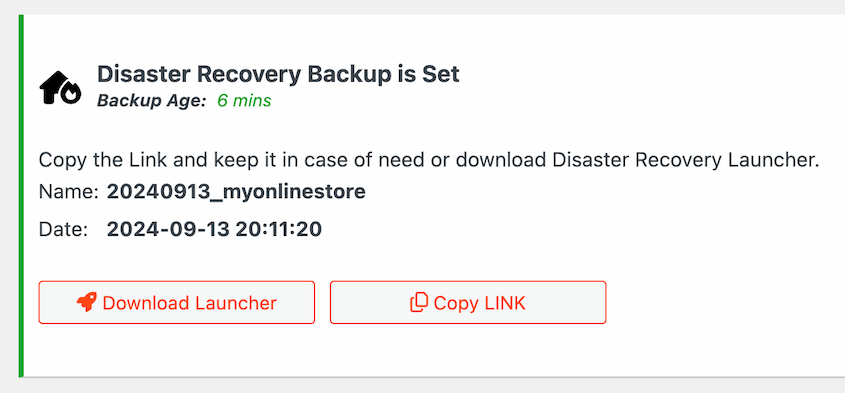
If the push goes wrong, paste this link into a browser window and instantly roll back your site to its normal state.
10. Clean Up Old Staging Environments
Staging environments can build up quickly. You create one for a redesign, finish the project, and move on. Six months later there are three old staging clones sitting on your server or account, none of them labeled clearly, all of them outdated.
This causes two problems. First, confusion: when you come back to do more work, it’s not always obvious which environment is current or what state any of them are in.
Second, security: an old staging site that’s no longer actively managed can go unpatched, and if it’s not properly password-protected, it’s an open door.
Make a habit of deleting staging environments when you’re done with them. You can manage all your staging sites from one place in Duplicator’s dashboard.
When you start a new round of work, create a fresh clone from production rather than digging up an old one. It keeps things clean and makes sure you always know exactly what you’re working with.
Staging Done Right: A Checklist Before You Push to Production
Before you deploy anything from staging to production, run through this list. It takes five minutes, and I can say from experience that it has prevented more than a few bad days.
- Staging was refreshed from production before this round of testing
- All changes were made on staging, not directly on production
- WP_DEBUG was enabled on staging and no errors were found
- Each update was applied individually, not all at once
- Full site test pass completed: navigation, forms, checkout, mobile layout, page speed
- Staging is password-protected and blocked from search engine indexing
- Code changes only are being pushed, not the full database
- A fresh full-site backup of production was taken immediately before pushing
- You know the exact steps to restore that backup if the push breaks something
That last item is the one people skip. Taking a backup and knowing how to restore it are two different things.
If you’ve never run a restore from Duplicator Pro before, test it on a staging environment first so you’re not figuring it out under pressure on a broken live site.
Frequently Asked Questions (FAQs)
Does a staging site affect my live site?
No. A staging site is completely isolated from production. Changes you make on staging have no effect on your live site until you deliberately push them. You can break things, test things, and experiment freely on staging without any of it touching what your real visitors see.
Will my staging site show up in Google?
It can, if it’s not configured correctly. Go to Settings » Reading on your staging site and make sure Discourage search engines from indexing this site is checked. Also password-protect the staging URL. Don’t assume your host or plugin handled this automatically.
How often should I refresh my staging site?
Before every new round of changes, and at minimum once a month if you’re actively maintaining your site. A staging copy that’s weeks old doesn’t accurately reflect your live site. Testing against stale staging gives you unreliable results, and pushing changes based on those results is where things go wrong.
Can I use staging on any WordPress host?
Yes. If your host doesn’t offer built-in staging, you can use a plugin like Duplicator Pro to create a staging environment on any hosting plan, including shared hosting. You’re not locked into hosts that offer native staging tools.
Should I use staging for every WordPress update?
For major WordPress core updates and significant plugin updates, yes. For minor updates on stable plugins you’ve used for years with no issues, the risk is lower. That said, staging is fast enough that running a quick check before any update is a reasonable habit, not an overreaction.
What’s the difference between a staging site and a local environment?
A local environment runs on your computer, offline and disconnected from any real server. A staging site runs on an actual server at a real URL, mirroring your production environment. Staging gives you more reliable test results because it reflects real server conditions. Local environments are better suited for building a new site from the ground up.
What’s the biggest mistake people make with staging sites?
Not refreshing staging before each new round of testing. If your staging copy is weeks old, you’re testing changes against an outdated version of your site. Plugins have been updated on production, content has changed, settings may differ. The results don’t reflect what will actually happen when you push to your live site.
What is the best staging site for WordPress?
It depends on your setup. If your host includes built-in staging (WP Engine, Kinsta, SiteGround, and Bluehost all do), that’s a solid option. If it doesn’t, Duplicator Pro is the most flexible choice because it works on any host, doesn’t require a separate hosting account, and turns an existing backup into a staging site in a few clicks.
Does my host have a staging tool?
Many do, particularly managed WordPress hosts. WP Engine, Kinsta, SiteGround, and Bluehost all include staging environments as part of their plans. Shared hosting plans often don’t. Check your hosting dashboard or support documentation to confirm. If your host doesn’t offer it, a plugin or Duplicator Pro fills the gap on any plan.
How do I move changes from staging to production?
It depends on how your staging environment is set up. If your host provides staging, there’s usually a one-click push button in the dashboard. If you’re using a plugin, it will have its own deploy or push feature. For a manual staging setup, you move files via FTP and handle database changes carefully to avoid overwriting live content. Always take a full production backup before pushing anything.
Staging Won’t Slow You Down. Recovering From a Broken Live Site Will.
Staging has a reputation as the thing you’re supposed to do but never quite get around to. It feels like overhead. An extra layer between you and the change you want to make.
Most casual WordPress users treat it that way, and most of them have also had their live site break at the worst possible moment.
The time cost of staging is small: a few minutes to refresh, a few minutes to test, a backup before you push. The time cost of recovering from a broken live site is much larger, and it comes with the added stress of it happening in public.
Having a staging workflow doesn’t eliminate risk entirely, but it catches the vast majority of problems before they ever reach production.
More than 1.5 million WordPress professionals use Duplicator Pro to back up, migrate, and stage their sites. The staging setup takes a few clicks, works on any host, and doesn’t require a separate hosting account or technical background to get running.
If this post got you thinking about protecting your site before making changes, these guides are worth reading next.
- How to Create a WordPress Staging Site (For Safe Testing)
- Do You Need a Staging Site?
- How to Back Up Your Website’s Staging Site Before Every Push
- 9 Best WordPress Staging Plugins (+ Our Expert Reviews)
- How to Create a WooCommerce Staging Site (+ What to Test Before Going Live)
- WordPress Database Maintenance: What to Do Weekly, Monthly, and Quarterly




