

![[NEW] Duplicator DB Optimizer: Clean Your WordPress Database Before It Becomes a Problem](https://duplicator.com/wp-content/uploads/2026/06/Announcement-DB-Optimizer.jpg)

5 Best Sandbox Options for WordPress (Free and Paid, Ranked)
 Joella Dunn
Joella Dunn
Joella Dunn
 John Turner
John Turner
John Turner
A sandbox for WordPress is a throwaway copy where you can install, break, and delete things without a live visitor noticing.
Some sandboxes run in your browser tab. Some run on your laptop. Some are exact clones of your live site sitting in a hidden subfolder on your own server.
I’ve used every one of the options below on real client work. Below you’ll find what each one costs, what it does well, and where its limits are.
Here’s the short version if you’re skimming:
- Best for sandboxing your real site: Duplicator clones your live site into an isolated sandbox, including a one-click staging in the Pro version. The free Lite version can clone your site to any server for free.
- Best free blank sandbox: WordPress Playground spins up a working WordPress install in your browser in about five seconds, with nothing to install.
- Best for beginners: LocalWP runs a full sandbox offline on your own machine in a few clicks.
- Best for sharing with clients: InstaWP gives you a public URL you can hand to someone else, though free sandbox sites expire after 48 hours.
- The distinction that matters: A sandbox is for experimenting with dummy data. A staging site is a near-identical replica of your live site used for pre-launch checks. Pick based on which one you need.
Table of Contents
- WordPress Sandbox Options Compared
- How We Chose These Sandbox Tools
- What Is a Sandbox for WordPress?
- Sandbox vs. Staging Site: Which One Do You Need?
- The Best Sandbox for WordPress: All 5 Options Reviewed
- Other Sandbox Tools We Tested
- Frequently Asked Questions (FAQs)
- Pick the WordPress Sandbox That Matches What You're Testing
- Build Your First Sandbox With Duplicator Pro
WordPress Sandbox Options Compared
| WordPress Sandbox Tool | Best For | Time to a Working Sandbox | Copies Your Live Site? | How Long It Lasts | Cost After the Free Tier |
|---|---|---|---|---|---|
| Duplicator | Sandboxing your live site | Under 1 min (Pro), about 5 min by hand (Lite) | Yes | Until you delete it | Lite is free. Paid from $69.30/yr. |
| WordPress Playground | Instant blank sandbox, zero setup | About 20 sec | No | Until you refresh the tab | Free |
| LocalWP | Offline development sandbox | About 30 sec (not including install) | No, import is a separate step | Until you delete it | Free |
| InstaWP | Shareable client sandboxes | Under 1 min | Yes, via InstaWP Connect | 48 hrs on the free tier | $2/mo per site |
| Host staging | People already on managed hosting | One click, varies by host | Yes | Until you delete it | Included in your hosting plan |
How We Chose These Sandbox Tools
We evaluated 14 sandbox options and kept 5. Every tool here was installed and used on a real WordPress site, not judged from a features page. The ones that didn’t make the cut are named further down, with the reason each one was dropped.
We scored each one on five things: how fast it produces a working sandbox, whether it can copy an existing site or only start blank, how long the sandbox survives, whether you can share it with someone else, and what it costs once you outgrow the free tier. The order follows those answers rather than an editorial preference.
What Is a Sandbox for WordPress?
A sandbox is an isolated WordPress installation used purely for testing. Nothing you do inside it touches your live site, real database, or visitors.
Sandboxes come in four versions:
- Browser-based ones (like WordPress Playground) run WordPress compiled to WebAssembly inside your tab.
- Local ones (like LocalWP) run a full PHP and MySQL stack on your computer.
- Hosted ones (like InstaWP) give you a temporary site on someone else’s server.
- Clone-based ones (like Duplicator) copy your existing site into a separate environment.
The first three start blank. Only the fourth gives you a sandbox that behaves like your real site. That difference decides which one you need.
Sandbox vs. Staging Site: Which One Do You Need?
A sandbox is for experimenting. A staging site is for validating.
If you want to try out a page builder you’ve never used or find out whether a plugin is worth buying, you want a sandbox. It can have dummy content since you’re going to throw it away in an hour.
If you’re about to push a theme change, major plugin update, or PHP version bump to a real site, you want a staging site. This will be an exact replica of production because you want to catch conflicts that only exist in your specific setup.
The Best Sandbox for WordPress: All 5 Options Reviewed
Here’s what each option is for, listed in the order we’d recommend them:
- Duplicator: the best sandbox for WordPress if you already have a live site you’re nervous about touching
- WordPress Playground: a blank WordPress install running in your browser in about five seconds (free)
- LocalWP: a permanent sandbox on your own machine that works offline (also free)
- InstaWP: hosted sandboxes with a public URL you can hand to a client or teammate
- Your host’s built-in staging: free and an exact match for production, if your plan includes it
1. Duplicator: Best for Sandboxing Your Live Site
Duplicator is a WordPress plugin that copies your entire site. You can save this file as a backup or use it to move your site to a testing environment.
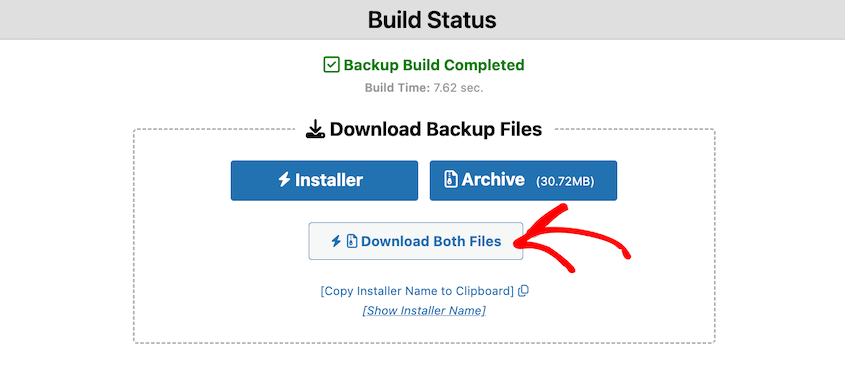
The Pro tier builds sandboxes in one click from the Staging screen. You just need to create a full-site backup, then choose it as the staging blueprint.
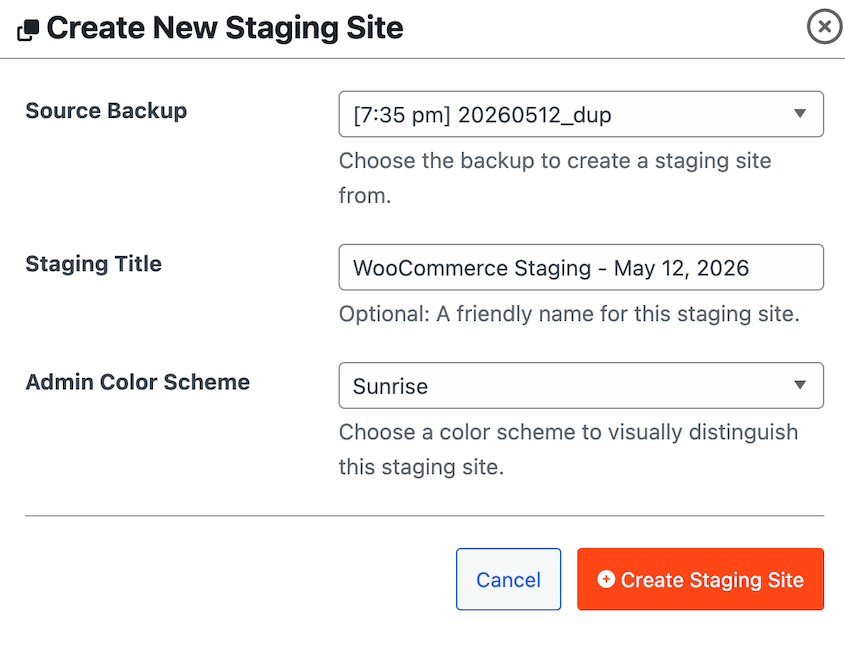
The free version does the same job, but a little differently. You’ll download both backup files and upload them to the server where you want your sandbox to live.
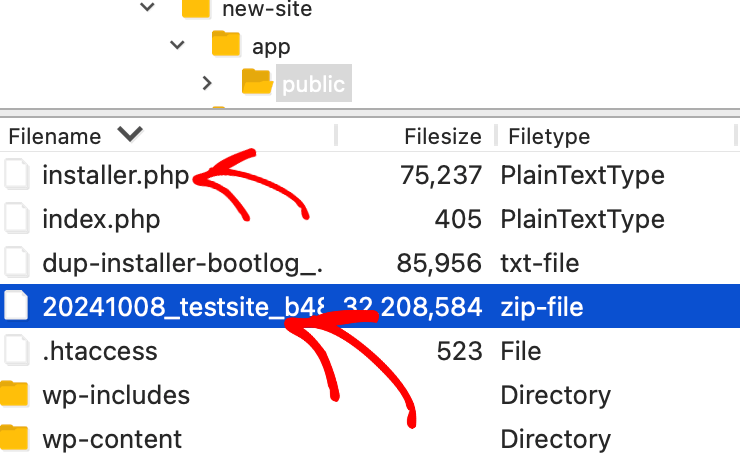
Duplicator unpacks your data, even if you haven’t installed WordPress in the new location yet.
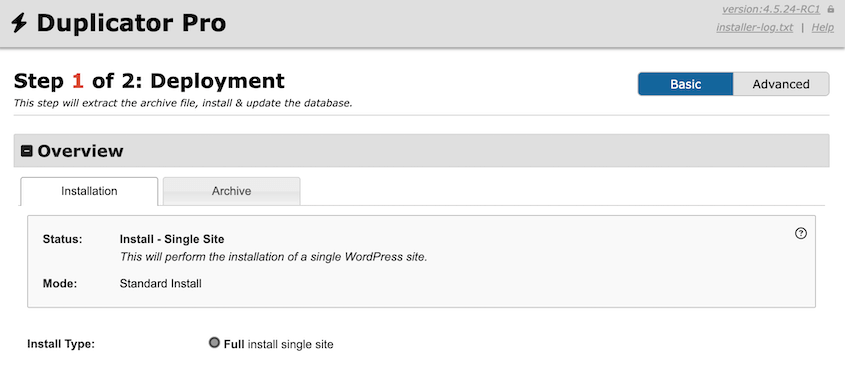
Every other tool on this list hands you a blank WordPress install. Duplicator hands you an exact copy of your site for testing. This lets you see how changes will really affect your live website.
Best for: Anyone with an existing WordPress site who needs a sandbox that behaves exactly like production.
Why We Chose Duplicator: Duplicator is the most versatile plugin for creating staging environments. Use it for one-click staging on your live server or move a copy of your site anywhere (a local install, subfolder, subdomain, etc.).
What We Liked:
- The free Lite version genuinely does the job. Create a backup, drop the archive and installer into a subfolder like /sandbox/, run the installer, and you have a working clone at no cost.
- Pro’s one-click staging feature handles the annoying parts automatically. It blocks outgoing emails, disables search engine indexing, and gives the sandbox its own database table prefix. A colored admin bar means you never confuse it with the live site.
- Staging tables are excluded from your production backups, so your sandbox doesn’t quietly double your backup size.
- The DupArchive format has no practical size limit. It’s moved 400GB sites successfully.
- Extra WordPress maintenance features like automatic backups, cloud storage, and one-click restores.
What We Didn’t Like:
- One-click staging requires the Pro plan.
- It needs an existing site to copy.
2. WordPress Playground: Best for a Blank Sandbox in Under 30 Seconds
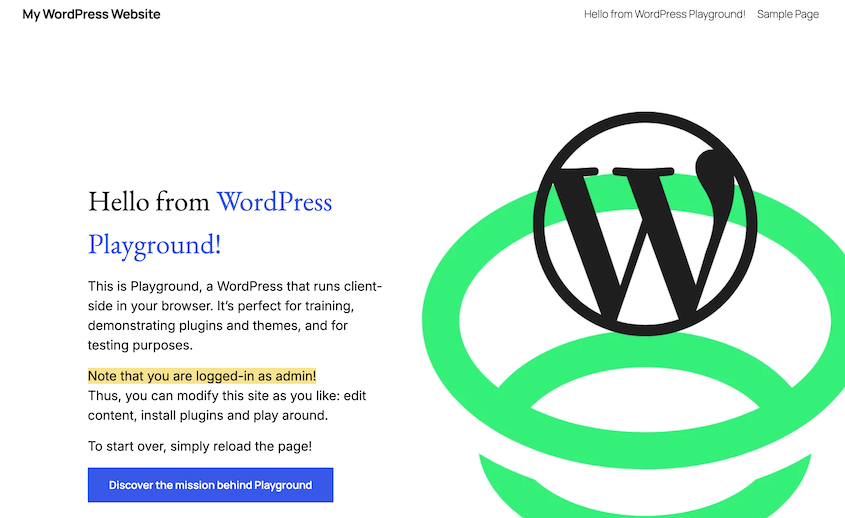
WordPress Playground runs a complete WordPress install inside your browser using WebAssembly. You won’t need any hosting.
To get started, create a sandbox from a blueprint or enter a URL. It’s free, official, and maintained by the WordPress project itself.
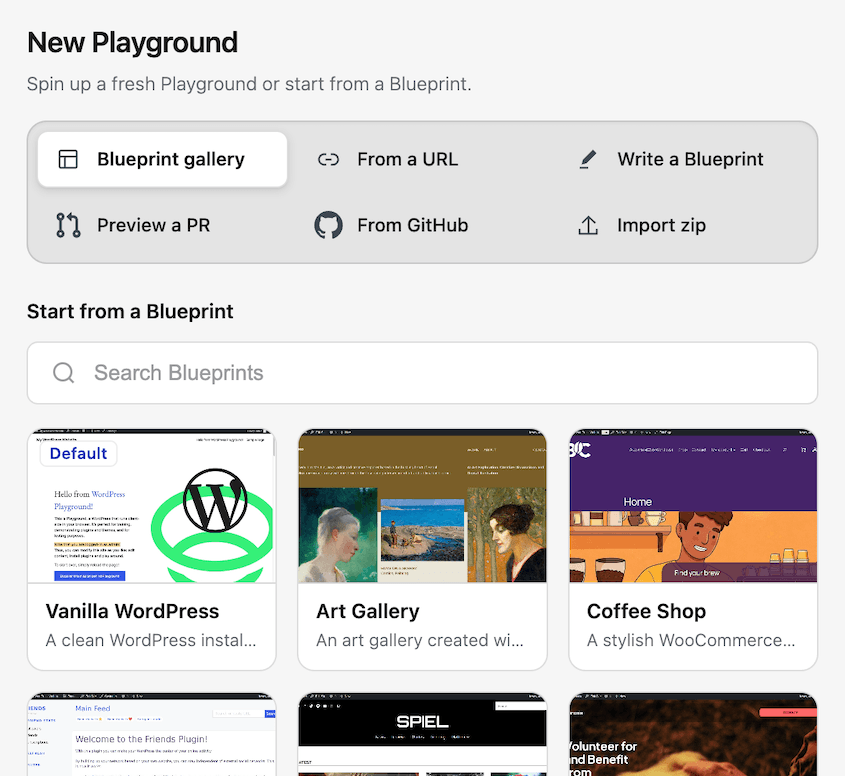
Playground is a great answer to a narrow question. It can tell you what a plugin looks like and roughly how it behaves. It won’t tell you whether that plugin will conflict with the ones already running on your site.
Best for: Testing a plugin or theme quickly with zero setup and nothing to clean up afterward.
Why We Chose WordPress Playground: Nothing else on this list is this fast. Deciding whether a plugin was worth installing used to mean spinning up a test site, which meant you often skipped the test. This can be a quick check with Playground.
What We Liked:
- It’s genuinely instant. It took me a few seconds to get a working dashboard.
- Completely free.
- It’s an official WordPress project, so it tracks core releases closely, and you can test against specific WordPress versions.
What We Didn’t Like:
- Refresh the tab, and everything is gone. Your plugins, uploads, and database changes all disappear unless you export first.
- Networking is partial. Outbound requests route through a limited CORS proxy, so anything calling an external API may fail.
- No real email, cron, or payment gateways. That rules out testing anything transactional.
- WP-CLI support is incomplete because it’s running in a browser, not a server.
3. LocalWP: Best for a Local Sandbox on Your Own Machine
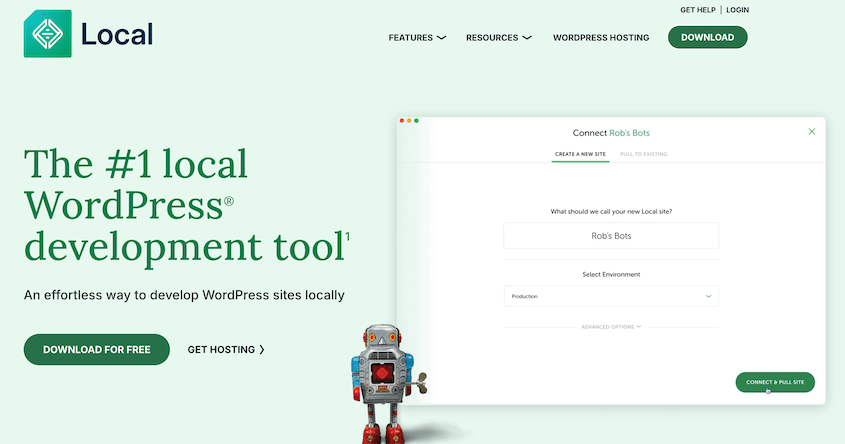
LocalWP is a free desktop app owned by WP Engine, and longtime WordPress users will remember it as Local by Flywheel. It installs on macOS, Windows, and Linux.
Each site you create gets its own isolated stack: a PHP version you pick, a web server, and a MySQL database, all running on your computer.
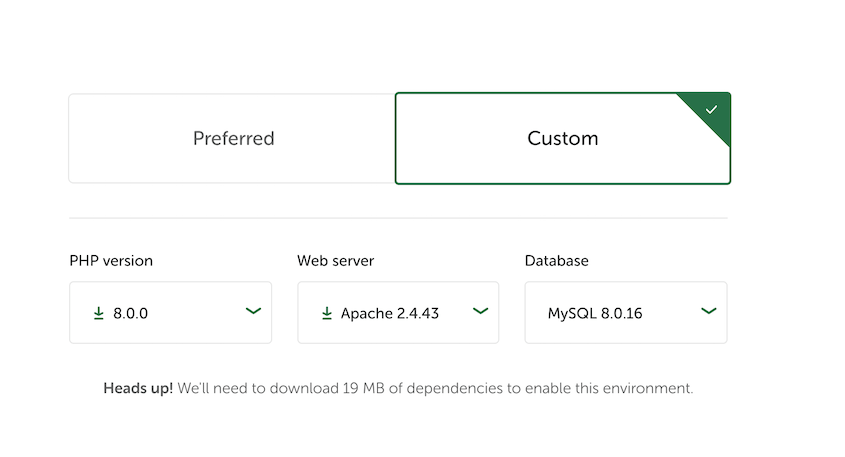
That isolation is the point. You can run WordPress 6.4 on PHP 7.4 in one site and the current release on PHP 8.3 in another, and neither knows the other exists.
Best for: Developers and freelancers who want a sandbox that survives a laptop restart and works with no internet.
Why We Chose LocalWP: It’s the most beginner-friendly way to set up a local WordPress site for testing. LocalWP does in a few clicks what XAMPP or MAMP require you to configure by hand.
What We Liked:
- Free, including one-click SSL, PHP version switching, site shell access, and direct access to PHP, NGINX, and MySQL logs.
- Live Links generate a temporary public URL, so you can show a client work-in-progress without deploying anything.
- Push and pull to WP Engine and Flywheel hosting is built in, plus Google Drive and Dropbox for site transfers.
What We Didn’t Like:
- It’s a desktop install with real resource cost. Running three or four sites at once will make an older laptop work for it.
- Getting your live site into Local means exporting it first, which is a separate job. (Duplicator or a host export handles this, but it’s still a step.)
- A local stack won’t match your production server. Different PHP config, MySQL version, and memory limits can all hide a bug you’d hit the moment you deployed.
4. InstaWP: Best for Sandboxes You Need to Share
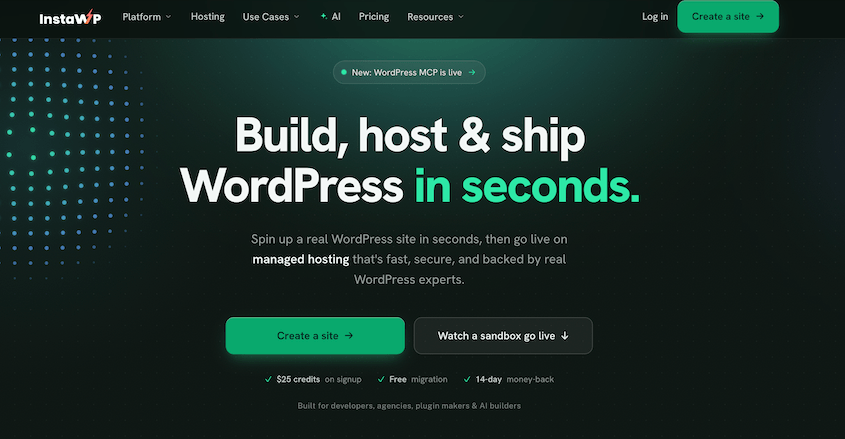
InstaWP is a cloud platform for spinning up WordPress sites quickly. You work from a browser dashboard rather than a plugin.
Creating a sandbox takes under a minute and produces a live URL on InstaWP’s infrastructure, with admin credentials and full server-side features. Because the site is hosted rather than local or in-browser, everything a normal WordPress install does works normally.
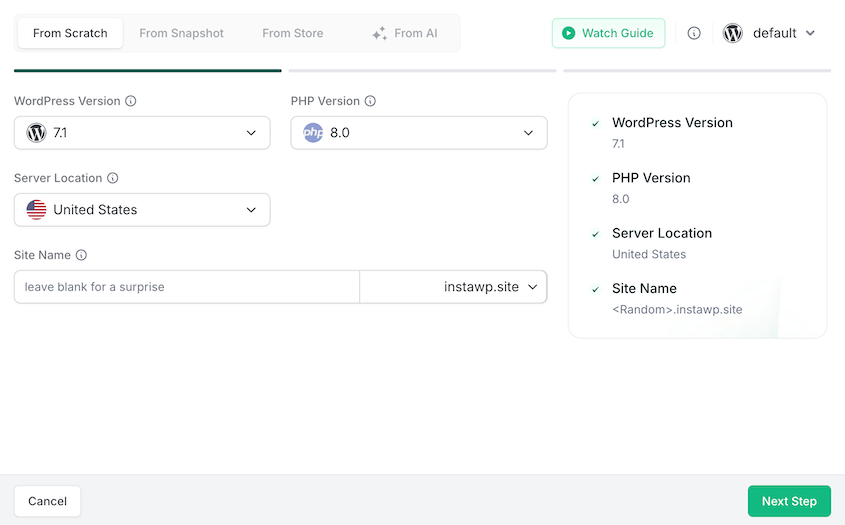
Two features separate it from the other hosted options.
Templates let you save a configured site (with the plugin stack, theme, and sample content) and reproduce copies of it on demand.
The InstaWP Connect plugin runs on an existing WordPress site and pulls a copy of it up into a sandbox, so you aren’t restricted to starting from a blank site.
Best for: Agencies and freelancers who need to hand a working sandbox to a client or teammate.
Why We Chose InstaWP: The shareable URL is the differentiator. LocalWP sandboxes live on your machine while Playground sandboxes die on refresh. InstaWP gives you something you can paste into a Slack message.
What We Liked:
- Templates let you save a preconfigured site (your usual plugin stack, your starter theme) and clone it in seconds for the next project.
- The InstaWP Connect plugin pulls an existing live site into a sandbox, so you aren’t locked into starting blank.
- $2/month per site.
What We Didn’t Like:
- Limited to 3 free sandbox sites that expire in 48 hours.
- Per-site billing adds up quickly across a portfolio.
5. Your Host’s Built-In Staging: Best If You’re Already Paying for It
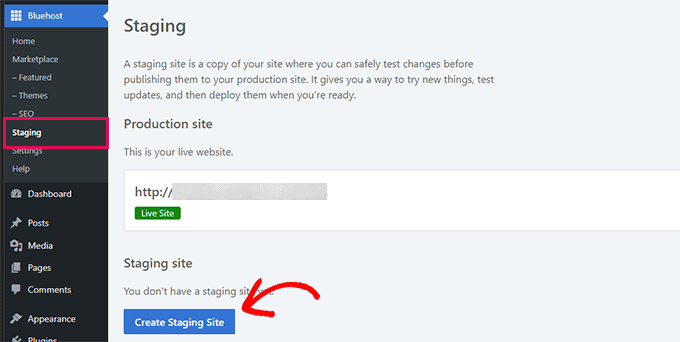
Managed WordPress hosts including WP Engine, Kinsta, SiteGround, and Bluehost include one-click staging environments in their plans. If you’re on one of these, you already have a sandbox and may not have noticed.
The way it works varies by host, but you usually click a button in your hosting dashboard, and the host copies your site into a second environment on the same infrastructure. You work there, and a second button pushes your changes back to production.
Best for: Anyone on managed WordPress hosting who wants zero additional cost or setup.
Why We Chose Host Staging: It’s on this list because for a lot of people, it’s free, already provisioned, and sitting unused.
What We Liked:
- Included at no extra cost on most managed plans.
- The environment matches production exactly since it’s the same server stack.
- Push-to-live is usually built in and reliable.
What We Didn’t Like:
- You’re locked to that host. Change hosting, and your sandbox workflow goes with it.
- Budget shared hosting often doesn’t include it at all.
- Implementations vary wildly. Some hosts sync files and databases separately with real care; others overwrite whatever’s there and hope for the best.
- Most cap you at one staging environment per site, so parallel tests aren’t possible.
Other Sandbox Tools We Tested
A few WordPress sandbox tools didn’t make the list. Some are genuinely good and lost on a narrow point. Here’s what each one does and why it was dropped:
- WP Staging: clones your site into a subfolder from inside wp-admin. Dropped because push-to-live, subdomain staging, and Multisite all require the pro version, and the free tier overlaps what Duplicator Lite already does for free.
- TasteWP: free WordPress test sites on real hosting, so cron jobs fire and emails send. Free sites last 2 days, or 7 if you create an account, with a 1GB cap. Premium starts at $2.98/month. Dropped because InstaWP does the same job and adds templates and a live-site import.
- XAMPP: a free local server stack with total control over the configuration. Dropped because LocalWP does the same thing in two clicks.
- MAMP: the same category, mainly on macOS. Dropped for the same reason as XAMPP.
- BlogVault: the staging feature works well and push-to-live is reliable. Dropped because backups live only on BlogVault’s servers and there’s no free version.
- WP Stagecoach: creates staging sites on its own servers and pushes changes back. Dropped for having no free tier and a narrower feature set than the picks here.
- WPvivid: a capable free backup and migration plugin. Dropped because staging is a Pro-only feature, so the free version doesn’t solve the problem this post is about.
Frequently Asked Questions (FAQs)
What is the best sandbox for WordPress?
Duplicator is the best option for most WordPress site owners. It clones your live site into an isolated sandbox instead of handing you a blank install. That means the plugin conflicts and theme bugs you’re hunting show up in the sandbox exactly as they do in production. If you don’t have a site yet and just want to test a plugin, WordPress Playground is free and takes five seconds.
What’s the difference between a sandbox and a staging site?
A sandbox is for open-ended experimenting and often uses dummy data. A staging site is a near-identical replica of your live site, built to validate specific changes before they ship. Both give you a safe place to break things. The difference is whether the environment needs to match production. If you’re testing a change you plan to push live, you want staging.
Do I need a sandbox if I already run backups?
Yes, and they solve different problems. A backup lets you undo a disaster after it happens. A sandbox helps you catch problems before they happen. Run both. Test important changes in a sandbox, then take a backup before you apply it to production.
Is a free WordPress sandbox good enough?
For testing a plugin or theme, absolutely. WordPress Playground, LocalWP, and Duplicator Lite are all free and cover most needs. You outgrow free in three situations: the sandbox needs to survive for weeks, a client needs a public URL, or you need push-to-live so the work doesn’t get redone by hand.
Will a sandbox site hurt my SEO?
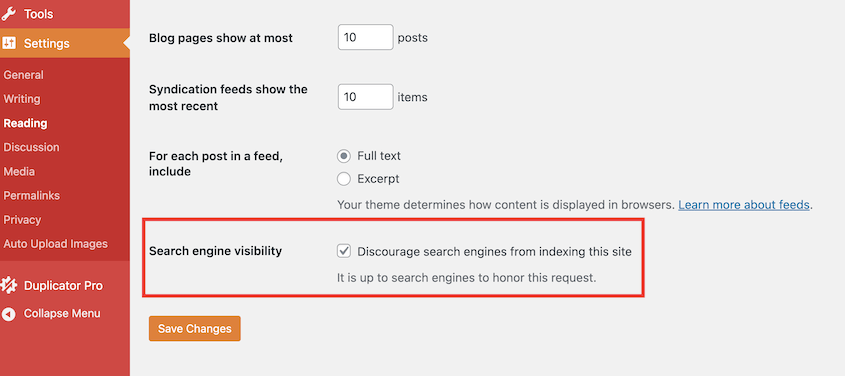
Not if it’s configured properly. The risk is Google indexing your sandbox and treating it as duplicate content. Any decent sandbox tool blocks search engine indexing automatically. Duplicator disables indexing and uses an obfuscated URL by default. If you build a sandbox manually, set the noindex flag under Settings » Reading before you do anything else.
Pick the WordPress Sandbox That Matches What You’re Testing
The choice comes down to a single question: Does your test need your real site, or will a blank WordPress site do?
If you’re evaluating a plugin, chasing a layout idea, or learning a page builder, use something free like WordPress Playground. It’ll spin up a test site with dummy content in a few seconds.
If you’re about to change something on a real site, you need a copy of that site, not an approximation of it. For that, you’ll need Duplicator. The free version clones your site into any WordPress environment. The premium version’s one-click staging creates instant testing sites from any full-site backup.
Build Your First Sandbox With Duplicator Pro
Get Duplicator Pro, and you can have an isolated copy of your live site running in about a minute.
The workflow is three parts. Create a backup, open Duplicator Pro » Staging » Create Staging Site. Choose that backup as the source site for staging.
Duplicator copies your site into a staging environment and handles the parts people forget. Outgoing email is blocked so no test order confirmation reaches a real customer, search engines are told not to index it, the copy gets its own database tables, and your production backups leave it alone.
Not ready to buy? Duplicator Lite is free, runs on over 1 million sites, and gets you the same sandbox by hand. Create a backup, drop the archive and installer into a subfolder, and run the installer. A few more steps, the same result.
If you liked this post, here’s what to read next:
- How to Create a WordPress Staging Site (For Safe Testing)
- 9 Best WordPress Staging Plugins (+Our Expert Reviews)
- Don’t Start From Scratch: Best Plugins to Clone WordPress Sites
- How to Create a WooCommerce Staging Site (And What to Test Before Going Live)
- 10 WordPress Staging Best Practices That Prevent Live Site Disasters




