


Cloud Backup vs. Local Backup: Which One Actually Protects Your WordPress Site?
 Joella Dunn
Joella Dunn
Joella Dunn
 John Turner
John Turner
John Turner
Most WordPress site owners have a backup. Or they think they do.
Your host probably takes one automatically. It shows up in your control panel, timestamped and reassuring. What it doesn’t always tell you is where that backup lives.
The host backups might be on the same server as your site, sometimes in the same data center, occasionally on the same hard drive. When that server has a problem, both copies go down together.
I learned this the hard way early on, when a migration gone wrong took out a site and the backup along with it. The host’s snapshot was stored locally to their infrastructure. There was nothing to restore from.
That’s the gap this post addresses. Cloud backups and local backups are two different tools that protect against different failure modes.
One alone isn’t enough. You need both local and cloud backups to build a disaster recovery strategy that actually holds up when something breaks.
Here are the key takeaways:
- Your host’s automatic backup is not an off-site backup. If their server goes down, your backup goes with it.
- Local backups (stored on your web server) are easy to set up and useful for quick rollbacks, but they share the same server as your live site, making them useless if that server goes down.
- Cloud backups (sent automatically to a remote storage provider) protect against physical and environmental disasters but depend on your internet connection and a third-party service.
- The 3-2-1 rule is the gold standard: three copies of your data on two different storage types, with one stored off-site.
- No backup strategy is complete without regular restore testing. An untested backup may not work when you need it most.
- Duplicator Pro automates both local and cloud backups from a single run and supports 10+ cloud storage destinations, including its own built-in Duplicator Cloud storage.
Table of Contents
- Your Hosting Backup Is Not an Off-Site Backup
- What Is a Local WordPress Backup?
- What Is a Cloud Backup for WordPress?
- Cloud Storage Options for WordPress Backups
- Cloud Backup vs. Local Backup: Head-to-Head Comparison
- The 3-2-1 Backup Rule: Why You Need Both
- Don't Skip Testing Your WordPress Backups
- Frequently Asked Questions (FAQs)
Your Hosting Backup Is Not an Off-Site Backup
Managed WordPress hosts, shared hosting plans, and even many VPS providers include automatic backups as a standard feature. It sounds like a complete safety net. For most scenarios, it isn’t.
Hosting backups are almost always stored within the same infrastructure as your live site. A server failure, a ransomware attack on the host’s network, a billing dispute that locks your account, or a data center outage affects your site and your backup at the same time.
You can’t restore a backup you can’t access.
To help you build the best backup strategy for your website, you’ll need to understand the differences between local and cloud backups:
- Local backup: a backup of your site stored on the same web server that hosts your WordPress site. It’s created by your host or a backup plugin and is accessible from your hosting control panel or wp-admin. Most WordPress owners have this type of backup without realizing it.
- Cloud backup: a copy of your site sent automatically to a remote storage server run by a third party. Accessible over the internet from any device. Stored in a physical location that has nothing to do with your host.
Your host’s automated snapshot is a local backup. It’s a useful starting point and a convenient option for quick rollbacks, but it’s not a substitute for an off-site backup strategy.
What Is a Local WordPress Backup?
A local backup is a copy of your WordPress site stored directly on your web server, within your hosting infrastructure. Here’s what that actually looks like in practice.
How Do Local Backups Work for WordPress?
Your host or backup plugin creates a backup of your site’s files and database and stores it directly on your web server. You can access it from your hosting control panel or wp-admin dashboard.
No external accounts or storage destinations are required. When you need to restore, you trigger the process from your dashboard and the server handles it.
Advantages of Local Backups
The biggest advantage is simplicity. Local backups are the easiest type of backup to set up. Many hosts create them automatically, with no configuration required on your end.
- Easy setup: most hosting plans include automatic backups with no extra configuration
- No extra accounts: no storage destinations to connect, no API keys to manage
- Fast rollback for small issues: quickly undo a bad plugin update or accidental deletion directly from wp-admin
- No additional storage costs: local backups use your existing server storage, with no recurring fees for a separate storage service
Disadvantages of Local Backups
The same thing that makes local backups simple also makes them unreliable in a real disaster. They share the same infrastructure as your live site.
- Single point of failure: a server crash, data center outage, or hosting account suspension takes down your site and your local backup at the same time
- Not off-site: if the server is the problem, the backup stored on it can’t help you
- Ransomware risk: an attacker who compromises your server has access to your backup files too
- Host controls the schedule: retention limits, backup frequency, and storage quotas depend on your hosting plan
- No recovery if the server is completely down: if you can’t access wp-admin or your control panel, you can’t reach the backup
A local backup is a useful first layer. But if the server goes down completely, it goes down with it.
What Is a Cloud Backup for WordPress?
A cloud backup sends a copy of your site to a remote server automatically, on a schedule you set. The backup lives off-site, managed by a storage provider that has nothing to do with your host. Here’s how it works.
How Do Cloud Backups Work for WordPress?
Your backup plugin creates an archive of your site’s files and database, then pushes that archive to your chosen cloud storage destination. The whole process runs on a schedule—hourly, daily, weekly, or monthly.
You don’t have to be at your computer. You don’t have to remember. When you need to restore, you pull the backup back down and reinstall it.
Advantages of Cloud Backups
The thing local backups can’t do is protect against a physical event at your website’s server. Cloud backups can.
- Off-site by definition: a fire, flood, or ransomware attack at your server doesn’t touch the cloud copy
- Automated scheduling: backups run whether you remember them or not
- Accessible from anywhere: restore a site from any device with an internet connection
- Built-in redundancy: most cloud providers replicate your data across multiple data centers
- Scales with your site: no new hardware to buy as your site grows
I’ve seen sites get fully restored from a cloud backup after a host completely wiped their server. That’s the scenario where cloud storage pays for itself.
Disadvantages of Cloud Backups
Cloud backups aren’t without tradeoffs. It’s worth knowing them before you pick a destination.
- Restore speed depends on your connection: a large site with a heavy media library can take a long time to pull back down over a slow connection
- Recurring costs: storage fees add up, especially for media-heavy sites with frequent backup schedules
- Third-party trust: a complete copy of your site, including user data, lives on someone else’s infrastructure
- Provider outages: if your cloud storage provider goes down, you may temporarily lose access to your backups
None of these are dealbreakers. They’re just reasons not to rely on cloud backups alone.
Cloud Storage Options for WordPress Backups
Not all cloud storage works the same way for WordPress, and not every backup plugin supports more than a handful of destinations.
Duplicator Pro lets you automatically send every scheduled backup to your storage destination of choice, and it supports more destinations than most WordPress backup plugins.
Duplicator Cloud: Built-In Storage with No API Keys
Most cloud storage integrations require you to generate API keys, authorize an external app, and manually test the connection before a single backup gets sent off-site.
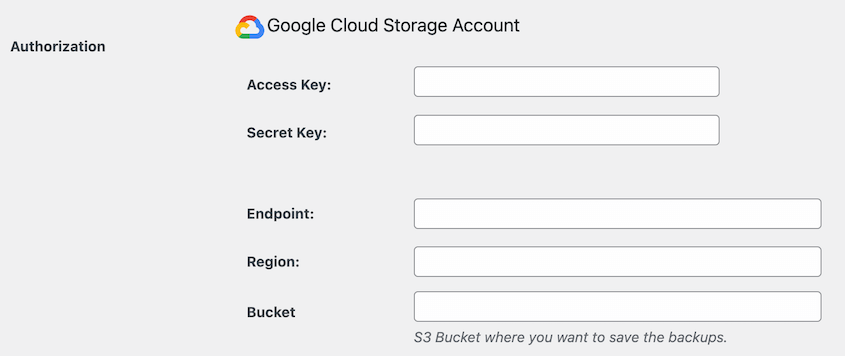
If any step breaks, your backups silently stop leaving your server. You won’t know until you need to restore something.
Duplicator Cloud is different. It’s native cloud storage built directly into Duplicator Pro, designed specifically for WordPress backups.
There’s no third-party account to create, no API credentials to dig up later, and no external app permissions to manage. You connect it once using your existing Duplicator Pro license, and it’s ready.
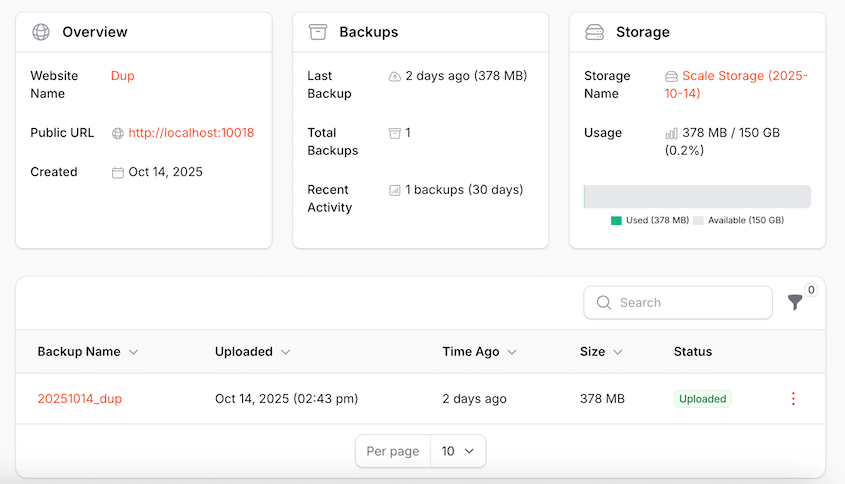
Here’s what that looks like in practice from your WordPress dashboard:
- One-click setup: connect Duplicator Cloud directly from wp-admin using your Duplicator license
- Automatic off-site transfers: you can push scheduled backups to Duplicator Cloud without any manual action
- Centralized dashboard: storage usage, activity logs, and detailed backup metrics are all visible in one place inside Duplicator Cloud
- Encrypted storage: backups are encrypted with AES-256 before they leave your server
- One-click restore from cloud: restore any backup directly from Duplicator Cloud without re-uploading the file manually
- Scalable storage: upgrade your plan in a few clicks without switching platforms or reconfiguring your backup settings
Storage tiers are straightforward:
- Starter: $29/year, 2GB
- Basic: $49/year, 10GB
- Plus: $69/year, 25GB
- Business: $99/year, 50GB
- Pro: $149/year, 100GB
- Scale: $199/year, 150GB
For WordPress owners who want real off-site backups without an afternoon of setup, Duplicator Cloud is the fastest path there. Everything stays inside the Duplicator ecosystem.
You won’t have to juggle third-party accounts or wonder whether your backups actually made it off your server.
Third-Party Cloud Storage Options for WordPress
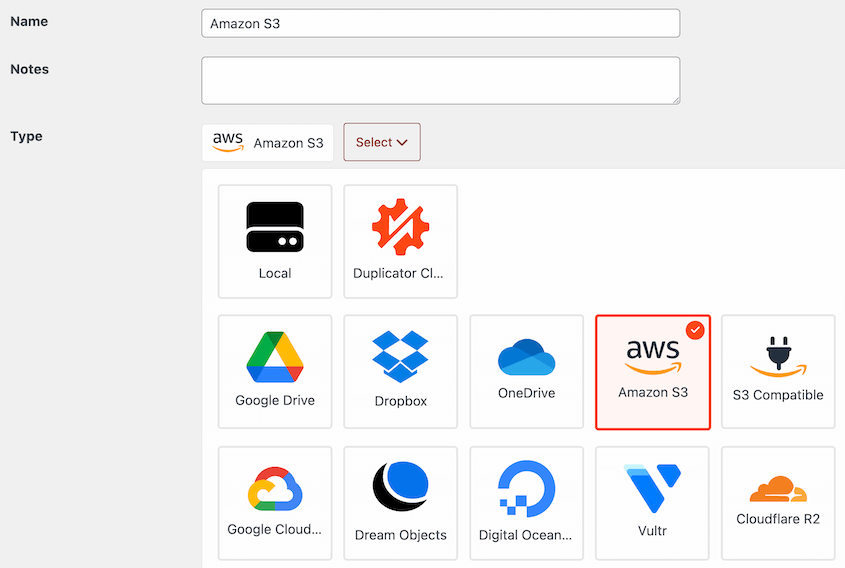
If you already use a cloud storage service, Duplicator Pro almost certainly supports it. Here’s the full list of supported destinations, grouped by type.
Google and Microsoft:
- Google Drive: familiar interface, generous free tier (15GB), easy OAuth authorization
- Google Cloud Storage: bucket-based, more technical, well-suited for larger sites or teams
- Microsoft OneDrive: a natural fit if your team already runs on Microsoft 365
Amazon S3 and S3-compatible services:
- Amazon S3: the industry standard for object storage, reliable, widely used, pay-per-use pricing
- Wasabi: S3-compatible with flat-rate pricing and no egress fees, often cheaper than S3 for larger sites
- Backblaze B2: low-cost object storage, S3-compatible
- Cloudflare R2: no egress fees, fast retrieval, gaining traction fast
- DigitalOcean Spaces: S3-compatible, straightforward pricing, easy fit if you already host on DigitalOcean
- Vultr Object Storage: S3-compatible, affordable, global data center options
- DreamObjects: S3-compatible storage from DreamHost
- Any other S3-compatible provider: if it speaks S3, Duplicator supports it
Other options:
- Dropbox: simple interface, widely used, easy OAuth setup
- FTP / SFTP: send backups to any server you control, maximum flexibility, more manual setup
Every one of these destinations is configured from the same Duplicator Pro interface. One plugin, one dashboard, any destination.
Cloud Backup vs. Local Backup: Head-to-Head Comparison
Here’s a full look at the cloud backup vs. local backup pros and cons for WordPress site owners.
Cloud Backups vs. Local Backups
| Local Backups | Cloud Backups | |
|---|---|---|
| Restore Speed |
Conditional Fast from wp-admin, if the server is accessible |
Slower, depends on file size and connection |
| Disaster Protection |
Vulnerable Shares the same server as your live site |
✓ Protected Stored in a separate physical location |
| Cost |
✓ No extra fees Included in your hosting plan |
Recurring storage fees |
| Automation | Often built-in with your hosting plan |
✓ Fully automated Runs on any schedule you set |
| Setup Complexity |
✓ Simplest Often no setup needed |
Requires connecting a storage destination |
| Ransomware Protection |
Vulnerable Same server infrastructure |
✓ Protected Stored off-site |
| Access from Anywhere | wp-admin only, requires server to be accessible |
✓ Any device Any device with internet access |
| Available if Server Fails | No | ✓ Yes |
| Duplicator Pro automates both local and cloud backups from a single backup run. See Plans → | ||
The pattern here is consistent. Local backups win on simplicity and low cost. Cloud backups win on protection against events you can’t control, including the server itself going down.
One thing worth noting on the restore side: Duplicator Pro’s one-click restore pulls your backup directly from cloud storage without re-uploading the file manually.
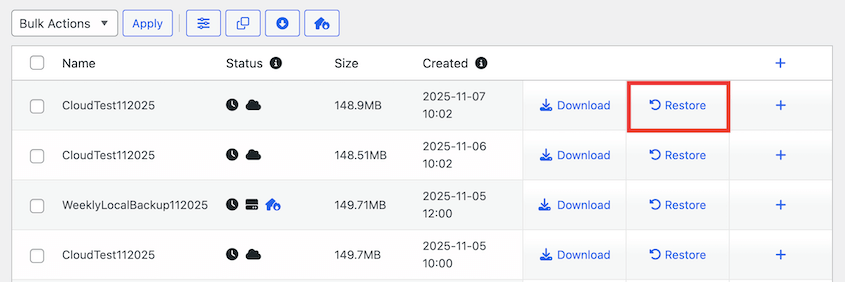
You don’t download it to your computer first and then push it back up. You restore straight from the cloud destination in a few clicks.
The 3-2-1 Backup Rule: Why You Need Both
The 3-2-1 rule comes from data recovery professionals, and it’s the clearest framework for thinking about backup strategy.
The math is simple: keep three copies of your data on two different types of storage, with one copy stored off-site.
For a WordPress site, that looks like this:
- One local backup stored on your web server: convenient for quick rollbacks and minor fixes
- One copy in cloud storage: for off-site protection against server failures
- One additional off-site copy: either a second cloud destination or a downloaded backup stored somewhere other than your server.
Each copy covers a failure mode the others don’t.
Duplicator Pro handles the cloud and local copies from a single backup run. You don’t need two separate plugins or two separate schedules. Configure your storage destinations once, and every backup goes where it needs to go automatically.
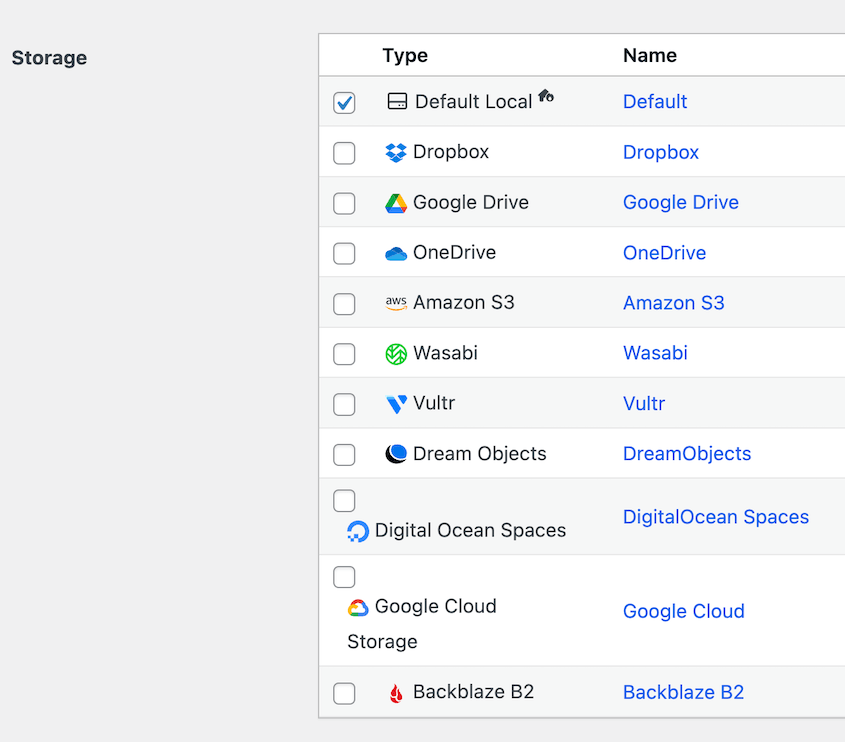
That’s the practical answer to the cloud vs. local debate. It’s not a choice between them. It’s both, automated, running in the background while you focus on your site.
Don’t Skip Testing Your WordPress Backups
I once discovered a backup plugin had been silently failing for three months. The storage destination’s API credentials had expired, but the plugin didn’t send an alert, and every scheduled backup had been quietly writing nothing.
I found out during a test restore, not during an actual emergency. That’s the only reason it wasn’t a disaster.
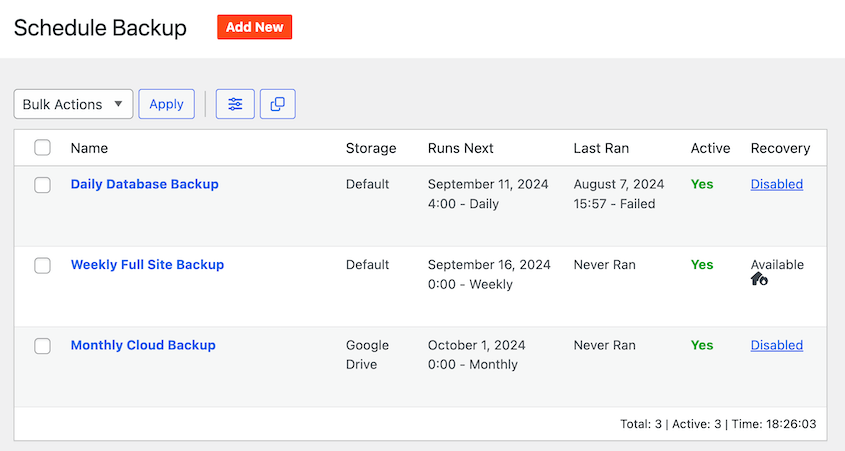
Testing doesn’t mean restoring your live site. It means spinning up a staging environment, running the restore there, and confirming everything comes back correctly—pages load, the database connects, nothing breaks.
If the restore fails on staging, you’ve got time to fix it. If it fails after a hack or a bad update on your live site, you don’t.
Duplicator Pro makes this easier than it sounds. You can turn any full-site backup into a staging site in a few clicks, directly from wp-admin. No separate hosting account, no manual file transfers.
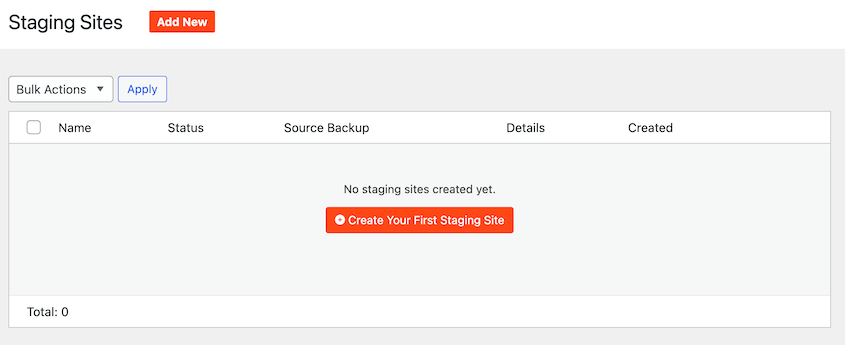
Run the restore on staging, check that everything works, then go back to your live site knowing your backup is solid.
A few practical guidelines for testing:
- Frequency: test a full restore at minimum once every 90 days, or after any major site change
- What to check: does the restore complete without errors? Do all pages load? Does the database connect correctly? Are admin logins working?
- Where to test: a staging environment or a local development install, never your live site
- What to do if it fails: check your storage destination connection, confirm the backup file isn’t corrupted, and run a fresh backup before you need one in an emergency
Don’t wait until something breaks to find out whether your backups work.
Frequently Asked Questions (FAQs)
Is a cloud backup safer than a local backup?
Cloud backups protect against server failures, data center outages, and ransomware that targets your hosting environment. Local backups are useful for quick rollbacks and minor fixes, but they share the same server as your live site. Each one covers risks the other doesn’t. The safest setup uses both, with at least one copy stored completely off-site.
Can I use both cloud and local backups for my WordPress site?
Yes, and most backup experts recommend it. Duplicator Pro supports sending backups to multiple destinations simultaneously, so you can configure a local server backup and a cloud destination in the same backup run. You don’t need two plugins or two separate schedules to make it work.
What’s the best cloud storage for WordPress backups?
It depends on your priorities. Duplicator Cloud is the simplest option if you want off-site backups without any API setup or third-party account management. Wasabi and Backblaze B2 are worth considering for larger sites where storage costs matter. Google Drive and Dropbox are good fits if you want a familiar interface you’re already using. All of these are supported natively in Duplicator Pro.
How many WordPress backups should I keep?
Keep at least three to five restore points. For active sites, daily backups give you enough history to roll back to a clean version before a problem started. For low-traffic sites, weekly backups are usually enough.
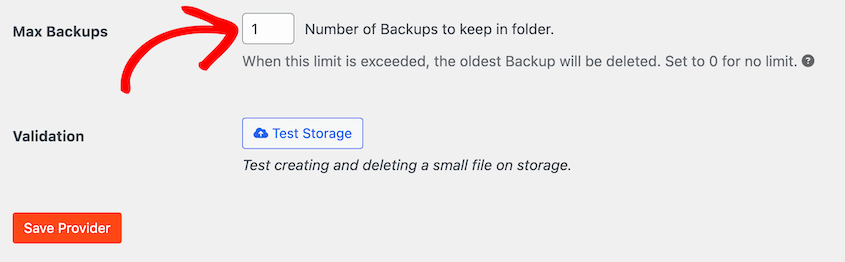
Rotate old backups regularly so your storage quota doesn’t fill up quietly and cause new backups to fail. You can do this by adjusting the Max Backups setting in Duplicator. It’ll delete any old backups once the new backups exceed this number.
Does my hosting company’s backup count as an offsite backup?
Usually not. Your host’s backup is a local backup—it’s stored on the same server infrastructure as your live site. If the server is compromised, suspended, or wiped, the backup goes with it. Send a copy to a cloud storage destination you control to ensure you have a truly off-site option.
What happens if my cloud storage provider goes down?
Temporary outages happen, which is exactly why local backups matter as a second copy. Major providers like Google Drive, Amazon S3, and Wasabi maintain uptime SLAs above 99.9%, so extended outages are rare. Having a local backup means a provider outage never leaves you completely without a recovery option.
How do I restore a WordPress site from a cloud backup?
With Duplicator Pro, it’s one click. You restore directly from your cloud storage destination inside the Duplicator dashboard. Without Duplicator, you’d download the archive file, upload it to your server, and run the installer manually, which works but takes significantly longer, especially for large sites.
Is it safe to store WordPress backups in the cloud?
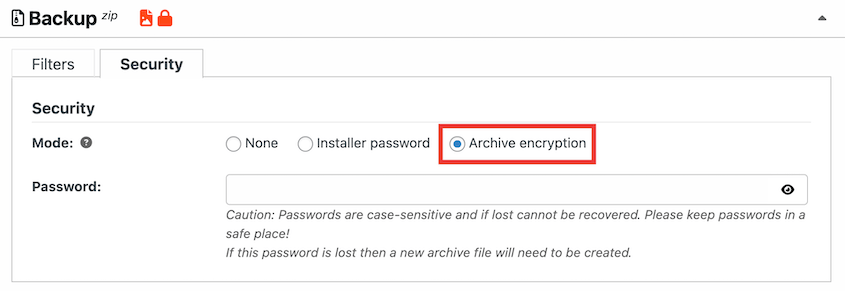
Yes, as long as your backups are encrypted before they leave your server. Duplicator Pro can encrypt backups with AES-256 encryption before transferring them to any destination. Avoid storing unencrypted backups in publicly accessible cloud buckets. With encryption in place and a reputable storage provider, cloud storage is a secure option for WordPress backup files.
Back Up Your WordPress Site Before the Next Thing Goes Wrong
Cloud backups and local backups aren’t competing options. They protect against different failure modes, and the right strategy uses both.
Cloud storage covers the server-level risks that local copies can’t survive, like server crashes, data center outages, or ransomware that targets your hosting environment. Local backups cover quick rollbacks and small fixes where pulling from cloud storage would be overkill. Together, they close the gaps.
A site without a real off-site backup isn’t protected. It’s exposed. One server failure, one ransomware attack, or one hosting account suspension is all it takes to lose everything you’ve built, with no clean copy to restore from.
Over 1.5 million WordPress professionals use Duplicator Pro to make sure that doesn’t happen. Duplicator runs automatic scheduled backups, sends them to 10+ cloud storage destinations including Duplicator Cloud, and restores your site in one click when you need it.
You won’t have to worry if your host’s backup survived whatever took your site down.
If this post got you thinking about your backup strategy, these guides are worth reading next.
- How to Implement a 3-2-1 Backup Plan That Works Every Single Time
- How to Create a Cloud WordPress Backup
- Cloud Storage That Costs Nothing: Free Offsite Backup Options to Consider
- 5 Best WordPress Cloud Storage Plugins
- Site Just Crashed? Here’s Your Complete Website Recovery Plan
- Website Backup Redundancy Strategies + Why Location Matters




