


How to Convert WordPress to a Staging Site
 Joella Dunn
Joella Dunn
Joella Dunn
 John Turner
John Turner
John Turner
Your live WordPress site is running smoothly. You’ve built something you’re proud of.
But here’s the problem: every time you need to test a plugin, update your theme, or add new functionality, you’re gambling with your live site. One wrong move and your visitors see error messages instead of your content.
With a staging site, you can test changes without risking your live site.
In this tutorial, I’ll show you how to convert your WordPress site into a staging environment where you can safely experiment, test, and perfect your changes before pushing them live.
Here are the key takeaways:
- Use Duplicator Pro to create a complete copy of your WordPress site in minutes
- Test plugins, themes, and code changes without affecting your live visitors
- The entire process takes just a few minutes: install Duplicator Pro, create a full-site backup, and instantly create a staging site
- If you need a staging site on a local or off-site live server, back up your live site, create a subdomain, install the copy of your site on the subdomain, and test changes
- After testing, you can push approved changes to your live site with confidence
Table of Contents
Quick Summary: How to Convert WordPress to a Staging Site
Converting WordPress to a staging site means creating an exact copy of your live website in a separate location where you can safely test changes. You can create a backup of your live site with Duplicator, then use that to create a staging site in one click.
Alternatively, you could set up a subdomain or subfolder as your staging environment, and then restore the backup there.
Either way, you’ll get a private testing ground where you can experiment with plugins, themes, and updates without affecting your live site. Once you’ve verified everything works correctly on staging, you can confidently apply those same changes to your production site.
Why Convert WordPress to a Staging Site?
If you’ve ever hesitated before updating a plugin or theme, you already know why you need a staging site.
A staging site gives you a safe testing environment that protects your business from costly mistakes.
You can:
- Test updates before they go live: Find out if that new plugin version breaks your site before your customers do
- Experiment without consequences: Try new designs, layouts, and functionality without risking your traffic or revenue
- Catch compatibility issues early: Discover conflicts between plugins and themes in a safe environment, not on your production site
- Train team members safely: Let new editors and developers learn your site without the ability to accidentally damage it
- Preview major changes: Show clients or stakeholders what changes will look like before making them permanent
- Maintain uptime and credibility: Your live site stays online and professional while you work out the kinks elsewhere
- Debug faster: Troubleshoot problems by recreating them on staging without affecting real users
I know setting up a staging site might sound technical. Many site owners worry they’ll need developer skills or server access they don’t have.
With the right plugin, anyone can create a staging site. You don’t need coding experience or command line knowledge. Just follow the steps below.
How to Convert WordPress to a Staging Site in Under 5 Minutes
Don’t worry, you won’t need to manually copy files or export databases!
To create a quick staging site, you can use Duplicator Pro. This is my favorite WordPress migration and backup plugin because it handles all the technical details like database exports, file packaging, URL updates, and deployment.

Here are some benefits of using Duplicator Pro:
- One-click staging
- Create unlimited staging sites without complex server configurations
- Clone your entire WordPress site in minutes
- Automatically update all database URLs when moving between domains
- Schedule regular backups so you always have a recent copy to work from
- Migrate sites of any size without hitting server timeout limits
- Push changes from staging back to production when you’re ready
- Works with any hosting provider, no special requirements needed
- Handle multisite networks and large WordPress setups
- In-house Duplicator Cloud storage
- Free WP Media Cleanup and Activity Log plugins with Elite
To get started, choose a subscription for Duplicator Pro. You can use the free version, but upgrading will give you access to one-click staging.
When finished with your purchase, download Duplicator and install it on your live WordPress site.
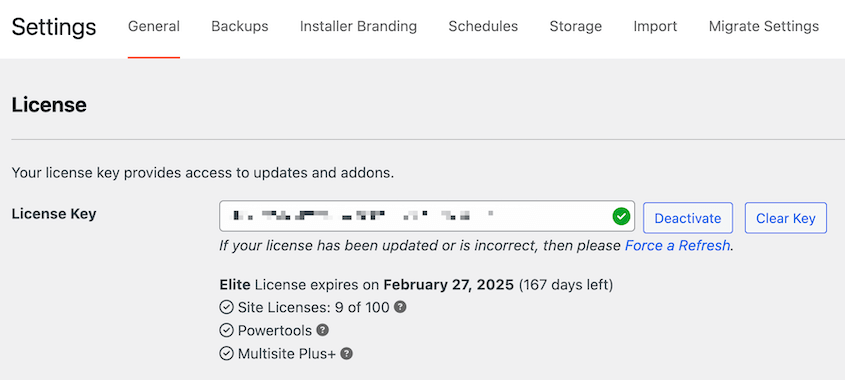
Under Duplicator » Settings » General, enter your license key and click Activate. You’ll see a green checkmark.
Then, go to Duplicator » Backups » Add New. Create a complete backup of your website by selecting the Full Site preset.

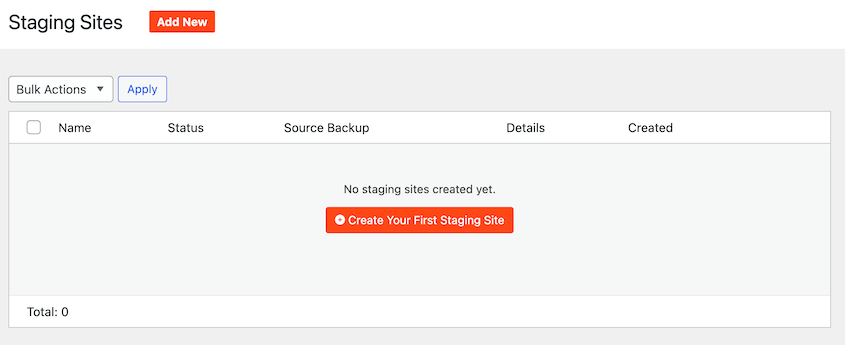
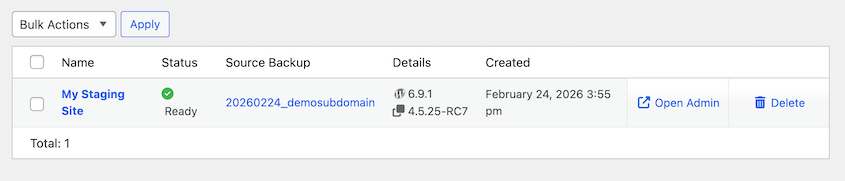
Once Duplicator builds the backup, open the Staging page. Create your first staging site.
In the pop-up, choose the source backup you just created. Give the new site a title and pick an admin color scheme. This will help differentiate the staging and live site admin dashboards, so you don’t experiment on your real site.
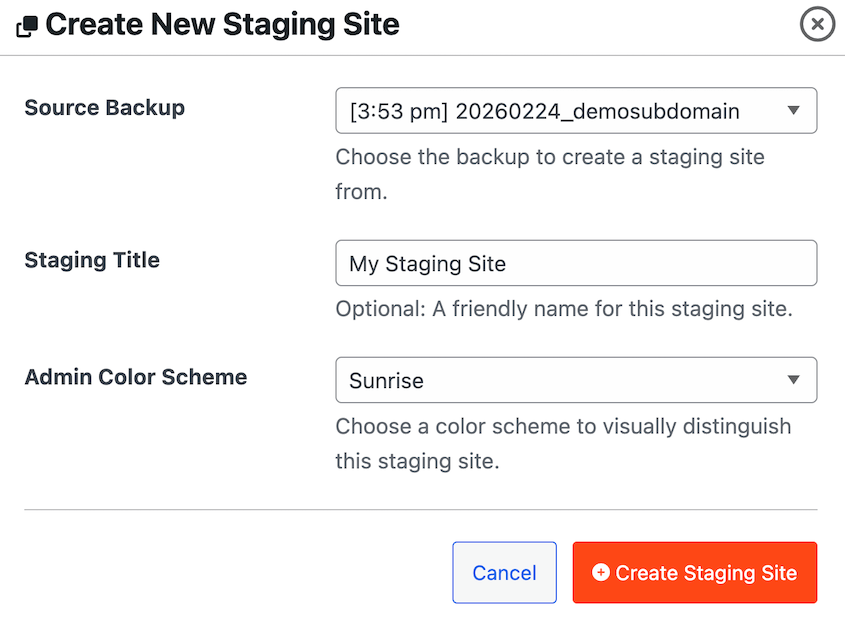
Click Create Staging Site and the familiar Duplicator installer will open. Accept the terms and notices and continue.
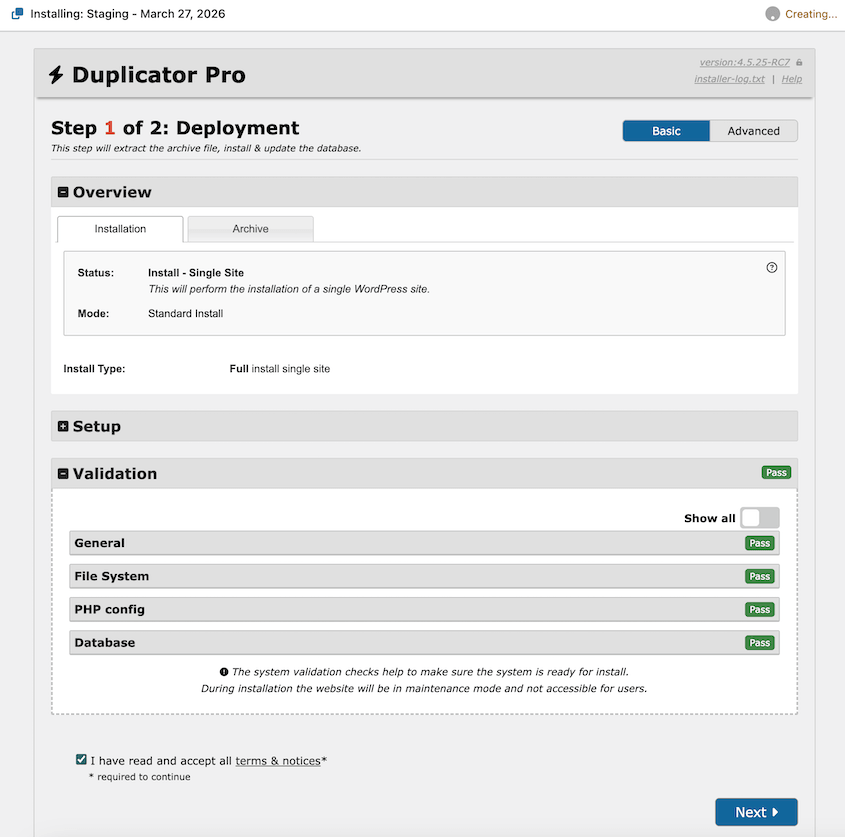
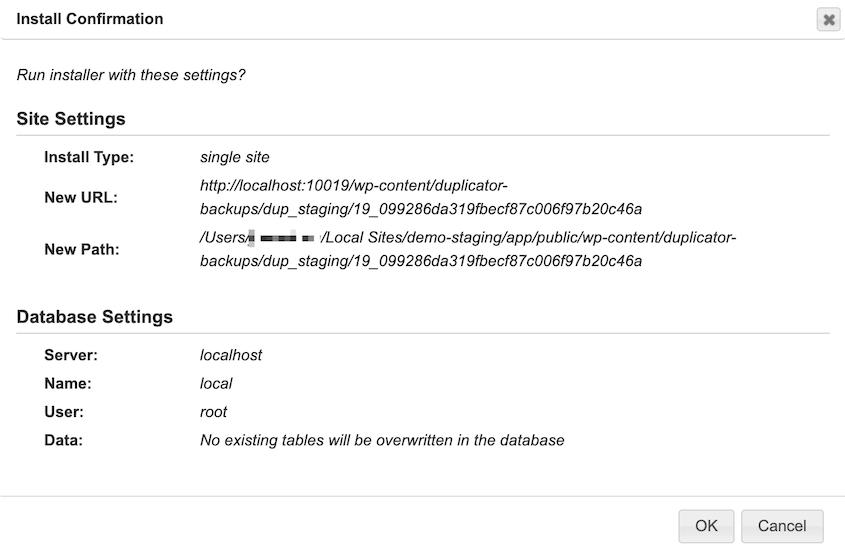
Confirm the install details.
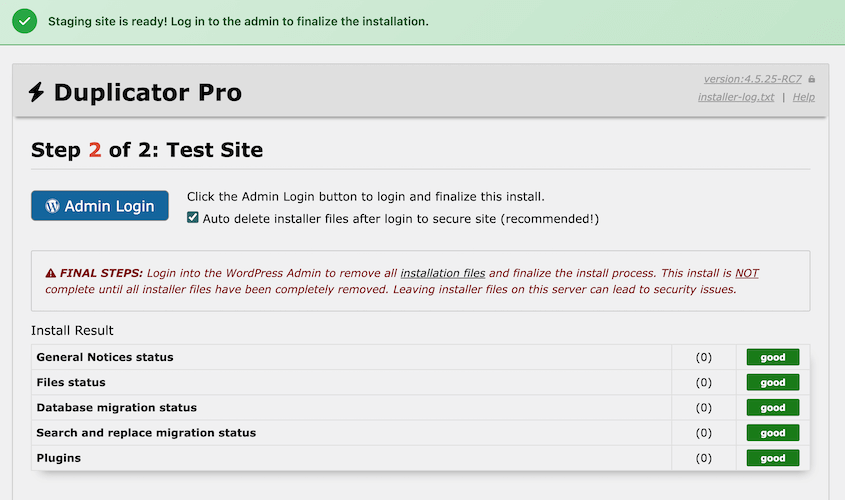
At this point, Duplicator will automatically create a staging site from your chosen backup. Use the Admin Login button to access your new dashboard.
You’ll see that the dashboard has a different theme to prevent accidental editing mistakes.
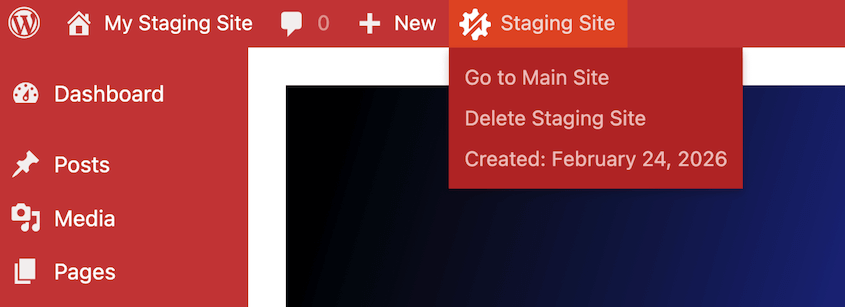
Here are some more built-in safety features:
- Blocked search engine indexing
- Disabled emails
Feel free to make all the changes you want on this testing environment. Before any major update, I’d recommend spinning up a new staging site and seeing how the update will affect your website’s current state.
When you’re done, you can quickly and easily delete your staging sites.
How to Convert WordPress to a Staging Site on a Remote Server
Sometimes, you might not want your staging site on the same server as your website. Here’s how to create a staging copy of your WordPress site on a different server:
- Step 1: Choose Your Staging Location: Decide between a subdomain (staging.yoursite.com), subfolder (yoursite.com/staging), or local environment.
- Step 2: Install a WordPress Migration Plugin: Install Duplicator Pro on your live site to handle the technical work of cloning your site, exporting databases, and updating URLs automatically.
- Step 3: Create a Backup of Your Live Site: Use Duplicator to back up your entire WordPress site into two downloadable files (installer.php and archive.zip).
- Step 4: Set Up Your Staging Environment: Create your subdomain/subfolder in your hosting control panel and set up a new MySQL database with a dedicated user and password.
- Step 5: Upload and Install the Backup: Upload both Duplicator files to the staging location and run the installer to extract files and import your database.
- Step 6: Configure Your Staging Site Settings: Disable search engine indexing, turn off email notifications, deactivate payment processing, and disconnect external services to keep staging separate from production.
- Step 7: Test Your Staging Site: Verify images load, links work correctly, and you can make changes without affecting your live site.
Step 1: Choose Your Staging Location
Before you create your staging site, decide where it will live. You have three main options.
Option 1: Subdomain (Recommended)
Create a subdomain of your live site like staging.yoursite.com or dev.yoursite.com. This is my recommended approach because it keeps your staging site completely separate from your live site while making it easy to access.
Most hosting control panels let you create subdomains in just a few clicks.
Option 2: Subfolder
Place your staging site in a folder like yoursite.com/staging. This works but can sometimes cause URL conflicts with your existing content.
If you already have a page or post at /staging, you’ll need to pick a different folder name.
Option 3: Local Environment
Run your staging site on your computer using tools like Local by Flywheel or XAMPP. This is free and gives you complete control, but you won’t be able to share staging links with clients or team members who need to review changes.
I, personally, use a subdomain for staging sites. It’s clean, professional, and easy to remember.
Step 2: Create a Backup of Your Live Site
Now you’ll create a complete backup containing all your site’s files and database content.
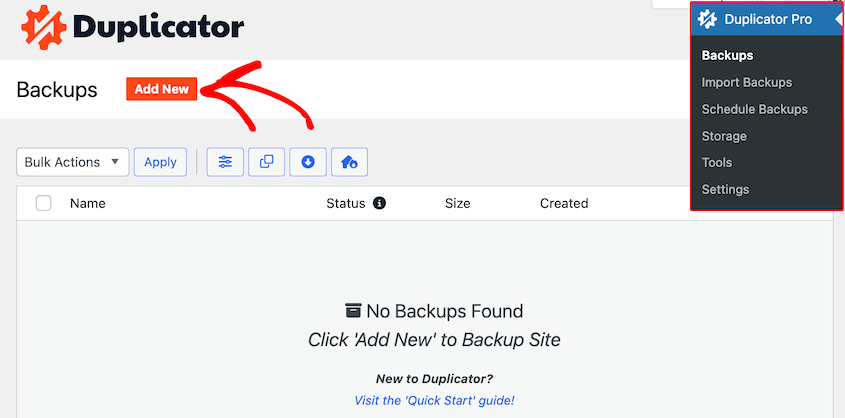
In your WordPress dashboard, go to Duplicator » Backups » Add New.
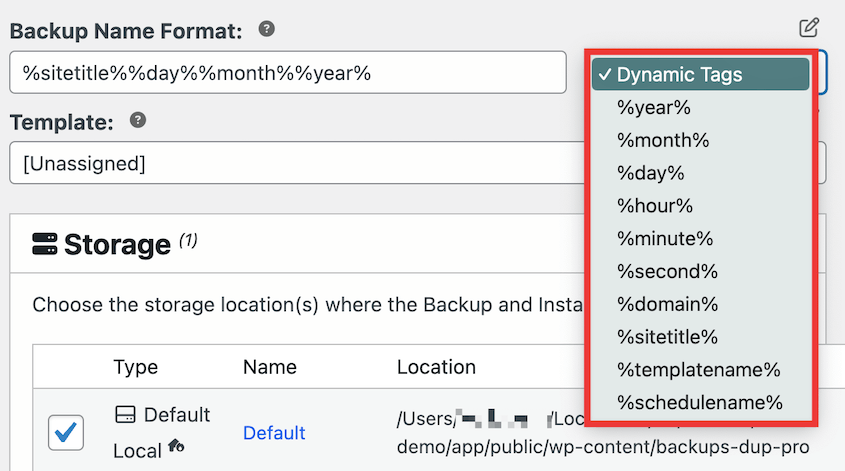
Give your backup a name so you can identify it later. Pick the local storage location.
In the Backup section, select the Full Site preset. This tells Duplicator to download everything on your site in the backup.
Duplicator checks your site for potential issues. If you see warnings about large files or file permissions, you can usually proceed anyway. Click Create Backup.
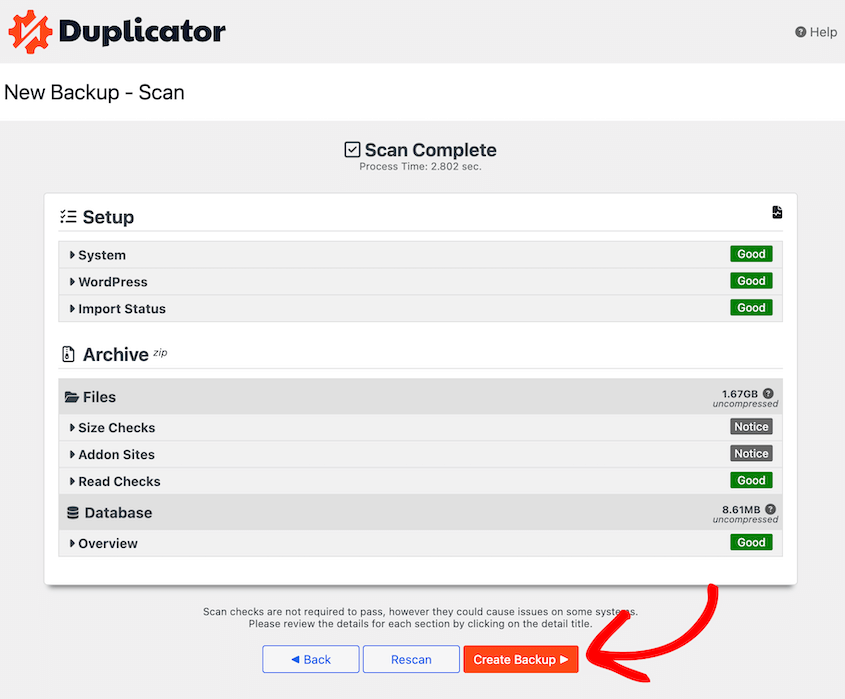
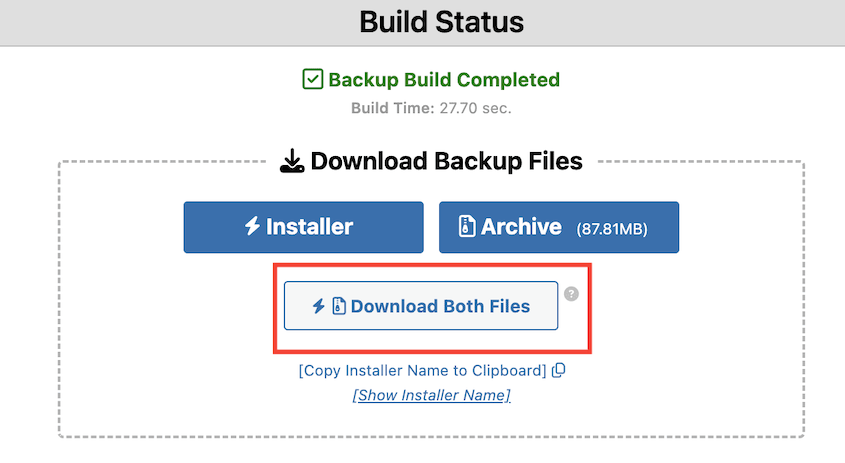
Once complete, download both the installer.php file and the archive.zip file to your computer. Keep these two files together. You’ll need both of them in the next step.
Step 3: Set Up Your Staging Environment
Before you can install your backup, you need to set up the staging location.
If you want your staging site on a subdomain or subfolder, log into your hosting control panel (cPanel, Plesk, or your host’s custom dashboard).
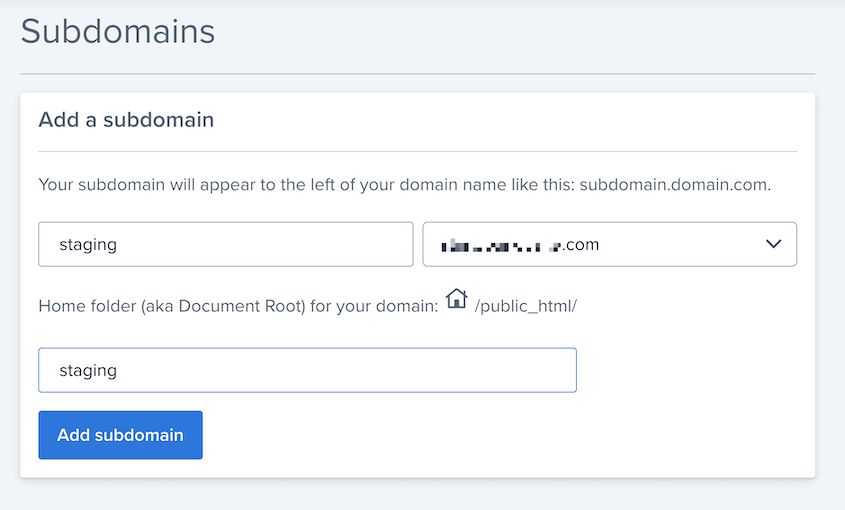
For subdomains: Find the Subdomains section and create a new one.
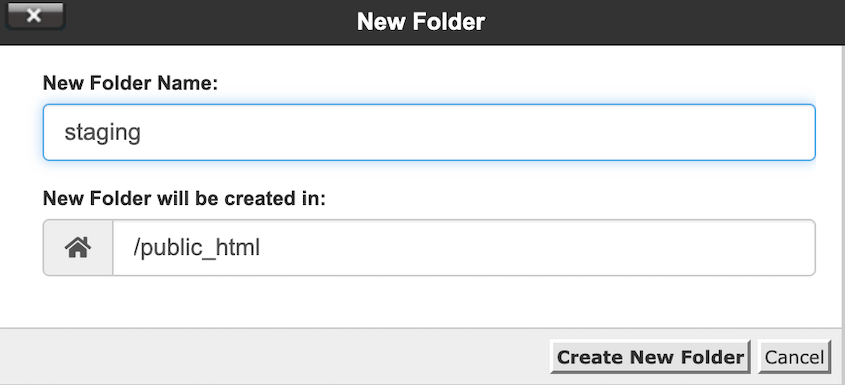
For subfolders: Use the file manager to create a new folder called “staging” in your public_html directory.
Make note of the full path to your new staging location (usually something like /home/username/public_html/staging or /home/username/staging.yoursite.com)
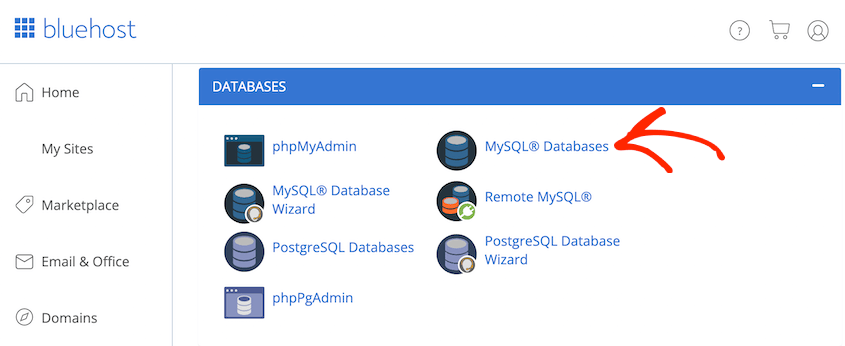
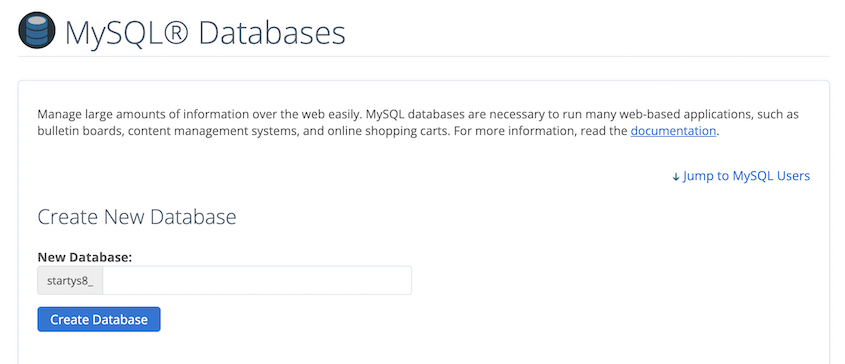
In your hosting control panel, find MySQL Databases or Database Manager.
Create a new database with a name like yourusername_staging.
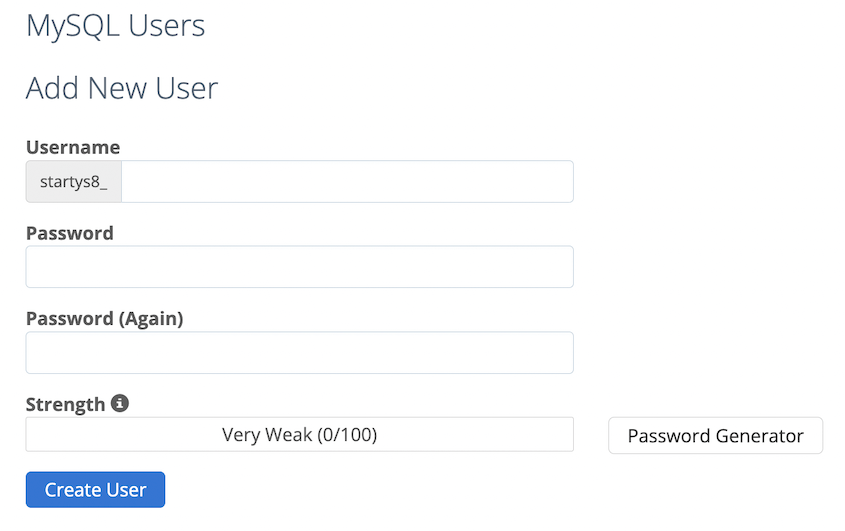
Create a new database user with a strong password.
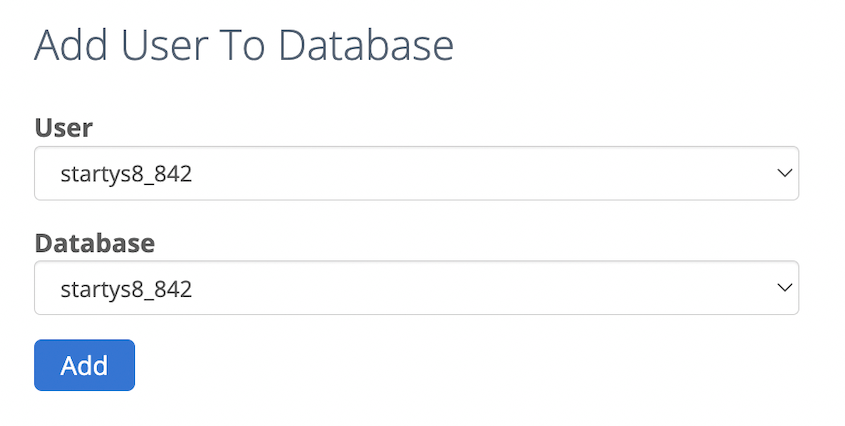
Add the user to the database with all privileges.
Write down your database name, username, password, and host (usually localhost).
Step 4: Upload and Install the Backup
Using your hosting file manager or FTP client, upload both installer.php and the archive.zip file to your staging directory. Don’t extract the zip file yourself—the installer will do that.
Once uploaded, visit your staging URL followed by /installer.php. For example: staging.yoursite.com/installer.php.
You’ll see the Duplicator installer interface.
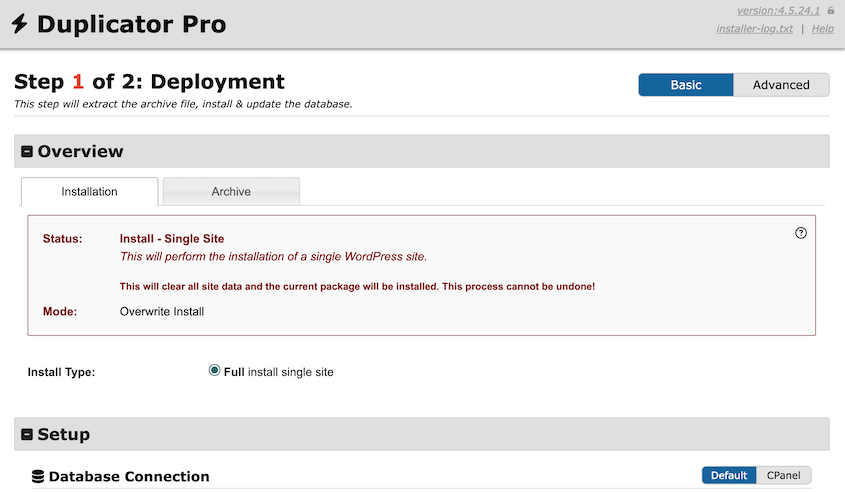
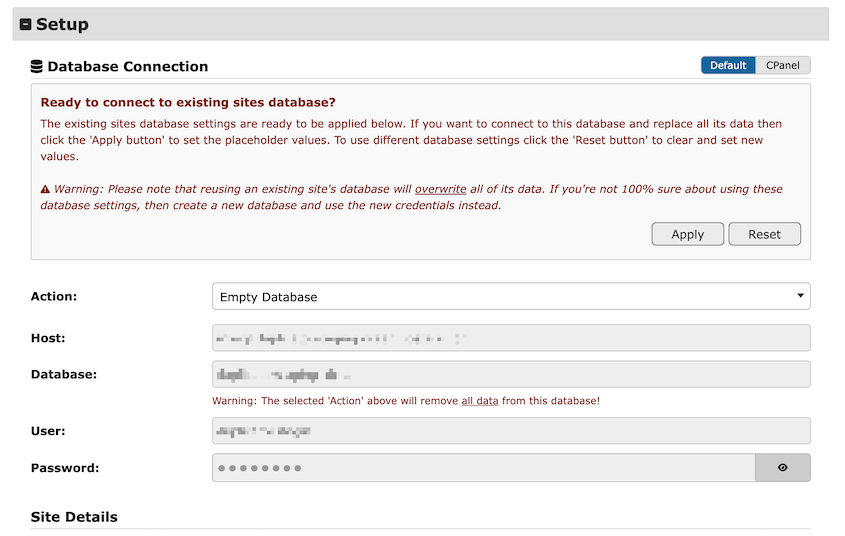
Under Setup, enter your staging database details (the ones you created in Step 4). In my case, Duplicator automatically detected them, so I just had to hit Apply.
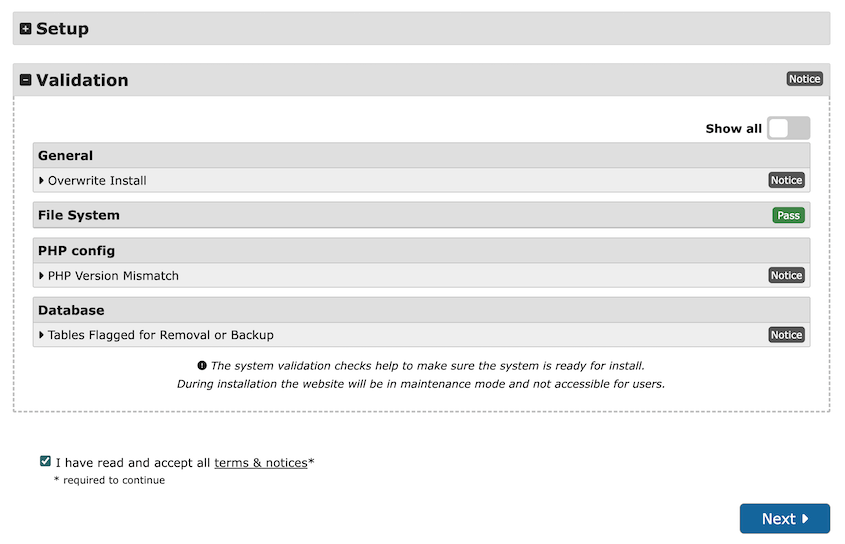
Scroll down and validate the installation. Review any notices, accept the terms and conditions, and continue.
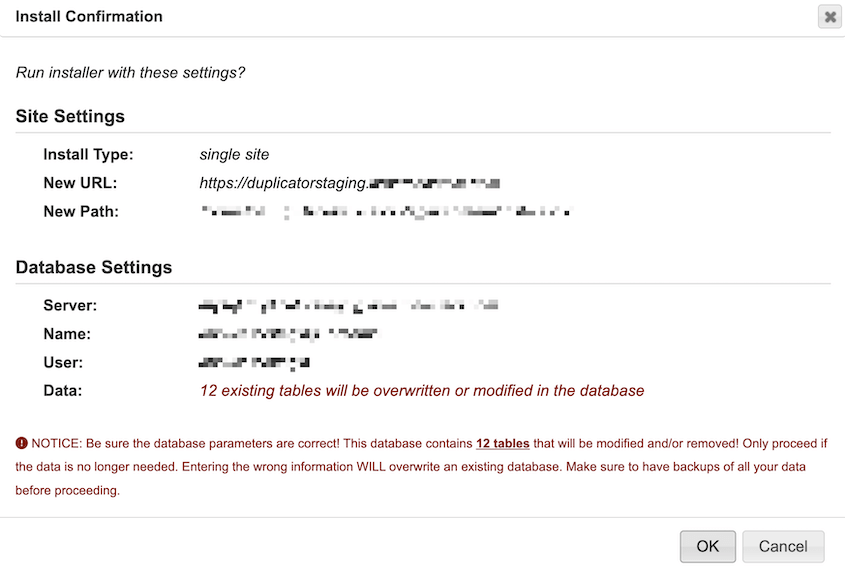
In the pop-up window, hit OK.
Wait while Duplicator extracts files and imports your database.
The installer automatically updates all your database URLs to match your new staging domain. This is what makes Duplicator so powerful—you don’t have to manually search and replace thousands of URL references.
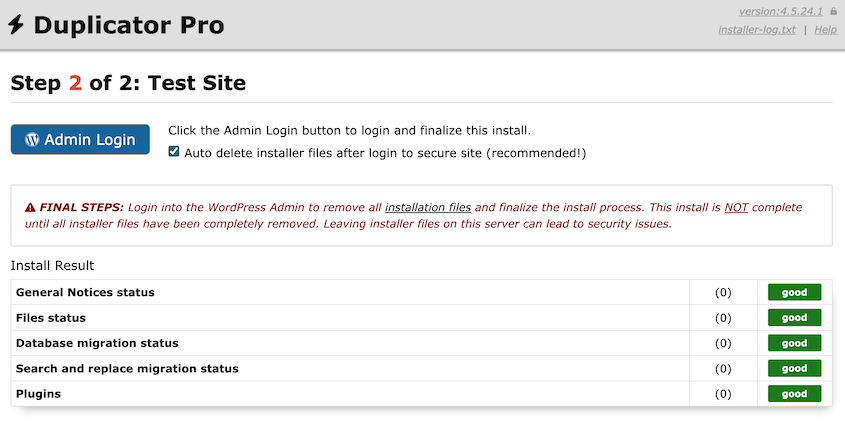
I recommend that you check the box to automatically delete the installer files. Use the Admin Login button to access your new staging site.
Step 5: Configure Your Staging Site Settings
After installation completes, you need to make a few adjustments so your staging site doesn’t interfere with your live site.
Log into your staging WordPress dashboard using the same credentials as your live site.
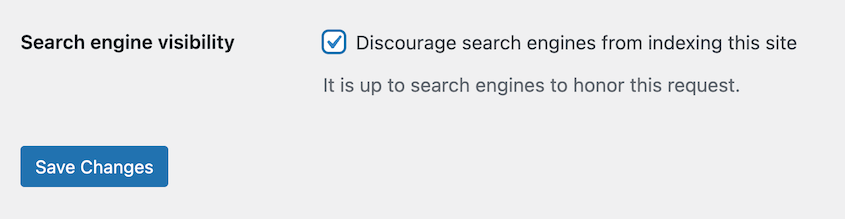
Go to Settings » Reading and check Discourage search engines from indexing this site. This prevents Google from indexing your staging content and creating duplicate content issues.
Install a plugin like WP Mail SMTP and configure it to stop sending emails, or use the Disable Emails plugin.
This prevents your staging site from accidentally sending notification emails to real customers.
If you run a WooCommerce store or accept payments, put your payment gateway into test mode or deactivate it entirely. You don’t want to process real transactions on staging.
Check plugins that connect to external services (analytics, CDNs, backup services). Disable or reconfigure them so they don’t send staging data to your production accounts.
These precautions keep your staging environment truly separate from production.
Step 6: Test Your Staging Site
Now verify that your staging site works correctly. Browse through a few pages and check that:
- Images load properly
- Internal links point to your staging URL, not your live site
- Forms display correctly (but remember, don’t submit them if they’re connected to real services)
- Your theme looks the same as on your live site
- Login and admin functionality works
Try making a small change—maybe edit a page title or add a test post. This confirms you can work on staging without affecting your live site.
If you notice broken images or links that still point to your live site, Search & Replace Everything can fix them.
Once everything looks good, you’re ready to start testing updates, plugins, and changes safely.
Frequently Asked Questions (FAQs)
How do I convert WordPress to a staging site for free?
You can use Duplicator Lite (free version) to set up a WordPress staging site. Install the plugin on your live site, create a backup, then manually upload it to your staging location. The free version requires migrations via FTP or file manager and doesn’t include scheduled backups or one-click push to production.
What’s the difference between a staging site and a development site?
A staging site is an exact copy of your production site used for testing changes before deploying them live. A development site is where you build new features or entirely new sites from scratch. Staging sites mirror production as closely as possible. Development sites often have incomplete features, test data, and experimental code.
Most businesses need both—development for building new functionality and staging for testing those changes against real site data before going live.
How long does it take to create a staging site?
With Duplicator Pro, creating a staging site takes under 5 minutes. You’ll create a backup and use that to instantly create a new staging site on your server. If you decide to install the backup on an off-site server, it may take about 30 minutes as you set up the subdomain and database, but future staging sites go much faster once you’re familiar with the steps.
How much does it cost to create a staging site?
If your hosting provider offers built-in staging tools (like WP Engine, Kinsta, or SiteGround), you can create staging sites for free as part of your hosting plan. If your host doesn’t provide staging tools, Duplicator Pro costs $69.30 per year and works with any hosting provider. This gives you unlimited staging sites, scheduled backups, and the ability to push changes from staging to production. Alternatively, Duplicator Lite is available for free on WordPress.org with manual setup required for each staging site.
Is creating a staging site hard?
Creating a staging site is easy with Duplicator Pro. You can create a backup of your live site and turn it into a staging site without touching code or command-line tools. The plugin handles the technical work like database exports, URL updates, and file transfers.
What are the risks of not using a staging site?
Testing changes directly on your live site risks breaking functionality for real visitors. You might trigger the white screen of death, cause plugin conflicts that prevent checkout, or accidentally delete content. Every minute your site displays errors, you lose visitor trust and potential revenue.
Security updates can sometimes conflict with your theme or plugins, and without staging, you won’t discover these problems until customers start complaining. Duplicator Pro prevents these risks by letting you catch issues before they reach production.
Can I have multiple staging sites?
Yes, you can create as many staging sites as you need. Many developers maintain separate staging sites for different purposes—one for testing plugin updates, one for theme development, and one for client previews. Each staging site requires its own subdomain or subfolder and database. With Duplicator Pro, there’s no limit to how many staging sites you can create and manage.
How do I push changes from staging to production?
Once you’ve tested changes on staging and everything works correctly, you have two options. For small changes (plugin settings, theme tweaks), manually replicate them on your live site following the same steps you used on staging. For major changes (new plugins, theme updates, content changes), use Duplicator Pro to create a backup of your staging site and deploy it to production, replacing your live site with the tested version. However, I don’t recommend overwriting your live database.
Should I password-protect my staging site?
Yes, you should password-protect your staging site to prevent unauthorized access and accidental indexing by search engines. Most hosting control panels offer built-in password protection for directories. You can also use WordPress plugins like Password Protected or hide your staging site behind HTTP basic authentication. This keeps your in-progress work private and prevents visitors from finding your staging site through Google or direct URL access.
How often should I refresh my staging site?
Refresh your staging site every 1-2 weeks or whenever you make significant changes to your live site. This keeps staging synchronized with production so your tests reflect real-world conditions. If you rarely update your live site, monthly refreshes work fine. For e-commerce sites or high-traffic blogs with frequent content changes, weekly refreshes help catch integration issues. Use Duplicator Pro’s scheduled backups to automate the refresh process.
Can I use my live site’s same domain for staging?
No, your staging site needs its own URL separate from your live domain. Use a subdomain like staging.yoursite.com, a subfolder like yoursite.com/staging, or a completely different domain. Running both sites on the same URL would overwrite your live site with your staging content. The separate URL also helps prevent confusion about which version you’re working on and makes it easy to share staging links with team members.
Don’t Risk Your Live Site
Your website deserves a safe testing environment. Every plugin update, theme change, and code modification carries risk when applied directly to production.
By creating a staging site, you’re investing in your website’s stability and your peace of mind. You get the freedom to experiment and innovate without the fear of breaking something important.
Whether you’re dealing with plugin compatibility issues, testing major WordPress updates, or experimenting with design changes, a proper staging workflow protects your business from costly downtime. Your website’s success depends on making smart changes confidently—not gambling with your live site.
Ready to test changes safely without risking your live site? Upgrade to Duplicator Pro to create unlimited staging environments in minutes!
While you’re here, I think you’ll like these related WordPress guides:
- How to Clone a WordPress Site
- How to Move a WordPress Website to a New Host
- Untested Backups = Useless Backups: My Real Backup Testing Routine
- Code Smarter, Not Harder: WordPress Developer Tools For Every Pro
- How to Move a Local WordPress Site to a Live Server
- 9 Best WordPress Staging Plugins (+ Our Expert Reviews)




