


How to Migrate from Squarespace to WordPress
 Joella Dunn
Joella Dunn
Joella Dunn
 John Turner
John Turner
John Turner
You chose Squarespace because it promised simplicity. And for a while, it delivered.
But now you’re hitting walls.
Many website owners move off Squarespace because of SEO limitations, high e-commerce pricing, and limited customization.
WordPress keeps coming up in your research, and it should.
WordPress is the platform serious businesses migrate to when they outgrow hosted site builders. It’s open-source, which means you own your site completely. It’s also flexible enough to handle everything from simple blogs to complex e-commerce stores to membership sites.
Even once you’re ready to move to WordPress, you might worry about the transition. What’s the best way to avoid losing data or audience members?
In this post, I’ll explain how to migrate from Squarespace to WordPress. By the end, you’ll have your content on WordPress and a clear path to recreating (or improving) what you had on Squarespace.
Here are the key takeaways:
- WordPress gives you true ownership of your site, while Squarespace keeps you renting space with fixed rules and pricing.
- Migration costs less long-term. WordPress hosting starts at $3-10/month versus Squarespace’s feature-locked tiers that can reach $99/month.
- The migration process takes 5 steps: set up WordPress hosting, export your Squarespace XML file, import content to WordPress, manually transfer images, and rebuild your design.
- You’ll need to manually recreate certain elements like e-commerce stores, custom forms, and design layouts since Squarespace templates don’t export.
- Always create backups before and after migration. Imports fail more often than you’d think, and having a restore point saves hours of cleanup.
Table of Contents
Why Migrate from Squarespace to WordPress?
If you’re reading this, you already know Squarespace isn’t working for you anymore. But you might still be wondering what makes WordPress worth the migration effort.
WordPress is the world’s most popular content management system (CMS). It’s open-source software that you install on your own web hosting.
Unlike Squarespace, which is an all-in-one platform where everything is managed for you, WordPress separates the software from the hosting. You choose where your site lives, what features it has, and how it grows.
That separation is exactly why people migrate. It’s the difference between renting an apartment with fixed rules and owning a house you can renovate however you want.
Here’s what moving from Squarespace to WordPress actually means for your site.
Renting vs. Owning
On Squarespace, you’re renting space in someone else’s building. They control the rules. They decide what features you get access to. They can change pricing whenever they want.
WordPress is different. You own the software and control where it lives. If you don’t like your hosting provider, you move. If you need a feature that doesn’t exist, you build it or hire someone to build it.
More Flexibility
Squarespace has an app marketplace, but it’s smaller than WordPress’s plugin directory. WordPress has over 60,000 plugins to extend your site, and many of them are free.
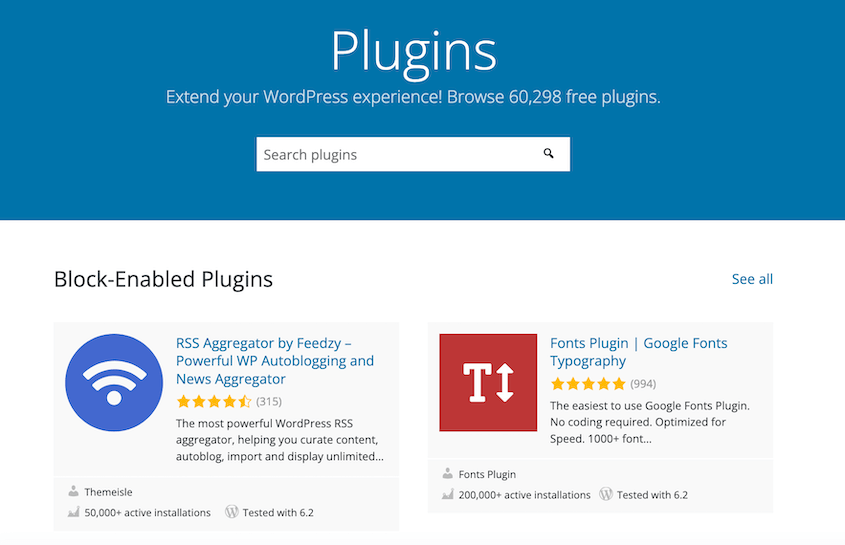
Need to add custom code snippets without editing theme files? There’s WPCode. Want automated backups to Google Drive? Duplicator handles it.
You simply search for what you need and install it. Since WordPress is older with many more users, someone has likely already built the tool or theme you want to use on your site.
Lower Costs
Squarespace looks affordable at $16/month for a basic site. But the second you need features like analytics, custom code, or extra website contributors, costs go up.
WordPress hosting starts around $3-10/month for basic shared hosting. Your costs grow based on traffic and the premium tools you choose, not arbitrary feature tiers.
A busy WordPress site with WooCommerce and a handful of premium plugins might cost you $30-50/month total. That same site on Squarespace could be locked into their $99/month tier, with no room to optimize costs.
SEO Control
Most technical SEO experts don’t use Squarespace, and there’s a reason for that.
WordPress gives you complete control over schema markup, URL structures, canonical tags, and site architecture. You can optimize for Core Web Vitals. You can control exactly how search engines crawl your site.
Squarespace only gives you basic SEO fields.
How to Migrate a Site from Squarespace to WordPress
Here’s a quick overview of how to move from Squarespace to WordPress:
- Step 1: Set up WordPress hosting and create a backup before importing anything.
- Step 2: Export your Squarespace content as a WordPress XML file from the Import & Export settings.
- Step 3: Import the XML file into WordPress using the built-in WordPress Importer tool.
- Step 4: Transfer images from Squarespace servers to your WordPress media library using the Auto Upload Images plugin or manually.
- Step 5: Rebuild your site design with a theme and page builder like SeedProd, then recreate features like stores, forms, and custom code.
Step 1: Set Up Your WordPress Site
To get started with WordPress, you need a web hosting provider.
Bluehost is a solid starting point for most people. Basic WordPress hosting starts around $2.99/month, and they include a free domain for the first year. That matters if you’re also moving your domain away from Squarespace.

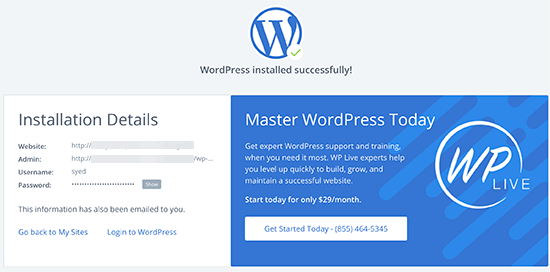
Once you’ve signed up, look for the Install WordPress option in your hosting dashboard. Most hosts now offer one-click installs.
You’ll get login credentials for your new WordPress admin panel. Log in.
Here’s the move most people skip: Install the Duplicator plugin right now and create a backup of this blank site.
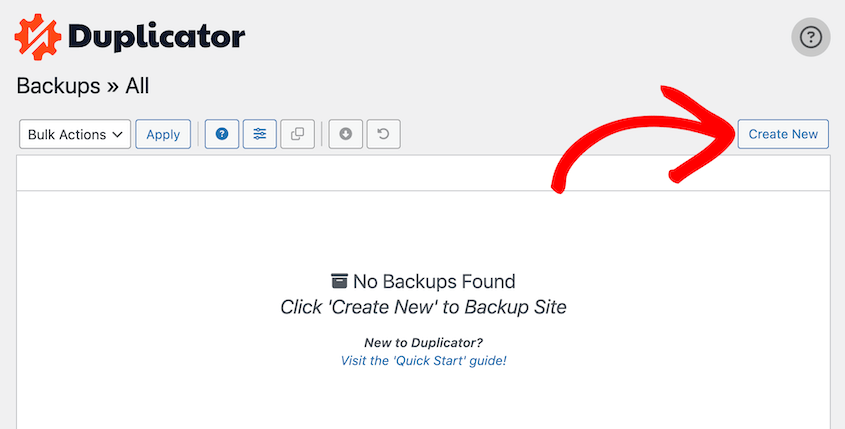
Why? Because imports fail more often than you’d think. Content gets duplicated. Formatting breaks. Media doesn’t transfer correctly.
If you have a backup of the blank site, you can restore it in 60 seconds and try again.
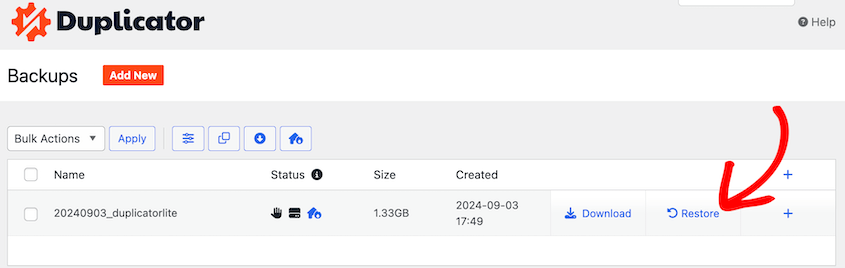
Without it, you’re manually deleting dozens of half-imported posts and pages.
Step 2: Export Your Squarespace Site
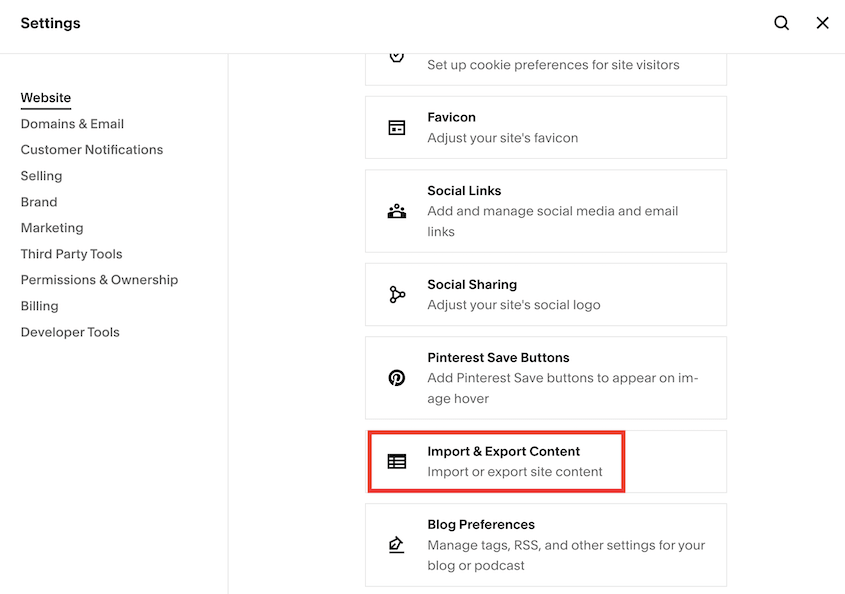
Log into your Squarespace dashboard and open the settings gear icon in the bottom left corner. Click on Import & Export Content.
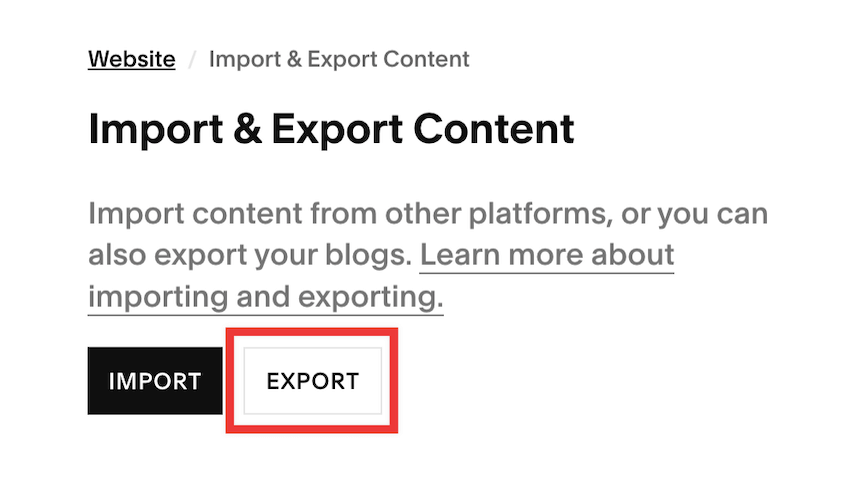
Then, hit Export.
In the pop-up window, select WordPress.
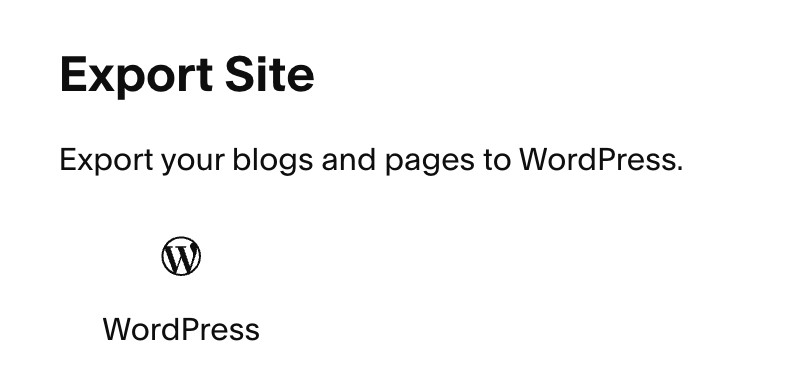
Select your website and download it.
Squarespace will generate an XML file. This contains your blog posts, pages, and basic metadata like publish dates and categories.
Step 3: Import Your Squarespace Data into WordPress
In your WordPress dashboard, go to Tools » Import.
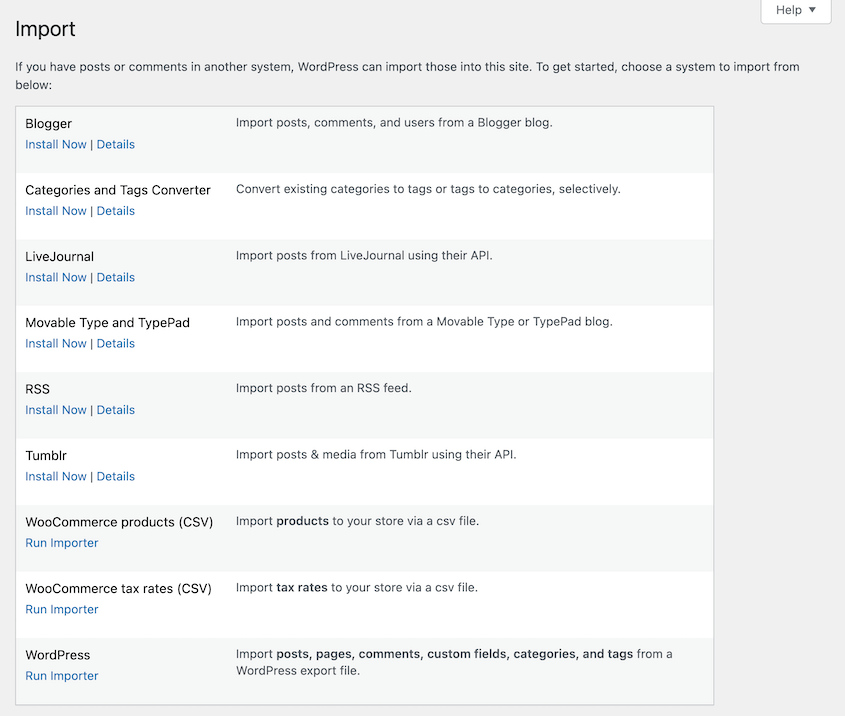
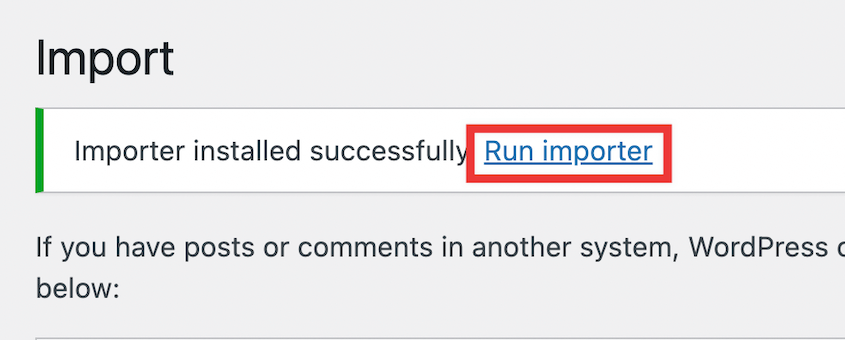
Find the WordPress option in the list and hit Install Now. Once it installs, click Run Importer.
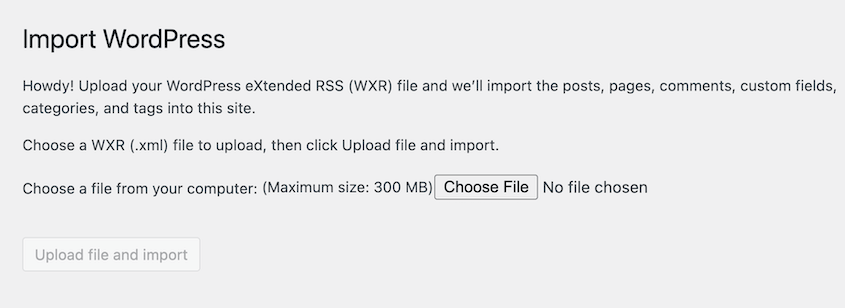
You’ll see a file upload field. Select the XML file you just downloaded from Squarespace.
Click Upload file and import.
WordPress will ask you to assign imported content to a user. Choose your primary user account and check the box to download attachments.
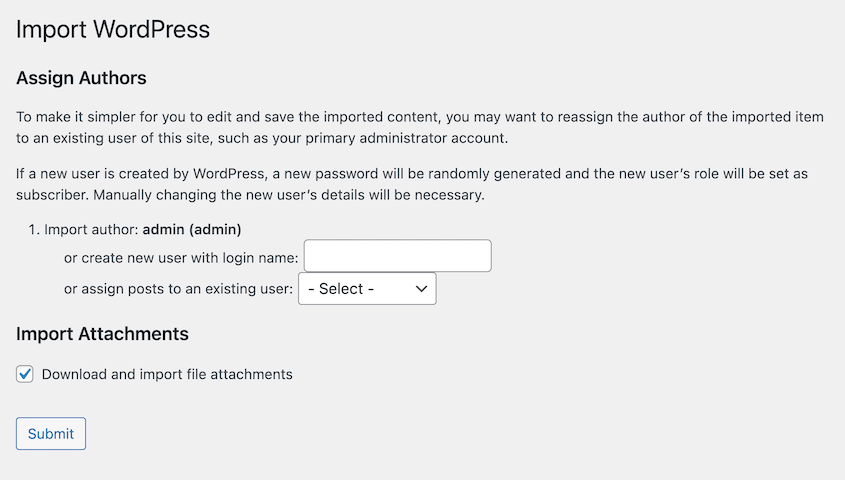
Click Submit and let WordPress process the import.
Step 4: Upload Squarespace Images
The XML file imports image references—the links to where images are stored. But those images are still physically hosted on Squarespace’s servers.
As long as you keep paying for Squarespace, the images display fine. The second you cancel, every image on your WordPress site breaks.
As a solution, many people use the Auto Upload Images plugin. This crawls your imported content, finds external image URLs, downloads those images, uploads them to your WordPress media library, and updates the links automatically.
It works for most people. But test it on a single post first. Open one of your imported posts, run the plugin, and verify the images actually moved.
If it fails or causes errors, you’ll need to manually save and re-upload images for your most important pages. Tedious, but sometimes necessary.
Step 5: Address Formatting or Import Issues
You’ve imported raw content into a default WordPress theme with no styling. Now you need to redesign your website.
To do the job properly, I recommend SeedProd. This plugin can design your entire theme with easy pre-made templates and drag-and-drop editing.

Install it, pick a template that’s close to your old Squarespace design, and start rebuilding your pages visually.
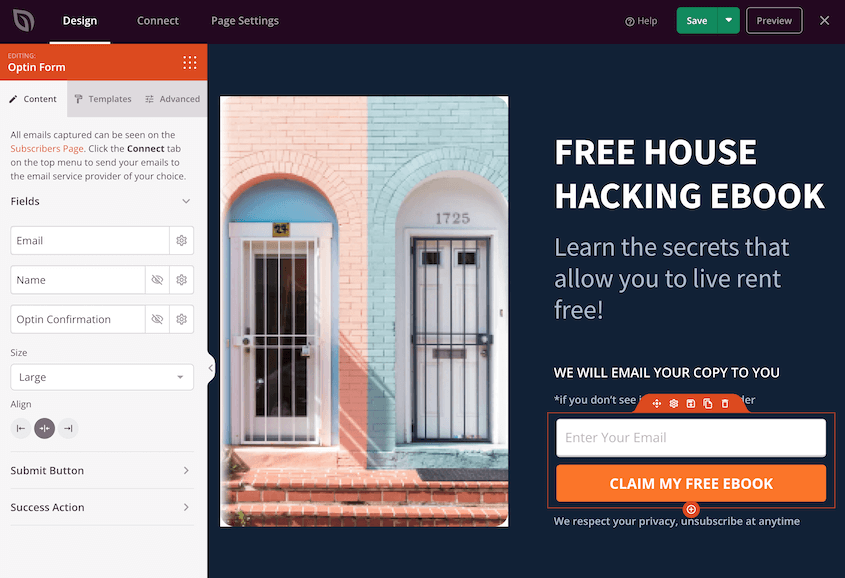
You’re not starting from scratch. Your content is already there. You’re just wrapping it in a new layout.
What about missing features?
If you had a Squarespace store, install Easy Digital Downloads or WooCommerce. You’ll need to manually recreate your products.
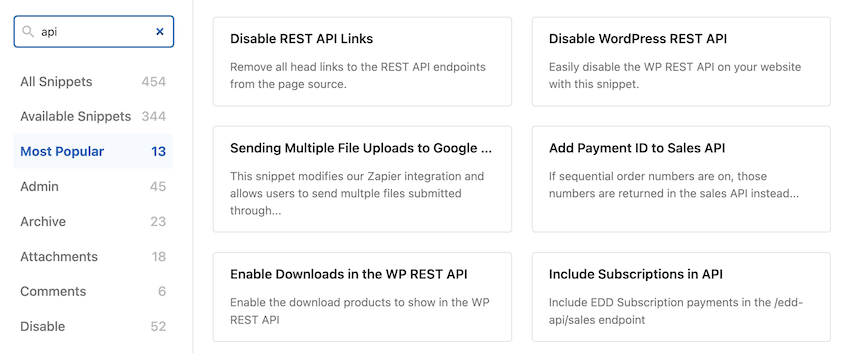
If you had custom code snippets, tracking pixels, or scripts in Squarespace’s Code Injection, install WPCode. It gives you a cleaner way to add those snippets back without editing theme files directly.
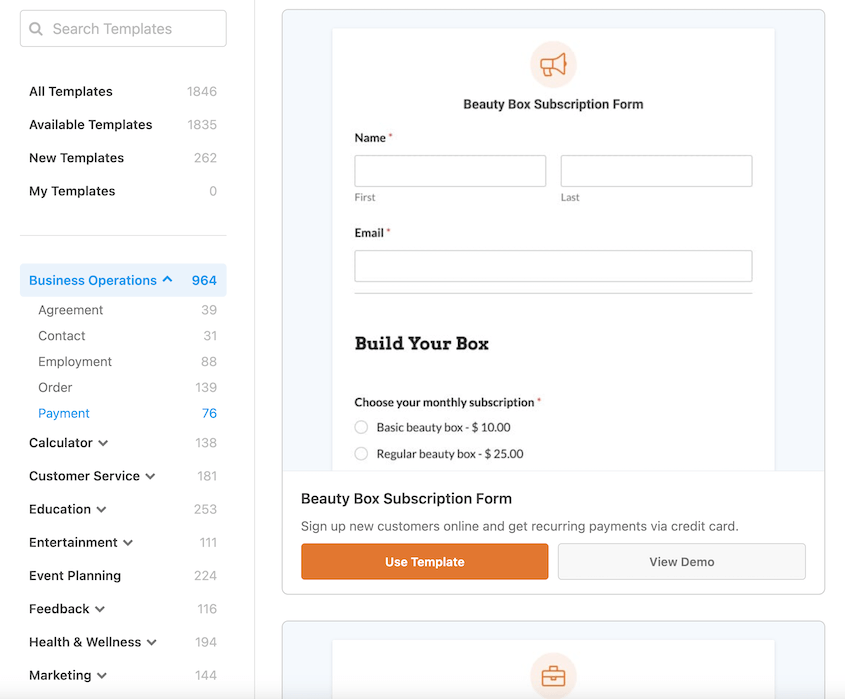
If you had custom forms, install WPForms and rebuild them.
Migration isn’t about perfect automation. It’s about getting your content moved then systematically rebuilding the features you actually used.
Frequently Asked Questions (FAQs)
Is WordPress free?
The core WordPress software is free. You can download it, modify it, and use it however you want. But you still pay for hosting (where your site lives), your domain name, and any premium themes or plugins you choose to use.
Is WordPress hard to learn?
It has a steeper learning curve than Squarespace. But once you understand the difference between posts and pages and how themes control design while plugins add functionality, it becomes intuitive. Most people feel comfortable within a week or two of regular use.
How do I transfer my domain name from Squarespace?
Log into Squarespace and unlock your domain in the domain settings. Request an EPP authorization code (also called a transfer code). Give that code to your new hosting provider or domain registrar. They’ll initiate the transfer, which typically takes 5-7 days to complete.
Can I export my Squarespace template to WordPress?
No, Squarespace templates don’t export. You’ll need to pick a new WordPress theme or use a page builder like SeedProd to recreate your old design manually. Consider this an opportunity to improve your layout rather than a limitation.
Will I lose my SEO rankings when moving from Squarespace to WordPress?
You might see a temporary dip while Google re-crawls your site. Minimize this by setting up 301 redirects from your old Squarespace URLs to your new WordPress URLs. Install a redirect plugin, map your old URLs to new ones, and most of your SEO authority transfers cleanly.
Take Control of Your Content with WordPress
Migration is a one-time pain for long-term ownership.
You’ve moved your content and rebuilt your design. You’ve reclaimed control over your site’s future.
But ownership also means responsibility. You’re no longer relying on Squarespace’s infrastructure to keep your data safe.
Install Duplicator Pro and set up automated, scheduled backups to cloud storage like Duplicator Cloud. Your site backs itself up without you thinking about it.
Because the worst time to wish you had backups is after something breaks.
While you’re here, I think you’ll like these related WordPress guides:
- 11 WordPress Maintenance Tasks You Won’t Want to Forget
- How to Redesign a WordPress Site (Without Downtime)
- How Many WordPress Plugins Are Too Many?
- How to Create a WordPress Staging Site
- Proven WooCommerce SEO Strategies to Skyrocket Your Store’s Rankings




